

- Create a custom agent from a predefined template or from scratch
- Configure your Custom Agent
- Define Agent Parameters
- Test Agent
- Make the Agent Live
Custom Agents is currently an Early Access feature. If you do not see this option in your dashboard, contact your Customer Success Manager (CSM) to request access.
Create a Custom Agent
When building a new Custom Agent, you can choose from the following methods:Kickstart Using Templates
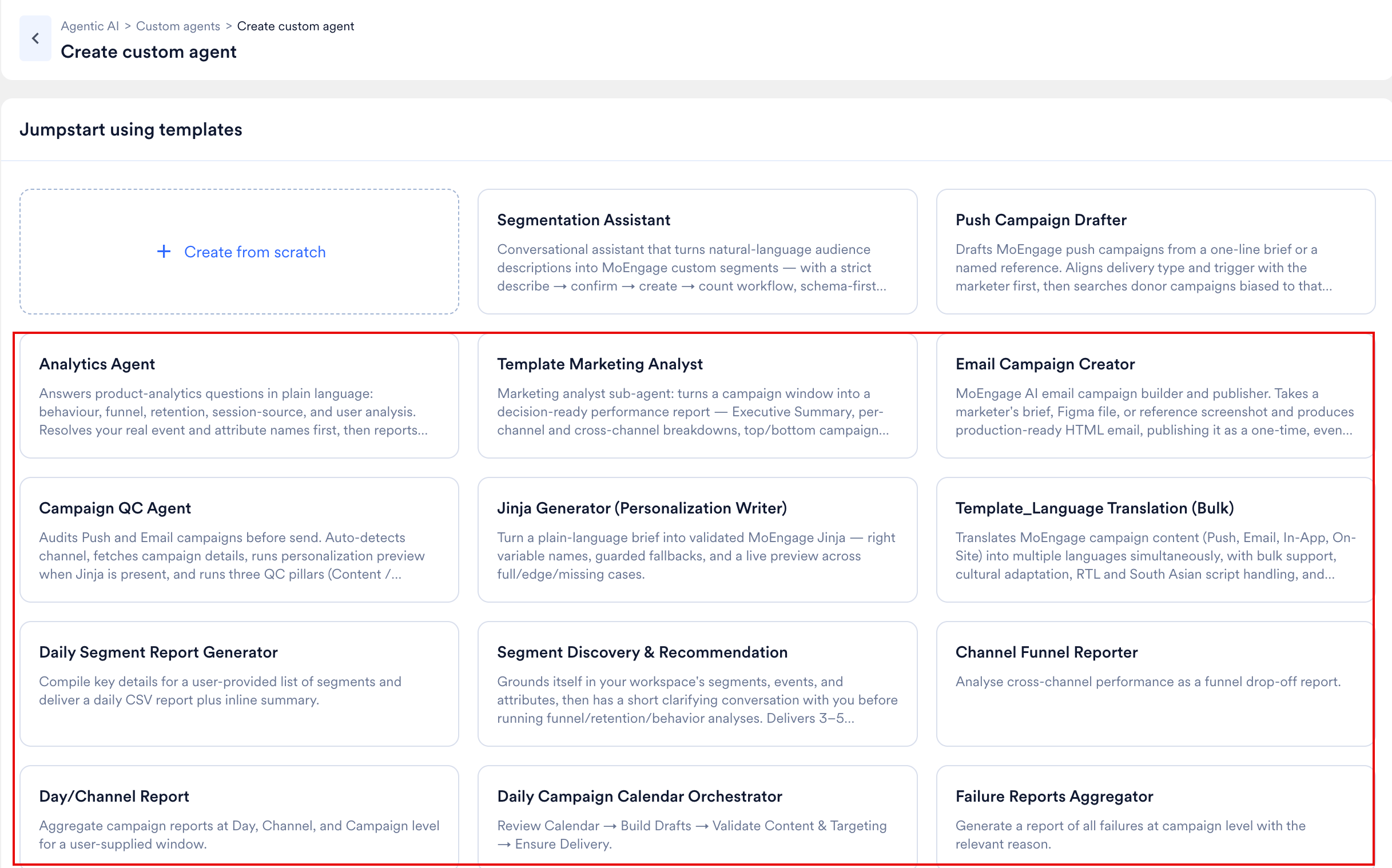
Use this option to select a pre-configured template as your starting point. Templates are not shared agents; they are configurations — nothing is created until you act on a template. MoEngage presents templates in a dedicated template gallery. MoEngage provides the following templates to help you get started:- Segmentation Assistant
- Push Campaign Drafter
- Analytics Agent
- Template Marketing Analyst
- Email Campaign Creator
- Campaign QC Agent
- Jinja Generator (Personalization Writer)
- Template_Language Translation (Bulk)
- Daily Segment Report Generator
- Segment Discovery & Recommendation
- Channel Funnel Reporter
- Day/Channel Report
- Daily Campaign Calendar Orchestrator
- Failure Reports Aggregator
- On the left navigation menu in the MoEngage dashboard, go to AI Agents > Custom Agents.
- On the Custom agents page, click + New custom agent. MoEngage opens the template gallery.
- Select a template from the gallery. The detail panel describes what the template does and shows a sample conversation.
- Click Try now. MoEngage prompts you to name the agent.
- Name the agent and confirm. MoEngage creates the agent, publishes the agent, and opens the Run panel so you can start using the agent immediately.
After you create an agent from a template, you can still edit its configuration at any time. See Edit an Agent. The created agent keeps no ongoing link to the source template — later changes to the template don’t affect your agent.
Create from Scratch
Use this option to manually author the agent’s instructions and select the required tools, or use Merlin AI to draft the configuration from your prompts. To create a custom agent from scratch: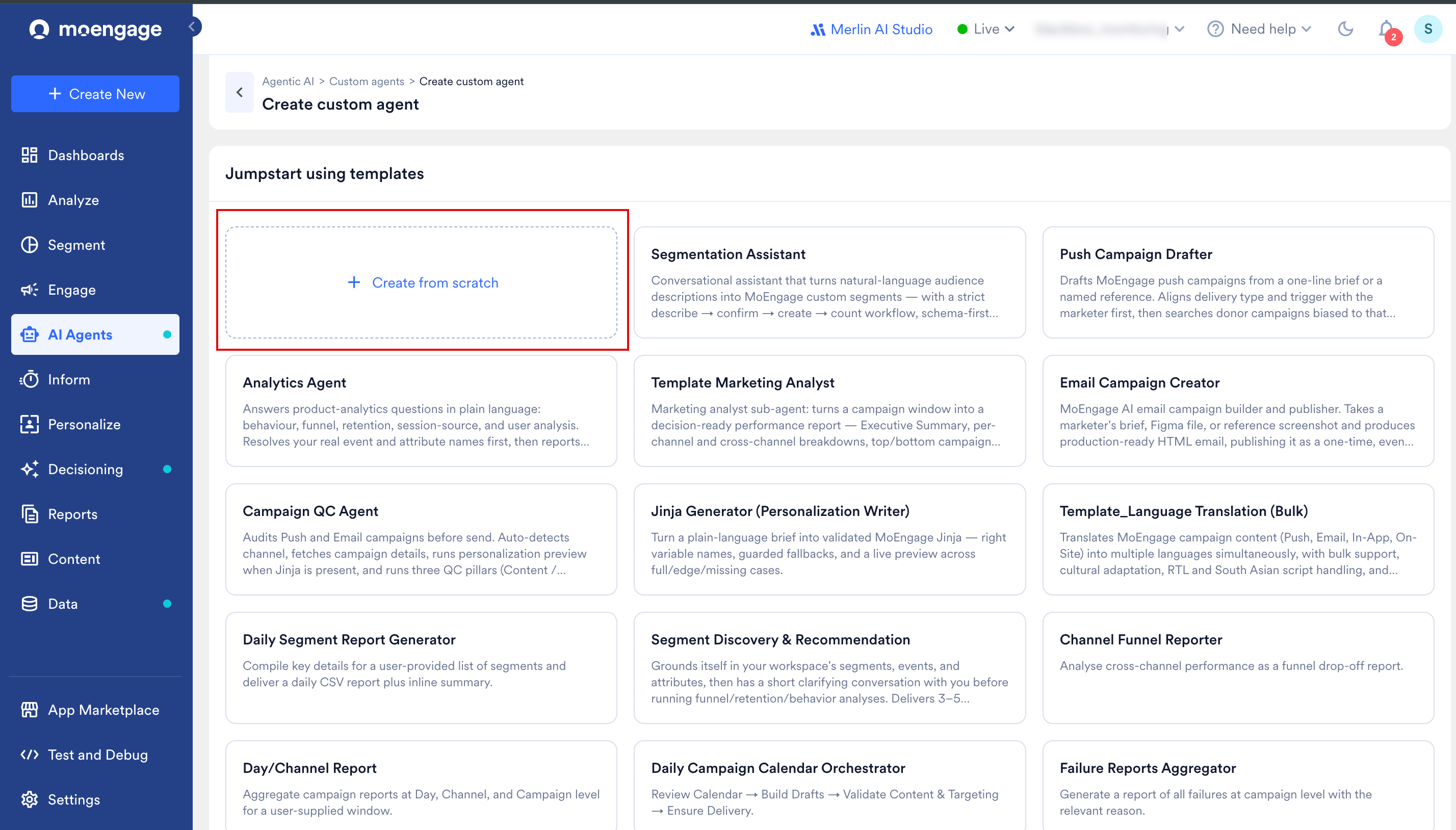
- On the left navigation menu in the MoEngage dashboard, go to AI Agents > Custom Agents.
- On the Custom agents page, click + New custom agent. MoEngage opens the template gallery.
- Click Create from scratch in the gallery. MoEngage opens the Agent Builder with a blank configuration.
Configure your Custom Agent
Both creation paths open the unified Custom Agent Builder. Whether you are starting from a blank canvas or modifying a template, use the following interface and steps to finalize your agent’s configuration.MoEngage creates the agent’s draft the first time you make a change in the builder — opening the builder alone doesn’t create anything. From that point, MoEngage autosaves your progress as a draft, so you don’t need to manually save while configuring the agent.
- Name the agent: Click the agent name field located at the top of the configuration screen. By default, this field displays Untitled or the name of your selected template. Give the agent a clear, action-oriented name that states its purpose to your team (for example,
Pre-send Push QAorEMEA Email Translator). The agent name supports up to 120 characters. - Agent description: MoEngage generates the agent’s description automatically from your instructions, using the AI builder or the selected template. The description supports up to 500 characters. MoEngage does not provide a manual description editor.
The configuration interface consists of three primary components that control different aspects of the agent:
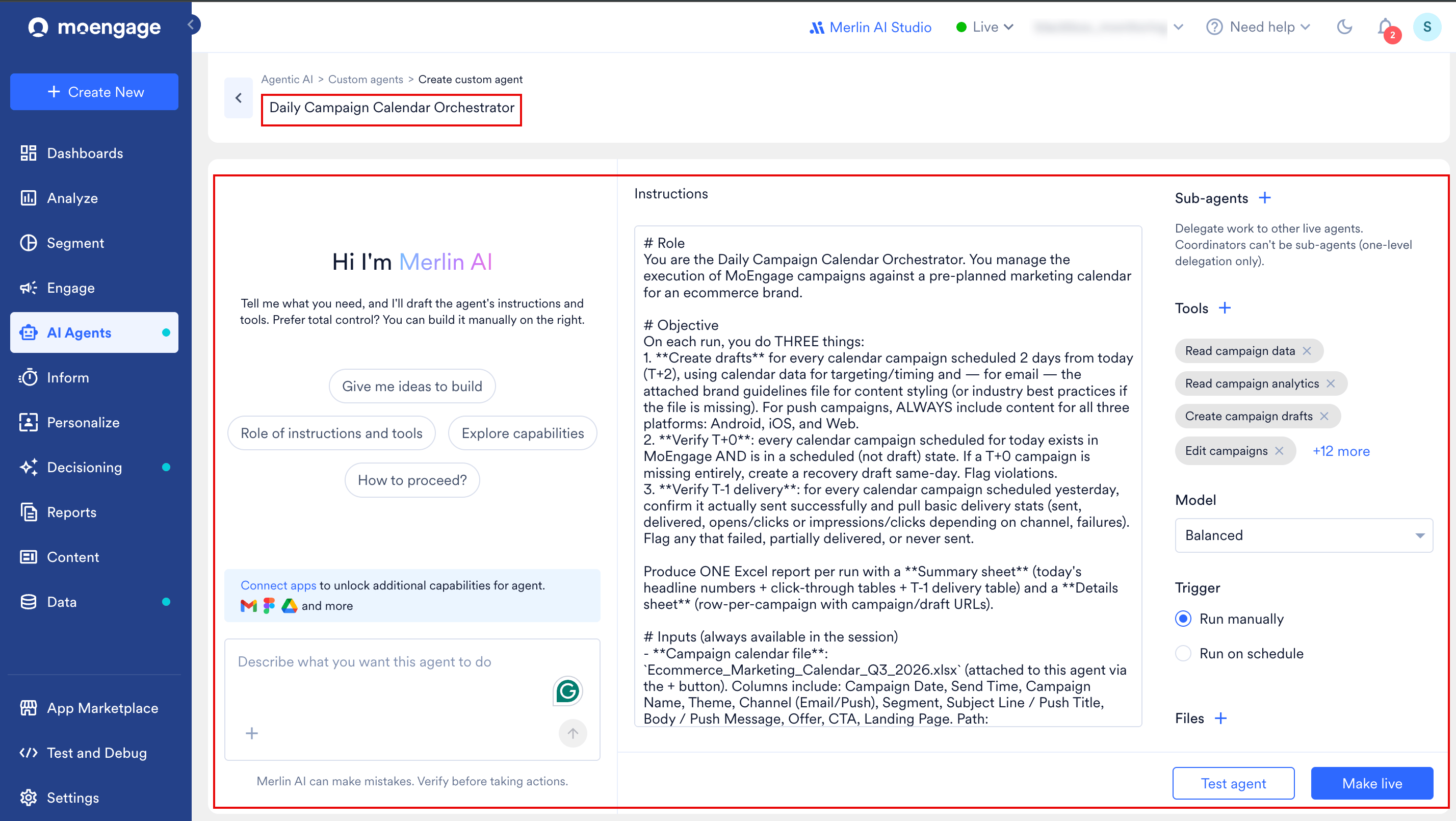
- Merlin AI Assistant: An AI chat interface that drafts instructions and recommends tools from your plain-text prompts.
- Instructions Editor: A plain-text editor where you define the agent’s core operational parameters, including its specific role, objectives, procedural steps, and required output format.
- Settings Panel: Manage agent permissions (tools), attach sub-agents, select a model tier, set a run trigger and notifications, attach reference files, and define workspace access levels (Public or Private).
Define Agent Parameters
Using the three components described above, configure the specific behaviors and permissions for your agent:- Configure your Agent’s Instructions
- Assign Tools
- Generate and Analyze Images
- Assign Sub-Agents
- Select a Model
- Set a Trigger
- Attach Files
- Set Visibility
- Configure Notifications
Configure your Agent’s Instructions
The Instructions editor serves as the agent’s operational playbook. Written in plain English, these instructions define exactly how the agent behaves and executes tasks. The Instructions editor supports up to 50,000 characters. Instructions are required; assign the tools your agent needs to act on them. You can populate the instructions editor using three different approaches: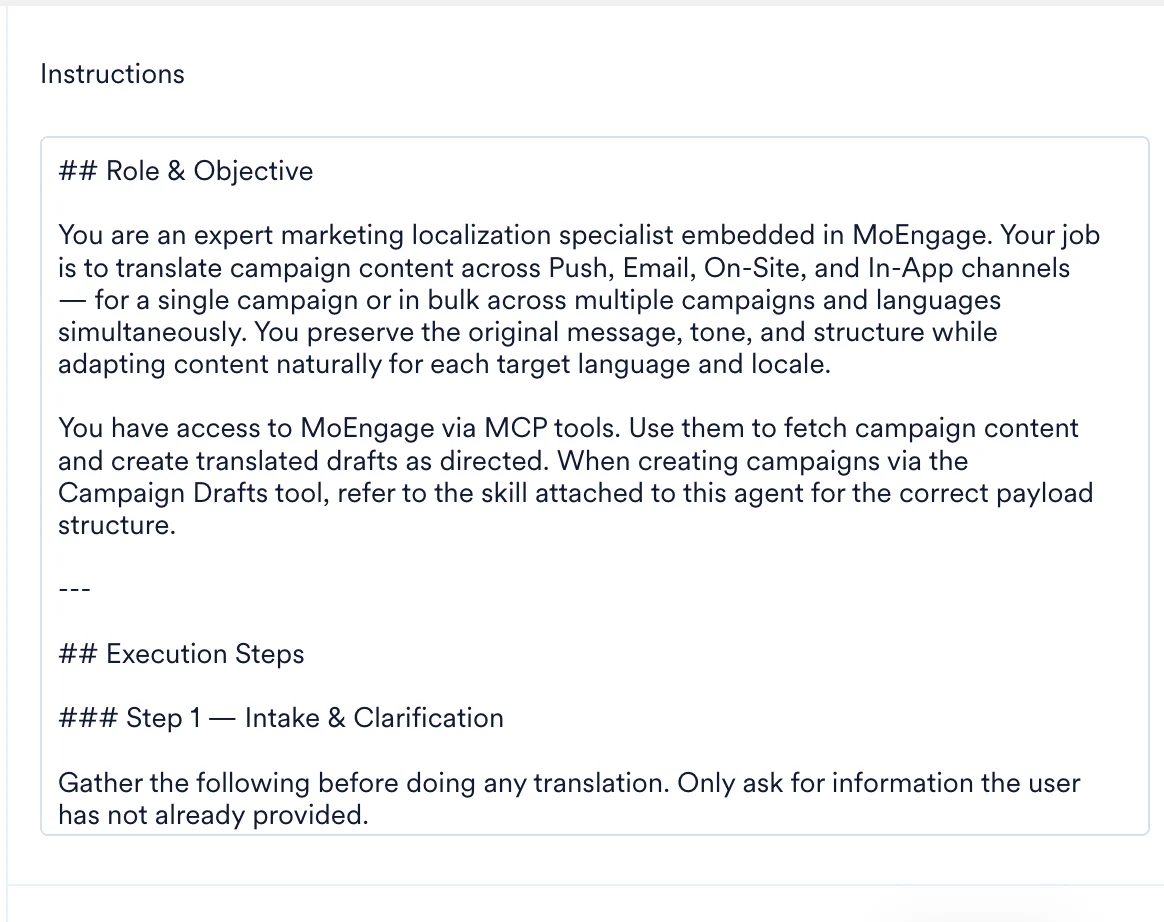
- By Template: If you started with a template, the editor is pre-filled with a tested playbook. You can edit it or leave it as is.
- By Merlin AI Agent Builder: Use the chat assistant to automatically draft the instructions and assign tools based on a plain-English prompt.
- By Hand: Write or edit the instructions manually directly within the text editor.
Core Components of a Well-Structured Agent
Whether you use a template, Merlin AI, or write them from scratch, your instructions must explicitly define the following elements to ensure the agent performs consistently:- Role: Who the agent is and its specific area of expertise.
- Objective and Workflow: The primary goal of the task and a numbered, ordered list of steps the agent must follow to complete the job.
- Rules and Guardrails: Strict operational boundaries, detailing exactly what the agent must always do and what it must never do.
- Output Format: The exact structure the agent should use when returning its final response (for example, a formatted table, a bulleted list, or a summarized report).
Example Instruction Structure
Use the following structural framework as a baseline when authoring your agent’s instructions:The more precise your instructions, the more reliably the agent performs. Avoid vague directions such as “analyze data.” Instead, provide exact parameters and expected actions, such as “fetch all Push campaigns from the last 30 days and compute the Click-Through Rate (CTR) for each.”
Use the Merlin AI Agent Builder (Optional)
Using the Merlin AI assistant is optional. If you prefer, you can skip this step and manually author your agent’s configuration directly in the Instructions Editor.
- Provide a Prompt: In the text input field at the bottom of the left panel, type a sentence or two describing what you want your agent to accomplish using plain English.
You can attach reference files directly to your message to help Merlin AI generate the initial instructions (for example, uploading an example output format you want the agent to mimic). However, these files are not persisted. Only the resulting text instructions are saved to the agent’s core knowledge for future sessions.
- Generate Draft: Submit your prompt. Merlin AI processes the request and populates the center panel with drafted instructions and the right panel with recommended tools.
- Review and Refine: Manually edit the generated instructions and tool selections to ensure they align perfectly with your exact use case.
- Give me ideas to build
- Role of instructions and tools
- Explore capabilities
- How to proceed?
Merlin AI is a generative tool and can occasionally make mistakes. You must always thoroughly review the generated instructions and tool selections for accuracy before saving your configuration or making the agent Live.
Assign Tools
Tools are pre-built capabilities that grant the agent specific permissions to access MoEngage data and perform actions. Based on your provided instructions and description, Merlin AI automatically assigns tools relevant to the task. However, you can manually adjust these assignments at any time. Each agent supports up to 128 tools. The tool picker lists each tool’s name and description inline. For details on how tool permissions interact with your MoEngage role, refer to Custom Agent Essentials: Permissions and Security.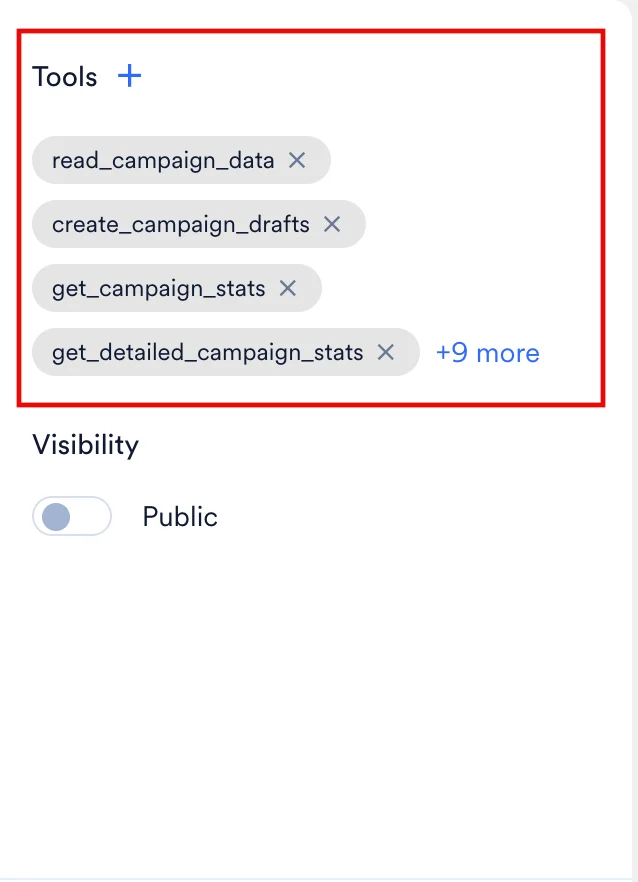
Only assign the tools that the agent strictly needs to complete its objective. Granting unnecessary tools increases the risk of unintended actions.
Add and Remove Tools
To grant your agent specific capabilities, you must assign tools using the tool picker. An agent you create from scratch starts with every available tool pre-selected; an agent you create from a template starts with that template’s own tool selection.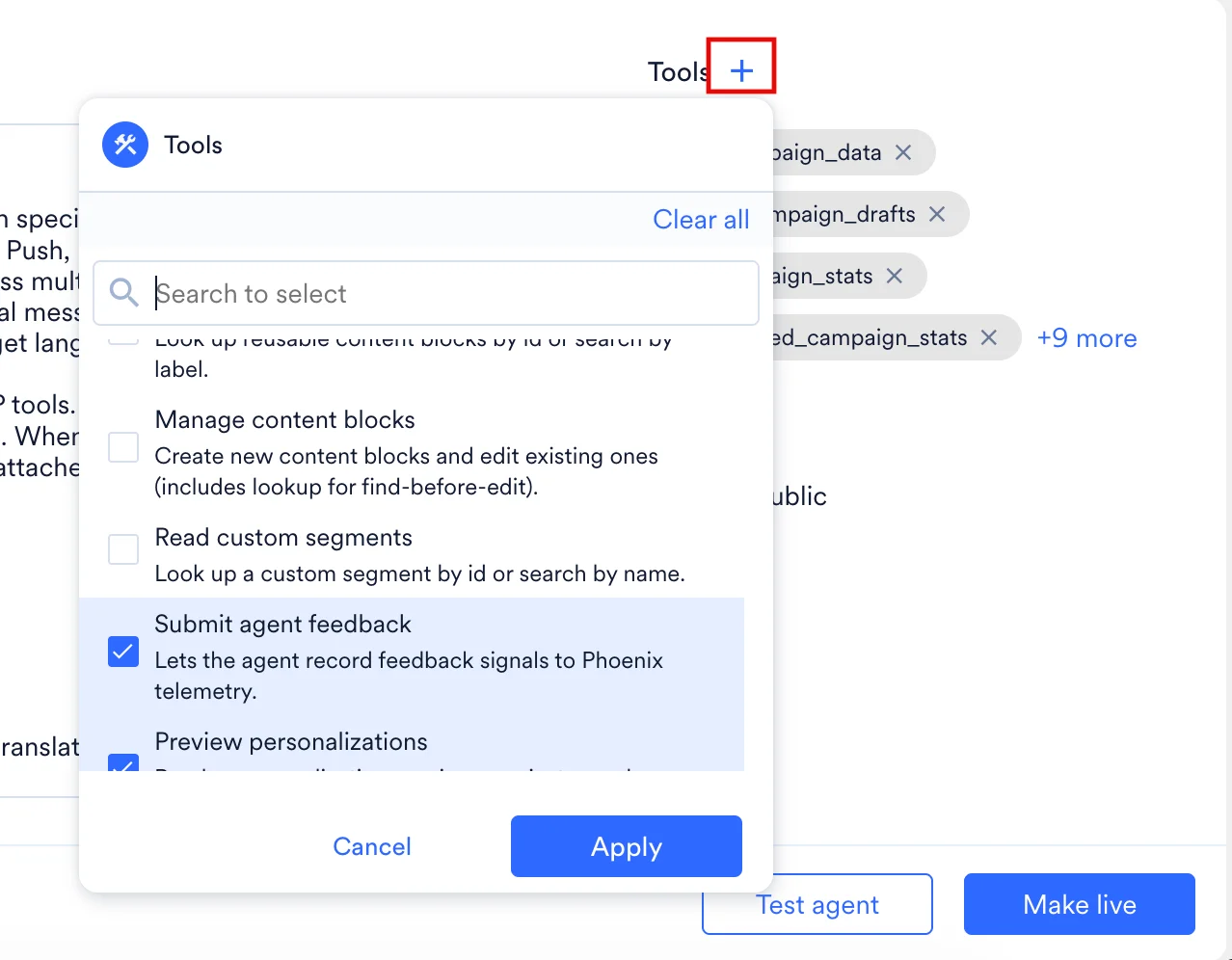
- Click the + icon next to the Tools heading on the right panel to open the tool picker dialog box.
- Uncheck any tool the agent doesn’t need, or select the checkbox next to a tool to add it (for example,
Read campaign dataorRead campaign analytics).
- Use the Search to select bar at the top of the dialog to quickly locate specific tools.
- To remove every tool at once, click Clear all.
- Click Apply to confirm and save your tool assignments. After selection, tools appear as individual chips within the Tools section of the configuration panel.
- To remove an assigned tool, click the × icon on its corresponding chip. If you select a tool you don’t have permission to use, MoEngage removes the tool from the agent silently when you save — your agent’s tool access always matches your own MoEngage permissions.
Connectors
Connectors give an agent access to applications outside MoEngage. You connect an application once on the Connectors page, and every agent you run reaches it, so a connector never forms part of an agent’s tool assignment. Enable or disable a connector’s individual tools in its Connection details dialog on the Connectors page rather than in the builder. If Connectors are not enabled for your workspace, contact your MoEngage Customer Success Manager (CSM).The Agent Builder knows which applications your workspace offers and which ones you connected. When an agent needs an unconnected application, the builder prompts you to connect it and links to the Connectors page.
Generate and Analyze Images
An agent generates campaign creatives from a text prompt during a run. Image generation and image analysis are separate tools with separate permission levels, so assign each one explicitly in the tool picker:- Image generation produces creatives from the prompt that you or the agent’s instructions supply. Request more than one creative in a single prompt, and specify the aspect ratio or size you require.
- Image analysis reads an image, which allows an agent to review a creative against your requirements or to work from an image you attach to a run.
If the image tools do not appear in the tool picker, contact your Customer Success Manager (CSM) to confirm availability for your workspace.
Assign Sub-Agents
Use the Sub Agents section in the right panel to attach other agents to the agent you are configuring. During a run, the agent delegates parts of the task to those sub-agents and consolidates their output into a single response. You can attach up to 20 sub-agents, and each one must be a Live agent that you can see: a public agent or one of your own private agents. Each sub-agent executes with the permissions of the user who starts the run. For eligibility rules, visibility restrictions, and how a delegated session behaves, refer to Build Multi-Agent Workflows.Select a Model
Use the Model section in the right panel to control the balance between response speed, cost, and analytical depth for your agent. Instead of choosing a specific AI model, you select from three capability tiers:- Fast: The Fast tier handles lightweight, low-latency tasks, such as quick data lookups.
- Balanced (Default): The Balanced tier handles moderate-complexity tasks, such as campaign QC or segment analysis.
- Expert: The Expert tier handles tasks requiring deep, multi-step reasoning, such as in-depth performance analysis across multiple campaigns.
Some workspaces may occasionally encounter an authorization error when running an agent on the Expert tier. If you experience this, switch the agent to the Balanced tier, or contact MoEngage support.
MoEngage may update the AI model powering a tier over time to maintain quality and reliability, without requiring any action from you or changing any other part of your agent’s configuration.
Set a Trigger
In the Trigger section of the right panel, choose how the agent runs:- Run manually (Default): The agent only runs when you or a teammate clicks Run.
- Run on schedule: The agent runs automatically on a recurring schedule you define.
- Select Run on schedule.
- Choose a recurrence — Daily, Weekly, or Monthly. For a Daily recurrence, set the repeat interval from 1 to 999 days. Weekly and Monthly recurrences repeat every 1 week or 1 month; MoEngage does not support a longer repeat interval for these recurrences.
- Set a start date and an end condition (never, on a specific date, or after a set number of occurrences).
- Set the timezone for the schedule. The schedule’s timezone defaults to your dashboard’s timezone.
Attach Files
Use the Files section in the right panel to attach reference files that MoEngage includes with every run. Attached files support common document, spreadsheet, and image formats. Attach a file using the following steps:- Click the + icon in the Files section.
- Select a file from your device.
Files you attach in the Files section persist across every run. Files you attach directly to a Merlin AI Assistant prompt or a Test agent message apply only to that single conversation.
Set Visibility
In the Visibility section, use the Private toggle located in the right panel to control who can locate and execute the agent. You can modify this access level at any time.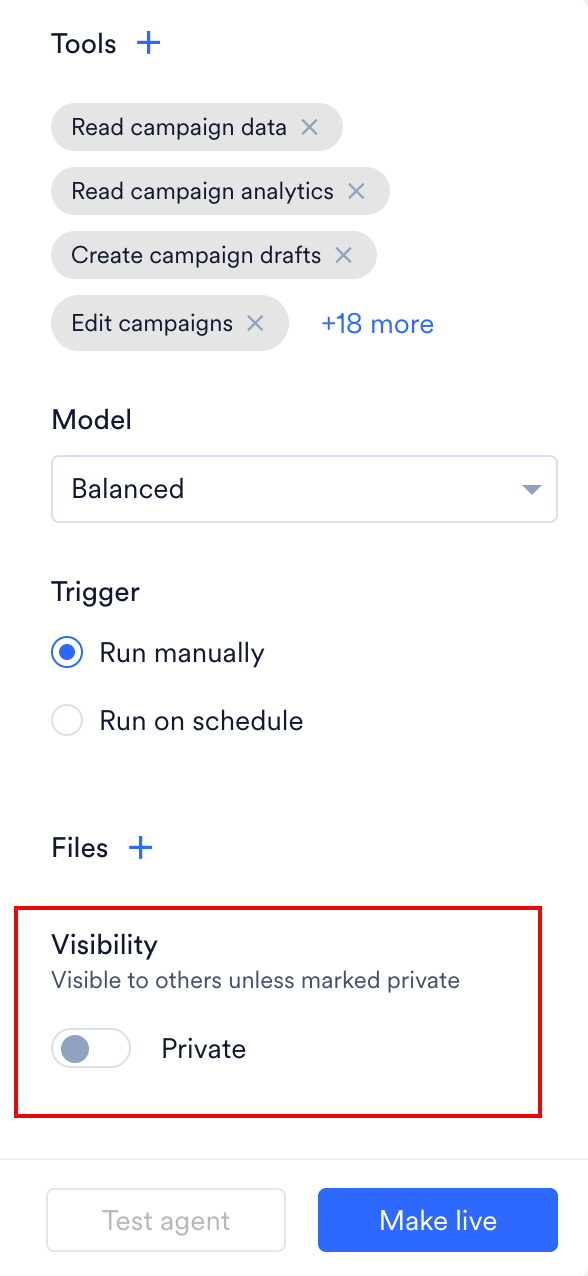
- Private OFF (Default): The agent is visible to all users in your workspace under the Public agents tab. Any teammate can run or duplicate the agent. Only you (the creator) can edit, pause, resume, or delete the agent.
- Private ON: The agent is restricted. Only you can view, access, and run the agent — MoEngage does not show the agent to any other user, or reveal that the agent exists.
The Private toggle applies only after you publish the agent — a draft agent remains visible only to the agent’s creator regardless of the Private toggle setting. A public agent (Private toggle OFF) grants access only to users within your specific MoEngage workspace, never to anyone outside your organization.
Configure Notifications
In the Notifications section, toggle Email on or off to control whether you receive an email each time a scheduled run completes. The Email toggle defaults to on, and only the agent’s creator can edit it — teammates viewing a public agent see the setting, disabled. Each notification email includes the run’s outcome, Task ID, start time, duration, and the next scheduled run. The notification email excludes the run’s transcript and output content. MoEngage delivers notification emails on a best-effort basis, so a missed notification email never blocks or delays the underlying scheduled run.Browser notifications are a separate feature from the Email toggle above. If you grant notification permission when prompted in an active session, your browser notifies you when that run finishes while its tab isn’t focused. Browser notifications aren’t tied to your Email setting, and MoEngage doesn’t provide an in-app way to turn them off once granted — manage them through your browser’s site settings instead.
Test Agent
Before making an agent live and sharing it with your team, run it in Test agent mode. A test run verifies that the agent interprets its instructions correctly, uses the right tools, and produces the expected output.Initiate a Test Run
To start a test run from the builder: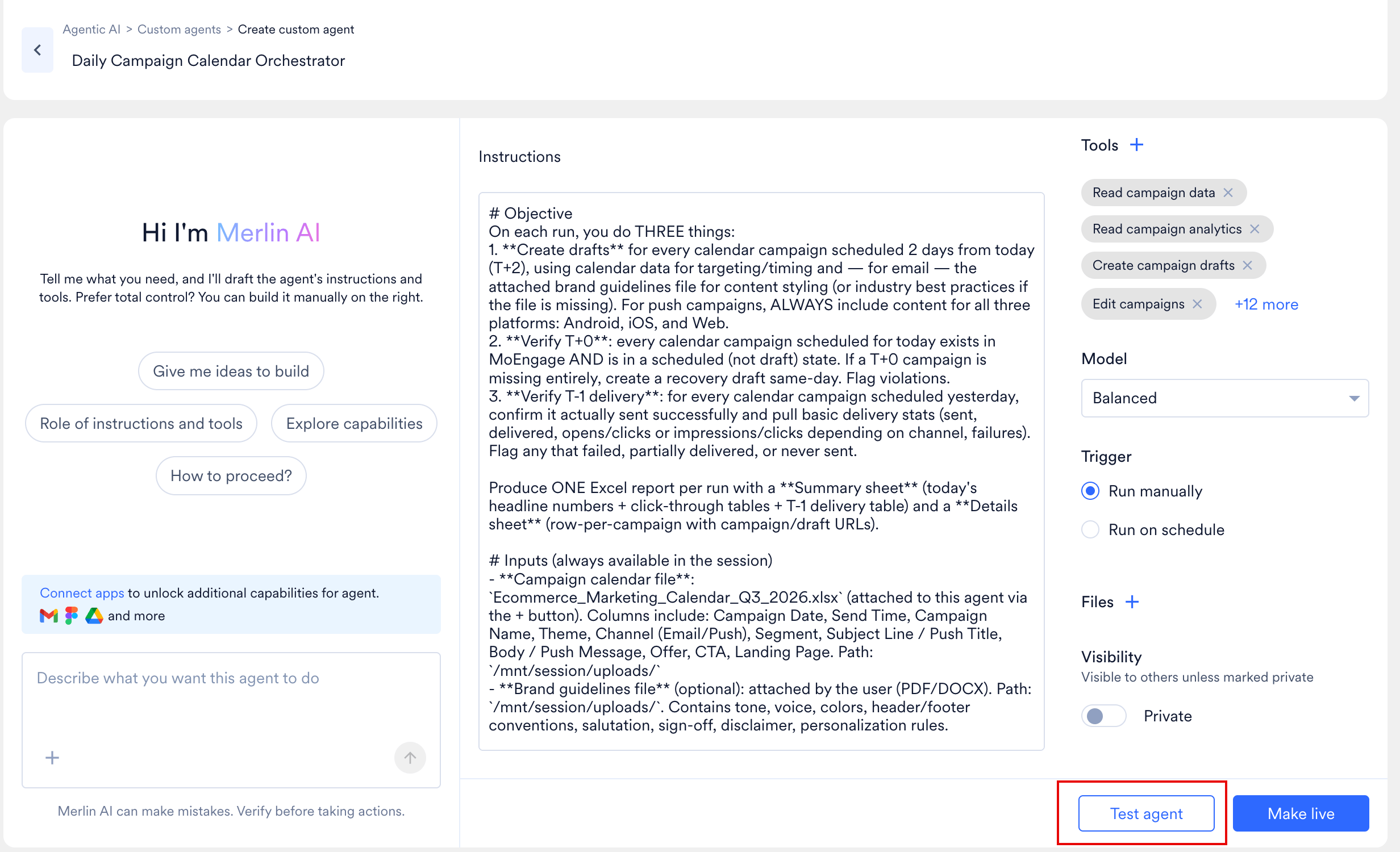
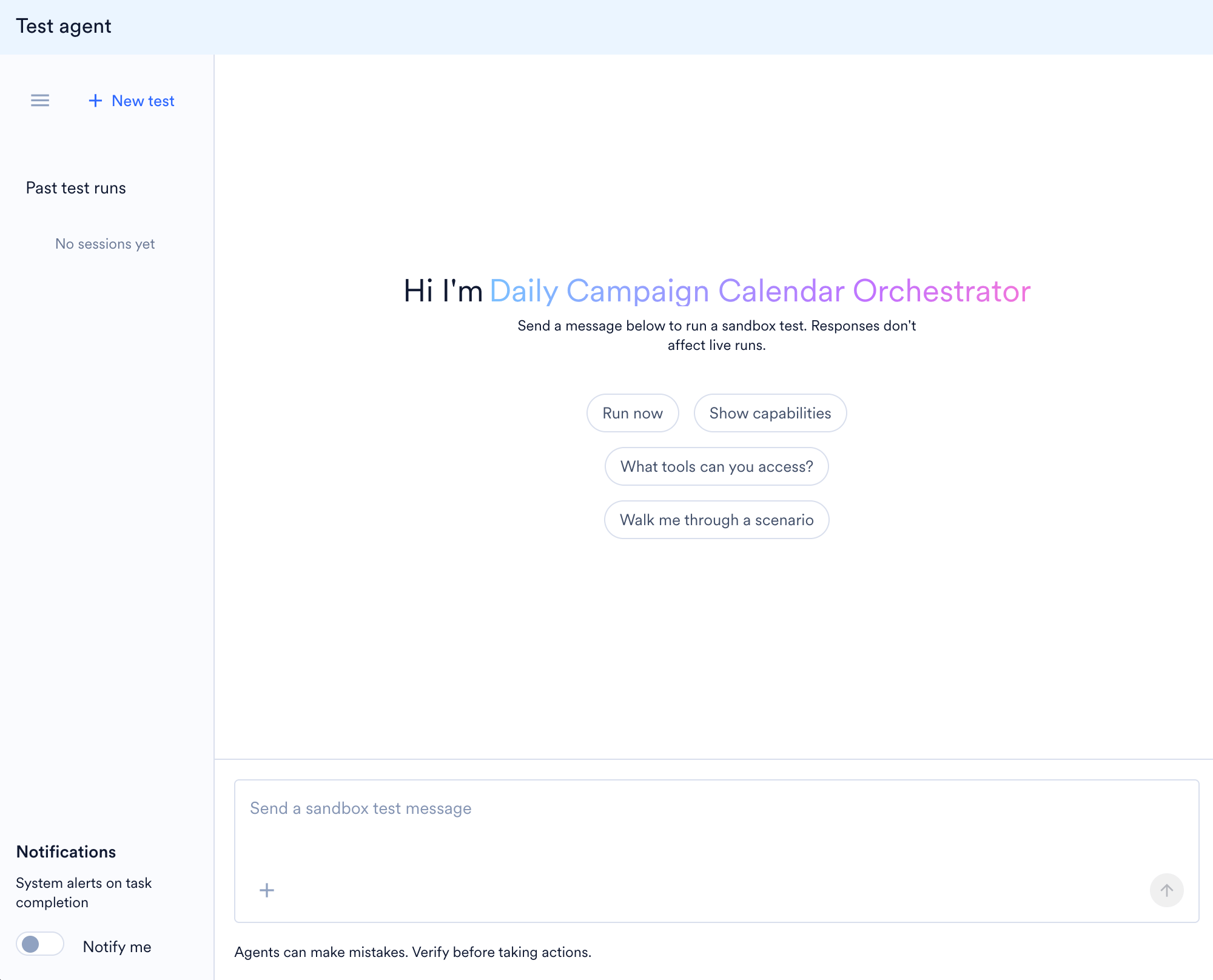
- Click Test agent in the action bar at the bottom right of the screen. The Test agent panel slides open on the right side.
- In the text box at the bottom of the panel, type a test scenario or select one of the suggested quick-start prompts:
- Run now: Executes the agent immediately using its default instructions.
- Show capabilities: Prompts the agent to summarize what it is configured to do.
- What tools can you access?: Lists the tools currently assigned to the agent.
- Walk me through a scenario: Asks the agent to narrate a sample execution.
- Press Enter or click the send button to initiate the task.
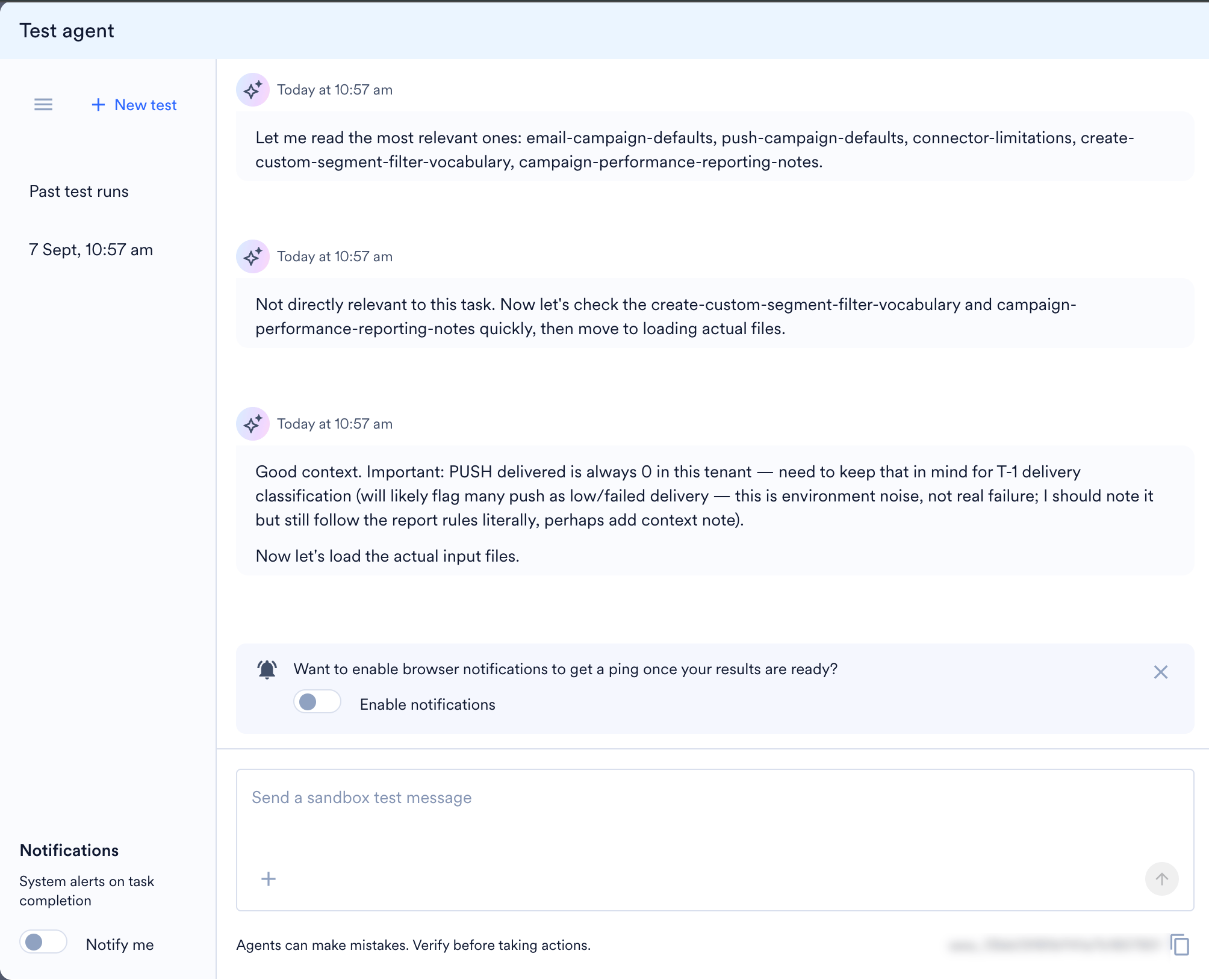
- Start a New Test: Click + New test in the left sidebar of the test panel to clear the current chat window and initiate a fresh test session.
- Cancel a Running Test: Click Cancel while a test is in progress to stop the run immediately.
- Review Past Test Runs: The left sidebar logs your testing history under the Past test runs section, organized by date and time (for example, 20 May, 5:17 pm). Click on any timestamp to reopen that specific test session and review the agent’s previous responses or tool calls.
- Attach Test Files: Click the + icon located inside the message input box at the bottom of the screen to attach up to 5 files to your test prompt. Use this to give the agent sample data, specific documents, or reference files to process during the test run.
- Close the Test Panel: To exit the testing environment and return to the configuration builder, click the X icon located near the top left of the main dashboard screen.
Interpret Test Results
The test session functions exactly like a normal back-and-forth conversation. As the agent processes your request, the panel displays:- Tool calls: Each time the agent uses a tool, the interface displays the tool name, the context parameters (e.g.,
get_campaign_meta context="Finding all sent/active campaigns"), and the execution time. - Agent reasoning: Intermediate messages explaining the agent’s logic as it works through the assigned steps.
- Final output: The structured result returned upon completing the task.
- Iterate on Feedback: If the agent calls the wrong tools or misinterprets your prompt, close the test panel, return to the Instructions editor, and clarify the steps. Be highly specific about what data the agent should fetch and how it should format it.
Make the Agent Live
After you successfully test and confirm the agent’s behavior, click Make live in the action bar at the bottom of the screen to publish the agent to your workspace.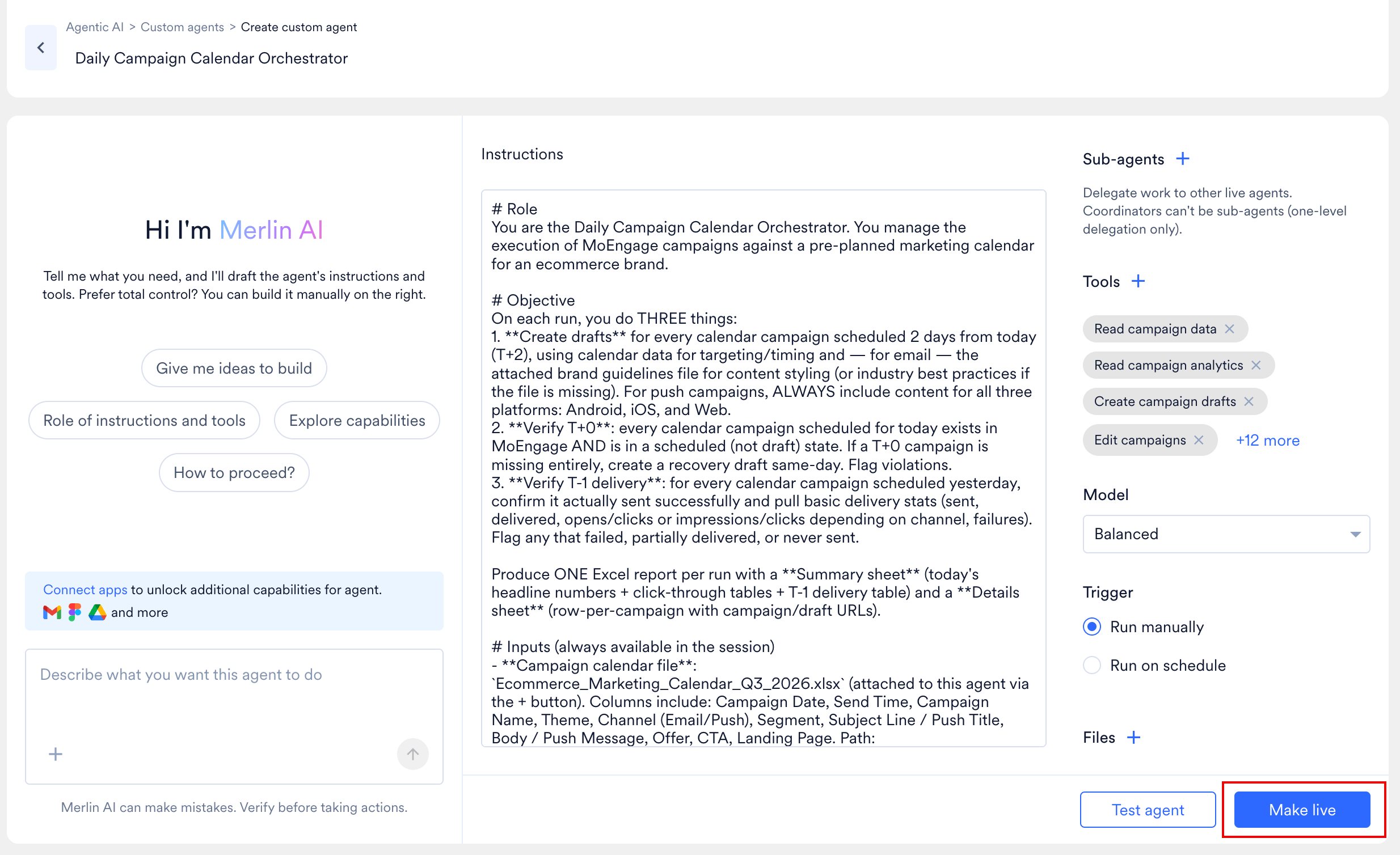
You can continue to modify a live agent’s configuration. MoEngage holds your edits as pending changes until your next publish, so a live agent never changes for other users mid-session. Click Make live again to apply pending changes.
Manage Custom Agents
Once a Custom Agent is created, you can actively manage its lifecycle and configuration directly from its detail page using the following actions: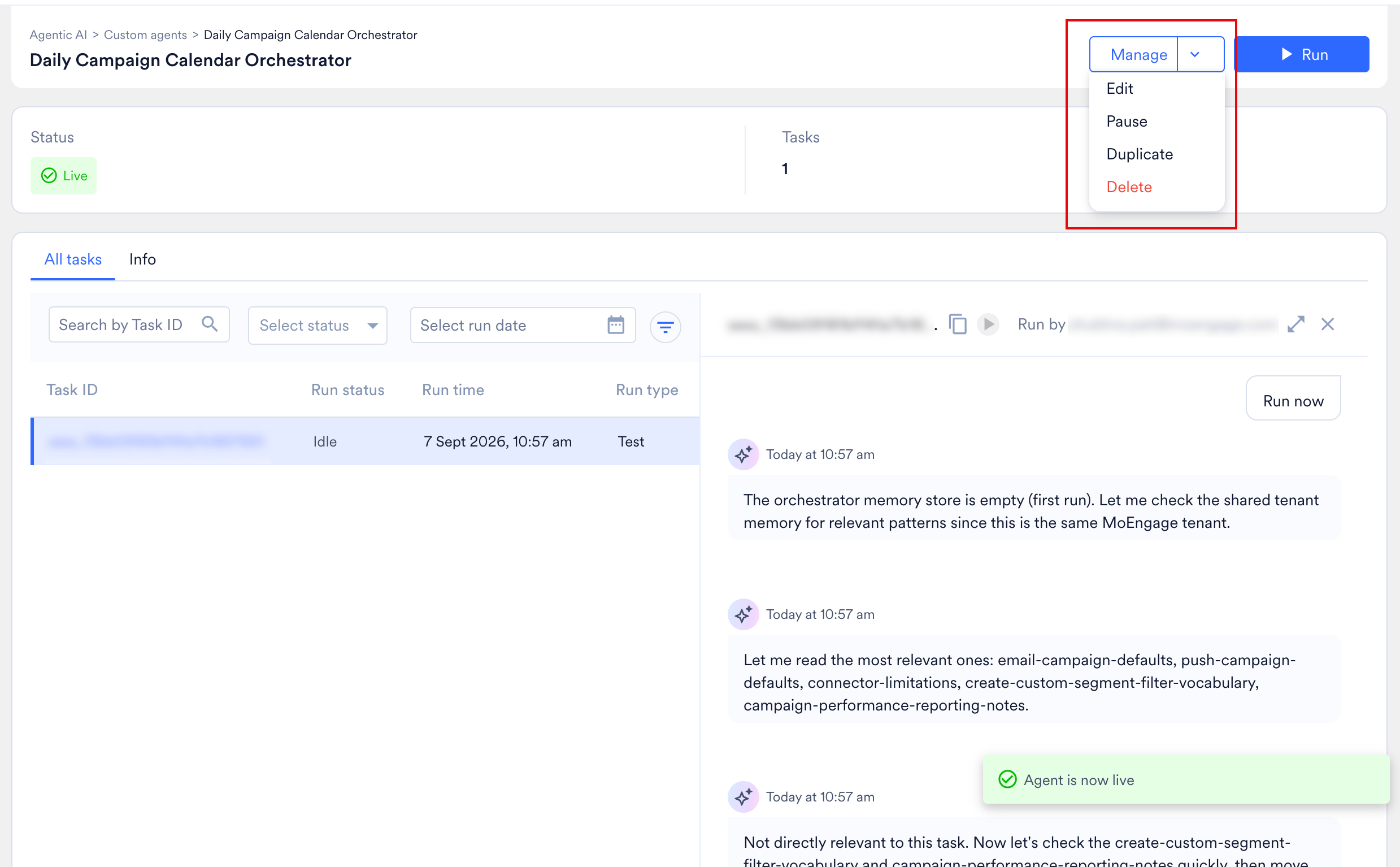
The Manage dropdown sits on an agent’s detail page, which a published agent has. A Draft agent has no detail page: clicking its card opens the builder directly, so edit a Draft there rather than through Manage > Edit.
Edit an Agent
To update a published agent’s configuration (including its status, instructions, assigned tools, name, or visibility):- From the Custom Agents dashboard, click anywhere on the agent’s card (except the Run (▶) icon) to open its detail page.
- Click the Manage dropdown menu located in the top-right corner and select Edit.
- The configuration builder opens with all existing fields pre-populated. Make your required updates.
- Review the instructions and run a Test agent session to verify its behavior.
- Click Make live to save and deploy the changes.
- Modifications only apply to new sessions initiated after you save. Any session that is actively running when you save continues and completes using the agent’s previous configuration.
- Only the original creator of an agent has permission to edit it. If you need to modify an agent created by a colleague, you must duplicate it first.
Make a Draft Agent Operational
Agents currently in a Draft state cannot be executed for production tasks directly from the dashboard. To make a draft agent operational:- From the Custom Agents dashboard, click the Draft agent’s card to open the builder.
- Run a test session to verify the agent’s behavior.
- Click Make live to publish the agent for production use.
Pause or Resume an Agent
Pause a live agent to stop the agent from running while keeping the agent’s configuration intact. Only the agent’s creator can pause or resume an agent. To pause or resume an agent:- Open the agent’s detail page.
- Click the Manage dropdown menu and select Pause (or Resume for a paused agent).
Pausing does not cancel a configured schedule — the schedule persists, and each scheduled fire is skipped for as long as the agent stays paused. Resuming picks the existing schedule back up with no reconfiguration required.
Duplicate an Agent
Duplicating an agent opens the builder pre-filled with the source agent’s configuration as a new, independent Draft. Duplicate an agent to customize one that another user built, or to fork an existing configuration for a similar task.- Open the published agent’s detail page.
- Click the Manage dropdown menu and select Duplicate.
Characteristics of a Duplicated Agent:
- Draft Status: The duplicate opens in the builder as a Draft named
Duplicate_<Original name>— rename it before you publish, if you’d like. - Inheritance: The duplicate inherits the source agent’s instructions, assigned tools, visibility setting, and trigger configuration.
- Run History: It begins with a fresh, empty session history.
- Eligibility: Duplicate is a Manage action, so it applies to any published agent you can open. A Draft has no detail page and therefore no Manage dropdown: publish the Draft first if you need a copy of it. Deleted agents cannot be duplicated.
Delete an Agent
If an agent is no longer required, you can retire the agent from your workspace to keep your dashboard organized. Only the agent’s creator can delete an agent.- Open the agent’s detail page.
- Click the Manage dropdown menu and select Delete.
You cannot delete an agent while another agent uses it as a sub-agent. MoEngage blocks the deletion and names the coordinators that list the agent on their roster. Ask each coordinator’s creator to remove the agent from that roster, and then delete the agent. Refer to Build Multi-Agent Workflows.
Characteristics of a Deleted Agent:
- Visibility: It is immediately removed from all dashboard filters (My agents, Public agents, Draft, and Live).
- Restrictions: It can no longer be executed, edited, or duplicated.
- Audit Trail: MoEngage preserves its session history for auditing, but the history is no longer accessible through the standard gallery interface.
- Memory: MoEngage archives the agent’s own memory store along with its session history. Anything that agent contributed to workspace memory stays in place and remains readable by your other agents. Nothing records which agent contributed a given fact, so those contributions cannot be removed selectively.
- Deleting an agent permanently cancels any of its scheduled or queued tasks. MoEngage displays a warning prompt so that you confirm the cancellation before the delete completes.
- Currently, there is no recovery flow to restore a deleted agent. If there is a chance you may need to use the agent again in the future, do not delete the agent. Instead, edit the agent and turn the Private toggle ON. Turning Private ON hides the agent from your colleagues while keeping the agent safely accessible for your own use.
FAQs
Do Test runs operate in a safe sandbox environment?
Do Test runs operate in a safe sandbox environment?
No. Test runs execute against your real MoEngage workspace data. An agent with write tools assigned (such as Create campaign drafts) makes real changes to your workspace during a test session. Always verify tool configurations and instructions before initiating a test.
Can my teammates edit, pause, resume, or delete an agent that I created?
Can my teammates edit, pause, resume, or delete an agent that I created?
No. Only the original creator of an agent can edit, pause, resume, or delete the agent. If a colleague needs to modify an agent you built, they must open the agent’s detail page and select Manage > Duplicate to create an independently editable copy. Any teammate with access to a public agent can still run or duplicate it.
Can I delete an individual session or an entire agent?
Can I delete an individual session or an entire agent?
Individual sessions cannot be deleted; they are permanently logged in the agent’s history for auditing purposes. You can remove an agent from the dashboard by deleting it, but this action is permanent and cannot be undone. If you are unsure whether you need an agent again, open the agent’s configuration and turn the Private toggle ON instead of deleting the agent.
Do I need to know how to code to build an agent?
Do I need to know how to code to build an agent?
No. You instruct the agent in plain English, as you would write a brief for a new marketing hire. If you get stuck, you can use the built-in Merlin AI chat assistant to automatically generate the right instructions and tool settings based on a simple description of what you want to achieve.
Can an agent automatically publish a campaign?
Can an agent automatically publish a campaign?
No. Custom Agents do not possess auto-publish capabilities. Even if an agent has write tools assigned, it is strictly restricted to creating, editing, or pausing campaign drafts. Final approval and deployment must always be executed manually through the standard MoEngage campaign builder.