

sess_a1b2c3...), and permanently logs the complete transcript within the agent’s All tasks history for auditing and future reference.
Start a New Session
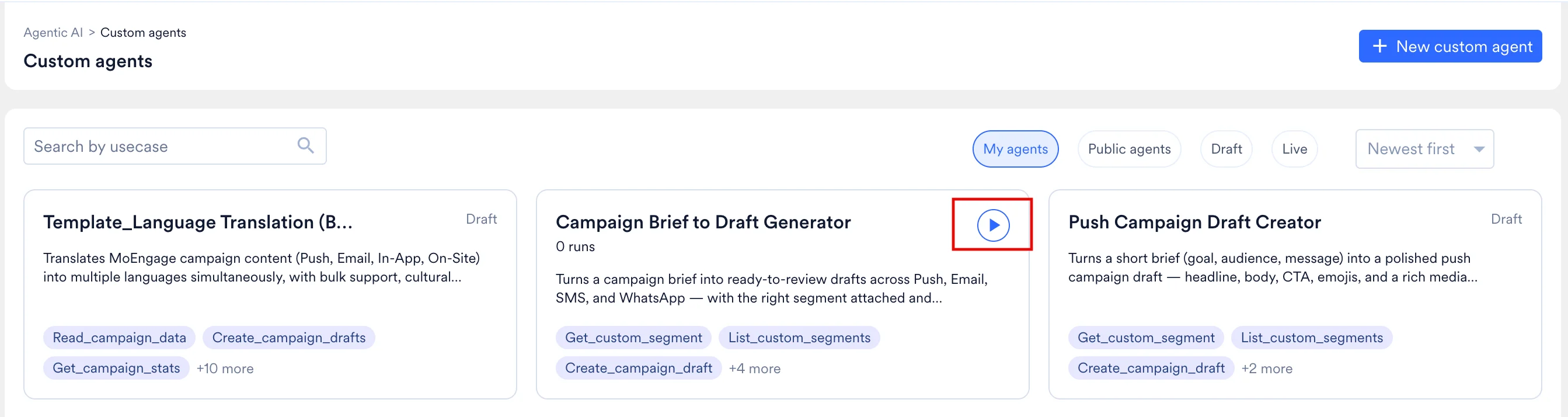
You can initiate a new session from three distinct locations in the platform:- From the Gallery: Click the Run (▶) icon on the right edge of any Live agent card.
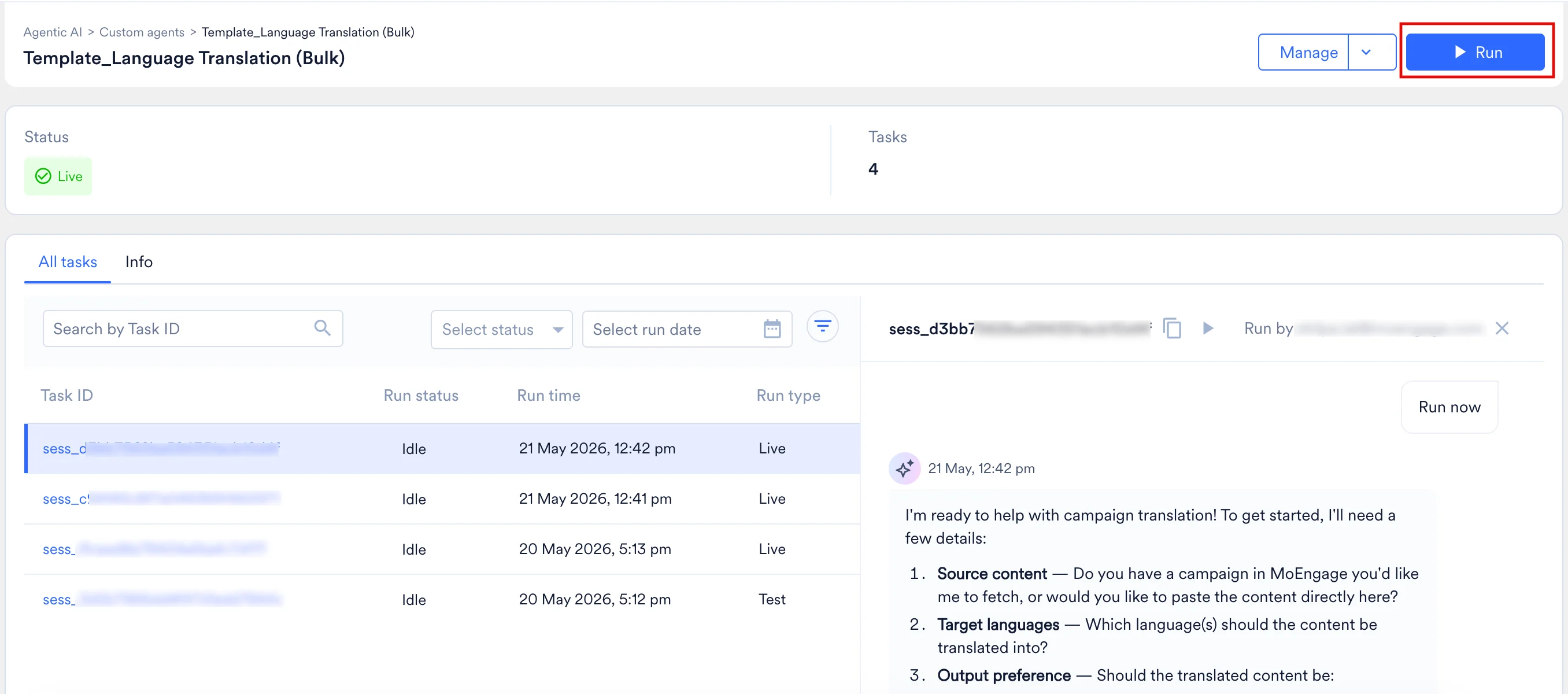
- From the Agent Details Page: Open the specific agent and click Run in the top-right corner.
- From the Agent Builder: While creating a Draft or editing a Live agent.
- Click Test agent to start a trial run. This session will be explicitly tagged as Test in the agent’s history.
- Click *Make live” to start a live run. This session will be explicitly tagged as Live in the agent’s history.
- Live Run
- Test Run
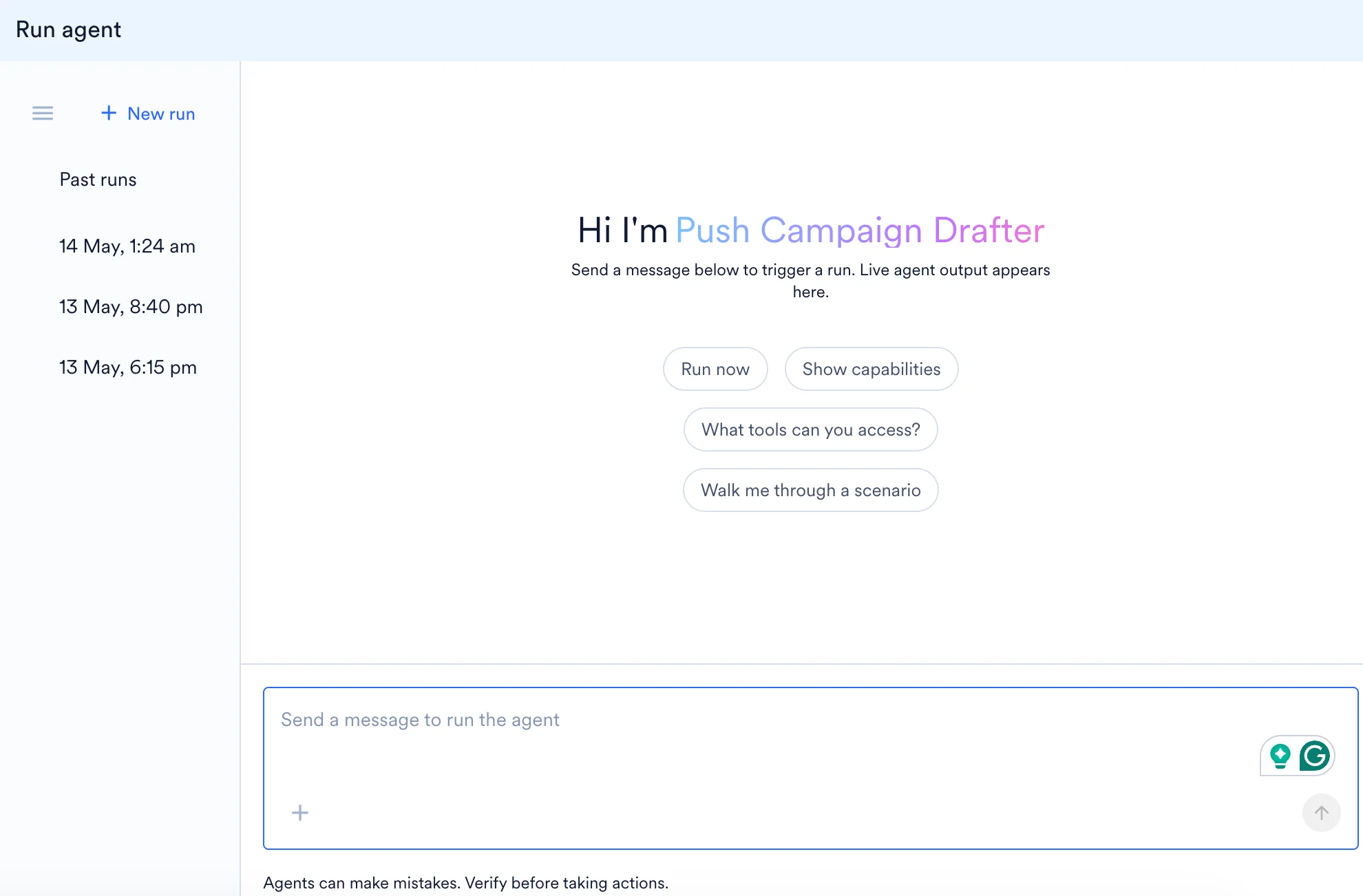
- Live Runs: The panel is titled Run agent. The left sidebar allows you to initiate a + New run and logs your chat history under Past runs.
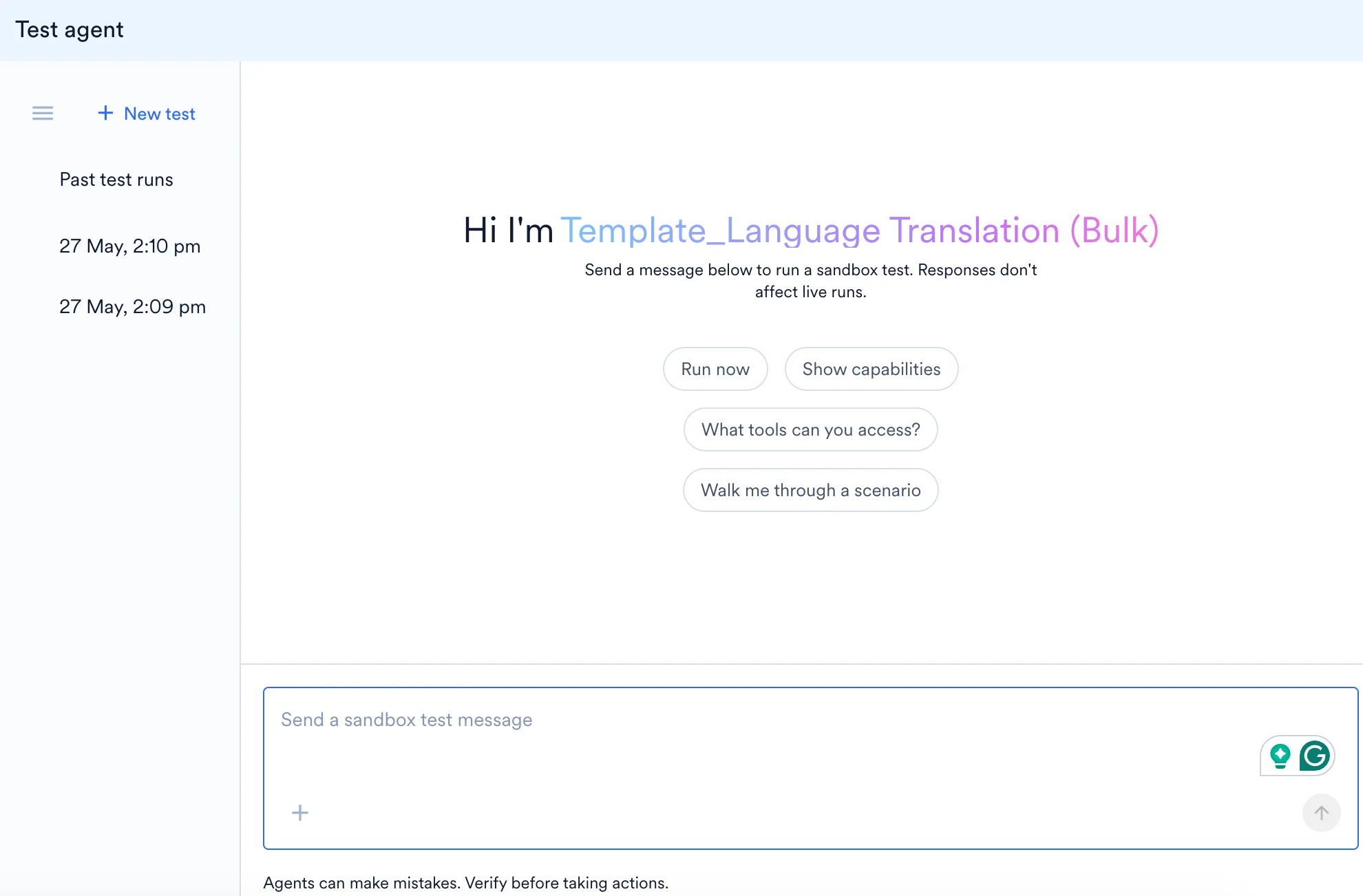
- Test Runs: The panel is titled Test agent. The left sidebar allows you to initiate a + New test and logs your chat history under Past test runs.
Agents rely entirely on your instructions and the context you provide. Supplying necessary IDs, dates, or reference briefs in your very first message prevents unnecessary back-and-forth and improves output accuracy.
Test vs. Live Runs
The primary distinction between a Test run and a Live run is how the task is logged within the system. Functionally, both execution modes are identical: they operate on real workspace data and utilize the exact same tool permissions.The Execution Lifecycle and Interaction
Sessions are conversational and asynchronous. When you submit a prompt, the following execution sequence occurs:- The agent reads its core instructions to establish its role and objectives.
- It acknowledges your prompt and begins executing its defined steps, calling assigned tools sequentially (e.g., fetching a campaign, generating a personalization preview, synthesizing a report).
- Each tool call is logged in the transcript with its specific context parameters and execution time.
- The agent synthesizes the retrieved data and generates a final, structured output.
- As runs can take anywhere from a few seconds to several minutes depending on data volume and tool complexity, they operate entirely in the background. You do not need to keep the session window open; you can safely navigate away and return to the All tasks tab later to view the final output. Additionally, write-enabled agents can create or modify real drafts during a session. Always review the agent’s actions before considering the task complete.
- You can send follow-up messages at any point during an open session to request a deeper analysis, ask for a different output format, or instruct the agent to refer to and analyze a different campaign.
Anatomy of a Session Transcript
When viewing an active or past session in the side panel, the transcript displays the following elements from top to bottom: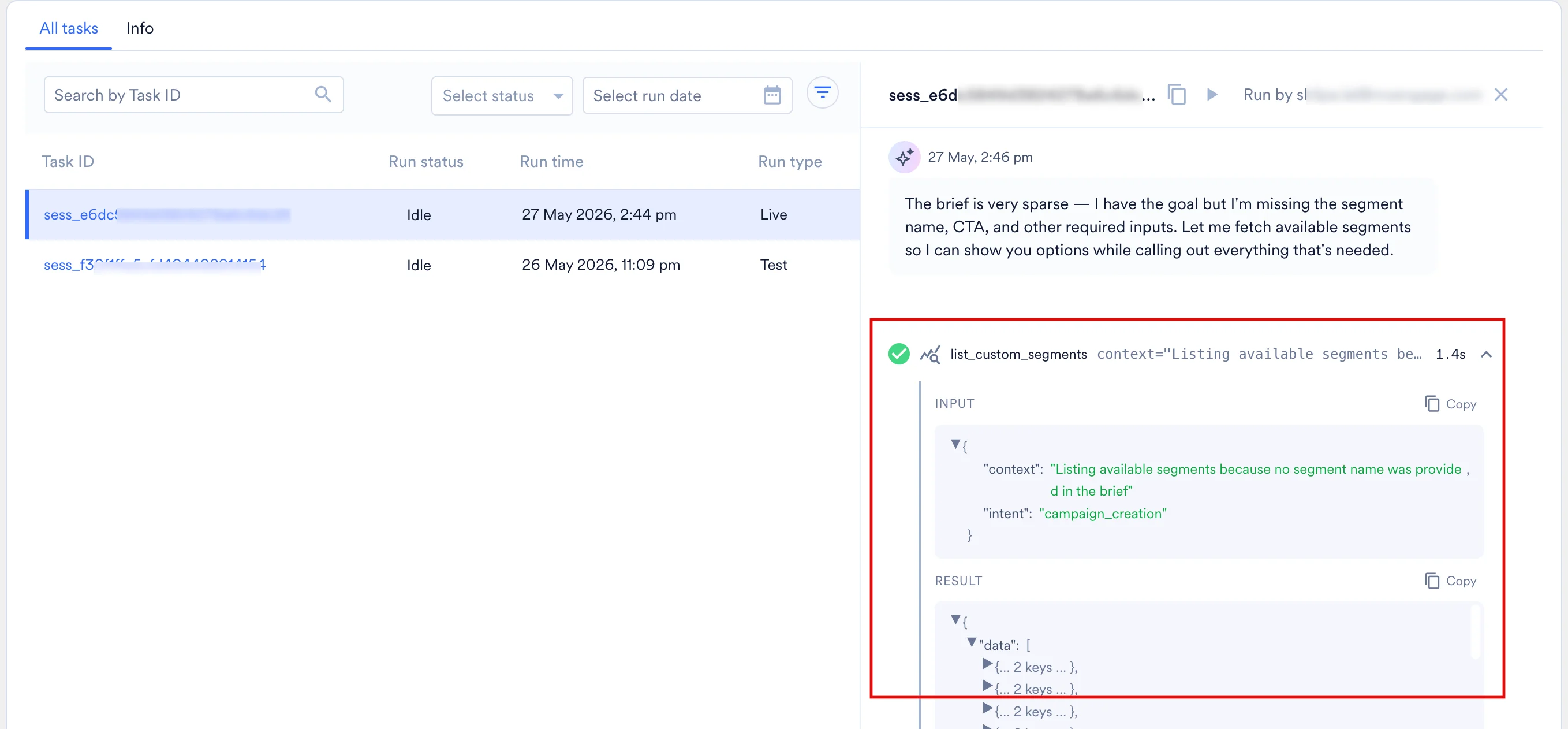
- Header and Instructions: Display the Session ID (with a one-click copy icon), the email of the user who invoked the run, and the initial prompt that kicked off the task.
- Agent Steps (Tool Calls): Expandable cards detailing each tool the agent used. By default, these are collapsed for scannability but can be expanded to view full inputs and outputs. Each card includes:
- A status icon (e.g., ✓ for success)
- The tool name (e.g.,
search_campaigns) - Truncated parameter previews
- Total execution time (e.g.,
4.9s)
- Agent Reasoning: Brief, natural-language updates generated between tool calls, explaining the agent’s logic and next steps (e.g., “Campaign confirmed as Push channel. I need to run the personalization preview…”).
- Generated Files: Any downloadable artifacts produced by the agent (e.g., HTML reports, CSVs). These appear as inline cards showing the filename, type, size, and a download button. Files you attach to your own prompts appear similarly.
- Response: The structured output, typically formatted in Markdown. Each message block includes a copy icon (
content_copy) so you can easily export the report to external documents or messaging tools.
Monitor the All Tasks History
Every initiated session, whether Live or Test, is recorded on the agent’s detail page under the All tasks tab. As shown in the interface, this tab provides a comprehensive audit trail specific to that agent.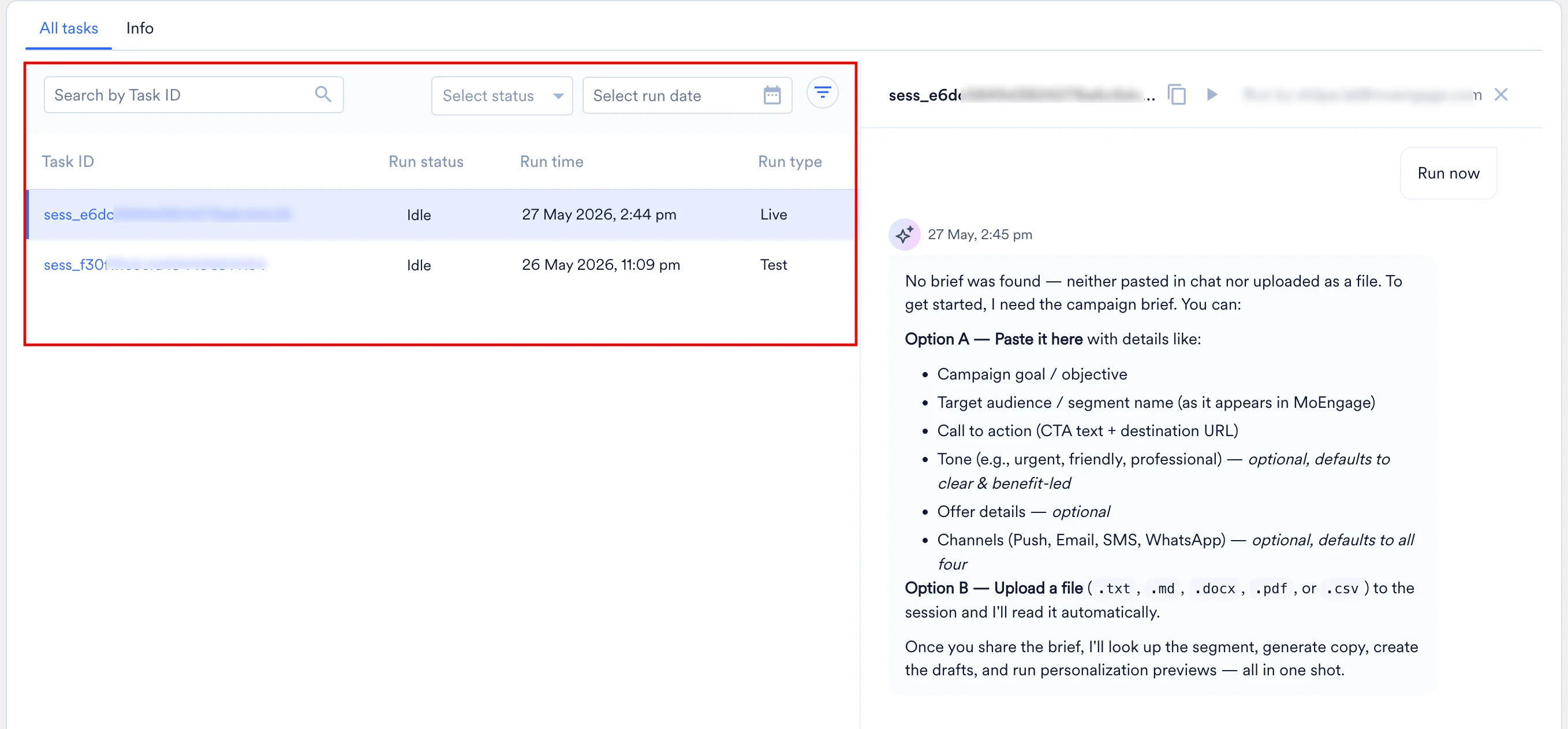
Filtering and Search
Use the filter row above the table to narrow the displayed sessions:- Search by Task ID: Paste a specific Session ID to locate an exact run.
- Status and Date Filters: Use the dropdown menus or the combined funnel icon to filter by specific execution outcomes or timeframes.
Table Columns Overview
Resume and Share Sessions
Resume a Session
Sessions are persistent and do not permanently close. Because each session retains a localized memory, the agent stores the complete context of all preceding instructions, tool outputs, and generated files within that specific run. To resume a previous conversation:- Open the All tasks tab on the agent’s detail page.
- Click the desired session row to open the transcript in the side panel.
- Type a new message in the input box. The agent will retain all prior context, tool outputs, and generated files, picking up exactly where it left off.
Share a Session
To share a specific session transcript with a colleague in your workspace:- Open the session.
- Click the copy icon next to the Session ID at the top of the panel.
- Share the ID. Your colleague can paste it into the Search by Task ID filter on the agent’s All tasks tab to immediately view the transcript.
Session Boundaries and Technical Limitations
Keep the following operational boundaries in mind when running agents:- No Auto-Send Capabilities: Even with write tools enabled, an agent can only create or pause campaign drafts. It cannot publish campaigns directly. Final publishing of a campaign must always be executed manually through the standard MoEngage campaign builder using the draft ID generated by the agent.
- Workspace Privacy: Sessions are strictly private to your specific workspace and cannot be shared across different organizations.
- Immutable History and 30-Day Inactivity Limit: Sessions cannot be deleted, and their transcripts remain permanently in the agent’s history for you to view. However, a session is only active for 30 days. You can resume and continue chatting within a specific session within that 30-day window. Once the 30 days have passed, the history remains visible, but you must initiate a new session to perform further tasks.
- Archiving Agents: To prevent accumulating sessions on an obsolete agent, you must archive the agent entirely, which removes its history from gallery access.
FAQs
Do I need to keep the dashboard open while an agent is executing a task?
Do I need to keep the dashboard open while an agent is executing a task?
No. Custom Agents operate asynchronously as long-running background processes. You can safely navigate away from the session window while the agent works. Once you are ready, return to the All tasks tab on the agent’s detail page to review the completed steps and final output.
Does the agent remember my past instructions and files?
Does the agent remember my past instructions and files?
Yes. Every session features a persistent, localized memory. The agent retains the complete context of all preceding chat history, tool outputs, and attached files within a specific Session ID. You can reopen any Idle session from the All tasks tab to resume a complex workflow right where you left off.
My agent's task says 'Idle.' Did it get stuck or fail?
My agent's task says 'Idle.' Did it get stuck or fail?
No, “Idle” actually means the task was completed successfully! MoEngage uses the term “Idle” because agent sessions act like continuous chat threads. The agent is simply waiting idly for you to ask a follow-up question or give it a new command based on the data it just provided.