

This is an Early Access feature. To enable it for your account, contact your CSM or raise a support ticket.
Introduction
Merlin AI Segment Assist lets you create segments by describing the audience you want in plain English. Instead of finding the right events and combining filters yourself, you type a prompt, and Segment Assist maps your request to the matching user and event filters, previews the resulting audience, and lets you refine the query through a conversation before you save it. For AI-assisted segment creation through an external assistant like Claude or ChatGPT instead of the MoEngage dashboard, see the MoEngage MCP segmentation tools.How Segment Assist Works
Segment Assist turns your plain-English description of an audience into a segment you can preview, edit, and save. It works from the events and user properties that already exist in your workspace, so it maps your request to your own data rather than to a fixed list of terms. Because of this, the same description can produce a different segment in a different workspace. When you enter a prompt, Segment Assist:- Reads your description and identifies the conditions in it, such as user properties (for example, city or operating system) and events (for example, a purchase in the last 7 days).
- Maps each condition to a matching event or attribute in your workspace, and checks that the values you mentioned exist for those fields.
- Builds a query from the mapped conditions and validates it.
- Shows the result as an editable segment, along with an explanation of the choices it made, such as the events it selected and the time window it applied.
Segment Cards
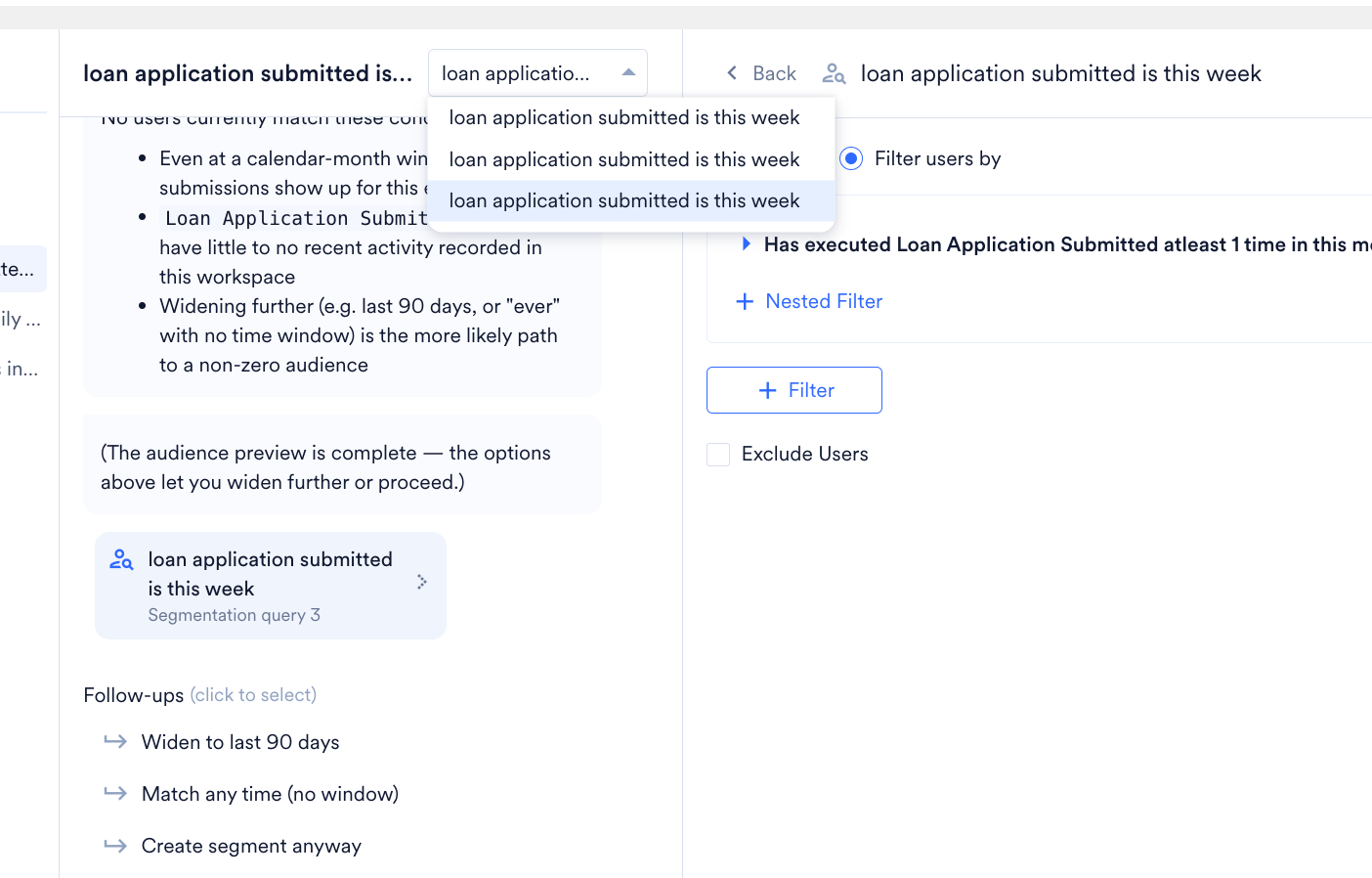
Each time you preview an audience or create a segment, Segment Assist adds a segment card to the chat. A card represents one version of your query, and each card is labeled with its place in the conversation, such as Segmentation query 1 and Segmentation query 2. Click a card to open that query in the panel on the right, where you can review the audience or edit its filters. When a chat contains more than one card, use the dropdown at the top of the chat to switch between them. All cards in the same chat share the same name, so the entries in the dropdown look identical. Tell them apart by their order, and select the card that was created in the sequence you want.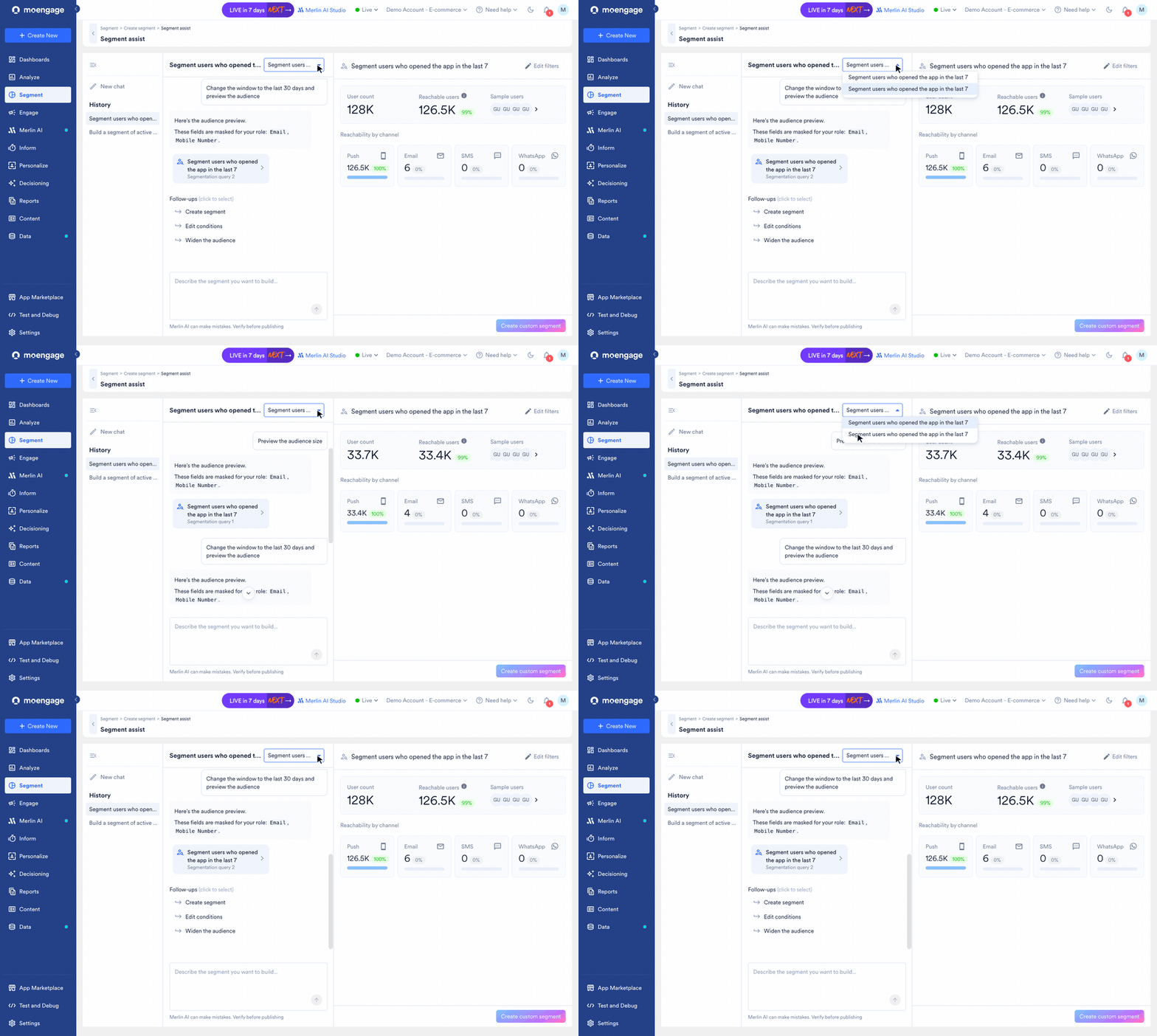
Refine Across Turns
Segment Assist keeps the context of your conversation, so you can build a segment over several turns. Each follow-up request refines the current query and produces a new card, and you can switch back to an earlier card at any time. For example, you can ask Segment Assist to add a condition, change a time window, or remove a filter, and it rebuilds the query from the current version.Clarification and Human-in-the-Loop
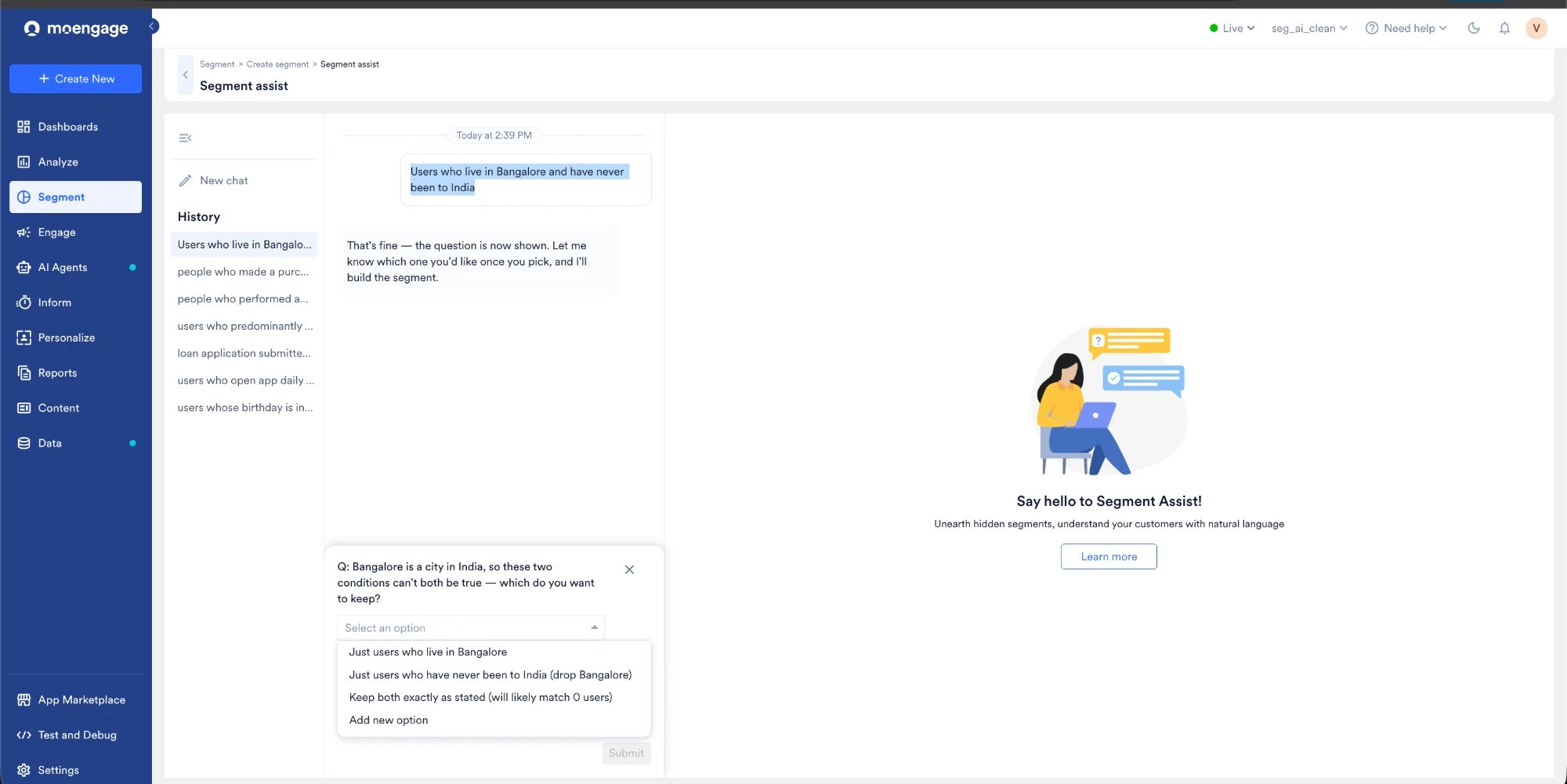
When Segment Assist cannot confidently map your request, it pauses and asks you to clarify before it builds the segment. It shows the question in the chat with a set of options to choose from, and can also let you add your own option. Segment Assist continues once you make a selection. Clarification can happen when you first describe a segment and when you refine one. Clarification happens when:- Ambiguous term: If a phrase such as “active users” could mean several things in your workspace, Segment Assist shows the possible options and asks you to choose.
- Unrecognized value: If a value isn’t found for a field, Segment Assist shows the values that the field actually has.
- Missing detail: If a condition needs a number that you didn’t provide, Segment Assist asks for it.
Impossible or Empty Requests
Some requests can’t produce a meaningful audience. For example, “users who live in Bangalore and have never been to India” combines two conditions that can’t both be true. Instead of building a segment that matches no users, Segment Assist asks which condition you want to keep. When a valid query simply matches no users, Segment Assist explains the likely reason and offers ways to widen the audience, such as extending the time window, removing the time window, or creating the segment anyway.Segment Assist can make mistakes. Review the generated query and preview the audience before you create the segment.
Create a Segment with Segment Assist
Perform the following steps to create a segment with Segment Assist:- On the sidebar menu in MoEngage, hover over Segment and click + New Segment. The Create segment page appears.
-
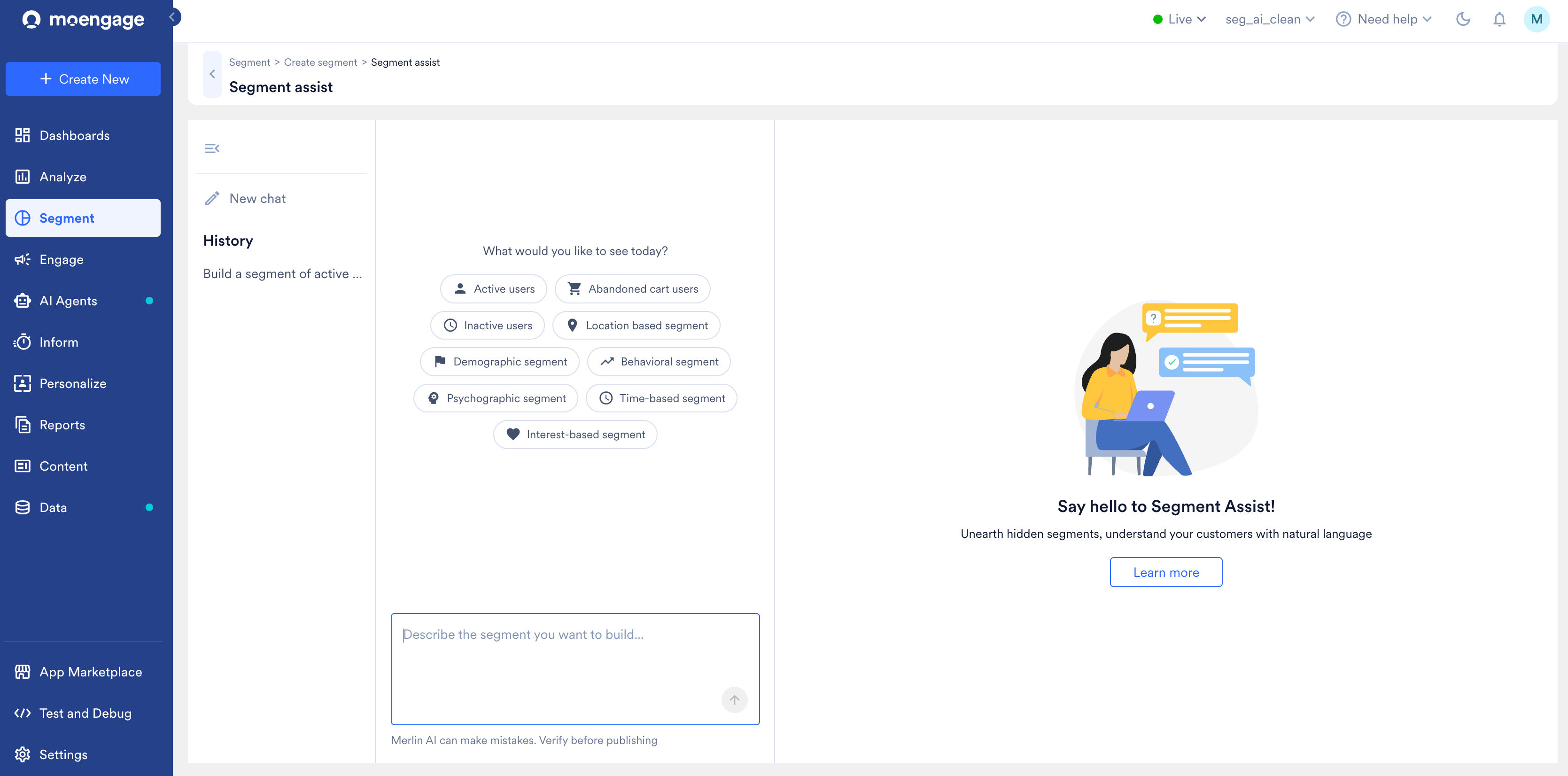
In the top-right corner, click Use MerlinAI to create segments. The Segment assist page appears.
-
In the Describe the segment you want to build box, enter a prompt and submit it. For example,
Build a segment of users who abandoned their cart. To get started quickly, you can select one of the suggested segment types under What would you like to see today?, such as Active users, Abandoned cart users, or Behavioral segment. For guidance on writing prompts, see Guidelines to Write Effective Prompts. Segment Assist looks up your user properties and events and generates a query.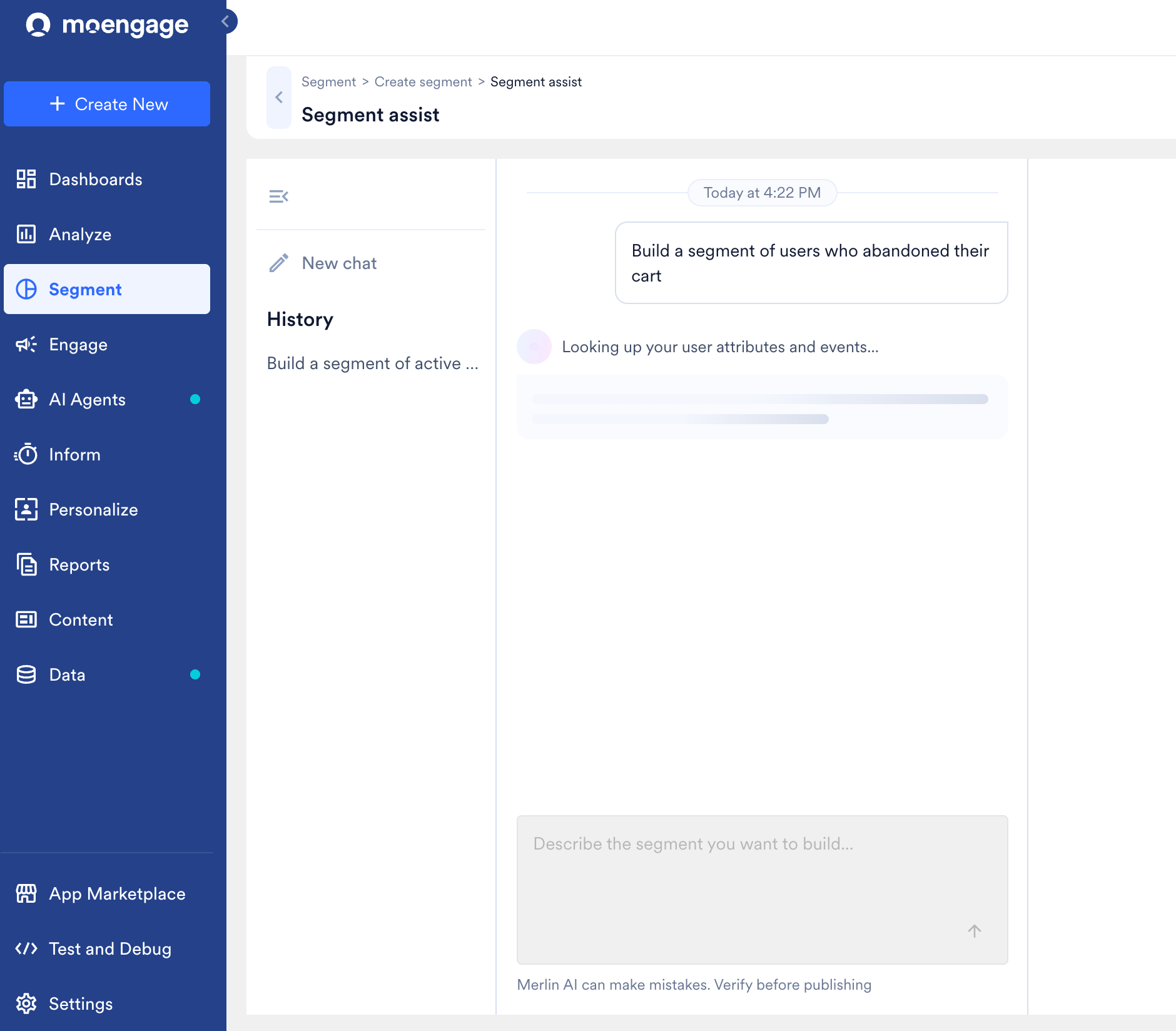
-
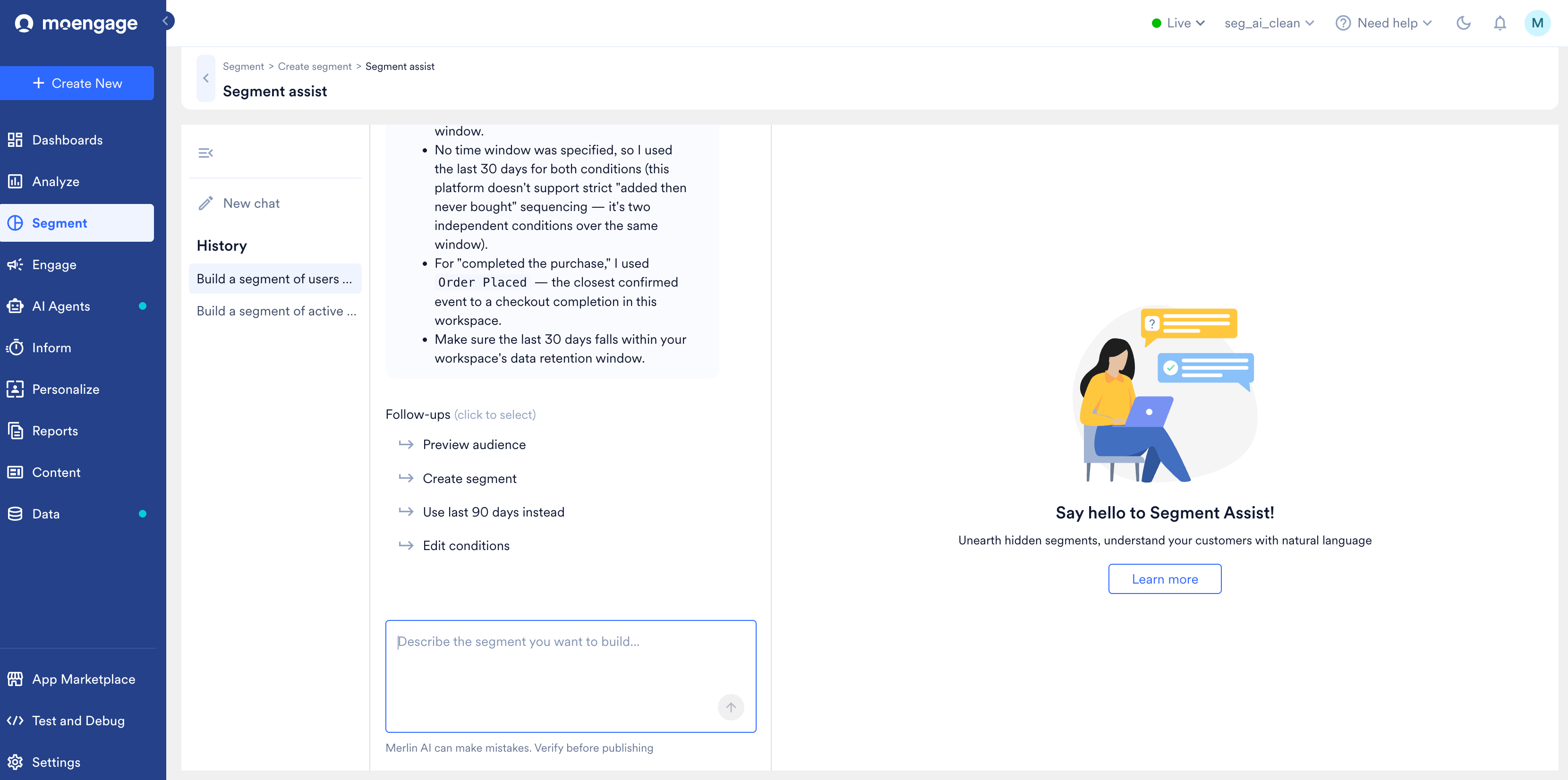
Review the generated query and Segment Assist’s explanation of the choices it made, such as the events it mapped your request to and the time window it applied. Confirm the query matches your intent.
-
To adjust the query or move forward, select one of the suggested Follow-ups below the response. The available options change based on the query, and can include:
- Preview audience: Check the audience the query matches.
- Use last 90 days instead: Widen the time window.
- Edit conditions: Open the query in the filter view to edit it manually. For more information, see Edit the Query in Filter View.
- Create segment: Save the query as a segment.
-
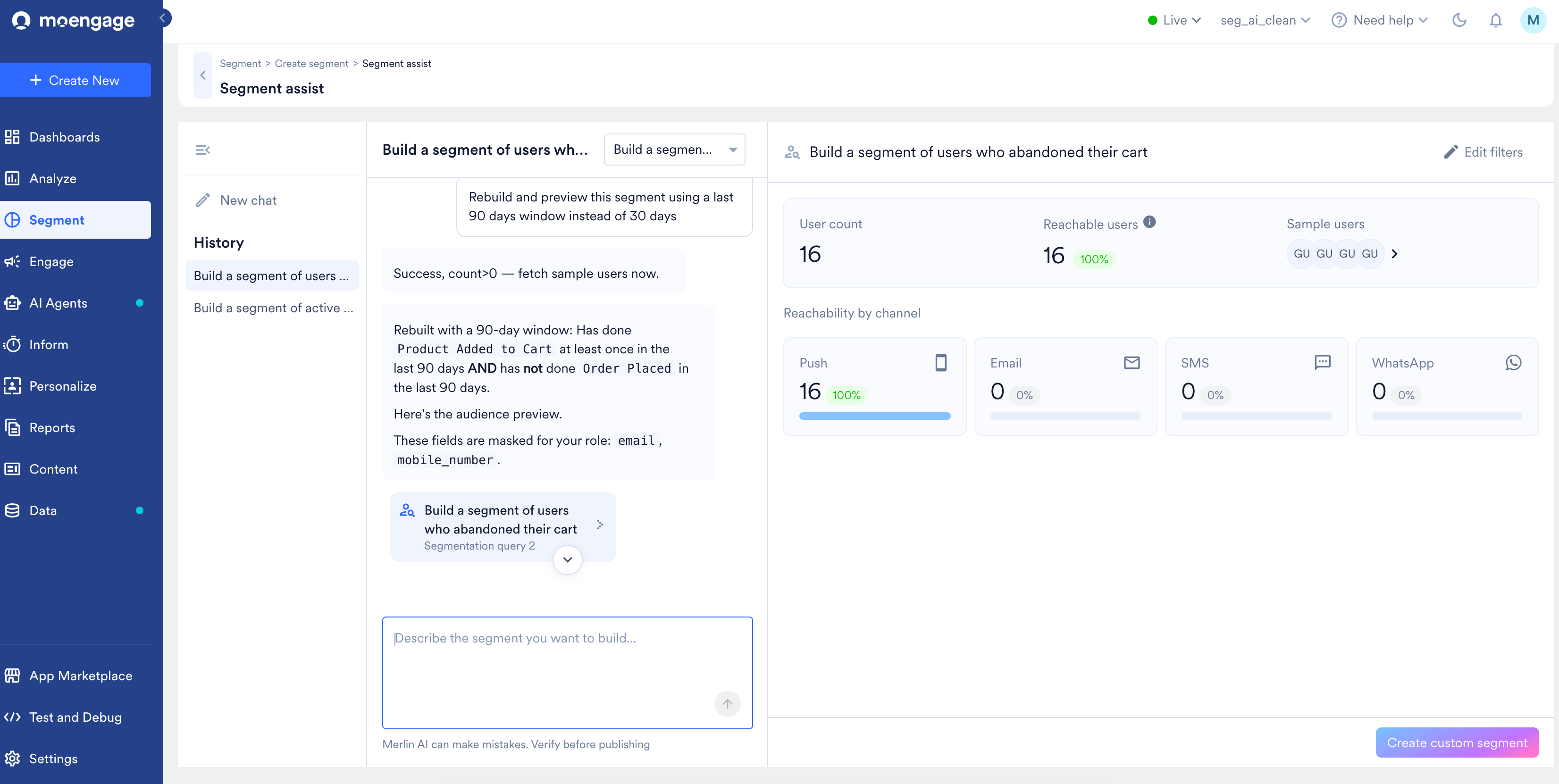
To check the audience before you save it, click Preview audience. The preview shows the User count, Reachable users (with the reachable percentage), a set of Sample users, and Reachability by channel across Push, Email, SMS, and WhatsApp.
- When you run a Preview audience or Create segment action, Segment Assist adds a segment card for that query to the chat. Click a card in the chat to open its filters in the panel on the right.
- If the query matches no users, the preview shows an empty segment. Refine the query with a follow-up prompt, for example by widening the time window.
- Some fields, such as
emailandmobile_number, may be masked in the preview based on your role’s permissions. Segment Assist tells you which fields are masked.
-
To refine the audience, enter a follow-up prompt in the chat. For example,
Rebuild and preview this segment using a last 90 days window instead of 30 days. Each refinement produces a new segment card, such as Segmentation query 1 and Segmentation query 2.- To move between the cards in a chat, use the dropdown at the top of the chat, or click a card in the conversation. Click a card to view its filters in the panel on the right.
- To start over with a different audience, click New chat. Your past conversations are available under History, scoped to your user in the current workspace.
- When the preview matches what you want, click Create custom segment to save the audience as a segment. You can also click Create segment from the follow-up actions. Segment Assist generates a name for the segment. To use a specific name, include it in your prompt before you run the create segment action.
Edit the Query in Filter View
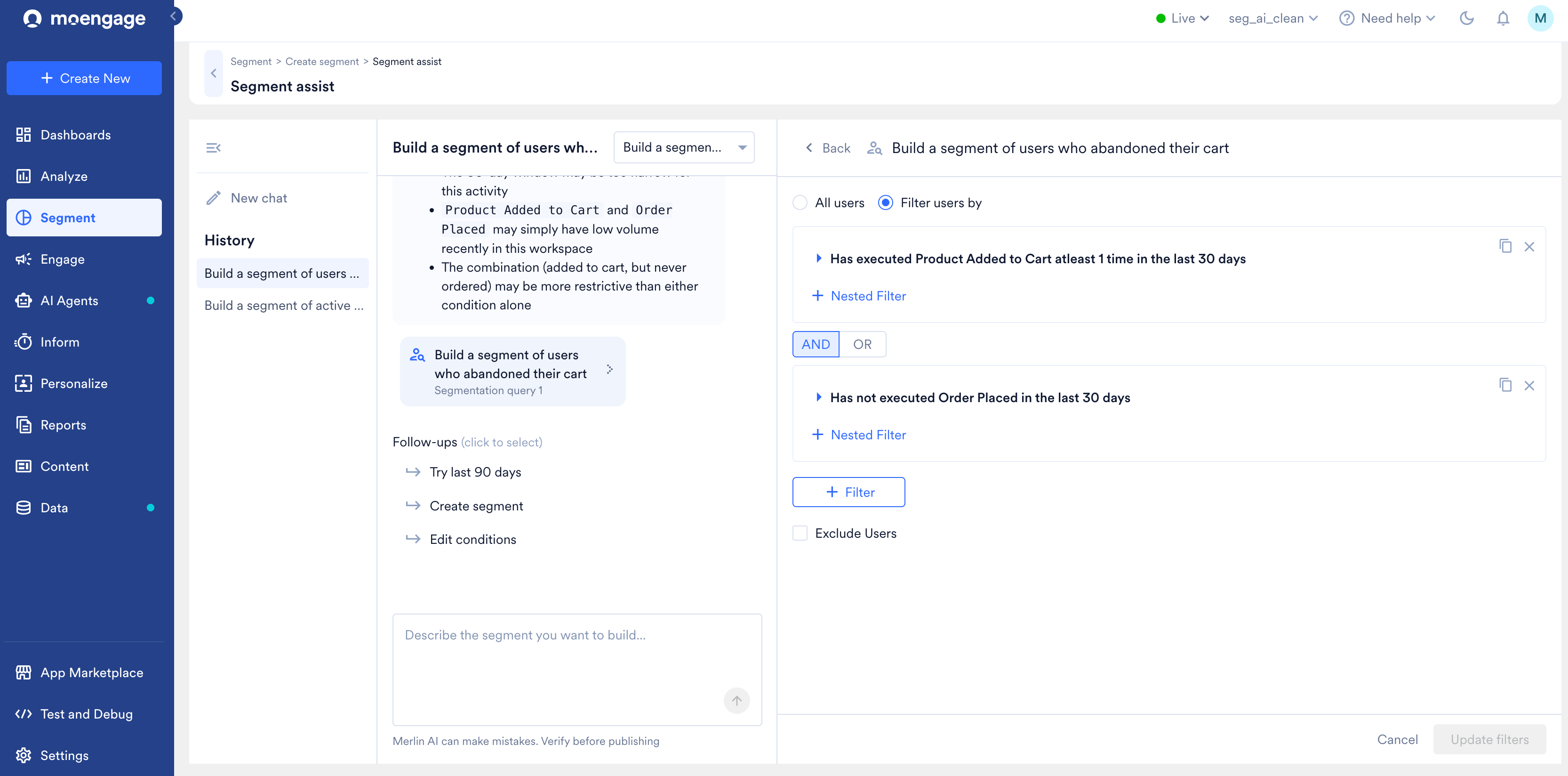
To adjust the generated query manually, click Edit filters above the audience preview. The filter view opens the query as editable filters, where you can:- Change the events, attributes, and conditions (for example, Has executed or Has not executed).
- Add nested filters within a condition.
- Combine conditions with AND or OR.
- Add more filters, or turn on Exclude Users.
Guidelines to Write Effective Prompts
The following guidelines and prompt structures help Segment Assist generate accurate queries.- Review the key concepts of segmentation at MoEngage before writing prompts.
- User properties and user activity (events and event properties) are the building blocks of segmentation.
- Filters narrow results to specific user properties and events.
- Operators (AND/OR) combine multiple conditions.
Prompt Structures
Use the following structures to describe common segments:- Query events (user behavior) and user properties clearly so Segment Assist maps each to the right filter.
- User properties: Segment users whose city, country, email ID, or mobile number is
<value>. For example, “Segment users who are in New York City.” - Events: Segment users who have done or performed an
<event>in the last n days. For example, “Segment users who opened the app in the last 7 days.” - Events with event properties: Segment users who have performed an
<event>with<event property>containing<value>. For example, “Segment users who updated the app in the last 15 days with app versions containing 2.3.” - Users who have not performed an event: Segment users who have not performed an
<event>in the last n days. For example, “Segment users who have not updated the app in the last 15 days.”
- User properties: Segment users whose city, country, email ID, or mobile number is
- Combine user properties and events with AND or OR as your business logic requires. State the user property first, followed by the event. For example, “Segment users who are in New York City and who opened the app in the last 30 days.”
- For object or array-of-object user properties and event properties, write the full nested path using the exact field names, separated by dots. For example, if a
nationsobject property contains acitiesfield that contains anamefield, write “Segment users whose nations.cities.name is Chennai.”
Sample Prompts to Get You Started
Use these sample prompts as a reference for structure and phrasing. Copy a prompt, then paste it into the Describe the segment you want to build box.7-day active users
Users from a city
Perform an action
Number of actions
Joint conditions
Did not perform an action
Channel interactions
For the first time
Data validation
Starts with
Ends with
Contains a substring
Contains multiple substrings
Numerical actions
- Segment Assist creates all segments in the default team. It doesn’t support creating a segment for a specific team.
- Segment Assist creates all segments in the default app. It doesn’t support creating a segment for a specific app in a multi-app workspace.
- Segment Assist can access a blacklisted attribute in data management for 1 day from the day of blacklisting. The attribute is excluded from your results from the next day. Check your results before proceeding.