

This feature is part of the Connected Channels paid add-on. To check what’s available for your plan, refer to Plans and Pricing. To enable it for your account, contact your MoEngage Customer Success Manager (CSM) or the Support team.
- Deliver rich interactive push alerts with custom media and redirect pathways.
- Automate real-time customer support alerts and transaction reports.
- Directly reach targeted groups, subscriber lists, or public channels.
MoEngage <> Telegram
The MoEngage and Telegram integration uses MoEngage Connectors to link your campaigns with the Telegram Bot API. By connecting your bot, you can utilize MoEngage segmentation, dynamic personalization, and behavioral triggers to send tailored messages directly to Telegram users or public channels.Pre-Built Connectors
MoEngage provides pre-built connectors to support your various messaging requirements:Integration
Prerequisites
- Telegram Bot: You must create a Telegram bot. Your messages use this bot’s identity, meaning users see your bot details as the sender. Set up your bot using the official Telegram Bot Creation Tutorial.
- Bot Token: The unique authorization token you obtain when creating your bot via BotFather to authorize API requests.
- Telegram Chat IDs: The unique destination identifiers required to route messages. These are distinct from public usernames.
To deliver personalized campaigns, you must populate the recipient’s identifier (Telegram Chat ID) as a user attribute inside MoEngage.
- Users have started a conversation with your Telegram bot.
- Users have sent a message to your Telegram bot (and have not blocked the bot since).
Step 1: Collect Your Users’ Telegram Chat IDs
To send messages via Telegram, you must collect your users’ unique Telegram Chat IDs to identify and interact with them. Chat IDs are numeric values generated by Telegram and differ from user handles. After a user interacts with your bot, you can capture their Chat ID through the Telegram getUpdates API.Step 2: Save the User’s Telegram Chat ID on MoEngage
After you capture the Chat IDs, save them in MoEngage as a custom-tracked user attribute namedtelegram_chat_id. Write this attribute using either of the following methods:
- Send the attribute to MoEngage via the User Data API.
- Upload a CSV file containing your users and Chat IDs using the User Import tool.
Step 3: Integrate Telegram with MoEngage
To set up your Telegram connectors inside MoEngage, perform the following steps:- On the MoEngage Dashboard navigation bar, click App marketplace.
- Search for Telegram and select the Telegram tile.
- On the Telegram page, go to the Integrate tab.
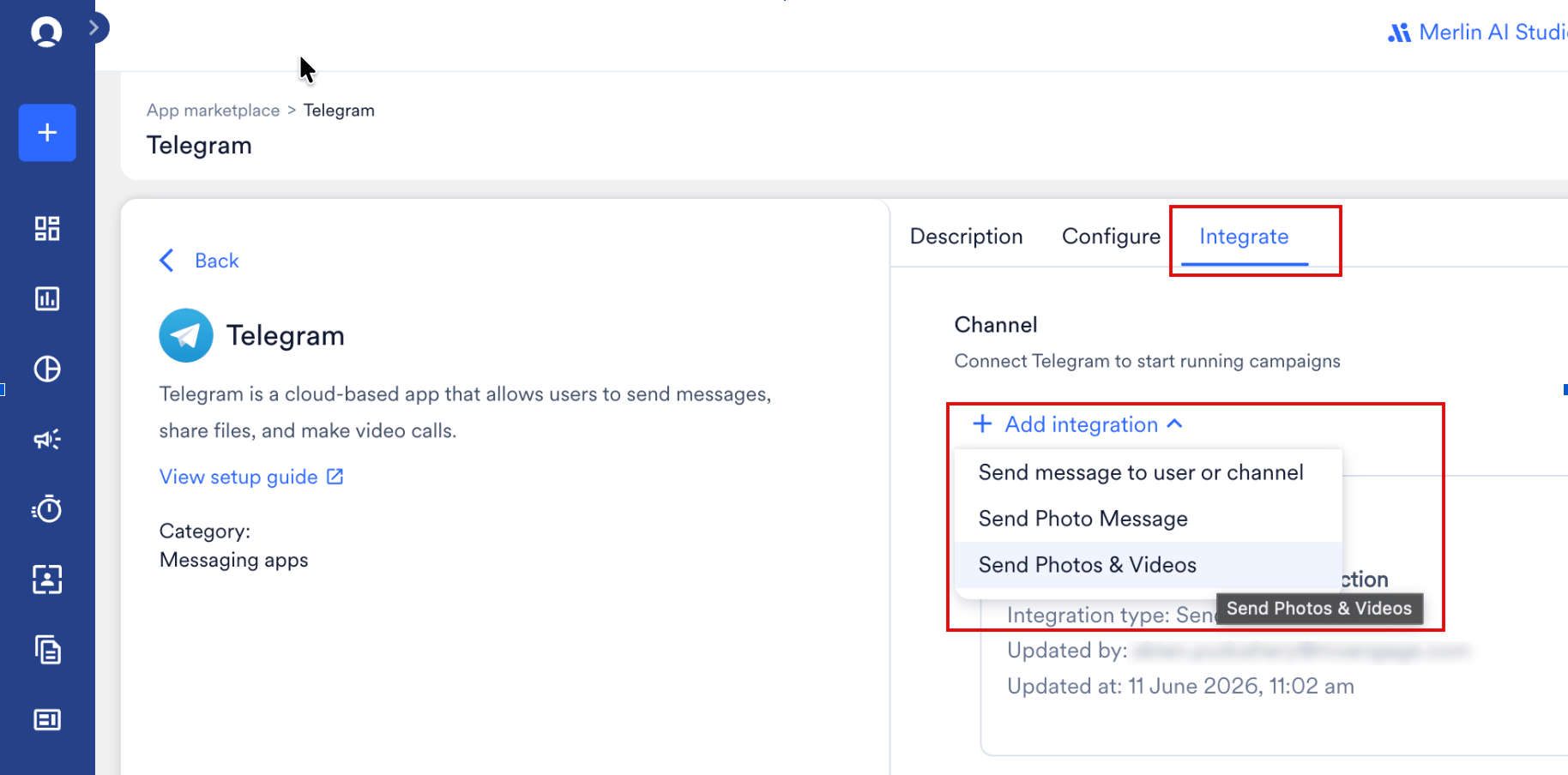
- Click the + Add integration down-arrow key and then click your preferred connector type from the drop-down list.
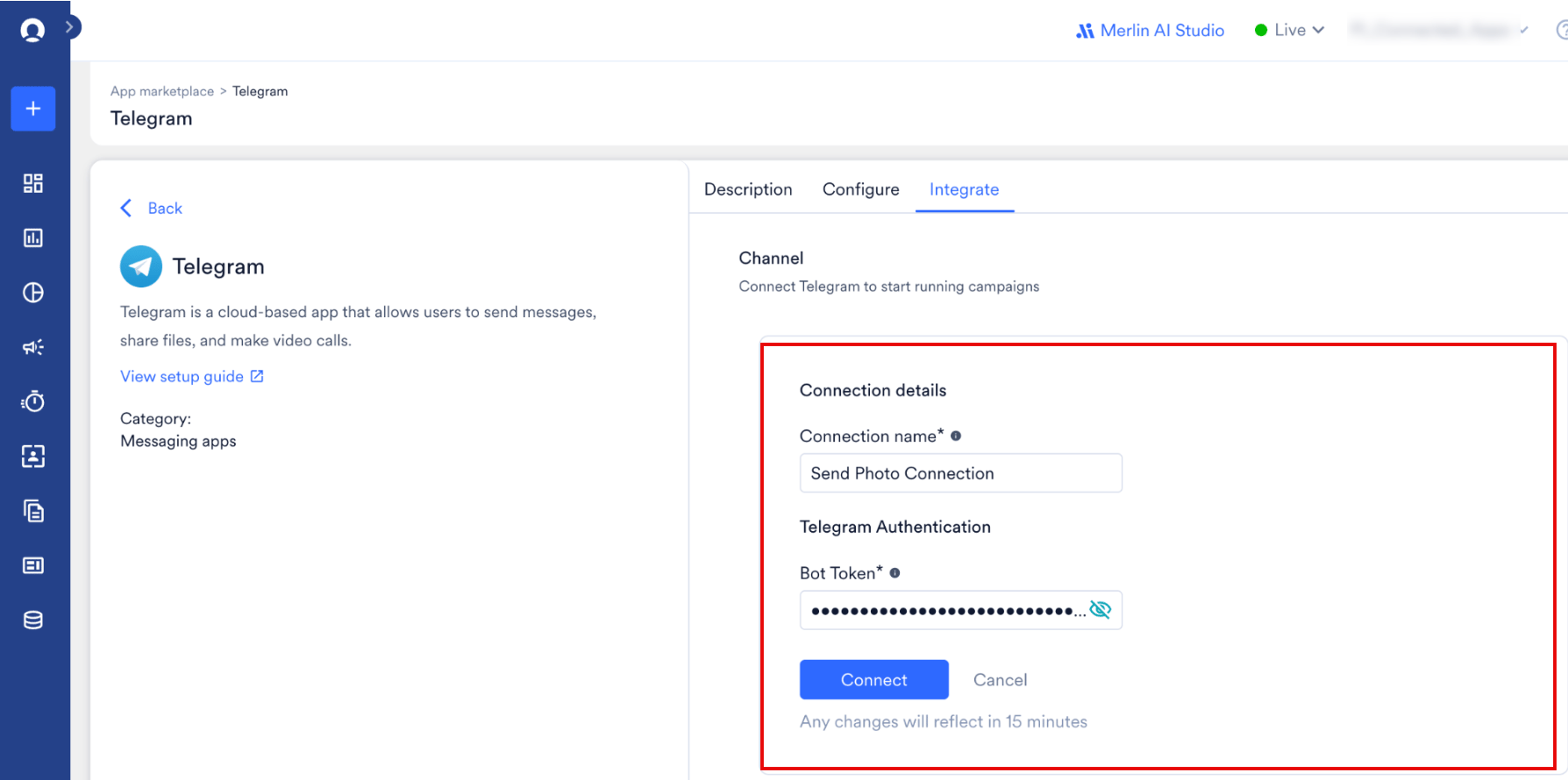
- Enter the following details:
- Click Connect.
Step 4: Create a Campaign on MoEngage to Send a Telegram Message
To launch a Telegram campaign, perform the following steps:- Navigate to Engage > Campaigns and click + Create campaign.
- In the campaign setup dialog, click Telegram under Connected Apps, and select your preferred delivery type.
- Under Select audience, click Filter users by. Under the User property tab, define a segment where the
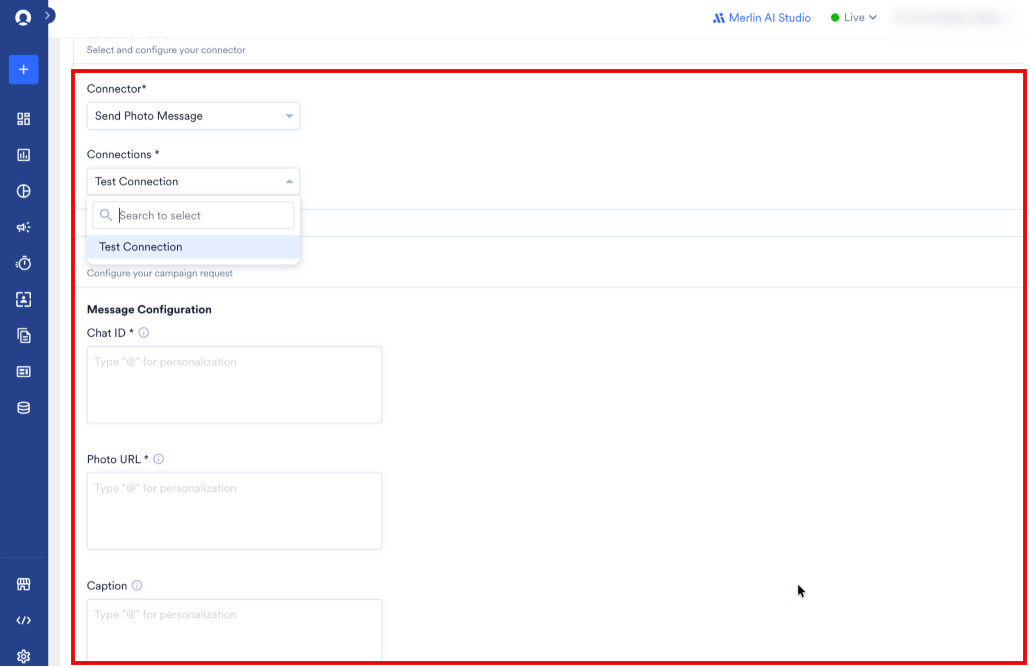
telegram_chat_idattribute exists. - In Step 3 of the campaign creator, select your connector and define your parameters.
- Send a message to a user or channel
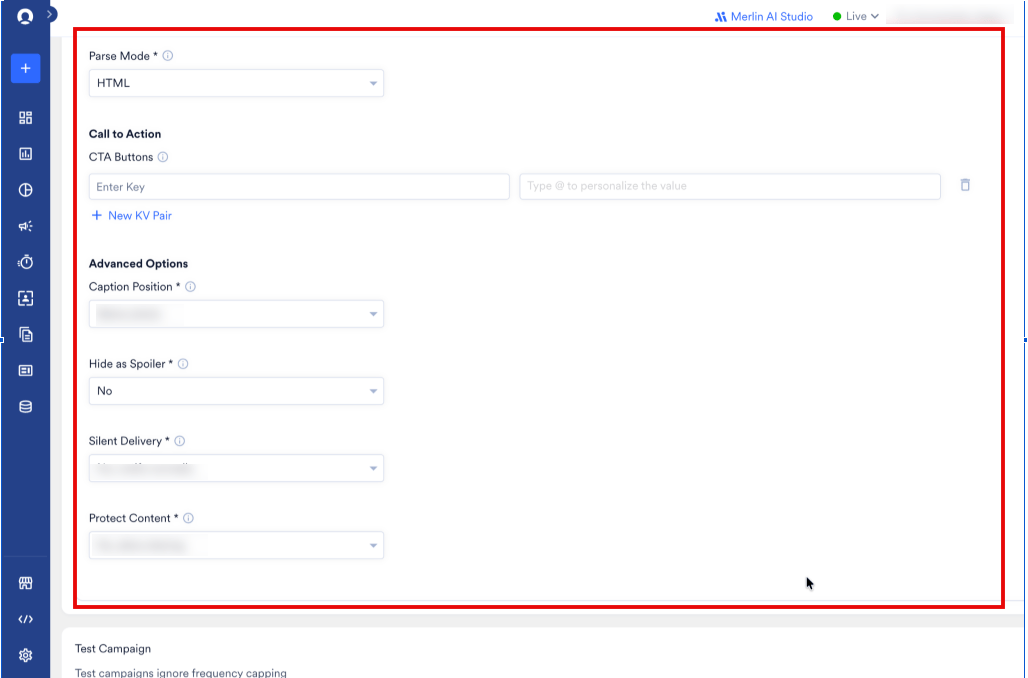
- Send Photo Message
- Send Photos and Videos
Use this connector to transmit a plain-text message. You can utilize MarkdownV2, HTML, or traditional Markdown formatting systems.
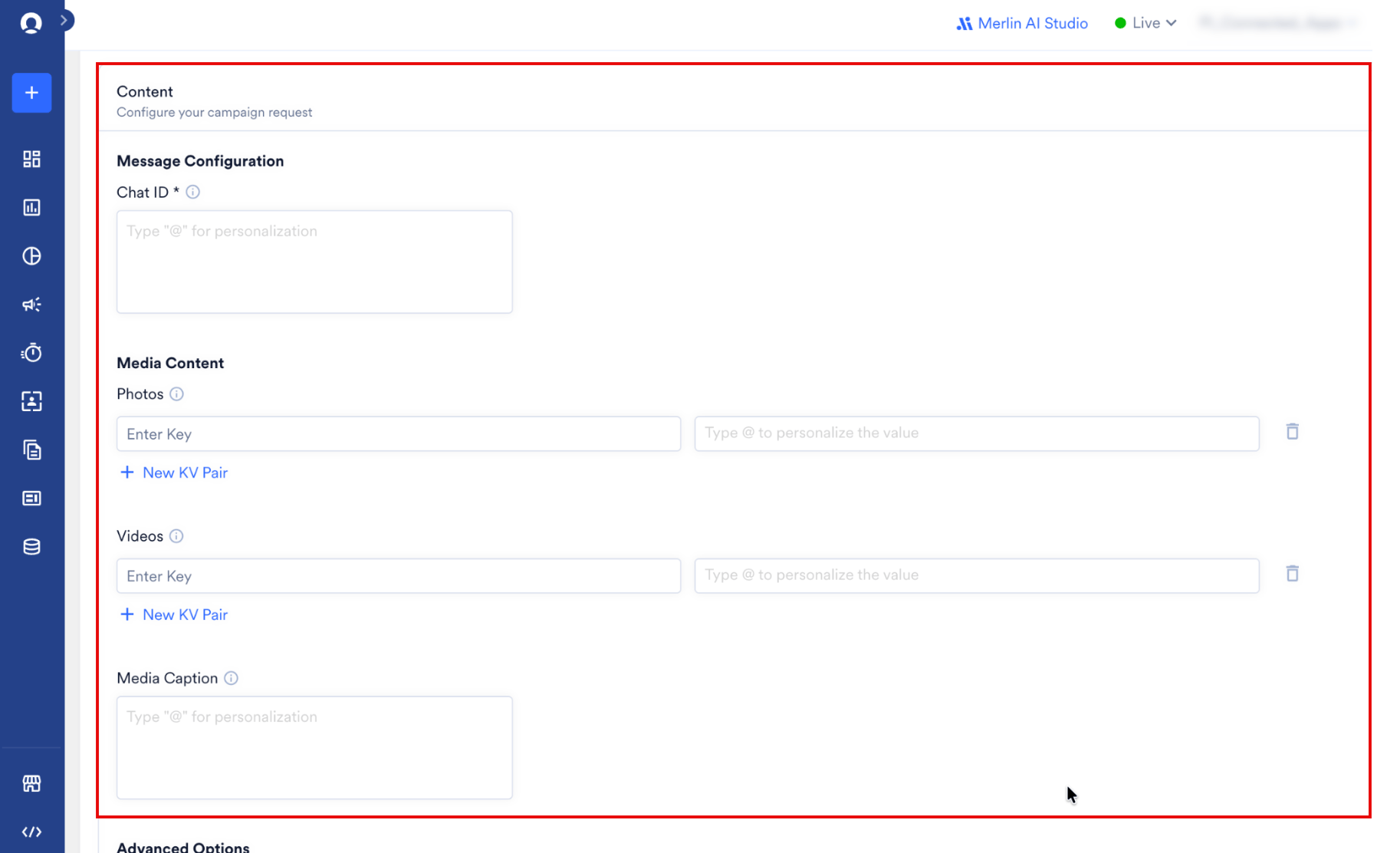
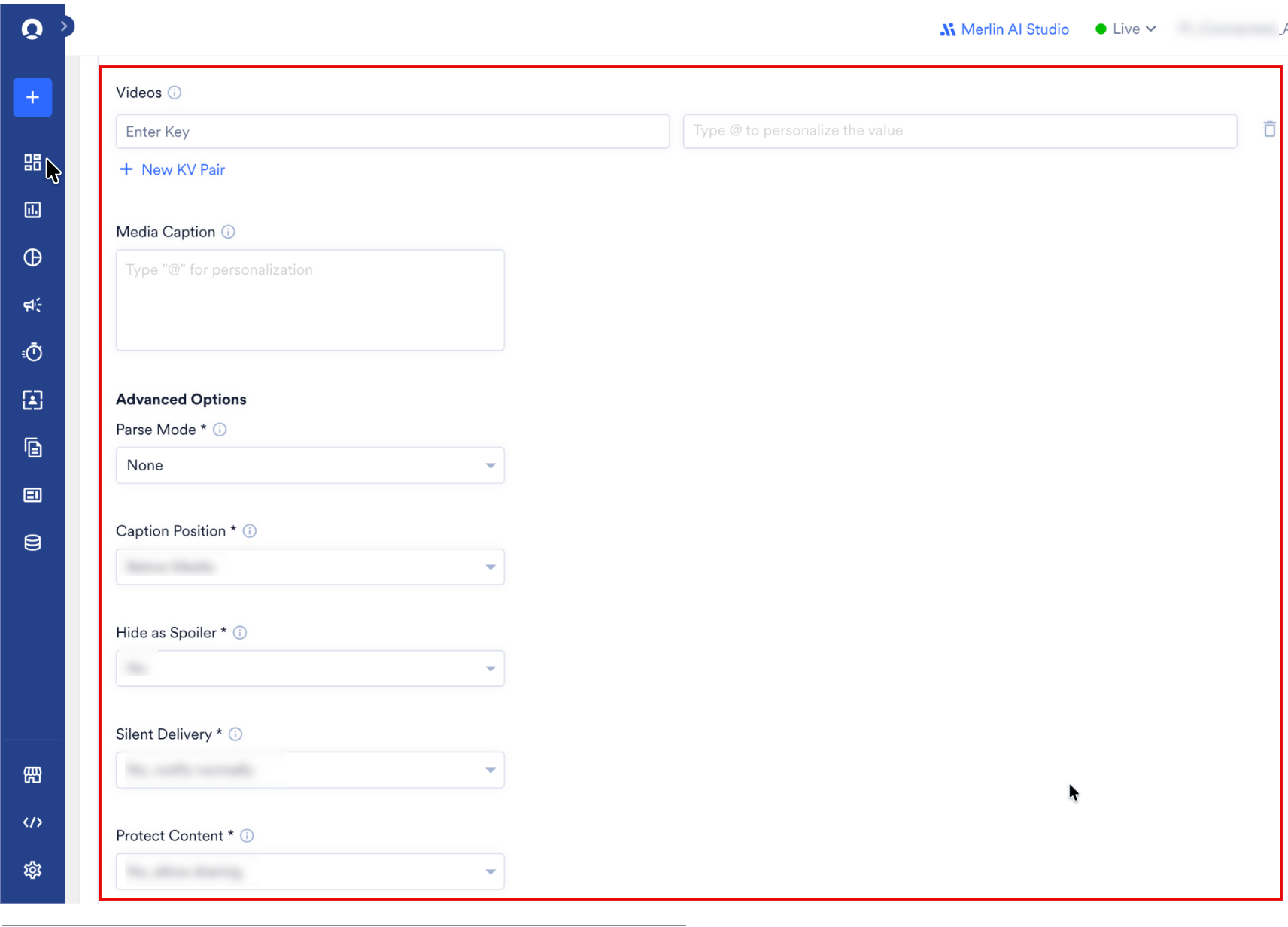
- Your campaign is now ready to be tested and sent to your audience. Use the Test functionality to dispatch a sample payload to a test user chat ID and verify your configuration.
- Publish the campaign.

Send a Telegram Message to a Channel or Group
To deliver campaigns to your public Telegram channel or a restricted group chat, perform the following steps:- Create a virtual user record in MoEngage to represent the channel or group. Set the
telegram_chat_idattribute of this user profile to your target group ID or public channel ID (for example,-100123456789or@mychannel). Learn how to acquire these IDs through this detailed Chat ID retrieval guide. - Isolate this single user profile by creating a specific segment. Ensure your target segment contains exactly one user. If you target multiple users with the same channel ID, MoEngage sends duplicate messages to the channel for each matched profile.
- In Step 2 of the campaign creator, define the target Telegram Chat ID using the channel or group credentials.
Recommended Connector Logic
Use the matrix below to choose the correct connector based on your message payload:Campaign Analytics
MoEngage tracks messaging attempts and API responses to calculate performance analytics. By default, MoEngage tracks the following metrics for your Telegram campaigns:- Attempted: The number of users who qualified for your campaign after applying frequency capping (FC) limits and for whom MoEngage initiated message dispatch. Refer to the MoEngage Connected Apps Campaign Analytics guide for complete details.
- Failed: The number of instances where the Telegram API rejected the payload, or cases where MoEngage could not resolve personalized attributes used in your content.
- Successfully Sent: The number of messages accepted by Telegram servers. MoEngage increments this metric when Telegram APIs return an HTTP status code 200.