

This feature is part of the Connected Channels paid add-on. To check what’s available for your plan, refer to Plans and Pricing. To enable it for your account, contact your MoEngage Customer Success Manager (CSM) or the Support team.
Introduction
Facebook Messenger is one of the world’s most popular instant messaging platforms, used by nearly one billion monthly active users. Through this platform, brands can create engaging chatbots to interact intelligently and automatically with their customers.MoEngage × Facebook Messenger
The MoEngage and Facebook integration leverages MoEngage Connectors to message your users in Facebook Messenger through the Messenger Platform API. The Facebook Messenger platform is intended for “non-promotional messages that facilitate a pre-existing transaction, provide other customer support actions, or deliver content requested by a person.” To read more, see Facebook’s platform guidelines and examples of acceptable use cases.Integration
Acknowledge the following before proceeding with integration:
- Facebook does not allow the usage of the Messenger platform to send marketing messages.
- You will need the user’s explicit permission for messages from your page.
- To send messages to users who are not test users of your Facebook App, your app will need to pass Facebook’s app review.
The following shows how to set up a MoEngage Facebook Messenger connector -
Step 1: Collect customer PSIDs
To send messages on Facebook Messenger, you need to collect your users’ page-specific IDs (PSIDs) to identify your user and interact with them consistently. PSIDs are not the same as the user’s Facebook ID. Facebook creates this identifier whenever you message a customer or when a customer messages you. PSIDs can be found using one of the various entry points Facebook offers. Once the user messages your app or takes an action in a conversation, such as tapping a button or sending a message, their PSID will be included in thesender.idproperty, so your bot can identify who took the action.
recipient.idproperty of the request to identify who should receive the message.
Step 2: Save PSIDs on MoEngage as custom attributes
PSIDs are strings that can be accessed by making an API call to Facebook APIs. Once you obtain a list of PSIDs, you will send them to MoEngage.- If you have a user identifier such as phone number, you can add them on MoEngage as a
ps_id- custom tracked user attribute/property (like phone number). You can save this data to MoEngage either using:- User Data APIs or
- Upload them using User Imports inside MoEngage.
- If you do not have any user identifier (meaning the user has not shared his personal details with your bot), you can upload them as Anonymous users.
Step 3: Create Connector Campaign on MoEngage to send message
To create a connector campaign on MoEngage,- Navigate to Create Campaign >> Connectors >> Custom and choose delivery type most suitable to your needs

- Choose Segment of users for whom ps_id exists (You can combine with other Segment criteria)
- On step 2 of the campaign, enter the FB url, add parameters and payload for your message. Read more about Facebook messenger send API here.
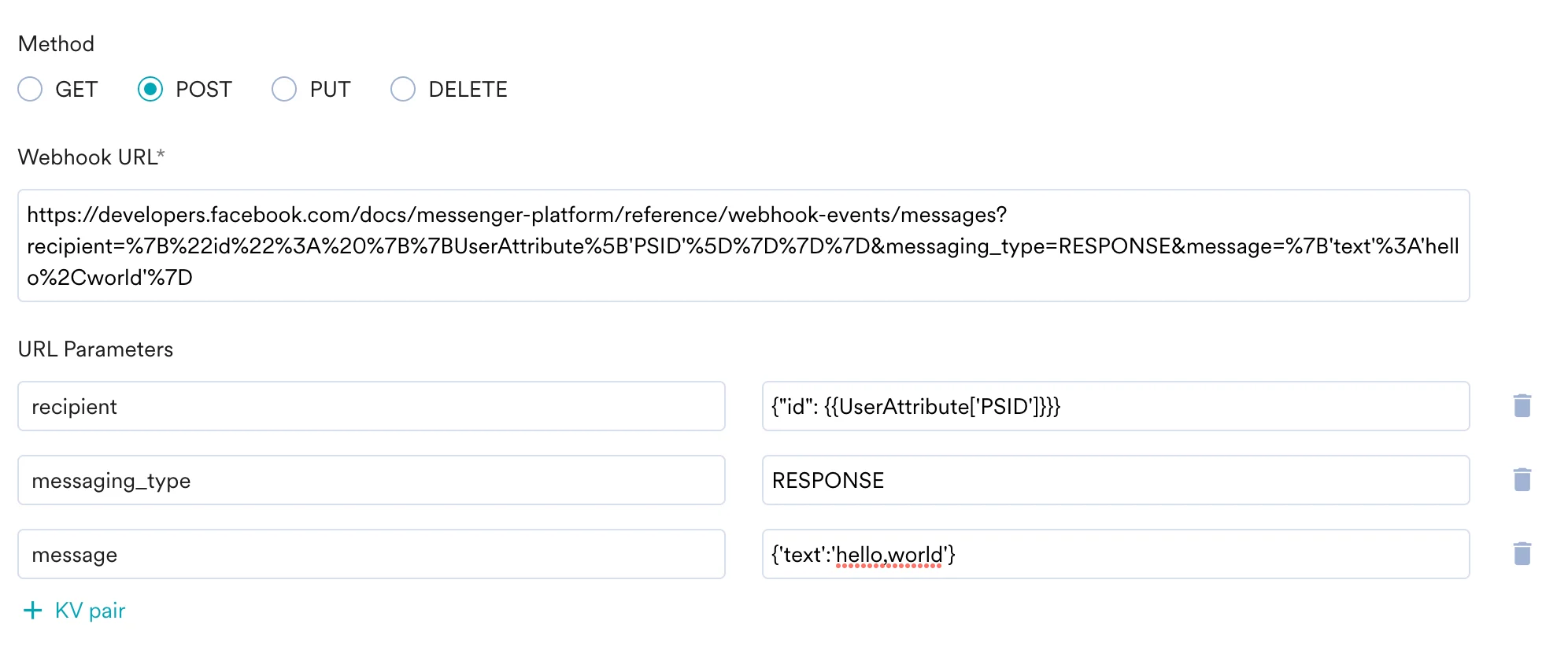
- At this point, your campaign should be ready to test and send. You can also test your connector configuration using the Test functionality available on Step 2 of Create Connector Campaign
