

MoEngage × Databricks
The MoEngage × Databricks integration allows you to set up a direct connection between your Databricks instance and MoEngage app to sync data regularly. You can define a schedule to run the sync periodically; periodic syncs can be frequent or with a time interval, such as once every month. During synchronization, MoEngage will directly connect to your data warehouse instance, retrieve all new data from the specified table or the table you have access to, and update the corresponding data on your MoEngage dashboard.Use Cases
Databricks integration with MoEngage helps you with the following use cases:- Sync real-time audiences from Databricks
- Import users and events from Databricks
- Export campaign interaction events to Databricks
Advantages
The integration with MoEngage helps you with the following advantages:Reduce Integration Time
- No more searching for the right ETL (Extract, Transform, and Load) tool, as MoEngage directly integrates with Databricks.
- Long and complicated ETL pipelines are now replaced with a one-time integration setup that gives MoEngage direct access to your data.
- This decreases the dependency on tech teams significantly.
Faster Data Processing
- The power of the Databricks infrastructure enables us to store, process, and query massive amounts of data in near real-time.
- Any changes in the original schema are propagated immediately without having to change any configuration on MoEngage’s end, which is a significant advantage over the traditional ETL pipelines.
- Since there is no need for ETL tools and external cloud providers, the cost of import is significantly lower than traditional data pipelines.
Integration
PrerequisitesEnsure you have a Databricks account with administrative workspace privileges to create service principals, generate secrets, and grant permissions on catalogs and schemas.
Part A: Set Up Authentication
To securely connect MoEngage to your Databricks SQL warehouse, MoEngage recommends configuring a Databricks service principal (SP) by using OAuth 2.0 Machine-to-Machine (M2M) authentication. This approach does not require workspace administrator privileges or full catalog ownership.Method 1: Service Principal with OAuth (Recommended)
Method 1: Service Principal with OAuth (Recommended)
Warehouse Segments currently does not support the OAuth method.
- Sign in to your account console in Databricks as an admin.
- In the sidebar, click User Management.
- On the Service principals tab, click Add Service principal.
- Enter a name for the service principal (for example,
moengage-pi-sp). - Click Add.
- In the service principals management dashboard, click your newly registered principal (for example,
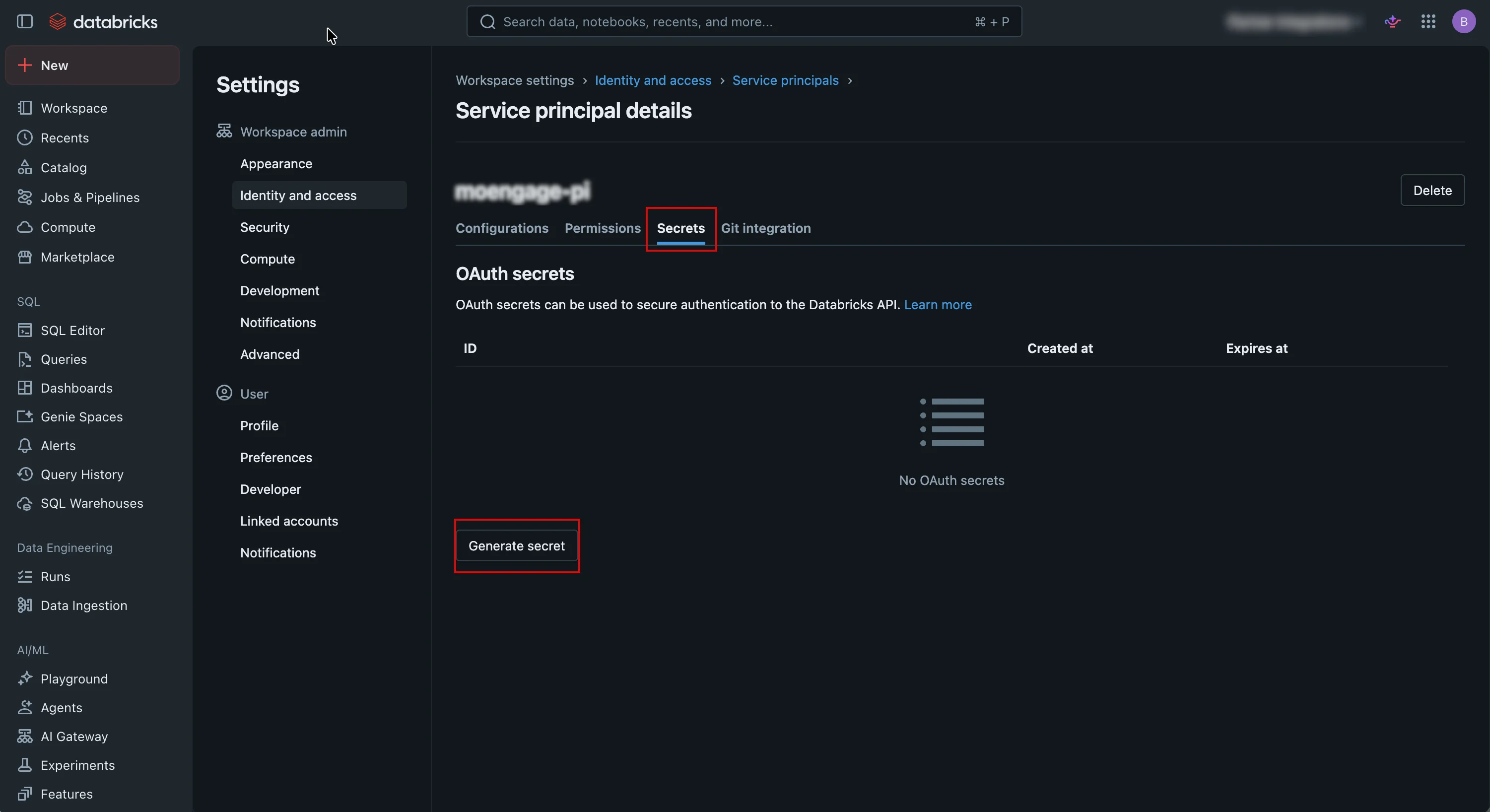
moengage-pi). - Click the Secrets tab.
- Click Generate secret. The Generate OAuth secret dialog box appears.
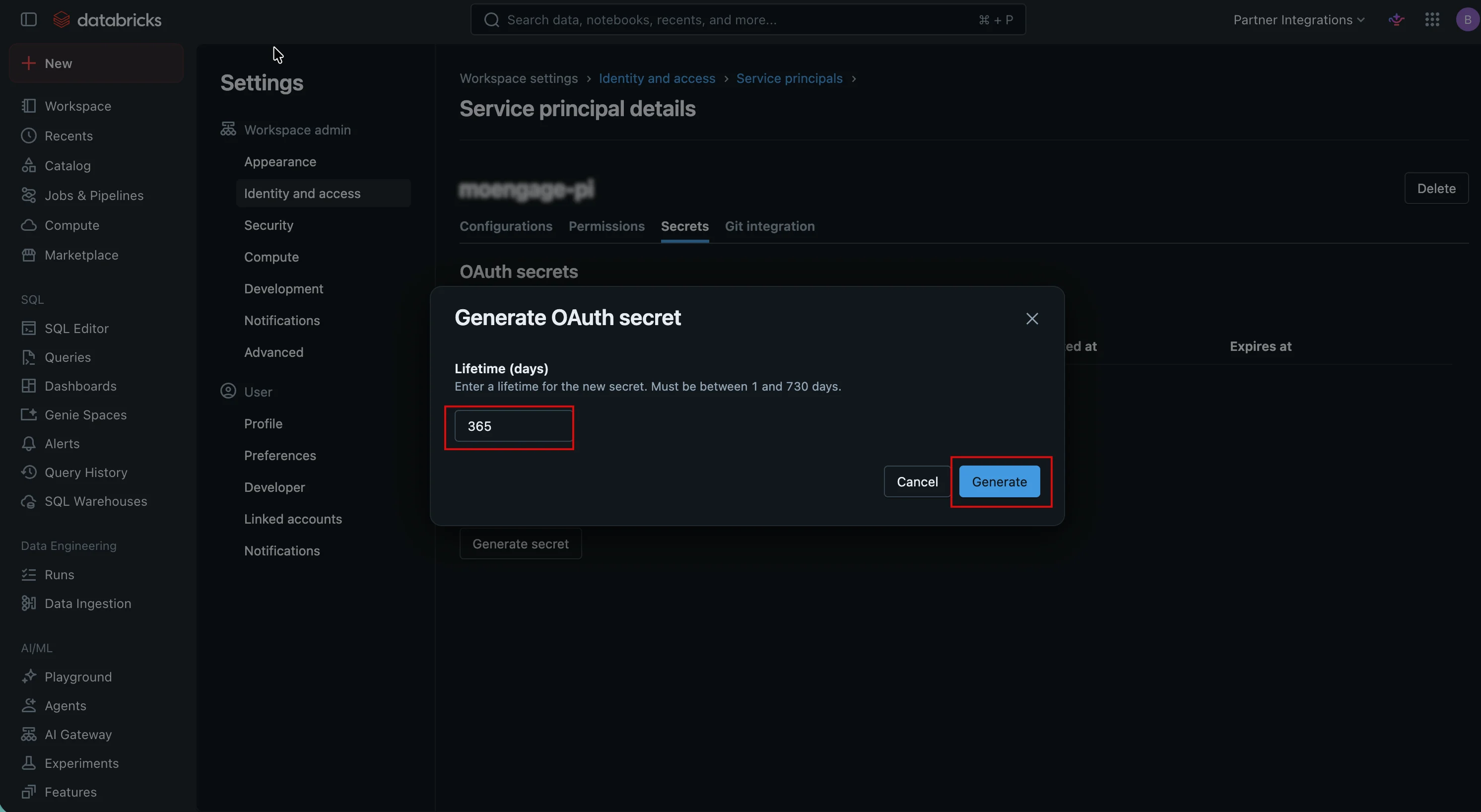
- In the Lifetime (days) box, type a lifetime (you must specify a value between 1 and 730 days; the default setting is 365 days).
- Click Generate.
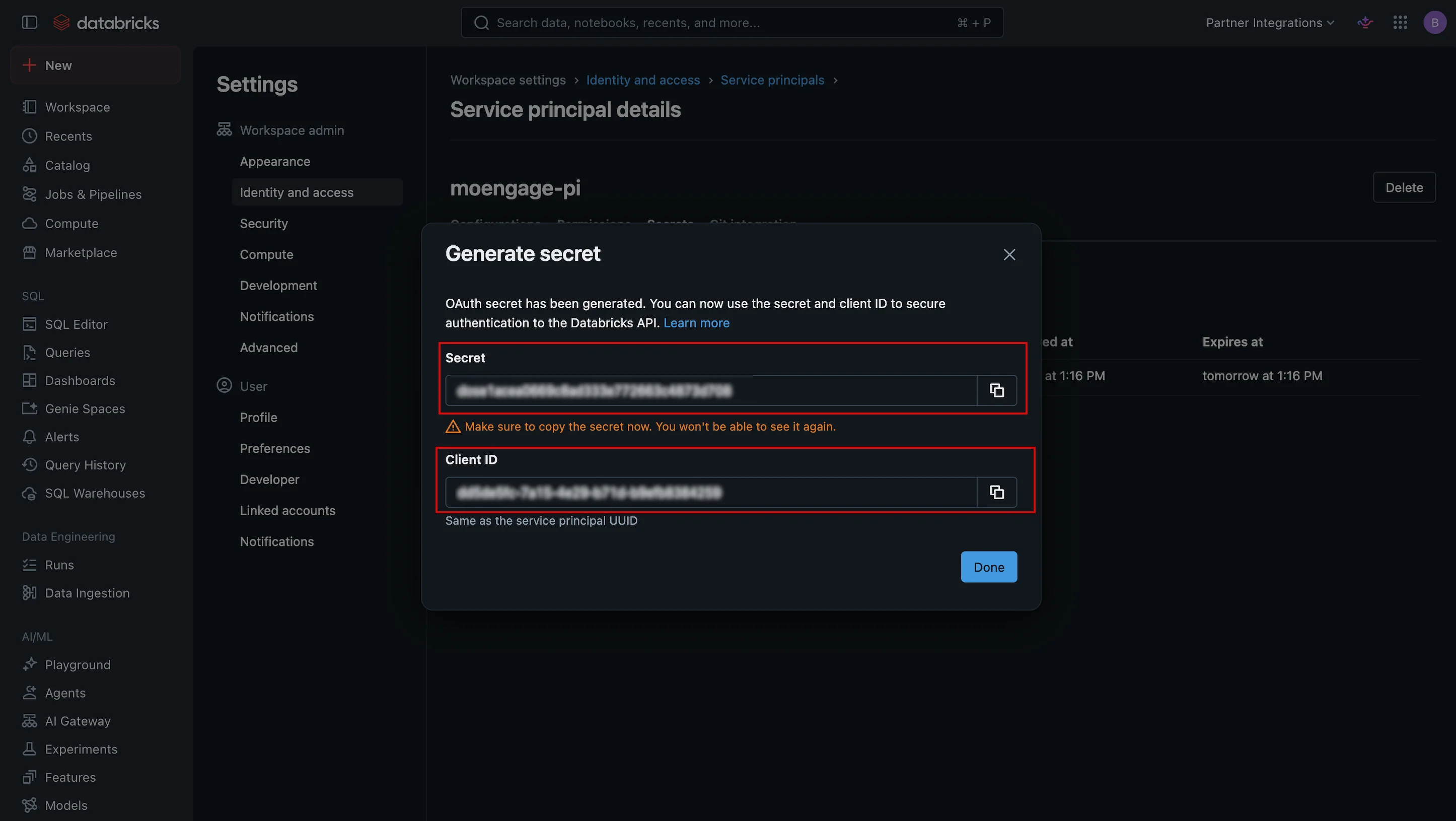
Copy the generated
client_id and client_secret immediately and save them in a secure location. Databricks does not display the secret value again. Use these values during the OAuth authentication setup on MoEngage.- Azure: If you are using a Microsoft Entra ID app, sync it to the Databricks workspace as a service principal first, and then generate a Databricks-managed OAuth secret on it. The client ID to be pasted into MoEngage is the Databricks-side ID, not the Azure Active Directory (AAD) app ID.
- GCP: Google service-account IAM constraints are managed independently. MoEngage only consumes the Databricks OAuth credentials.
- Private Deployments / Custom Domains: If your workspace uses a custom OAuth token endpoint that differs from the workspace host, locate and copy the custom endpoint URL. Enter it in the optional OAuth Token Endpoint field on MoEngage.
Method 2: Personal Access Token (PAT)
Method 2: Personal Access Token (PAT)
A personal access token (PAT) inherits all the privileges of the identity that issues it. You can generate a PAT for either a dedicated service principal or a dedicated user.Enable personal access tokens (one-time setup)
- Sign in to Databricks as a workspace administrator.
- Go to Settings > Advanced > Personal Access Tokens and ensure the feature is enabled.
- (Optional but recommended) Under Permission settings, restrict which users or service principals can create tokens.
- Dedicated service principal (recommended): This identity is not tied to a specific person, uses least-privilege principles, and survives employee turnover. You must generate service-principal tokens by using the Databricks CLI or the Token Management API, because service principals cannot sign in to the user interface.
- Dedicated user: This method is generated in the user interface. However, the token carries that user’s full permissions and stops working if the user is deactivated.
-
User token via the user interface:
- In your Databricks workspace, select your Databricks username in the title bar, and then select Settings from the list.
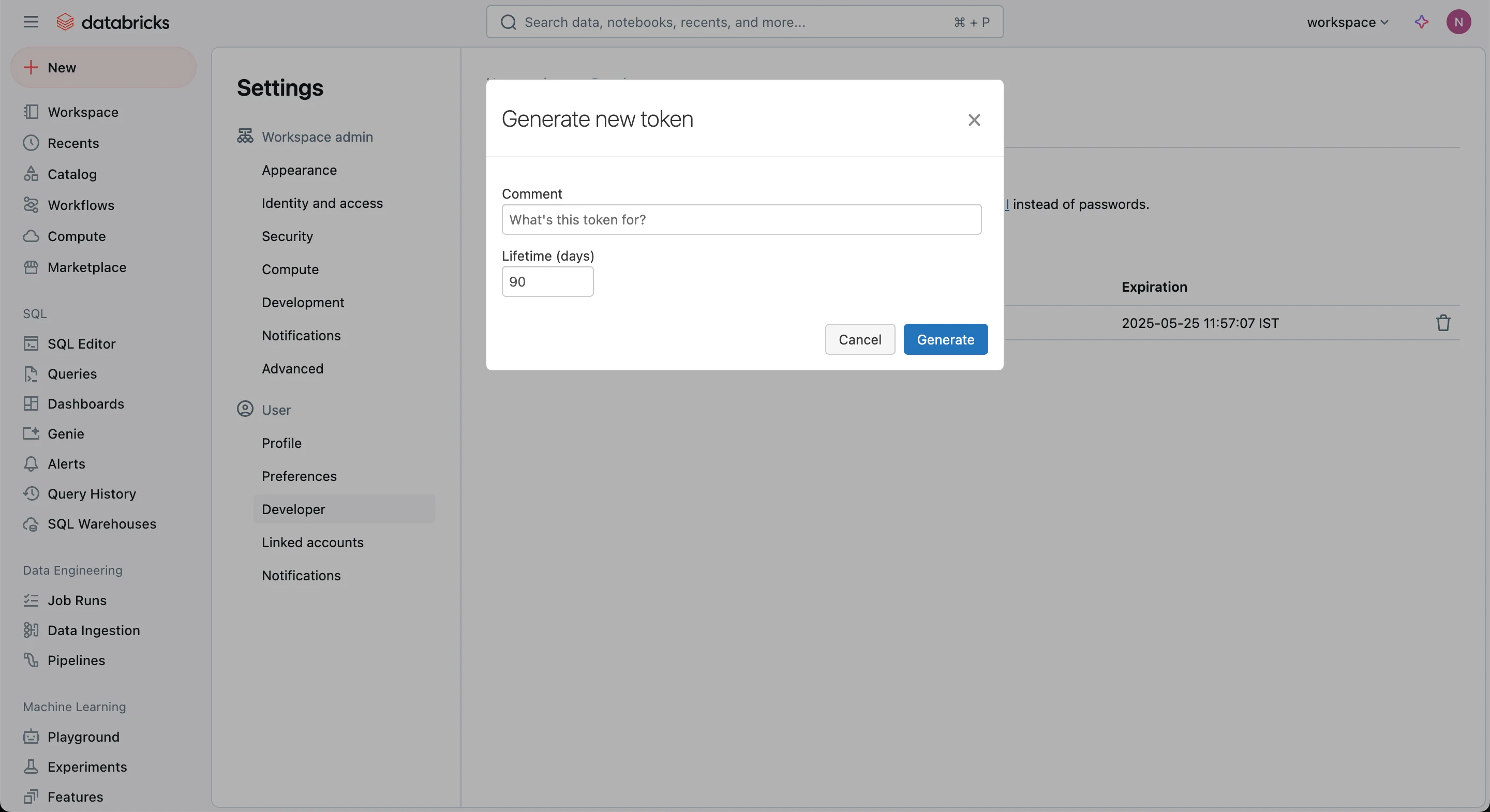
- On the Access Tokens tab, select Generate New Token.
- Enter a comment to identify this token, and change the token’s lifetime to no lifetime by leaving the Lifetime box empty.
- Click Generate and copy the generated token.
- Click Done.
-
Service-principal token via the Databricks CLI:
Run the following command in your terminal:
Databricks CLI Token CreationCopy the returned
token_valueimmediately, because it is displayed only once.
Part B: Grant Permissions
The required data permissions remain the same regardless of your chosen authentication method. Throughout this section,<grantee> represents either:
- The service principal’s application ID (if using OAuth or a Service Principal PAT).
- The user’s email address (if using a User PAT).
<grantee> with the Can use permission.
- Imports and Warehouse Segments
- Exports
To run queries on data from Databricks, import data into MoEngage, or use the Warehouse Segments feature, you must connect to your Databricks warehouse. Ensure you have administrative privileges on the Databricks platform and that your credentials do not expire.Provide Data Reader Access to the Service PrincipalTo provide data reader access to the service principal, execute the following SQL query in Databricks: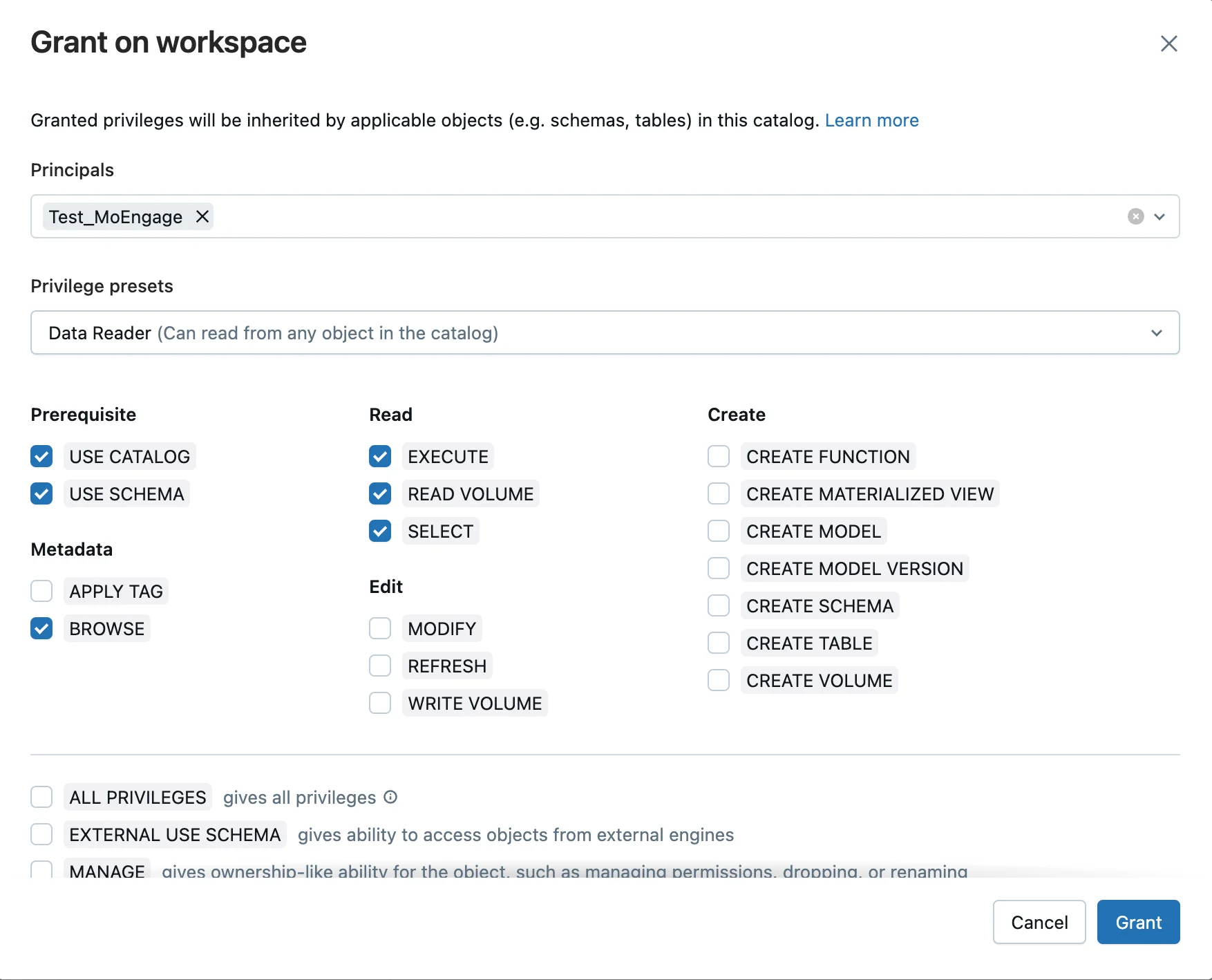
Catalog SQL Permission
MODIFY, CREATE TABLE, or any write permissions for imports.Optional Convenience Grant for All Current and Future TablesTo grant schema-wide access to avoid setting permissions manually for each new source table, execute the following SQL query in Databricks: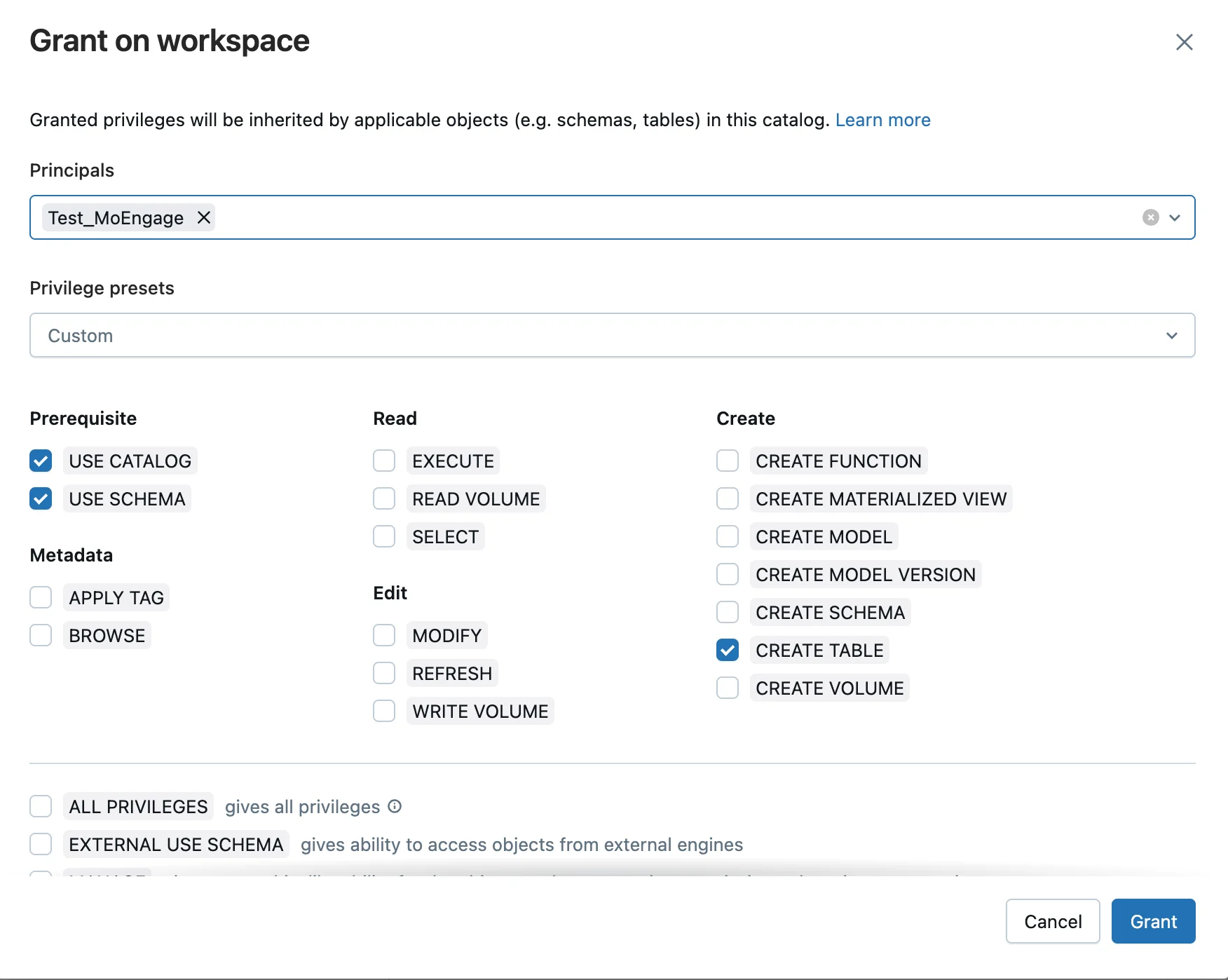
Part C: Token and Secret Management
To maintain a secure connection, use the following procedures to manage and rotate your authentication credentials.Personal Access Token (PAT) lifetime and rotation
Unlike OAuth credentials, PATs are static and do not refresh automatically. When a token expires or is revoked, the MoEngage connection stops working until you update it. Set a token lifetime that aligns with your corporate security policy and avoid using no-expiry tokens.
- Generate a new token in Databricks (see Method 2: Personal Access Token (PAT) for detailed generation steps).
- Copy the newly generated token.
- Sign in to your MoEngage dashboard, go to the active connection, click Edit, and then paste the new token in the Access token box.
- Click Save.
- Revoke the old token in the Databricks workspace immediately to terminate outdated access.
Rotate the Client Secret
To rotate the service principal client secret, perform the following steps:- In Databricks, generate a new secret for the service principal (click Service principals > Secrets > Generate secret).
- Copy the newly generated
client_secret. - In the MoEngage dashboard, open the active connection, click Edit, paste the new
client_secret, and then click Save. - (Optional) After you verify that the new secret works correctly, revoke the old secret in Databricks.
MoEngage does not poll for secret changes. The next scheduled MoEngage sync job that starts after you save the configuration automatically uses the new secret.Active jobs that run during the secret rotation continue to use the old token until the token expires (typically one hour or less). These jobs might experience brief, temporary token refresh failures during the rotation window, but the next scheduled run completes successfully.
Switch between a Personal Access Token (PAT) and OAuth
Step 2: Obtain Databricks Credentials for App Marketplace Integration
To obtain Databricks credentials for the App Marketplace, perform the following steps:- Sign in to your Databricks account.
- On the left navigation menu, click the SQL Warehouses tab.
- Click Serverless Starter Warehouse.
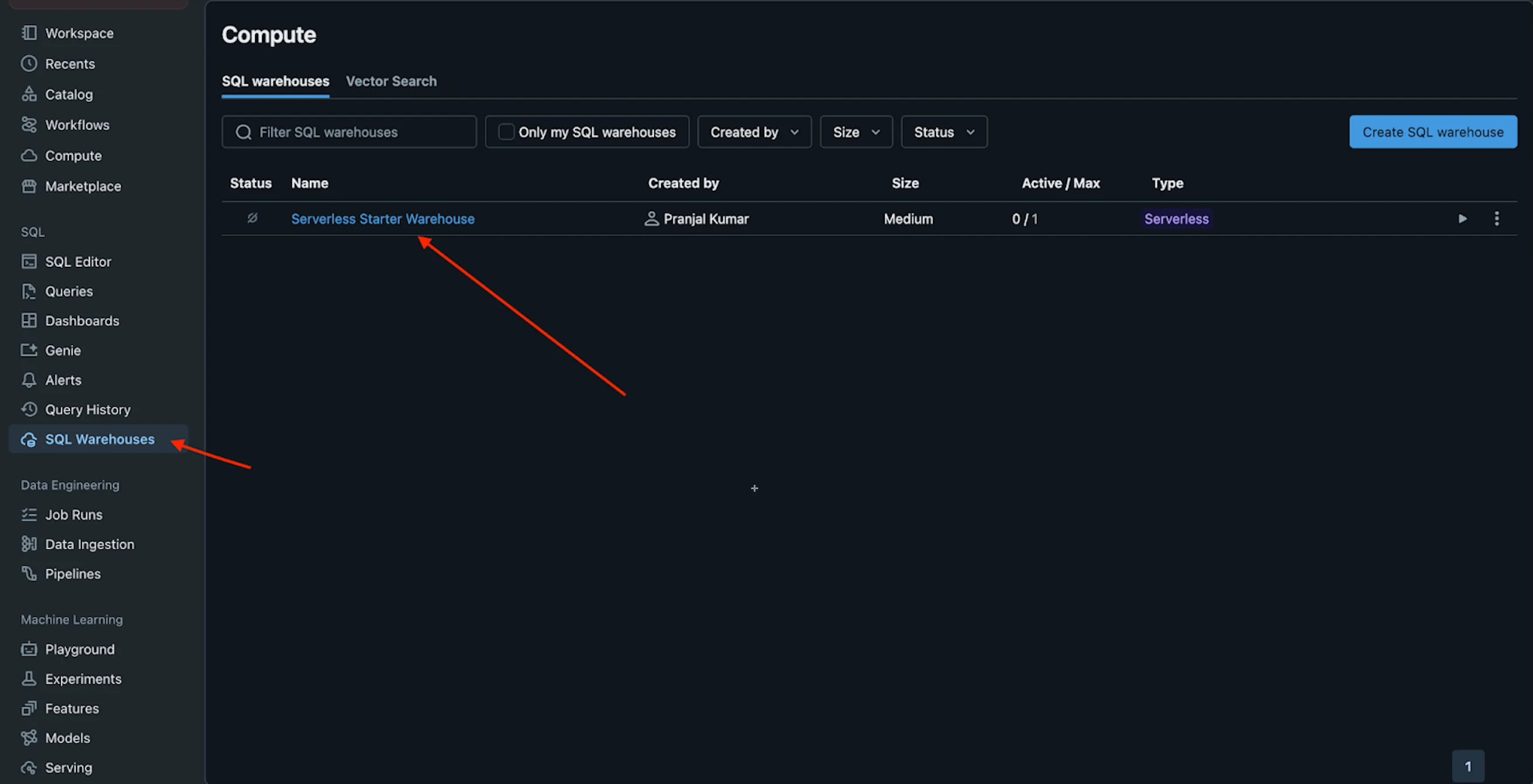
- On the Serverless Starter Warehouse page, click the Connection details tab.
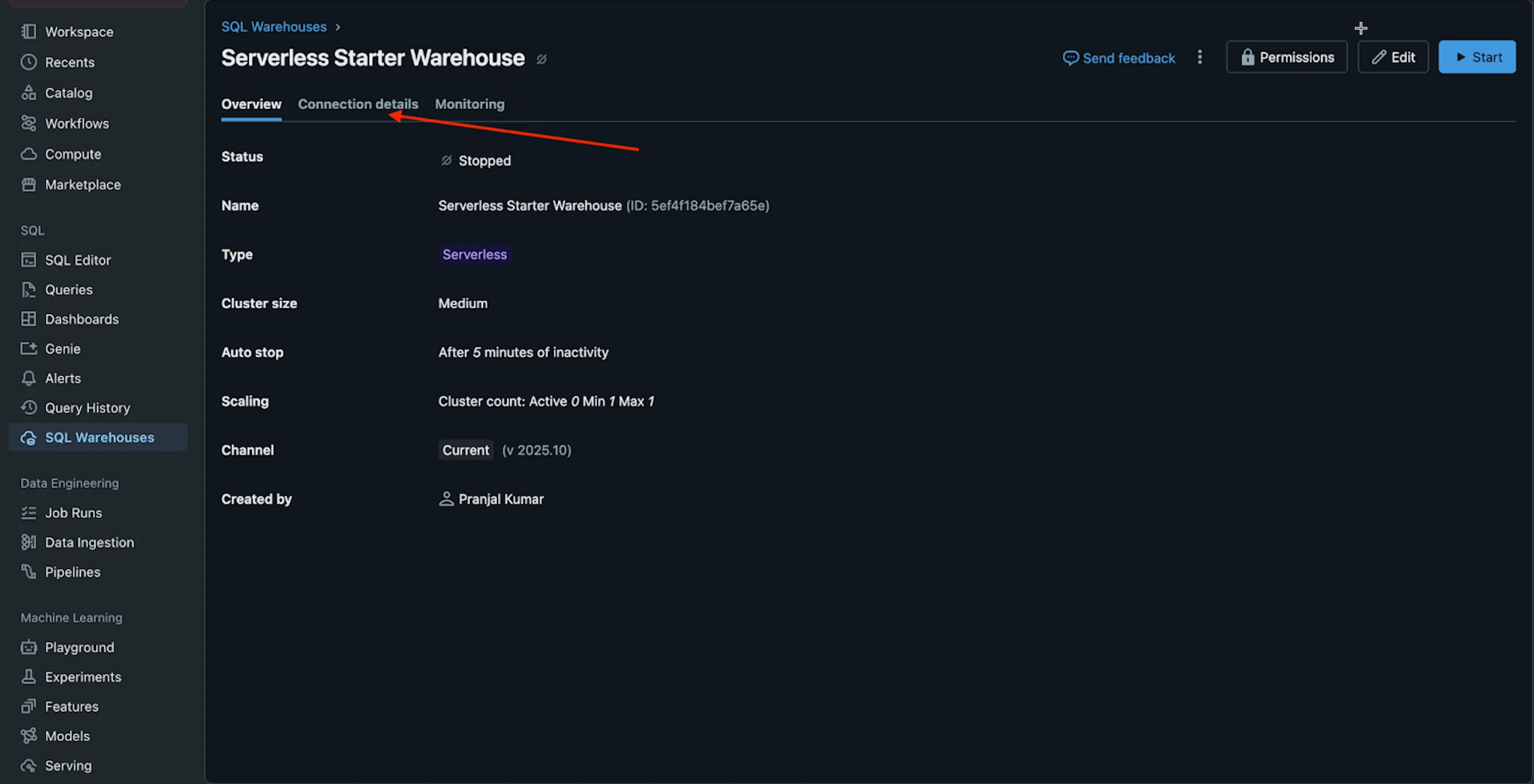
- Copy the Server hostname and HTTP path credentials to paste into the MoEngage App Marketplace.
 To create a generated access token, you can also follow the steps described in the Method 2: Personal Access Token (PAT) section in Part A.
Step 3: Connect Databricks on the App Marketplace
To connect Databricks on the App Marketplace, perform the following steps:- On the left navigation menu in the MoEngage dashboard, click App marketplace.
- On the App Marketplace page, search for Databricks.
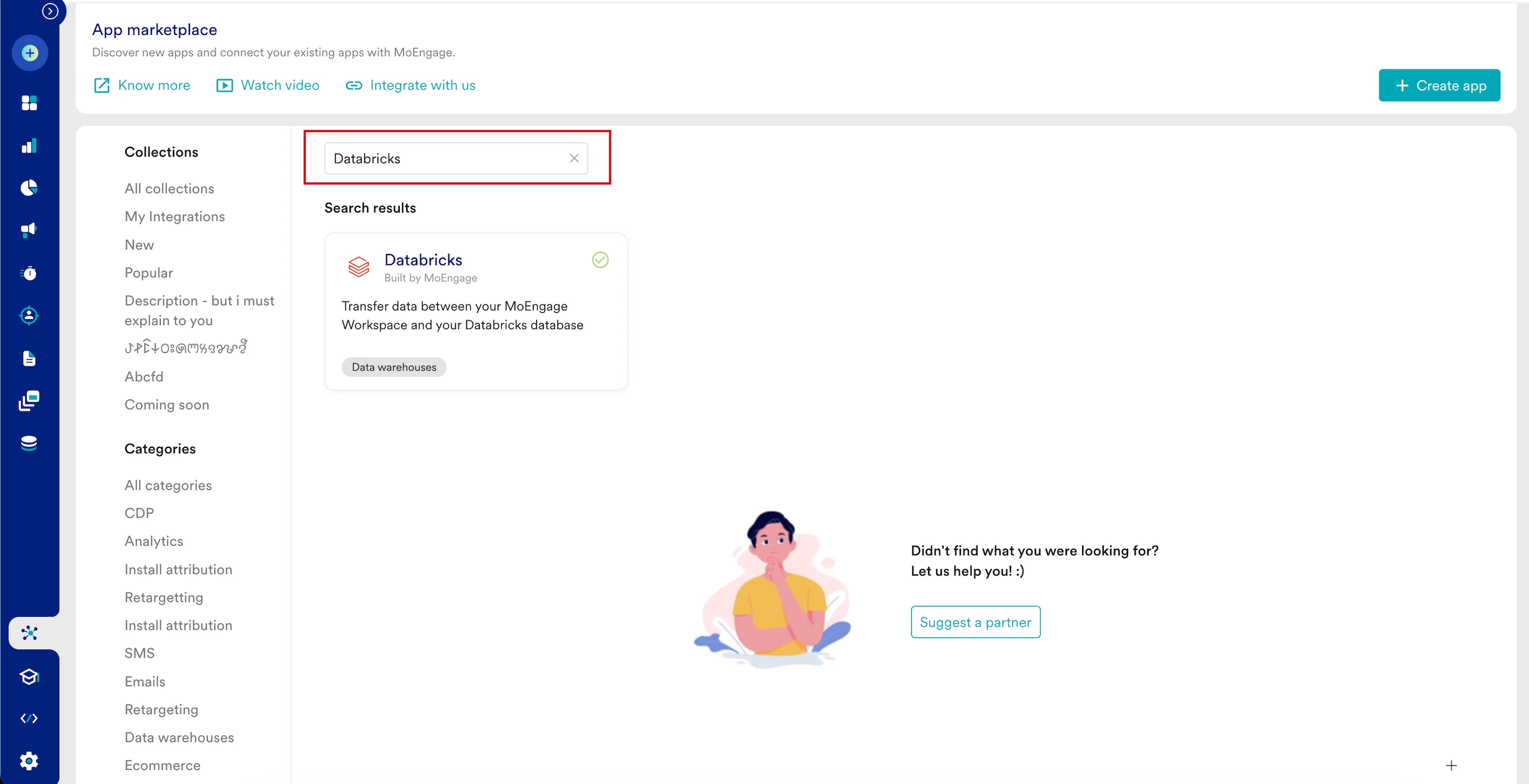
- Click the Databricks tile.
- On the Databricks page, go to the Integrate tab and click +Add Connection.
- Enter the following details:
| Field | Required | Description |
|---|---|---|
| Connection name | Yes | Type a name for the Databricks connection. |
| Host name | Yes | This refers to the unique identifier assigned to a specific cluster. Type the hostname that you want to connect to. To find your server hostname, sign in to the Databricks web console, and then navigate to SQL Warehouses > Connection details. |
| Port | Optional | Type the port to which you want to connect your Databricks server. The default is 443. |
| HTTP path | Yes | Type the HTTP path of your compute resource on Databricks. To find your HTTP path, navigate to SQL Warehouses > Connection details. |
| Authentication method | Yes | Select the authentication method to connect MoEngage with Databricks: OAuth (uses secure OAuth 2.0 M2M credential verification; requires a client ID and client secret) or Access Token (uses your Personal Access Token). |
| Client ID | Conditional | Type the client identifier (Application ID) of your registered service principal on Databricks. Required only when you select OAuth as the authentication method. |
| Client Secret | Conditional | Type the client secret corresponding to your client ID. Required only when you select OAuth as the authentication method. |
| Catalog | Yes | Type the Databricks catalog name to which MoEngage will have access. Displayed for both authentication methods. |
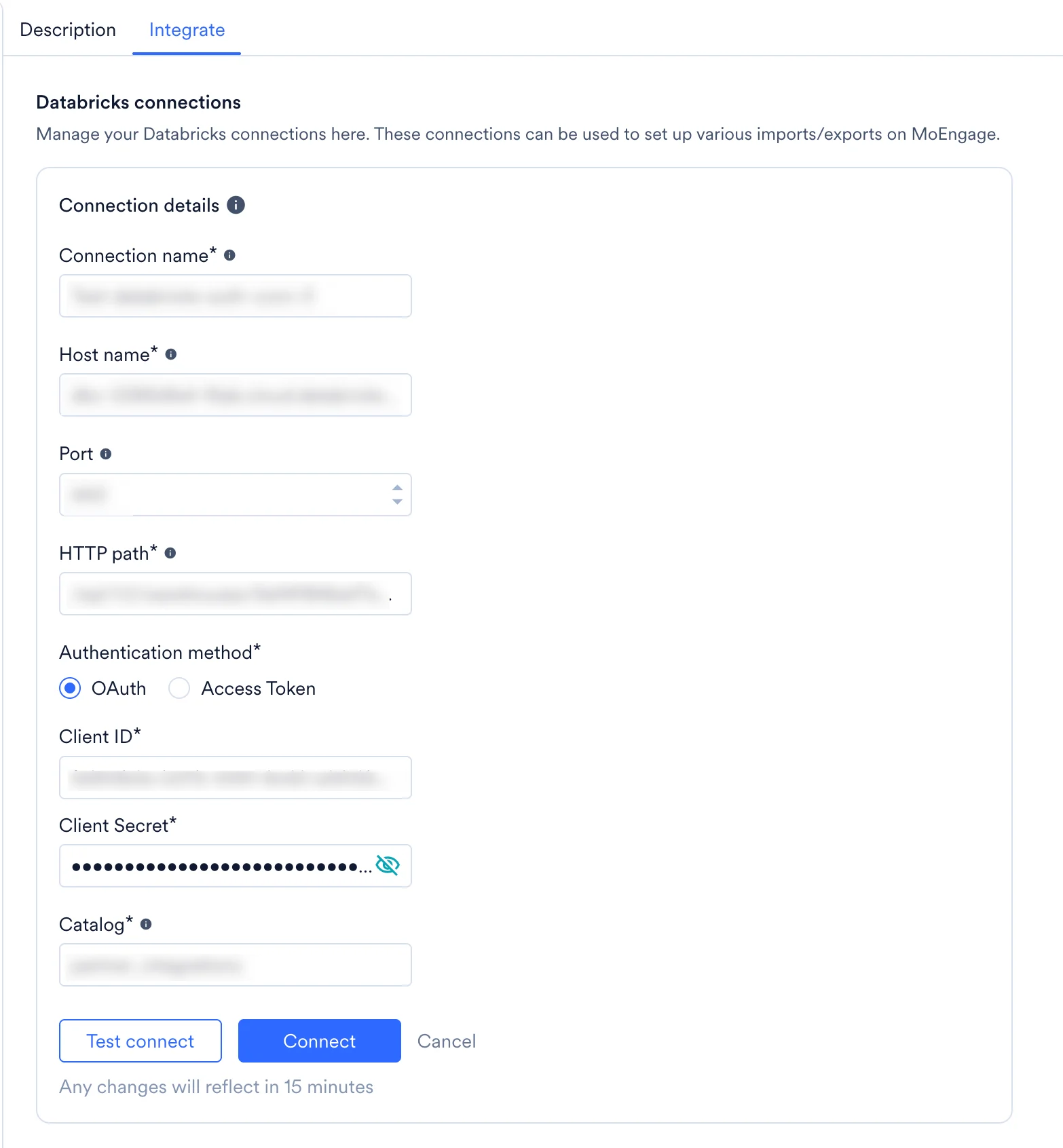
- Click Connect. Your Databricks connection is now integrated.
Supported Datetime Formats
| Date and Time Format | Examples |
|---|---|
"datetime_format": "YYYY-MM-DD" |
|
"datetime_format": "YYYY/MM/DD" |
|
"datetime_format": "DD/MM/YYYY" |
|
"datetime_format": "DD-MM-YYYY" |
|
"datetime_format": "DD-MM-YYYY hh:mm:ss" |
|
"datetime_format": "DD/MM/YYYY hh:mm:ss" |
|
"datetime_format": "YYYY-MM-DD hh:mm:ss" |
|
"datetime_format": "YYYY/MM/DD hh:mm:ss" |
|
"datetime_format": "DD-MM-YYYYThh:mm:ss.s" |
|
"datetime_format": "DD/MM/YYYYThh:mm:ss.s" |
|
"datetime_format": "DD-MM-YYYYThh:mm:ssTZD" |
|
"datetime_format": "DD/MM/YYYYThh:mm:ssTZD" |
|
"datetime_format": "YYYY-MM-DD hh:mm:ss.s" | 2019-02-22 17:54:14.933 |
"datetime_format": "YYYY/MM/DD hh:mm:ss.s" | 2019/02/22 17:54:14.933 |
"datetime_format": "YYYY-MM-DDThh:mm:ssTZD" |
|
"datetime_format": "YYYY/MM/DDThh:mm:ssTZD" |
|
"datetime_format": "YYYY-MM-DDThh:mm:ss.sTZD" |
|
"datetime_format": "YYYY/MM/DDThh:mm:ss.sTZD" |
|
Step 4: Network Security and IP Allowlisting
If your Databricks workspace restricts network access or uses IP access lists, you must explicitly add the egress IP blocks allocated to MoEngage to your allowlist, based on your data center (DC) geography.Because Databricks routing for database execution traffic resolves through your workspace host URL, a single allowlist entry covering the workspace host encompasses database and query traffic. Contact MoEngage Support to obtain the regional egress IP blocks corresponding to your workspace data center.
Step 5: Connection Verification and Troubleshooting
After the service principal and grants are configured, navigate to the MoEngage App marketplace tab and test your connection. A successful test confirms that authentication and service principal permissions are configured correctly. If the verification step fails, use the following diagnostics guide to resolve common issues:| Observed Connection Error | Cause and Resolution |
|---|---|
| Invalid OAuth client credentials | The client_id or client_secret contains a typo, or the active secret was rotated or deleted in Databricks. Verify the credentials and try again. |
| Service principal lacks workspace permissions | The service principal is missing the Can use permission on the designated SQL warehouse, or is missing USE CATALOG privileges on the catalog. |
| Invalid Catalog | The catalog name specified in MoEngage is incorrect, or the service principal has catalog-level traversal permissions but is missing underlying schema or table permissions. |