

Introduction
The mParticle integration does not currently support Unified Identity (Identity Resolution) or Portfolio.
Integration
Step 1. Setup MoEngage as output on mParticle
On mParticle dashboard,- Navigate to Setup > Output
- Go to the Audience tab. Click Add audience output on top right.
- Search for MoEngage.
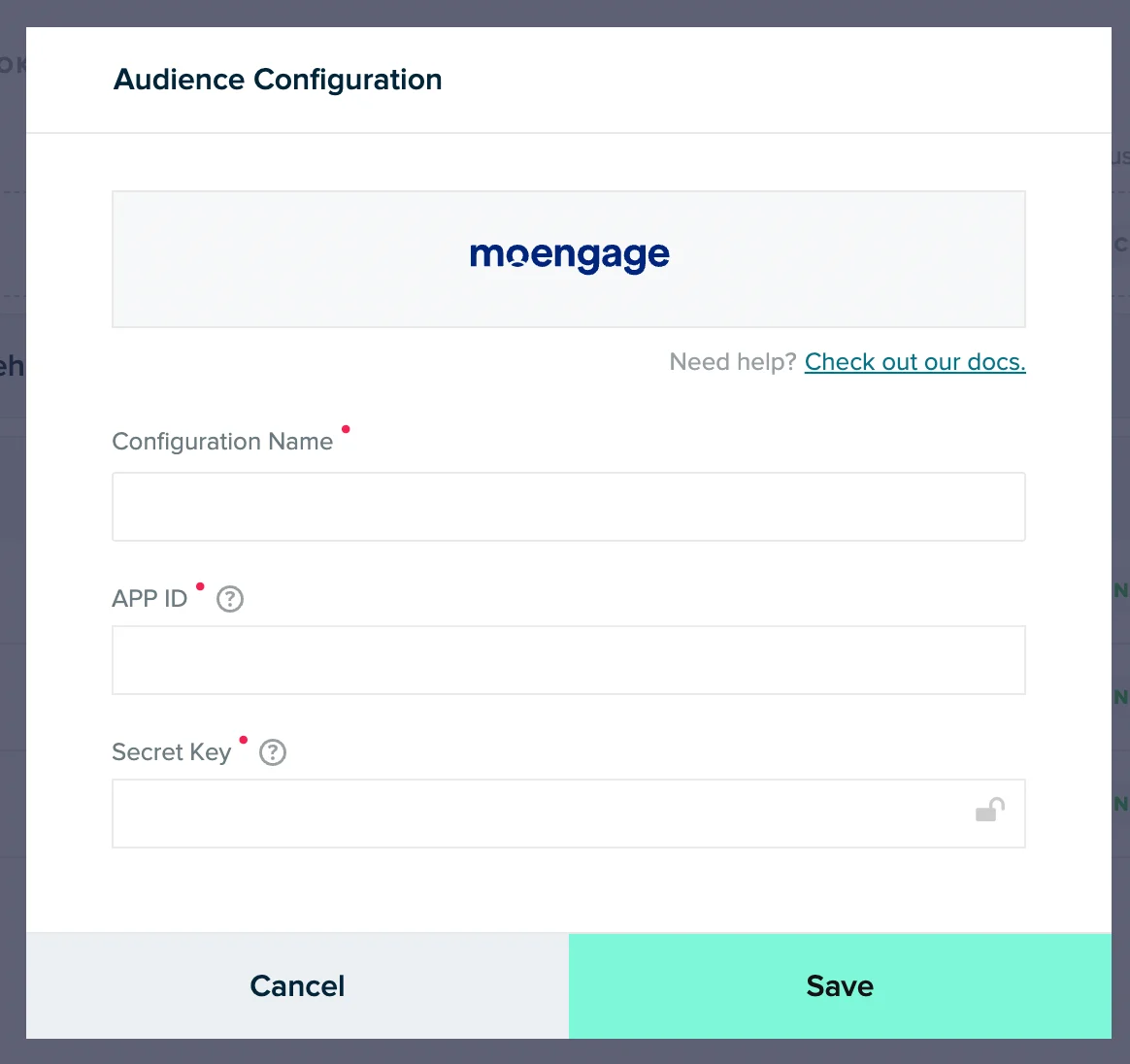
- In the pop up, provide the details of your MoEngage app.
| Field | Details |
|---|---|
| Configuration name | You can give any name to your configuration - eg. “MoEngage Prod” |
| Workspace ID | The Workspace ID of your MoEngage account is available at Settings - > Account -> APIs ->Workspace ID. The Data API ID and the Workspace ID of your MoEngage account are the same. |
| Secret key | Secret key is the Data API key of your MoEngage account, which is available at Settings - > App Settings -> APIs -> API Keys -> Data. |
Step 2: Create an audience in mParticle
On your mParticle dashboard,- Navigate to Audiences >> + New Audience
- Fill the details on Audience name, and select your desired input source
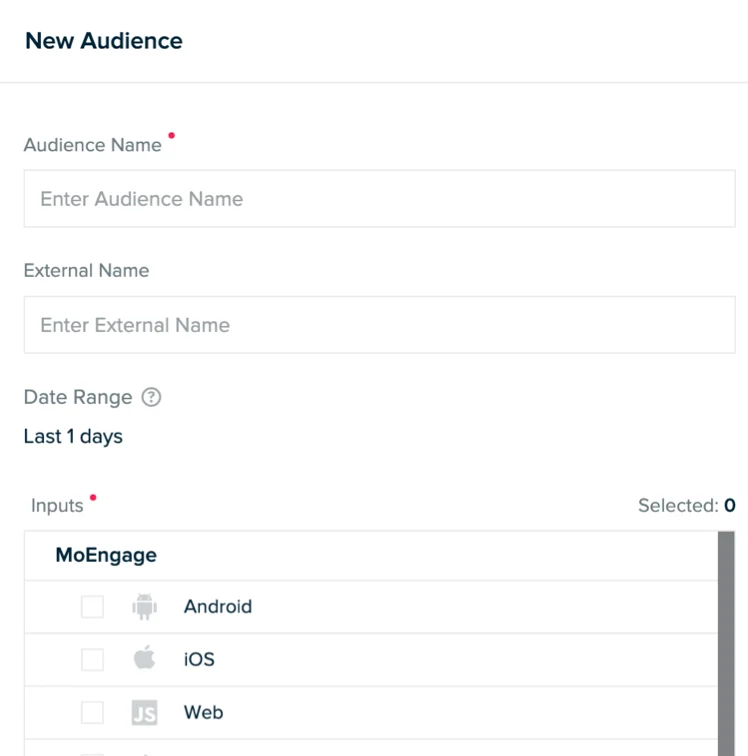
- Click Create. Now, you can define our audience. Read more about creating Audiences in mParticle here. Click Activate.
Step 3: Connect the audience to MoEngage
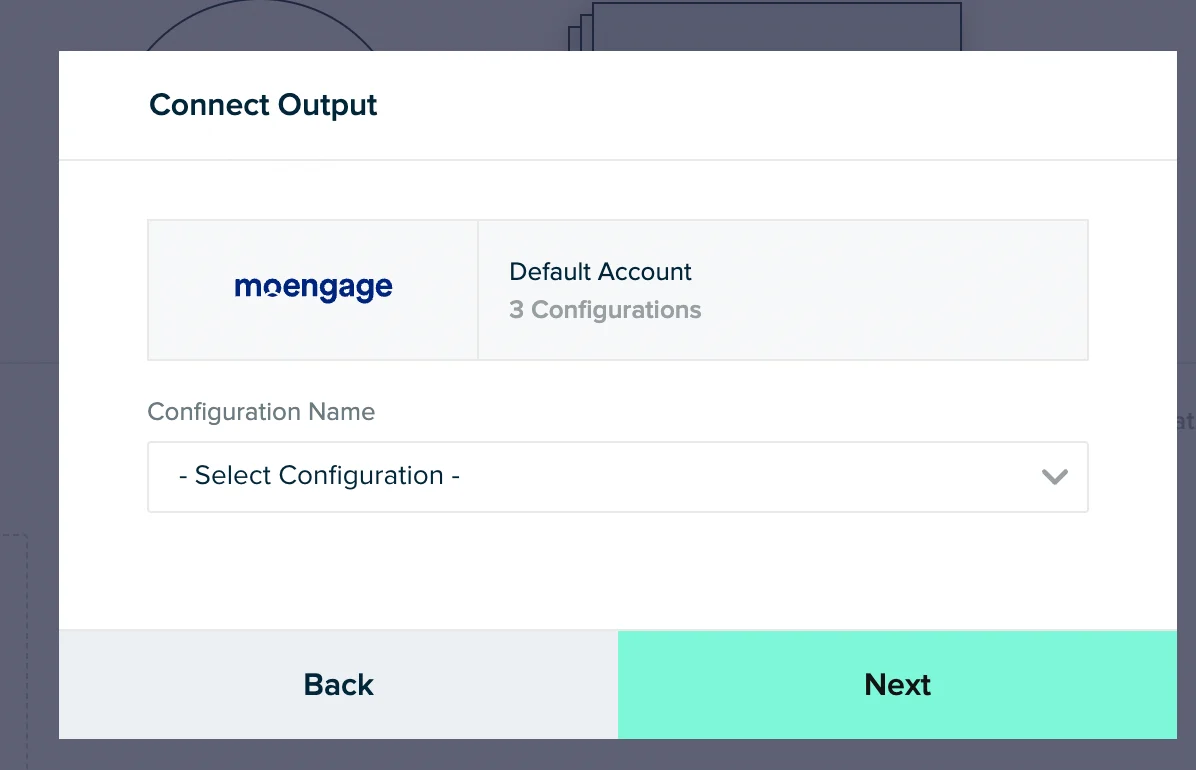
- Select your MoEngage account here. This is the one that you had configured in the Step 1.
 On your MoEngage dashboard, navigate to Segment >> Custom segment and search for your audience here. Read more about customer segments in MoEngage.