

Introduction
With the integration, MoEngage will forward all campaign data that we are generating to mParticle. The data points sent to mParticle from MoEngage are available here -> Campaign Interaction Events.Integration
PrerequisitesExports to mParticle makes use of MoEngage Streams. Streams is an add-on. Contact your dedicated MoEngage CSM (customer success manager) to enable it for your account.
Steps
Step 1: Setup MoEngage feed as an input on mParticle
- On the Mparticle dashboard, click on the Connections >> Feed >> Input feed.
- Select MoEngage as custom input feed.
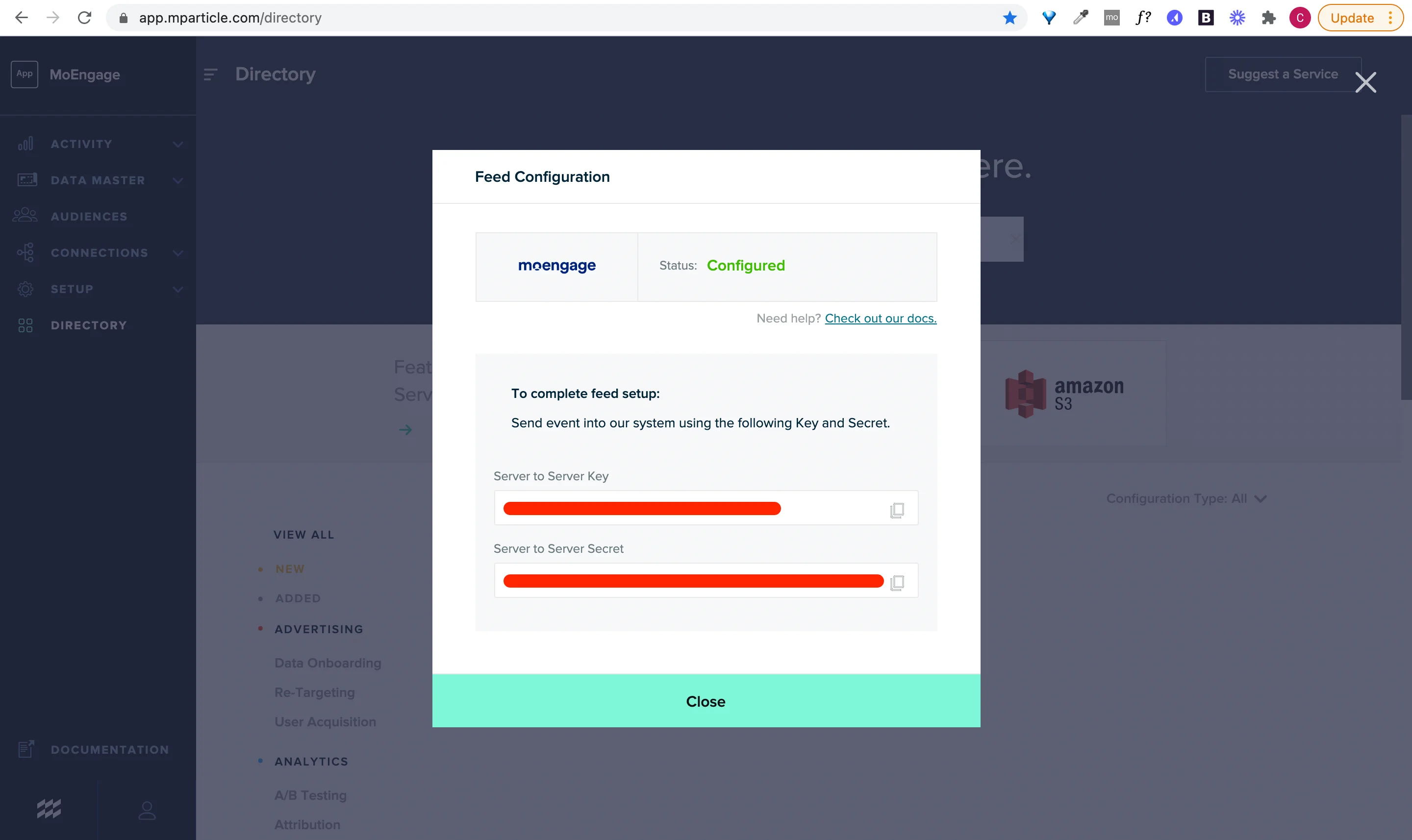
Step 2- Setup mParticle streams on MoEngage
On your MoEngage Dashboard- Navigate to App Marketplace ,
- Search for mParticle and go to the Integrate tab.
- Click on + Add Integration button to add a new integration.
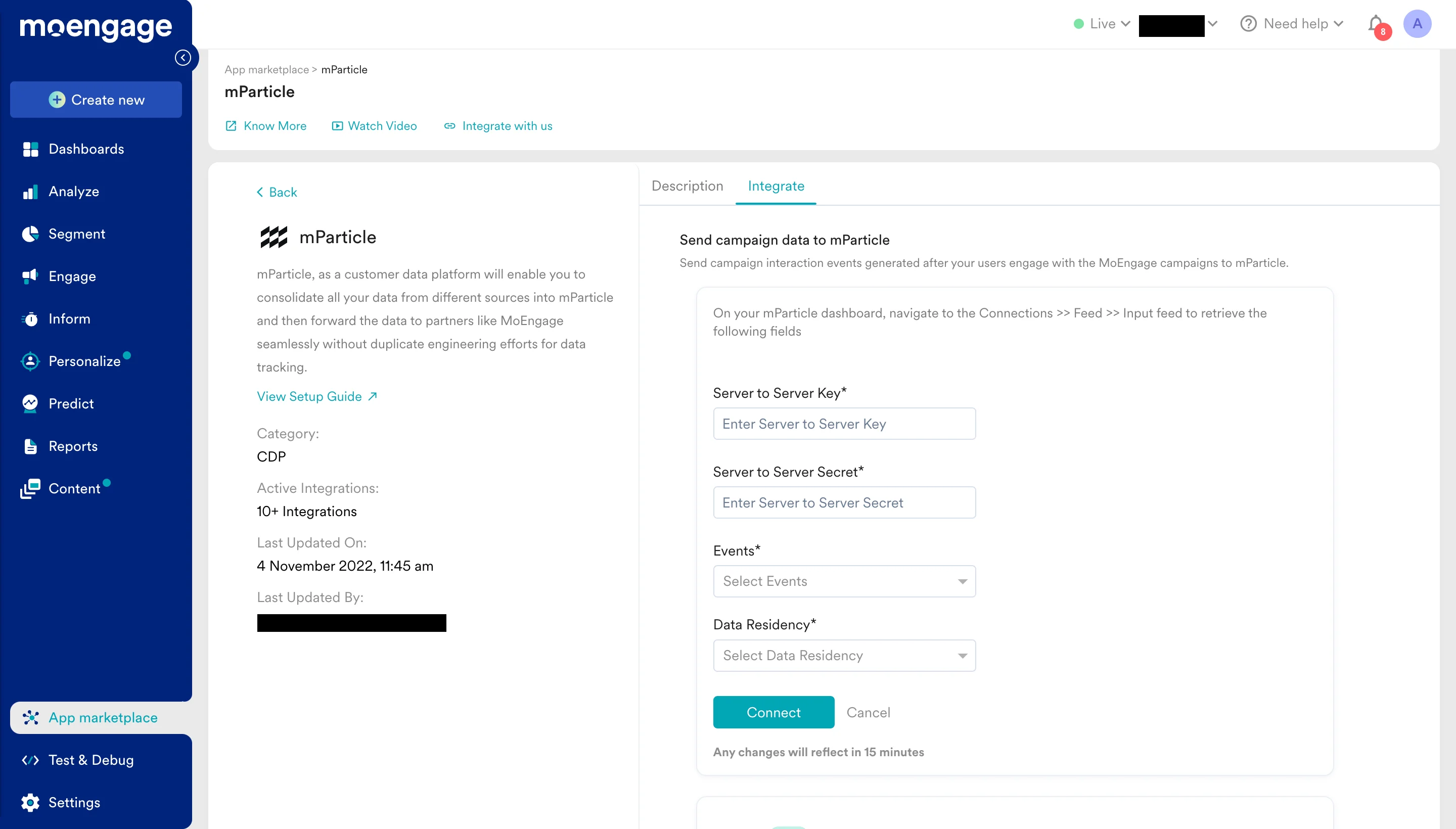
- Fill up the details and click Connect.
| Field | Details |
|---|---|
| Server to Server Key | Paste the Server to Server Key that you found in the mParticle Dashboard during the Feed Configuration. |
| Server to Server Secret | Paste the Server to Server Secret that you found in the mParticle Dashboard during the Feed Configuration. |
| Events | Select the event(s) you want to forward to mParticle. Here is the complete list of events that MoEngage can send to mParticle. |
| Data Residency | Select the region of your mParticle account. |
Limitations
The mParticle Integration only takes care of sending events to MoEngage from mParticle. To leverage MoEngage capabilities like push notifications, in-apps would require some additional integration which is listed in the below table -| Integration | Details |
|---|---|
| Android SDK | For showing push notifications, capturing performance stats, showing in-app messages and real time triggers on your Android app. |
| iOS SDK | For showing push notifications, capturing performance stats, showing in-app messages and real time triggers on your iOS app. |
| User Mapping | If you need to send push notifications or in-app messages to your users basis behavioral data from mParticle, you would need to pass the a unique user id to MoEngage SDK which should be the same as the mParticle customer_id. |
| Logout | Please ensure that you are not calling MoEngage logout methods from Android or iOS as this may lead to data getting corrupted. For mParticle integration, we need the user unique_id immediately on the first app_open after install. You could use the device ids like GAID, IDFV for this or the MPID or any other customer_id that you are tracking with mParticle. |
| InApp Messages | For showing an in-app message immediately after the user performs an action on your app. To do this, you would need to send such a trigger event via MoEngage SDK directly. Please take care to not use the same event as in mParticle for this case as it may lead to duplication of events. |
| Geo fencing | Geo-fencing would need separate integration as well. Android | iOS |
Frequently Asked Questions
How soon will I start getting the data?
How soon will I start getting the data?
It typically takes up to 30 minutes for the automated data exports to be set up for your account and for you to start seeing data there.
Can I export additional events at a later time?
Can I export additional events at a later time?
Yes, if you need to export new events at a later time, you can always edit your configuration on the App Marketplace and get the new events added to your exports.
Can I export historical data using Automated Data Exports?
Can I export historical data using Automated Data Exports?
As of now, you cannot export historical data using Automated Data Exports. Once configured, you will start seeing data for each event from the time you enabled your exports.
Is there any pricing involved for Automated Data Exports?
Is there any pricing involved for Automated Data Exports?
If your billing plan does not cover this already and you need to get this enabled at a later time, you would need to work with your Customer Success Manager to get this included in your billing plan. Based on the amount of data that MoEngage will place in your Data warehouse/Partner/API on a monthly basis, this could lead to additional charges.