

Documentation Index
Fetch the complete documentation index at: https://moengage.com/docs/llms.txt
Use this file to discover all available pages before exploring further.
Overview
iOS Live Activities display your app’s most current data as real-time, interactive updates on the iPhone Lock Screen and in the Dynamic Island. Transactional Live Activities are specifically designed for unique, user-specific events such as order tracking, ride-hailing updates, or personalized transaction states.InformationLive Activities and push notifications have different user permission models. By default, Live Activities are enabled for an app. Users can manage permissions for each app individually in their device settings.
PrerequisitesBefore you begin, ensure your project and accounts are configured correctly.
- Apple Developer Account Configuration:
- In your Apple Developer account, navigate to Certificates, IDs & Profiles > Identifiers and select your app’s identifier.
- Under the Capabilities tab, ensure that Push Notifications checkbox is selected. This is mandatory for the Apple Push Notification service (APNs) to deliver activity updates.
- APNs Authentication Key: To authorize MoEngage to send push notifications on your behalf, you must configure an APNs Authentication Key. For detailed steps on how to upload the .p8 file to the MoEngage dashboard, please refer to the documentation on APNs Authentication Key.
- SDK version: MoEngage iOS SDK 10.09.0 or higher is required to support Transactional Live Activities.
- MoEngage Live Activity Module: The MoEngageLiveActivity module is required to handle transactional updates.
- Xcode and iOS Version:
- Xcode: Use Xcode 14.1 or later.
- iOS Target: Your Live Activity must target iOS 18 and later.
Implementing a Transactional Live Activity
This section covers the client-side setup required within your Xcode project for Transactional Live Activities.Step 1: Add a Widget Extension
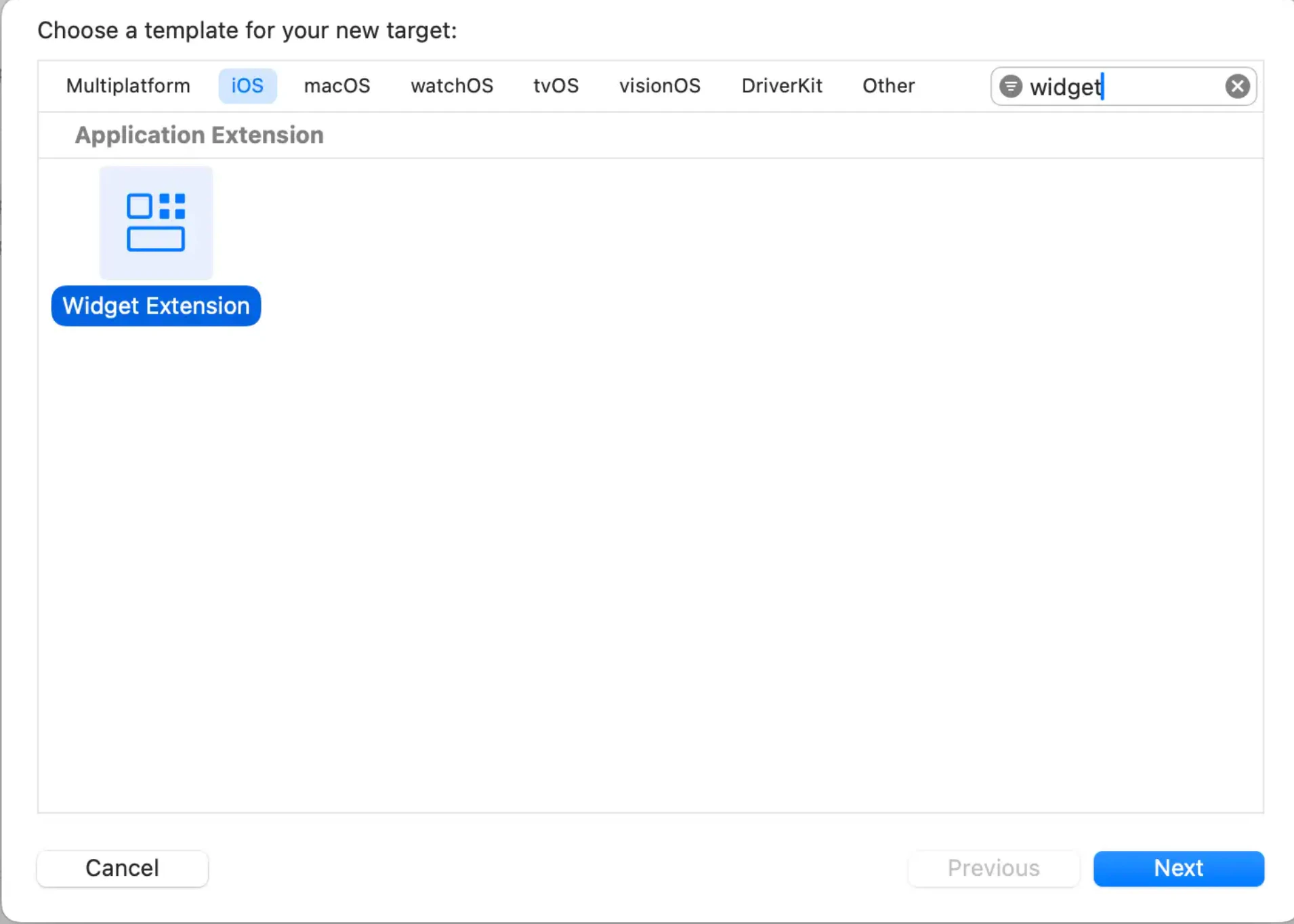
- In Xcode, navigate to File > New > Target.
- Select Widget Extension and click Next.
- Enter a product name for your widget.
- Select the Include Live Activities checkbox.
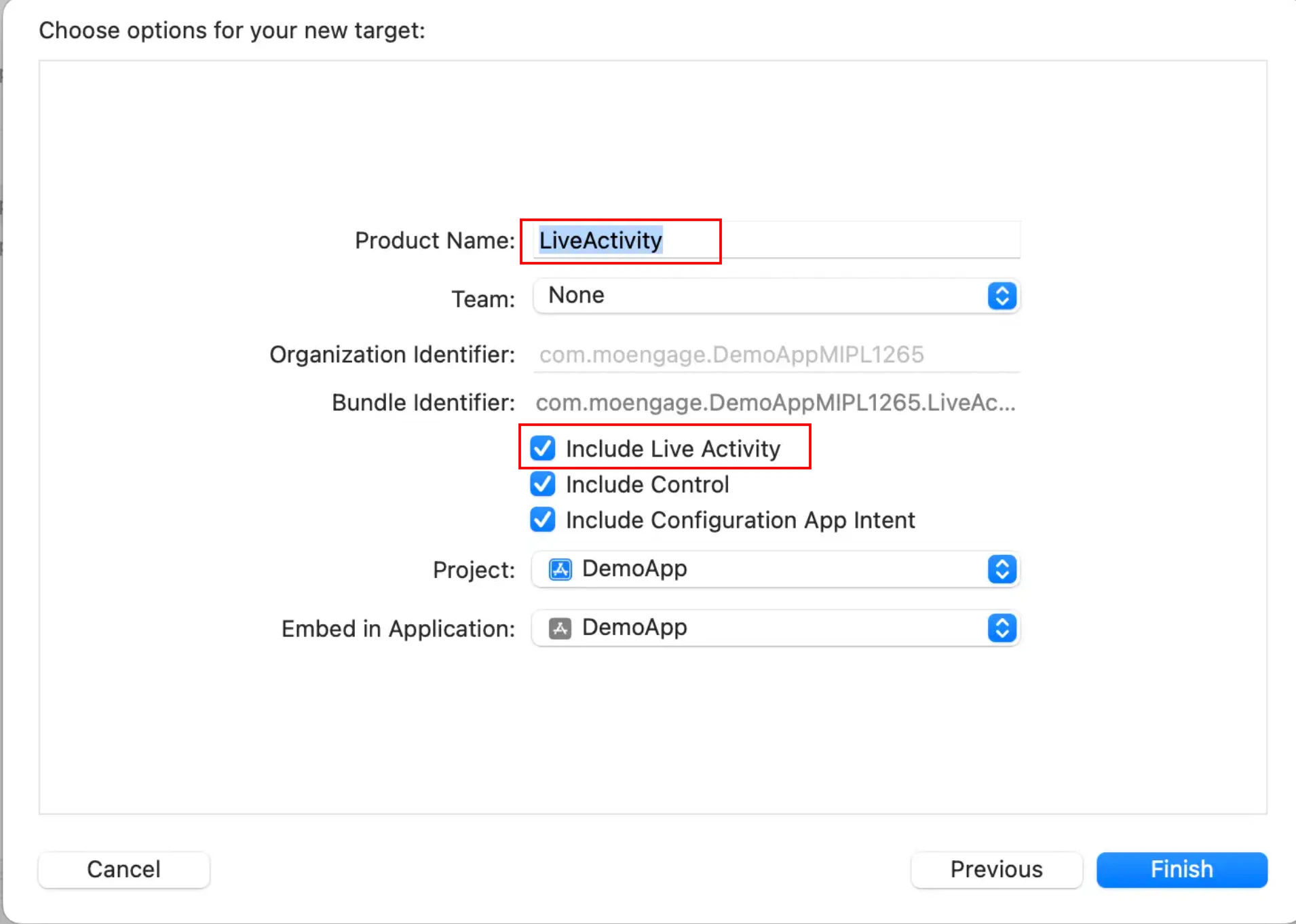
- Click Finish.
Step 2: Configure App’s Info.plist
Add Live Activities support to your main app’s Info.plist.Step 3: MoEngageLiveActivity integration
InformationTo integrate the MoEngageLiveActivity framework, ensure you are using MoEngage iOS SDK version 10.09.0 or higher.
Install using Swift Package Manager (Recommended )
The MoEngageLiveActivity framework is supported via SPM from SDK version 10.09.0. To integrate, use the GitHub URL https://github.com/moengage/apple-sdk.git and set the branch as master or the required version.Install using CocoaPod
InformationCocoaPods is being deprecated. MoEngage recommends using Swift Package Manager for all new integrations. For more info on CocoaPods, refer to CocoaPods Integration Guide.
Step 4: Define the Live Activity Attributes
In the Swift file generated for your widget extension, define the data structure for your Transactional Live Activity (e.g., a Food Delivery order).- Configure ActivityAttributes: Create a struct that conforms to ActivityAttributes. This struct will contain:
- Static Data: Attributes that are set once and do not change (e.g., Order Number).
- ContentState: A nested struct for dynamic data that will be updated in real-time (e.g., Delivery Status).
- When creating ActivityConfiguration, use MoEngageTransactionActivityAttributes<FoodOrderAttributes> instead of FoodOrderAttributes as your ActivityAttributes type for transactional support.
- Track widget clicks by configuring the deeplink and widget ID with the moengageWidgetClickURL API.
- Ensure Target Membership: Make your ActivityAttributes struct accessible to your main app target.
- Select the Swift file where you defined your ActivityAttributes.
- Open the File Inspector (Option + Command + 1).
- In the Target Membership section, check the box for your main app target.
Step 5: Monitor Live Activities
Call themonitorLiveActivities method to register the ActivityAttributes types that the SDK should monitor for real-time updates. This method must be invoked within your app's didFinishLaunchingWithOptions method. This registration is mandatory for the SDK to successfully track and manage the short tokens required for transactional activity updates.
Managing the Live Activity Lifecycle
Once your app is configured, you can start, update, and end Transactional Live Activities using a combination of local app code and MoEngage APIs.Step 6: Start a Transactional Live Activity
A Transactional Live Activity is typically started locally from the app when an end user initiates a transaction (e.g., placing a food order) or you can initiate it remotely via the Inform API (Server-side).Push-to-Start (Remote)
Start a live activity for a user using the Inform API. For more information, refer here.Click-to-Start (Local)
Start an activity from within the app, triggered by a user action. Get Live Activity data from the createAttributes(withCampaign:completion:) or createAttributes(withCampaign:) async SDK APIs by combining your application’s ActivityAttributes data with mandatory MoEngage metadata (retrieved from your server). Use Apple’s Activity.request() method with pushType as.token to start Live Activity. This links the locally started activity to your campaign.
InformationBy using
pushType: .token,the Live Activity is configured to receive transactional updates specifically targeted to this activity instance via its unique push token.Step 7: Update a Live Activity
Update the transactional activity status using a push notification targeted at the activity’s push token. Updates must be performed exclusively via the Inform API. For more information, refer to the Inform API.Step 8: End a Live Activity
Ending an activity must be performed exclusively through the Inform API; otherwise, it will terminate automatically upon reaching the configureddismissal_date.
For more information, refer to the Inform API.