APNS Auth Keys
APNS Auth keys are the recommended method to enable sending push notifications to your app installed on iOS devices. To send push notifications to iOS users, it is required to generate the APNs Auth Key file for your application and upload it to the MoEngage dashboard.Steps to create APNS Auth Key
To create an APNS auth key, you will need to do the following:1
Step 1
Visit the Apple Developer Member Center and sign in with your credentials.
2
Step 2
Select the Certificates, Identifiers & Profiles on the left pane.
3
Step 3
On the certificates page, click on ‘Keys’ on the left pane as shown below.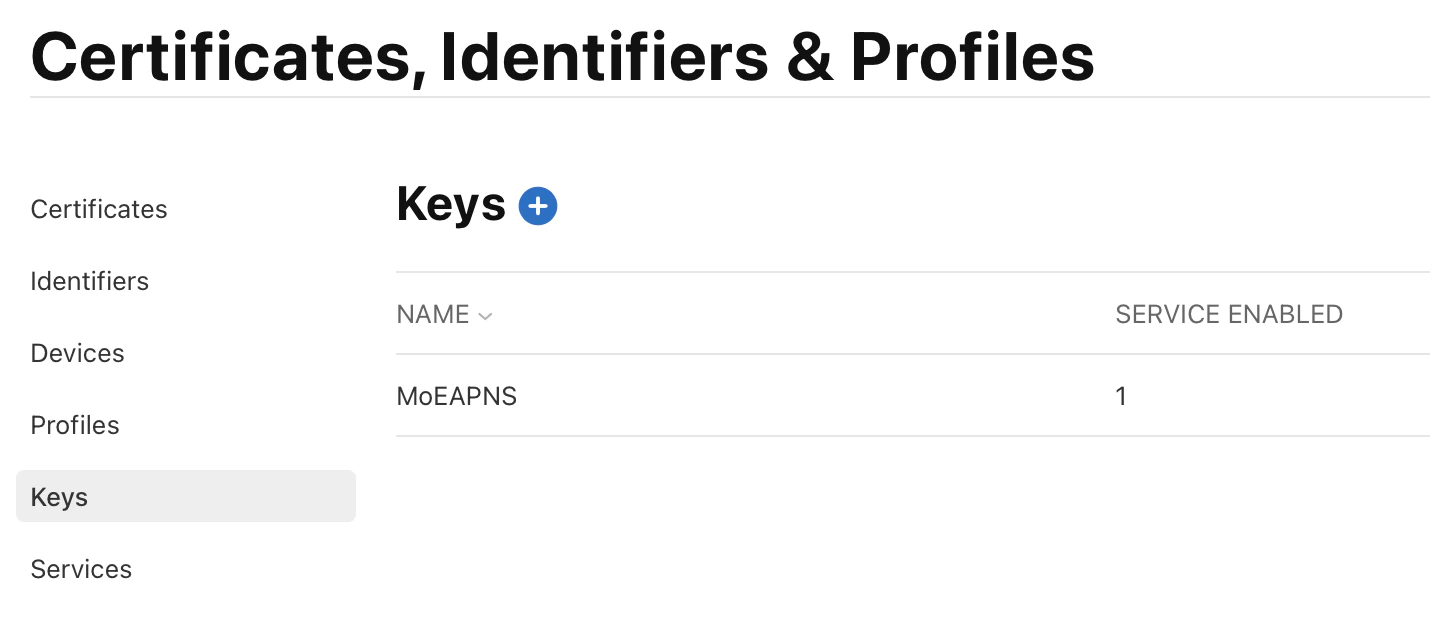
4
Step 4
In the Keys page that opens, click on the ’+’ icon to create a new auth key.
5
Step 5
In the ‘Register a New Key’ page that opens, enter the key name and choose the Apple Push Notifications Service (APNS) in the list available below.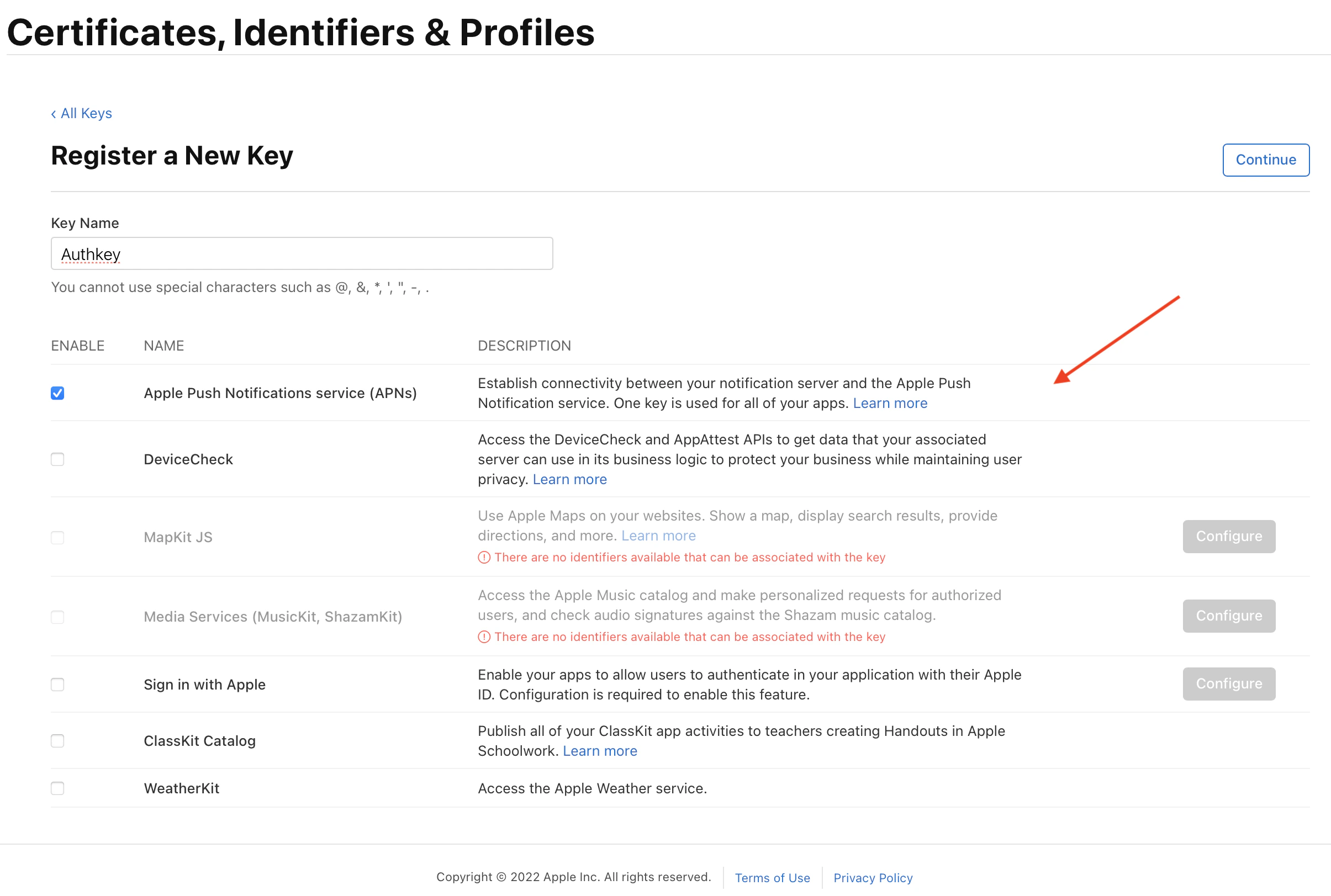
6
Step 6
Click on the Register Button.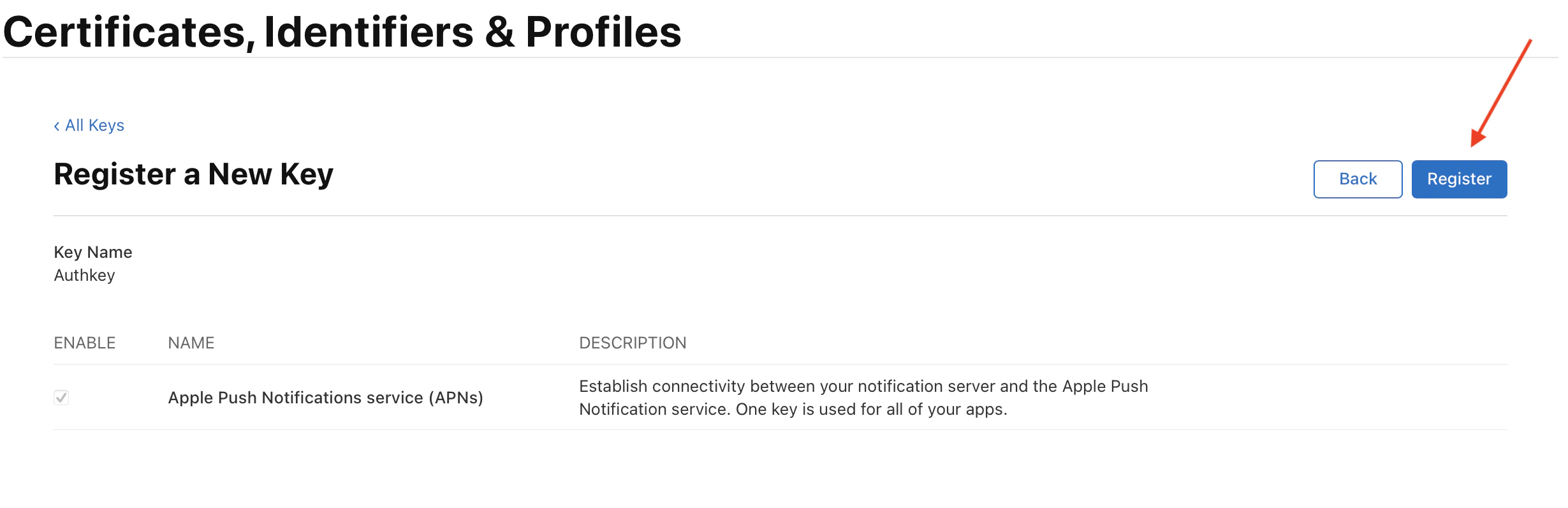
7
Step 7
Click on Download to download your Auth key file. Please note that you can download the auth key file only once.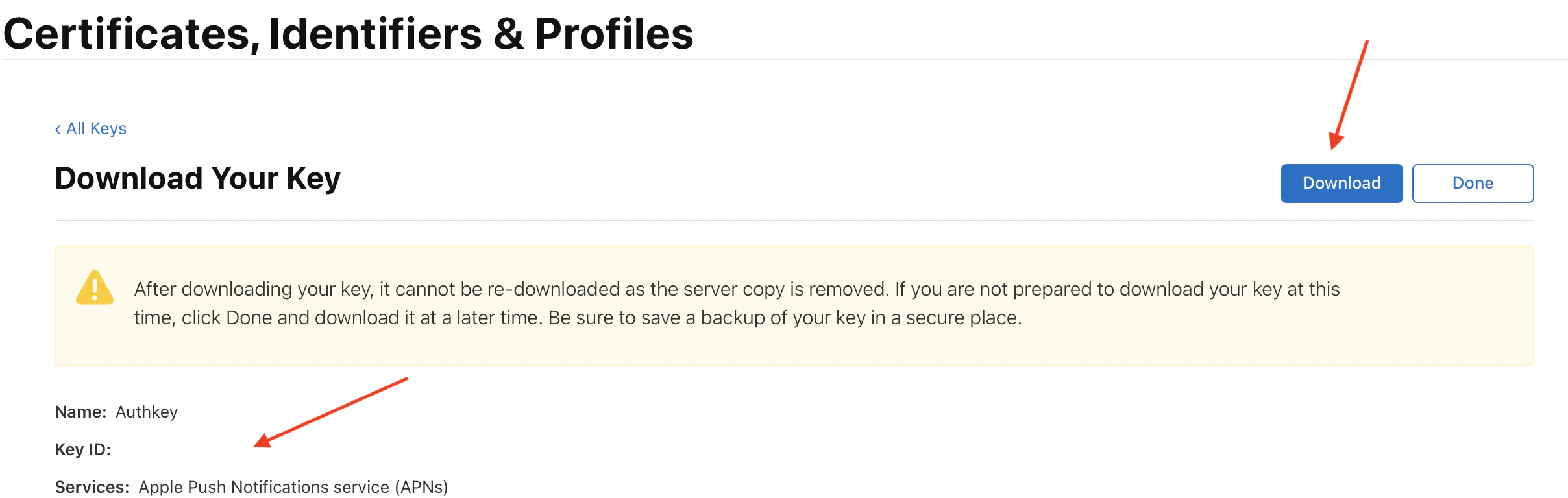
8
Step 8
Copy the Key ID (highlighted in the image above) available on the download page. This is required to configure push notifications in the MoEngage dashboard.Once added, the Auth Key is listed under Keys as shown below.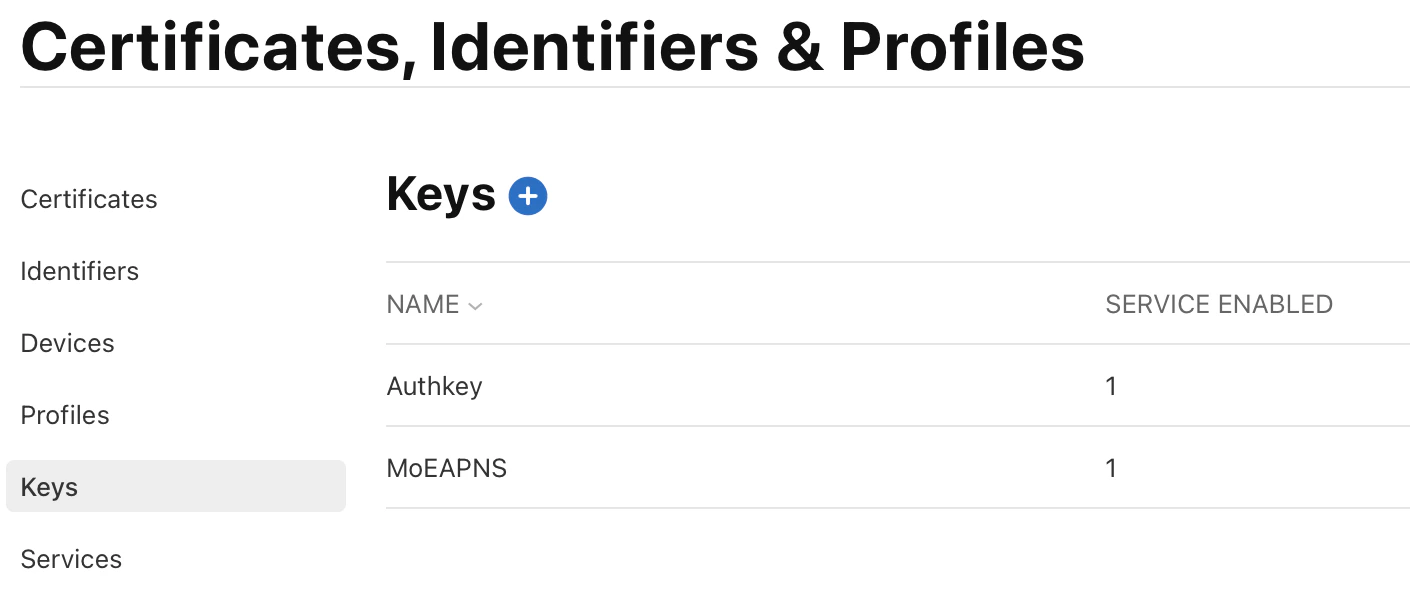
Configuring the Auth key in the Dashboard
The following details are necessary to configure the APNS authentication key in the MoEngage Dashboard.- Navigate to Settings > Channels > Push > App Push.
-
Select iOS (APNS) in the Platforms available on the menu at the top.
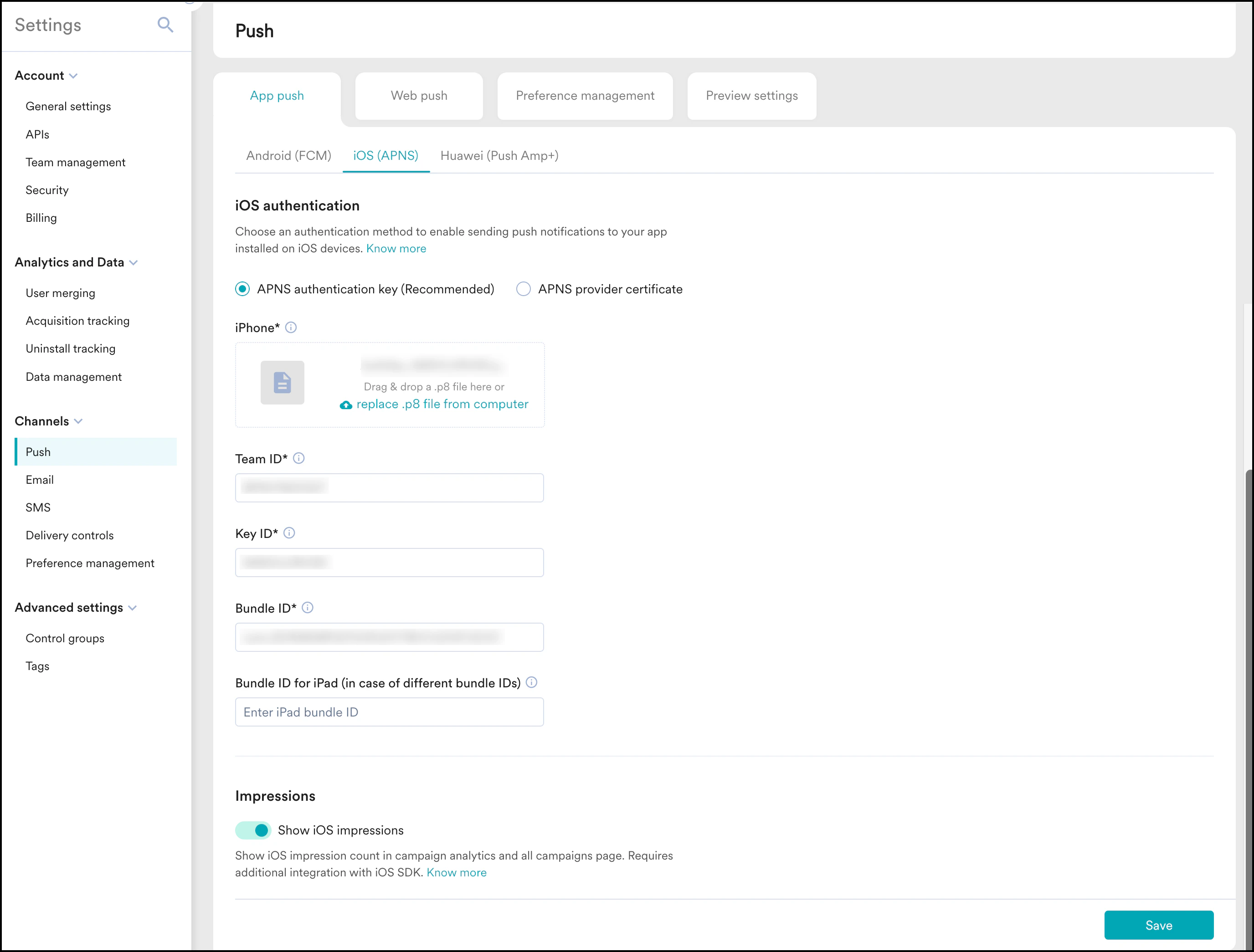
APNS Authentication Key File
The APNS Authentication Key File downloaded using the steps mentioned above needs to be uploaded to the dashboard.Team ID
To get the Team ID details, click on the account name in the top right corner, then select View Account. The following screen is displayed. Copy the Team ID from here.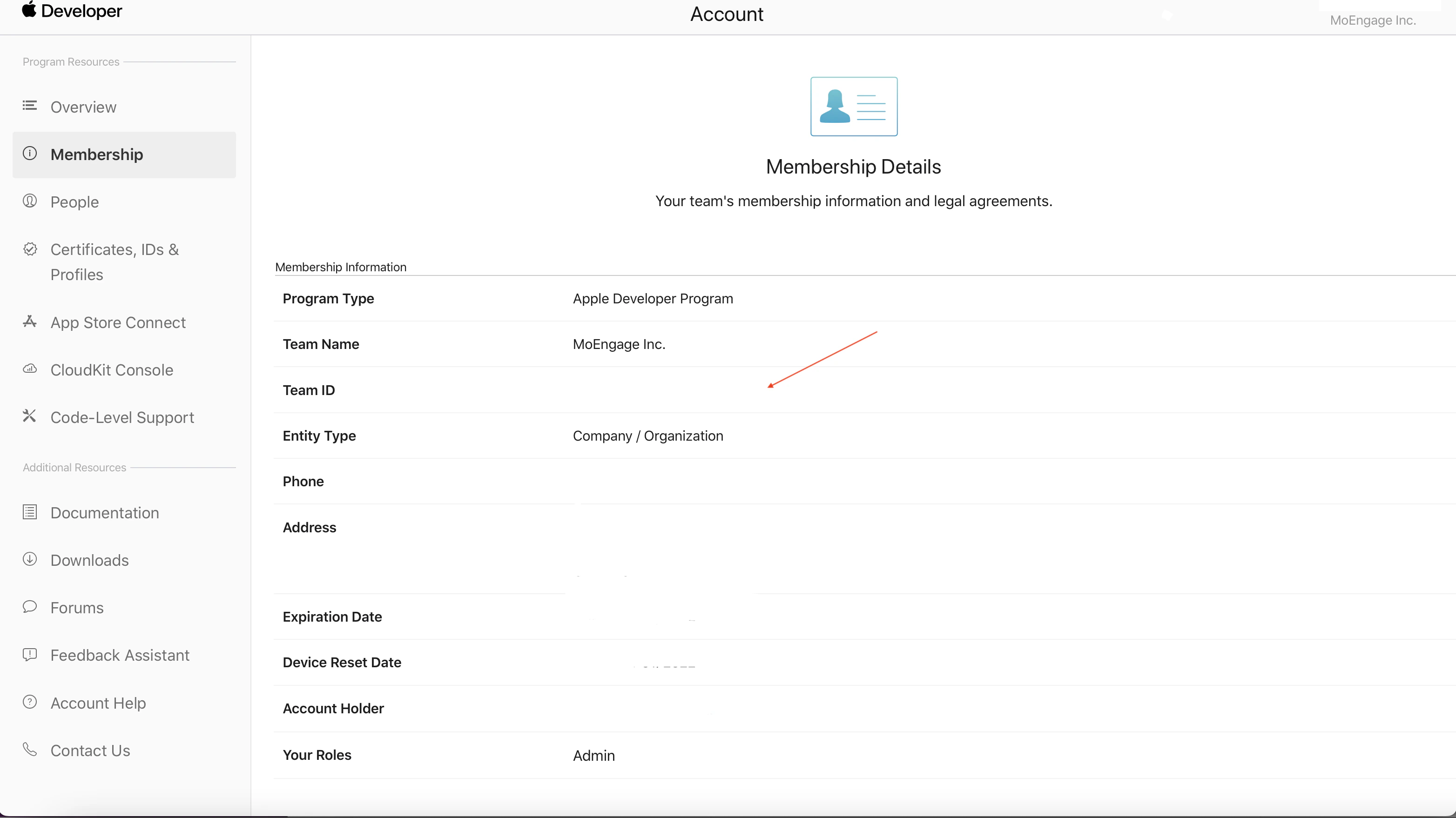
Key ID
As explained in step 8 above, the Key ID is available when you generate the APNS auth key.Bundle ID
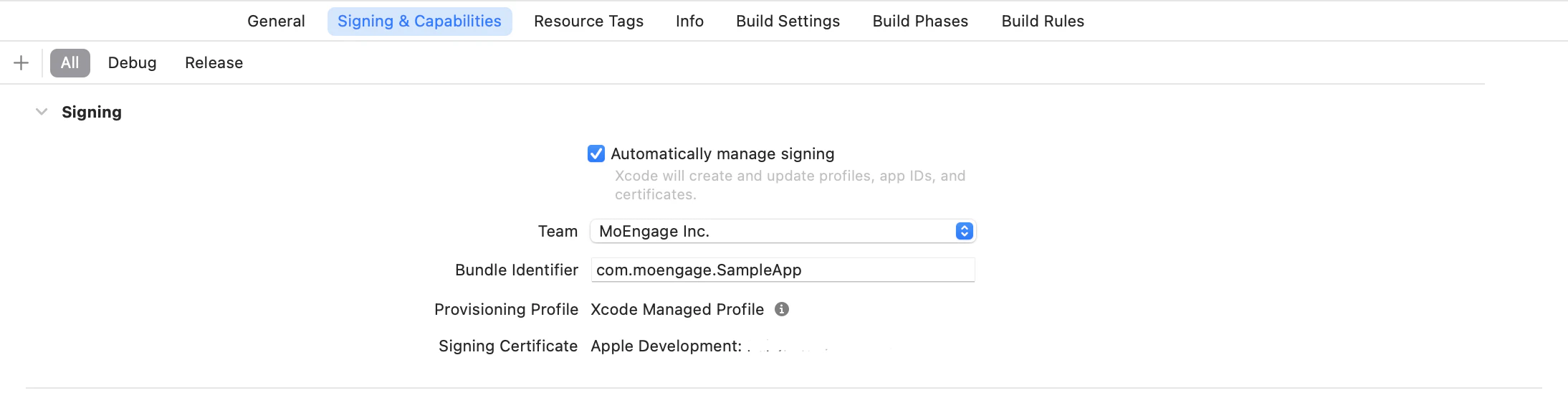
The App Bundle Identifier is case-sensitive and available in Xcode. Refer to the screenshot below to get the Bundle ID in Xcode.