

Overview
iOS Live Activities display your app’s most current data as real-time, interactive updates on the iPhone Lock Screen and in the Dynamic Island. This allows users to track events like sports scores, order status, or flight updates without opening your app, significantly boosting engagement and user experience.InformationLive Activities and push notifications have different user permission models. By default, Live Activities are enabled for an app. Users can manage permissions for each app individually in their device settings.
PrerequisitesBefore you begin, ensure your project and accounts are configured correctly.
- Apple Developer Account Configuration:
- In your Apple Developer account, navigate to Certificates, IDs & Profiles > Identifiers and select your app’s identifier.
- Under the Capabilities tab, ensure that Push Notifications and Broadcast Capability checkboxes are selected. This is mandatory for the Apple Push Notification service (APNs) to deliver activity updates.

- APNs Authentication Key: To authorize MoEngage to send push notifications on your behalf, you must configure an APNs Authentication Key. For detailed steps on how to upload the .p8 file to the MoEngage dashboard, please refer to the documentation on APNs Authentication Key
- Xcode and iOS Version:
- Xcode: Use Xcode 14.1 or later.
- iOS Target: Your Live Activity must target iOS 18 and later.
Implementing a Live Activity
This section covers the client-side setup required within your Xcode project.Step 1: Add a Widget Extension
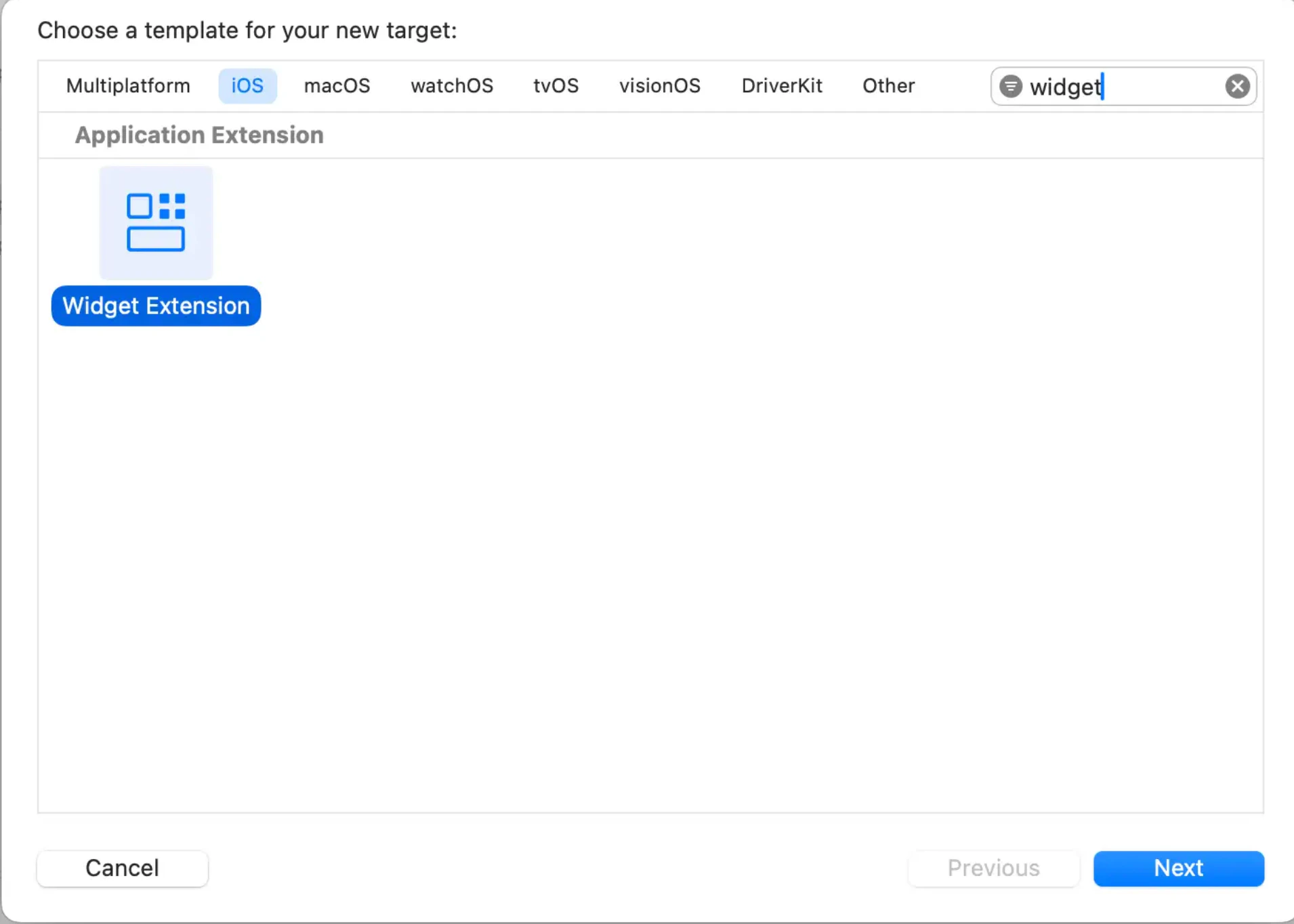
- In Xcode, navigate to File > New > Target.
- Select Widget Extension and click Next.
- Enter a product name for your widget.
- Select the Include Live Activities checkbox.
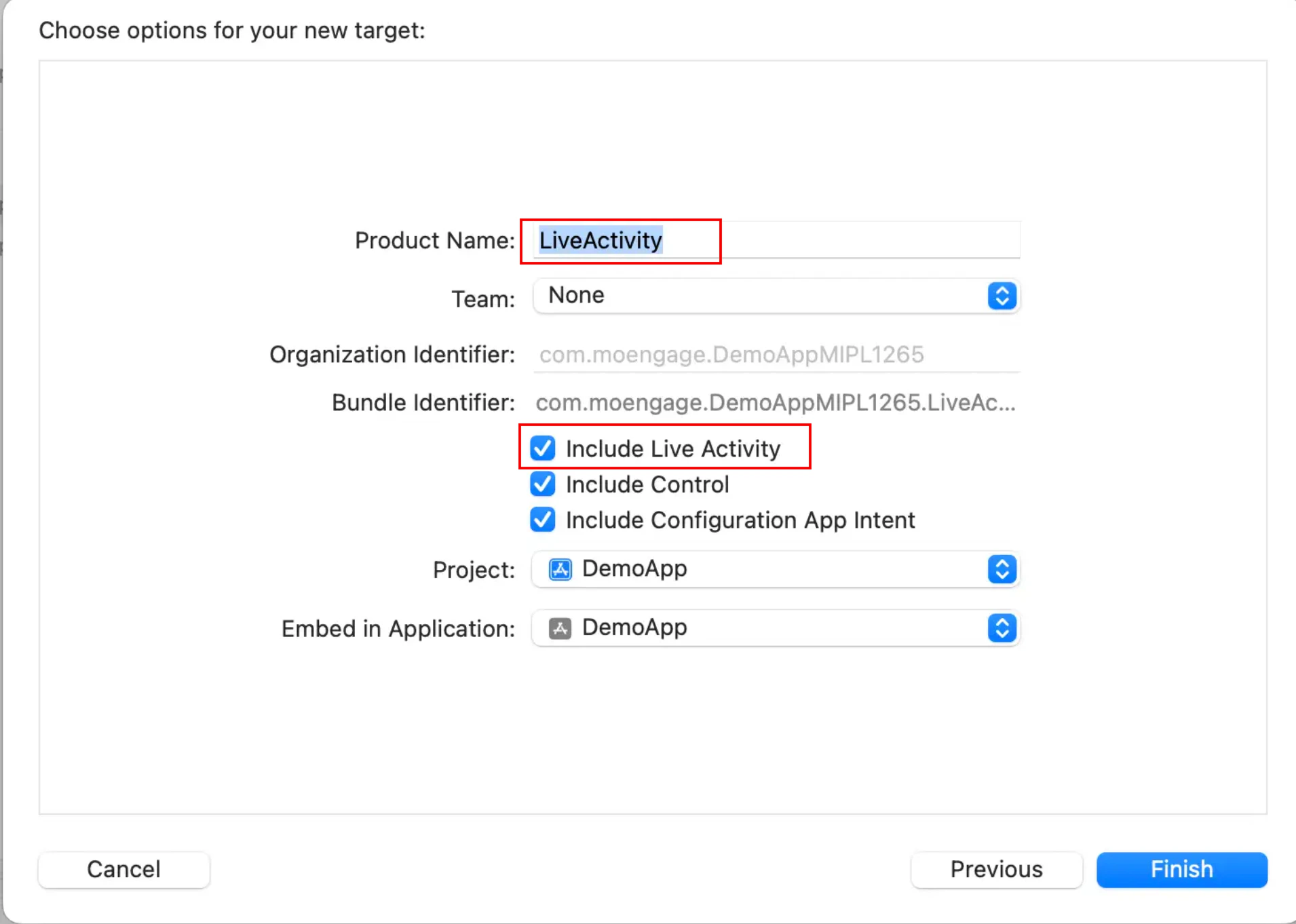
- Click Finish.
Step 2: Configure App’s Info.plist
Add Live Activities support to your main app’s Info.plist.Step 3: MoEngageLiveActivity integration
InformationTo integrate the MoEngageLiveActivity framework, ensure you are using the appropriate MoEngage-iOS-SDK version.
Install using Swift Package Manager (Recommended )
MoEngageLiveActivity framework is supported through SPM from SDK version 10.02.1 To integrate, use the GitHub url https://github.com/moengage/apple-sdk.git and set the branch as master or required version.Install using CocoaPod
InformationCocoaPods is being deprecated. MoEngage recommends using Swift Package Manager for all new integrations. For more info on CocoaPods, refer to CocoaPods Integration Guide.
Step 4: Define the Live Activity Attributes
In the Swift file generated for your widget extension, define the data structure for your Live Activity.- Configure ActivityAttributes: Create a struct that conforms to ActivityAttributes. This struct will contain:
- Static Data: Attributes that are set once and do not change.
- ContentState: A nested struct for dynamic data that will be updated in real-time.
- When creating ActivityConfiguration, use MoEngageActivityAttributes<FootballActivityAttributes> instead of FootballActivityAttributes as your ActivityAttributes type.
- Track widget clicks by configuring the deeplink and widget ID with the moengageWidgetClickURL API.
Information MoEngage recommends that you acquaint yourself with Apple’s Live Activities prerequisites and limitations, as these are distinct from those of MoEngage.
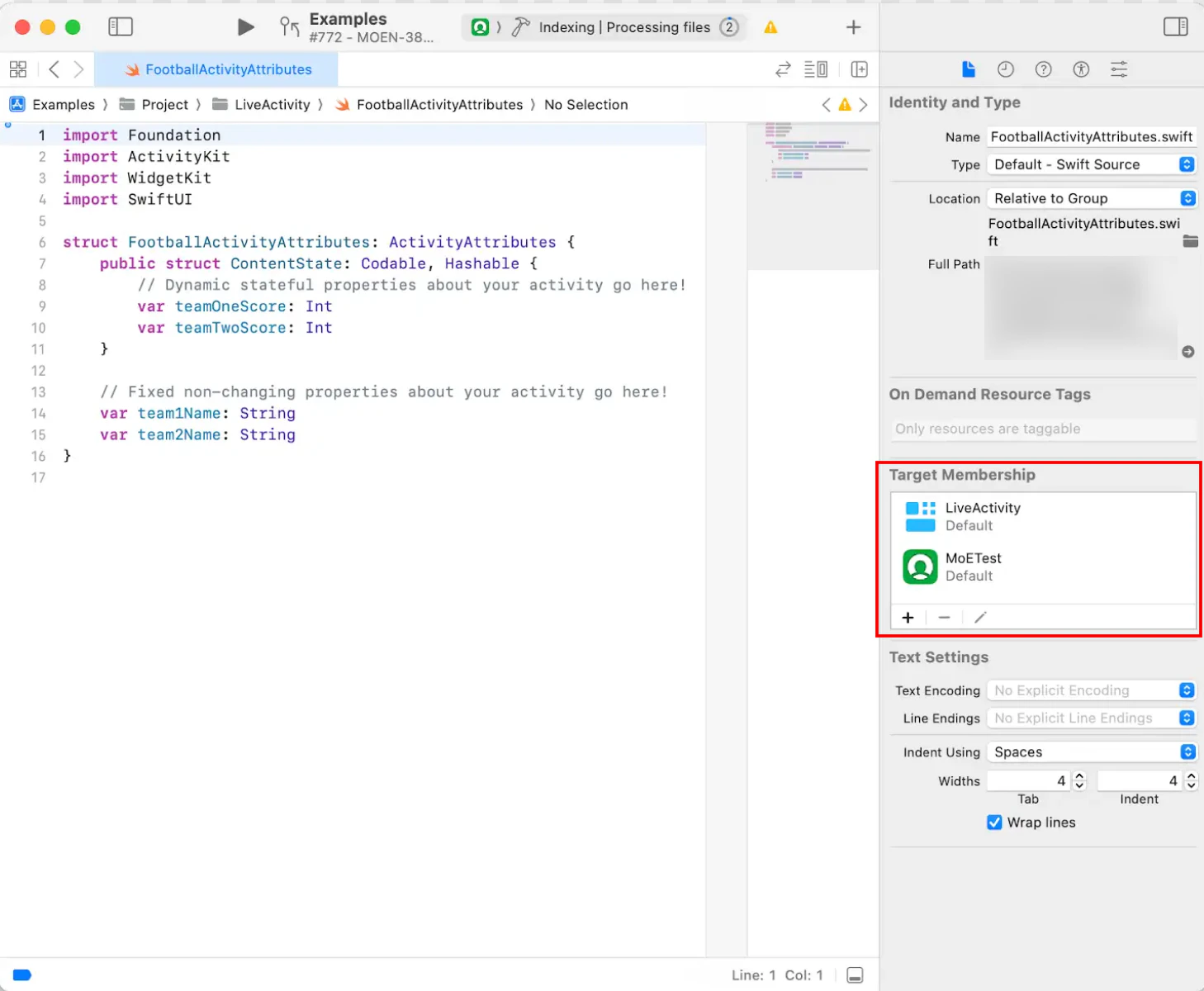
- Ensure Target Membership: Make your ActivityAttributes struct accessible to your main app target.
- Select the Swift file where you defined your ActivityAttributes.
- Open the File Inspector (Option + Command + 1).
- In the Target Membership section, check the box for your main app target.
Managing the Live Activity Lifecycle
Once your app is configured, you can start, update, and end Live Activities using a combination of local app code and MoEngage APIs.Step 5: Create a Live Activity Campaign (One-Time Setup)
Before you can start a Live Activity, you must first create a campaign on the MoEngage platform. This one-time API call defines the campaign’s properties, such as the target audience and conversion goals. Upon successful creation, the API returns a channel_id. This ID is essential for two reasons:- It identifies the campaign you want to start remotely for a target segment.
- It allows users outside the original target segment to start the same Live Activity locally from within your app (e.g., by tapping a button).
Success/Developer InfoYour server should store the returned channel_id, MoEngage metadata, and make it available to your mobile app. Your app will need this data to initiate the Live Activity locally.
Step 6: Start a Live Activity
A Live Activity instance can be started remotely via a push or locally from the app.Push-to-Start (Remote)
Start an activity for your defined audience using a push notification. For more information, refer here.Click-to-Start (Local)
Start an activity from within the app, triggered by a user action. Get Live Activity data from the createAttributes(withCampaign:completion:) or createAttributes(withCampaign:) async SDK APIs by combining your application’s ActivityAttributes data with mandatory MoEngage metadata (retrieved from your server). Use Apple’s Activity.request() method with channel_id (retrieved from your server) to start Live Activity. This links the locally started activity to your campaign.InformationOnce Live Activity is started, the Live Activity Started event needs to be tracked using the trackStarted(activity:) API.