The ability to enable, disable, or edit UTM parameters depends on your role. If the Setup & manage permission is enabled in the App Configuration component for your role, you can enable, disable, or edit UTM parameters. For more information, refer to Access Roles.
Enable UTM Parameters
- On the left navigation menu in the MoEngage UI, go to Settings > Advanced Settings > UTM tracking. The UTM tracking page is displayed.
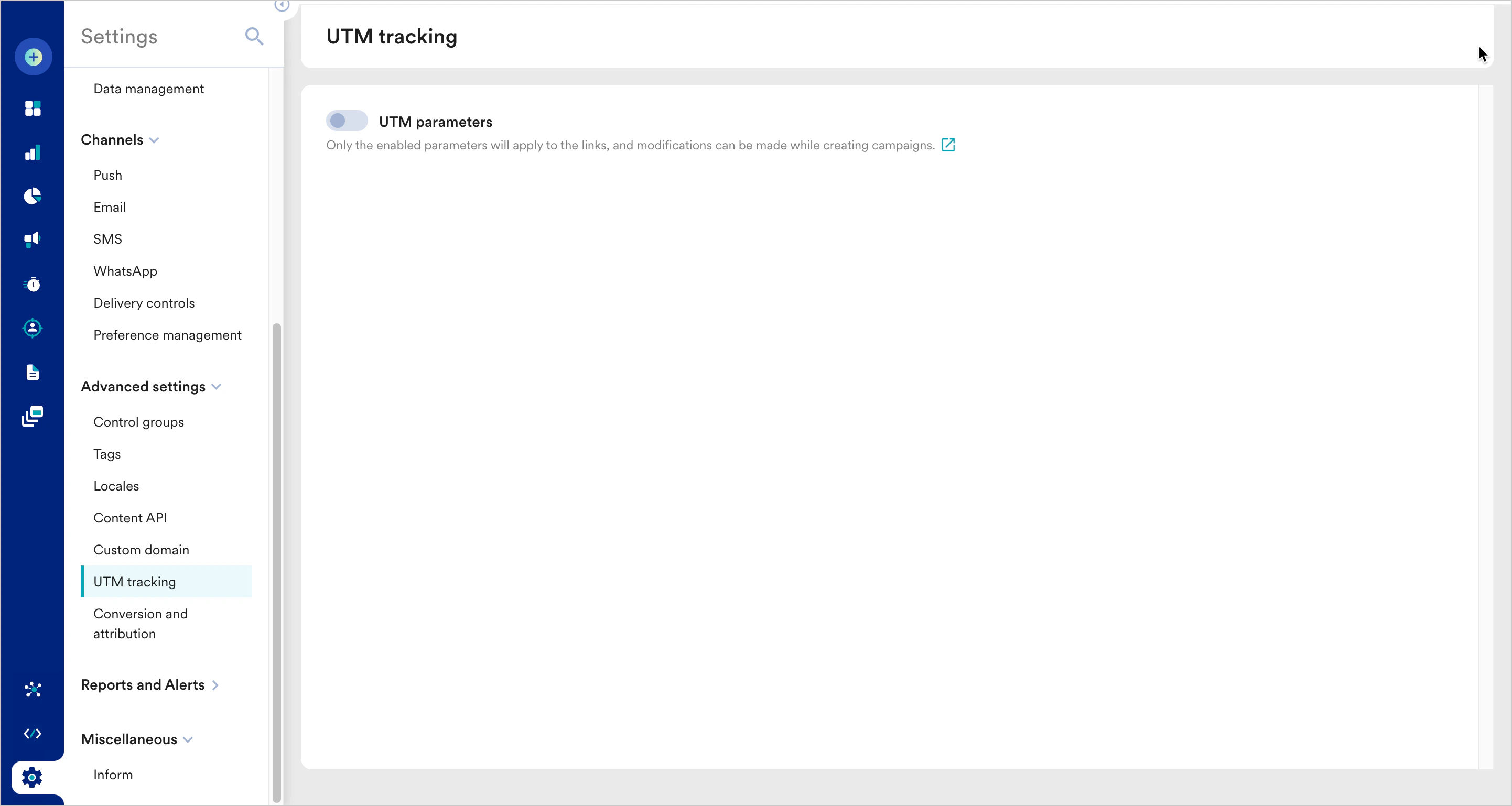
- Turn the UTM parameters toggle on.
Configure UTM Parameters
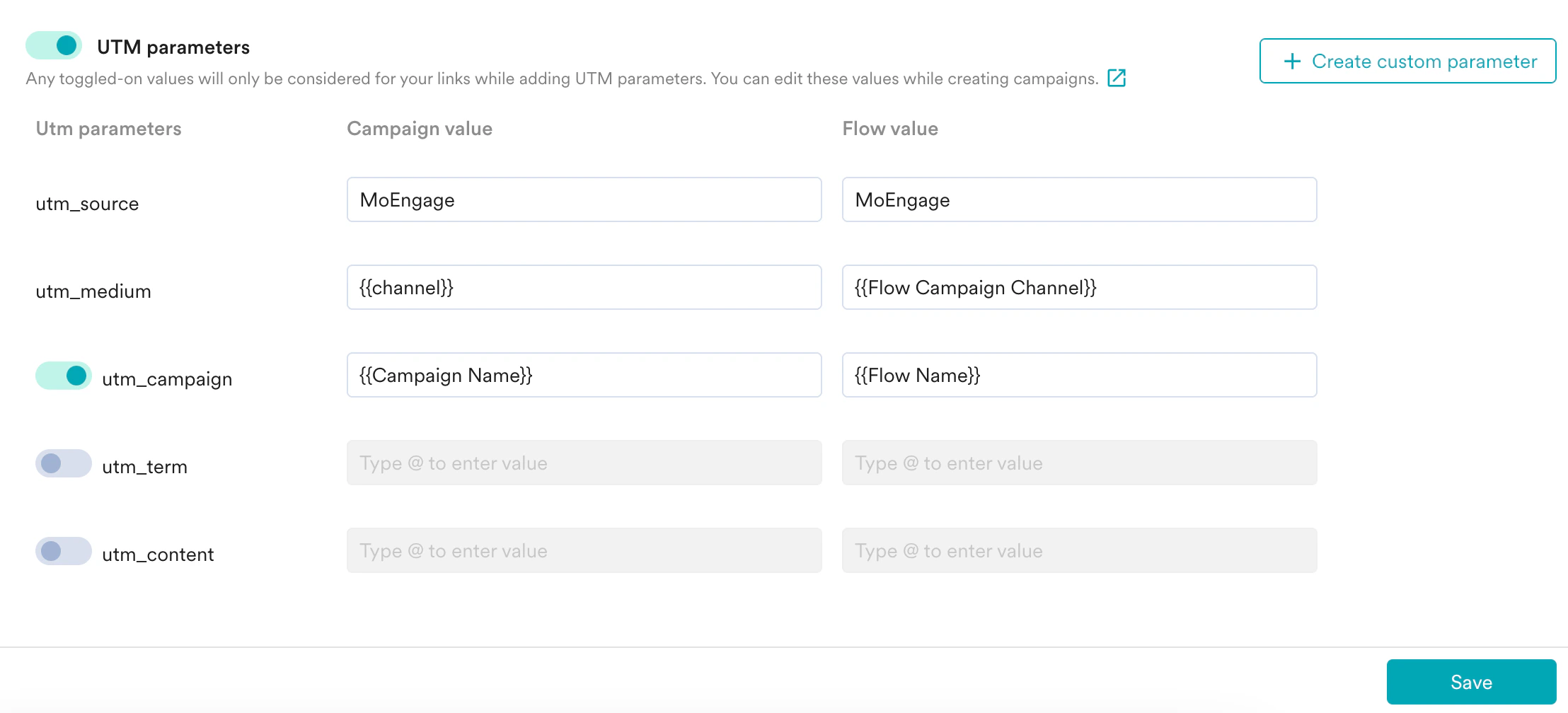
- Enable the UTM parameters toggle.
- Configure the parameters as follows:
- Click Save.
- For utm_source and utm_medium, both campaign value and flow value are mandatory, so they cannot be empty.
- For other fields, both values cannot be empty. Enter a value in one of the fields.
- In all fields, you can enter a static value or select a dynamic value. When you enter ’@’, a searchable drop-down list of values is displayed.
- The following are the dynamic values supported:
- You can select multiple dynamic values in the Campaign value and Flow value fields for all parameters.
- Double curly brackets are mandatory at the start and the end of a dynamic value. They are added by default when you select a dynamic value. For example,
{{Campaign Id}}.
Create a Custom UTM Parameter
Apart from the fixed parameters available by default, you can create custom UTM parameters based on your requirements.- Enable the UTM parameters toggle.
- Click + Create custom parameter. At the end of the list, a fresh key-value pair with empty values is generated.
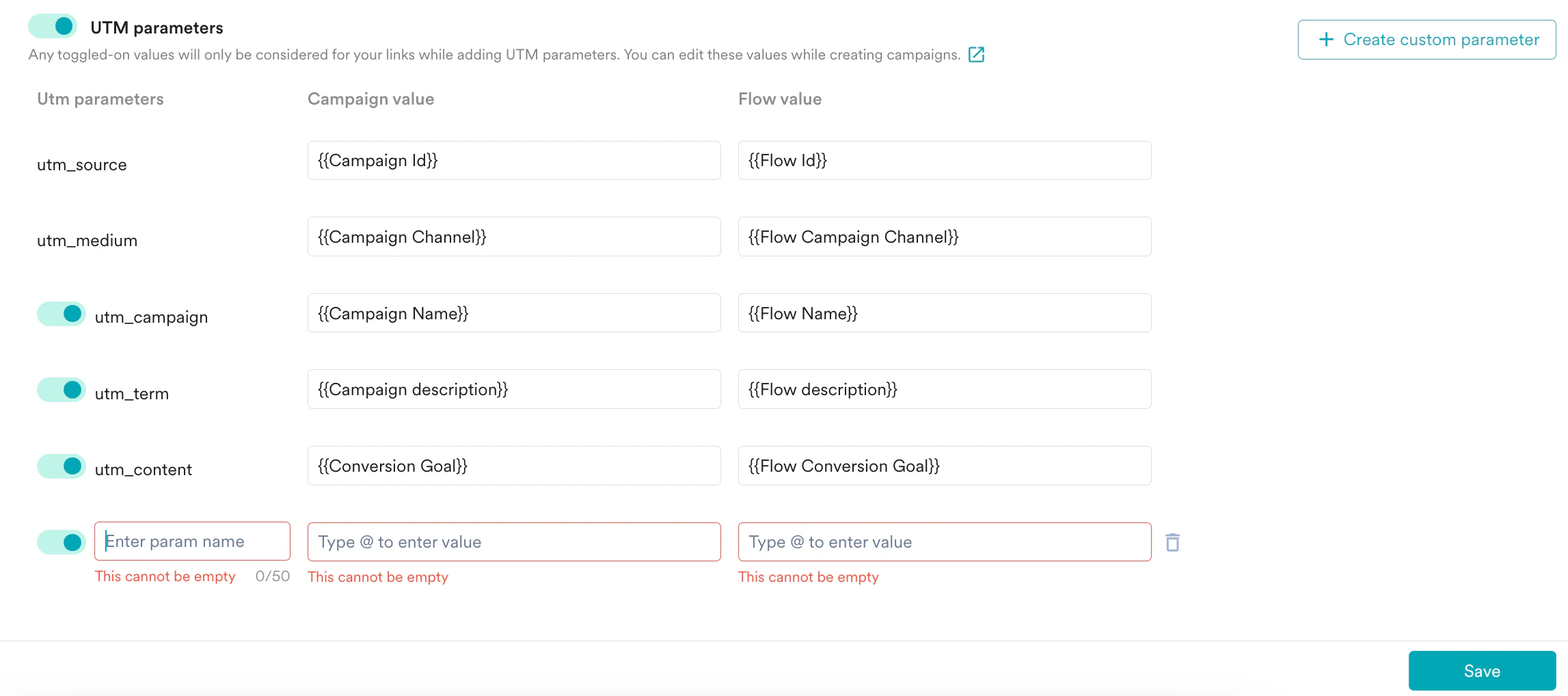
- Enter the following details:
- In the Utm parameters column, enter a name for the UTM parameter.
- The parameter name can have a maximum of 50 characters.
- This is a mandatory field, so you cannot leave it blank.
- The name must be unique. If you enter a name that already exists, an error is displayed.
- In the Campaign value column, enter a value for the parameter to be used in campaigns.
- In the Flow value column, enter a value for the parameter to be used in flows.
- In the Utm parameters column, enter a name for the UTM parameter.
- Turn the toggle button off to disable a custom parameter.
- Click the delete icon for the custom parameter that is no longer required.
- After you save the UTM parameters for the first time, if you try to delete a custom parameter, the Delete UTM parameter pop-up is displayed. Click Delete.
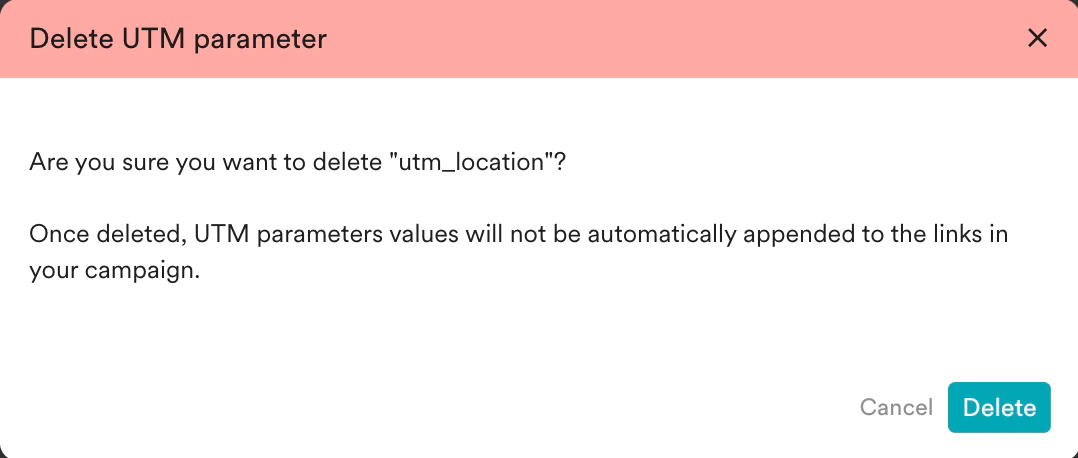
- After you delete a custom parameter, its values will not be automatically appended to the links in your campaigns or flows.
- After you save the UTM parameters for the first time, if you try to delete a custom parameter, the Delete UTM parameter pop-up is displayed. Click Delete.
- Click Save.
You can add a maximum of five custom parameters. After adding five params, the + Create custom parameter button is disabled.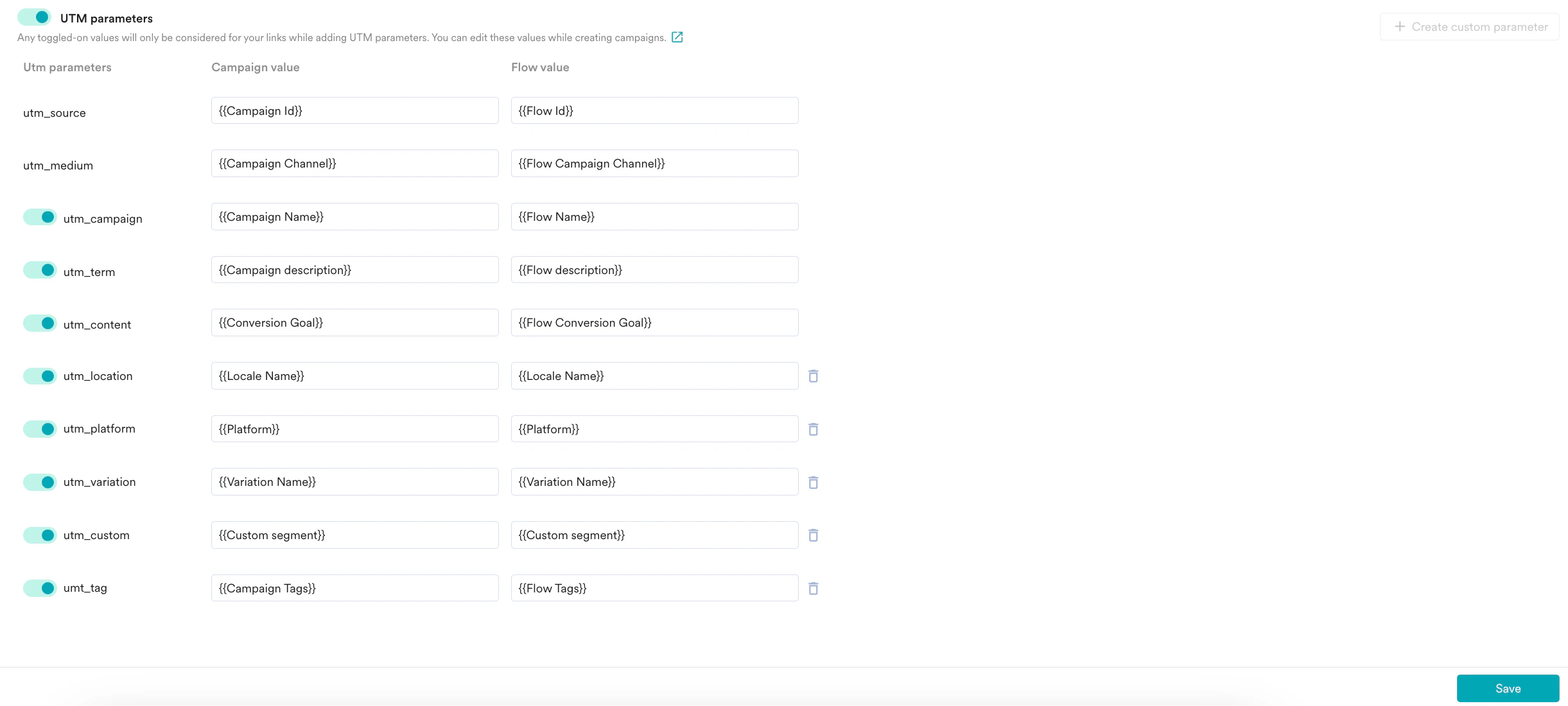
Edit UTM Parameters
After you save the UTM parameters for the first time, you can edit them whenever required.- Update the campaign values or flow values.
- Turn the toggle button on or off to enable or disable a parameter. You cannot disable the utm_source and utm_medium parameters.
- Click the custom parameter name and edit it. This field becomes editable when you hover over it.
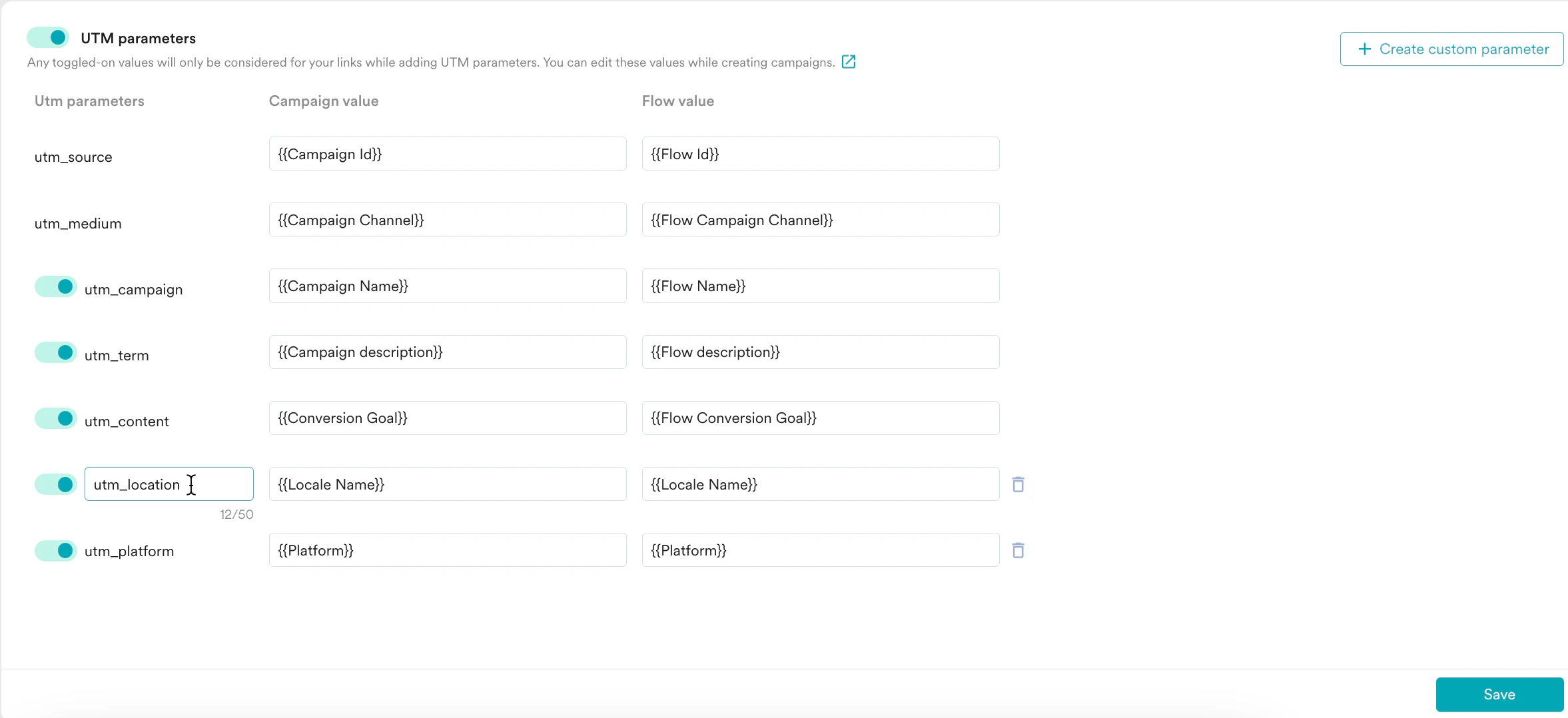
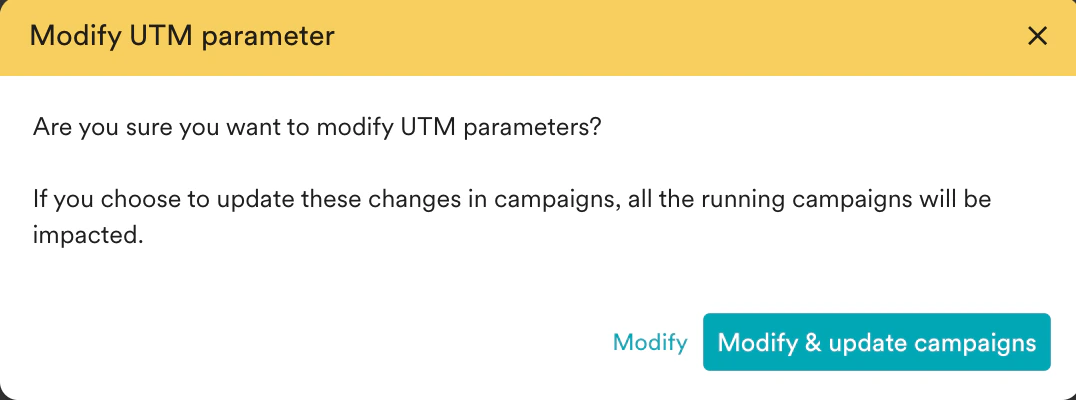
- Click Save. The Modify UTM parameter pop-up is displayed.
- Click Modify to update the changes only in the general settings. Future campaigns will have these changes.
- Click Modify & update campaigns to update these changes in existing campaigns.
Disable UTM Parameters
You can disable UTM parameters if you no longer want to insert them automatically in the links used across campaigns.- Navigate to Settings > Advanced Settings > UTM tracking.
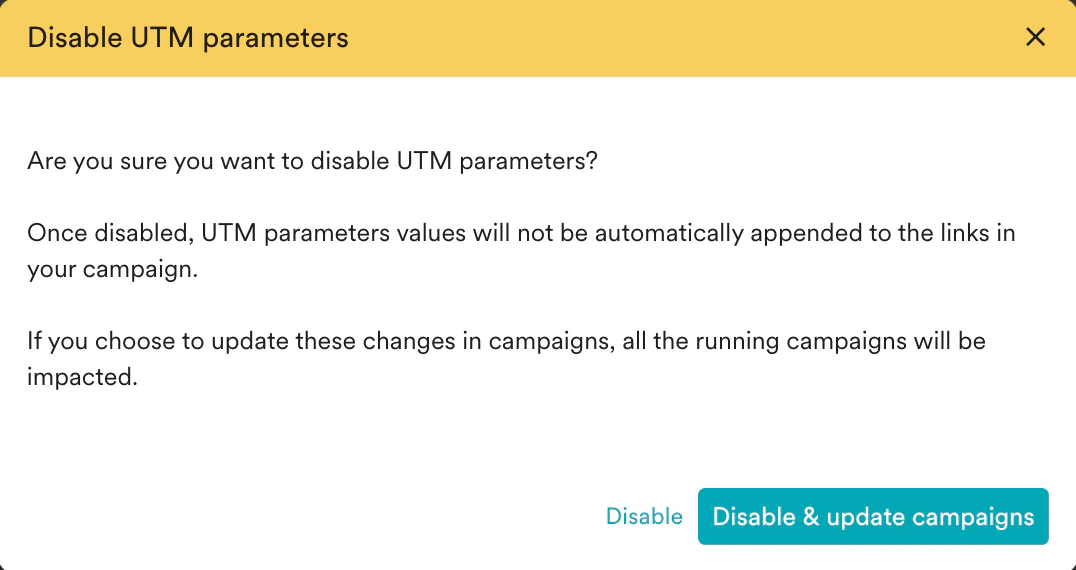
- Turn the UTM parameters toggle off to disable it. The Disable UTM parameters pop-up is displayed.
- Click Disable to disable the changes only in general settings. After you disable UTM parameters, the values will not be automatically appended to the links in your future campaigns.
- Click Disable & update campaigns to update these changes in existing campaigns. All the running campaigns will be impacted.