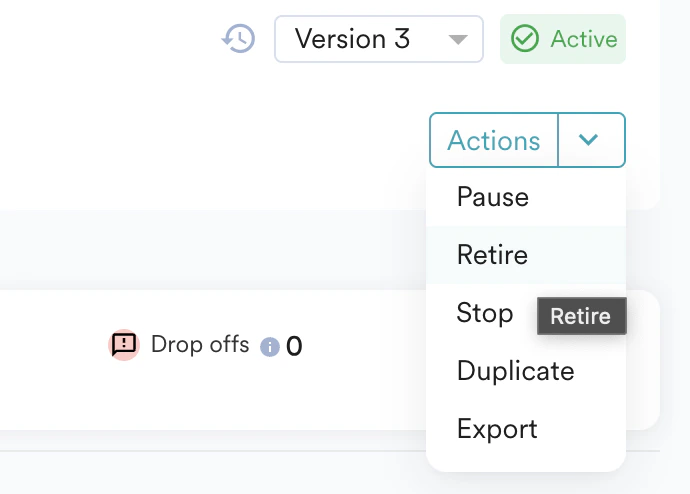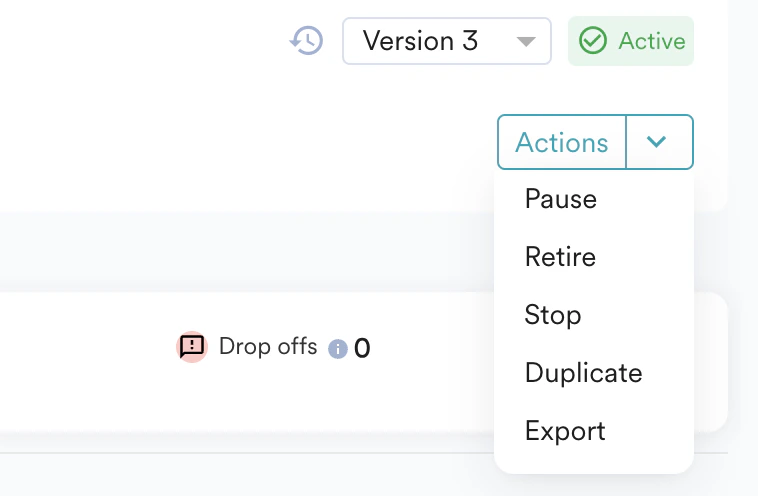
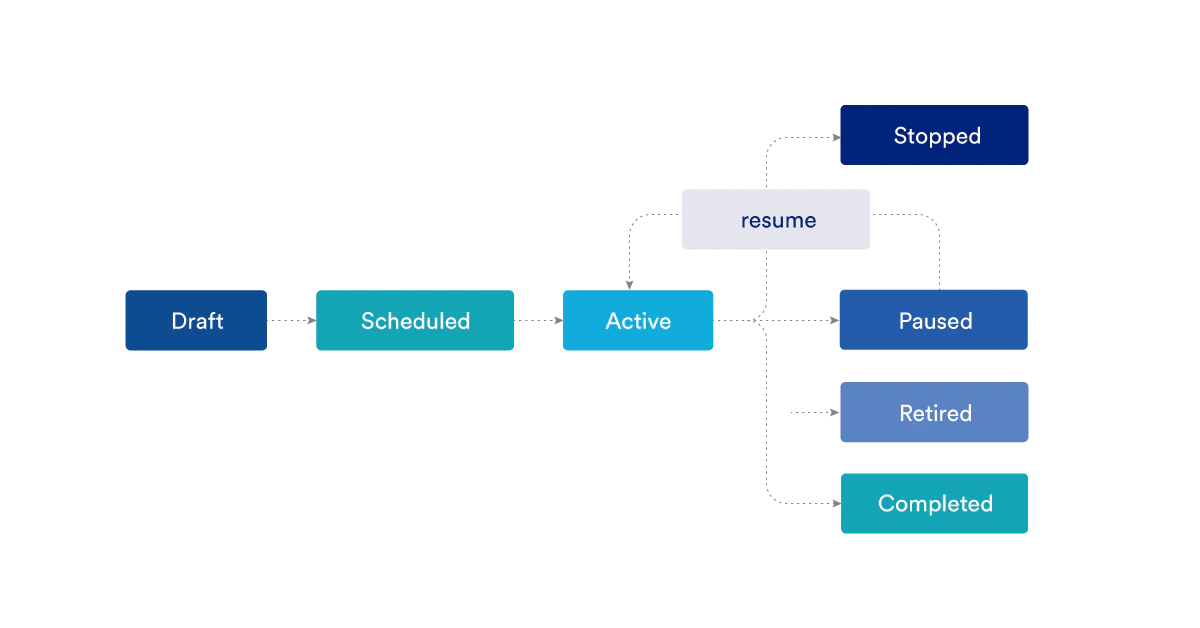
You can Pause, Stop and Retire flows. Scheduled, Completed, and Active is defined by MoEngage.
Time-based flows enter users in bulk, with a limit of 10 million users per instance or run. For more information, refer to Create a Flow.
Edit
After you publish, the Flow stats on users entering the flow and their performance at every stage are displayed. You can only edit an active, scheduled, or paused Flow. The changes will create a new version of the current flow, which can be published or saved. For more information on editing Flows, refer here. Any change that creates a new version will affect only those users who enter the flow after the new version is published. Existing users will not be affected by the new version. They will continue their trip in the version that is active when they enter. If there are changes made to a flow that doesn’t create a version (like editing the content in the campaigns), the changes are visible to only those users who cross the edited stages post-republishing of the flow. Other users who have already crossed the edited stage before republishing the flow will not be affected by the changes.Duplicate
To duplicate an existing flow, click Actions, and then click Duplicate. You can also duplicate an active flow from the Actions option on the All Flows page. To duplicate a specific version of a flow, select that version in the version selector first, and then use the same option. This will open a duplicate instance of the already created Flow/ the created version in a new tab which can then be changed, saved, and published.Pause/Resume
To pause an active flow, click Actions, and then click Pause. After you pause, the active flow trip pauses at its current flow stage and won’t advance to the next stage. Due to pause, it might so happen that few users can get indefinitely stuck on any of the Flow stages even after resuming the Flow. In paused state:- New users will not enter the Flow
- No message will be sent
- No condition will be evaluated
- Users that are already in the Flow will not move to the next step of the flow.
Stop
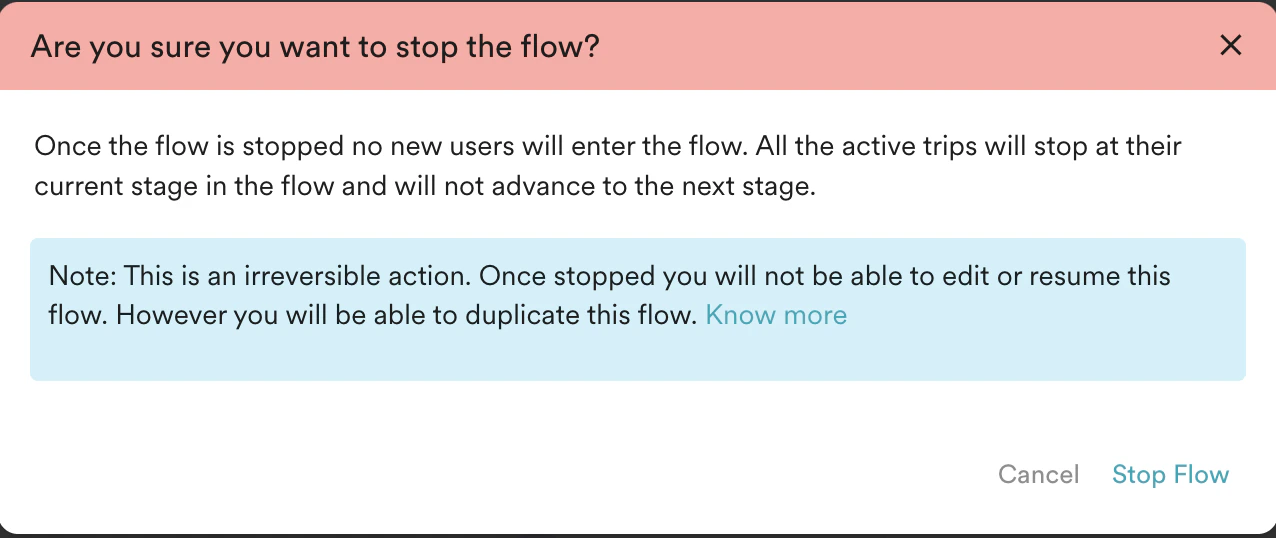
To stop a published flow permanently, click Actions, and then click Stop.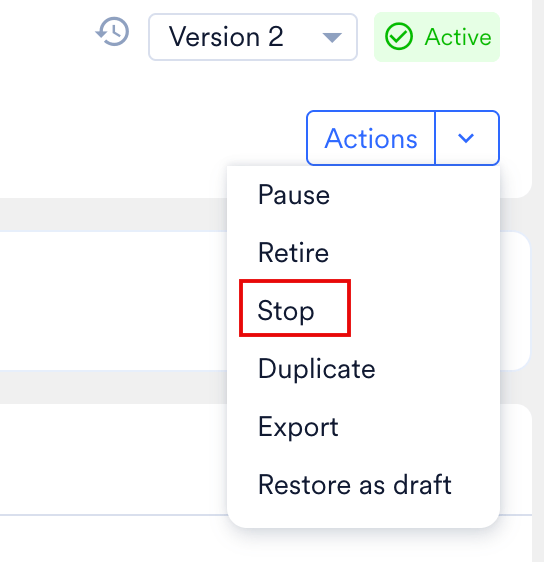
Retiring a Flow
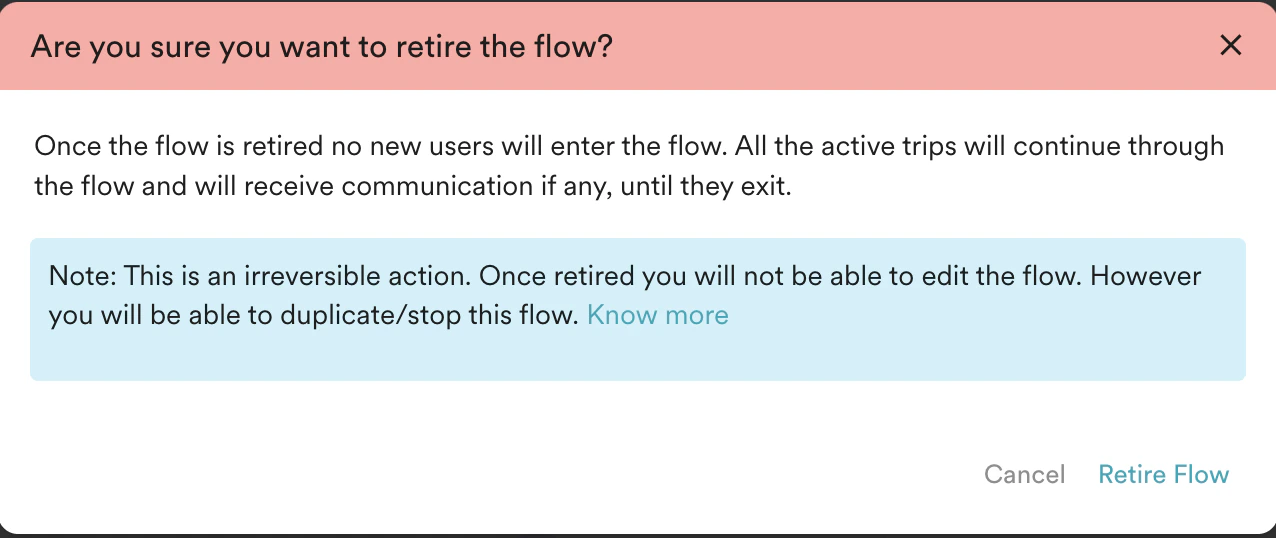
While stopping the flow, Marketers can choose to allow the users currently in the flow to move forward towards a flow exit while preventing any new entries into the flow. We term it as Retiring a flow.Because retired flows let users already in the flow continue toward a flow exit, those users can keep receiving in-app and on-site messages from the flow until the campaigns expire or the users exit the flow. This does not happen after you stop a flow. For details, see Why do users receive in-app messages even after the flow has stopped? and Why do users receive OSM campaigns even after the flow has stopped?.