

This is an Early Access feature. To enable it for your account, please contact your MoEngage Customer Success Manager (CSM) or the Support team.
Step 1: Initiate Merlin AI Assist
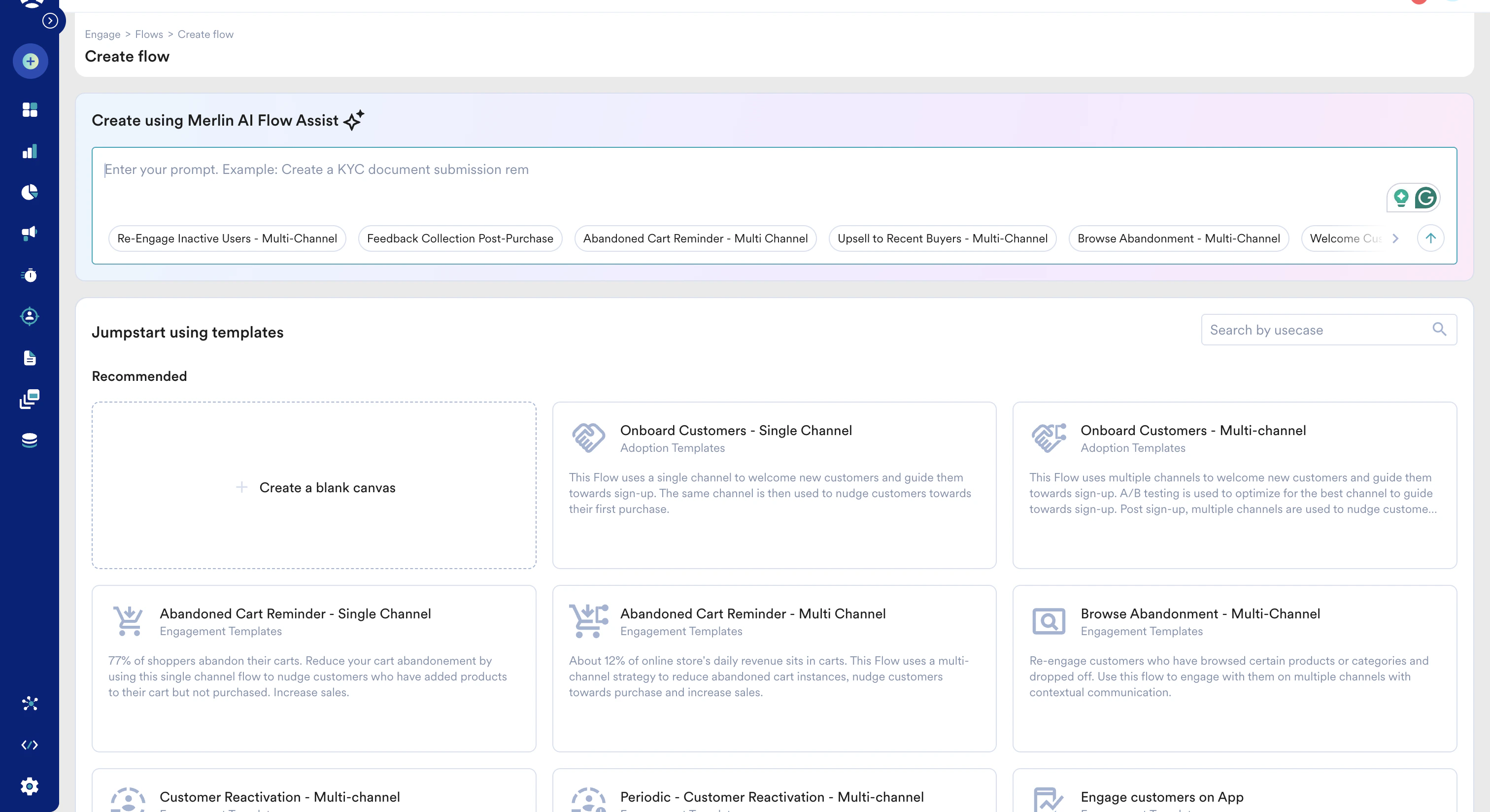
You can access the AI assistant at the start of your creation process:- On the left navigation menu in the MoEngage UI, click Engage > Flow.
- On the Create flow page, enter your prompt in the Create using Merlin AI Flow Assist field. You can also choose from the available sample prompts.
Step 2: Define Your Flow (The Prompt)
Currently, AI-generated flows default the target audience to All Users. Ensure you review the “Who will enter the flow” section to apply specific segment filters if needed.
- Enter your prompt: Describe the trigger, the sequence of actions, and the goals. Example: Build a flow to improve Product Purchase by 15% for users who Added to Cart but didn’t buy. Use Email and Push, with a 24-hour delay between them.
- Clarification: If your prompt is ambiguous (for example, you mention “purchase” but have multiple purchase events), Merlin AI asks follow-up questions to ensure the flow is technically accurate.
- Review the Strategy: Merlin AI explains the logic it intends to build. Review this summary carefully.
.gif?s=eed1fea5e882ba1fa6b00ae55773bf6c)
Step 3: Refine the Draft with Follow-Up Prompts
After Merlin AI generates the initial flow draft from your prompt, you can keep refining it conversationally. Describe your desired changes in the prompt; Merlin AI applies them while retaining your previous context.- Review the generated draft: Once Merlin AI returns a draft of the flow, go through the proposed structure, channels, timing, and goals.
- Describe your changes: In the same conversation, enter a follow-up prompt that explains what you would like to adjust. You can request both small tweaks and larger structural changes—for example, add or remove a channel, change a delay, reorder stages, adjust the entry condition, or update the conversion goal.
- Merlin AI updates the flow: Instead of starting over, Merlin AI edits the current draft based on your instructions, so the rest of your flow stays intact.
- Iterate until it’s right: Repeat this prompt-and-refine loop as many times as needed. When the draft matches your intent, continue to the canvas.
Iterative refinement happens within the conversational assistant, before you push the flow to the canvas. You can also make manual changes on the canvas at any point.
Step 4: Design on Canvas
After confirming the logic, Merlin AI translates the conversation into a visual structure.- Edit in Canvas: Click the button to populate the stages onto the MoEngage Canvas.
- Manual Adjustments: You can still manually drag, drop, or delete stages once they appear.
- Configure Content: Merlin AI builds the structure, but you must click each Action Stage (Email, Push, etc.) to select your specific message templates and creative content.
Step 5: Configure Flow Details and Goals
Even when using AI, you must ensure the flow’s metadata and tracking are correctly configured. Click the Settings icon on the canvas to verify:- Flow Details: Enter a name for the flow (minimum 5 characters) and select up to five flow tags.
- Conversion Goals: Define success (for example, Event: Product Purchased). You can add up to five goals.
- Flow Controls: Enable Control Groups to accurately measure uplift.