

If custom fonts are enabled for your workspace, this editor’s functionality changes accordingly. For more information, refer to Custom Fonts.
Edit/Paste HTML Template
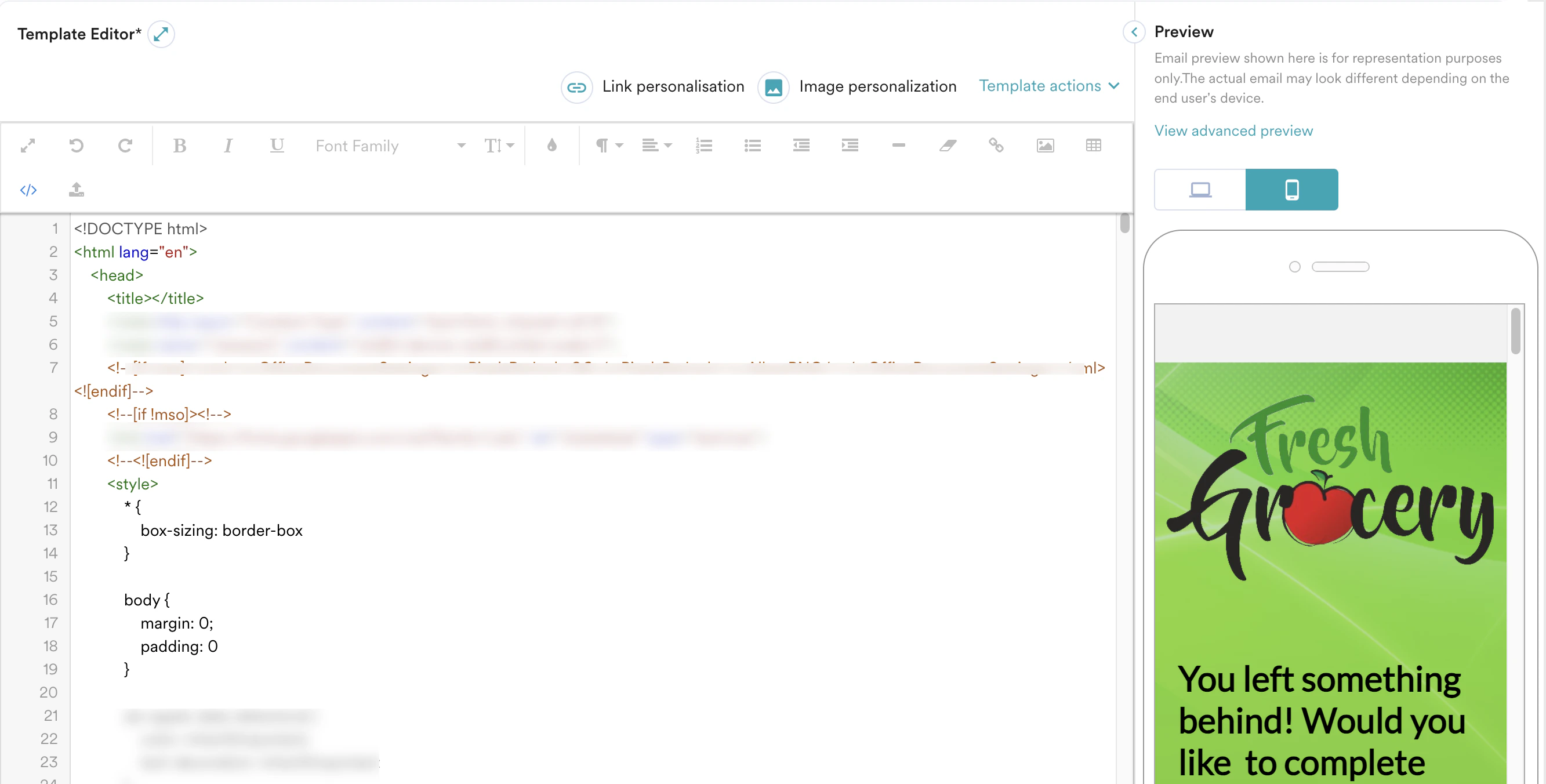
You can craft email content using the HTML editor. The side-by-side view of the editor helps you visualize the impact of any changes made to the HTML code, regardless of its complexity. With HTML editor, you can perform the following actions:Add HTML Code
If you have turned on the Auto-format HTML code toggle in the Email settings, Custom HTML editor of MoEngage performs some actions in the HTML templates. This offers a significant advantage through automatic HTML cleanup, ensuring semantic correctness and reliable rendering across browsers. For more information on these actions, refer to Automatic Edits MoEngage Performs on an HTML Template.
- Text editor and formatting. This basic text editor tool allows you to type or modify the HTML code directly.
- Table editor. This editor allows you to easily create and customize HTML tables by specifying the number of rows and columns.
- Hyperlink insertion. The editor typically includes a tool for inserting hyperlinks. You can specify the URL, link text, and target window option.
- Image editor. This editor allows you to insert and manage images in your HTML code.
- Undo/Redo. Undo and redo buttons are available to easily revert or reapply changes to your HTML code.
Known Editor Behavior: HTML Attribute Casing and Inline SVG
The rich-text editor (Froala) parses your code as standard HTML DOM. Standard HTML attributes are not case-sensitive, so the editor normalizes attribute casing — for example,viewBox is automatically converted to lowercase viewbox.
Workaround: To preserve attribute casing exactly as written, use the HTML editor or the Drag and Drop editor instead of the default rich-text (Froala) editor. The HTML editor passes your code through unprocessed, without DOM normalization.
Even with casing preserved, inline SVG is not recommended for email. Gmail strips inline
<svg> tags entirely for security reasons, regardless of which editor was used to create the content. If your email needs to render correctly on Gmail, use a PNG or other raster image format instead of inline SVG.Preview the Email Design
The side-by-side view helps you preview any changes made to the HTML code in real-time, enabling you to see the immediate impact of any changes made. Additionally, you can preview your email design on both desktop and mobile resolutions to ensure that it looks good and functions properly on different devices.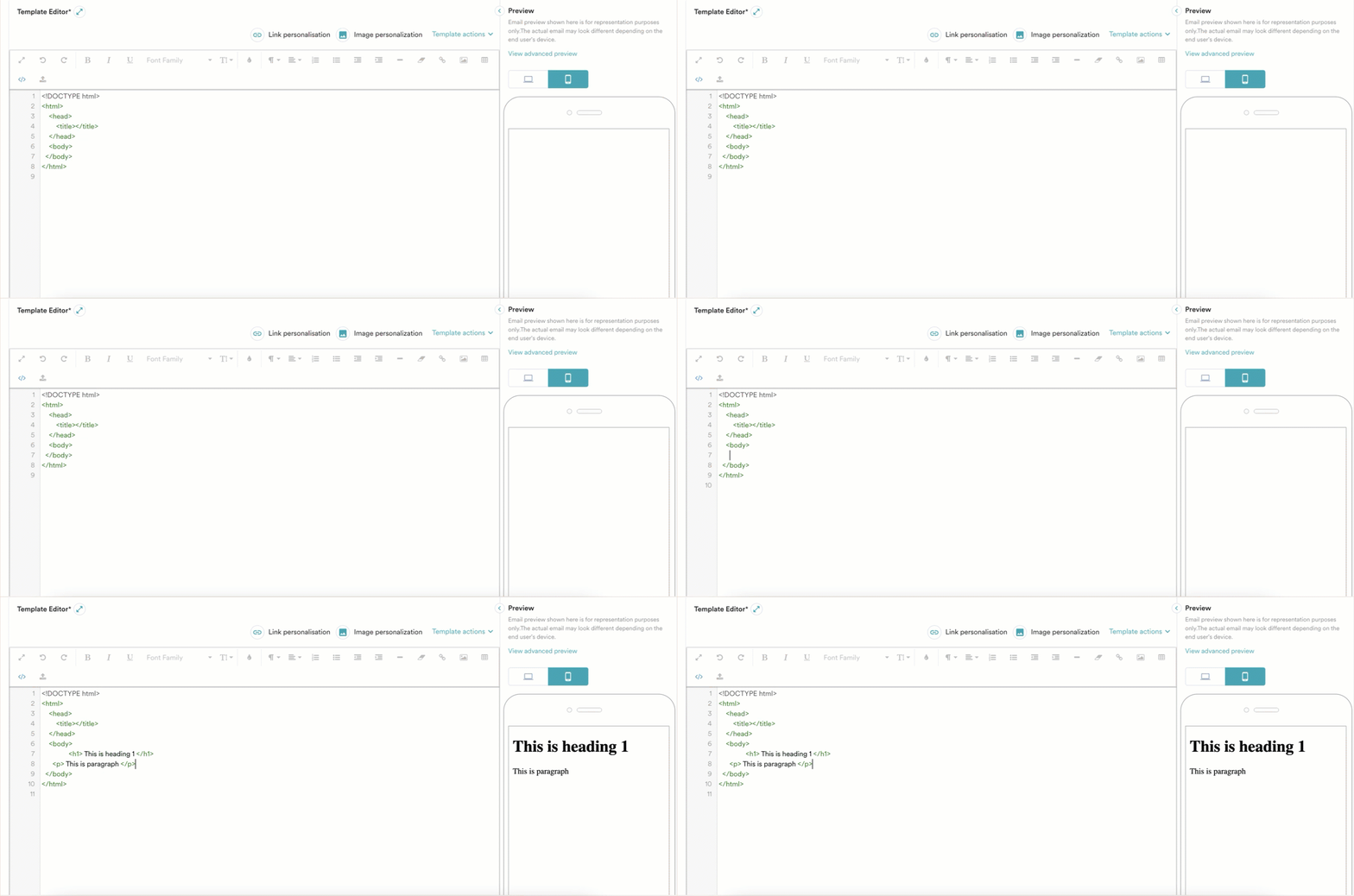
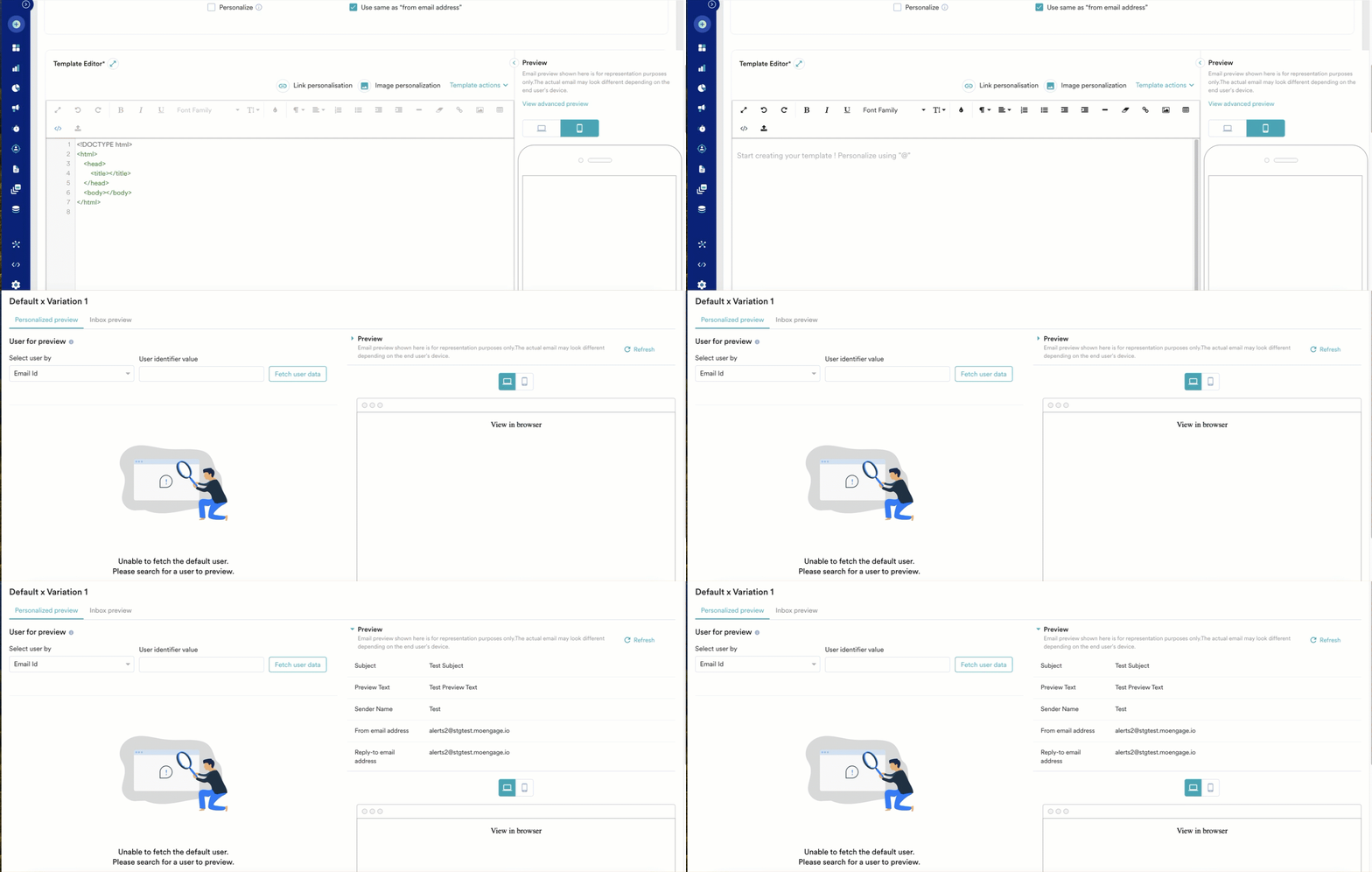
Add Dynamic Content
You can personalize your email content with attributes. Link and image personalisation is available in the HTML editor. For more information, refer to Personalization using the Custom HTML Editor.Save as Template
You can save an HTML code as a template in the template library under My saved templates and use it later in your campaigns. Click Save template under Template actions to save your template.Upload an HTML Template in ZIP Format
You can craft your email content by uploading a ZIP file (containing an HTML file and images). MoEngage converts this ZIP file and displays your design in the Custom HTML Editor. You can then make further changes or personalize the message.ZIP File Format
To upload a ZIP file, make sure to follow the specifications below:- Limit your file size to 5 MB.
- The file name should not contain any special characters (such as *, / , , & ,~, ”).
- The ZIP file should contain only one HTML file with inlined CSS. If you see an error regarding the file name, ensure that there is only one HTML file.
- Make sure the images are in the JPG, JPEG, PNG, or GIF formats.
- All images should be located on the relative path mentioned in HTML (with case sensitivity). If you encounter an error regarding the image location, ensure that all images are placed in the correct folders inside the ZIP.
Steps to Upload an Email Template in ZIP Format
- Log in to the MoEngage dashboard.
- On the All campaigns page, click + Create campaign > Email> the required delivery type.
- Define all the required details in Step 1 “Target users” and click Next.
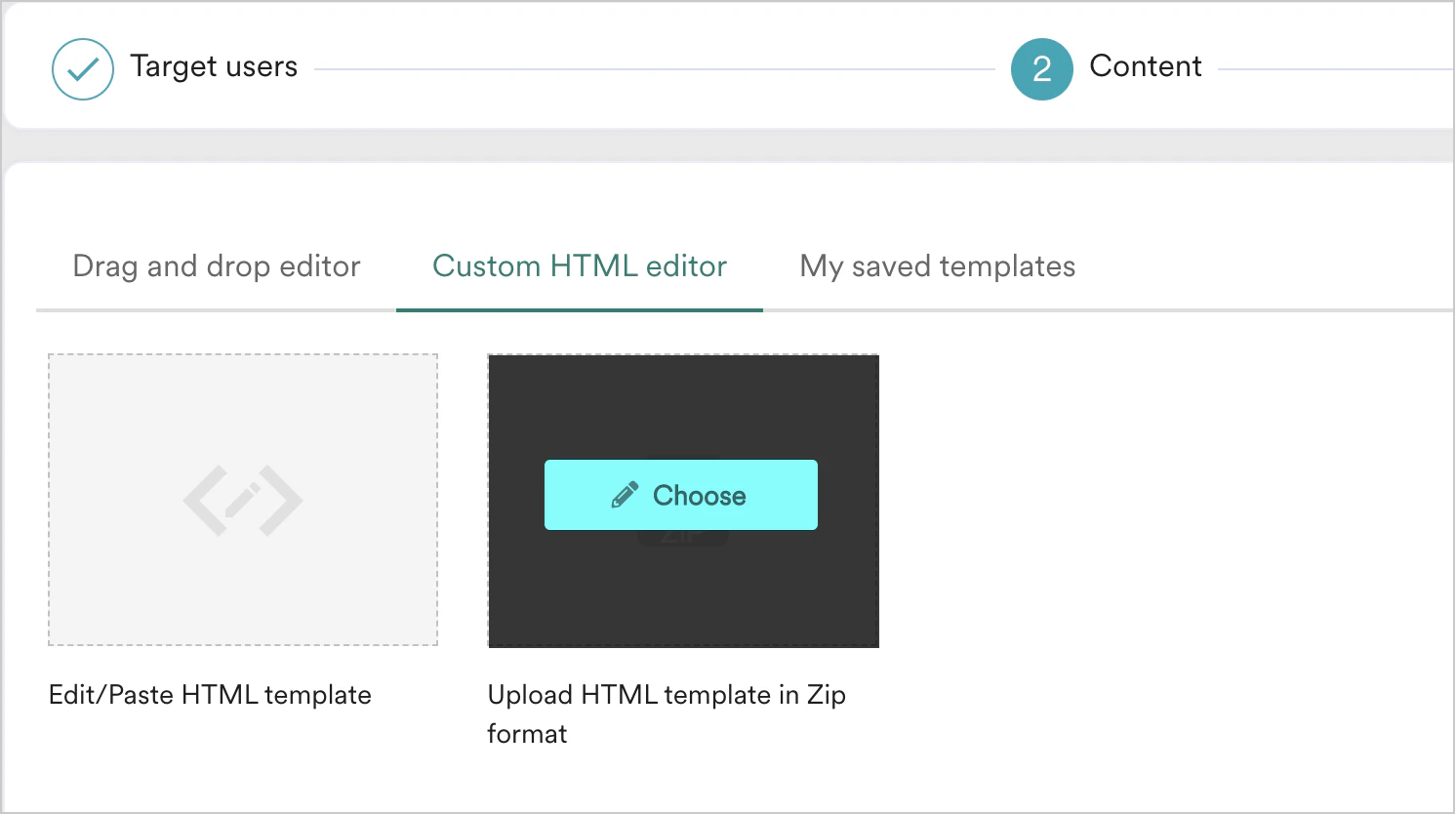
- In Step 2 “Content”, click the Custom HTML editor tab.
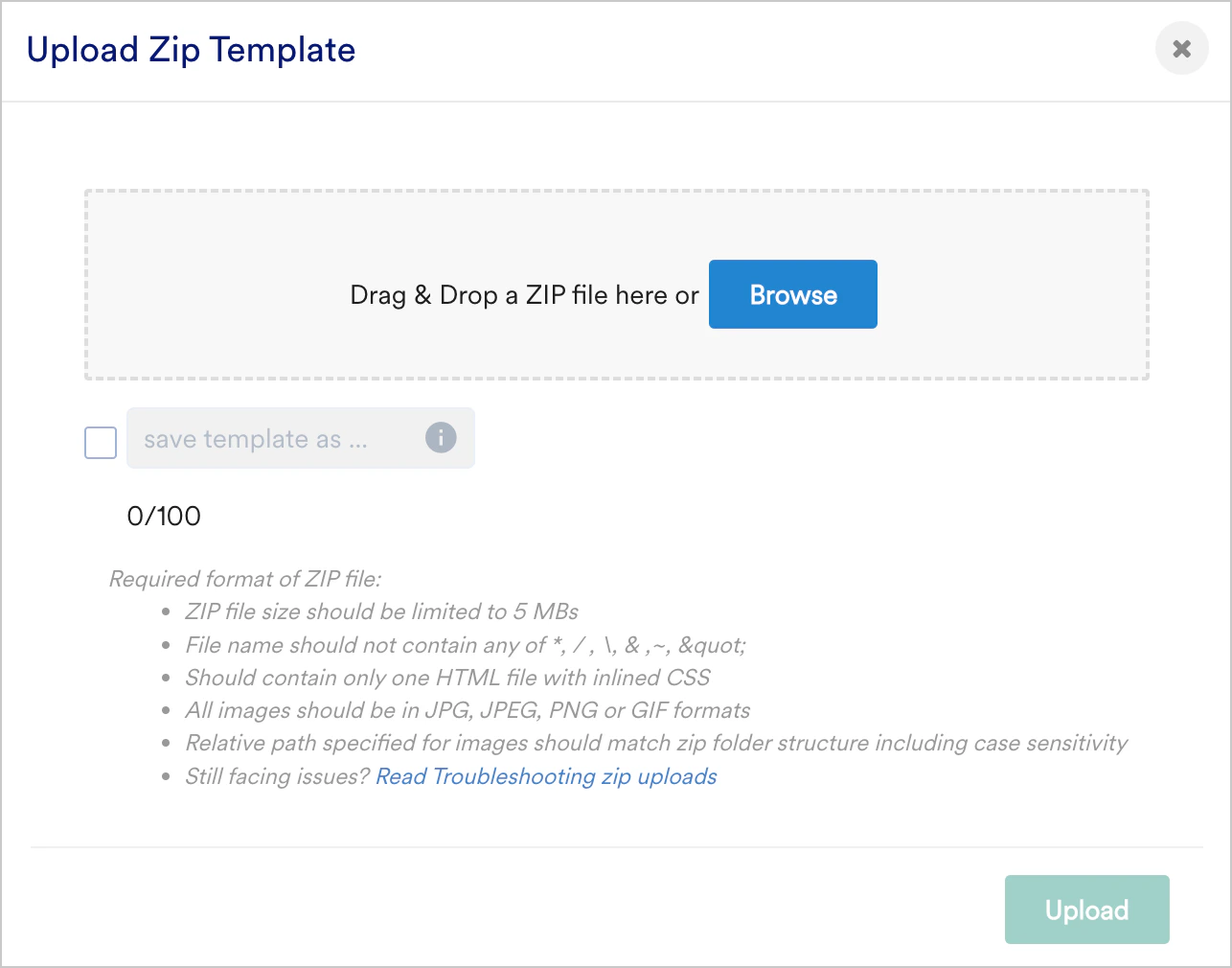
- Select Upload HTML template in Zip format as shown below.
- Drag and drop or browse the ZIP file in the dialog box that appears. If you want to save this template, select the save template as checkbox and provide a name for the template. Click Upload*.
Known Limitations
Gmail-Specific CSS Behavior
- Gmail ignores
@mediahide/show queries on both mobile and desktop clients — build responsive layout with fluid-hybrid tables (percentage- or max-width-based) instead of relying on media-query toggles alone. - Gmail does not honor
prefers-color-schemedark-mode CSS — it applies its own automatic color inversion instead, and it strips inline SVG. For attribute-casing and inline SVG details, refer to Known Editor Behavior: HTML Attribute Casing and Inline SVG. For dark-mode design guidance, refer to Rendering Issues in HTML Templates.
Personalization (Jinja) Syntax
- Never place Jinja loop/templating syntax as a direct child of a
<tr>element — HTML parsers will hoist it out of the table structure and scramble the logic, causing “item is not defined” failures at send time even though the personalized preview looks correct. Unroll loops into fixed<td>cells with index-based access and fallbacks, or use Display Conditions for list-length-based variants.
Fonts
- Custom or branded web fonts (Google Fonts,
@import, etc.) will not render in most inbox clients — this is an email-client limitation, not a MoEngage gap. Custom fonts only display in “View in Browser,” and the font<link>/@importmust be added manually for View in Browser to pick it up. Design with web-safe fonts and a solid fallback stack for the inbox itself.
Editor Behavior Quirks
- The rich-text editor can silently append trailing newline characters to a pasted link URL, breaking the click-through with nothing visibly wrong in the UI. If links start failing silently after editing, check the raw href in code view; switching to the HTML editor avoids the mangling since it passes HTML through untouched.
- The rich-text editor restructures imported HTML — head-level markup (like Gmail annotation schema) can get relocated into the body and broken, and
<script>tags are rejected outright as a security measure. For head-level structured data, author it once and load it through the HTML editor (plain HTML passthrough, no DOM restructuring). - Keep the entire
<html>/<body>structure inside one place — never split opening tags in the template from closing tags inside a separately managed content block referenced via a merge tag. The editor can’t resolve unresolved merge tags at edit time and may wipe out body content. - Pasting raw HTML into the rich-text (WYSIWYG) view instead of the code view gets escaped as literal text and can shift formatting elsewhere in the email. Add HTML only through the code view, or paste plain text in the rich-text view and apply links via the toolbar’s “Insert Link.”
- If a link-edit popup won’t open, suspect a browser extension (DLP/“safe-link” tooling) before assuming a template or platform problem — test in incognito or a clean browser profile before escalating.