

sess_a1b2c3...), and permanently logs the complete transcript for auditing and future reference.
This guide covers how a task runs, what you do while a task is running, and what MoEngage keeps once the task is finished. It applies to the Global Agent and to your Custom Agents.
Where a Task Starts
You start a task from the following locations. Only the hub applies to the Global Agent; the remaining three are Custom Agent entry points.- From the hub: In the composer on the Merlin AI Agents hub, click Select agent, choose the Global Agent or a Live Custom Agent, and send your first message. For the full walkthrough, refer to Start a Task.
- From a Custom Agent’s detail page: Open the agent and click the New run tab.
- From the Agent Builder: While creating a Draft or editing a Live Custom Agent, click the Test agent tab to start a trial run. This task is tagged Test in the agent’s history.
- On a schedule: When a Custom Agent has a schedule, MoEngage starts a task at each scheduled time and tags it Scheduled. Refer to Set a Trigger.
Clicking Publish in the builder publishes the agent rather than starting a run. Start a Live run afterward from the agent’s detail page or from the hub composer.
- Live Runs: On the agent’s detail page, the task opens in a panel beside the Tasks list. The panel’s header shows the agent’s name and the run’s date and time, and the footer shows who last ran the task. Click Open task to open the full task. Refer to Anatomy of a Task Transcript.
- Test Runs: The task runs in the Test agent tab of the builder. The footer shows the task’s Session ID with a copy icon. Refer to Test Agent.
Test, Live, and Scheduled Runs
Custom Agents only. Global Agent tasks are always Live and manual, so the Global Agent has no Test or Scheduled run type.
Scheduled Run Behavior
A Scheduled run always executes using the agent creator’s MoEngage credentials and permissions, regardless of who views the dashboard when the scheduled run fires. Scheduled execution follows these behaviors:- A scheduled run can start up to five minutes after its set time.
- If the agent isn’t Live at the scheduled time, MoEngage skips the run entirely.
- MoEngage skips rather than queues the new fire when the previous run from the same schedule started in the last 60 minutes and is still in progress.
- If the creator’s MoEngage login has been revoked or has expired, the run does not start, so the creator signs in again to restore the schedule.
- If no MoEngage login is stored for the creator, the run starts without MoEngage tools. The affected tool reports a missing-credential error instead of blocking the entire run.
Choose a Mode
Each task runs in one of three capability tiers, which control the balance between response speed, cost, and analytical depth:- Fast: The Fast tier handles lightweight, low-latency tasks, such as quick data lookups.
- Balanced (Default): The Balanced tier handles moderate-complexity tasks, such as campaign QC or segment analysis.
- Expert: The Expert tier handles tasks requiring deep, multi-step reasoning, such as in-depth performance analysis across multiple campaigns.
- Global Agent
- Custom Agents
Select the tier on each task, in the composer, before you send the first message. The tier locks once the task starts, so to use a different tier, start a new task.
MoEngage may update the AI model powering a tier over time to maintain quality and reliability, without requiring any action from you or changing any other part of your agent’s configuration.
The Execution Lifecycle
Tasks are conversational and asynchronous. When you submit a prompt, the following execution sequence occurs:- The agent reads its core instructions to establish its role and objectives.
- The agent acknowledges your prompt and begins executing its defined steps, calling its tools sequentially (for example, fetching a campaign, generating a personalization preview, synthesizing a report).
- The transcript logs each tool call with its context parameters and execution time.
- The agent synthesizes the retrieved data and streams the final, structured output into the panel progressively, so the response appears as MoEngage generates it rather than all at once when the run ends.
Write-enabled agents can create or modify real drafts during a task. Always review the agent’s actions before considering the task complete.
Monitor a Running Task
Tasks run in the background and take anywhere from a few seconds to several minutes, depending on data volume and tool complexity. You do not need to keep the task window open. Navigate away, work elsewhere in the dashboard, and return to the task at any time. The left pane and the All tasks page mark each task with its state:- A running task shows a pulsing dot.
- An unread task shows an orange dot.
- The orange dot clears when you open the task, and returns when the task updates.
- A task that is both running and unread shows the pulsing dot.
Notifications
A long task often finishes while you are working elsewhere. The hub raises a browser notification when the agent stops.1
Open Notification settings
Select the notification icon beside Merlin AI Agents.
2
Ask your browser for permission
Select System notification when a task finishes while I’m away, and click Save. Your browser then asks for permission.
Permission belongs to your browser rather than to MoEngage. Once you grant permission, the option stays selected, and you turn notifications off by blocking notifications for the site in your browser settings.
Stop a Run and Queue Messages
While the agent works, select Stop response to end the run. In a Custom Agent panel, the same control appears as Stop, and it ends the run immediately on both Test and Live runs. Only the task owner stops a run. A message you send while the agent is still working waits in a queue. You pause the queue, add to it, delete from it, or resume it, and the agent picks up the queued messages when it is ready.Anatomy of a Task Transcript
When you select a task on a Custom Agent’s Tasks tab, the transcript opens in a panel beside the list. The numbers in the following image match the elements described after it: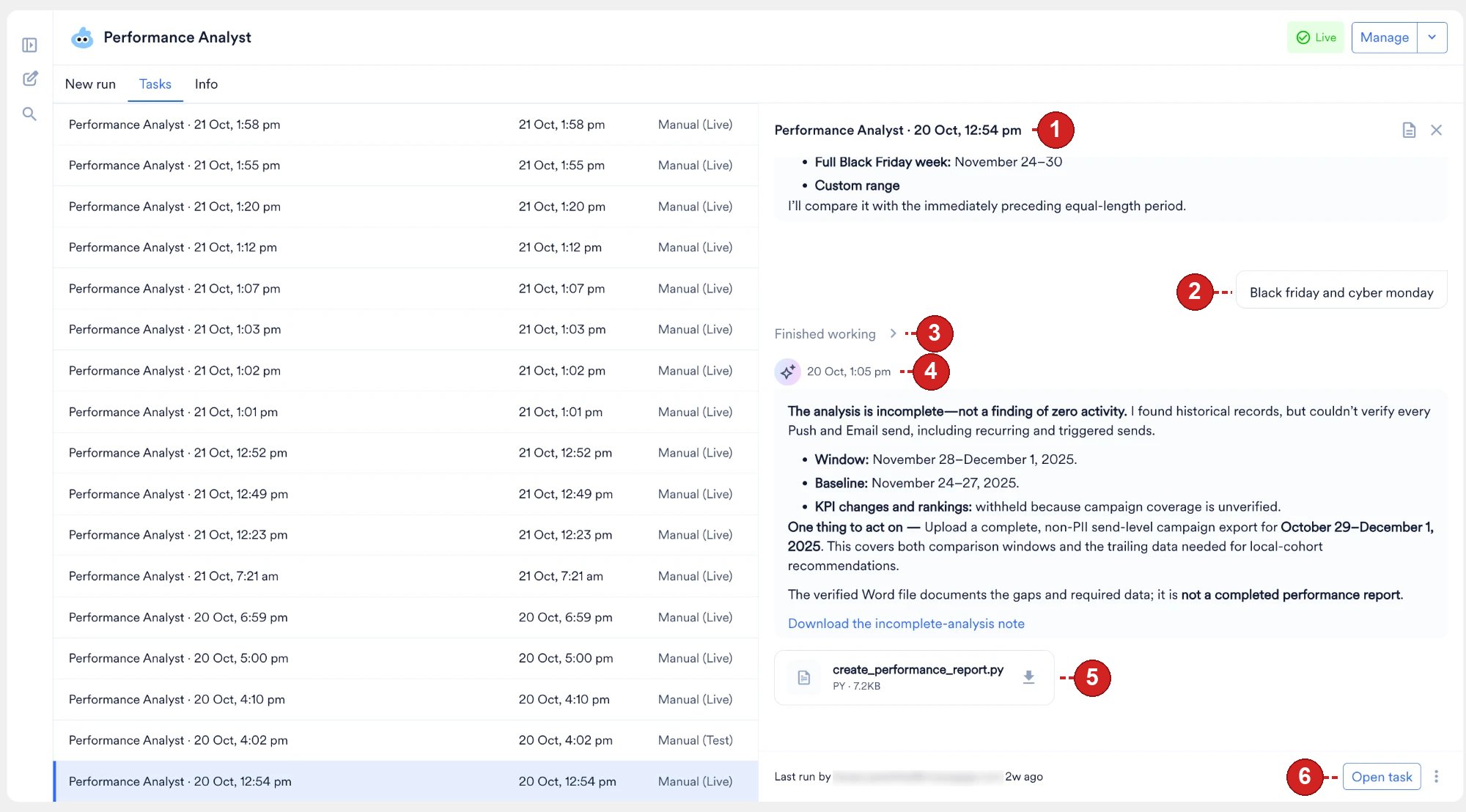
- Header: Displays the task’s name. By default, the name is the agent’s name and the date and time the task started.
- Prompt: Displays the message that you sent to the agent.
- Agent steps: The Finished working line groups the steps the agent took, and reports any errors, for example, Finished working with 2 errors. Expand the line to view each tool call and the agent’s reasoning between tool calls. Each tool call card includes:
- A status icon (for example, ✓ for success)
- The tool name (for example,
search_campaigns) - Truncated parameter previews
- Total execution time (for example,
4.9s)
- Response: The agent’s structured output, formatted in Markdown and stamped with the time the agent replied. Each message block includes a copy icon, so you export the report to external documents or messaging tools.
- Generated files: Any downloadable artifacts the agent produced, such as HTML reports and CSVs. These appear as inline cards showing the filename, type, size, and a download button. Each file card shows a Preparing state while MoEngage processes the file, and an Unavailable state if the file can’t be downloaded. Files you attach to your own prompts appear similarly.
- Footer: Displays who last ran the task and when. Click Open task to open the full task, where the footer shows the Session ID with a copy icon, alongside a reminder that agents can make mistakes.
Review Task Outputs
A task collects every file the agent produces during a run. Where you open the list depends on the agent family:- Global Agent
- Custom Agents
Select Output files in the task header. A marker on Output files shows when new files arrive.
- Images and PDFs: PNG, JPG, GIF, WebP, and PDF files open in the preview pane. A download button sits beside the preview.
- Text files: Markdown, plain text, log, and JSON files also open in the preview pane. A file larger than 2 MB downloads instead.
- Office and spreadsheet files: .docx, .xlsx, .pptx, and CSV files download directly. Open each file in the matching application to review the contents.
Session Outputs Panel
The Session outputs (N) panel is the complete list of files a Custom Agent run produced. The panel appears on the run’s detail page, and N is the number of files in the list. Expand the panel to see the files, and collapse it to return to the transcript. MoEngage shows the panel only for a run that produces at least one file. A run that produces no files has no Session outputs panel. The panel lists the following files:- Every file the run produced. This includes files that the transcript does not show as a file card, so check the panel rather than the transcript when you need every output of a run.
- Generated images. Creatives that the image generation tool produces appear in the panel alongside documents and spreadsheets. Refer to Generate and Analyze Images.
- Files from sub-agents. When a coordinator delegates work, the files each sub-agent produces appear in the coordinator’s panel with the files the coordinator produces itself. Refer to Build Multi-Agent Workflows.
Once a run completes, MoEngage backs up its outputs so they remain downloadable after the run is no longer active. Each output belongs to the run that produced it; MoEngage does not carry outputs forward to a different run of the same agent.
Agent Memory
An agent keeps two memory stores. One belongs to the agent alone; the other is shared with every agent in your workspace.
Any task can write to both stores, including a task you keep private.
Within a single task, an agent also carries that task’s prompts, tool outputs, and files as ordinary context, which is why you resume an Idle task and pick up where you left off. That context belongs to the task and is not a memory store.
Workspace memory lets one agent’s findings inform another agent’s work. An agent that records your brand’s tone-of-voice rules or the naming convention for a campaign series makes those facts available to your other agents and to the Global Agent, so you don’t restate them in each agent’s instructions.
Agents read and record memory as they run. Every workspace has both stores, and no setup is required to use them. The transcript records a read as a step labeled Reading memory or Searching memory, alongside the agent’s tool calls. Writes appear as ordinary file steps instead, labeled Writing a file or Editing a file, and no step distinguishes agent memory from workspace memory.
Scheduled runs use no memory. A scheduled run neither reads what an earlier run stored nor stores anything for a later run to read, so a fact an agent picked up on a manual run is unavailable to that agent’s next scheduled run.
You cannot inspect, edit, or clear either store: MoEngage provides no viewer for them in the dashboard and no API. Because a stored fact stays until MoEngage removes it, treat anything you give an agent as available to every agent in your workspace, including the Global Agent.
Memory holds what stays true between tasks, and is distinct from task outputs, which stay scoped to the run that produced them. The agent looks up live figures, such as campaign status, audience counts, and performance numbers, each time you ask. Verify any figure that drives a decision.
Workspace memory stays within your MoEngage workspace and never reaches another workspace or organization. For details, refer to Agent Permissions and Security.
Monitor the Tasks History
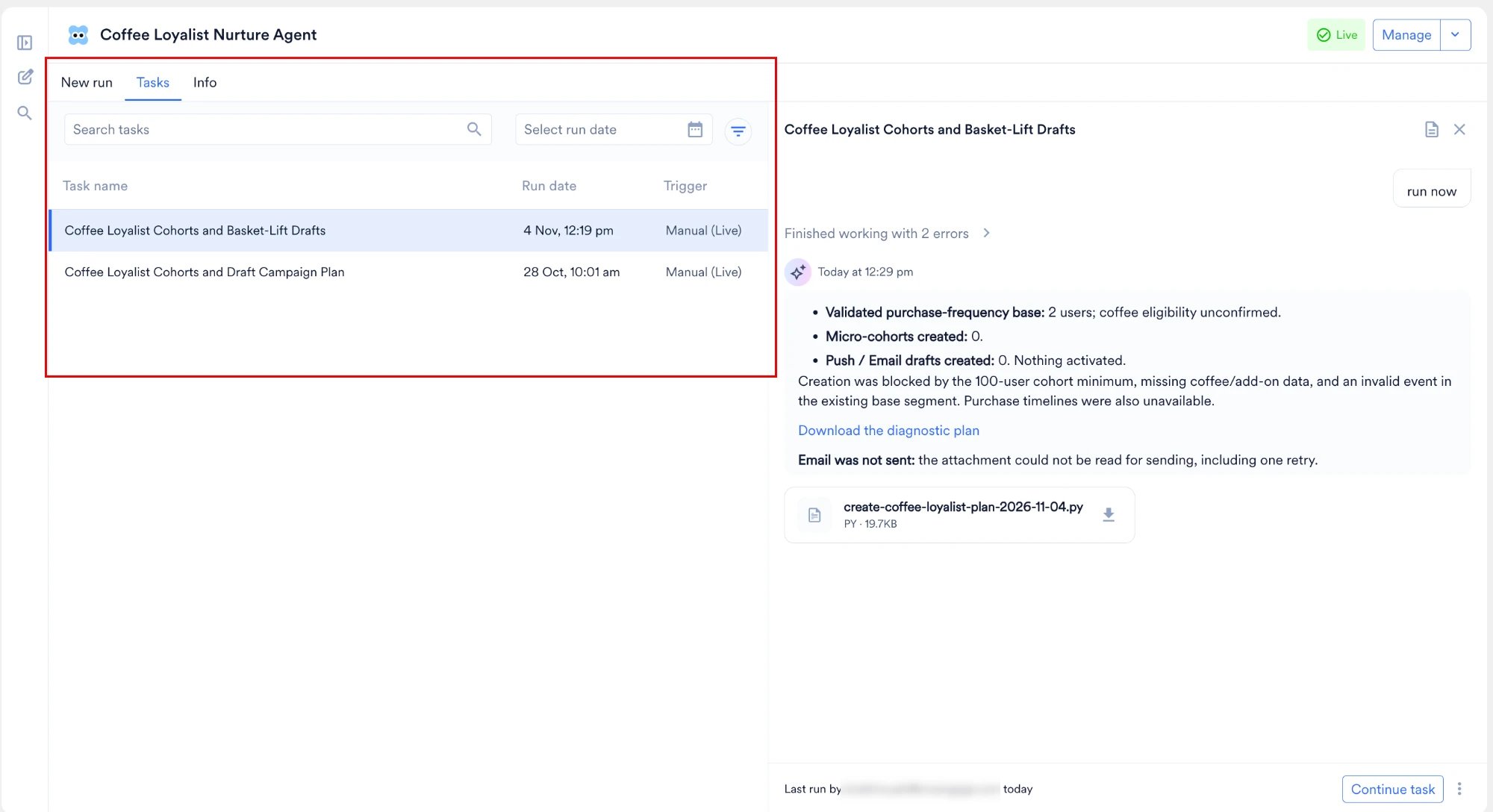
Custom Agents only. The Tasks tab belongs to a Custom Agent’s detail page, which the Global Agent does not have. To find Global Agent tasks, use the workspace-wide task list instead.
Filtering and Search
Use the filter row above the table to narrow the displayed tasks:- Search tasks: Search the agent’s tasks.
- Select run date: Show the tasks that ran on a date or within a date range.
- More filters: Click the filter icon to add filters for Run by (the user who started the task) and Run type (Live, Test, or Scheduled).
Table Columns Overview
Resume and Share Tasks
Resume a Task
Tasks are persistent and do not permanently close. Each task keeps its own context, so the agent holds all preceding instructions, tool outputs, and generated files from that run. To continue a task you started earlier:- Open the task from the task list, or from the Tasks tab on the agent’s detail page.
- Send another message.
Share a Task
How you share a task transcript with a colleague depends on the agent family:- Global Agent
- Custom Agents
Select Copy link in the task menu and send the link. The option becomes available once the task is visible to your workspace, and the link works only for colleagues who have permission to view the task. Refer to Copy a Task Link.
Task Boundaries and Technical Limitations
Keep the following operational boundaries in mind when running agents. For a deeper look at permission scopes and governance, refer to Agent Permissions and Security.- No auto-send capabilities: An agent never launches or publishes a campaign, so you publish manually using the draft ID the agent generated. Refer to Steps That Stay With You.
- Workspace privacy: Tasks are strictly private to your specific workspace and cannot be shared across different organizations.
- Immutable history and 30-day inactivity limit: Tasks cannot be deleted, and their transcripts remain permanently in the agent’s history for you to view. A task stays active for 30 days after its last activity, and you resume and continue chatting within that window. After that, the history remains visible, and you start a new task to continue the work.
- Deleting agents: To prevent accumulating tasks on an obsolete Custom Agent, delete the agent entirely, which removes its history from gallery access. Only the agent’s creator deletes an agent. Refer to Delete an Agent.
- Summary email recipients: When you request a summary email of a task, MoEngage sends the email to the person who ran the task and to no one else. For a scheduled task, that person is the agent’s creator, whose credentials the task executes under. You cannot add recipients, a distribution list, or an external address. Refer to Send Summary Emails.
FAQs
Do I need to keep the dashboard open while a task runs?
Do I need to keep the dashboard open while a task runs?
No. Agents operate asynchronously as long-running background processes. You safely navigate away from the task window while the agent works. A running task shows a pulsing dot, and an unread task shows an orange dot. Return to the task list, or to the Tasks tab on the agent’s detail page, to review the completed steps and final output.
Does the agent remember my past instructions and files?
Does the agent remember my past instructions and files?
Yes. Within a task, the agent retains the complete context of all preceding chat history, tool outputs, and attached files under that Session ID. You reopen any Idle task to resume a complex workflow right where you left off. An agent also keeps facts beyond a single task, and shares some of them with the other agents in your workspace. Refer to Agent Memory.
My task says 'Idle.' Did it get stuck or fail?
My task says 'Idle.' Did it get stuck or fail?
No, “Idle” means the agent’s turn has ended and it’s waiting for you. MoEngage uses the term “Idle” because agent tasks act like continuous chat threads. The agent is waiting for you to ask a follow-up question or give it a new command based on the data it returned.
How long do my tasks stay available?
How long do my tasks stay available?
MoEngage keeps every task and its output files, and archives nothing automatically. For how long a task stays resumable and what happens afterward, refer to Resume a Task.
Which mode should I select for a task?
Which mode should I select for a task?
Each task runs in Fast, Balanced, or Expert mode, and Balanced is the default. Select the mode that matches the reasoning the task requires. The Global Agent sets the mode for each task, and a Custom Agent sets the mode on the agent instead. Refer to Choose a Mode.
How do I find out what a scheduled run produced without opening the dashboard?
How do I find out what a scheduled run produced without opening the dashboard?
Add a request for a summary email to the agent’s instructions. Every scheduled task then emails its outcome, and any files the agent attaches, to the agent’s creator, whose credentials the scheduled task executes under. Refer to Send Summary Emails.
Why doesn't my scheduled agent run at the expected time?
Why doesn't my scheduled agent run at the expected time?
A scheduled run can start up to five minutes after its set time, so check again shortly after the set time. MoEngage skips the fire when the agent isn’t in a Live state, when the previous run from the same schedule started in the last 60 minutes and is still in progress, or when the creator’s MoEngage login has been revoked or has expired. A skipped fire never runs later, and scheduled fires never stack up. For more information, refer to Scheduled Run Behavior.
Can I delete an individual task?
Can I delete an individual task?
No. Tasks cannot be deleted; they are permanently logged in the agent’s history for auditing purposes. Archive a task to take it off your active list instead. Refer to Archive and Restore a Task.
Next Steps
Merlin AI Agents Home
Find, pin, rename, share, and archive the tasks in your workspace.
Agent Permissions
Review the permission scopes and security guardrails that apply across Merlin AI agents.
Build a Custom Agent
Turn a job you repeat into an agent with its own instructions, tools, and schedule.