

Introduction
Mailmodo, one of MoEngage’s Technology Partners, enables you to create interactive email templates to increase user engagement and marketing ROI using Emails.MoEngage × Mailmodo
Mailmodo is an AMP email solution and with the integration, you can:- Use the MoEngage Segmentation module to send emails to targeted users.
- Use Mailmodo for email template creation and use MoEngage connector campaigns to trigger emails.
- Use the existing SendGrid account or set up Mailmodo SMTP to send emails from Mailmodo.
- Use Mailmodo’s campaign activity data inside MoEngage while segmenting users or creating flows.
Integration
PrerequisitesEnsure you have a Mailmodo account.
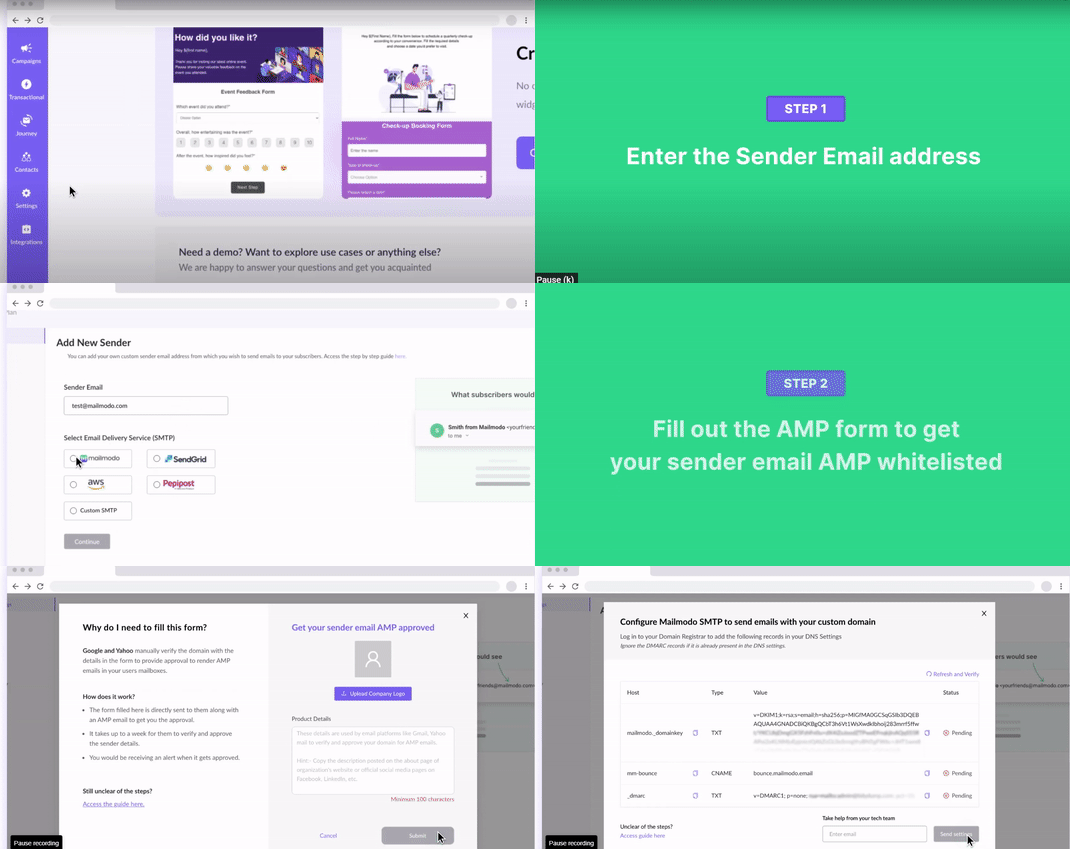
Setting up MoEngage Integration in Mailmodo
- By setting up the MoEngage integration, you will be able to create segments, campaigns, flows, or dashboards in MoEngage using their campaign activity data, for emails triggered with MoEngage as an external trigger.
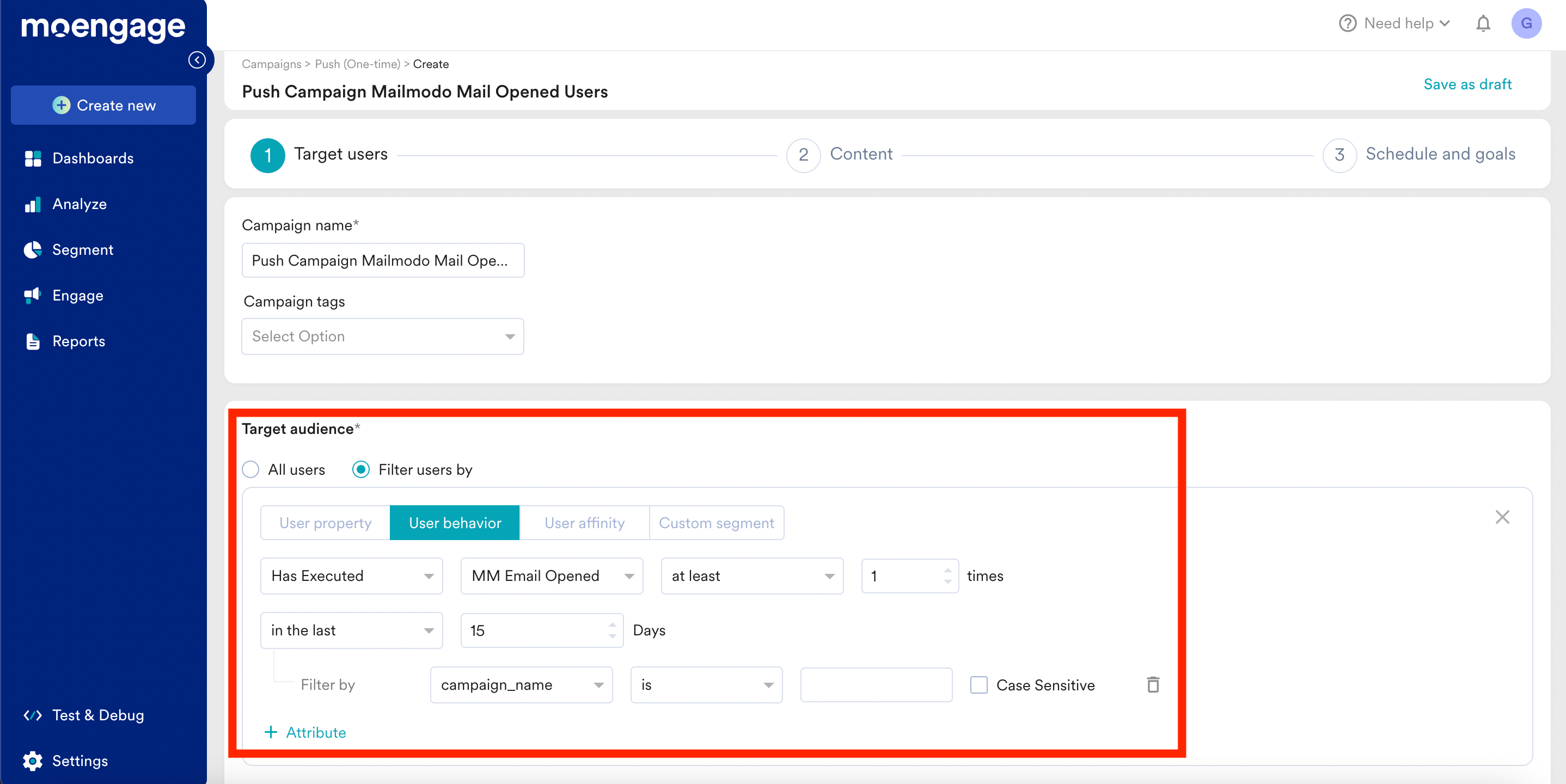
- MM Email Opened
- Campaign Name
- Email Subject
- Campaign ID
- MM Email Link Clicked
- Campaign Name
- Email Subject
- Campaign ID
- Link URL
- MM Email Form Submitted
- Campaign Name
- Email Subject
- Campaign ID
- Template ID
- Template Name
- Form ID
- Form Name
- MM <Template Name> Form Submitted
- Campaign Name
- Email Subject
- Campaign ID
- Template ID
- Template Name
- Form ID
- Form Name
- Form Submissions
- MM Email Bounced
- Campaign Name
- Email Subject
- Campaign ID
Steps to setup
Step 1: Go to Integrations from the left navigation menu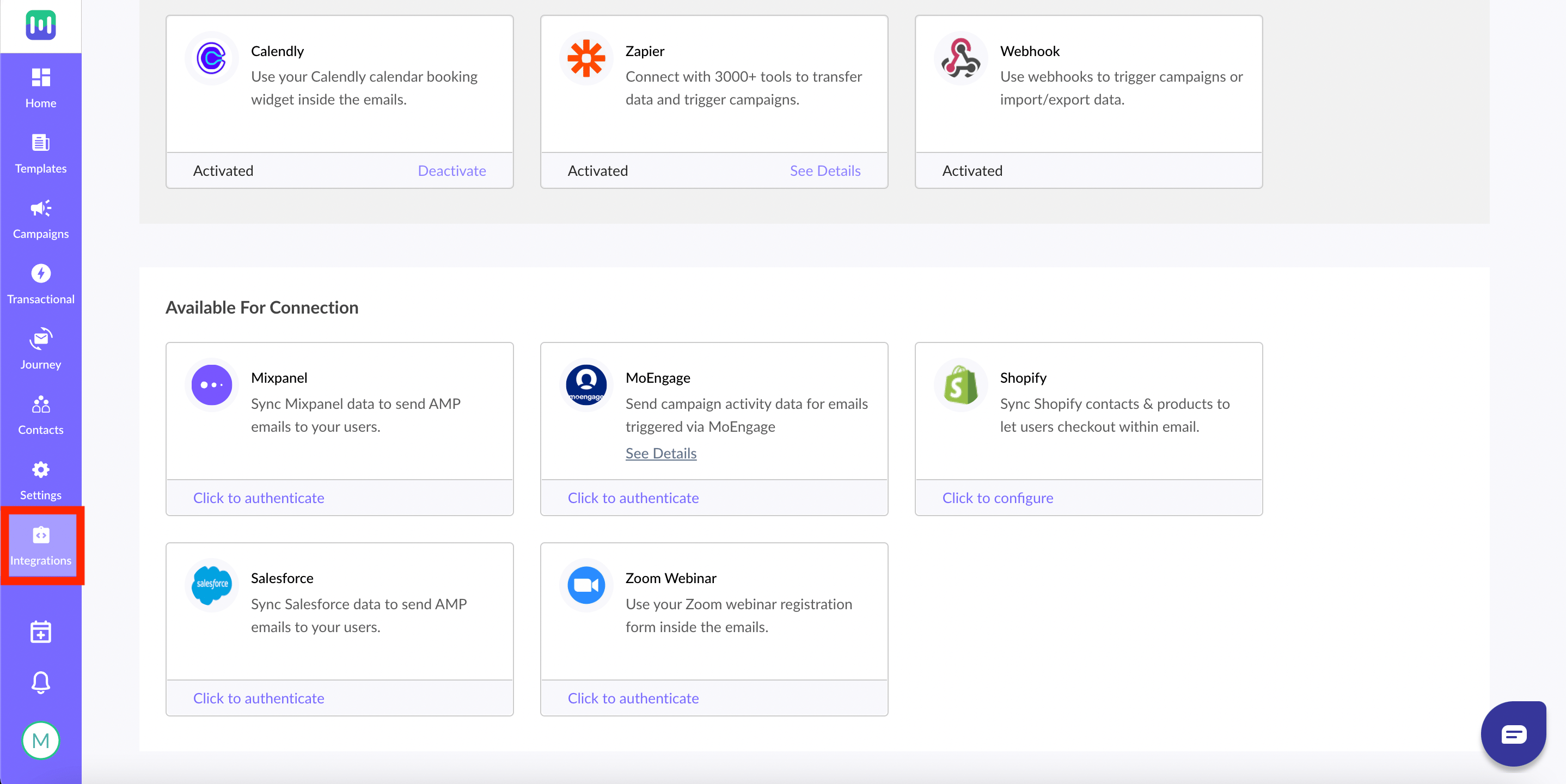
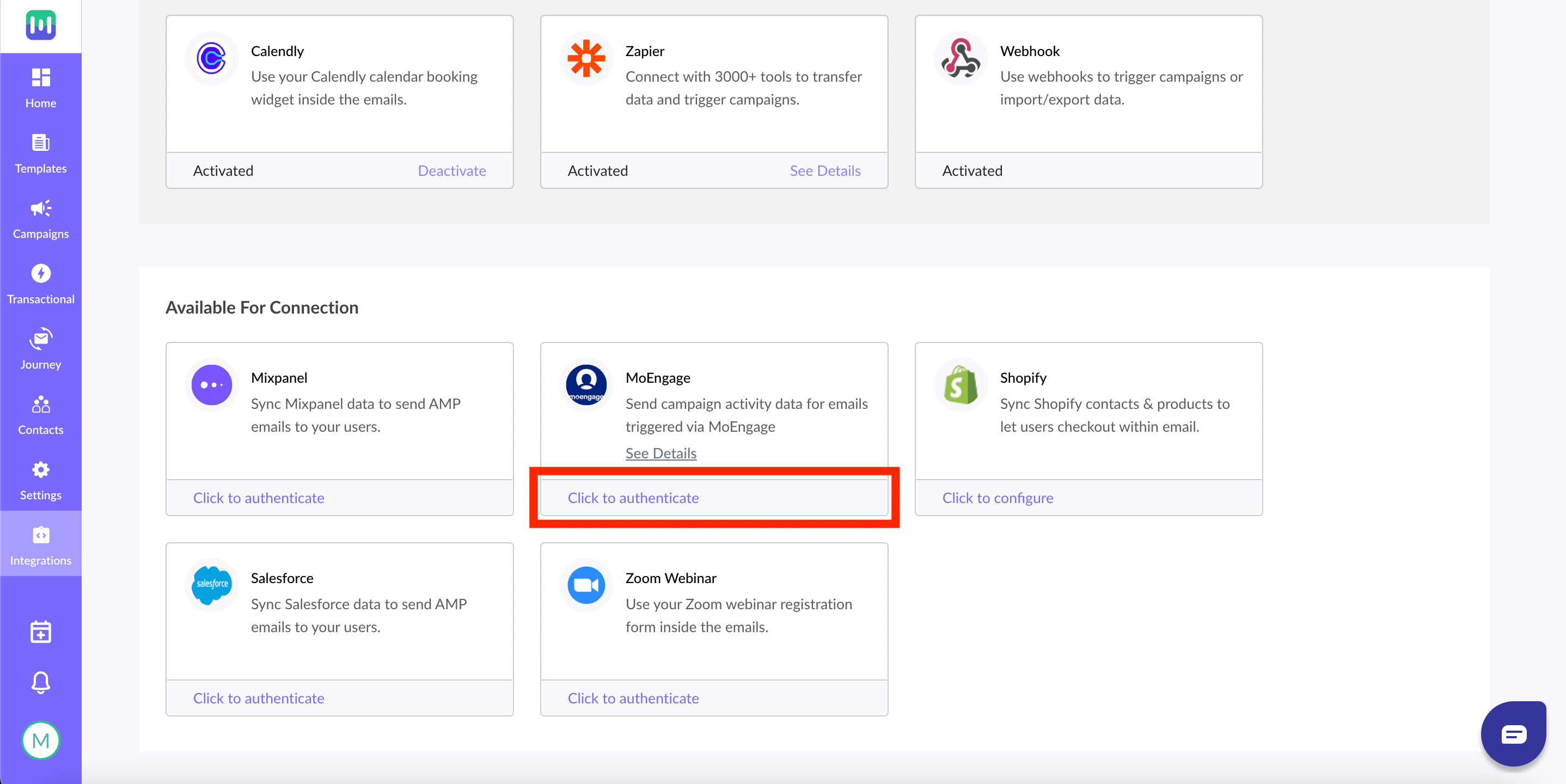
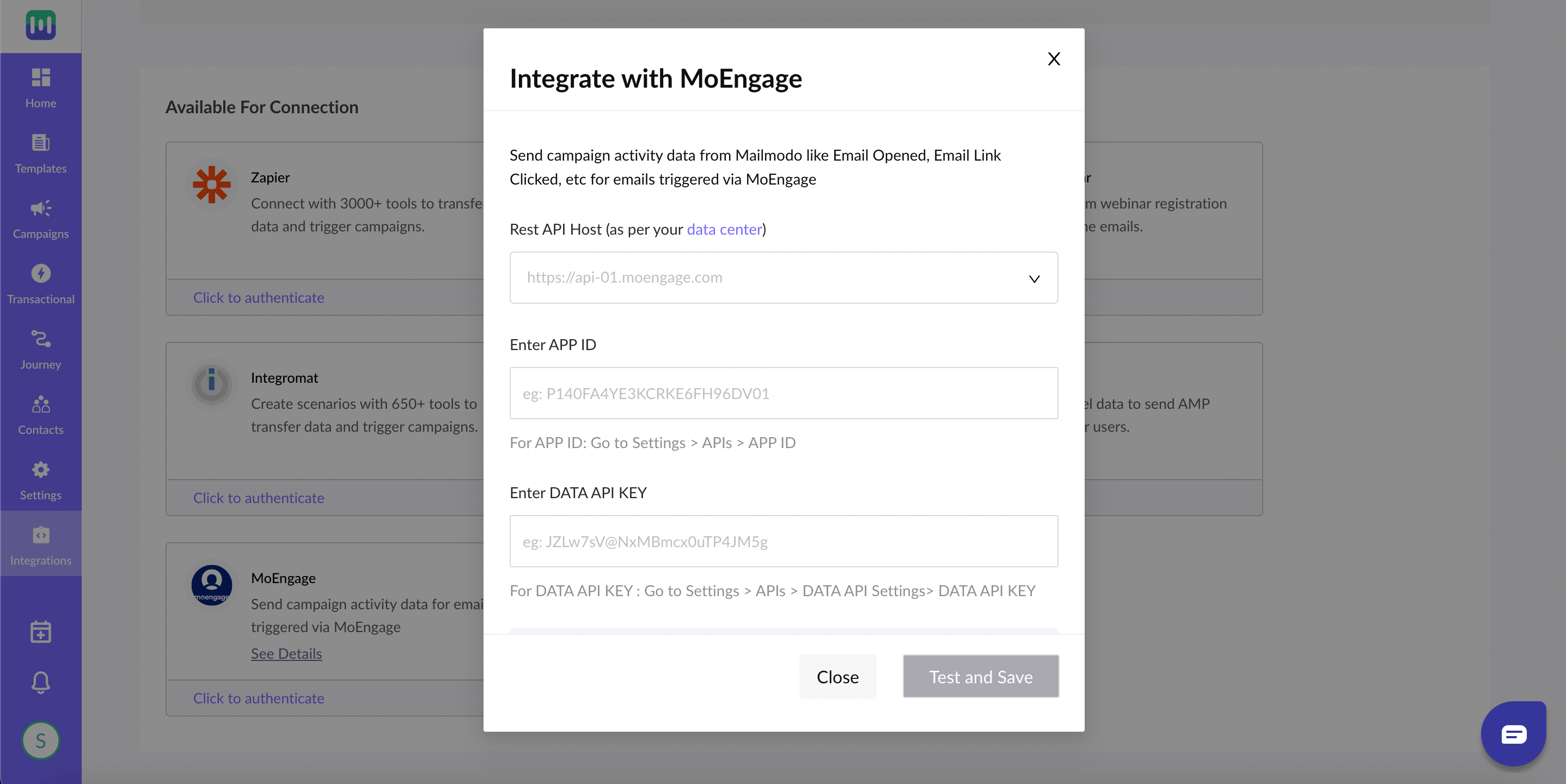
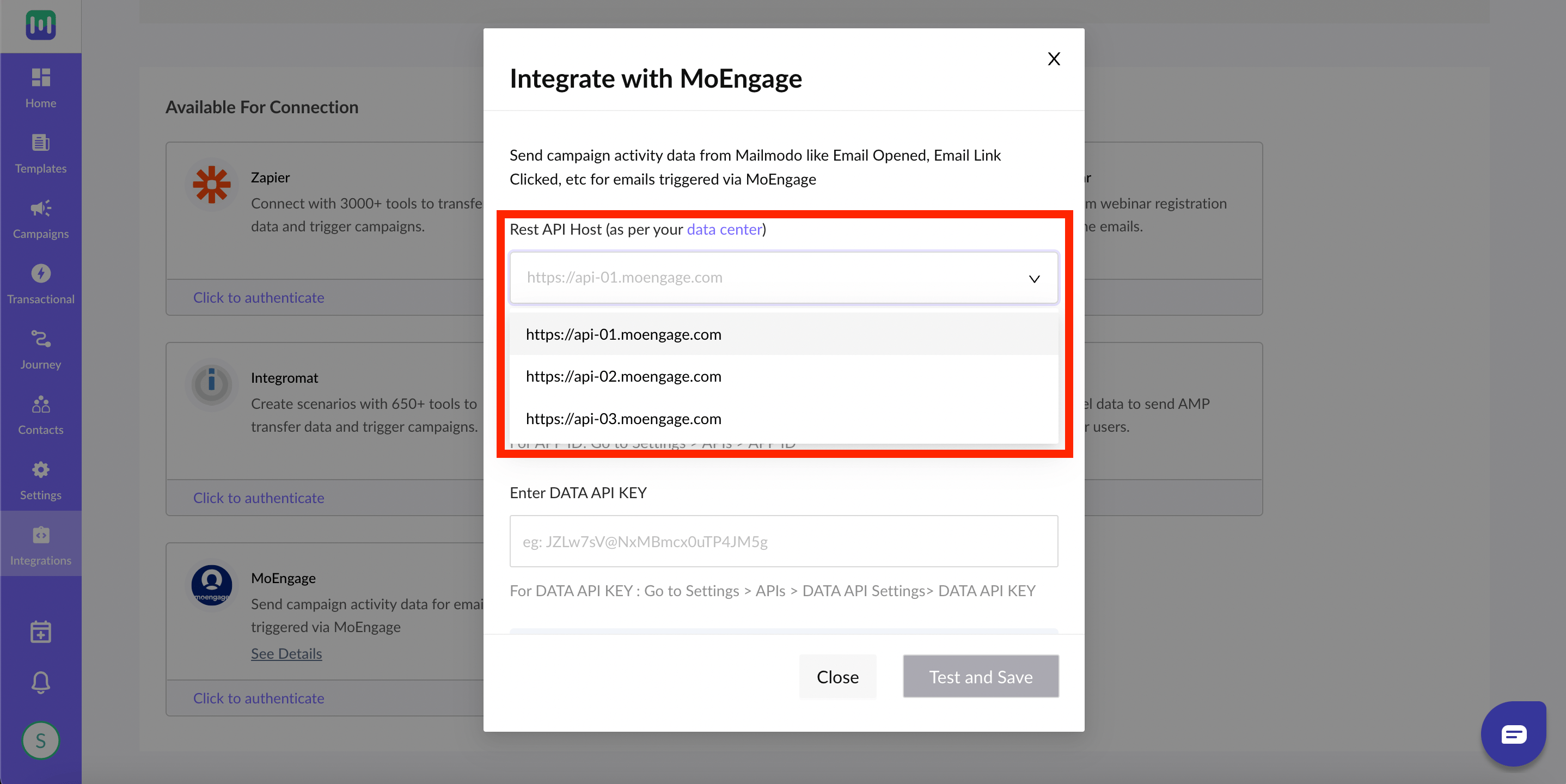
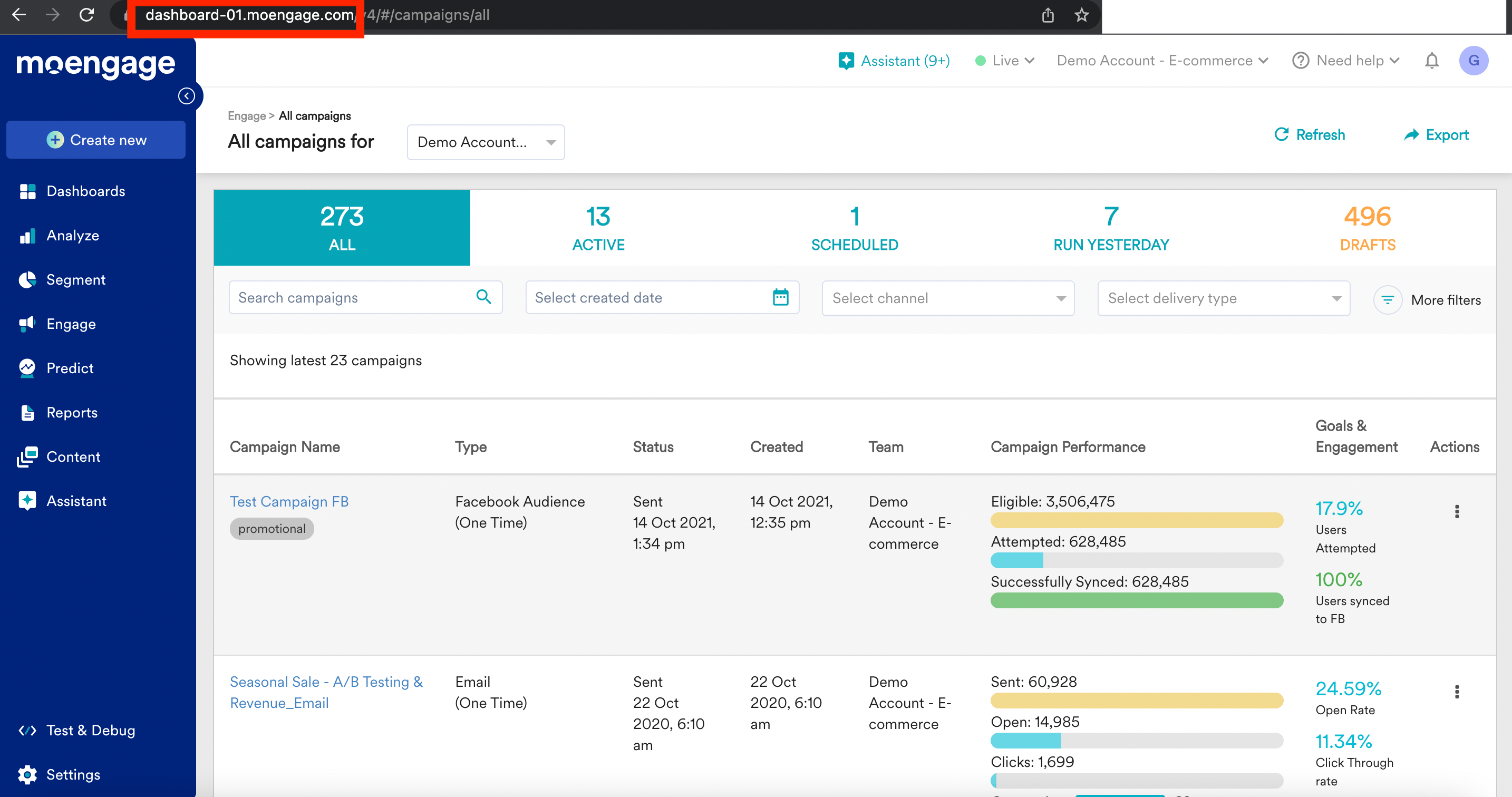
- Please select the Rest API Host as per your Dashboard URL. The following table describes the dashboard URL, and the REST API hostname associated with it.
Please refer to the red highlighted box below for your Dashboard URL in MoEngage and select the associated Rest API Host from the above table
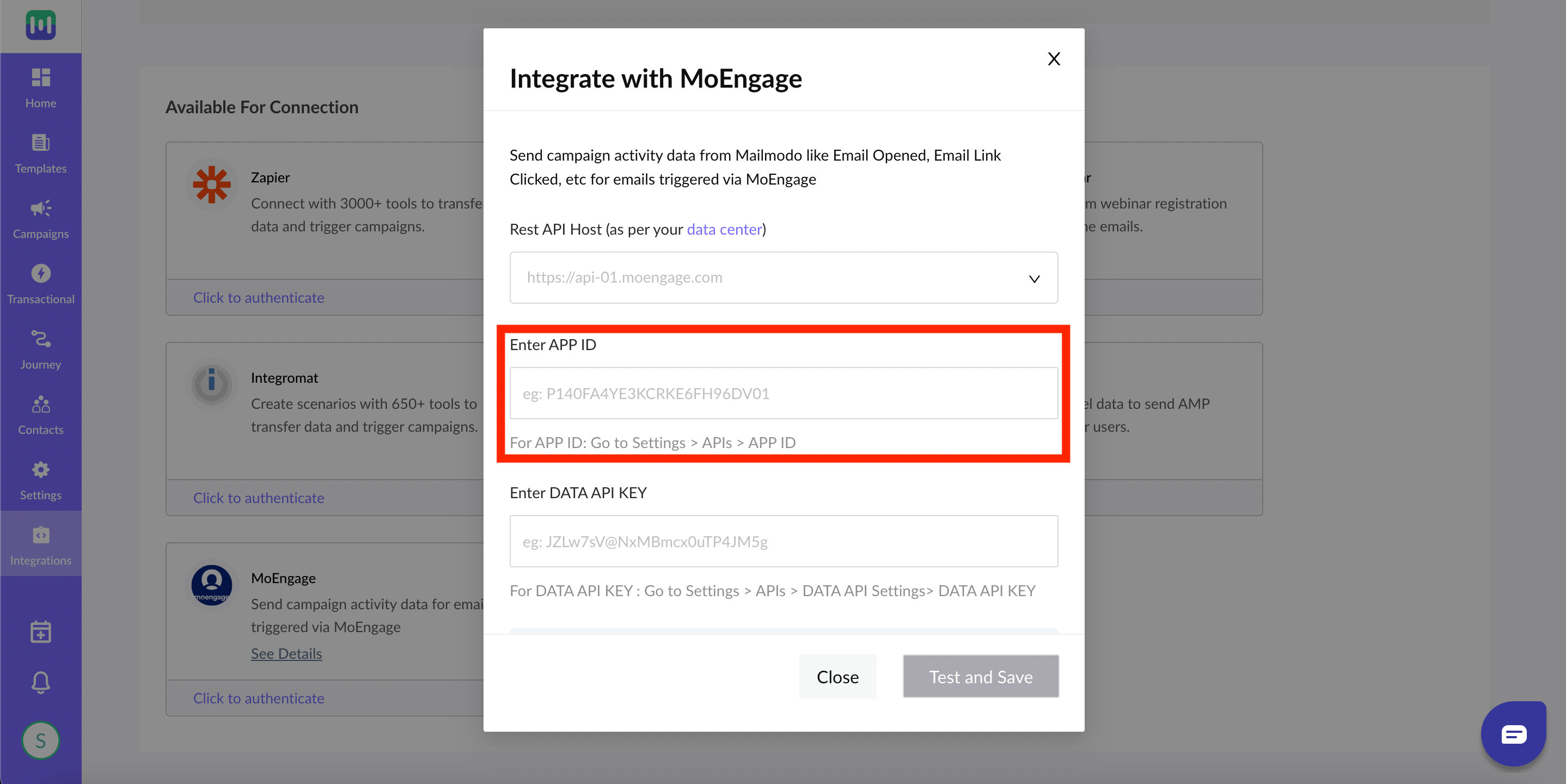
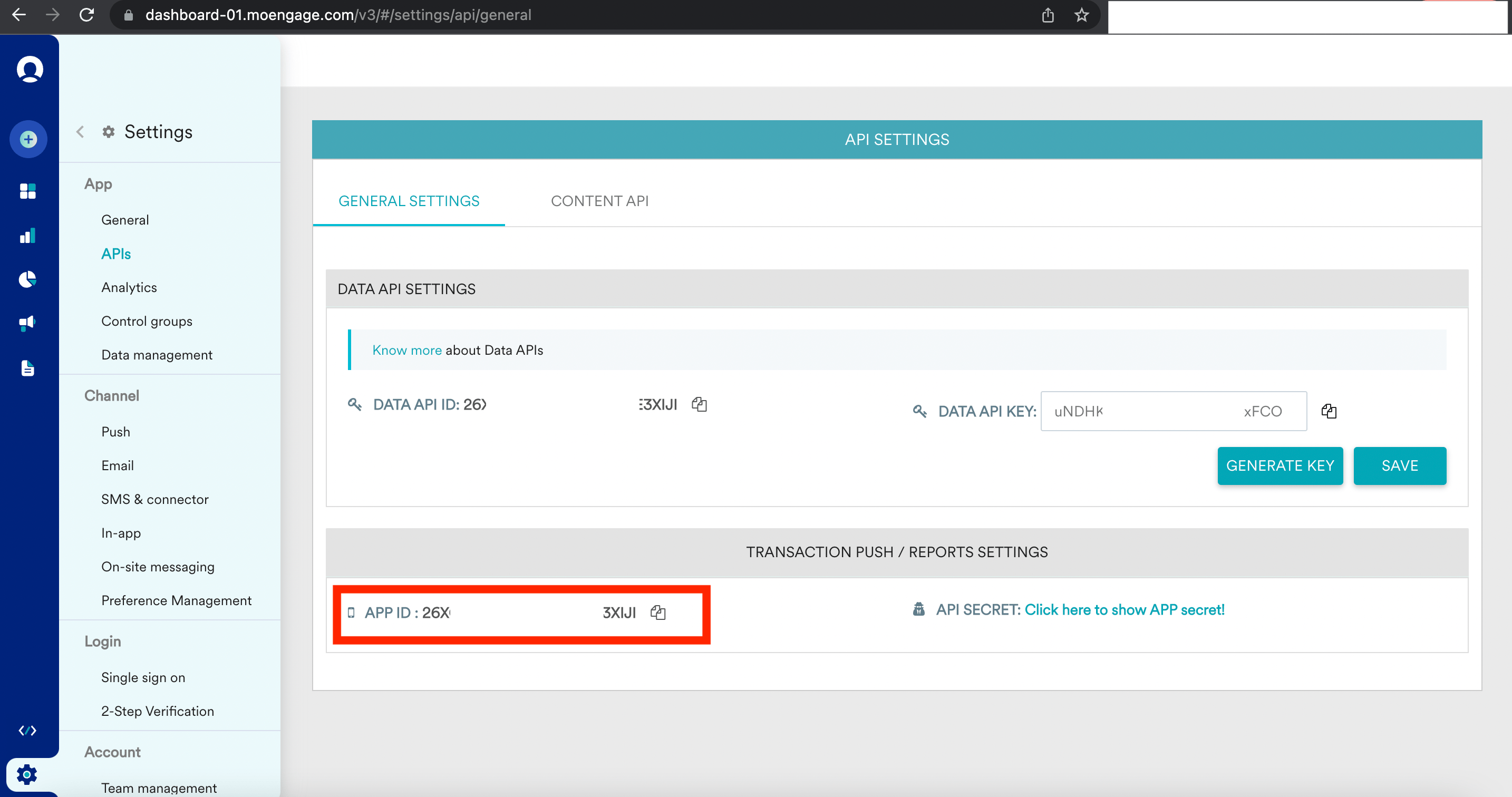
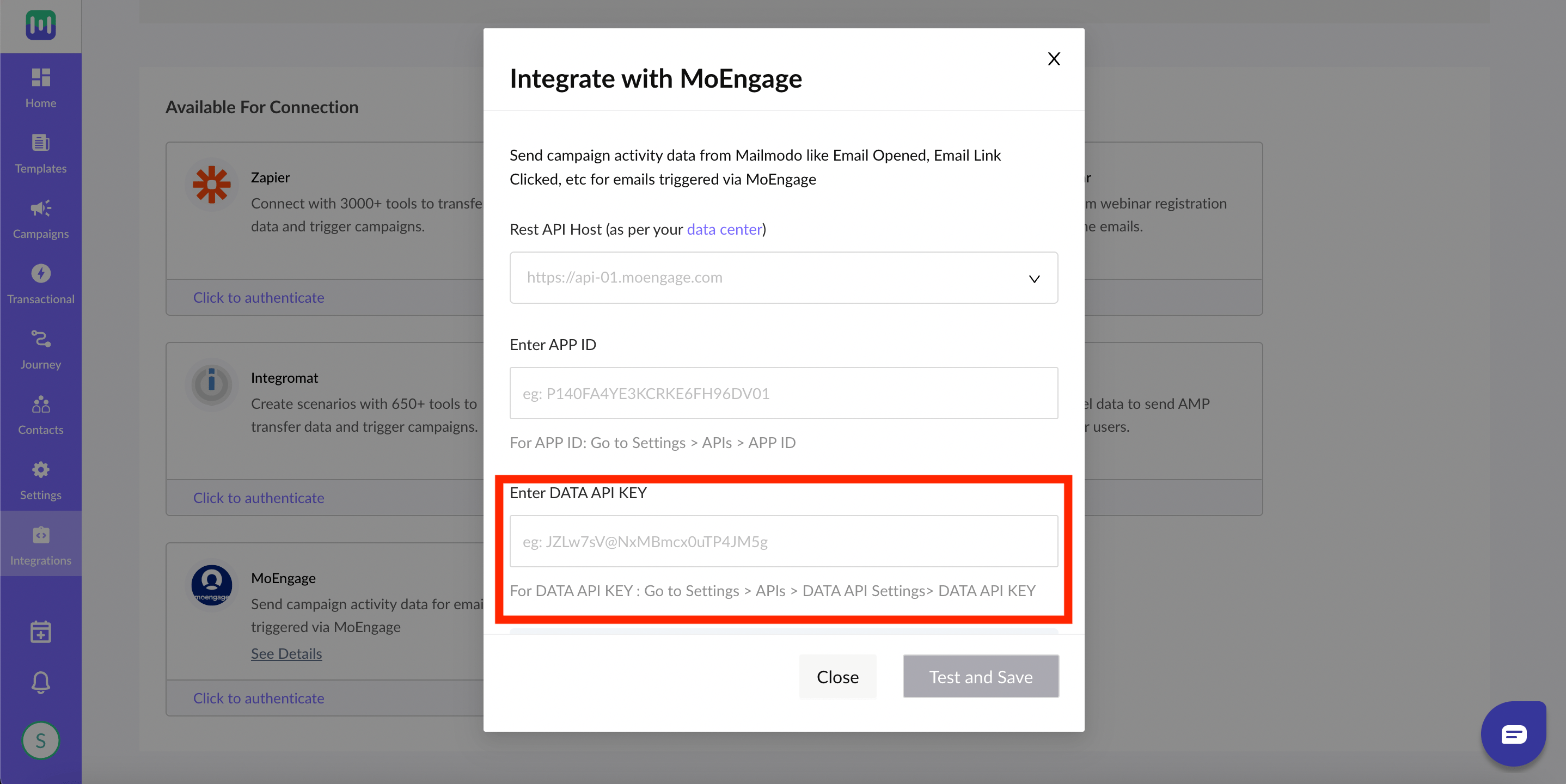
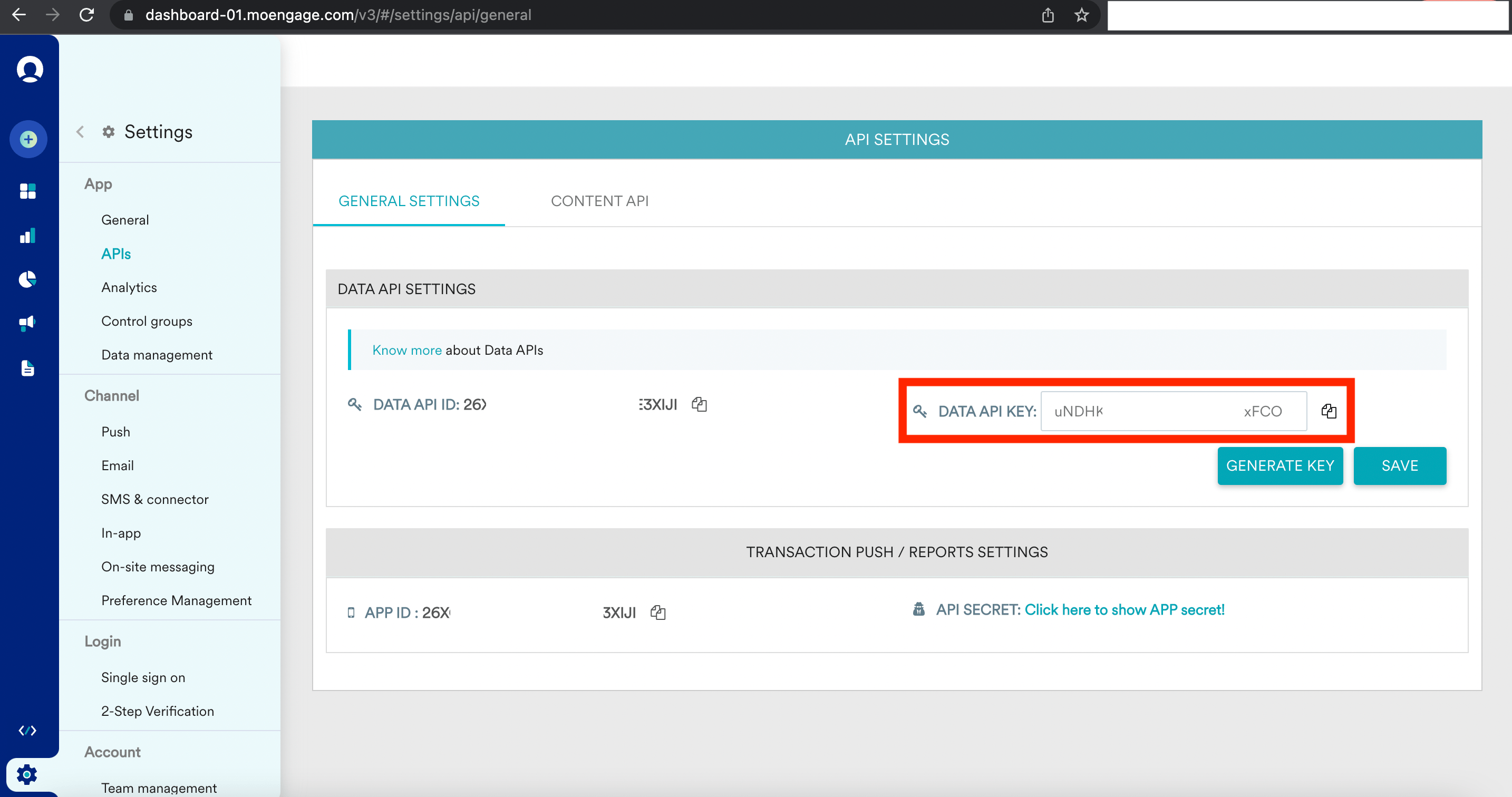
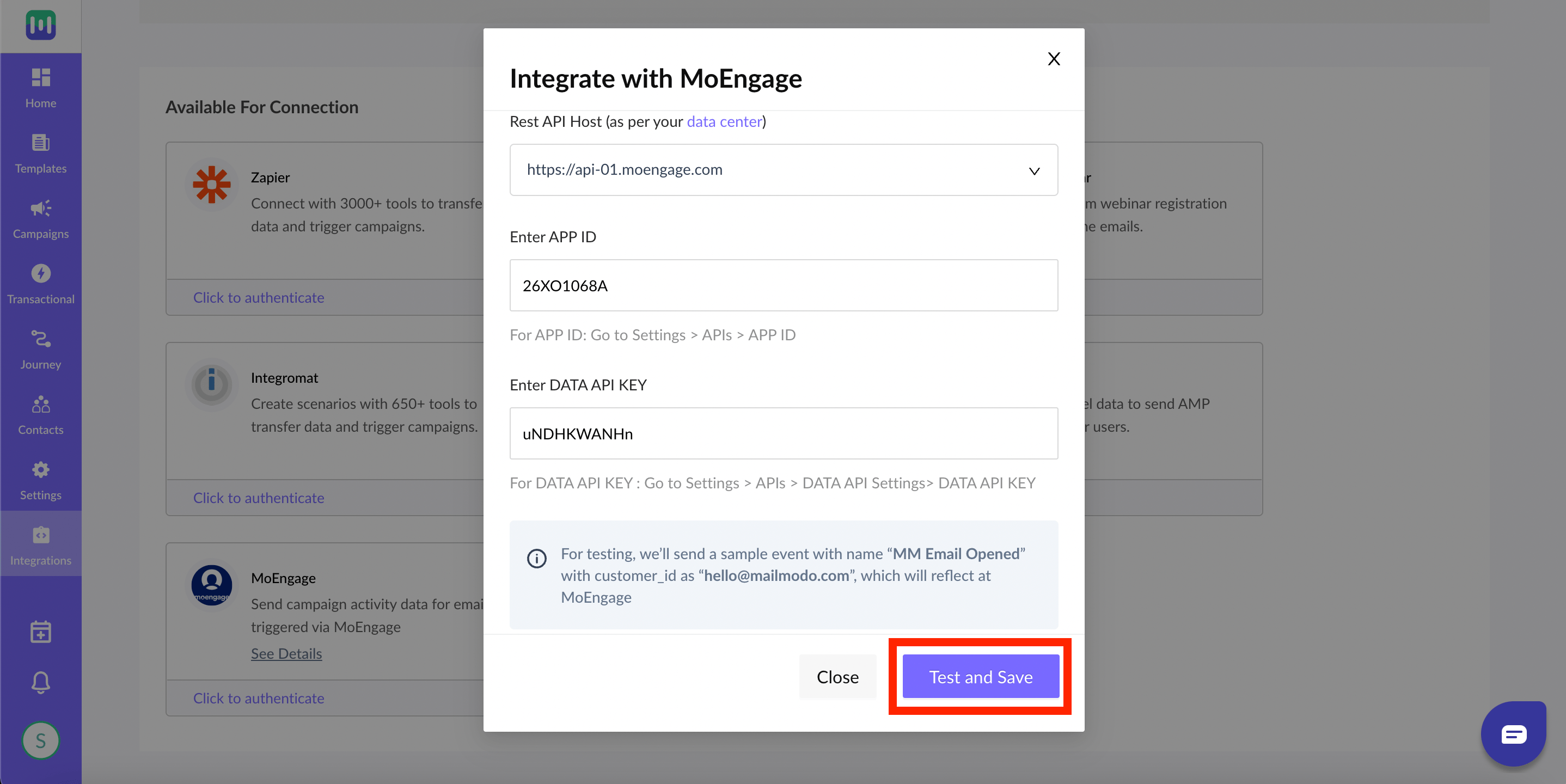
- You’re all set! If MoEngage sends a successful response, you’ll see a “Setup successful ” message, and the MoEngage card will move to the Connected Platforms section.
Create Templates in Mailmodo
Mailmodo’s no-code/low-code template editor lets you create templates as per your need without needing any expertise in coding. You just have to drag and drop the elements into the template. You can create various templates such as newsletter templates, promotional email templates, feedback email templates, etc.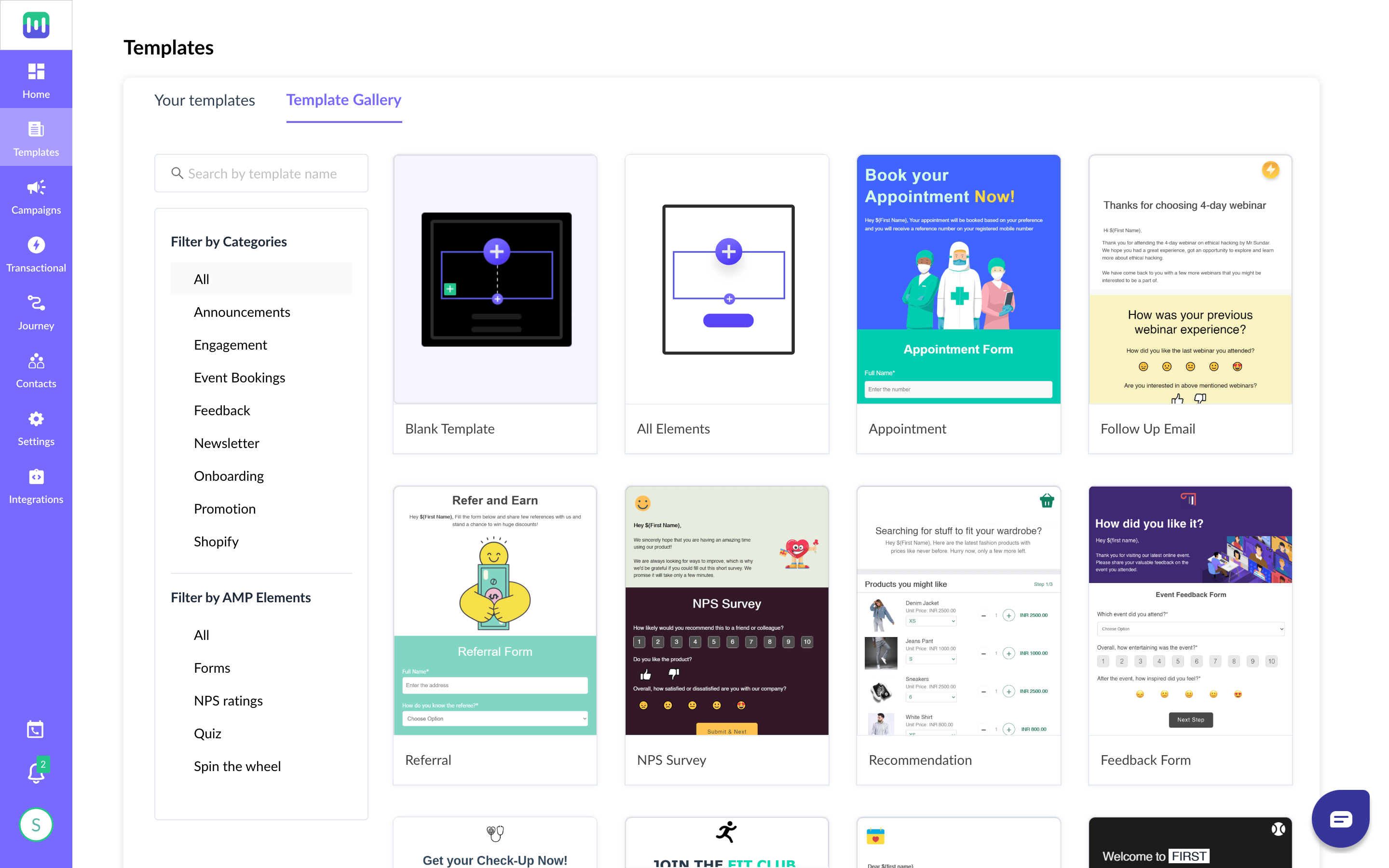
Create Transactional Campaign in Mailmodo
Step 1: Go to Transactional campaigns from the left navigation menu and click on New Transactional Campaign.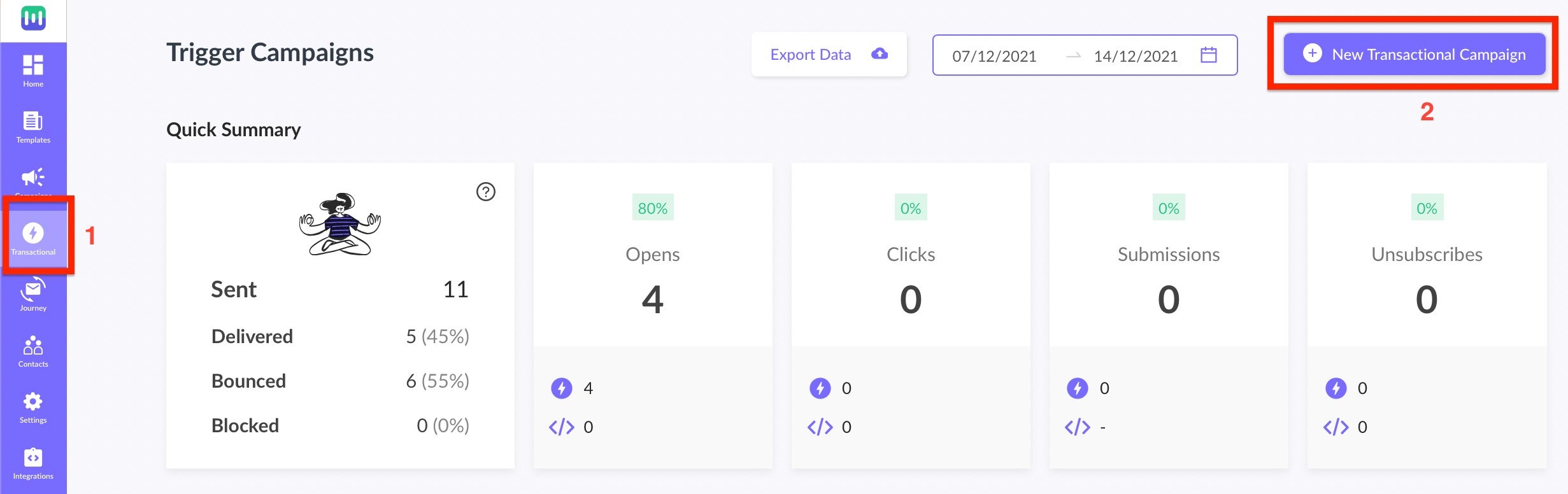
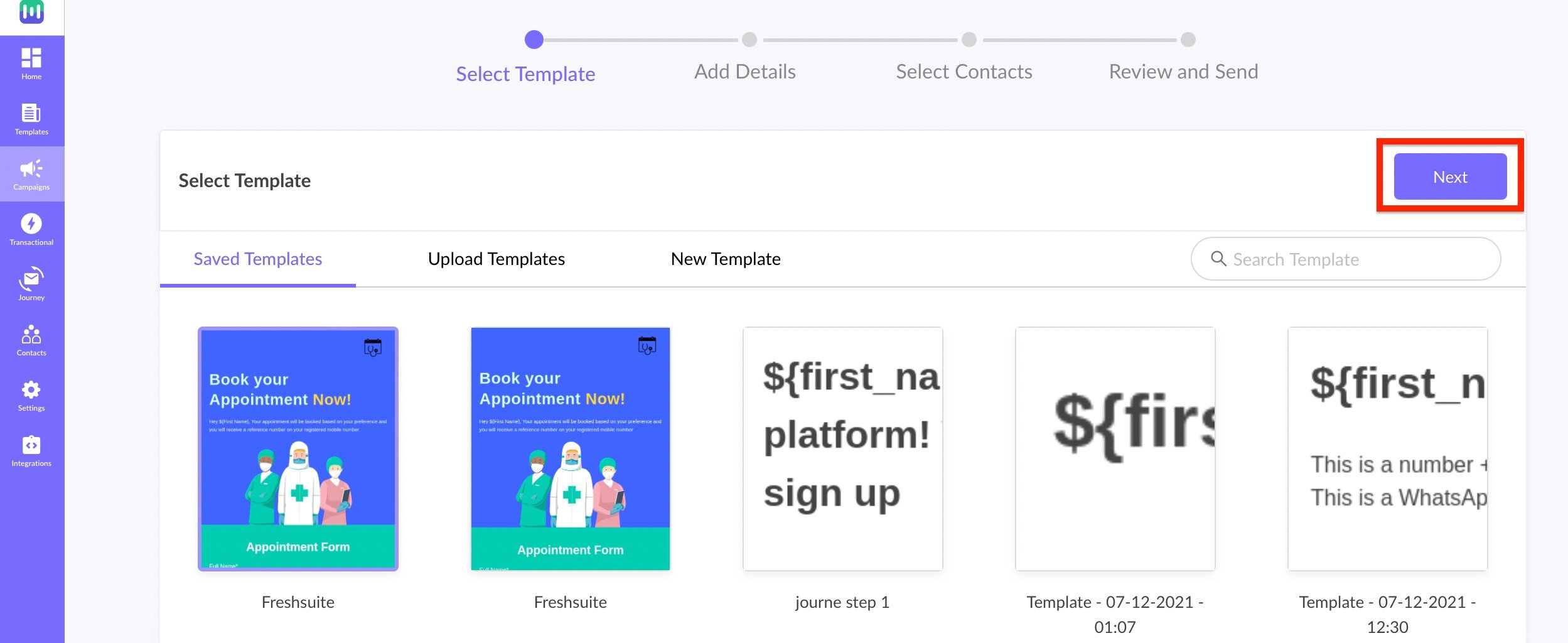
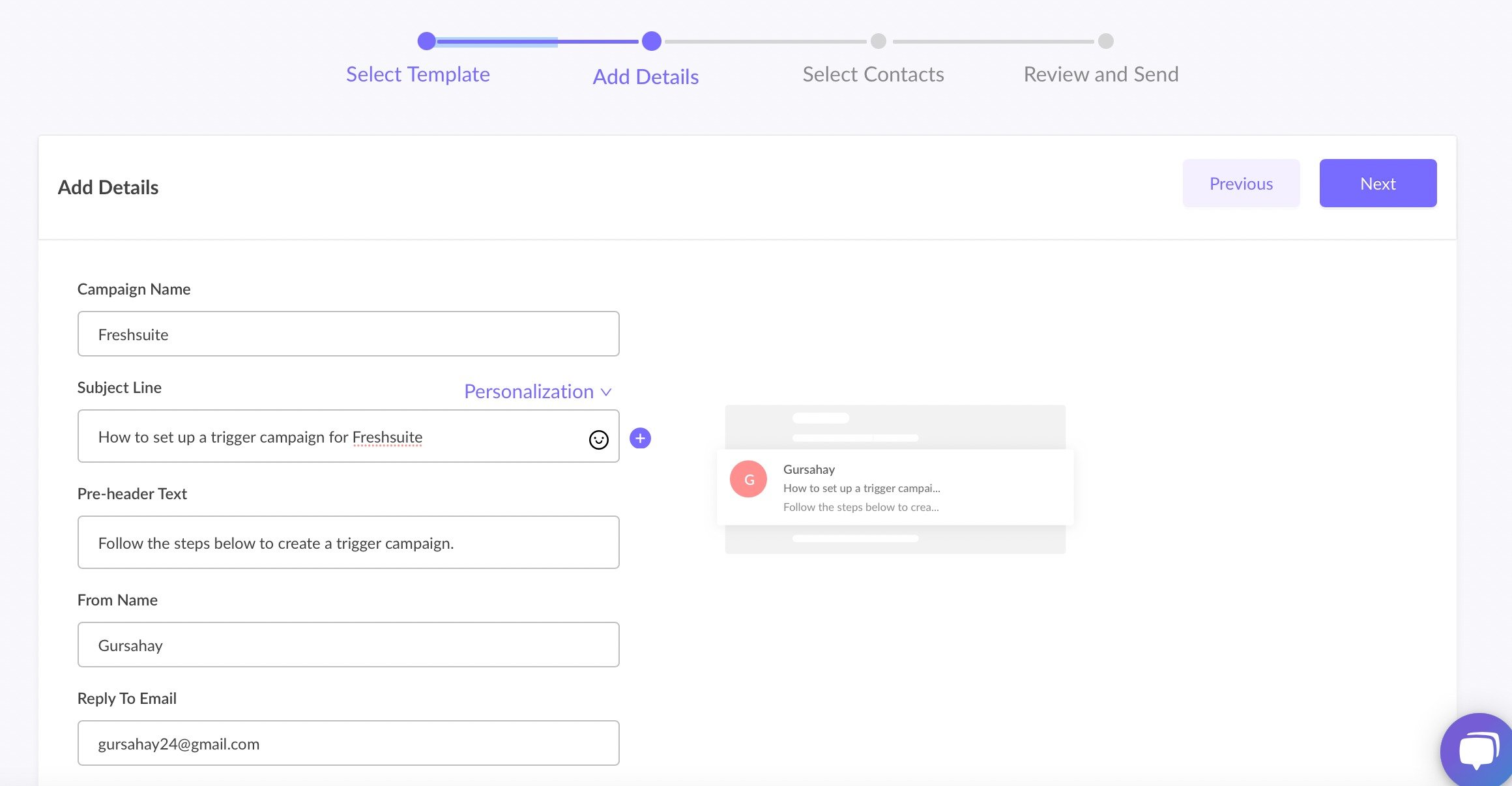
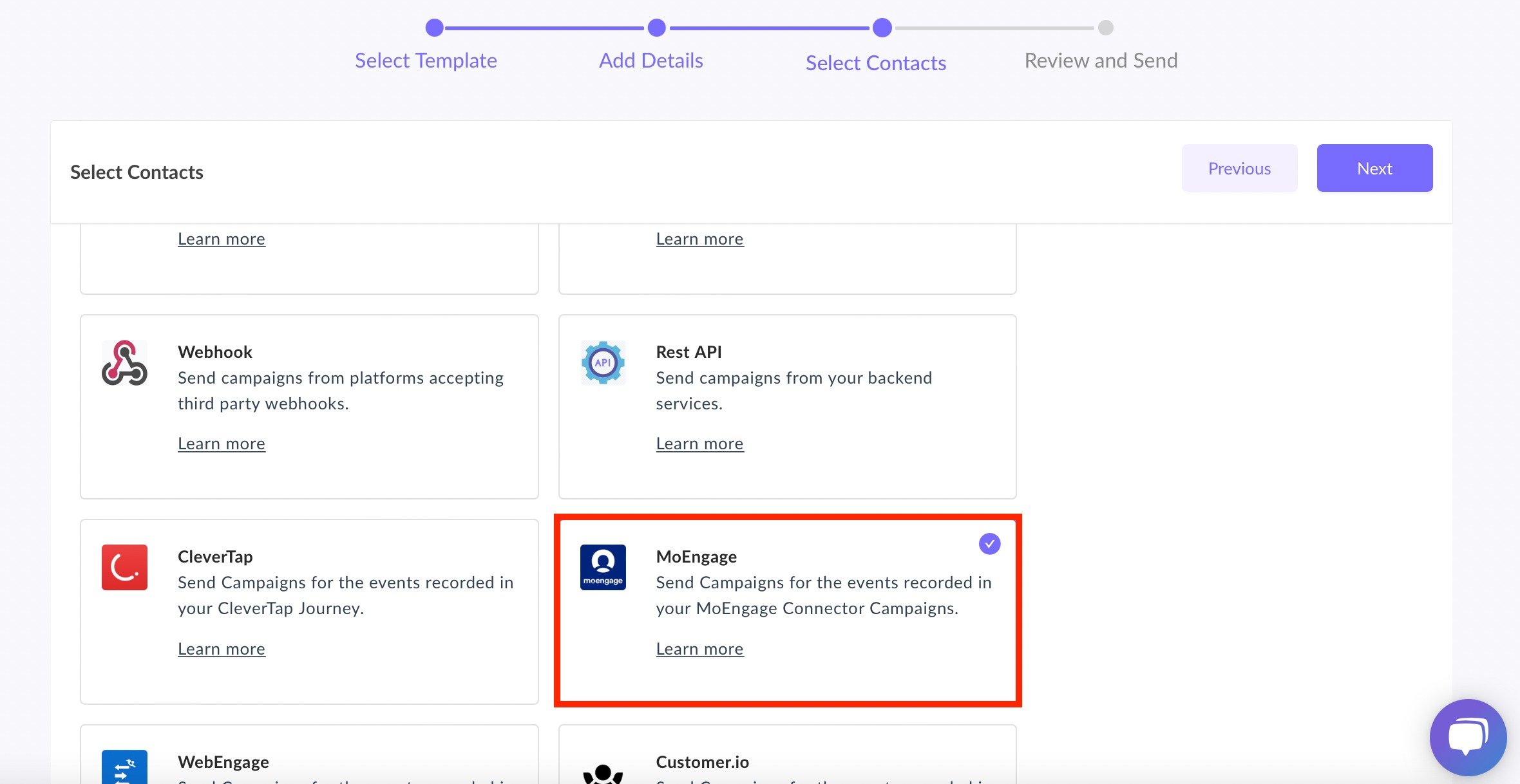
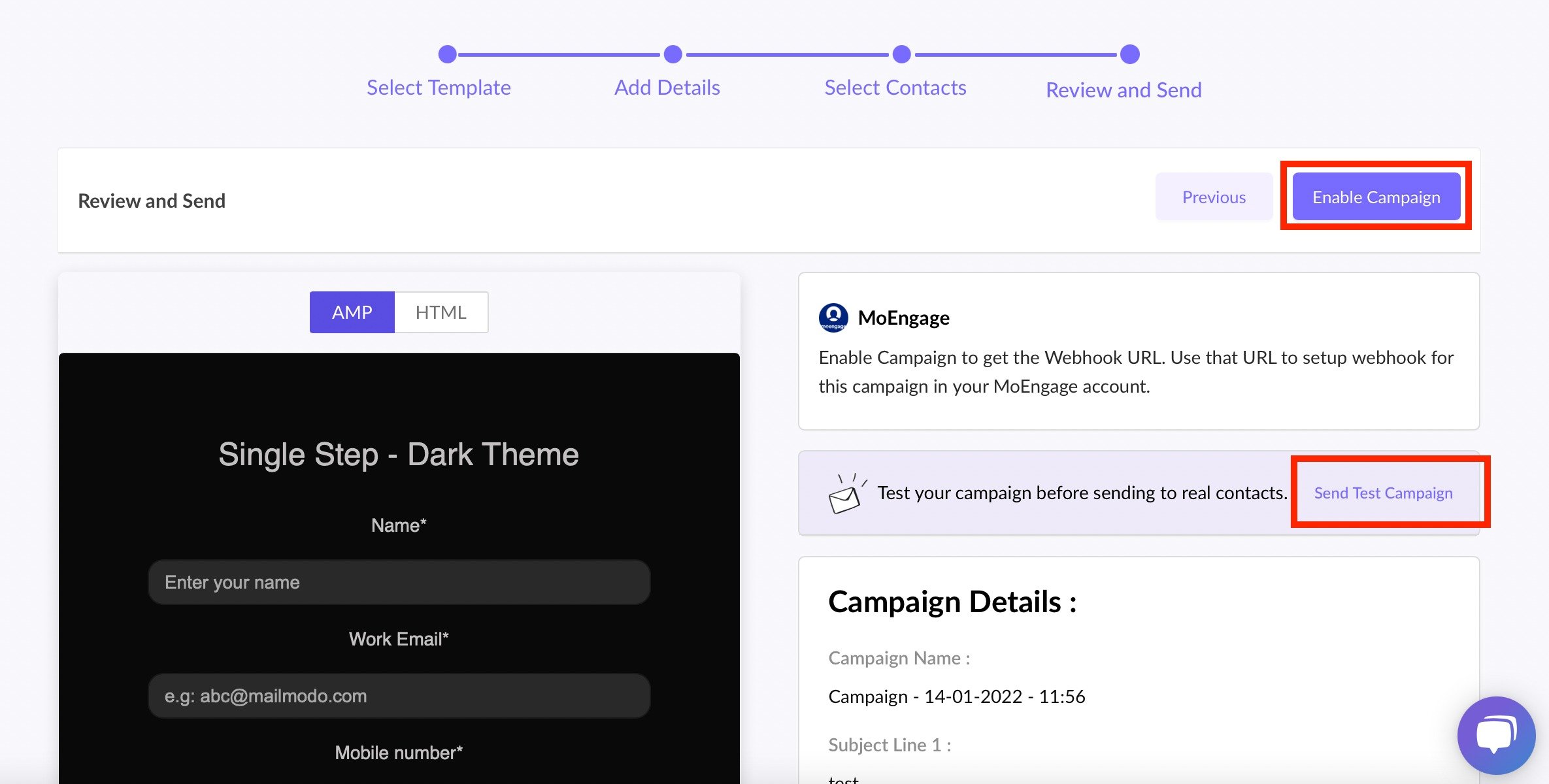
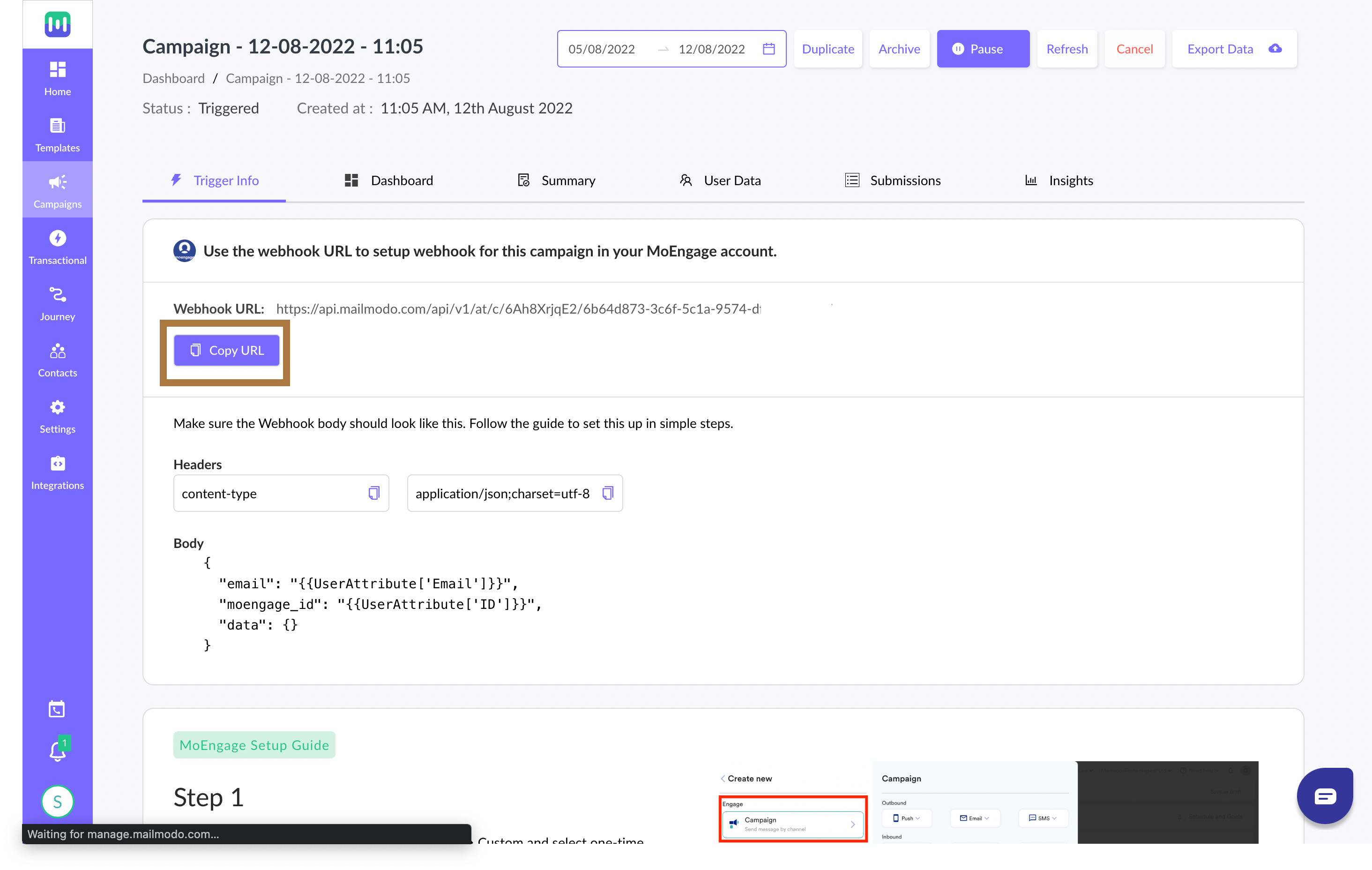
Send Email Campaigns from MoEngage
Use the connector campaigns to send email campaigns from MoEngage. For more information, refer to Connector Campaigns. Ensure you do the following in the MoEngage connector campaign when you send campaigns using MoEngage: Step 1: Click Create New → Connector → Custom and Select one-time, periodic, or event-triggered as per your requirement.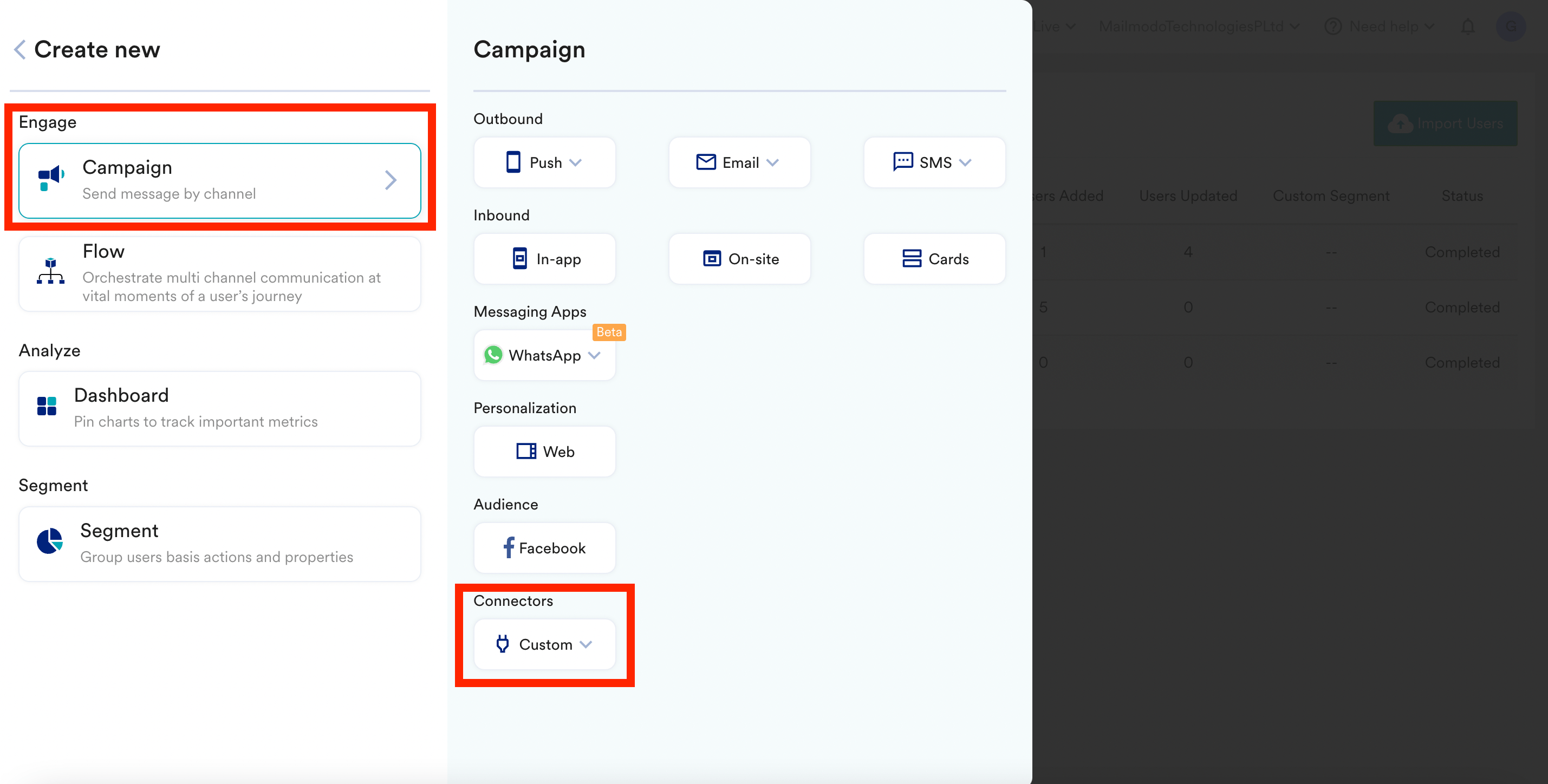
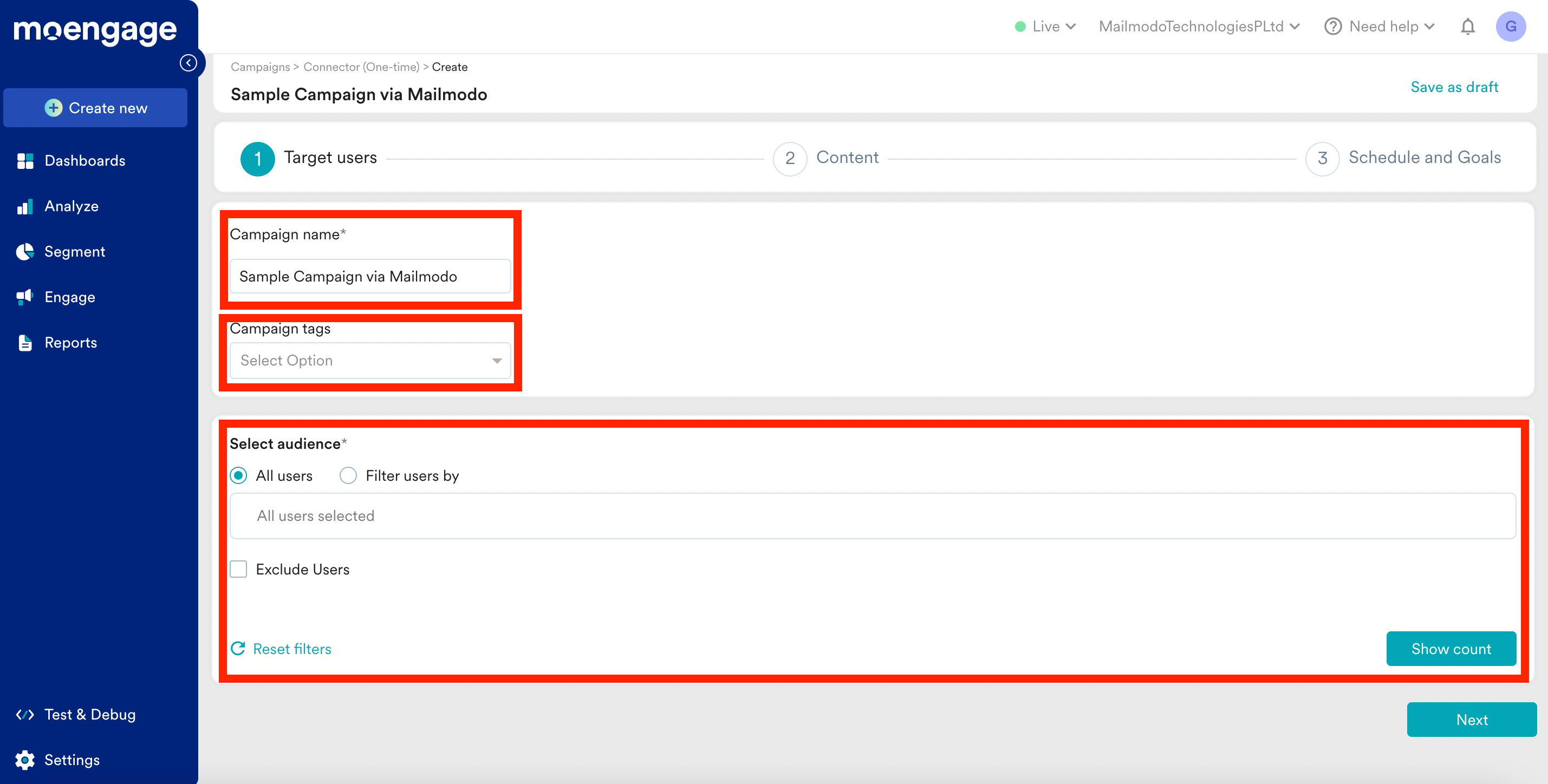
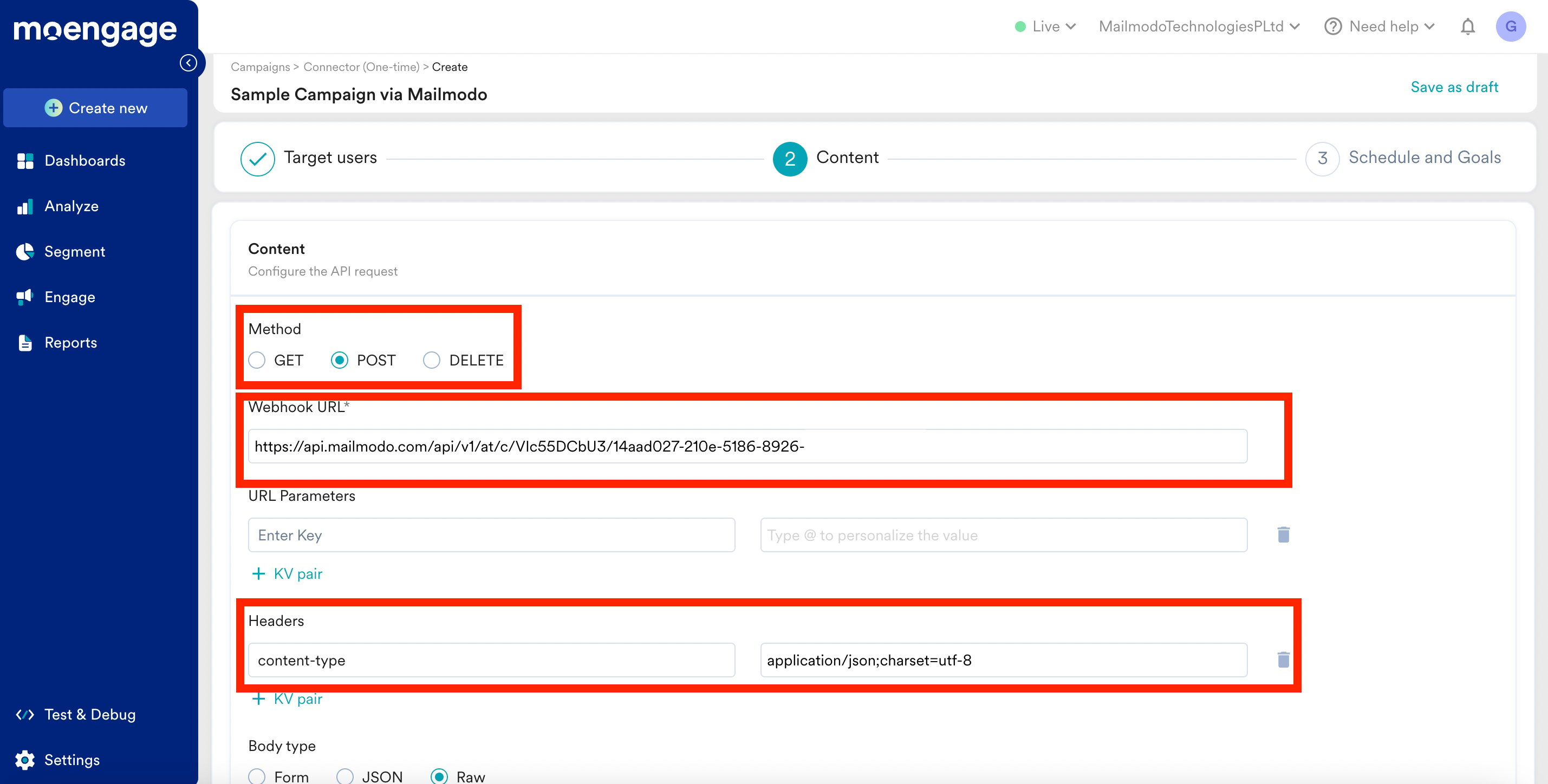
- The Webhook URL from Mailmodo under Webhook URL in MoEngage
- The Headers from Mailmodo under Headers in MoEngage
- Key :
content-type - Value :
application/json;charset=utf-8
- Key :
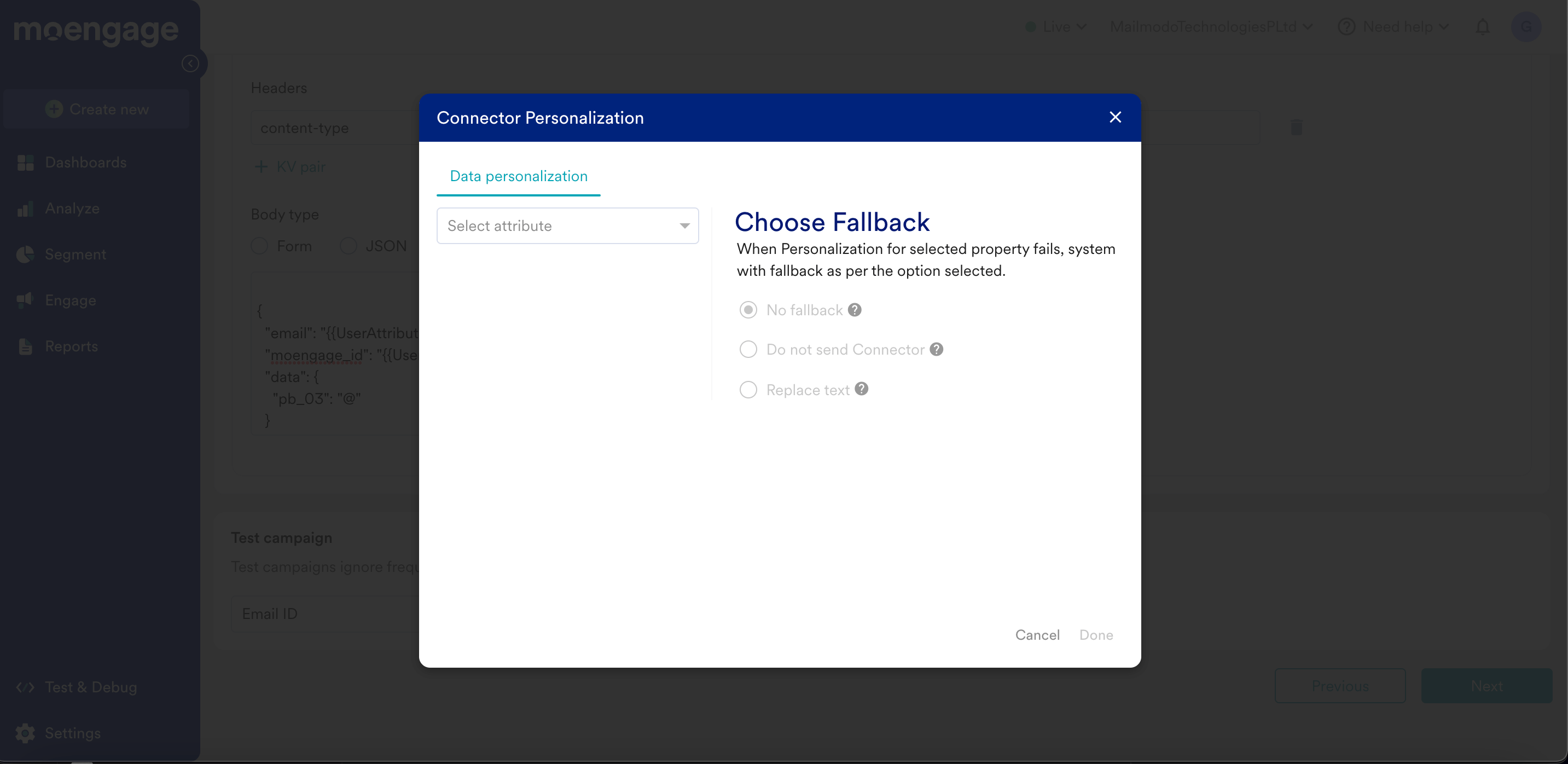
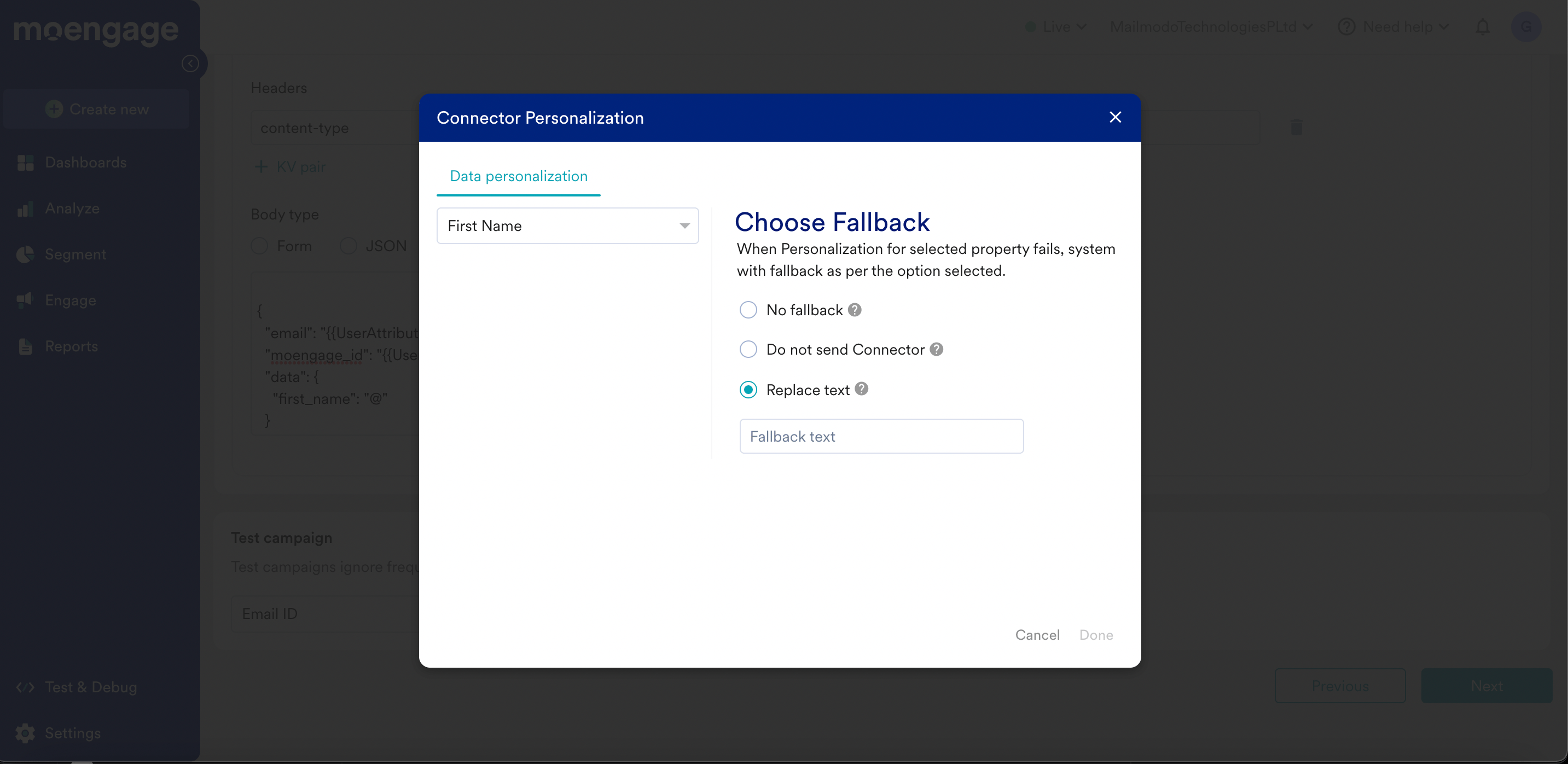
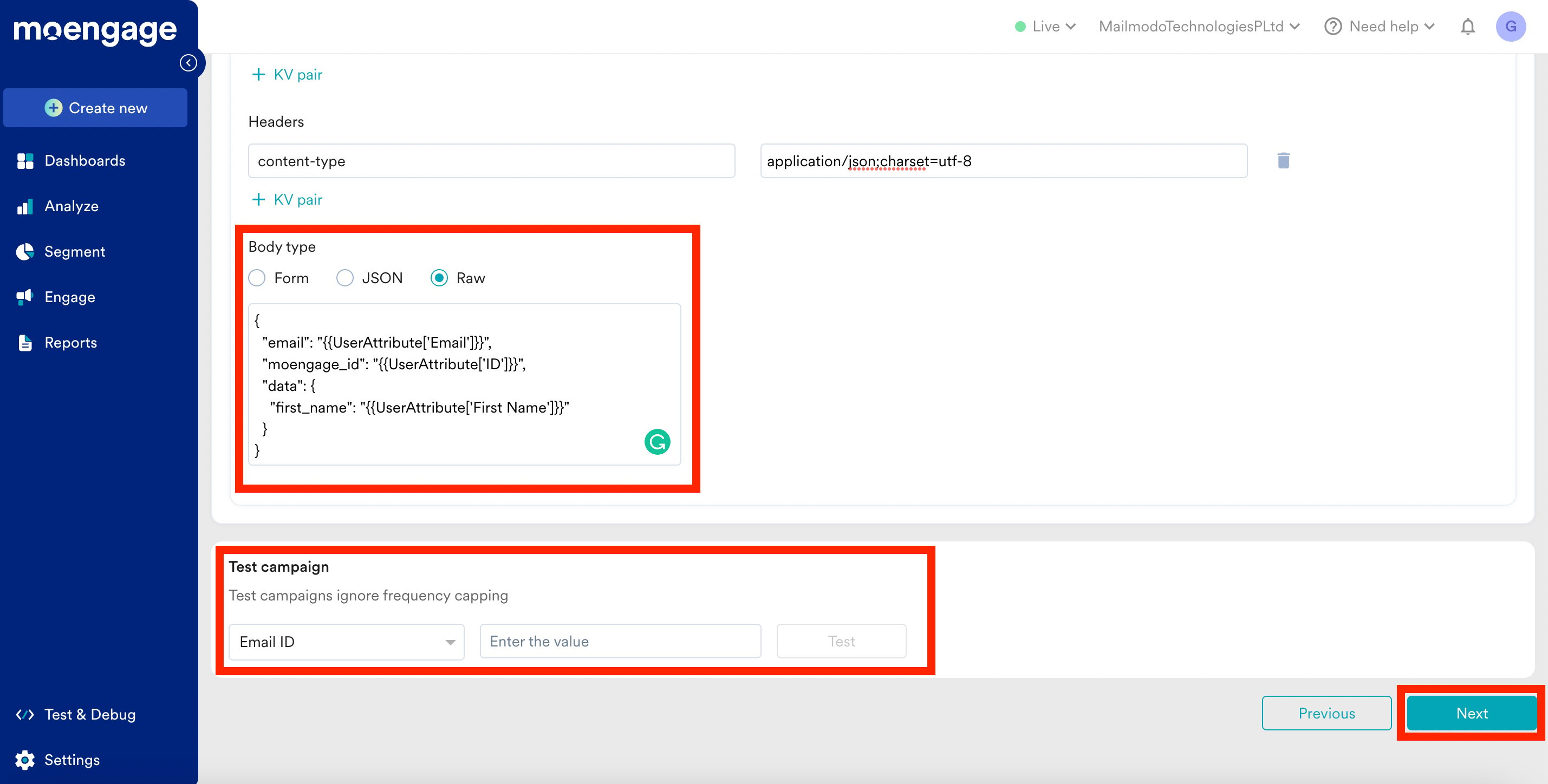
- Please choose fallback as per your requirement for when personalization fails for the selected property in the above pop-up
- For example, if your template has first_name then delete <Value for first_name>, type @, and select the First Name attribute in the ensuing pop-up.
- Both email and moengage_id (customer_id) are mapped by default in the Mailmodo body.
- If you’re storing email ID in any other attribute, delete the
{{UserAttribute['Email']}}value, type @, and map it to that attribute. - Also, if you’re manually mapping, map the moengage_id to the ID (a.k.a customer_id) attribute in MoEngage.
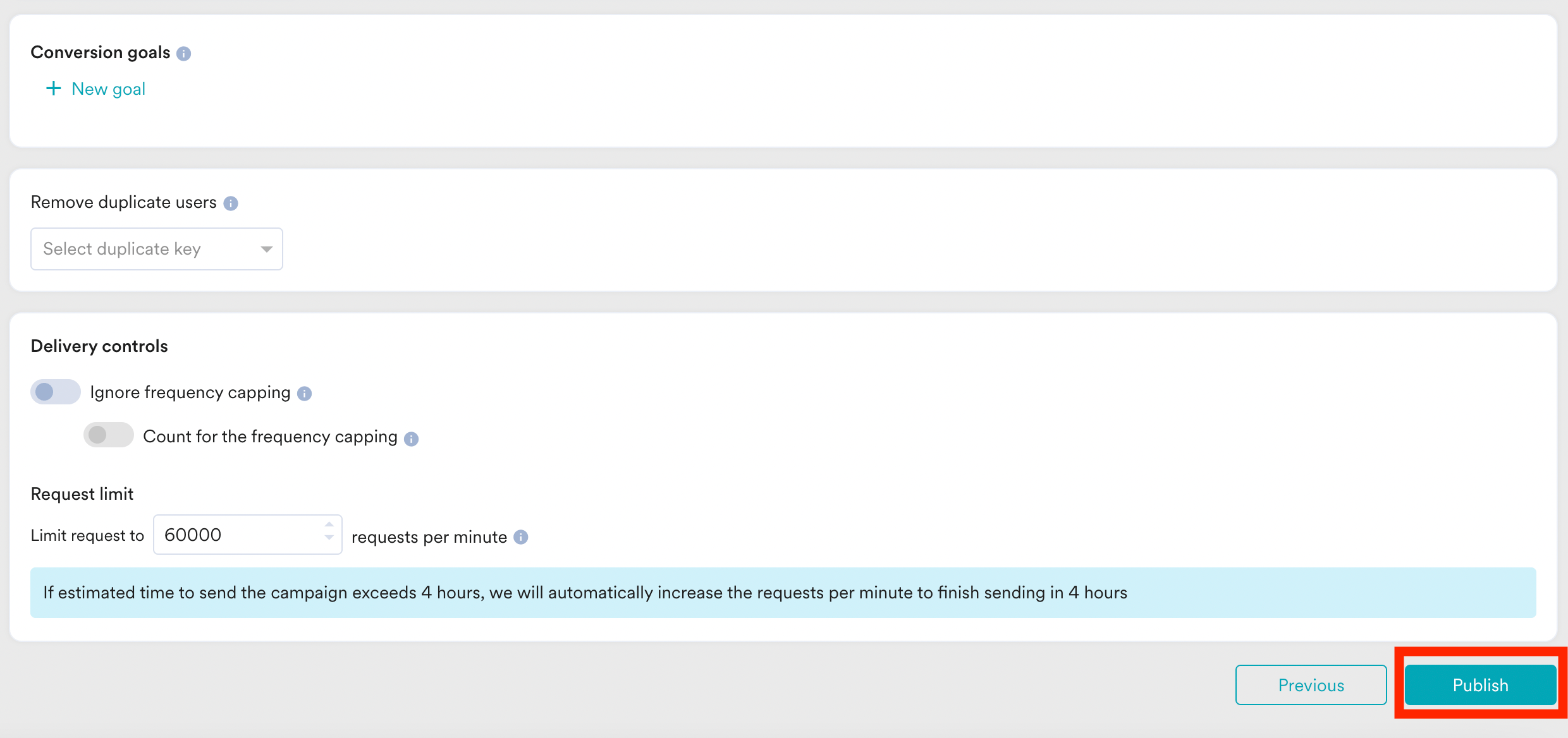
- Test the campaign using email ID and click on Next.
Personalization
- Use the personalization tag
'${attribute_name}'to personalize subject lines, links, and images in Mailmodo. - Ensure that the attributes with respective values are passed in the API call from MoEngage to populate the same and personalize templates.
- Ensure to use MoEngage User attributes in the attribute values to personalize the Mailmodo templates using MoEngage attribute personalization.
- Personalize Images in Mailmodo. For more about how to personalize images in Mailmodo Templates, refer to the How to use dynamic image feature in your campaign.
Analyze Campaign Data in MoEngage
- For more information about the analysis of campaigns, refer to Analyze emails in MoEngage.
- Export the response data from Mailmodo and use the exported data in MoEngage Data APIs.
Limitations of MoEngage × Mailmodo Integration
- Templates created in Mailmodo cannot be synced back to MoEngage. Switch back to Mailmodo from MoEngage to view the AMP templates.
- A/B testing is based on Subject Lines and the distribution is always 50-50%.
- Locales are not available in Mailmodo Campaigns.
- MoEngage Content API is not supported in Mailmodo Campaigns.