

Introduction
Microsoft Dynamics 365 Sales is an enterprise CRM solution that manages customer relationships through contacts, leads, opportunities, and activities. This integration enables inbound data flow from MoEngage to Microsoft Dynamics 365 Sales using Microsoft Power Automate.Key features
With this integration, you can:- Receive real-time campaign engagement events from MoEngage (email opens, clicks, form submissions, webinar attendance, and more).
- Automatically update Lead, Contact, or Opportunity records in D365 Sales with the latest engagement data.
- Maintain synchronized engagement history between MoEngage and D365 Sales.
- Trigger D365 Sales workflows or business process flows based on MoEngage campaign interactions.
- Track sales activity events and marketing attribution for closed-loop reporting.
Use cases
- Lead scoring based on email engagement: When a lead opens a marketing email in MoEngage, automatically increment their lead score in D365 Sales and update the Last Engagement Date field to help sales reps prioritize follow-ups.
- Opportunity stage progression: When a prospect attends a webinar or downloads a pricing guide tracked in MoEngage, automatically move their D365 Sales Opportunity to the Qualified or Proposal stage and assign a follow-up task to the account owner.
- Campaign response tracking: Capture all form submissions from MoEngage landing pages and create Marketing Response or Activity records in D365 Sales linked to the relevant Lead or Contact for comprehensive engagement history.
- Multi-channel engagement history: Build a complete timeline of customer interactions by syncing email, SMS, push notification, and in-app message events from MoEngage to D365 Sales activity records, giving sales teams full visibility into marketing touchpoints.
- Sales and marketing alignment: When a Contact engages with multiple campaign touches, automatically create a follow-up Call or Task for the assigned sales representative, ensuring timely outreach based on demonstrated interest.
Step-by-step integration guide
Prerequisites
- Admin access to Microsoft Power Platform and the D365 Sales environment.
- A D365 Sales security role with write permissions on the Lead, Contact, and Opportunity entities.
- MoEngage data requirement: MoEngage must send one of the following D365 entity IDs in the
user_attributesfield for proper record matching:d365_lead_id(Lead GUID) — used to update Lead records.d365_contact_id(Contact GUID) — used to update Contact records.d365_opportunity_id(Opportunity GUID) — used to update Opportunity records.
d365_lead_id, d365_contact_id).Accepted entity identifiersMicrosoft Dataverse accepts the following primary identifiers for updating records:
- Primary Key (GUID): The unique identifier for each entity (
leadid,contactid,opportunityid, and so on). - Alternate Keys: Custom alternate keys if configured in your D365 environment (for example, email address as an alternate key for Contacts).
Step 1: Create the HTTP request trigger in Power Automate
Open Power Automate
Go to Power Automate.
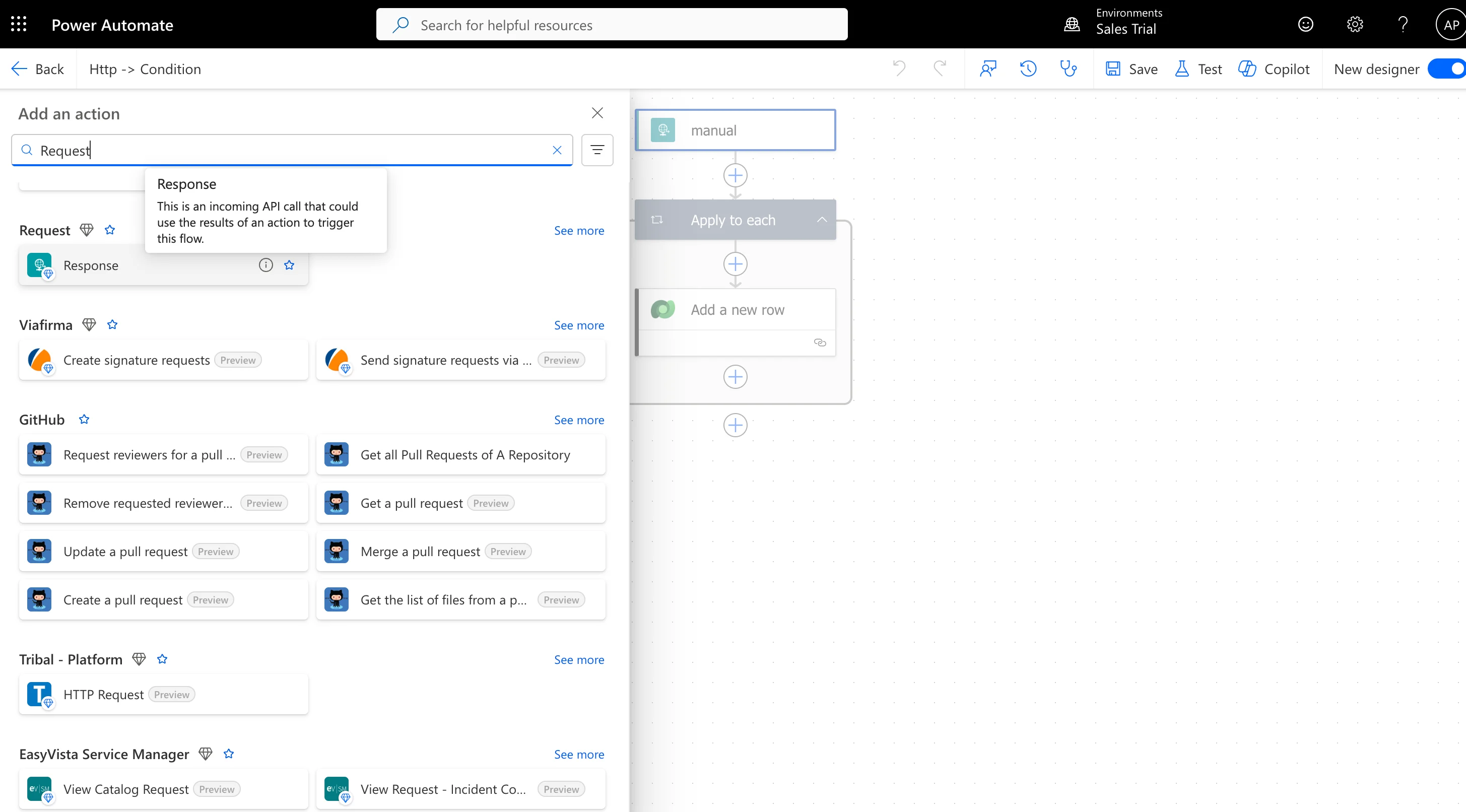
Configure the HTTP request trigger
In the trigger configuration, define the Request Body JSON Schema. This tells Power Automate the structure to expect from MoEngage Streams.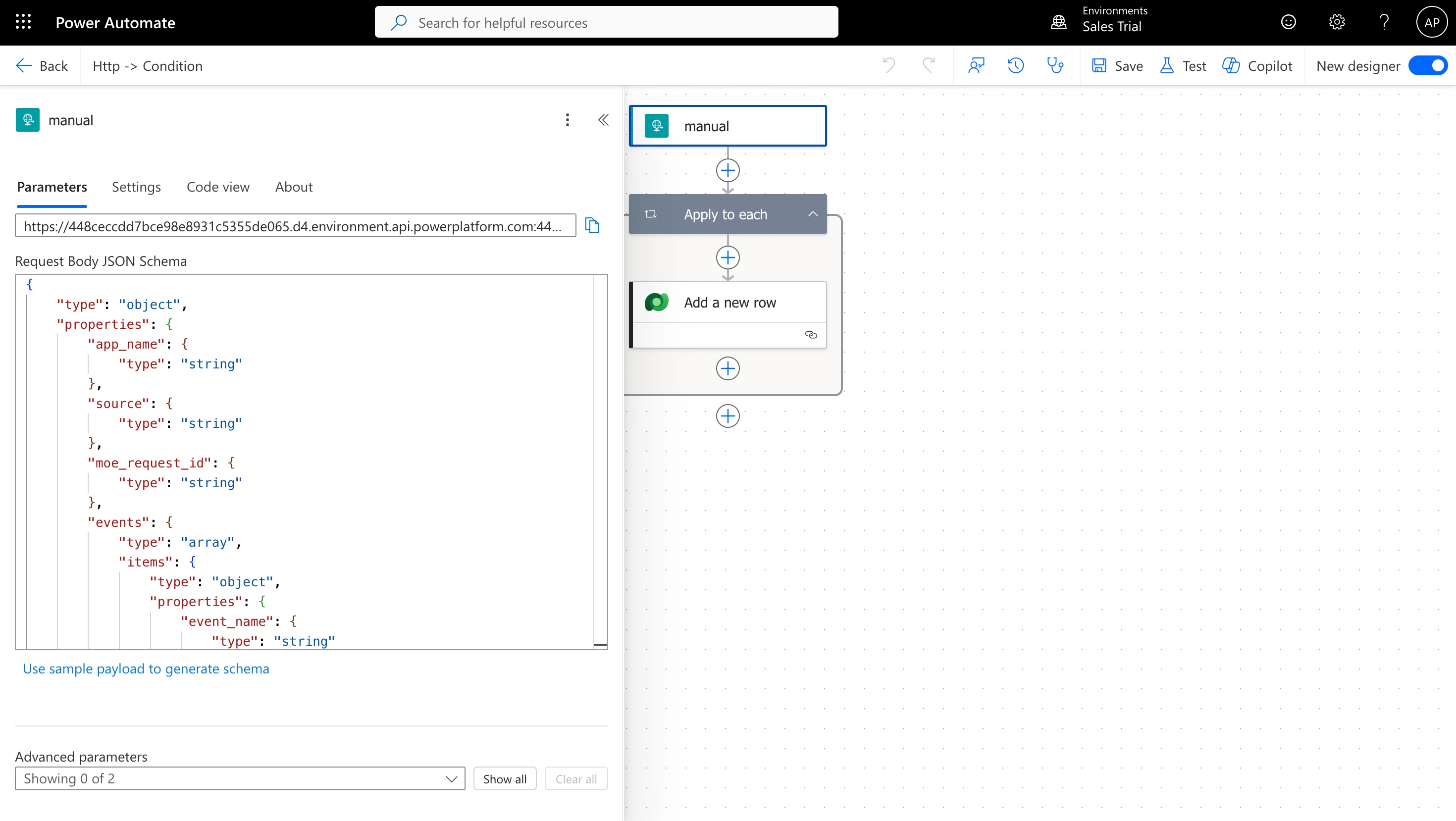
JSON Schema
After adding the schema, click Save. Power Automate generates a unique HTTP POST URL. Copy this URL — you will need it to configure MoEngage Streams later.
Step 2: Apply to each event
Since MoEngage can send multiple events in a single request, add an Apply to each loop to process them individually.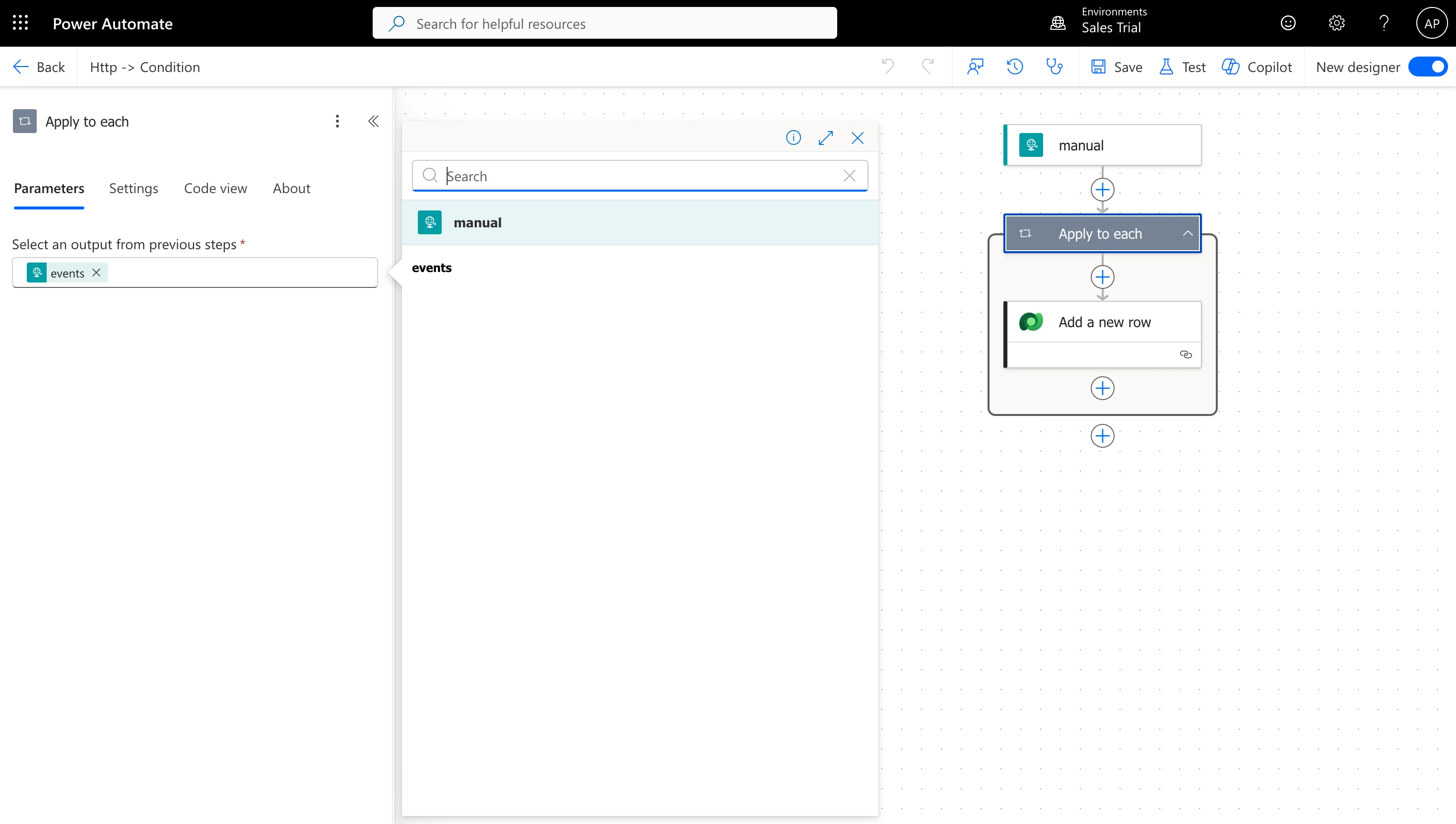
Step 3: Create a custom table and add event records
For this integration, we created a custom table called MoEngage Event in Power Apps to store all engagement event data from MoEngage campaigns against Leads. This approach lets you maintain a complete historical record of all customer interactions, and you can configure this for any of your desired entities.Creating your custom table in Power AppsBefore configuring the Power Automate action, create a custom table in Power Apps to store MoEngage event data. The table should include the necessary columns (Event Name, Event Date, Campaign Name, Campaign Channel, Event Code, Event UUID) and a lookup relationship to your desired entity (Lead, Contact, or Opportunity).For step-by-step instructions, refer to the Microsoft Power Apps documentation on creating custom tables.
Add a Dataverse action to create event records
Field mapping instructions
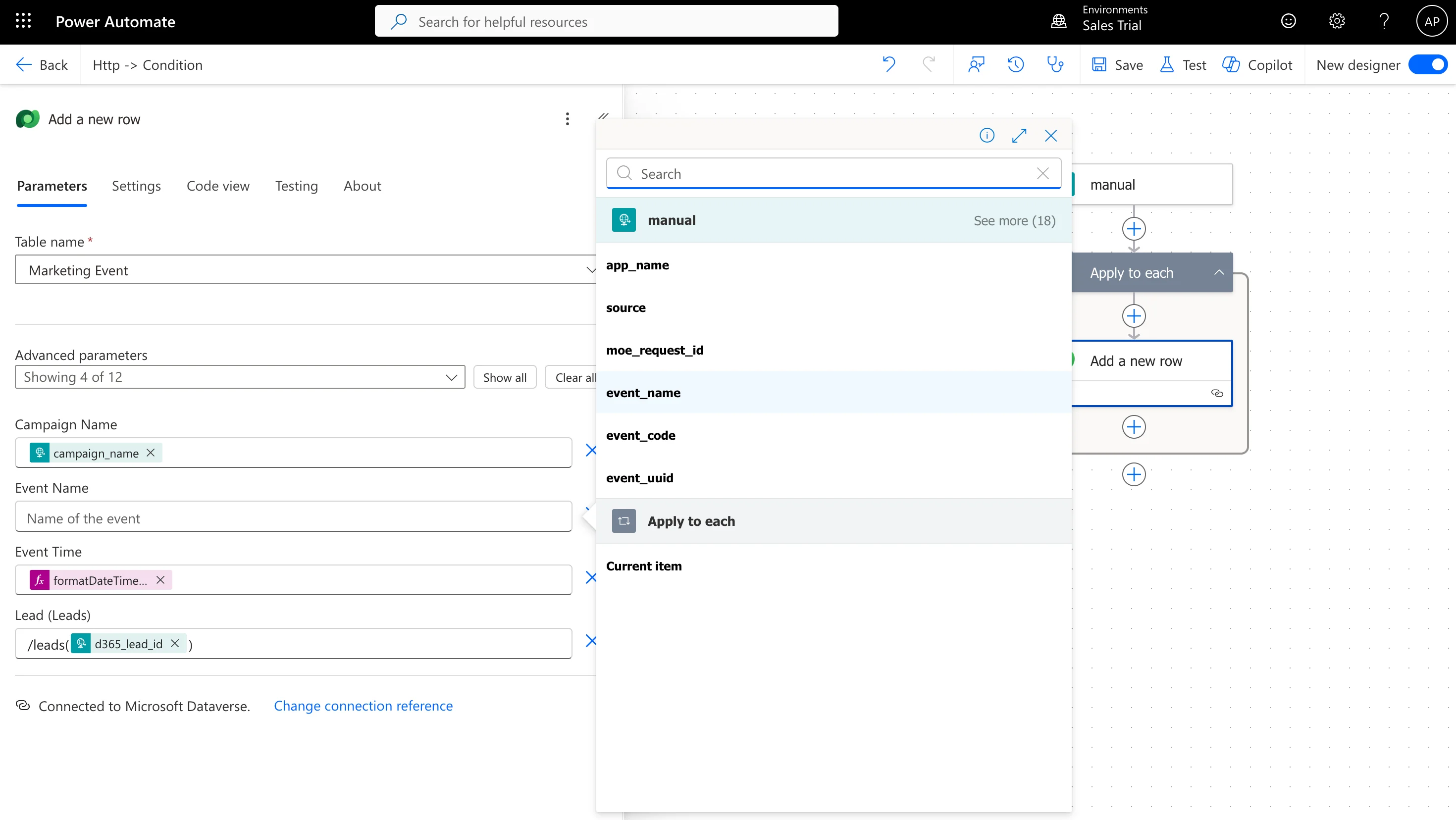
For each field in your MoEngage Events table, map data from the incoming MoEngage payload. Below is an example of how to map the Event Name field.| Field name | How to map | Expression / dynamic content |
|---|---|---|
| Event Name | Click the field, then click / and select from the dynamic content list | Select event_name from the dynamic content picker |
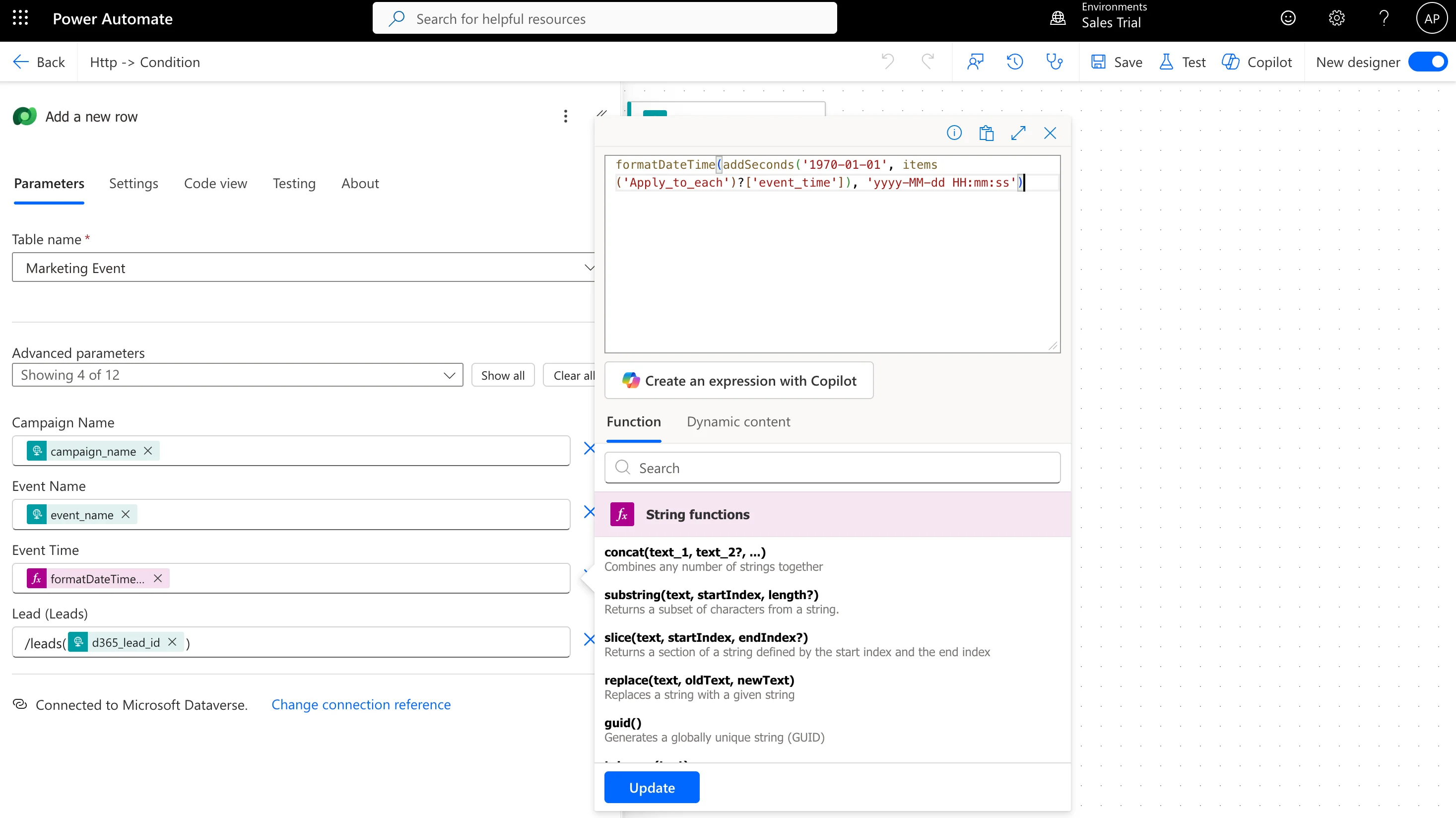
Step 4: Convert Unix timestamp to DateTime
MoEngage sends event timestamps as Unix epoch time (for example,1731421200). Convert this to a D365-compatible datetime format when mapping to date or time fields.
In the Inputs field, use this expression:
Expression
Step 5: Test the integration
Test with a manual trigger
Start the flow in test mode
In Power Automate, click Test → Manually, then click Test again to start the flow in listening mode.
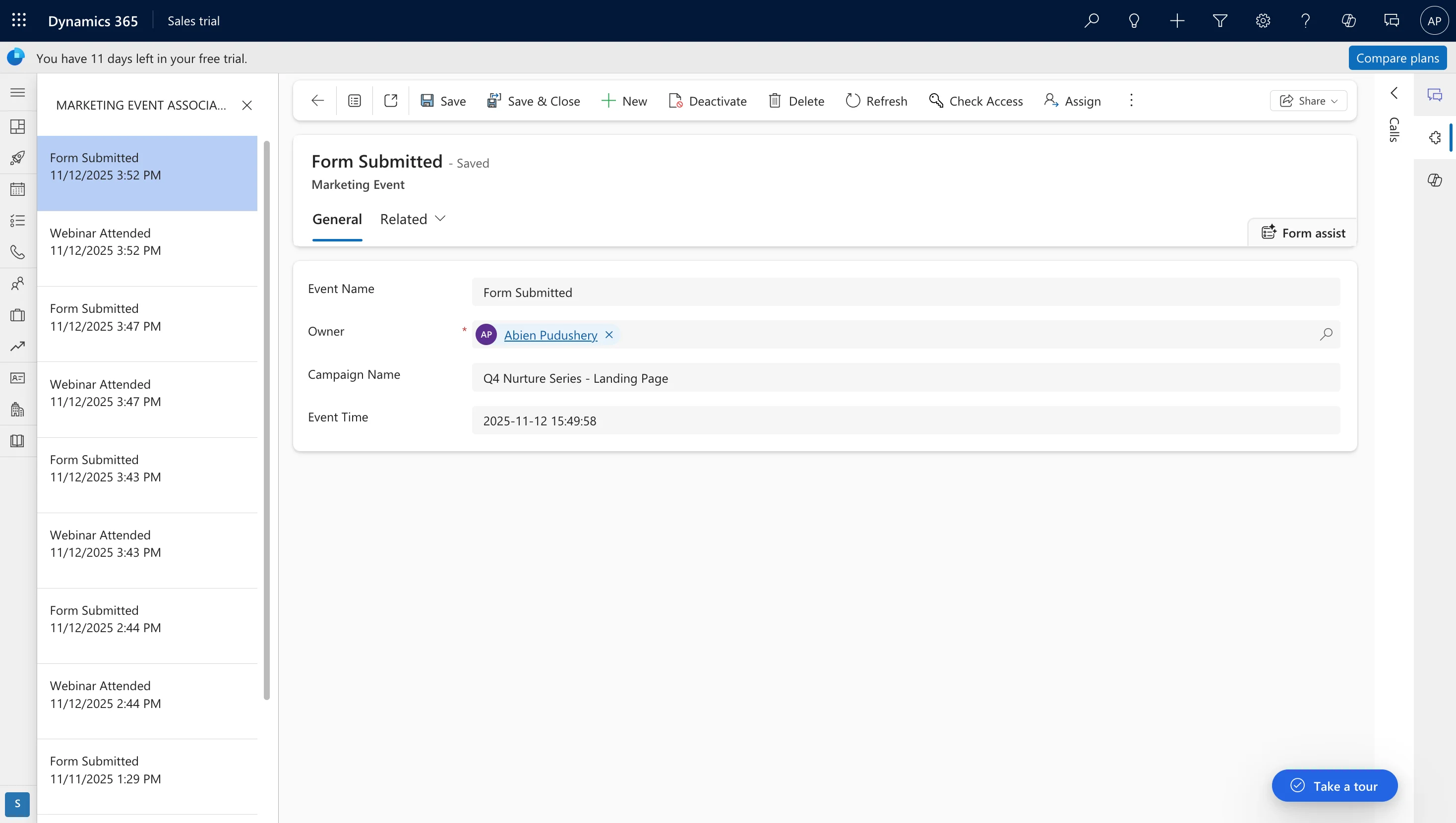
Verification steps
Open the custom MoEngage Events table
Go to your custom MoEngage Events table in Power Apps or D365.
Step 6: Enable MoEngage Streams
Once you have successfully tested the integration, enable MoEngage Streams to start sending real-time event data to your Power Automate webhook.Configure MoEngage Streams
- Copy the HTTP POST URL from Step 1 (your Power Automate webhook URL).
- Follow the official MoEngage Streams documentation to enable and configure the stream: MoEngage Streams documentation.