

MoEngage × HubSpot
The integration of MoEngage and HubSpot empowers businesses to enhance their marketing and sales initiatives through seamless data synchronization. With this integration, you can:- Synchronize contacts, deals, and more from HubSpot to MoEngage.
- Import sales activities like calls, tasks, and meetings as behavioral events.
- Capture custom modules for comprehensive customer profiling.
Use Cases
Integrating HubSpot with MoEngage helps you with the following use cases:- Nurture qualified leads : Send personalized MoEngage campaigns based on lead scoring and lifecycle stage progression in HubSpot.
- Re-engage lost opportunities : Send targeted win-back campaigns when deals are marked as Closed Lost to re-engage prospects.
- Trigger lifecycle campaigns : Automatically send a welcome series when contacts move to the Customer lifecycle stage.
Sync Modules
The following table outlines the default sync type for each module:| Module | MoEngage Sync Type |
|---|---|
| Contacts | Users |
| Leads | Users |
| Companies | Users (Synced with Contacts and Deals) |
| Deals | Events |
| Tickets | Events |
| Tasks | Events (custom) |
| Calls | Events (custom) |
| Meetings | Events (custom) |
| Custom Modules | Users/Events (custom) |
Company Information: The Companies module is also supported. To ensure your data is always current, associated company information is synced with your Contacts and Deals records, respectively.
Integration
PrerequisitesEnsure you have access to workflow and webhook capabilities within your HubSpot account.
Step 1: Get Your MoEngage Endpoint
To get a dedicated endpoint for your integration, please contact the MoEngage Support team. In your request, you must specify the common identifier used to link user profiles between MoEngage and the partner platform.Step 2: Create a Workflow in HubSpot
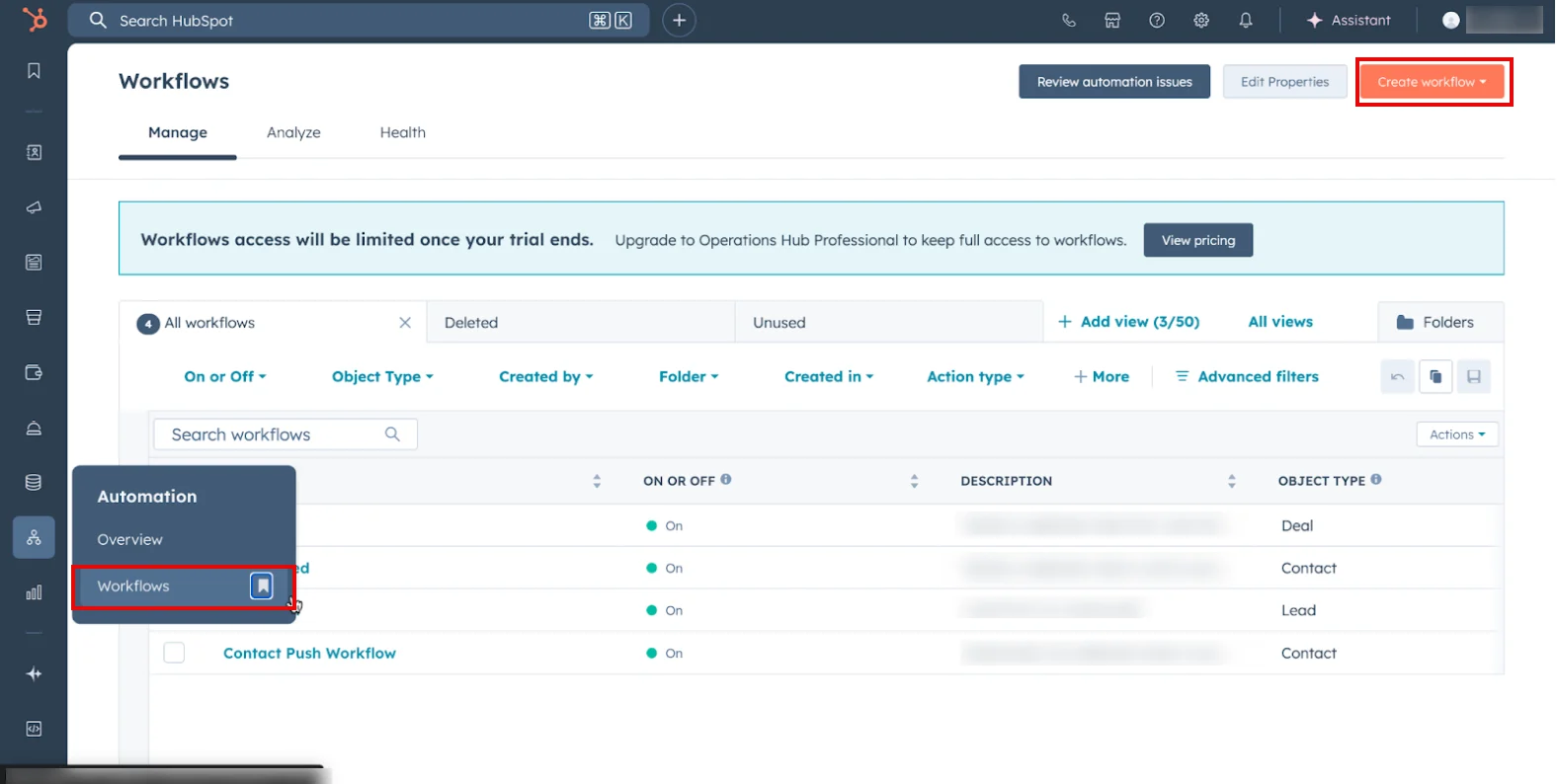
To set up a workflow, perform the following steps:- On the sidebar menu in your HubSpot dashboard, hover over the Automation icon
 . The Automation menu appears.
 - Click Workflows.
- On the Workflows page, click Create workflow in the upper-right corner.
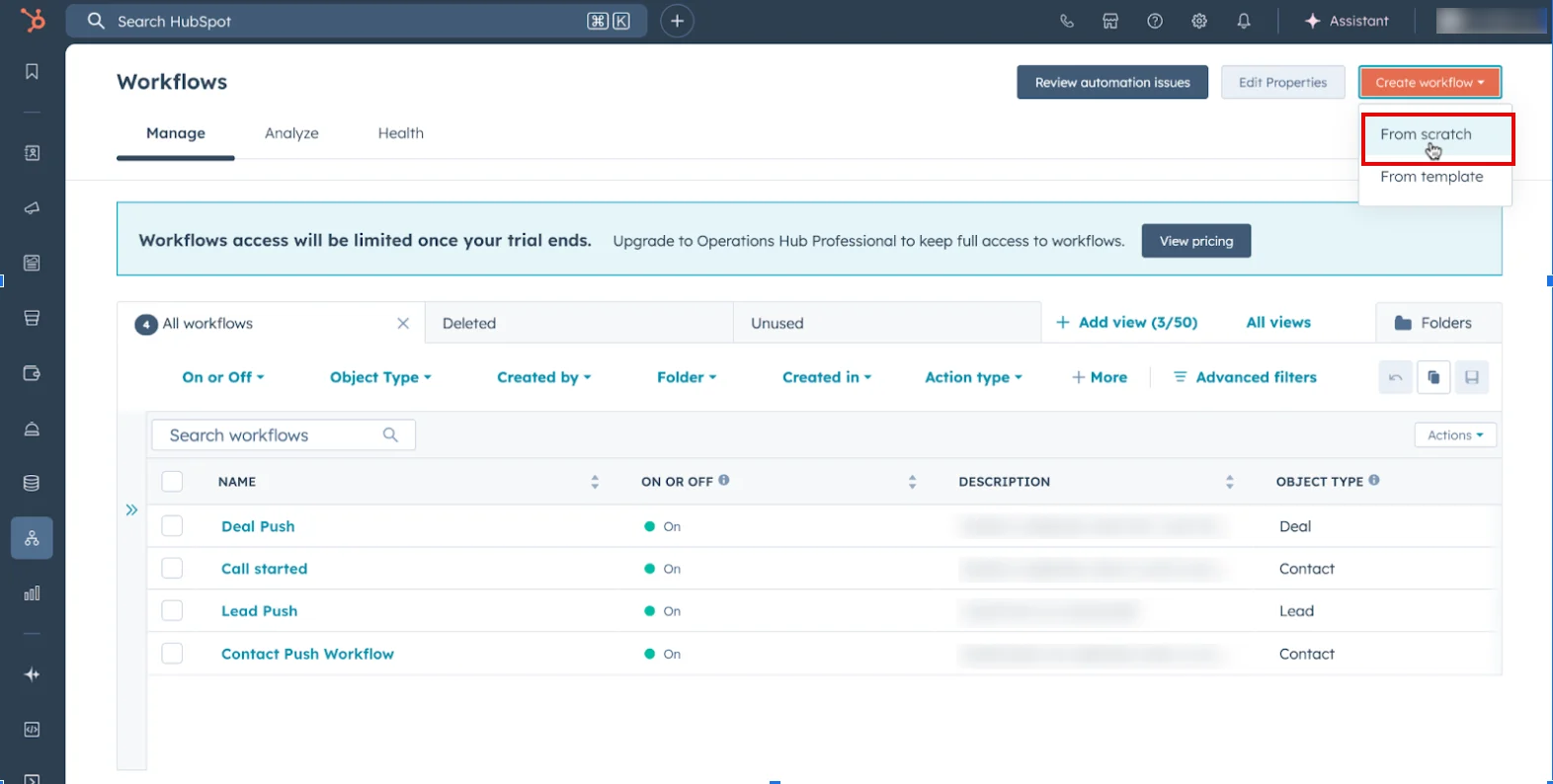
- In the Create workflow list, select From scratch.
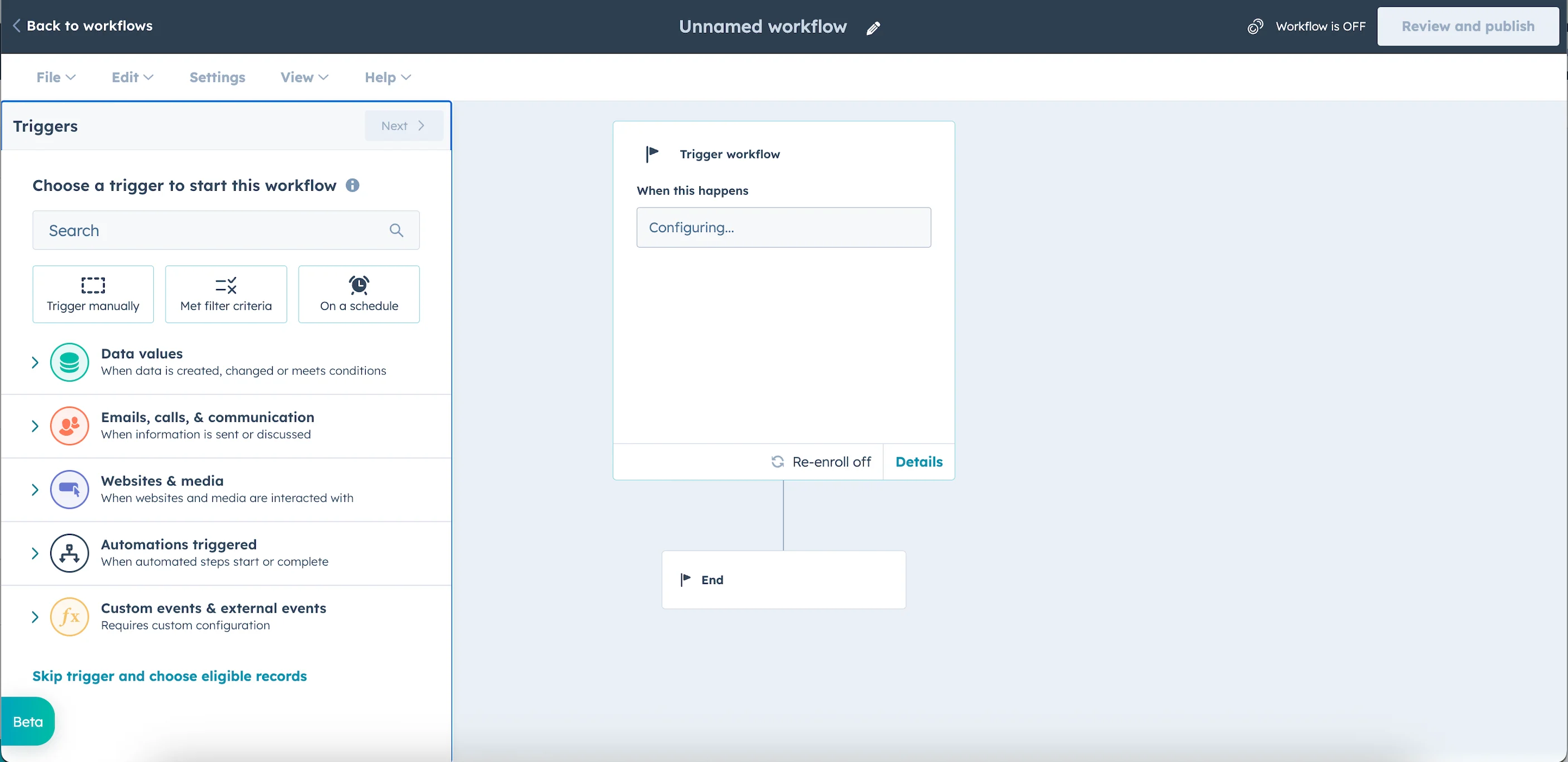
- Now, select an event type and a primary object for your workflow, such as a Contact , Deal , and so on.
- Next, set up triggers and use the filter to define the specific enrollment conditions. For example, you can trigger the workflow when a Contact Property (Lifecycle Stage) or a Deal Stage is updated.
Step 3: Configure a Webhook Action
To configure a Webhook action, perform the following steps:- After you configure your trigger actions, click Next to proceed.
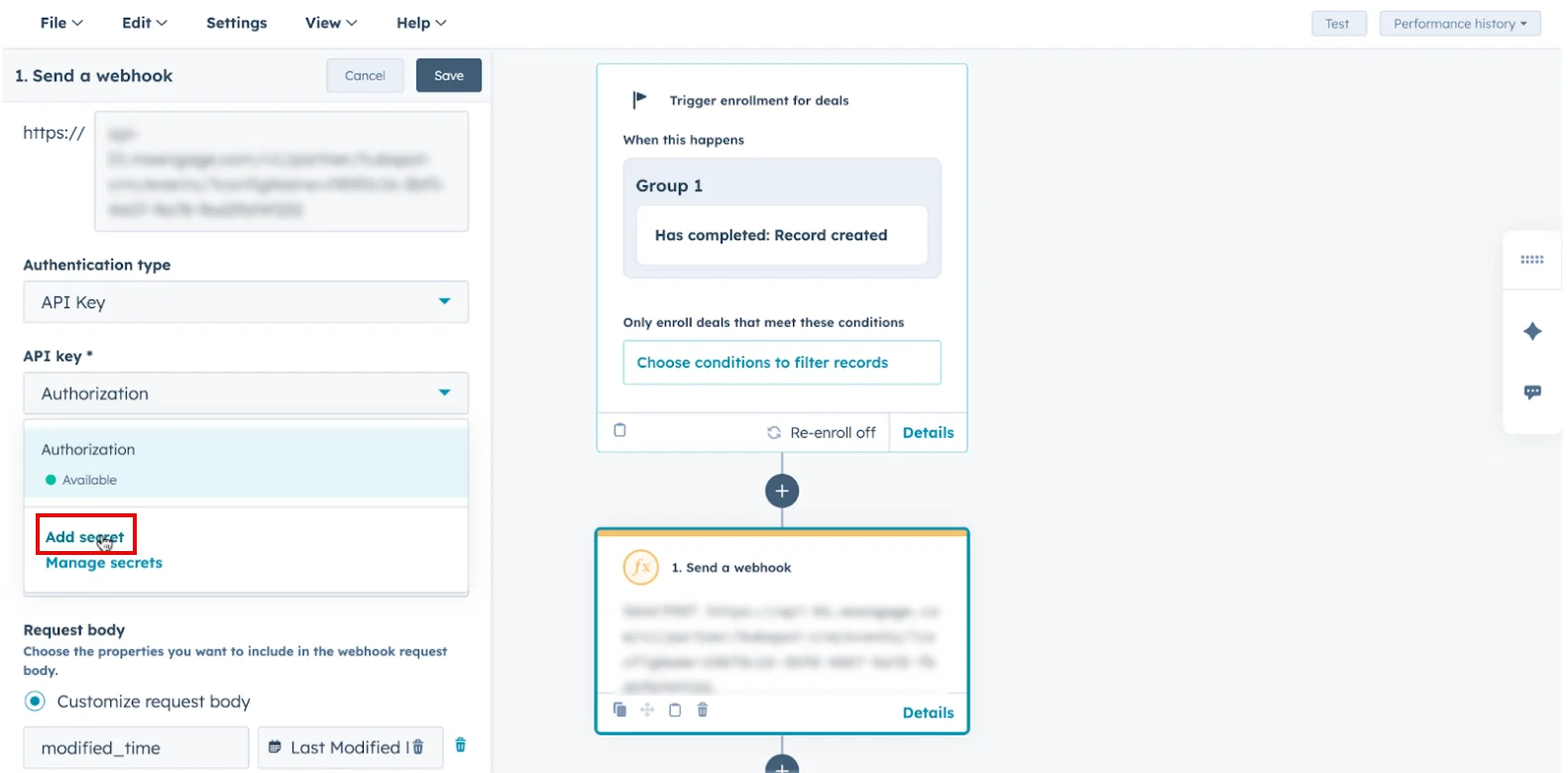
- In the Choose an action section, select Data Ops > Send a webhook.
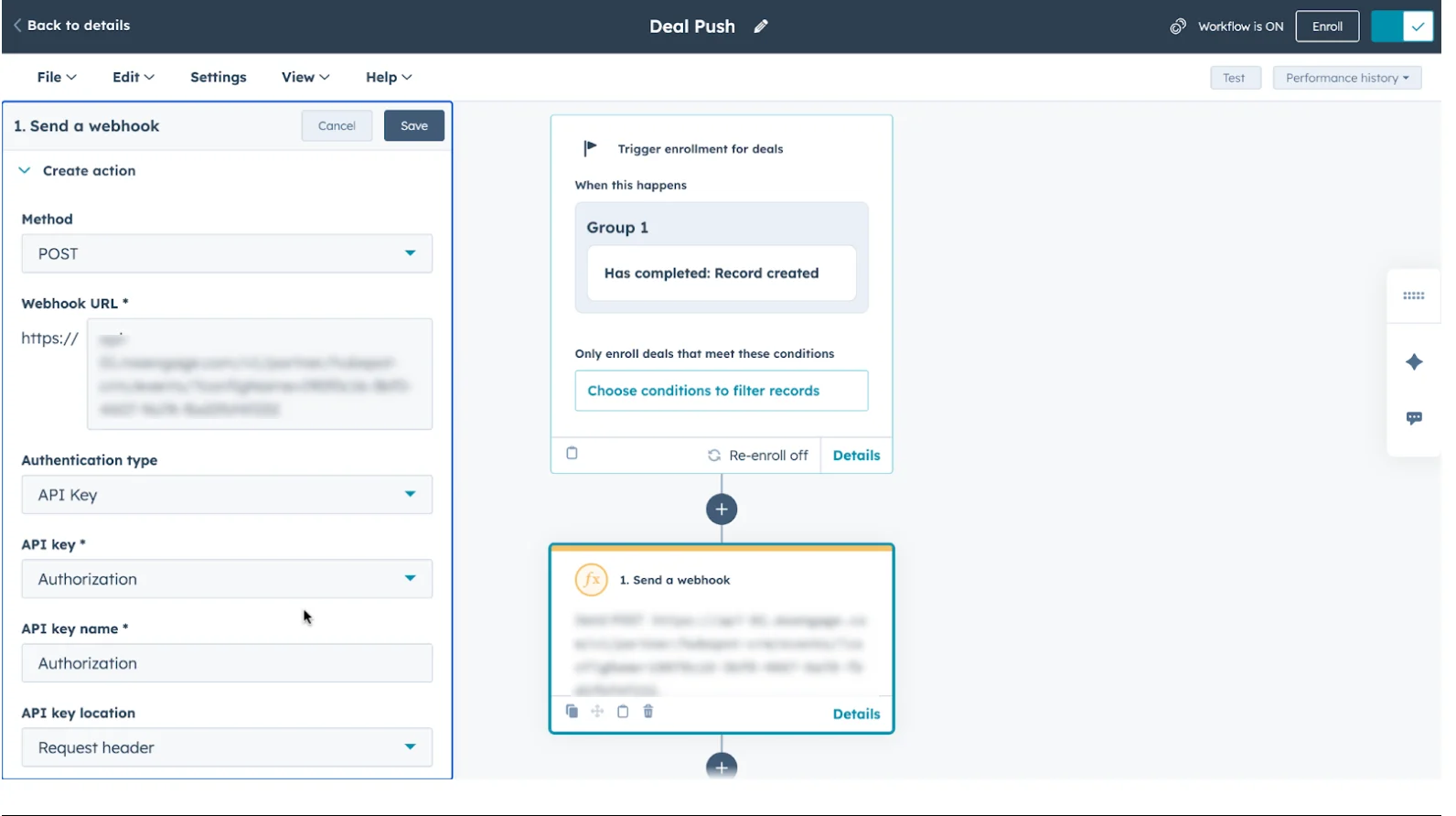
- Provide the following details:
| HubSpot Section | Description |
|---|---|
| Method | POST |
| URL | Enter the dedicated Webhook URL provided by MoEngage in the following format:https://api-0X.moengage.com/v1/partner/hubspot/{events/user}/?configName={config_name} |
| Custom Headers | Headers
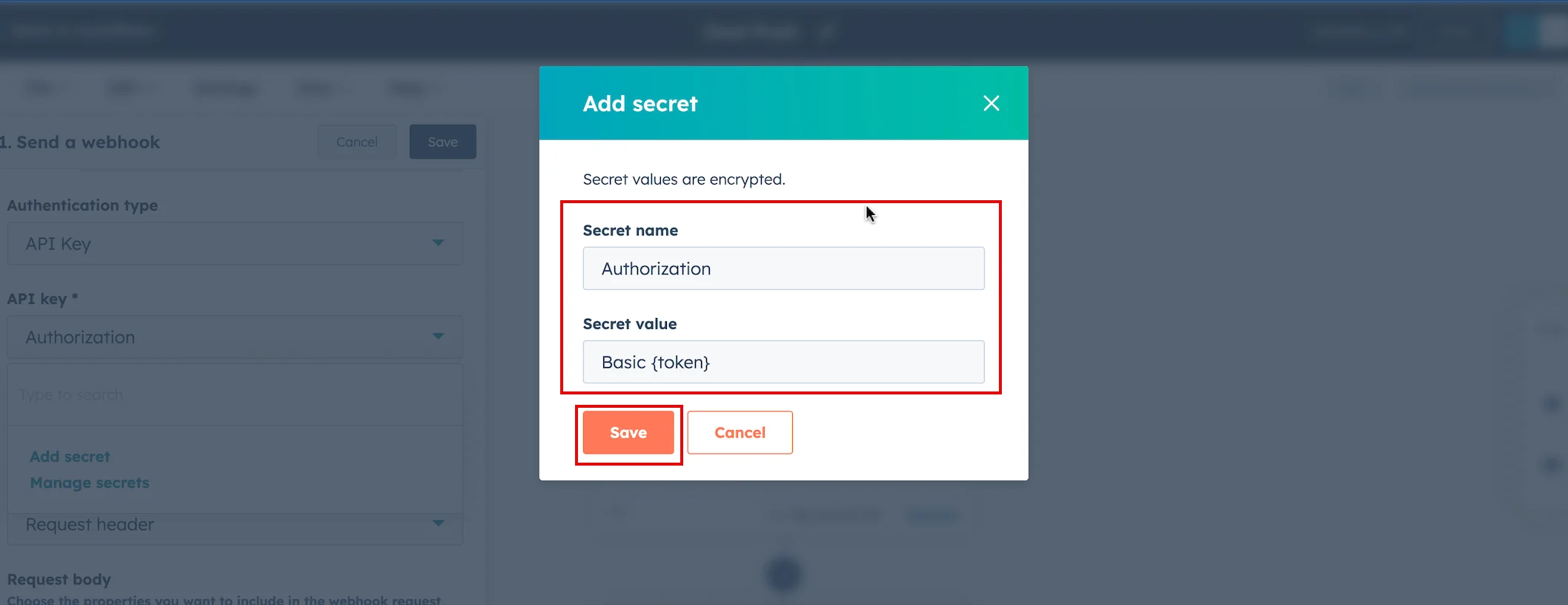
Authorization Generate a Basic Authentication Token using an online Basic Auth Header Generator tool. You must enter your Workspace ID as username and Data API Key as password. To find your credentials, perform the following steps:
Basic Qk5CR1NNNUR4eHh4eHhWQ1hSRFJEWTdSOlFsWHVoTHVaeHh4eHh4QWQrQnBYUEotNw==Note : Ensure the token is copied completely without extra spaces. |
Step 4: Configure the Request Body
To configure the webhook payload, perform the following steps:- In the Request Body section, select the Customize request body check box.
- Add the following details based on the synchronization type (Users or Events):
| Field Name | Data Type | Value |
|---|---|---|
| Contacts | ||
| customer_id | Property | 123456789 |
| event_name | Static | User Signed Up |
| modified_time | Property | 2025-09-07T11:02:16Z |
| u_fn | Property | John |
| u_ln | Property | Doe |
| u_em | Property | john.doe@example.com |
| u_mb | Property | +1-555-123-4567 |
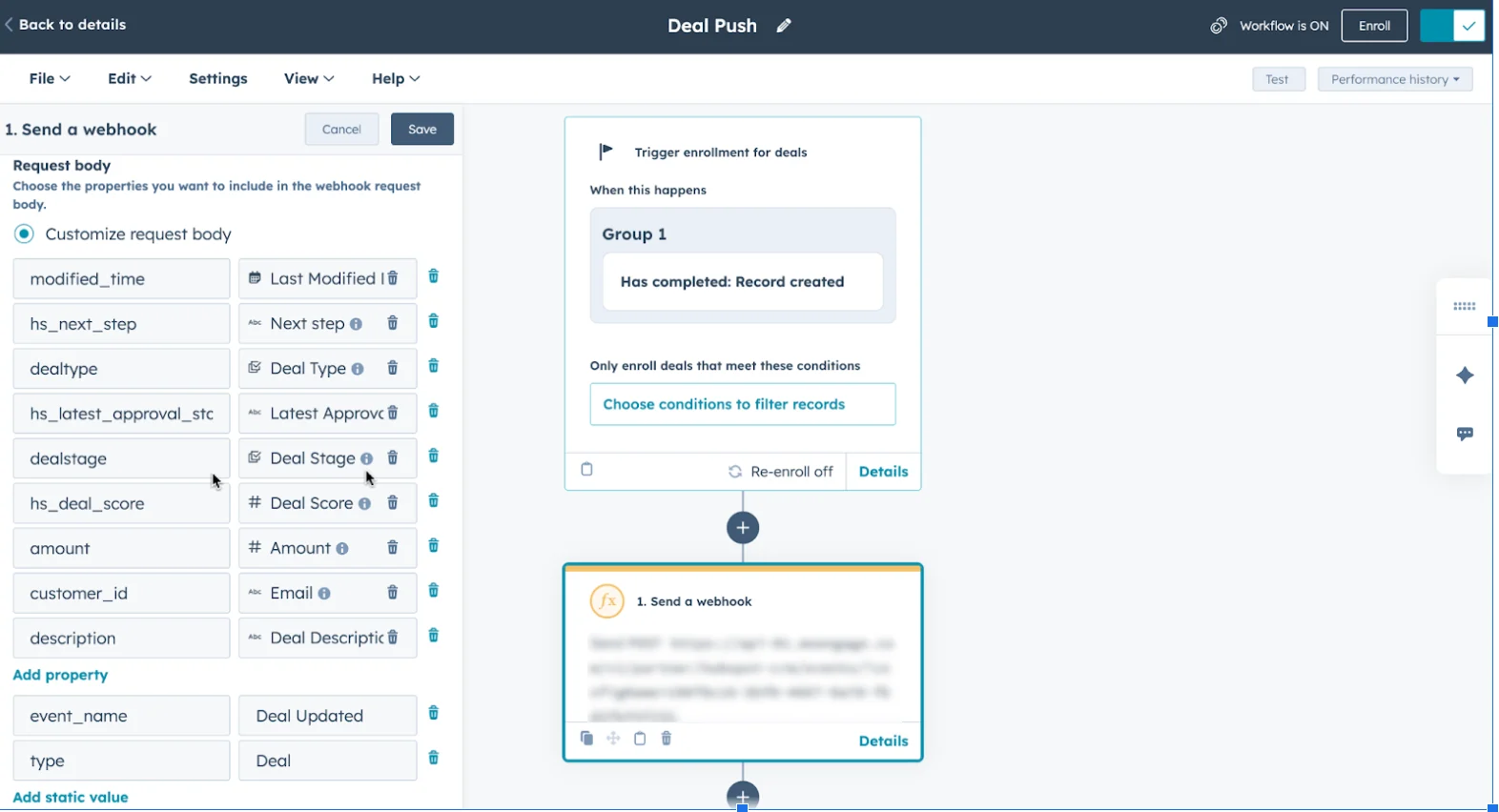
You can add additional properties for your specific use case using the Add property and Add static value options if needed.
- customer_id : This must be a unique and permanent ID across all syncs.
- modified_time & type : These are required for both user and event data syncs.
- event_name : This is required for event data to allow for proper categorization and segmentation in MoEngage.
- User attributes (u_*) : This is required for user data but optional for event data.
Data Mapping Guidelines
- Unique Identifier (Customer ID) : Use a consistent, immutable unique identifier (like an external_id, email address, or phone number) from your HubSpot CRM data. Map this value to the
customer_idfield in your MoEngage payload. This is critical for data merging and preventing duplicate user profiles. - Required Fields : All payloads must include the
customer_id,modified_time, andtypefields. These are essential for proper data processing, lookups, and segmentation. - Type : Specify the record type as “Contacts,” “Leads,” or “Deals” for accurate segmentation and targeting in MoEngage.
- Event Name : Include the
event_namein every event to identify and categorize actions in MoEngage. This ensures all events are tracked accurately for analysis and segmentation.