

Introduction
Segment is a customer data platform that helps you collect, clean, and activate your customer data. Using MoEngage Source on Segment, you can forward all your campaign interaction events on MoEngage to Segment for further processing and analysis.Benefits of Using MoEngage Source
- Evolve your team’s engagement and marketing efforts by sending all customer data in one place.
- You can combine MoEngage data with the event data already flowing into Segment.
- MoEngage Source will enable you to forward these events to your destinations or warehouses.
- Get a holistic report of your engagement and marketing efforts.
Integration
- Login credentials for MoEngage and Segment.
- Exports to Segment make use of MoEngage Streams, which is an add-on.
Step 1: Add a New MoEngage Source on Segment
- From your workspace’s Sources catalog page click Add Source.
- Search for “MoEngage” in the Sources Catalog, select MoEngage, and click Add Source.
- On the next screen, give the Source a nickname and configure any other settings.
- The nickname is used as a label in the Segment app, and Segment creates a related schema name in your warehouse. The nickname can be anything, but we recommend using something that reflects the source itself and distinguishes amongst your environments (for example,
MoEngage_Prod,MoEngage_Staging,MoEngage_Dev).
- The nickname is used as a label in the Segment app, and Segment creates a related schema name in your warehouse. The nickname can be anything, but we recommend using something that reflects the source itself and distinguishes amongst your environments (for example,
- Click Add Source to save your settings.
- Copy the Write key from the Segment UI. You will need to input this key on the MoEngage App Marketplace.
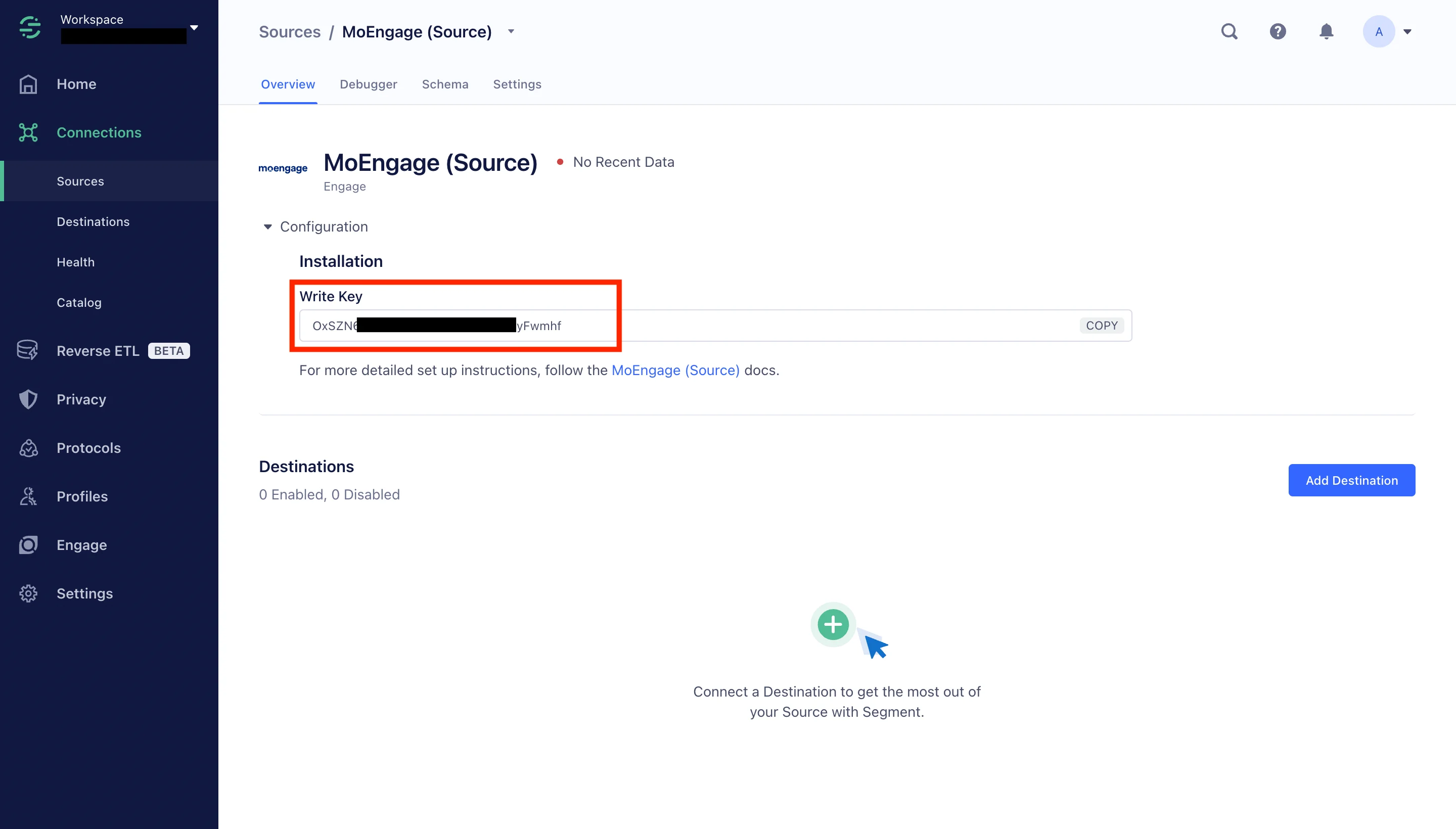
Step 2: Enter Connection Details on MoEngage
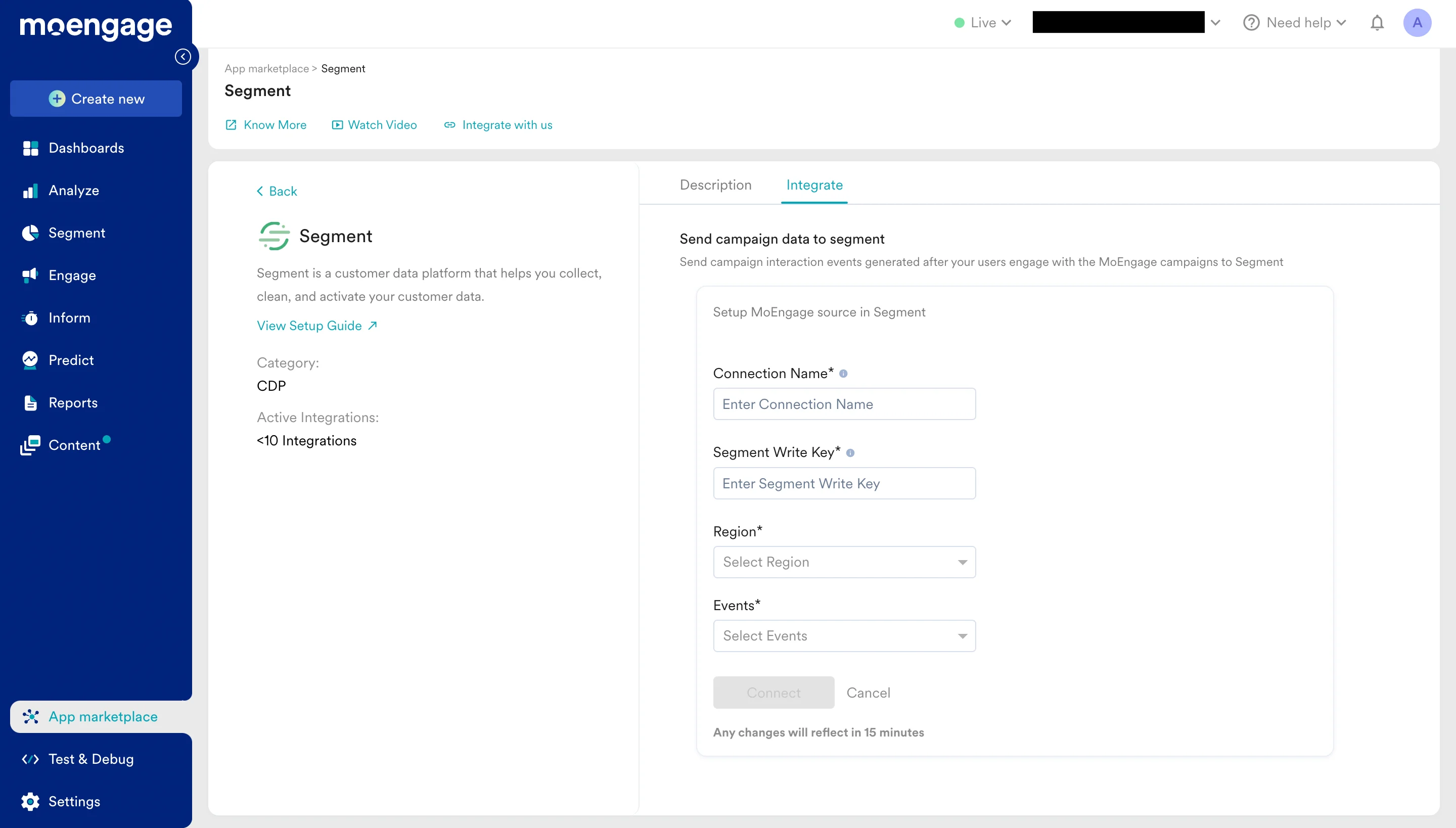
- Go to MoEngage Dashboard > App Marketplace > Search for Segment > and click Add Integration.
- Give your connection a name, enter your Write Key , and then select a Segment Region.
Note: Cross-region data is not allowed, so Segment will drop your events if the region you select on the MoEngage App Marketplace is different from your Segment Workspace Region. - Go back to Segment and click Add Destinations in your MoEngage source to add the destinations where you want to receive your MoEngage data.
Events
The table below lists events that MoEngage sends to Segment. These events appear as tables in your warehouse and as regular events in other Destinations.| Name | Description | Category | Related to Channel/Platform |
|---|---|---|---|
| App/Site Opened | Tracked when a user session begins on the app or website. It is also tracked only if the time difference between the user’s Last Active Time and App/Site Open Time is more than 30 minutes. | Lifecycle | Android, iOS, Web |
| Viewed Web Page | Tracked when a user visits a web page. Select the page URL as an event attribute to find the number of users visiting a particular page, or use it to set up a “Drop-off capture” Smart Trigger Web Push. | Lifecycle | Web |
| App Exit | Tracked whenever the App goes to the background. | Lifecycle | Android, iOS |
| User Logout | Tracked when a user logs out of the app/site or user resets. | Lifecycle | Android, iOS, Web |
| Push ID Register Android | Tracked when the MoEngage system registers the push ID for Android devices. The attribute registered_by has the status. | Lifecycle | Android |
| User Merged | Tracked for a known user whenever a MoEngage user object is merged with it. | Lifecycle | User Merging |
| App Update | Tracked when a user updates the App. | Lifecycle | Android, iOS |
| Install | Tracked when a user installs the app on the device. | Acquisition | Android, iOS |
| Device ReInstall | Tracked when a reinstall is detected on a device. | Uninstall | Android, iOS |
| Device Uninstall | Tracked when a user uninstalls the app on a device. | Uninstall | Android, iOS |
| User ReInstall | Tracked when a reinstall is detected for an identified user in MoEngage. | Uninstall | Android, iOS |
| Accepted Web Push Soft-ask | Tracked when a user accepts the Push Permission Soft-ask on your website as part of the 2-step Push Opt-in mechanism. | Reachability | Web |
| Closed Web Push Soft-ask | Tracked when a user closes the Push Permission Soft-ask on your website as part of the 2-step Push Opt-in mechanism. | Reachability | Web |
| Denied Web Push Subscription | Tracked when a user denies receiving push notifications on the Web. | Reachability | Web |
| Dismissed Web Push Subscription | Tracked when a user dismisses the push subscription prompt. | Reachability | Web |
| Overlay clicked in 1-click HTTP subscription | Tracked when a user clicks a Subscription Message on your website as part of the HTTP Push Subscription flow. | Reachability | Web |
| Overlay shown in 1-click HTTP subscription | Tracked when a user views a Subscription Message on your website as part of the HTTP Push Subscription flow. | Reachability | Web |
| Reachability Push Android | Reachability Push Android is True (200) when the user is reachable on at least one Android device. | Reachability | Android |
| Reachability Push iOS | Reachability Push iOS is True (200) when the user is reachable on at least one iOS device. | Reachability | iOS |
| Reachability Push Web | Reachability Push Web is True (200) when the user is reachable on at least one web device. | Reachability | Web |
| Subscribed to Web Push | Tracked when a user is subscribed to Web Push Notifications. Use it to find the day-wise count of subscribers or set up a Welcome” Smart Trigger Web Push. | Reachability | Web |
| Unsubscribed from Web Push | Tracked when a user directly unsubscribes from the website/Chrome settings, or GCM communicates that a push token is invalid. | Reachability | Web |
| Viewed Web Push Soft-ask | Tracked when a user views the Push Permission Soft-ask on your website as part of the 2-step Push Opt-in mechanism. | Reachability | Web |
| Allowed Web Push Subscription | Tracked when a user allows receiving push notifications on the Web. | Campaign Activity | Web |
| Displayed Web Push Subscription | When a hard ask is shown to the user. | Campaign Activity | Web |
| Onsite Message Template clicked | On clicking the Onsite Messaging template. | Campaign Activity | Web |
| Onsite Message Template shown | On a load of the Onsite Messaging template. | Campaign Activity | Web |
| Onsite Message Template closed | On closing the Onsite Messaging template. | Campaign Activity | Web |
| Onsite Message Template auto dismiss | When the Onsite Messaging template closes by itself after the time duration given while creating the campaign. | Campaign Activity | Web |
| Card Clicked | Tracked when the user clicks the Card in the App Inbox. | Campaign Activity | Android, iOS |
| Card Delivered | Tracked when a Card is delivered to the App Inbox after the user has opened the Inbox. | Campaign Activity | Android, iOS |
| Card Sent | Tracked when a Card notification is sent to the user but doesn’t indicate if the notification is delivered to the App Inbox. | Campaign Activity | Android, iOS |
| Card Viewed | Tracked when the user views a Card or scrolls down to it in the App Inbox. | Campaign Activity | Android, iOS |
| Connector Sent | Tracked when a connector was sent successfully. | Campaign Activity | Connector |
| Email Bounced | Tracked when our system finds an email that is hard-bounced. Typically happens when an email address doesn’t exist. | Campaign Activity | |
| Email Clicked | Tracked when a user clicks on any link in the email. | Campaign Activity | |
| Email Complained | Tracked when a user marks the email as spam. | Campaign Activity | |
| Email Dropped | Tracked when an email is dropped. Email is dropped when it’s part of the bounce list, the unsubscribe list, or the spam report list. | Campaign Activity | |
| Email Opened | Tracked when a user opens an email. | Campaign Activity | |
| Email Sent | Tracked when our system sends an email to a user. | Campaign Activity | |
| Email Soft Bounced | Tracked when our system finds an email that is soft-bounced. Typically happens when there is a temporary delivery issue. | Campaign Activity | |
| Email Unsubscribed | Tracked when a user unsubscribes from receiving emails. | Campaign Activity | |
| Email Unsubscribe Drop | Tracked when an email is dropped because the user is part of an unsubscribe list. This is tracked at SendGrid. | Campaign Activity | |
| Email Viewed in Browser | Tracked when a user clicks on the view in the browser link present in the email. | Campaign Activity | |
| Facebook Audience Synced | Tracked when Facebook API returns a 2xx response for add or delete requests to an audience. | Campaign Activity | |
| In-App Clicked Android | Tracked when a user clicks the In-App message on an Android device. | Campaign Activity | Android |
| In-App Clicked iOS | Tracked when a user clicks the In-App message on an iOS device. | Campaign Activity | iOS |
| In-App Clicked Windows | Tracked when a user clicks the In-App message on a Windows device. | Campaign Activity | Windows |
| In-App Closed Android | Tracked when a user dismisses the In-App message by clicking on the close button on an Android device. | Campaign Activity | Android |
| In-App Closed iOS | Tracked when a user dismisses an In-App message by clicking on the close button on an iOS device. | Campaign Activity | iOS |
| In-App Closed Windows | Tracked when a user dismisses the In-App message by clicking on the close button on a Windows device. | Campaign Activity | Windows |
| In-App Shown Android | Tracked when an In-App message is shown to the user on an Android device. | Campaign Activity | Android |
| In-App Shown iOS | Tracked when an In-App message is shown to the user on an iOS device. | Campaign Activity | iOS |
| In-App Shown Windows | Tracked when an In-App message is shown to the user on a Windows device. | Campaign Activity | Windows |
| Notification Clicked Android | Tracked when a user clicks a notification on an Android device. | Campaign Activity | Android |
| Notification Clicked iOS | Tracked when a user clicks a notification on an iOS device. | Campaign Activity | iOS |
| Notification Clicked Web | Tracked when a user clicks a notification on the browser. | Campaign Activity | Web |
| Notification Clicked Windows | Tracked when a user clicks a notification on a Windows device. | Campaign Activity | Windows |
| Notification Dismissed iOS | Tracked when the user dismisses the notification on an iOS device. | Campaign Activity | iOS |
| Notification Received Android | Tracked when a user receives a notification on an Android device. | Campaign Activity | Android |
| Notification Received iOS App Active | Tracked when the App is in the foreground and the user receives the notification on iOS. | Campaign Activity | iOS |
| Notification Received iOS | Tracked when a user receives a notification on an iOS device. | Campaign Activity | iOS |
| Notification Received Web | Tracked when a user receives a notification on a browser. | Campaign Activity | Web |
| Notification Sent Windows | Tracked when a user receives a notification on a Windows device. | Campaign Activity | Windows |
| Notification Sent iOS | Tracked when a user receives a notification on an iOS device. | Campaign Activity | iOS |
| Notification Swiped Android | Tracked when a notification is dismissed by the user with a swipe gesture on Android. | Campaign Activity | Android |
| On-site Message Shown | Tracked when an on-site messaging campaign is shown to a user. | Campaign Activity | Web |
| On-site Message Clicked | Tracked when an on-site messaging campaign is clicked by a user. | Campaign Activity | Web |
| On-site Message Closed | Tracked when an on-site messaging campaign is closed by a user. | Campaign Activity | Web |
| Push Preference Changed iOS | Tracked when the iOS device push preference is changed. It has a modified status. | Campaign Activity | iOS |
| Web Personalization Message Shown | Tracked when a web personalization campaign is shown to a user. | Campaign Activity | Web |
| Web Personalization Message Clicked | Tracked when a web personalization campaign is clicked by a user. | Campaign Activity | Web |
| Web Personalization Message Closed | Tracked when a web personalization campaign is closed by a user. | Campaign Activity | Web |
| SMS Delivered | Tracked when our system receives a delivery receipt for the SMS sent to a user. | Campaign Activity | SMS |
| SMS Sent | Tracked when our system sends SMS to a user. | Campaign Activity | SMS |
| SMS Clicked | Tracked when a user clicks on any of the links in the SMS message body. | Campaign Activity | SMS |
| User Entered Flow | Tracked when a user falls in the target audience and has qualified for the entry in the Flow. | Campaign Activity | Flows |
| User Exited Flow | Tracked when a user exits from a Stop Cell of the Flow. | Campaign Activity | Flows |
| User removed from the campaign due to the control group | Generated while sending a campaign out with the control group defined. | Campaign Activity | Flows/Campaign Channels |
| User added to the control group | Generated while creating a global control group. | Campaign Activity | Flows/Campaign Channels |
| User removed from the control group | Generated when the global control group is updated. Specifically, when the global control group % is reduced or the global control group is refreshed. | Campaign Activity | Flows/Campaign Channels |
| WhatsApp Message Clicked | Tracked when a WhatsApp Message is read by the user. It will only be available for users who have read receipts enabled. | Campaign Activity | Flows/Campaign Channels |
| WhatsApp Message Delivered | Tracked when a WhatsApp Message is delivered to a user. | Campaign Activity | Flows/Campaign Channels |
| WhatsApp Message Delivery Failed | Tracked when the provider failed to send/deliver a WhatsApp Message for a user. | Campaign Activity | Flows/Campaign Channels |
| WhatsApp Message Read | Tracked when a WhatsApp Message is read by the user. It will only be available for users who have read receipts enabled. | Campaign Activity | Flows/Campaign Channels |
| WhatsApp Message Sent | Tracked when a WhatsApp message is sent to a user. | Campaign Activity | Flows/Campaign Channels |
| Custom Event | Custom events are events defined by you. | - | - |
MoEngage Event Properties
The table below lists the properties included in the events listed above.| Name | Description |
|---|---|
| App Version | Mobile Application version on which this event was tracked. App Version is tracked with all events. |
| SDK Version | MoEngage SDK version on which this event was tracked. SDK Version is tracked with all events. |
| Platform | OS name on which this event was tracked, for example -Android, iOS, Web. The platform is tracked with all events. |
| Campaign Id | ID of the campaign associated with this event. |
| Campaign Name | Represents the name of the campaign, the message was part of. |
| Campaign Type | Represents the type of campaign the message was part of. |
| Readable Campaign Id | Represents the ID of the campaign the message was part of. |
| Parent Campaign id | Tracked when a periodic campaign is run. Represents the campaign ID of the parent periodic campaign, child instances of which are re-run on a recurring basis. |
| Parent Flow Id | Tracked when the journey campaign is run. Represents the Flow ID of the parent journey campaign. |
| Parent Flow Name | Tracked when the journey campaign is run. Represents the flow name of the parent journey campaign. |
| Locale Id | Tracked when the campaign is sent using Localization. Represents the id of message locale. |
| Locale Name | Tracked when the campaign is sent using Localization. Represents the name of the message locale. |
| Variation Id | Tracked when a campaign is sent using A/B Testing. Represents the ID of the message variation. |
| URL | Tracked when the display filter is selected in the in-app campaign. |
| timestamp | User time while performing the event. This is in epoch time. |
| First Session | Generated for all the events tracked with the MoEngage web SDK. Value is True for the first session of the user only. |
| Logged In Status | Generated for all the events tracked with the MoEngage web SDK. Value is True if the user has logged in on the device. |
| Exit Reason | Tracked when a user exits the flow. This is tracked as an attribute of the ‘User Exited Flow’ event. |
Frequently Asked Questions
How soon will I start getting the data?
How soon will I start getting the data?
It typically takes up to 30 minutes for the automated data exports to be set up for your account and for you to start seeing data there.
Can I export additional events at a later time?
Can I export additional events at a later time?
Yes, if you need to export new events at a later time, you can always edit your configuration on the App Marketplace and get the new events added to your exports.
Can I export historical data using Automated Data Exports?
Can I export historical data using Automated Data Exports?
As of now, you cannot export historical data using Automated Data Exports. Once configured, you will start seeing data for each event from the time you enabled your exports.
Is there any pricing involved for Automated Data Exports?
Is there any pricing involved for Automated Data Exports?
If your billing plan does not cover this already and you need to get this enabled at a later time, you would need to work with your Customer Success Manager to get this included in your billing plan. Based on the amount of data that MoEngage will place in your Data warehouse/Partner/API on a monthly basis, this could lead to additional charges.