

Introduction
Yellow.ai is a Total Experience Automation Platform, powered by Dynamic AI agents that deliver human-like interactions to boost customer satisfaction.When to use Yellow.ai
A. Travel and Hospitality(Informational) - A user booked a travel package and the you want to send a WhatsApp message to the user about the booking with the following options -- Get invoice
- View itinerary
- Request call back
- Cancel booking
- Save Coupon
- View Cart
- Complete the transaction
- Request call back
- Pay Now
- Defer payment
- Contact Us
MoEngage × Yellow.ai
The MoEngage and Yellow.ai integration allows you to seamlessly orchestrate the end-to-end customer lifecycle from initial outreach, routed into a conversational experience, and through to omni-channel follow-up(s) via intelligent retargeting.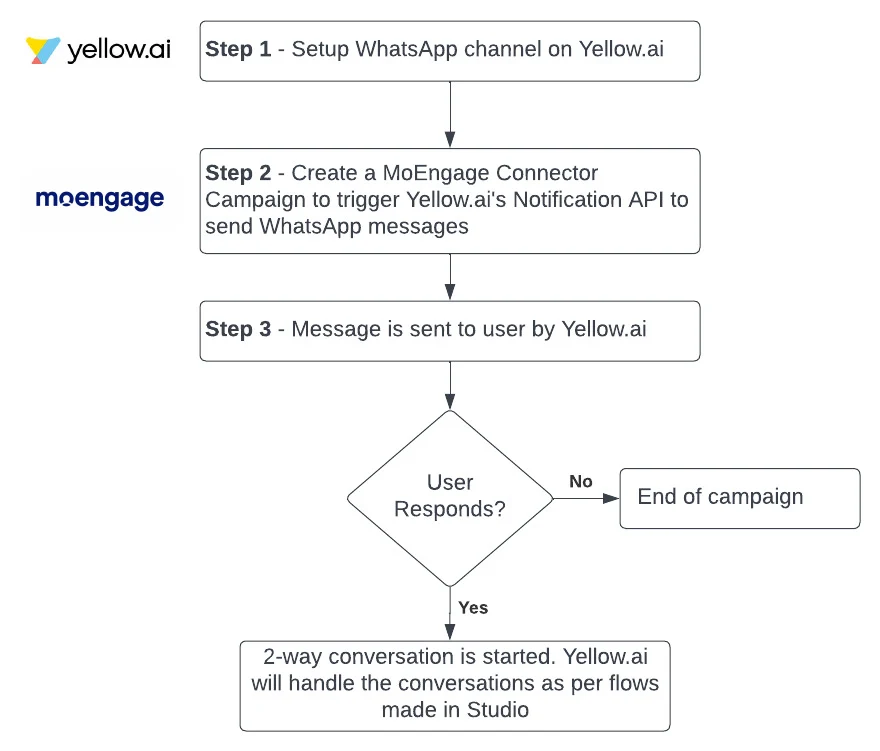
Integration
- Ensure you have a Yellow.ai account.
- Ensure you have access to your Yellow.ai account APIs. You can access them from your Yellow.ai dashboard by navigating to Overview >> Configure >> API keys
Step 1: Setup a WhatsApp Channel on Yellow.ai
Follow the steps on How to setup a WhatsApp chatbot on Yellow Messenger? to successfully setup an engagement channel.Step 2: Enable Notification API Engine
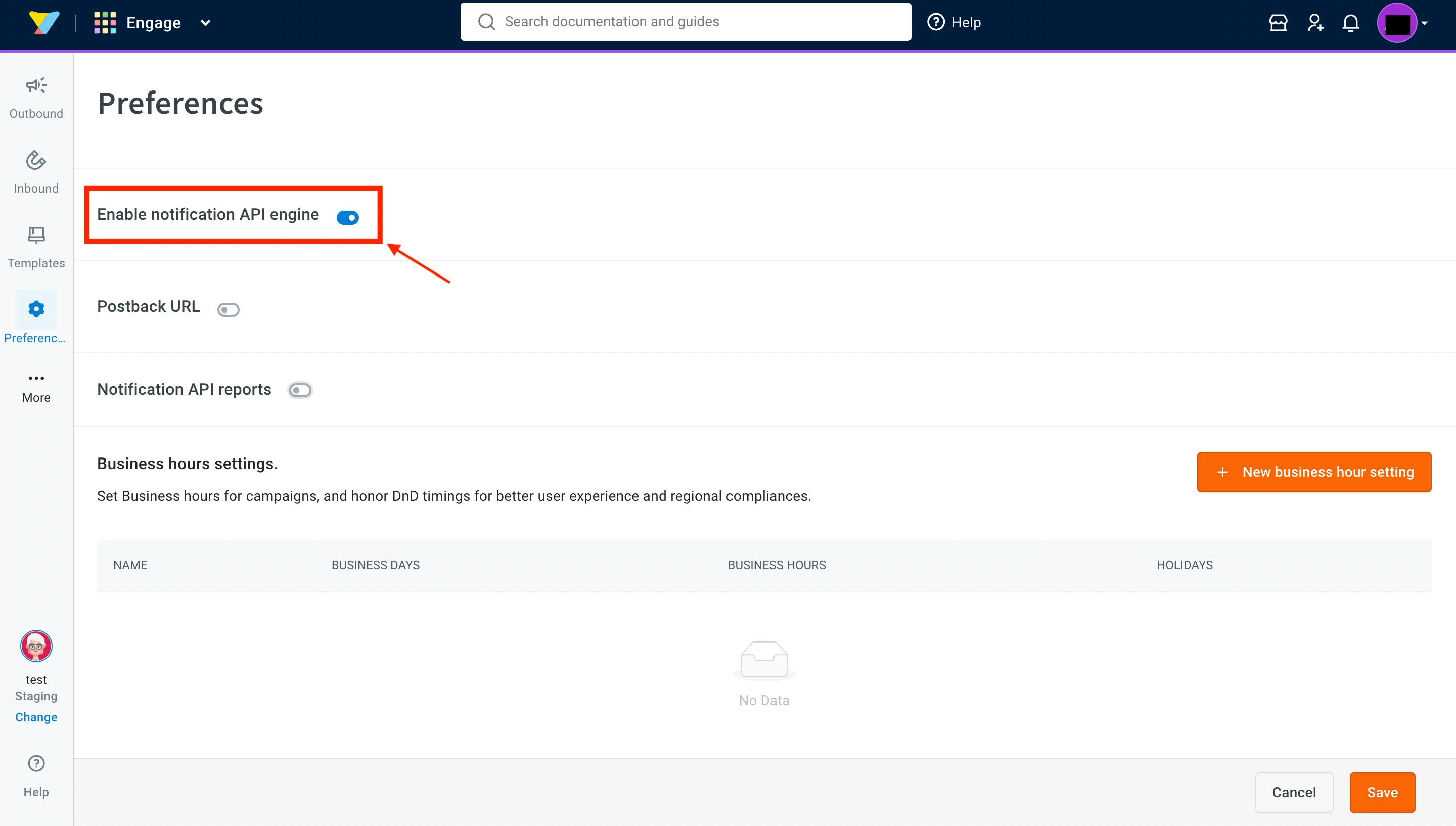
- Go to the dashboard >> Engage section >> Preferences.
- Turn on “Enable notification API engine”.
- We do not currently support a Postback URL. You can keep that turned off.
- If you want, you can setup Notification API Reports as per your requirements.
Step 3: Obtain your API keys
Head over to your Yellow.ai dashboard’s Overview section.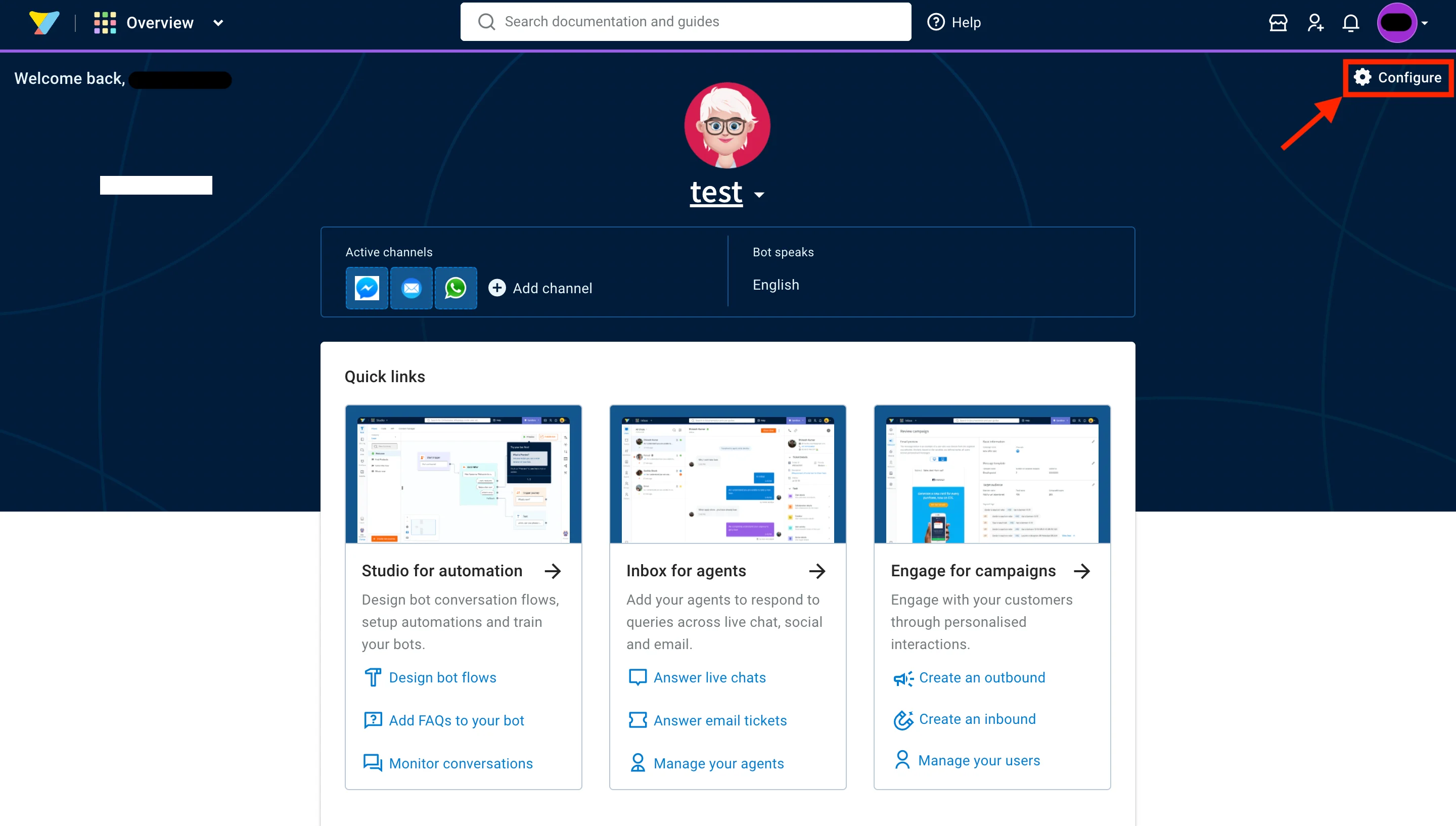
- Click on Configure >> API keys >> Generate new API Key. Store this API key safely as you will need this when setting up the campaign on MoEngage.
Step 4: Create a connector campaign on MoEngage
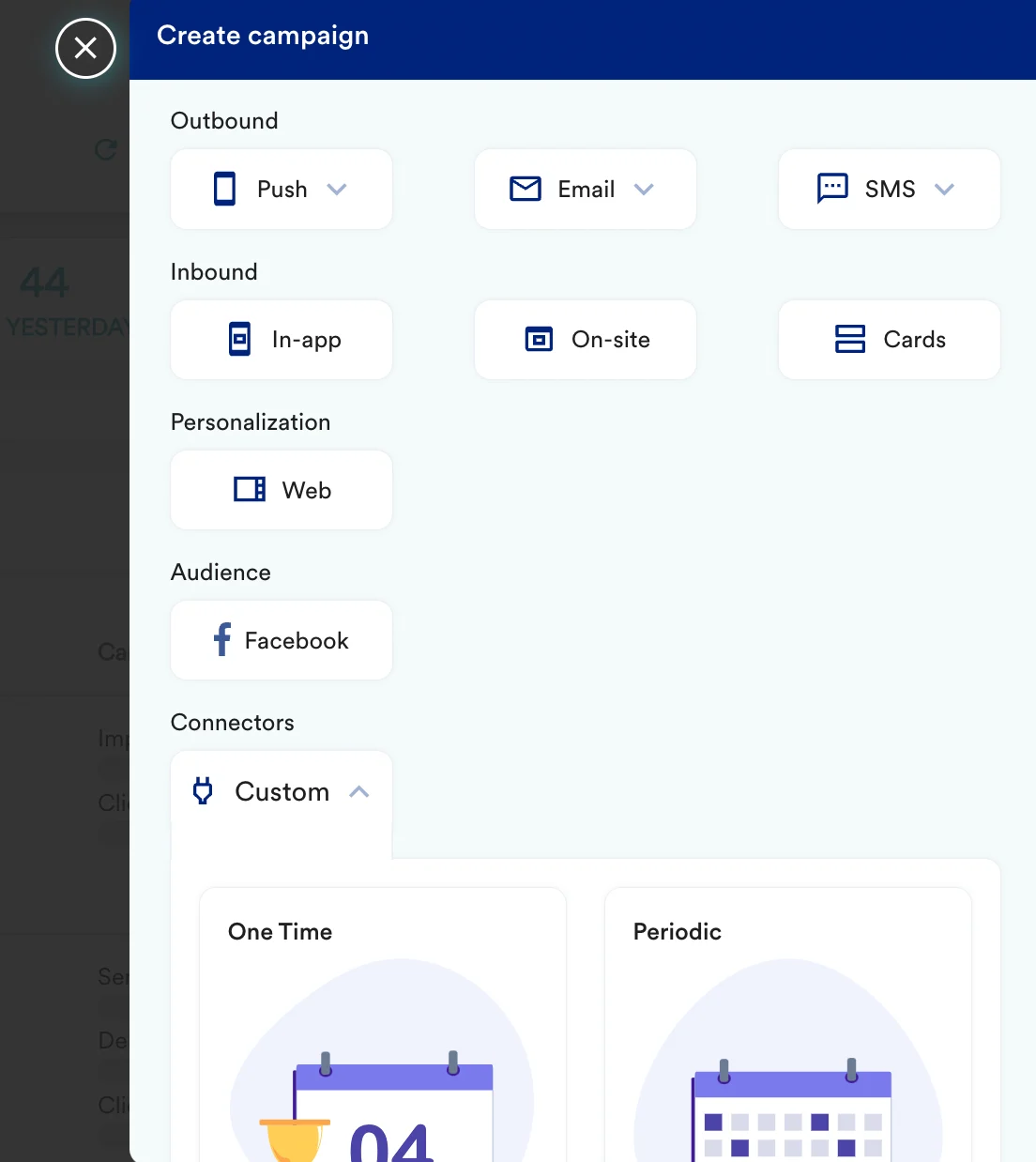
To create a connector campaign on MoEngage,- Navigate to Create Campaign >> Connectors >> Custom and choose delivery type most suitable to your needs
- On step 2 of the campaign,
- Select method as POST
- Add Webhook URL as: https://app.yellowmessenger.com/api/engagements/notifications/v2/push
- In Headers, add
- “x-api-key” as the API key you copied from the Yellow.ai Dashboard.
- “Content-Type” as “application/json”.
- In Parameters, add
- “bot” as your bot ID. You can obtain that from your Yellow.ai Dashboard’s URL: https://cloud.yellow.ai/bot/[YOUR-BOT-ID]/overview
- In Body, choose Raw and copy paste this code:
- At this point, your campaign should be ready to test and send. You can also test your connector configuration using the Test functionality available on Step 2 of Create Connector Campaign.
