

Introduction
Verloop.io helps businesses deliver delightful experiences across channels. Verloop’s conversational AI platform uses advanced NLP and ML to automatically resolve customer issues with natural language.Use-cases
A. Travel and Hospitality (Informational) - A user booked a travel package and the you want to send a WhatsApp message to the user about the booking with the following options -- Get invoice
- View itinerary
- Request call back
- View bill
- Clear dues
- Open App
- Claim Rewards
- Earn Points
- Contact us
MoEngage × Verloop
The MoEngage and Verloop integration allows you to seamlessly orchestrate the end-to-end customer lifecycle from initial outreach, routed into a conversational experience, and through to omni-channel follow-up(s) via intelligent retargeting.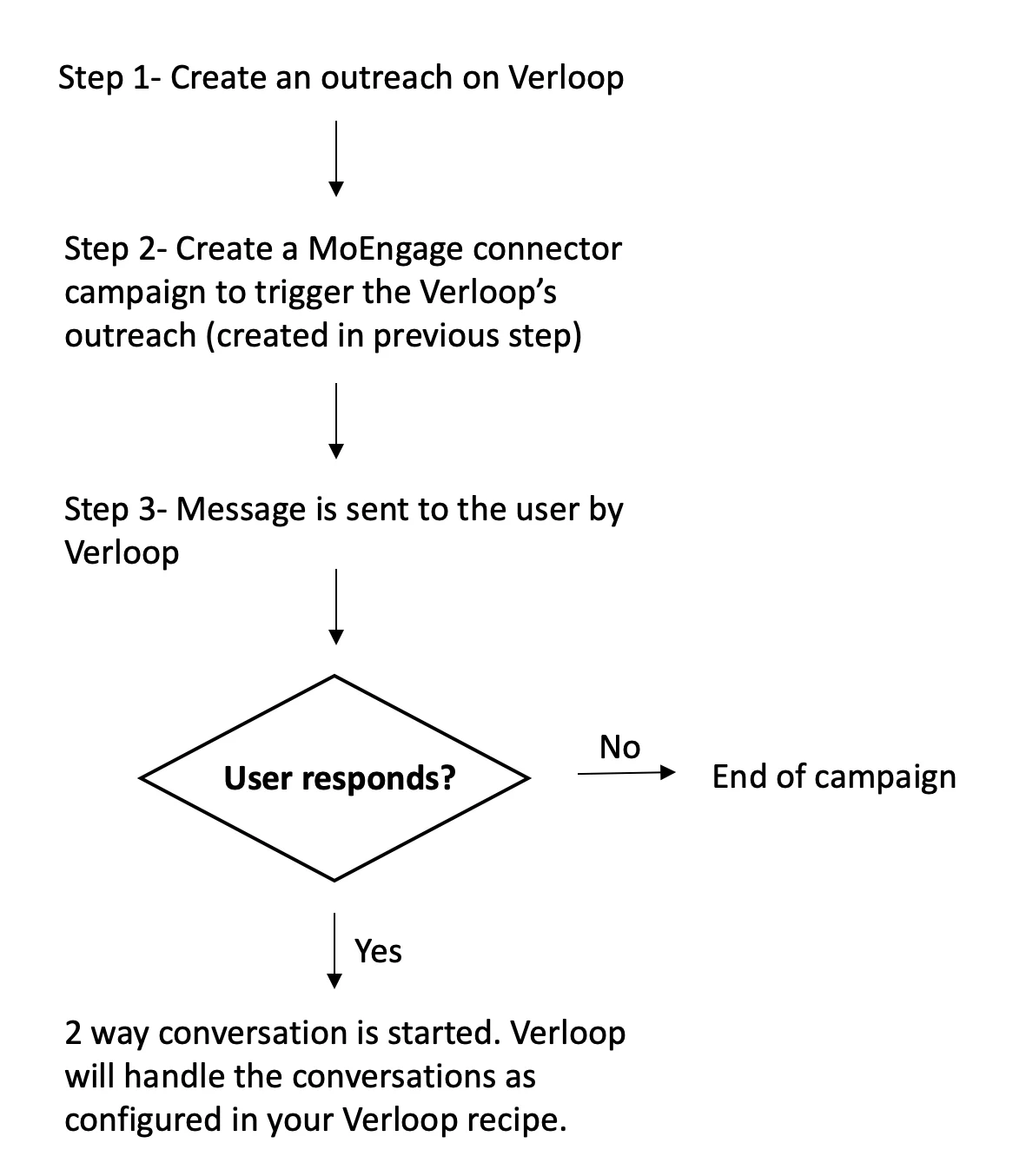
Integration
- Ensure you have a Verloop account.
- Ensure you have access to your Verloop account APIs. You can access from your Verloop dashboard by navigating to Settings >> Chat >> API keys
Step 1: Create an outreach on Verloop
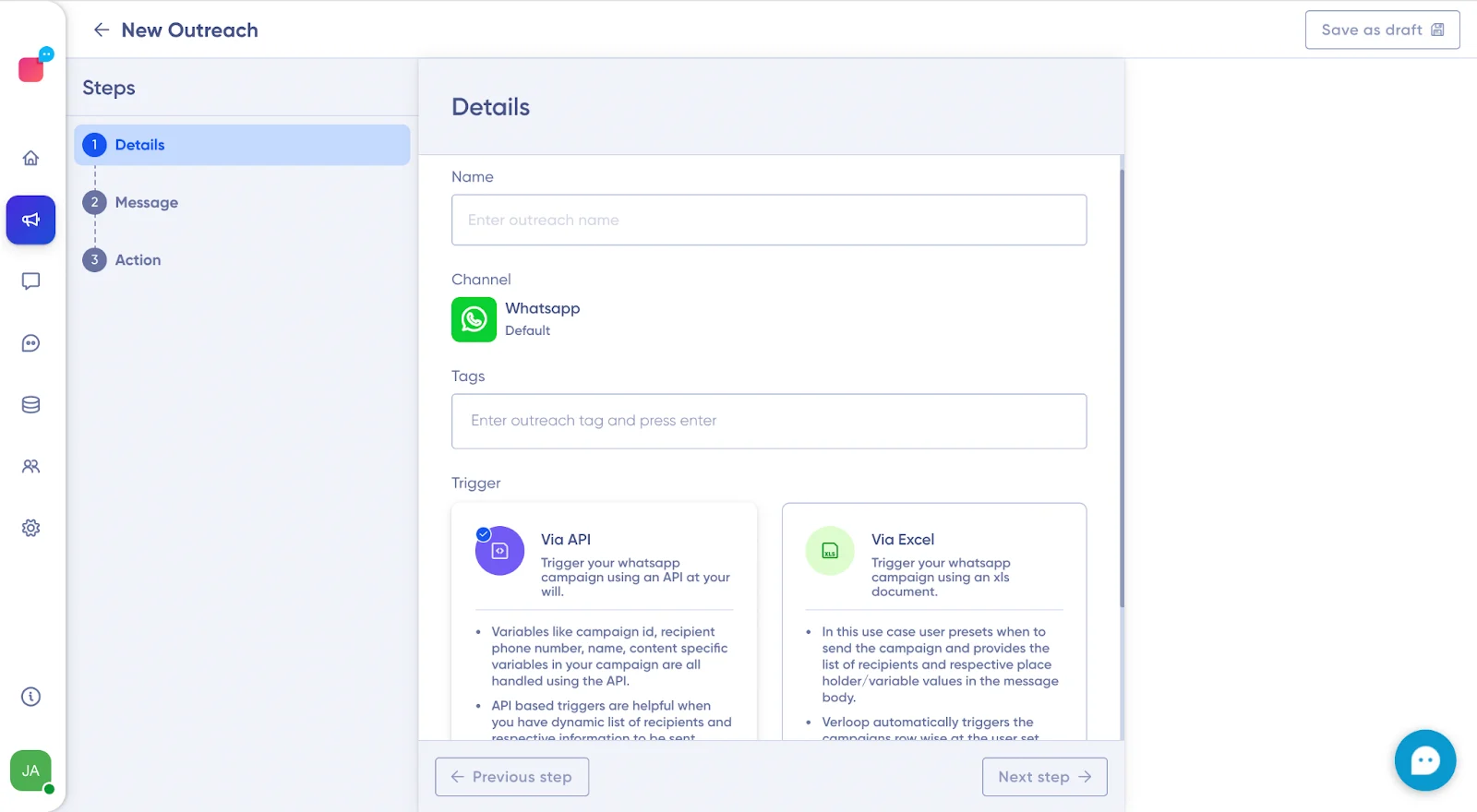
Follow the steps here to create an outreach on Verloop. On the Verloop dashboard -Create new outreach
- Navigate to Outreach.
- Click on the ‘+ New Outreach’ button at the top right.
- Fill in the Namefield to add a name to your campaign.
- Channel is set as WhatsApp as default for now.
- Under Tags, add appropriate tags to easily identify and differentiate the campaign from the others.
- Choose the Trigger type as API
Define outreach template
- To create a new message click the New Message button. You can also use an existing/approved template by selecting messages from the existing list.
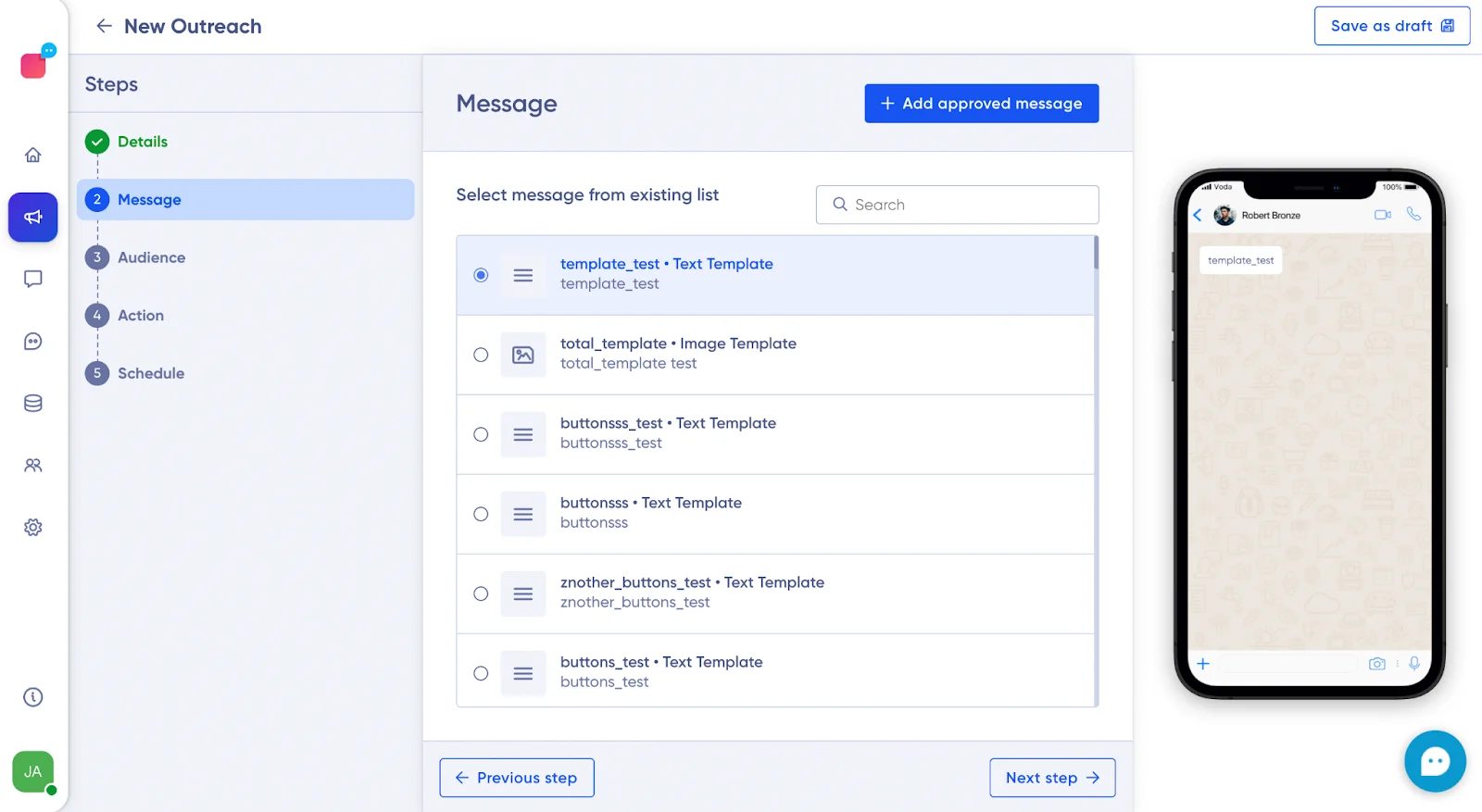
- Click on ‘+ Add Approved Messages’.
- Under Message, add a template name.
- Add your WhatsApp Template ID.
- Select your preferred language.
- Under Template Type, select the format in which you want to show your messages, such as text, image or document.
- Type in the Template message that you want to display in your campaign.
Enabling WhatsApp buttons (Optional)
- There are 2 types of buttons: Call to action and Quick reply
- WhatsApp allows a maximum of 2 buttons for Call to action and 3 buttons for Quick reply
Choose end action
 In this step, once the end-user interacts with your campaign, you can immediately trigger the next step to drive your user to take an action.
- Head to Action.
- Under Action, click Bot Recipe if you want the conversation to progress according to the recipe you already have in place. For this, Under Bot recipe, select the dropdown to choose the recipe that best works for your campaign.
- Before publishing the campaign, you can also test it by sending it to your test contacts. Review the message in the campaign once again and hit Test.
- Set Live.
Step 2: Create a connector campaign on MoEngage
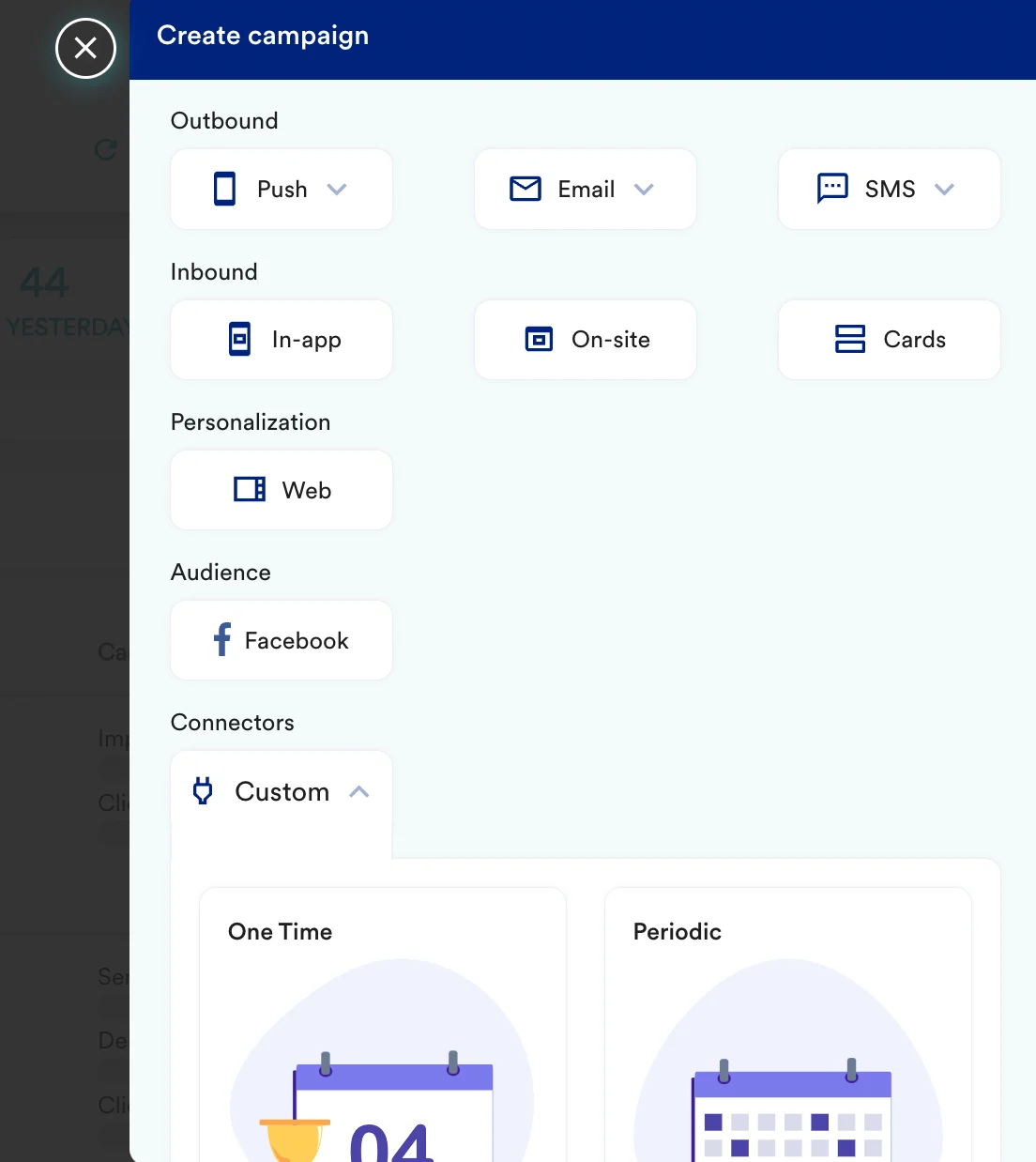
To create a connector campaign on MoEngage,- Navigate to Create Campaign >> Connectors >> Custom and choose delivery type most suitable to your needs
- On step 2 of the campaign
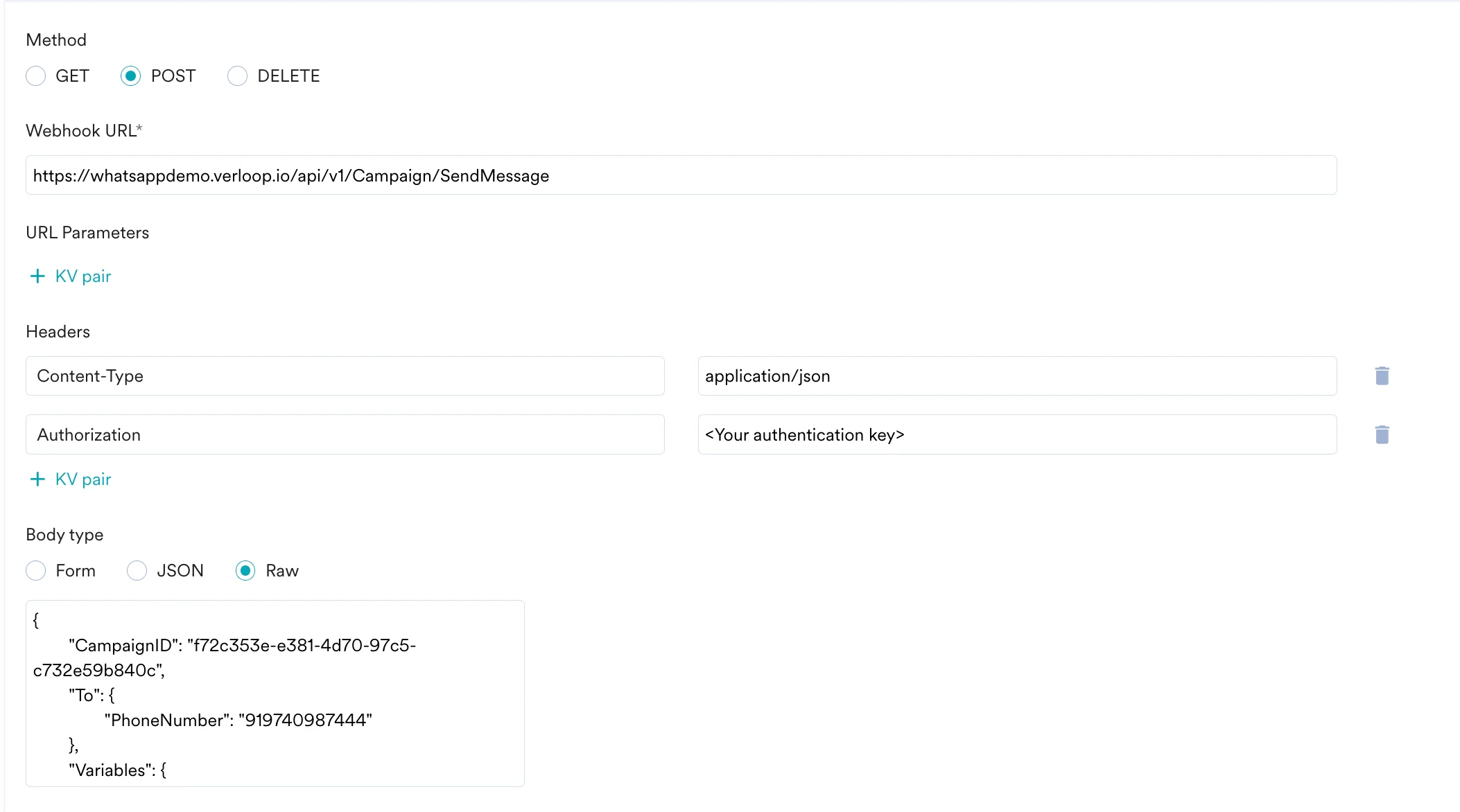
- Select method as POST
- Add Webhook URL as : https://whatsappdemo.verloop.io/api/v1/Campaign/SendMessage
- In Headers, add
- Content-Type as application/json
- Authorization as your Verloop authentication key.
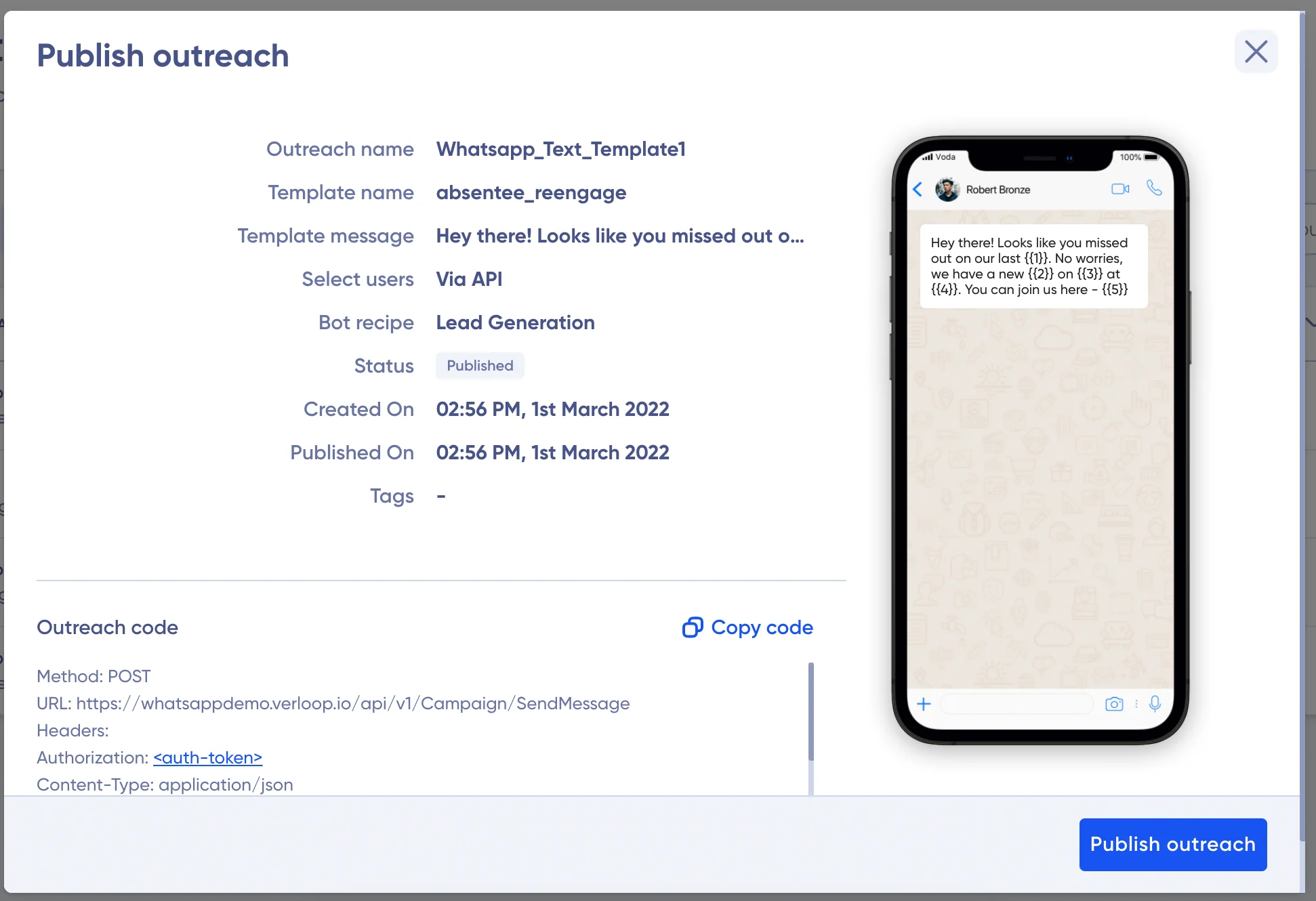
- In Body, choose Raw and copy paste the code from your Verloop outreach.
- At this point, your campaign should be ready to test and send. You can also test your connector configuration using the Test functionality available on Step 2 of Create Connector Campaign.
