Steps
Add new test users
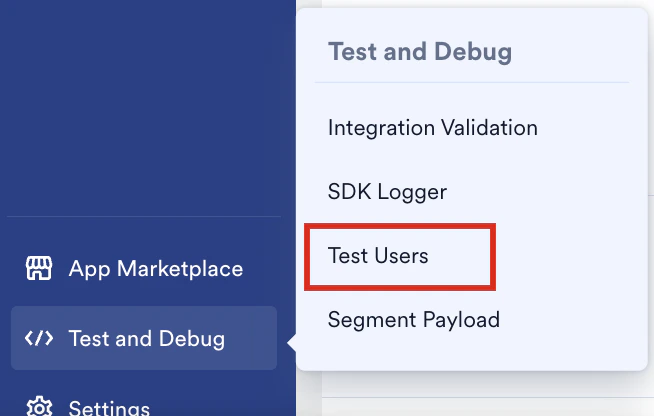
- On the sidebar menu in MoEngage, hover over Test and Debug. The Test and Debug menu appears.
- Click Test Users.
- Click + Test user on the top right to mark users as test users.
- You can either mark all the users in the custom segment as Test users or select one or more specific users.
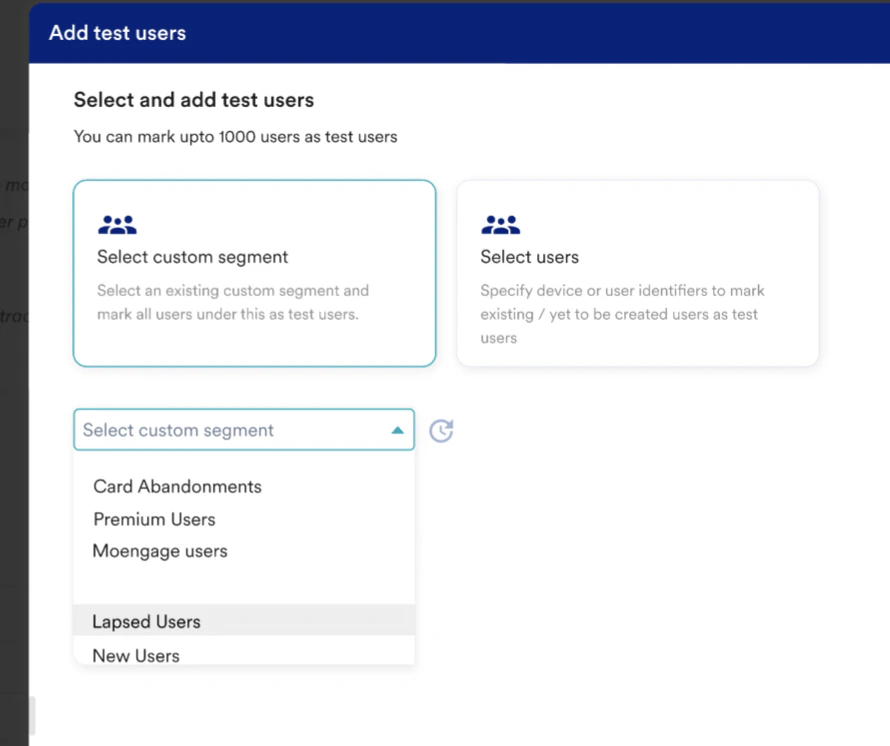
- Select one of the options:
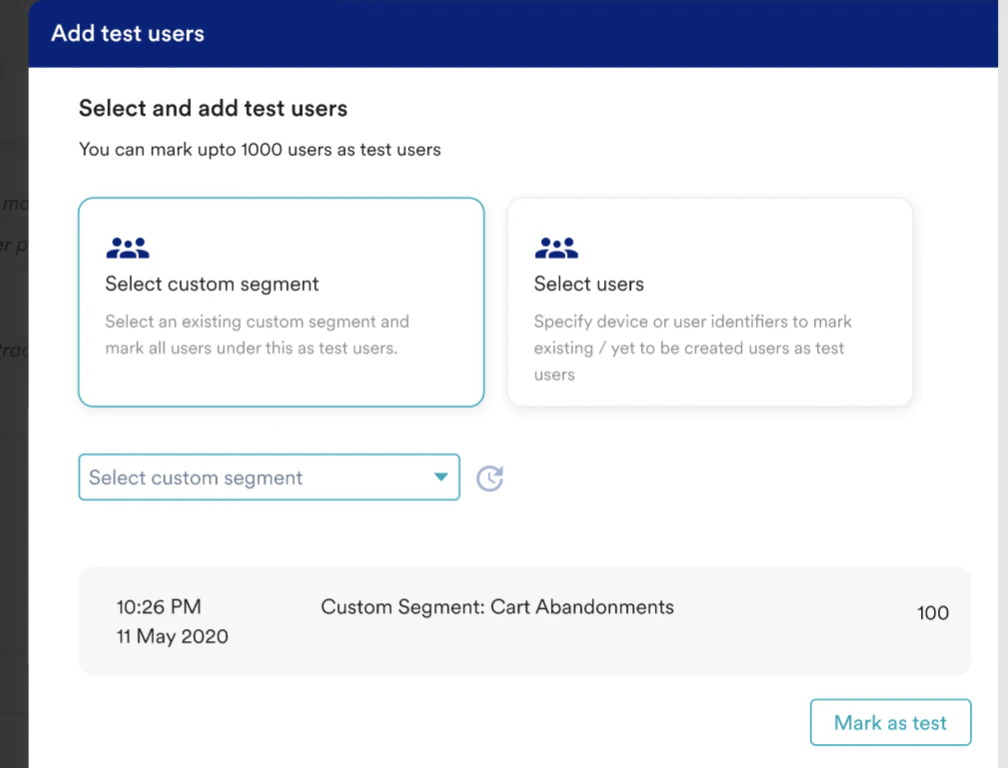
- Select custom segment
- If you want to mark all users from a custom segment, click the Select custom segment card.
- Select your desired custom segment from the drop-down.
- You can also run a query to see the count of the users in the selected segment.
- Click Mark as test to mark these users as test users. Note: Anonymous users in the custom segment will not get added as test users since they do not have Client ID / UID. You can add anonymous users as test users via GAID.
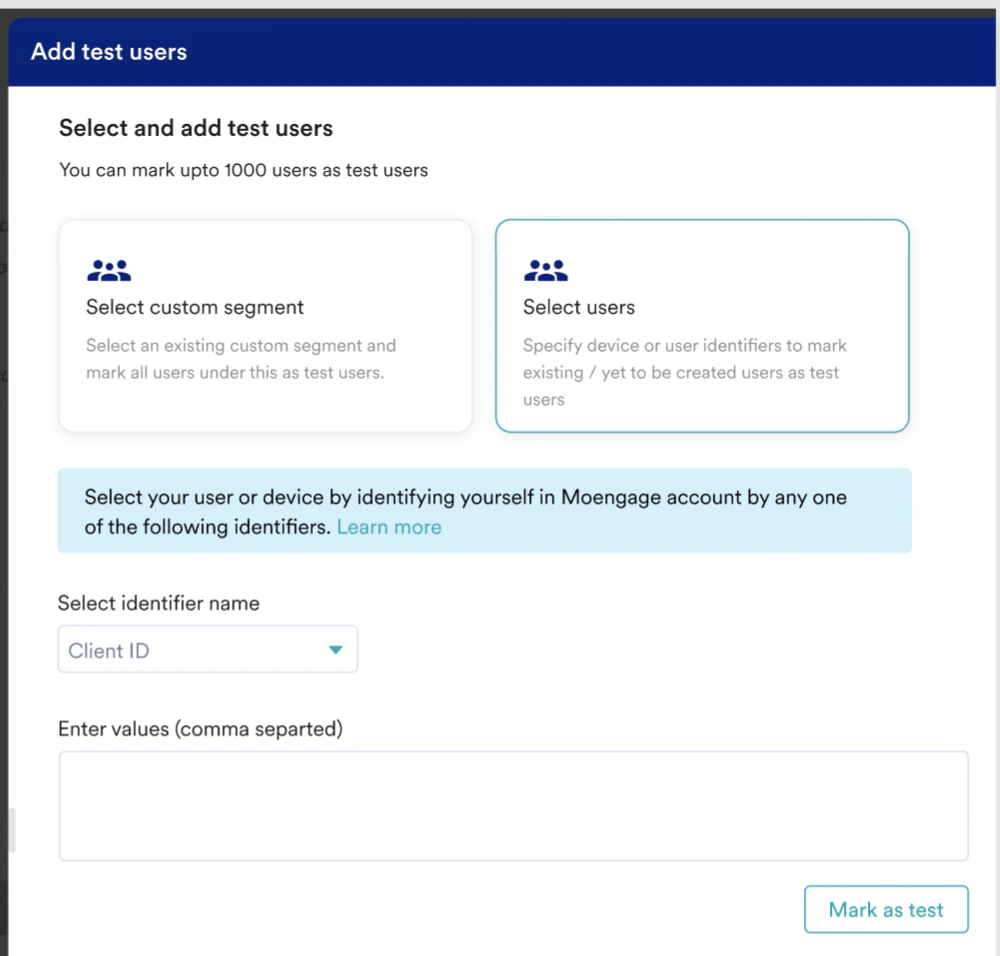
- Select users
- Click the Select users card if you want to mark some selected users as test users.
- You can select one of the user identifiers from the drop-down.
- Enter user detail or a comma-separated list in case of multiple users.
- Click Mark as test to mark these users as test users. Note:
- When we add via Client id, the users are added as “Test User”, thus their device ID is not shown in the Test Users dashboard ( where all test users are displayed)
- When we add via GAID, the devices are added as “Test Device”. On the test users’ dashboard, both users and device details are shown.
- Select custom segment
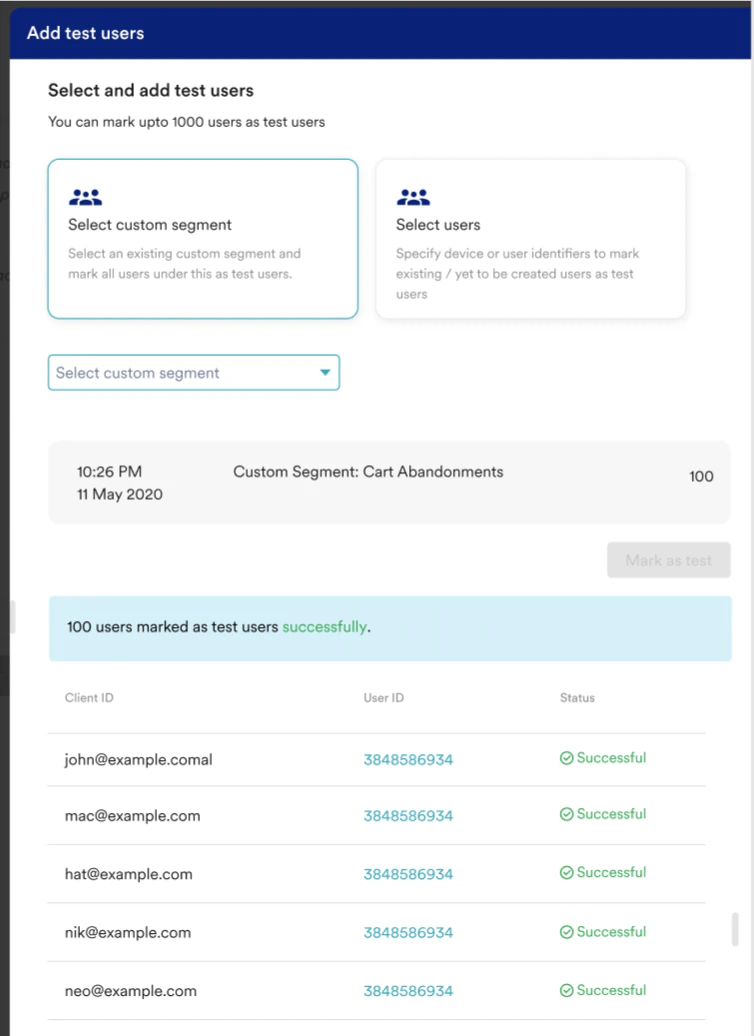
- Once you click Mark as test, users in the selected segments or selected users would be marked as Test users. And you will see the user details in the slide-out.
 Note: If some of the users failed, you will see the failure details in the same slide-out.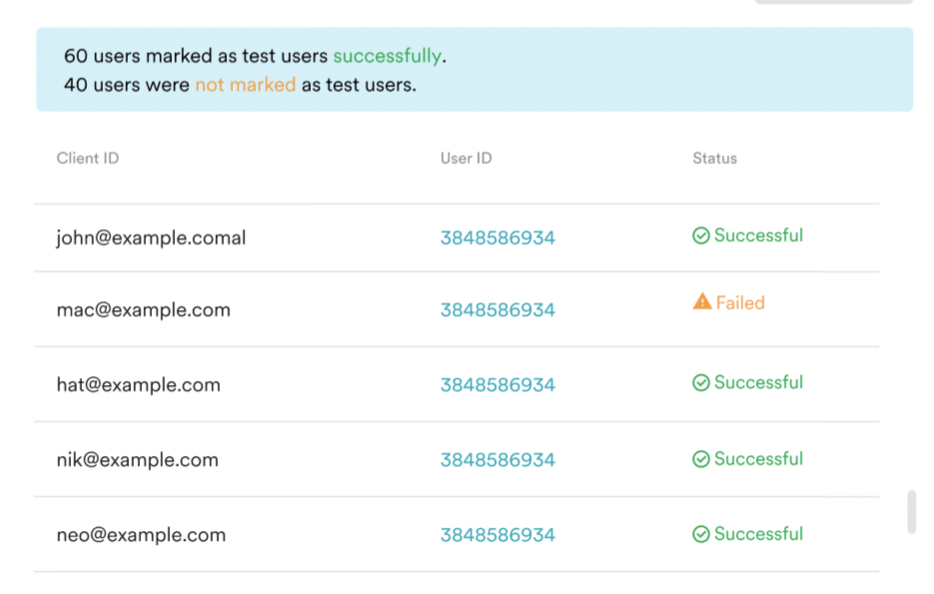
Mark test users from the user profile
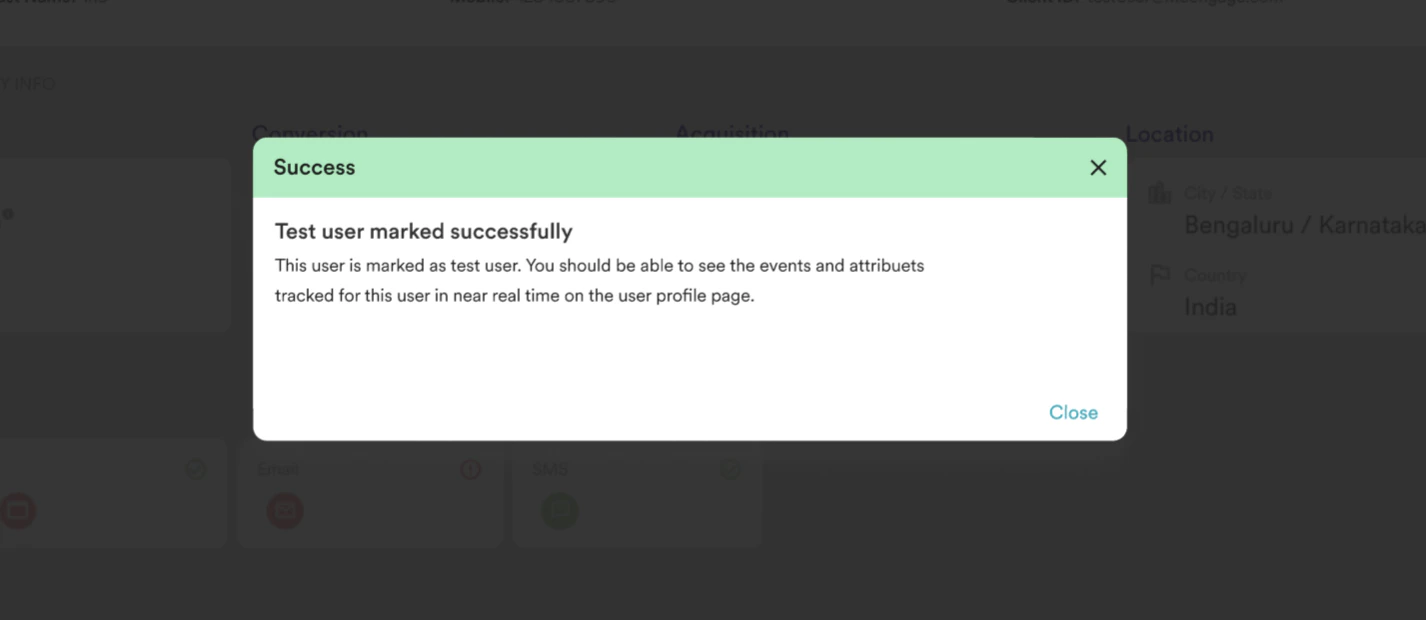
If you are already on a user profile and want to mark that user as a Test user, click Mark as test user on the top right. Note: Only registered users can be added as a “Test User” from the user profile page, not anonymous users.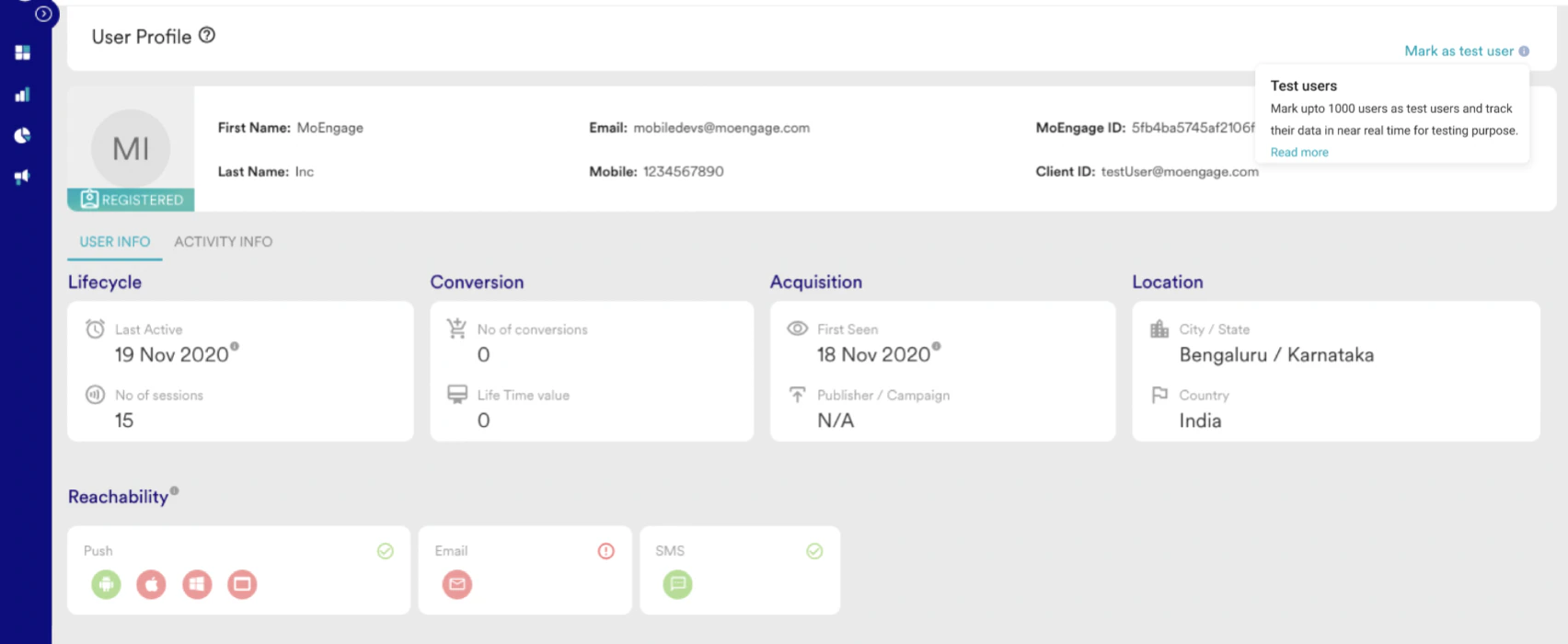
Access test users
- Go to Test and Debug at the bottom of your sidebar.
- The page will show the details of all the test users.
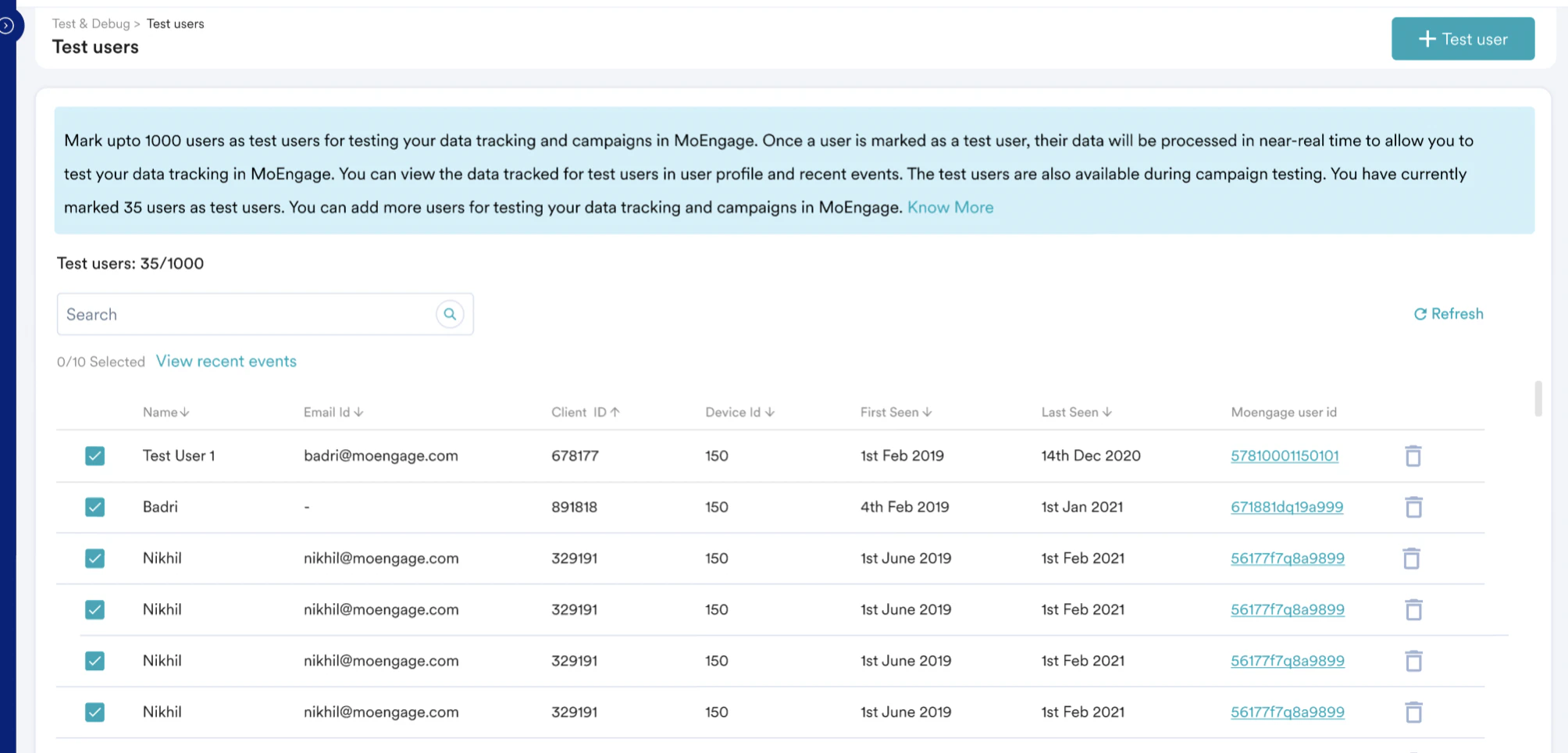
Access user profile
You can click the MoEngage user ID to go to the user profile page.View recent events
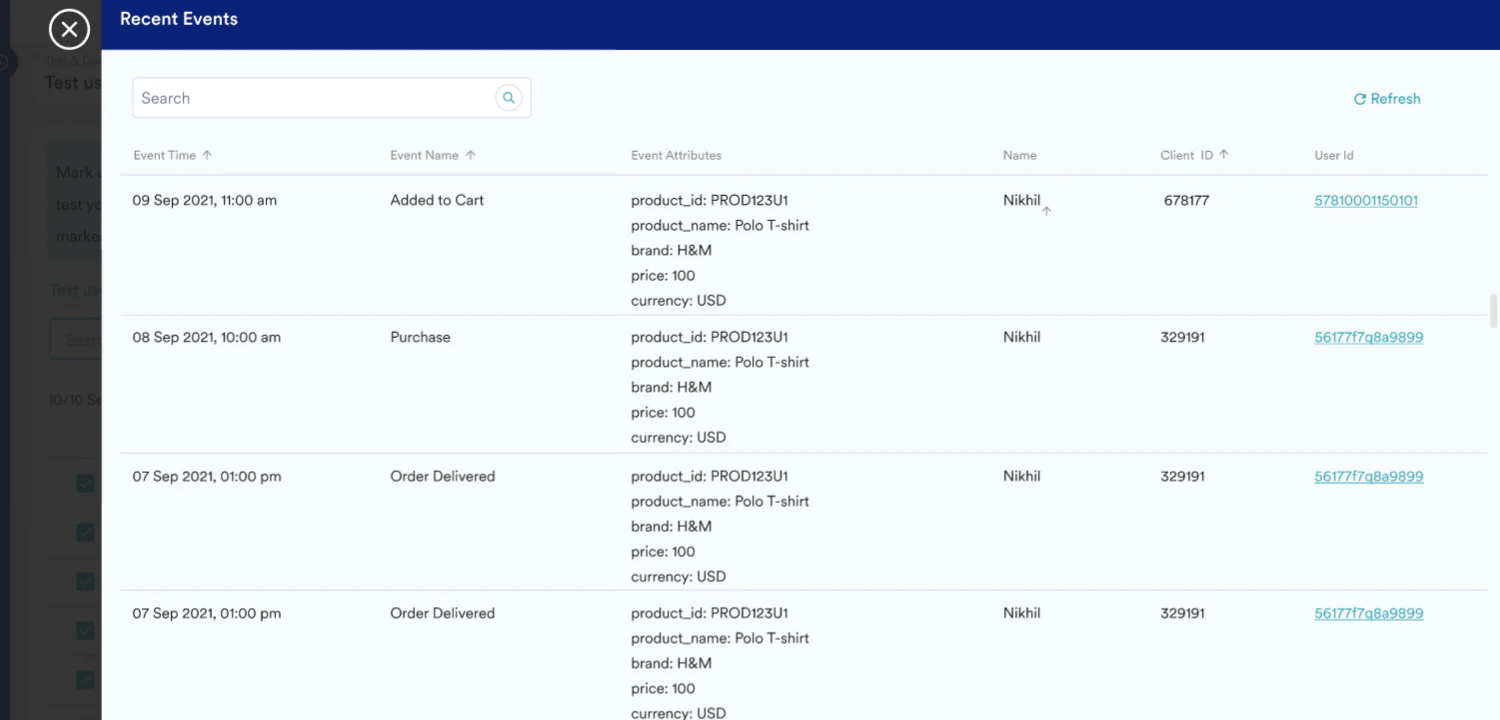
- Once you select one or more users, you will see an option (just below the search bar) to see the recent events for the selected users. Click View recent events.
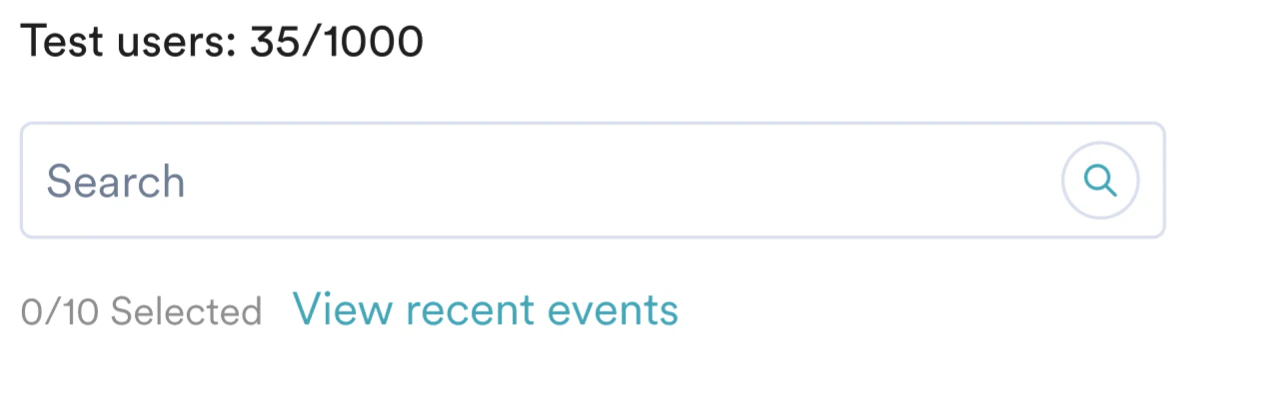
- The slide-out will show the recent 10 events for the selected users. Note: In the slide-out, we show a maximum of 10 events( of the last 24 hours) for each user.