

- Data ingestion: How to ingest data using Data APIs, SDK, and Data Warehouse while specifying the relevant project.
- Data management: How data, events, and user properties are managed and presented within a Portfolio-enabled workspace, including a breakdown of unique event and user property limits.
- User profile view: How user data is displayed at both the portfolio and individual project levels.
- Derived user properties: How derived user properties (for example, LTV, First Seen) are calculated and displayed at both the project and portfolio levels.
The Portfolio feature is designed to unify user data from multiple projects into a single profile based on a unique ID field. Because of this, Identity resolution (the process of merging profiles) based on custom attributes is not supported.
Data Ingestion
You (or your development team) can ingest data into a Portfolio-enabled workspace using:Data APIs
In MoEngage, data ingestion uses a unique ID to update a user property or event. For portfolio-enabled workspaces, you (or your development team) can use Data APIs (such as the Track User, Create Event, and Bulk Import API to pass a projectID in the parameters. This ID identifies which project a user or event belongs to. You can find the Project ID at Settings > Account > Portfolio in your MoEngage dashboard. Use case A brand has separate apps for “Brand A” (Project 1) and “Brand B” (Project 2). When a user downloads both apps, the Portfolio feature uses Data APIs or SDKs to ingest all their data. The projectID attribute identifies which brand the data originates from, ensuring all events and user properties are associated with the correct project while being unified under a single user profile.While ingesting data using Data APIs, any attribute passed without a projectID is considered a custom portfolio user property.
SDK
Supported SDKs where portfolio changes are available:Data Warehouse
The Portfolio feature enhances your data warehouse integration, giving you the flexibility to manage data correctly within your multi-project portfolio. This allows you to leverage your existing backend data for both brand-specific analysis and holistic customer understanding. MoEngage handles different data types as follows:- Event properties are ingested at the project level, allowing you to attribute specific actions to the correct brand.
- User properties are ingested at the portfolio level, and updates are applied to the user’s global profile across all your brands.
Event Properties (Project-Level)
For accurate analysis and segmentation in a portfolio, it is crucial to associate every event with a specific project. To achieve this, you must map a column from your data source to the dedicated MoEngage attribute:moe_project_name.
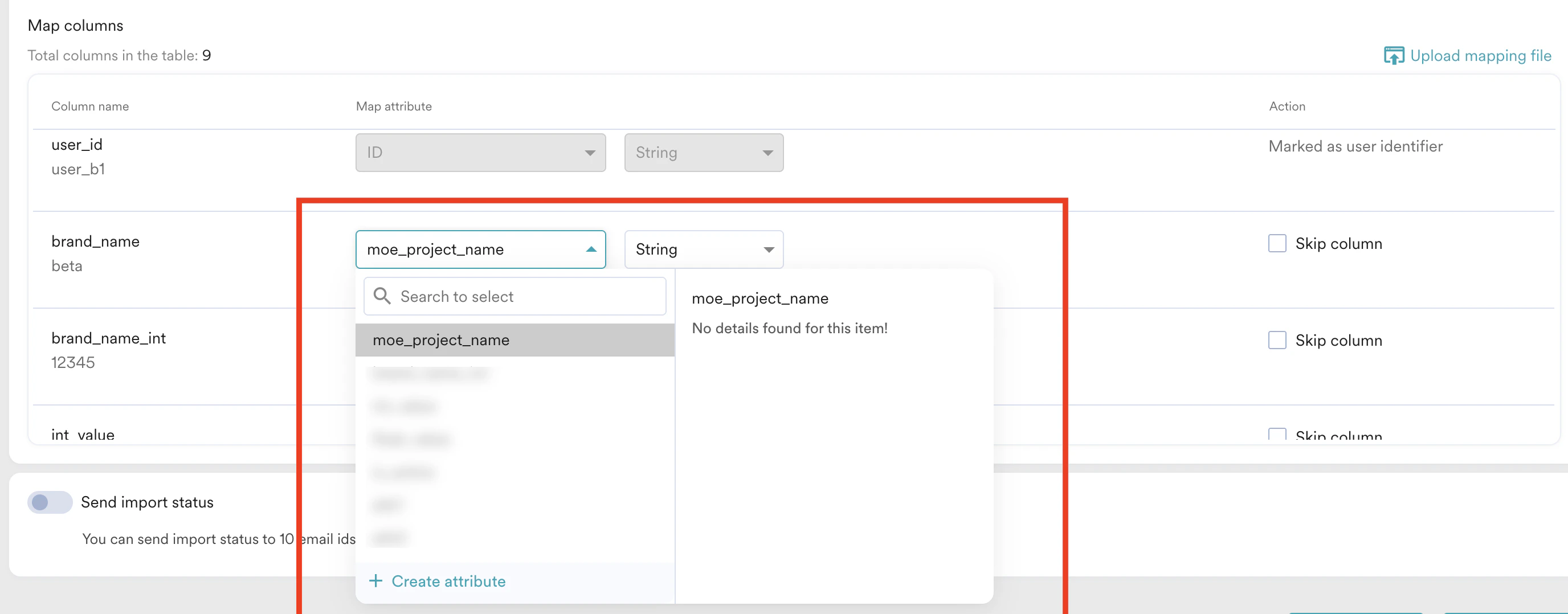
brand with values like “Project A” or “Project B” for each event.
During data warehouse setup, you would map your brand column to the MoEngage event property moe_project_name. This directs MoEngage to automatically assign each event to the correct project based on the value in that column.
Ingest User Properties (Portfolio-Level)
Conversely, any user properties you import are always applied at the portfolio level. This updates the user’s single, global profile and is not tied to a specific project. The process is the same as for non-portfolio accounts, requiring you to map standard columns likeUser ID and Updated at.
You cannot use this method to import or update project-specific user properties. Only global user properties are supported via data warehouse imports.
Data Management
A Portfolio-enabled workspace has the following details at Settings >Data > Data Management:- The Overview tab displays the total number of unique events and user properties for the entire portfolio. While you can pass events and user properties between projects, the portfolio-level limits remain fixed by default: 1024 unique events and 1024 unique user properties. Ensure the total sum of unique events and user properties across all projects does not exceed these limits. This simplifies the process of tracking total unique events and attributes across your entire business, ensuring you stay within the fixed limits.
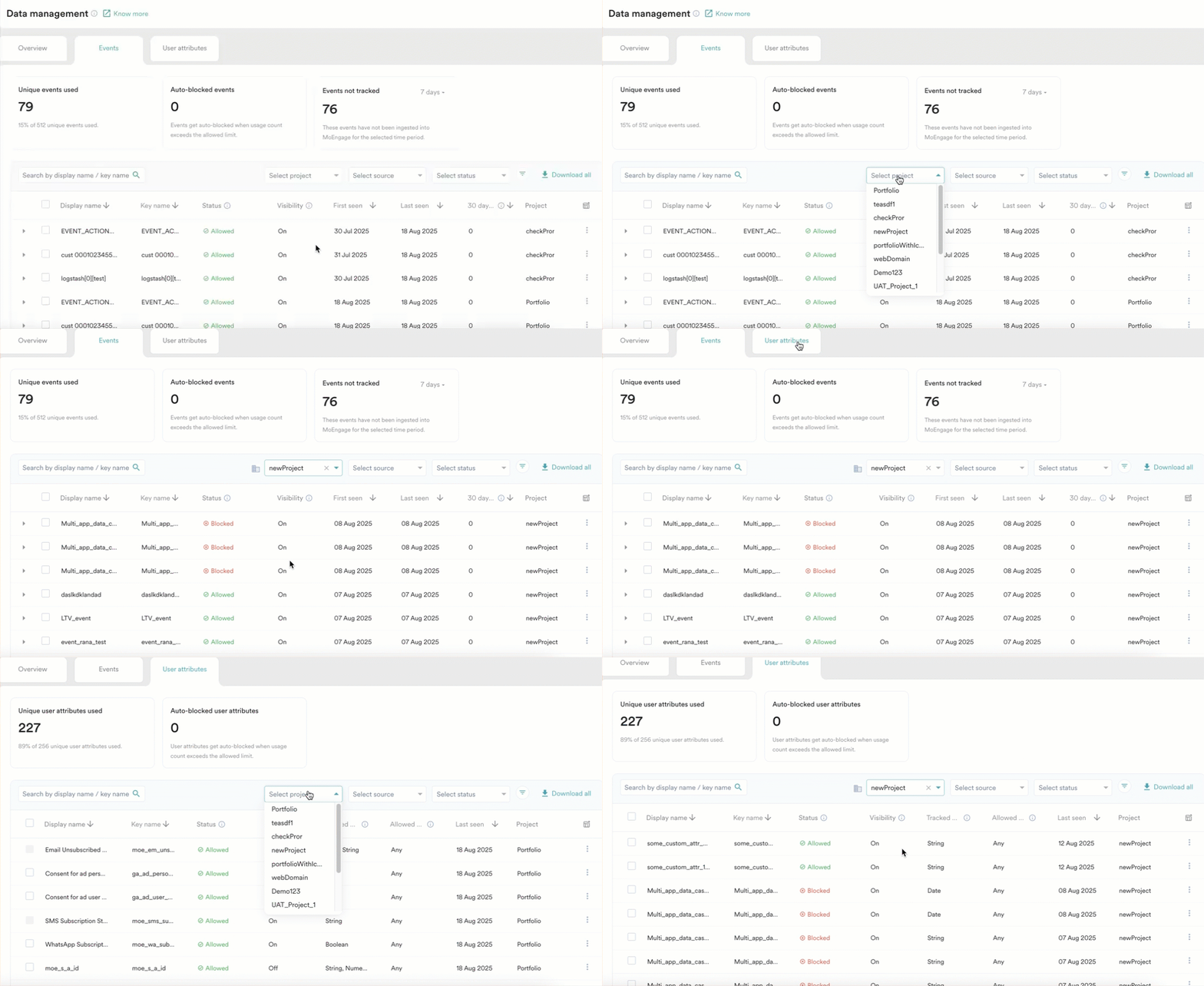
- The Events and User attributes tabs provide a holistic view of events and user properties across all projects. You can use the Select project list to filter the list and view data for specific projects.
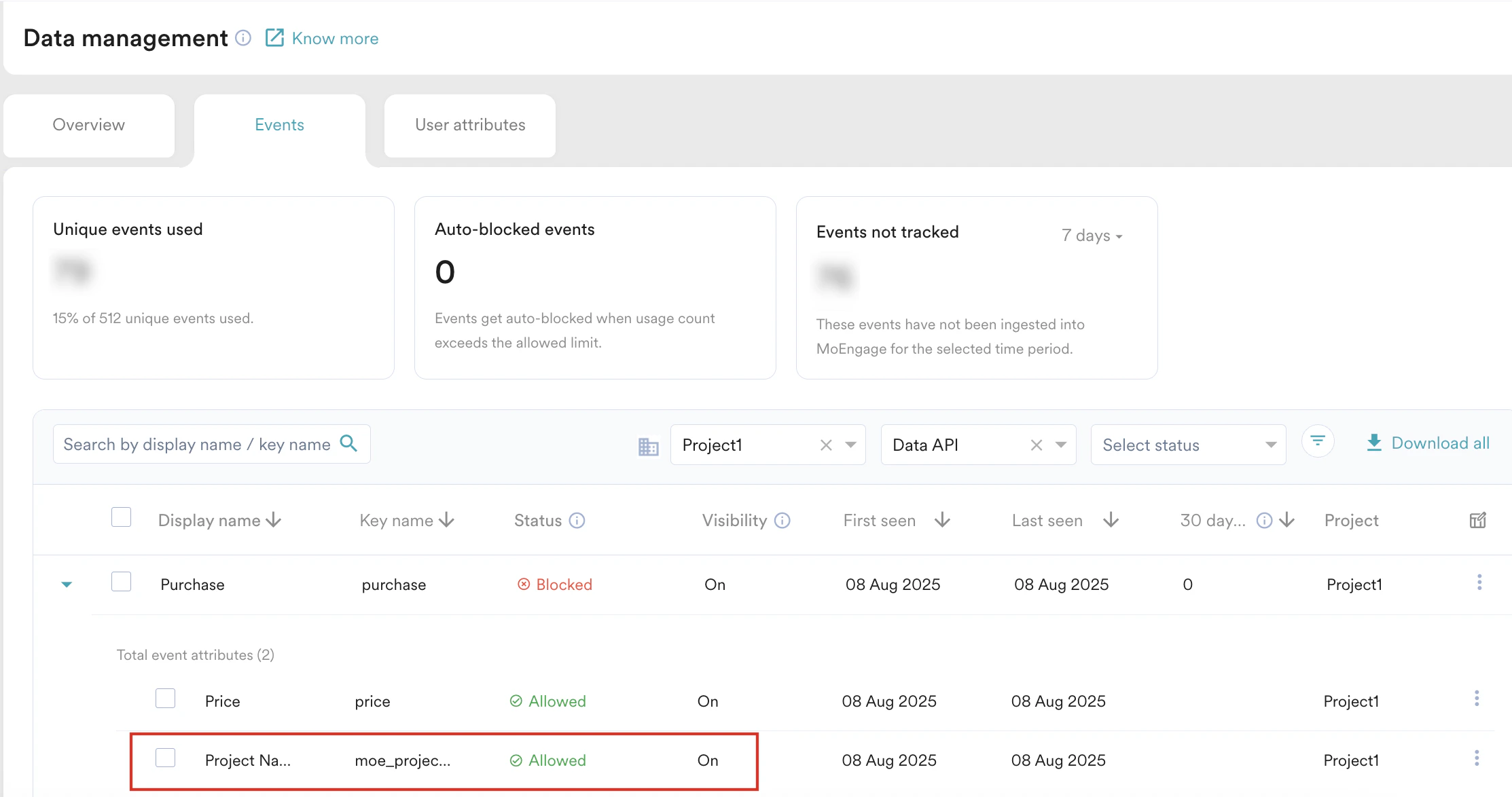
- For standard and custom events: MoEngage automatically adds the moe_project_name event property to all ingested events, specifying the project they originate from. For instance, a Purchase event from Project1 includes the attribute moe_project_name with a value of Project1.
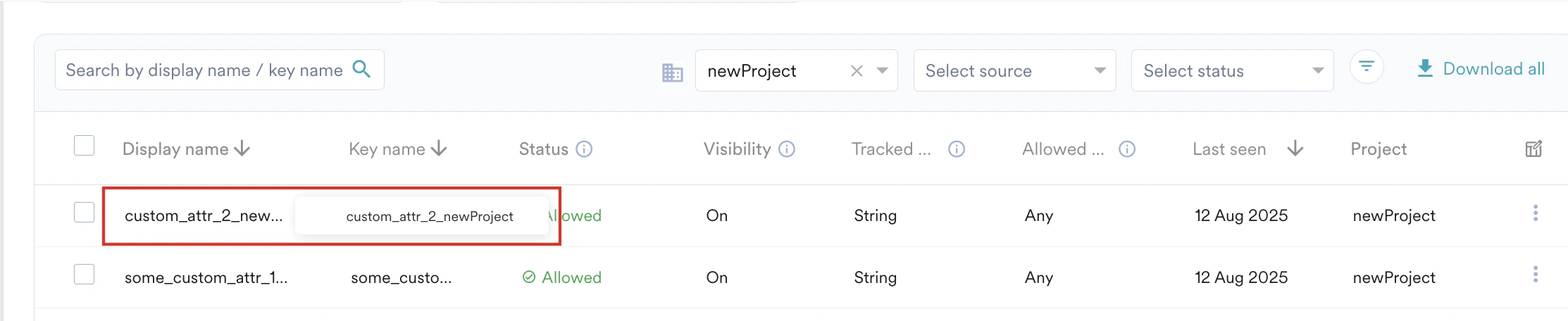
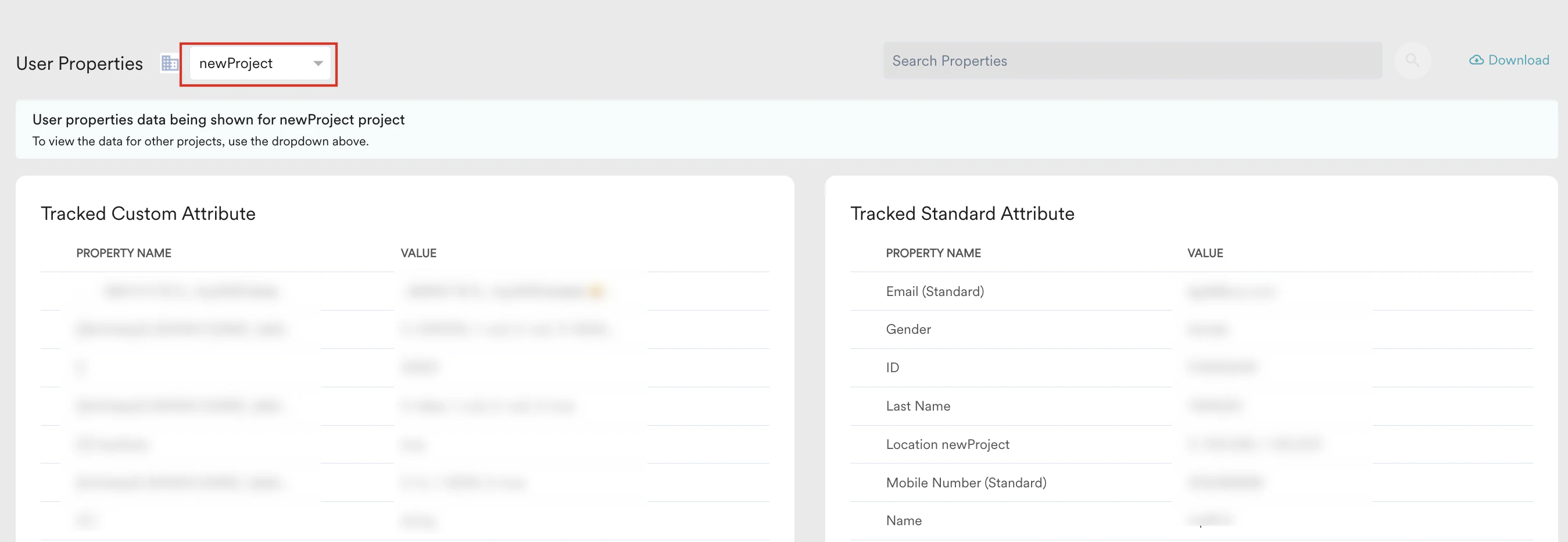
- For standard user properties: MoEngage adds the project name as a suffix to both the Display name and Key name of the user property. For instance, the display and key name for the custom_attr_2 user property from newproject is custom_attr_2_newproject.
- For custom user properties: MoEngage adds the project name as a suffix to the Key name, and the Display name remains the same as passed by the user without any suffixing. For instance, the key name for the custom_attr_2 user property from newproject is custom_attr_2_newproject, and the display name is custom_attr_2.
User Profile
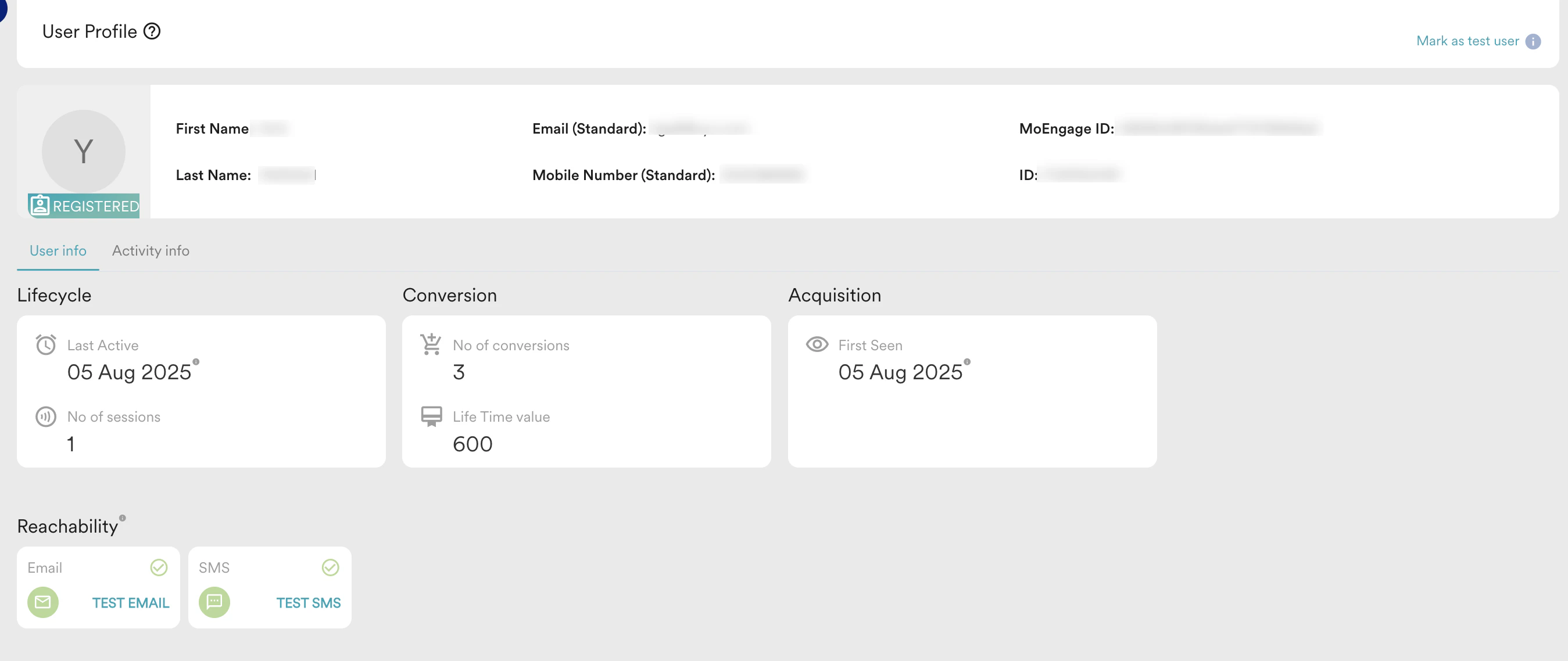
When Portfolio is enabled, the User Info tab in a user profile displays information at both the portfolio and project levels. For example, a user who interacts with both “Brand A” and “Brand B” will have a single profile where you can view their total LTV Portfolio, which is the sum of their LTVs from both projects. In a user profile, you can view the following details at the portfolio level:- First Name
- Last Name
- Email (Standard)
- Mobile Number (Standard)
- MoEngage ID
- ID
- Lifecycle
- Conversion
- Acquisition
- Reachability
Derived User Properties Behaviour
If you have custom attributes with the same name across different projects, ensure you rename them in Data Management. This helps avoid confusion and ensures accuracy in personalization and conversions.
FAQs
What happens if the total number of unique user properties and events across all my projects exceeds the 1024 limit?
What happens if the total number of unique user properties and events across all my projects exceeds the 1024 limit?
All the unique user properties and events that exceed this limit are auto-blocked.
Is it possible to merge user profiles using custom user properties in a Portfolio-enabled workspace?
Is it possible to merge user profiles using custom user properties in a Portfolio-enabled workspace?
No, it is not possible.