

Prerequisites
Before using notification channels, confirm you meet these requirements:
- Target SDK: Your app must target Android Oreo (Android 8.0 / API level 26) or later. If your app targets an older version but runs on an Android Oreo device, it behaves as it does on Android 7.1 / API level 25.
- MoEngage SDK: Update the MoEngage Android SDK to v8.0.00 or higher.
Configuration Workflow
Follow these steps to configure notification channels for your campaigns.Step 1: Manage Notification Channels
Map the notification channels your developers configured in the app to the MoEngage dashboard.- Navigate to the step-2 define content of the campaign creation flow.
- Expand the Basic details section.
- Locate the Notification channel drop-down menu.
- Click + Manage notification channel to open the configuration modal.
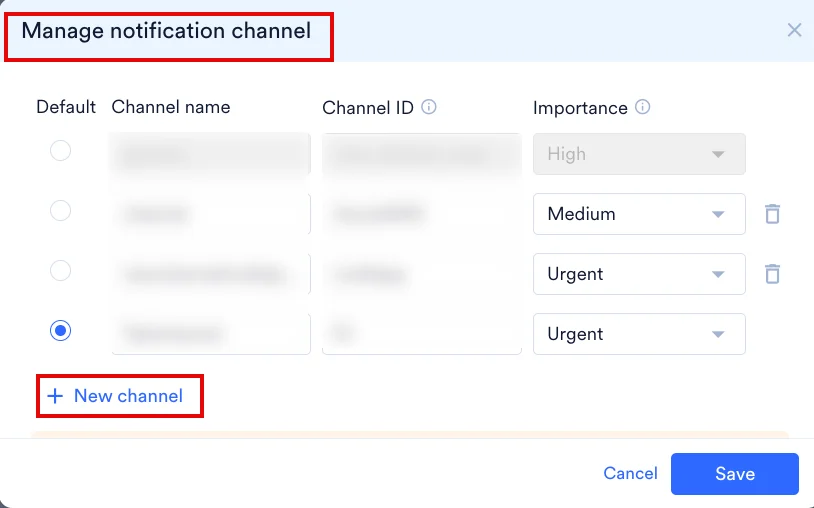
- Channel name
- Channel ID (as defined in the app code)
- Importance level, the priority that controls how intrusively the notification appears on the device.
The importance you set should match what your developers configured for that channel in the app code. If they do not match, end users experience the behavior defined in the app, not the label shown on the dashboard.
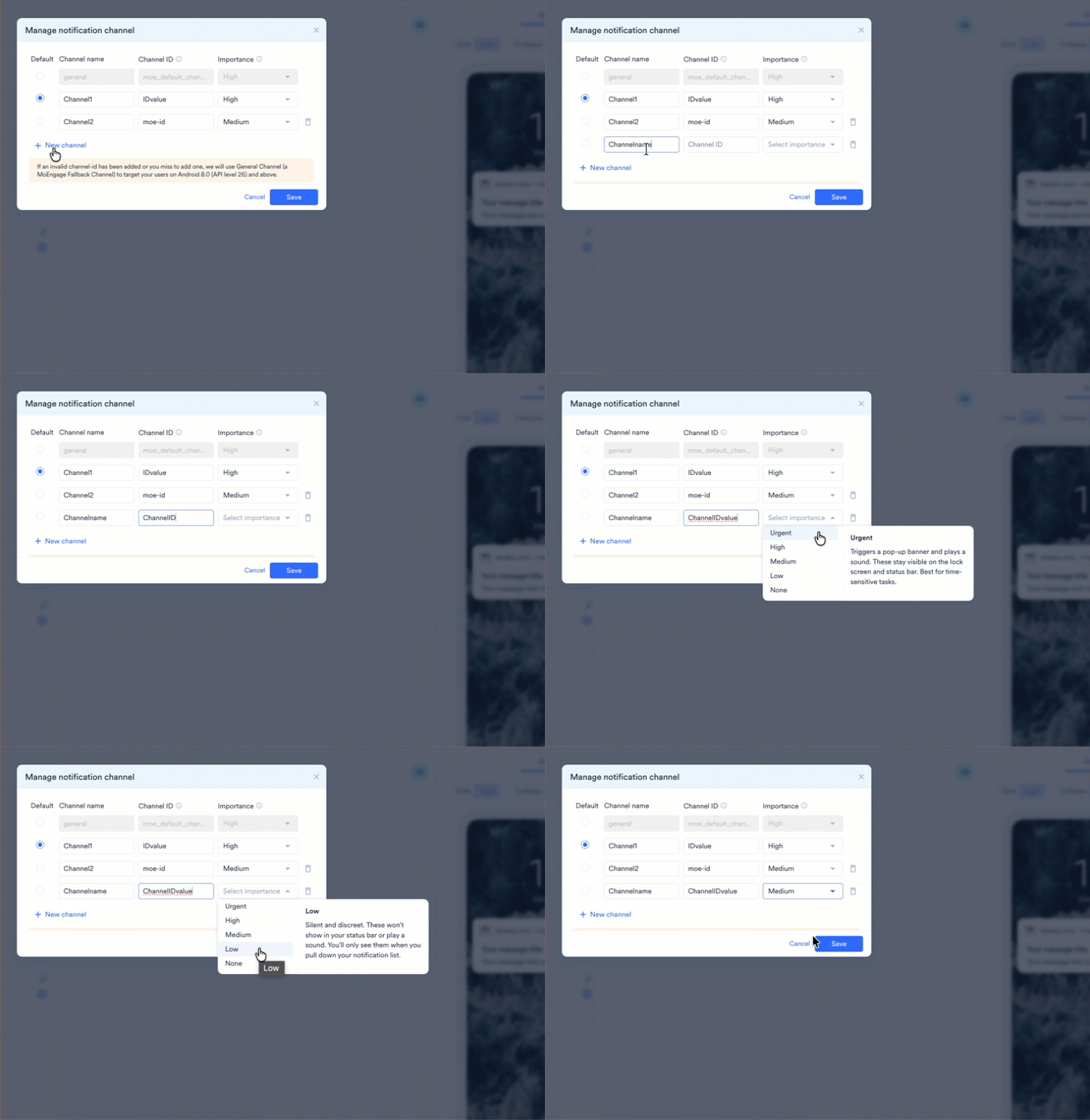
Step 2: Set a Default Channel (Optional)
To streamline future campaign creation, you can designate a specific channel as your default.- After you add and save a channel, select the Default radio button next to it.
- Click Save. MoEngage pre-selects this channel for all future campaigns.
Step 3: Select a Channel for Campaign Delivery
Select the channel that best fits your campaign. All notifications sent through a channel share its configured behavior.Fallback Behavior: If you provide an invalid Channel ID or skip the channel selection, MoEngage automatically uses the General channel to deliver notifications to users on Android 8.0 (API level 26) and later.
Channel Importance Levels Reference
When you select a channel, the dashboard shows a summary of its behavior based on its importance level.Exception Handling: Unknown or Missing Importance
Channels added before the Importance feature was introduced show their importance as Unknown, flagged with an amber indicator in the channel picker. Unknown is not an error. It means importance has not been declared yet, not that the channel is broken. You can still send campaigns on a channel with Unknown importance. The amber flag is a prompt to set a level. To resolve it, open Manage notification channel, select an importance level for each Unknown channel, and click Save. What the dashboard shows when a channel has Unknown importance:- Channel picker: The channel shows Unknown with an amber indicator next to its name.
- Inline warning: Below the Notification Channel field, the message reads: “Channel importance: Unknown. Ask channel implementer to define the required further behavior for the device.”
- Error banner: A broader warning may appear: “Missing importance breakdown. The behaviour of notification cannot be determined. Explore channel importance for expected behaviour.”
MoEngage does not create, read, update, or delete notification channels in your app. Your developers manage the full channel lifecycle in the app code.
End-User Experience and Controls
Once developers create and register a channel with the Android Notification Manager, they cannot change its behavior in code. Users have full control over these settings from that point on. Regardless of the importance declared on the dashboard, users can modify or block the channel from their device Settings. User-level preferences always override the app’s configuration. Users can go to their device Settings or long-press a notification to adjust or block a channel. When users change any of the following settings, their preferences override the app’s defaults for that channel:- Importance
- Sound
- Lights
- Vibration
- Show on lock-screen
- Override “Do Not Disturb”