

Introduction
As marketers, we want to elevate our website into a sophisticated and responsive digital storefront that anticipates each visitor’s individual preferences. MoEngage Personalize enables you to show recommended products using product grids. By leveraging advanced recommendation algorithms in conjunction with an intuitive no-code WYSIWYG editor, you can seamlessly embed personalized product grids directly within your web interface. This provides users with a seamless and enjoyable shopping experience by presenting them with relevant and personalized content generated from user behavior and preferences. Such personalized recommendations are more likely to be relevant and interesting to users, leading to enhanced user engagement metrics, increased click-through rates, and the potential for higher conversion outcomes for the site.Advantages of using a product grid
- Increased sales performance: Recommending products using product grids helps users check other similar products related to their interests and products they may buy together. This increases sales and triggers users to purchase additional products.
- Personalised recommendations: With product grids, you can recommend personalized products based on the user’s interests, which creates better engagement and helps users explore more based on their interests and make purchases.
- Efficient marketing: Recommending products based on users’ behavior and interest significantly reduces your marketing costs and efforts spent on engaging general audiences who are not interested in your product.
- Builds brand awareness: Engaging users with personalized content based on their interests and behavior builds better brand awareness and reputation among the audience.
- Better user experience: Recommending products based on user interest improves user engagement and provides a better user experience, attracting more users.
Expected Result
User experiences personalized recommendations in product grids on your website.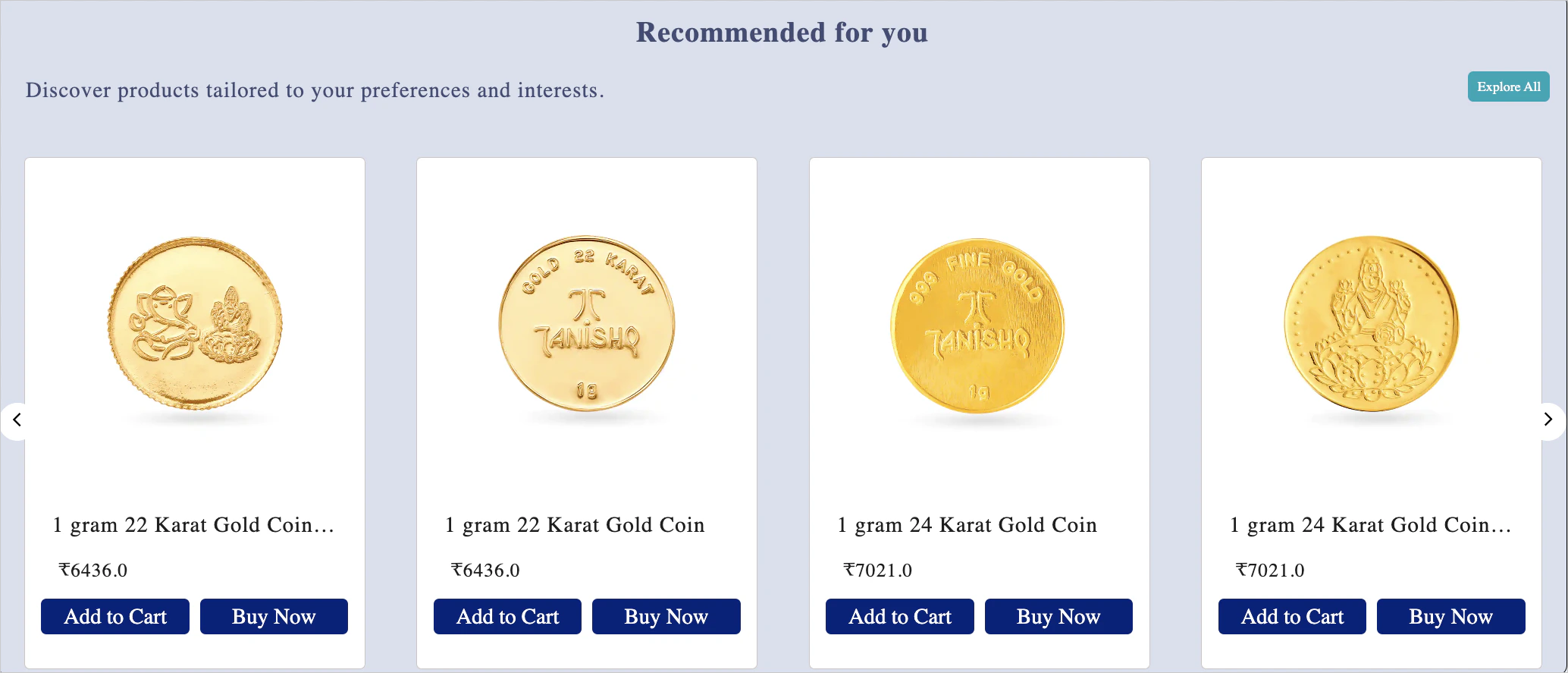
Add Product Grids
Proceed with the following steps to add product grids to your website:- After you have created a Recommendation set, proceed to create a new Personalize Experience. For more information, refer to Create an Experience.
- In Step 2 (Content) of creating a web personalized experience, click Personalize in the respective variation where you want to add the product grid and your website URL.
- Invoke the Personalize editor by clicking where you wish to add the grid to the website.
- Select + Add Widget from the list.
- Click the Product grid from the Select widget window pane.
- Choose the location (before or after) to insert the element before or after the element chosen on the screen.
- In the Edit Item Grid, you can configure Grid Appearance, Edit cards, and Map Information.
Step 1: Grid Appearance
Specify the details for the grid’s layout. The following options are available: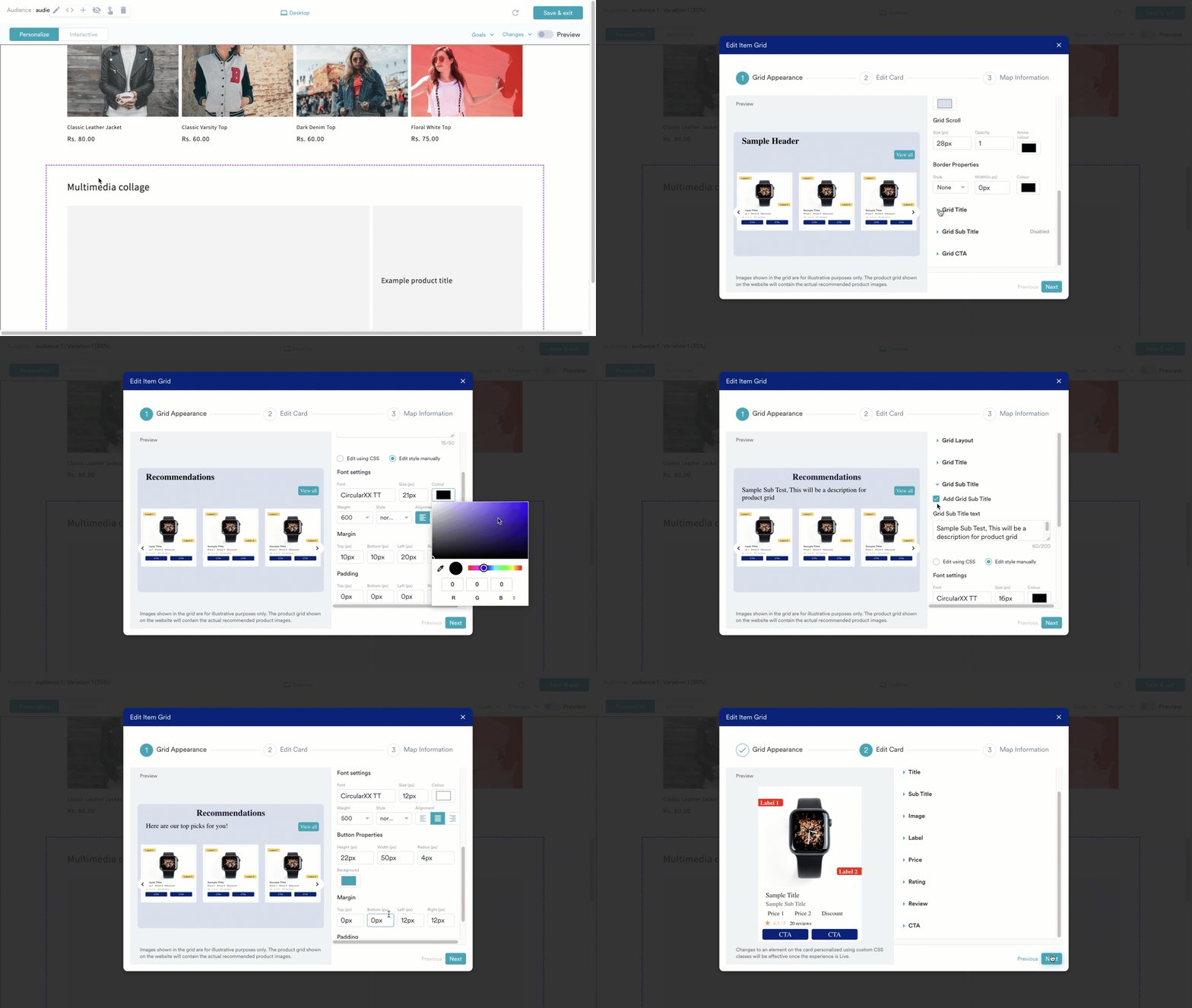
Step 2: Edit Card
This option allows you to define each recommendation’s layout, style, and individual elements (referred to as a card). The information shown in the preview (Image, Labels, Price, etc) is only for illustration purposes. This information is rendered from the recommendation mapped to the grid in Step 3 (Schedule and goals). The edit options are listed below: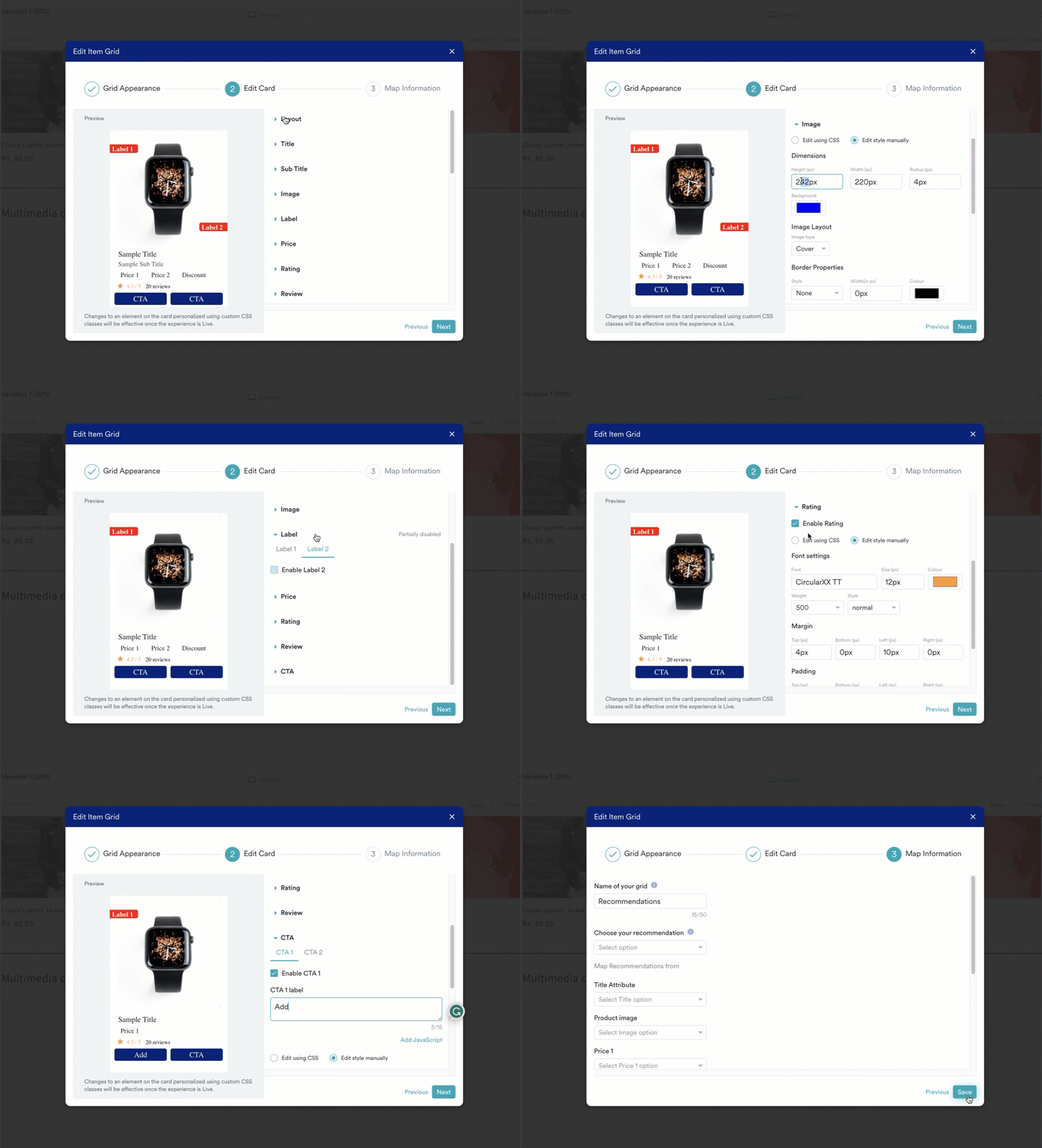
Step 3: Map Information
- Map the Product Grid to Recommendations. The available options are:
Field Description Name of your grid This is the name of your product grid and is displayed on the Experience Analytics page of the MoEngage dashboard to show user interaction stats. Choose your recommendation Select the Recommendation to which your Product Grid should be mapped. Map Recommendations from In this section, you can map the individual elements in your product grid to attributes in the chosen Recommendation, as illustrated in the following image. 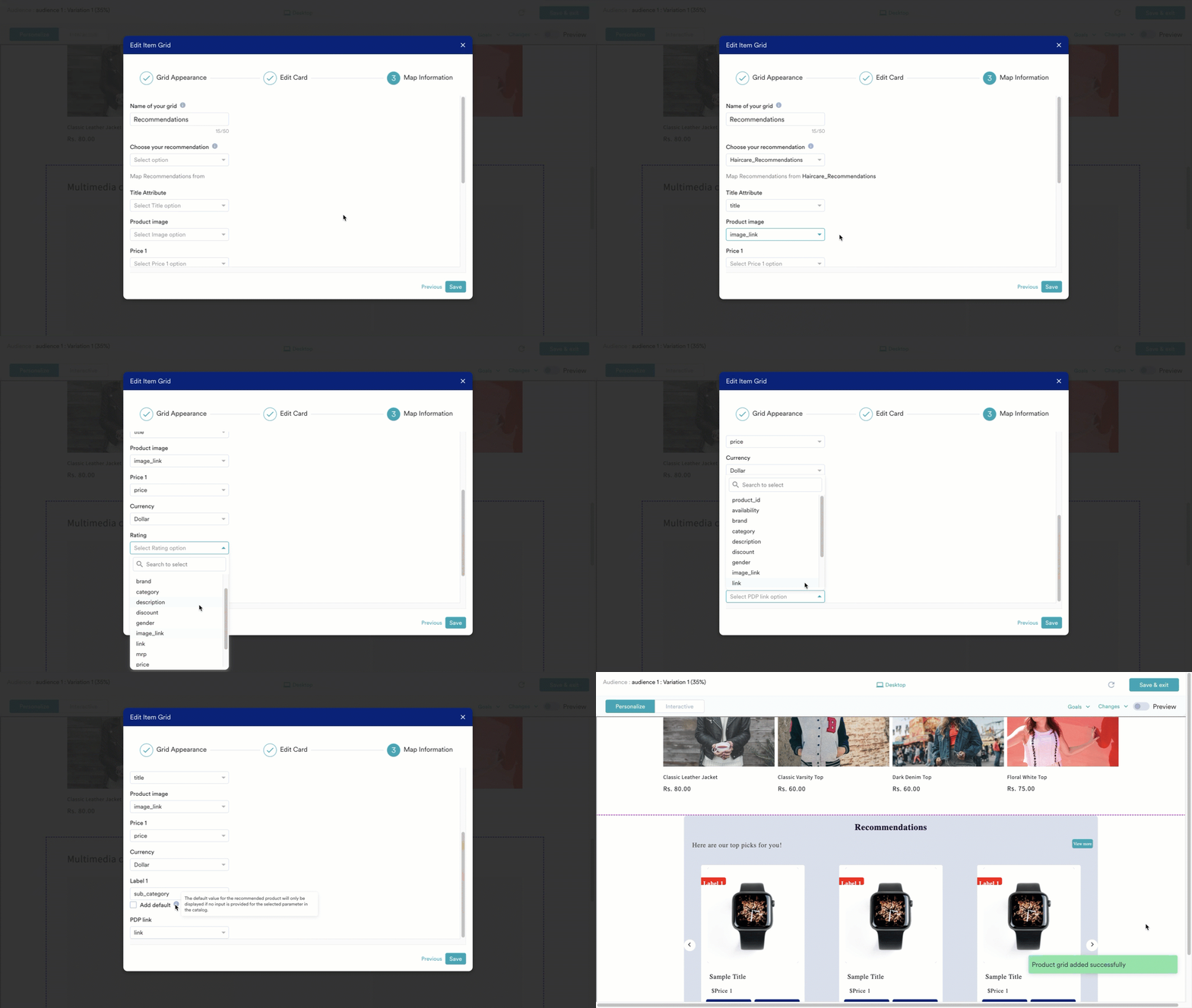
- Click Save to add the Product Grid to the webpage. The visual editor will show the product grid with placeholder values for the product image and the individual elements on the card. Actual values from the product catalog will be visible once your website’s web experience goes live. If you choose to apply custom CSS to the grid and the card elements, the changes to the grid appearance will be visible once your website’s web experience is live.
Conclusion
In this use case, we used MoEngage Personalize to show recommended products using product grids. After the experience with the recommended product grid goes live, you can track the stats related to the product grid in the Analytics section of the experience. For more information, refer to Experience Analytics.Common Use Cases
All MoEngage AI products, which were previously referred to as Sherpa AI, are now known as Merlin AI.