

Introduction
OneXtel is a leading Communication Platform as a Service (CPaaS) provider, offering seamless, end-to-end communication solutions. Their product offering includes channels such as SMS, Voice, WhatsApp, Chatbot, RCS, and Email services tailored for businesses of all sizes. MoEngage natively integrates with OneXtel to send WhatsApp templates directly from MoEngage to end users via Flows and campaigns. This enhances customer engagement by leveraging WhatsApp as a communication channel for automated messages and marketing campaigns.Before integration, ensure you have the following:
- An active MoEngage account
- A WABA Number (WhatsApp Business API number)
Step 1: Sender Configuration
To configure a sender from OneXtel WhatsApp, perform the following steps:Step 1.2 Obtain the API Key from OneXtel
Before configuring MoEngage, generate the API key from the OneXtel portal.- Log in to your OneXtel portal account.
- Navigate to the API section.
- Click Show API Key to view your existing key.
- If no key is available, click Generate API Key to create a new one.
Step 1.3 Configure WhatsApp Outbound Sender in MoEngage
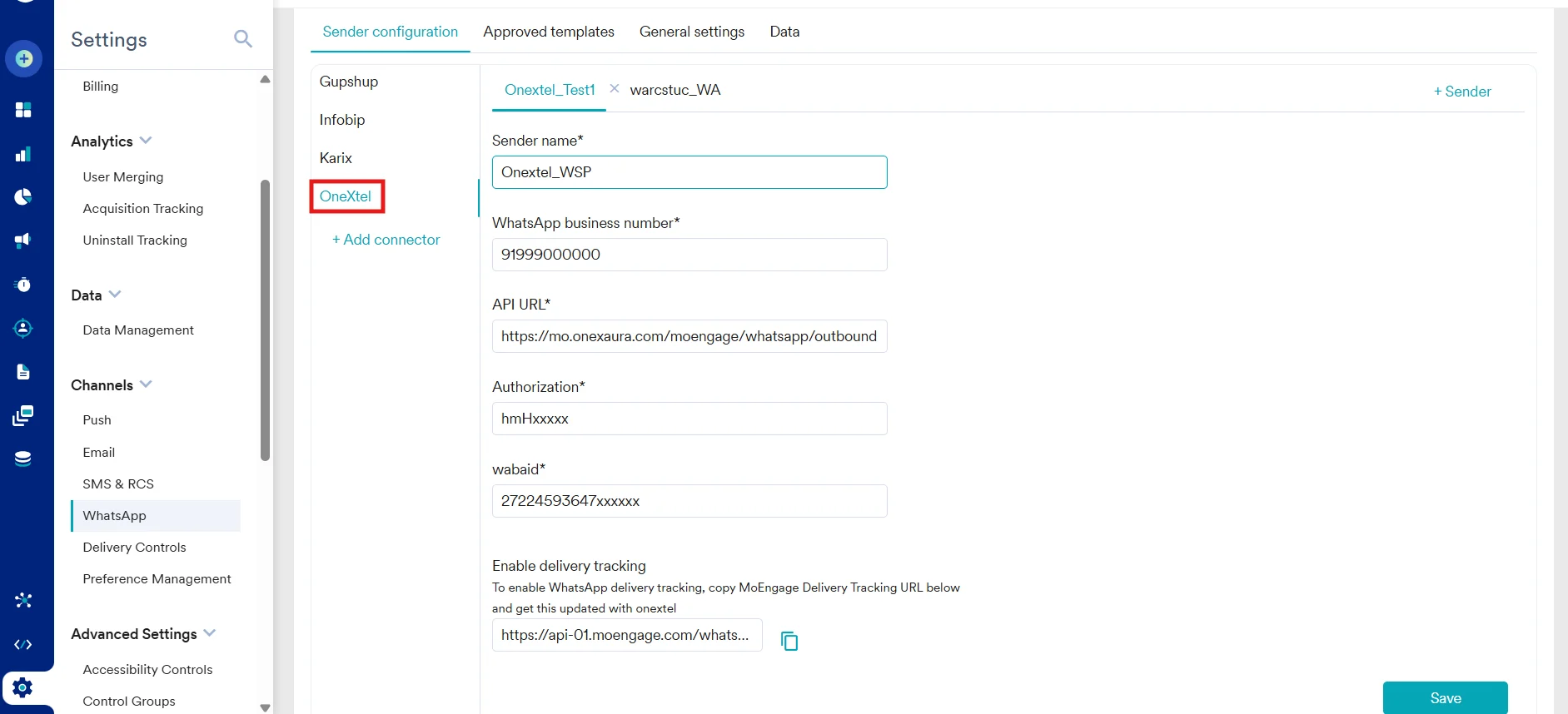
To configure a sender from OneXtel on the MoEngage dashboard, perform the following steps:- On the MoEngage dashboard, navigate to Settings > WhatsApp > Sender Configuration.
- On the left navigation menu, click OneXtel, and then click + Sender.
- Enter the following details in the sender configuration window:
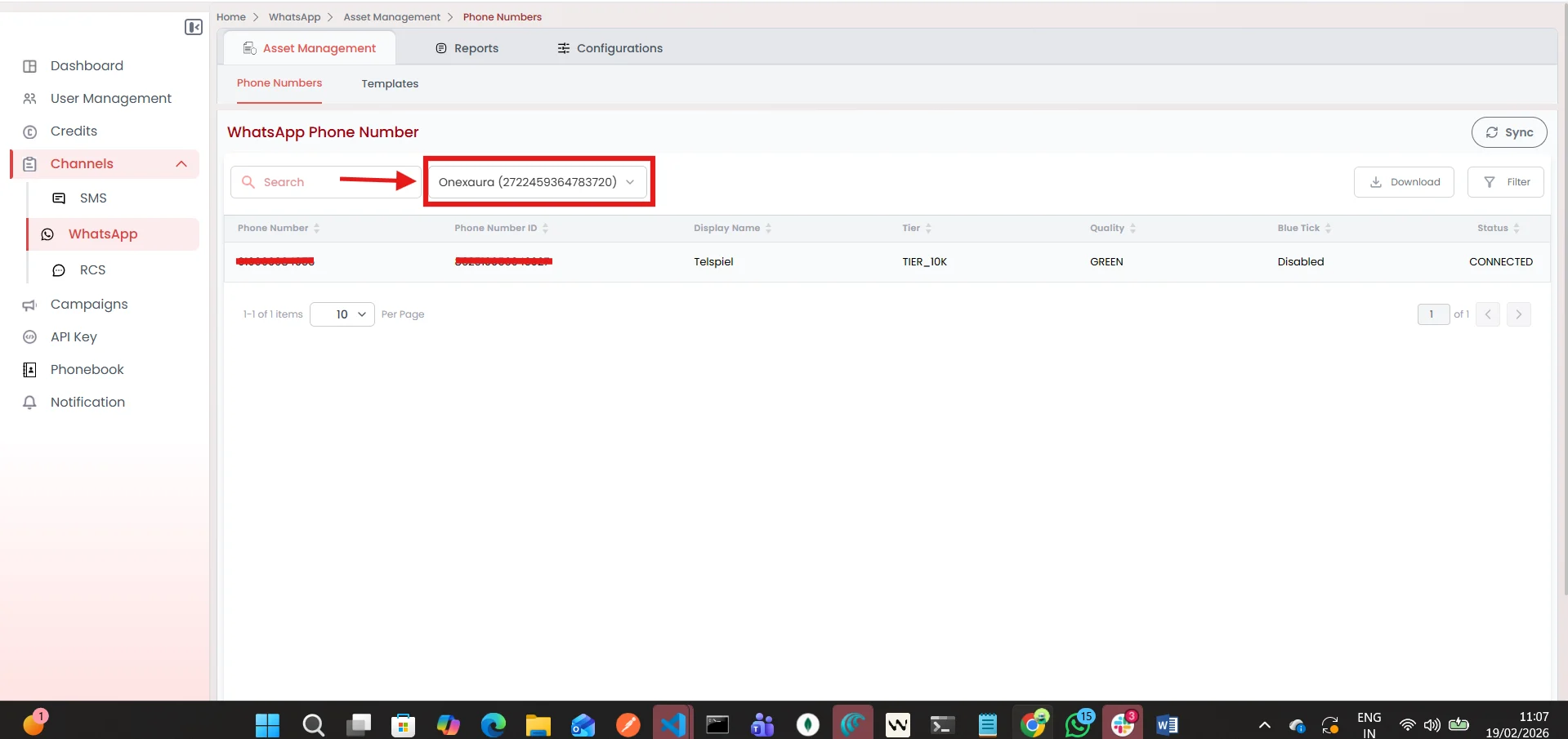
Field Required Input Value / Action URL Enter https://mo.onexaura.com/moengage/whatsapp/outboundWABA ID Obtain this from the OneXtel dashboard under Channel > WhatsApp. Authorization Paste the API key generated in Step 1. WABA Number Enter the registered WhatsApp Business API number (retrieved from your OneXtel Dashboard). - Click Save to complete and store the configuration.
Step 2: Callback and Inbound Configuration
Step 2.1 Configure Callback in OneXtel
To configure delivery status tracking callbacks on OneXtel:- In your OneXtel dashboard, navigate to the Configuration section, and click Add New Callback.
- In the Title field, enter an appropriate title.
- In the Channel dropdown list, select WhatsApp, and in the Callback Format Type dropdown, select MoEngage.
- Ensure that the same API Key used in your MoEngage configuration is selected.
- Under the Request Configuration section, select Delivery Notification as the type, and select POST as the HTTP Method.
- In the URL field, paste the callback URL you copied from your MoEngage dashboard, and then click Save.
Step 2.2 Configure Inbound Messages and Button Clicks in OneXtel
To receive inbound customer messages and quick reply button click events:- In your OneXtel dashboard, navigate to the Configuration section, and click Add New Callback.
- Enter a title, select WhatsApp as the channel, and select MoEngage as the callback format type.
- Under the Request Configuration section, select Incoming as the type, and select POST as the HTTP Method.
- In the URL field, enter
https://mo.onexaura.com/moengage/whatsapp/inbound. - Scroll down to the Header section and add the following attributes:
- Key:
callback_url - Value: The Delivery Report (DLR) URL of your MoEngage dashboard.
- Key:
- Click Save to complete the configuration.
 Note: Supporting Quick Reply Button Clicks Apply the same steps outlined in Step 4 to support Quick Reply button clicks. However, under the Request Configuration section, set the Type to Button Click (the HTTP Method remains POST). The Inbound URL and Button Click URL are identical, and the Header key and value remain unchanged.