Introduction
This guide provides detailed instructions for setting up MoEngage Custom Activities in Salesforce Marketing Cloud (SFMC). Follow these steps to ensure a smooth integration and usage.Prerequisites
- Salesforce Marketing Cloud Access: Administrator and Marketing Cloud Administrator permissions are required.
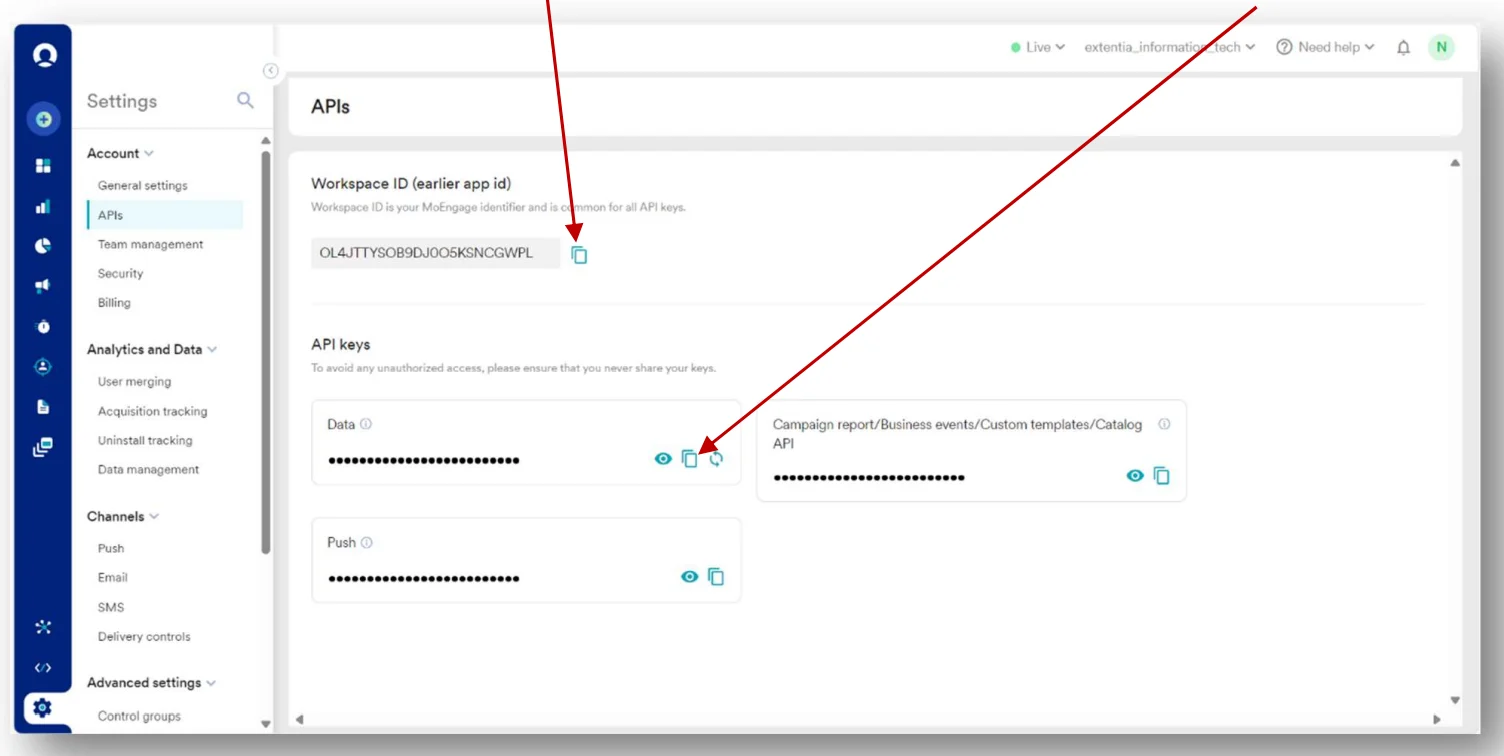
- MoEngage API Credentials: Ensure you have access to your MoEngage APIs (Settings > Accounts > APIs).
Step 1: Set up MoEngage custom activity
To set up the MoEngage custom activity, perform the following steps:-
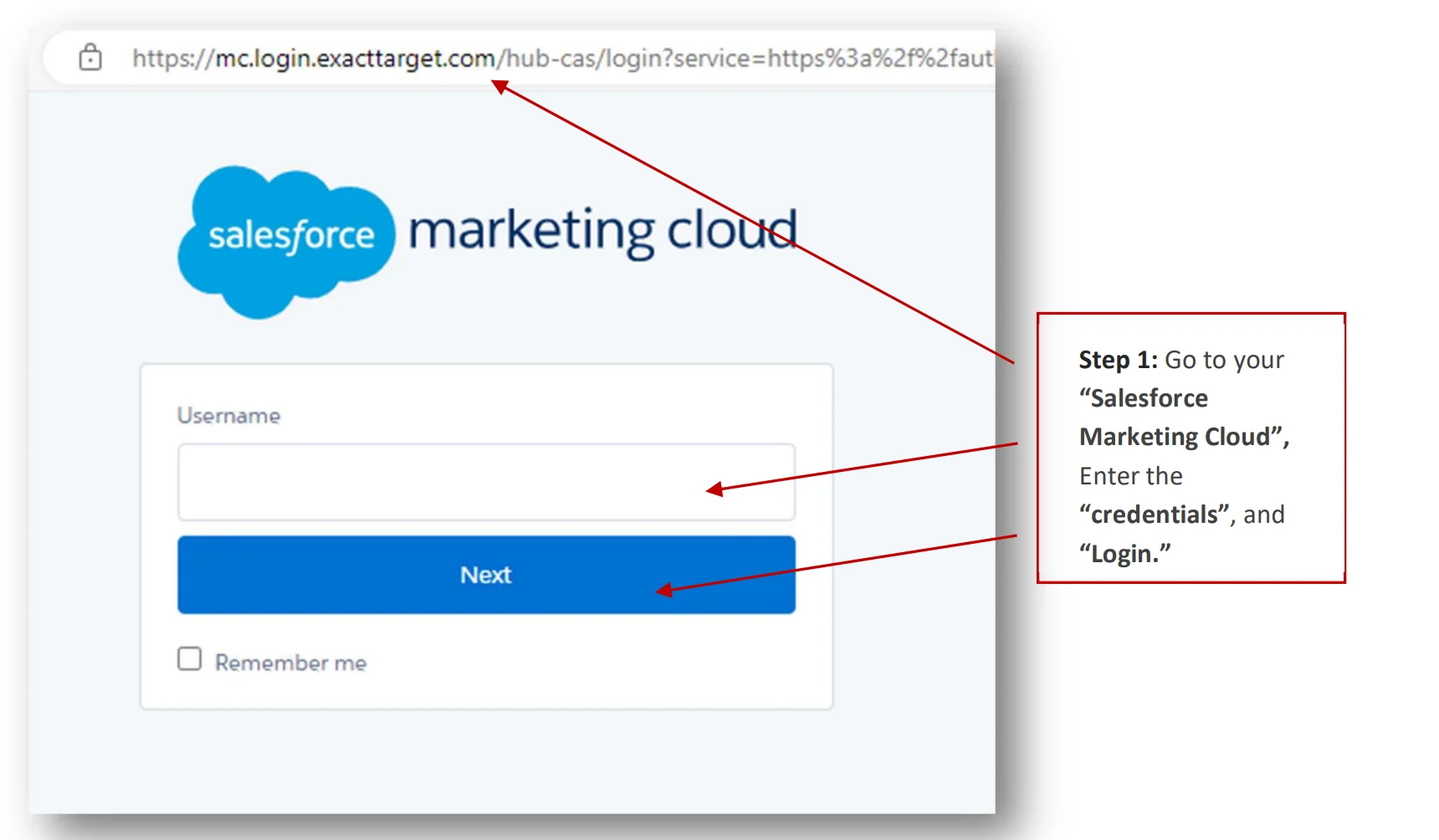
Log in to your Salesforce Marketing Cloud (SFMC).
-
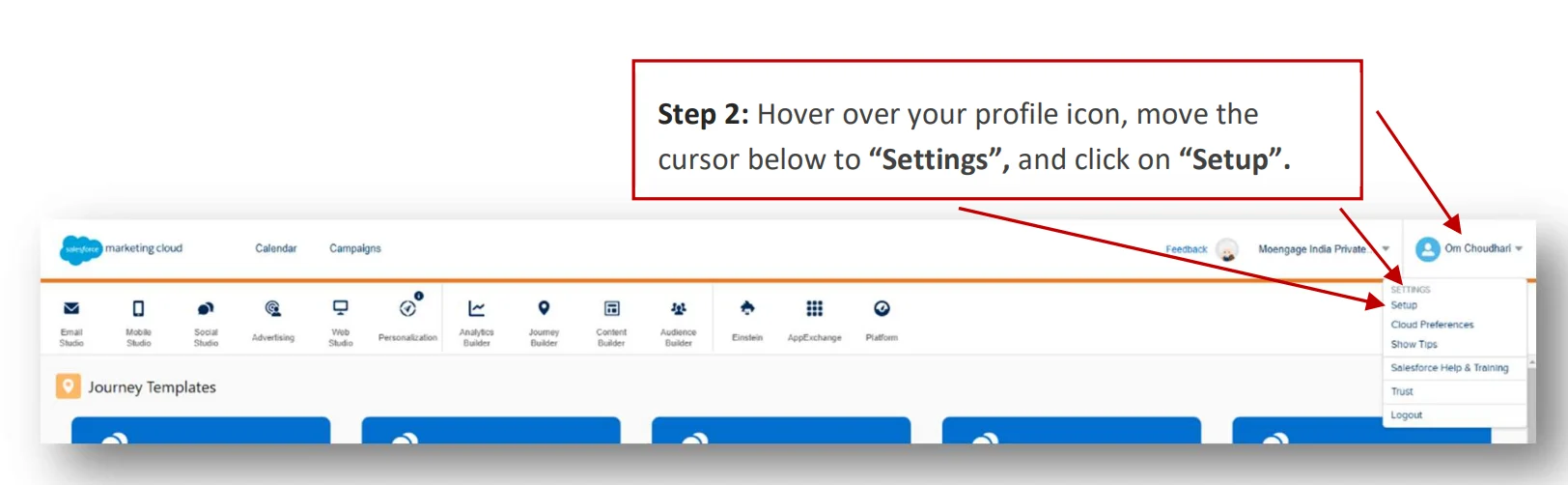
Access SFMC settings.
-
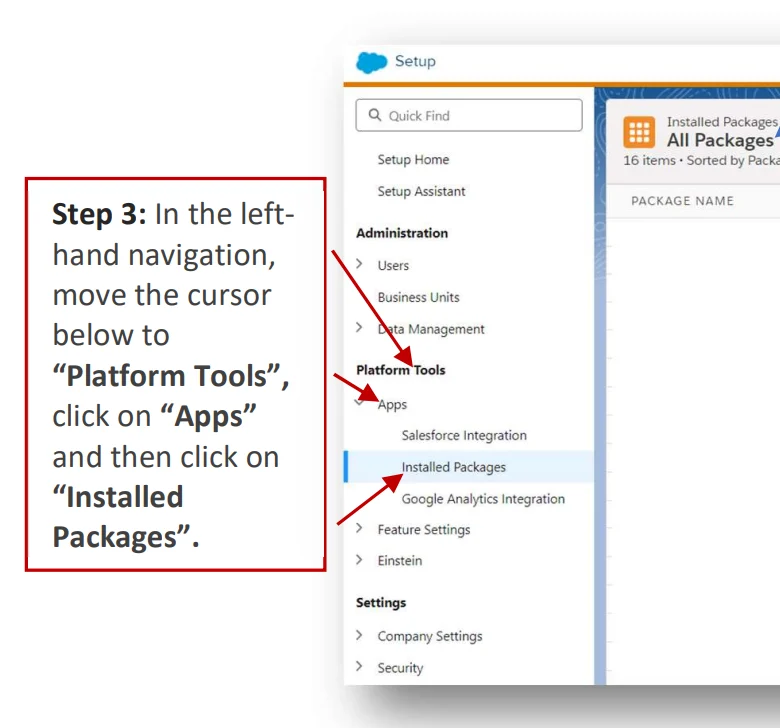
Once you click on “Installed Packages”, this tab will be visible on the right side of the page.
-
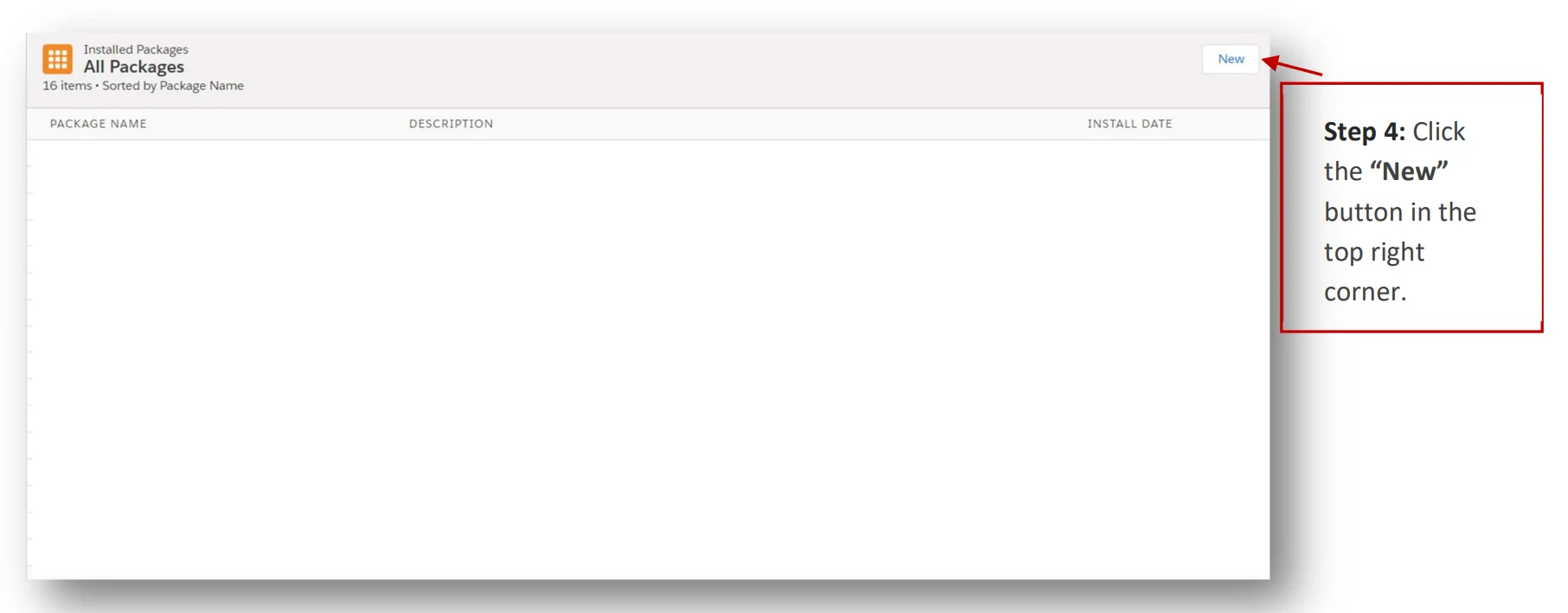
Create a new package.
-
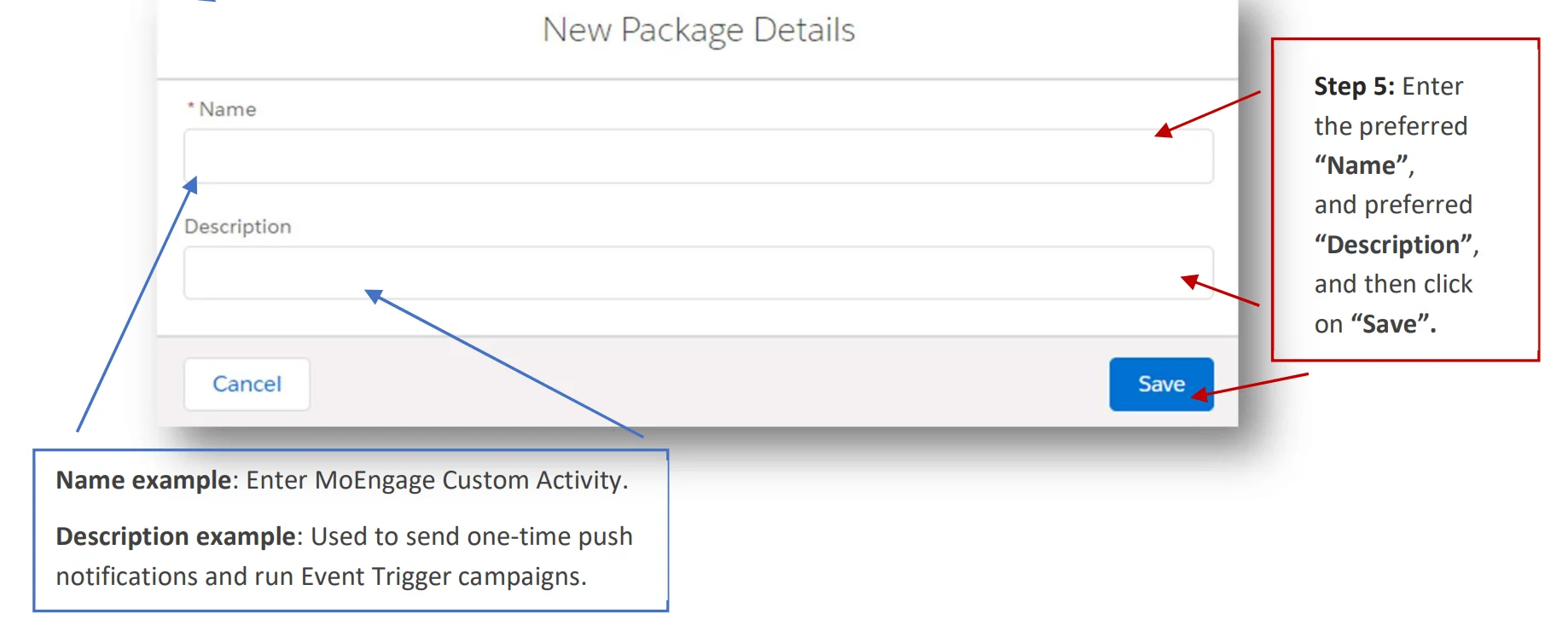
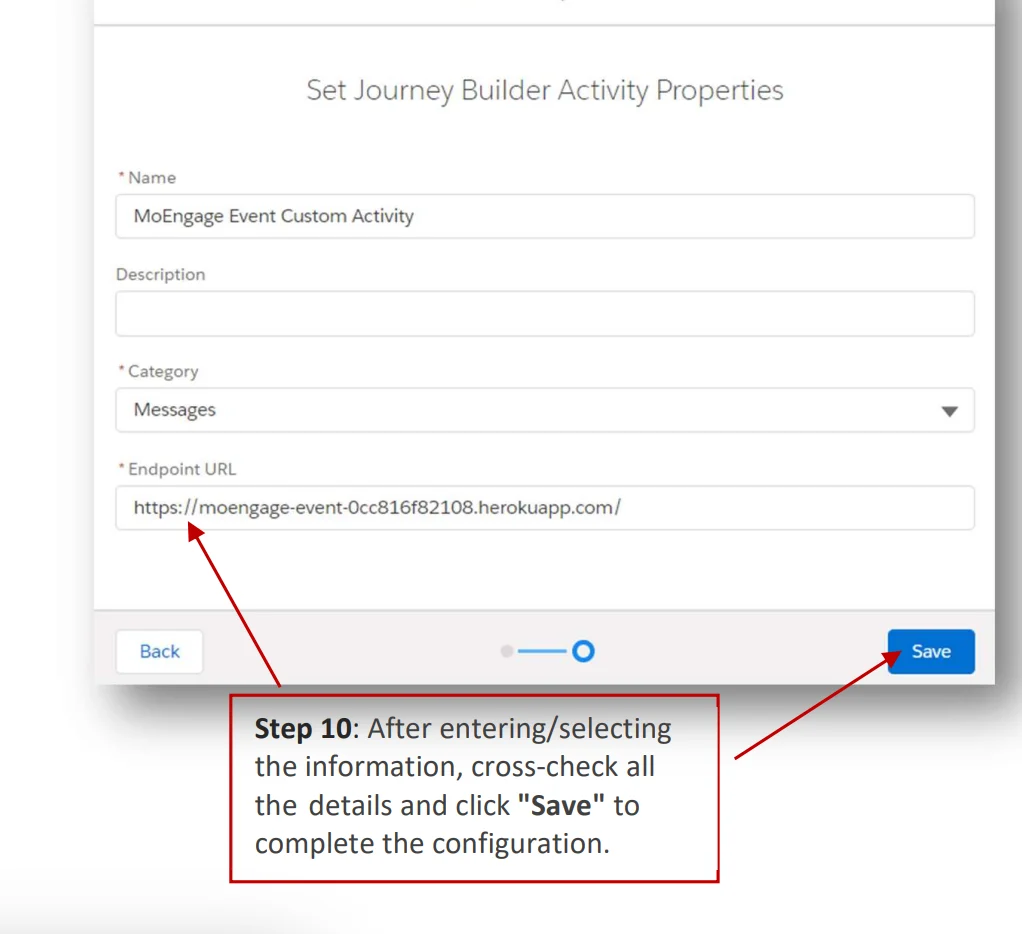
Add package details. You can name it “MoEngage Custom Activity” and add description as “Used to send one-time push notifications and run Event Trigger campaigns”.
-
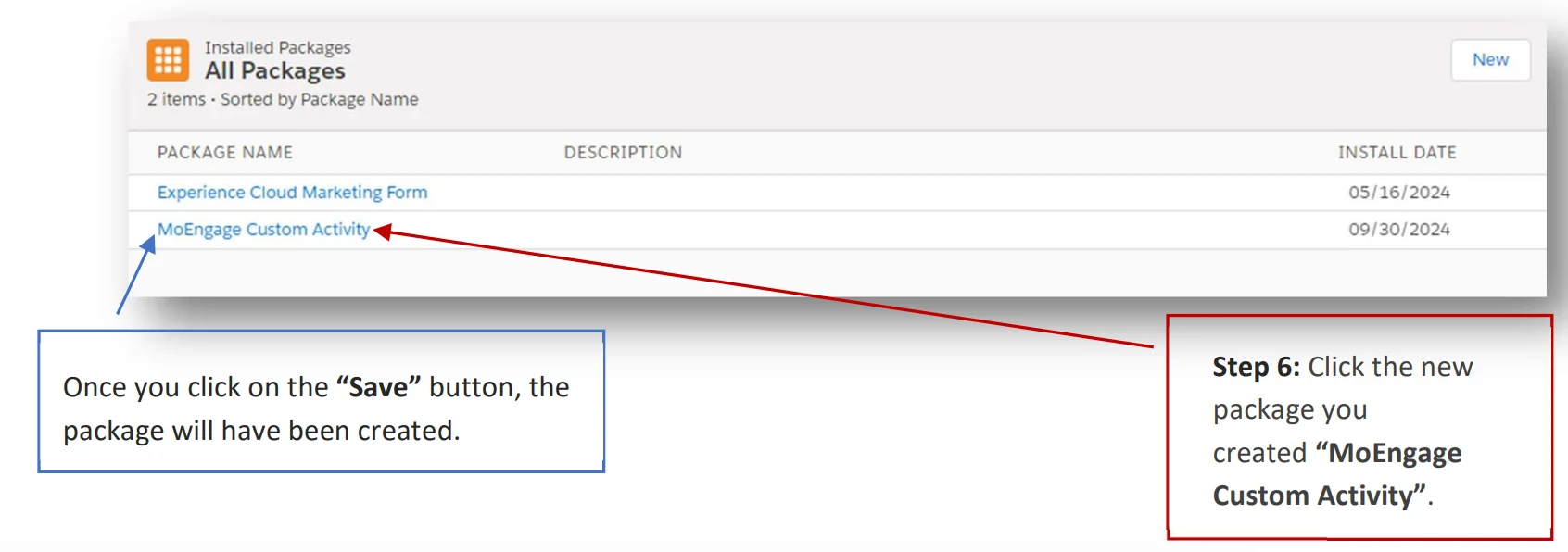
Add MoEngage Components.
-
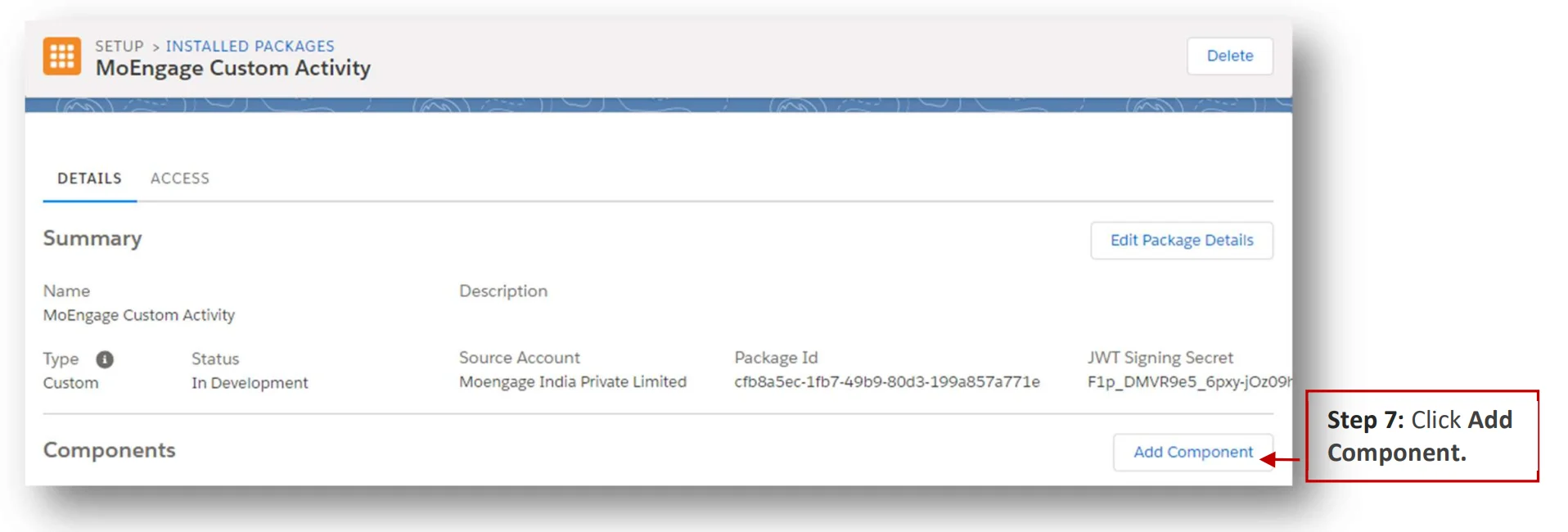
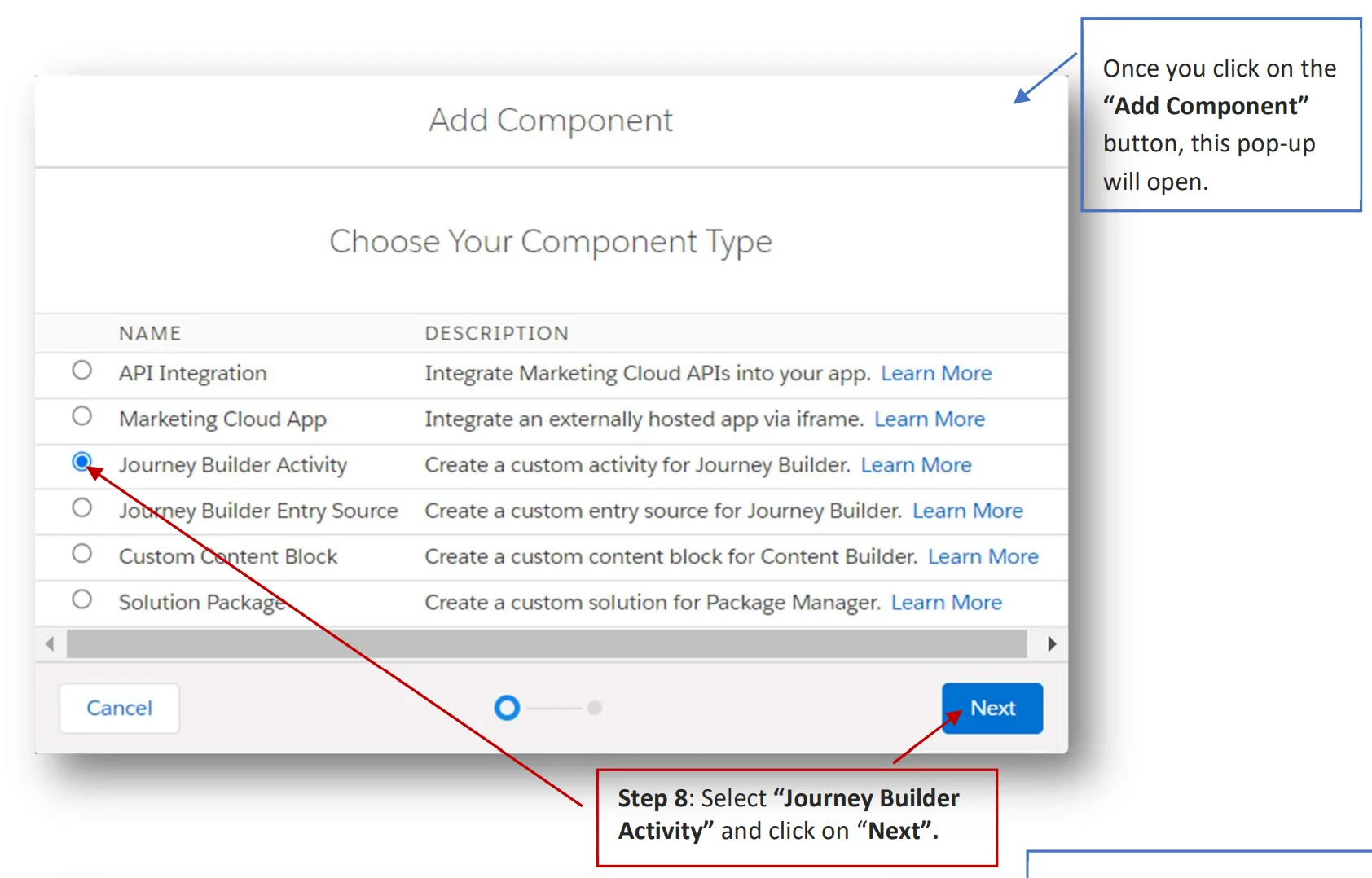
Click Add Component.
-
Select “Journey Builder Activity” and click on “Next”.
- Click Save.
-
Repeat the same steps for MoEngage Event Destination.
Step 2: Set up the Cloud Page and the Data Extension
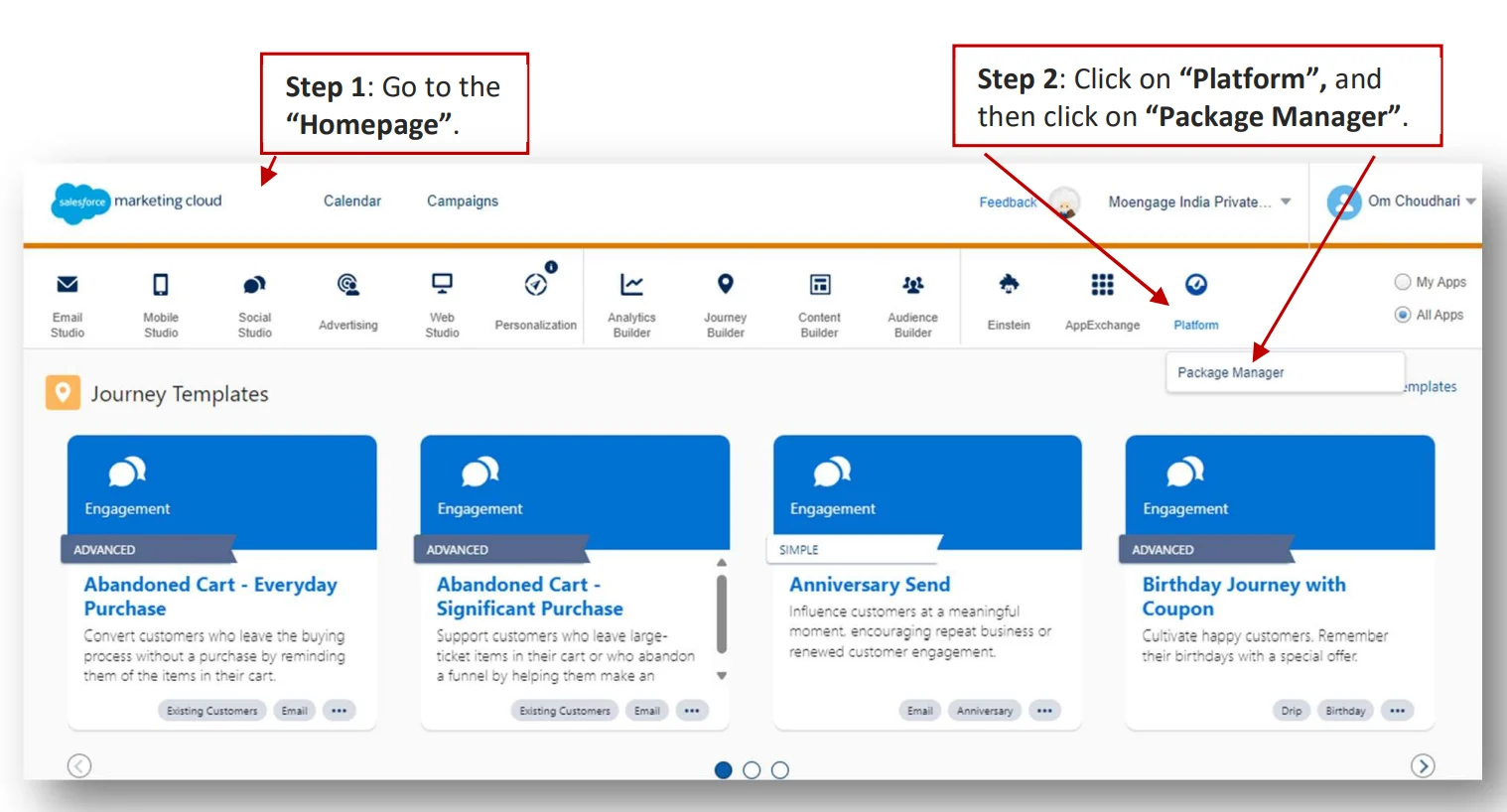
You need to set up a cloud page along with a data extension to capture the MoEngage workspace details. These can then be used while configuring a MoEngage destination in Journey Builder:- Navigate to the SFMC Home page.
-
Click “Platform” > “Package Manager”.
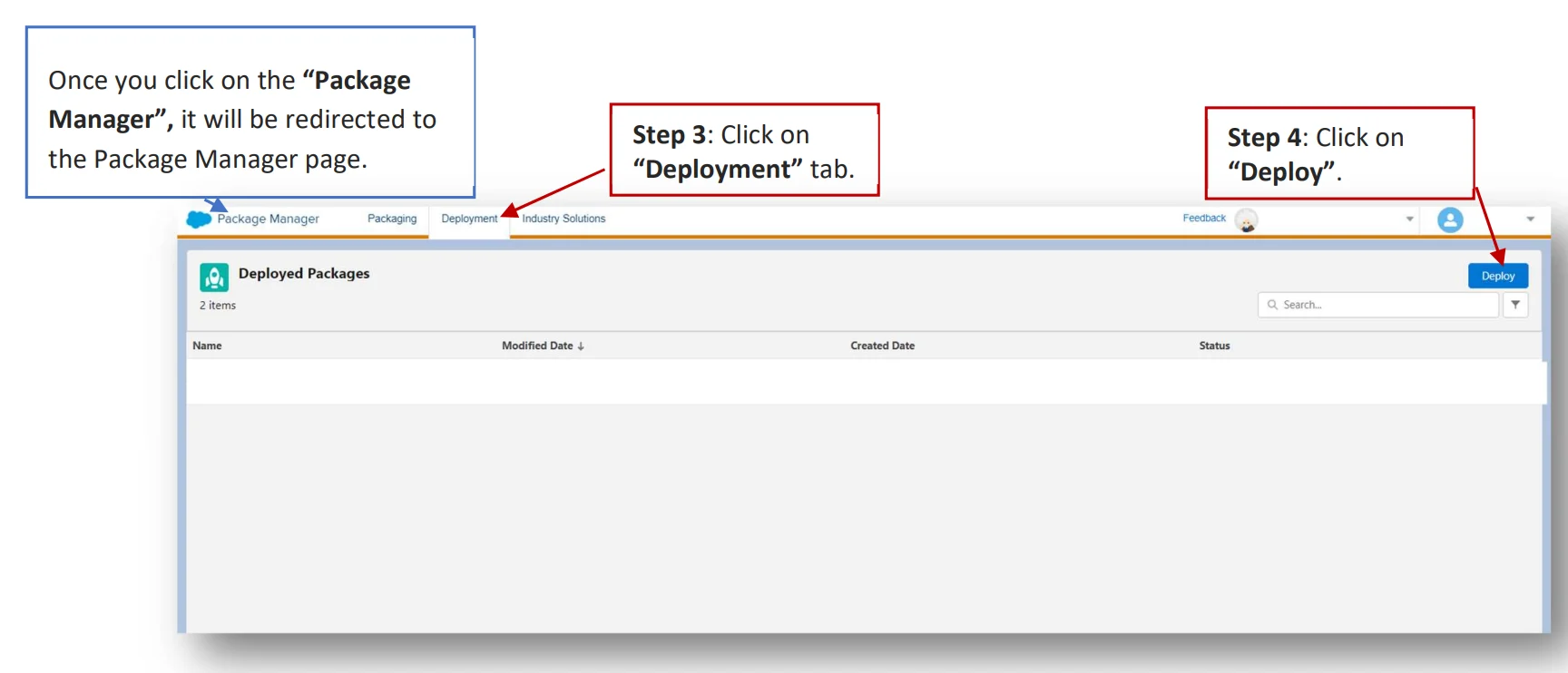
- Click on the “Deployment” tab.
-
Click “Deploy”.
-
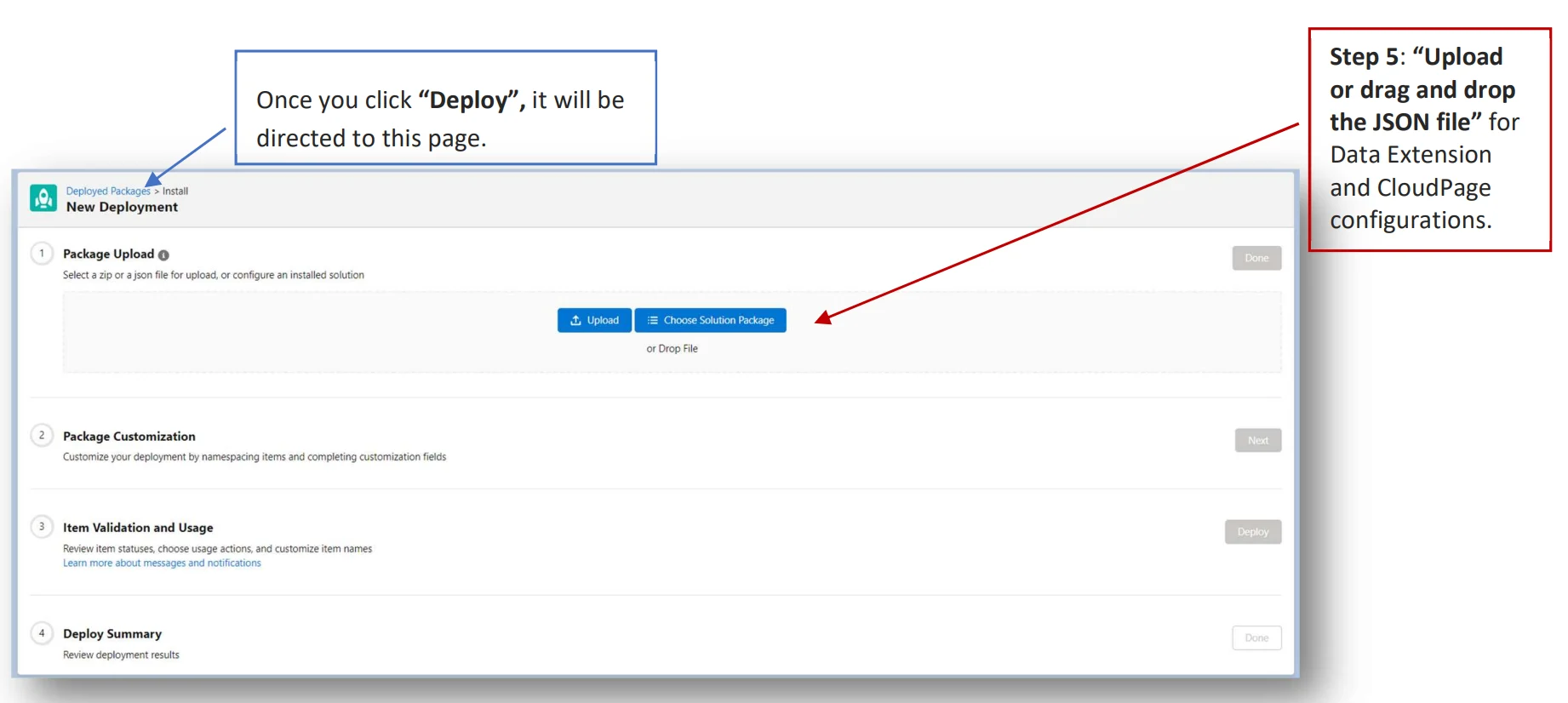
Upload the MoEngage solution package JSON file.
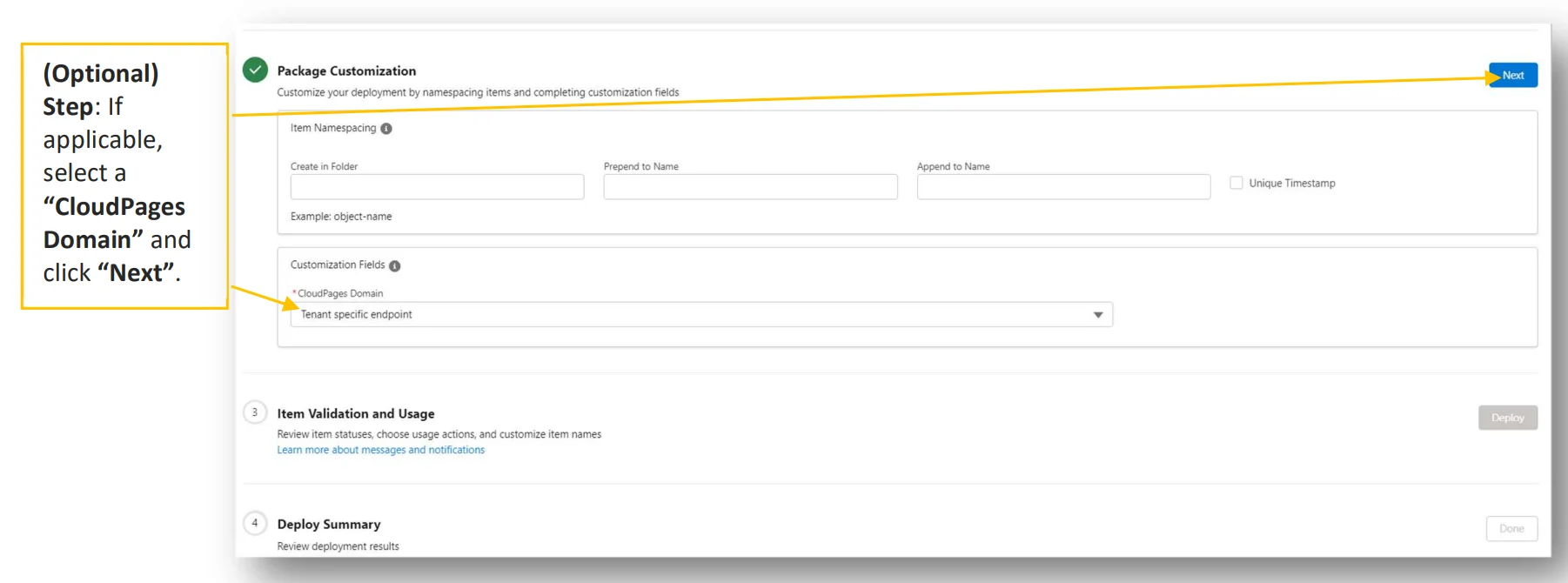
-
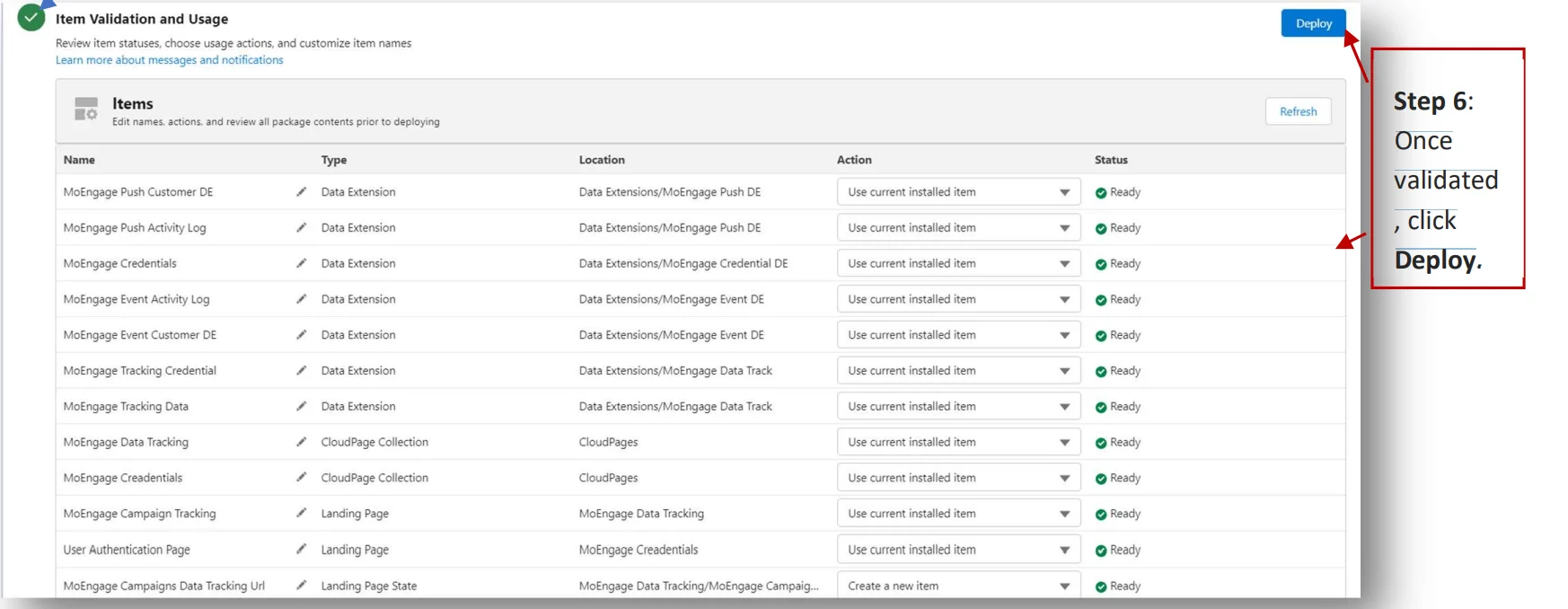
The system will validate the setup and check for any issues. Once validated, click Deploy.
Publish Data Extensions and CloudPages
- Go to the “Homepage”.
-
Click on “Web Studio”, and then click on “CloudPages”.
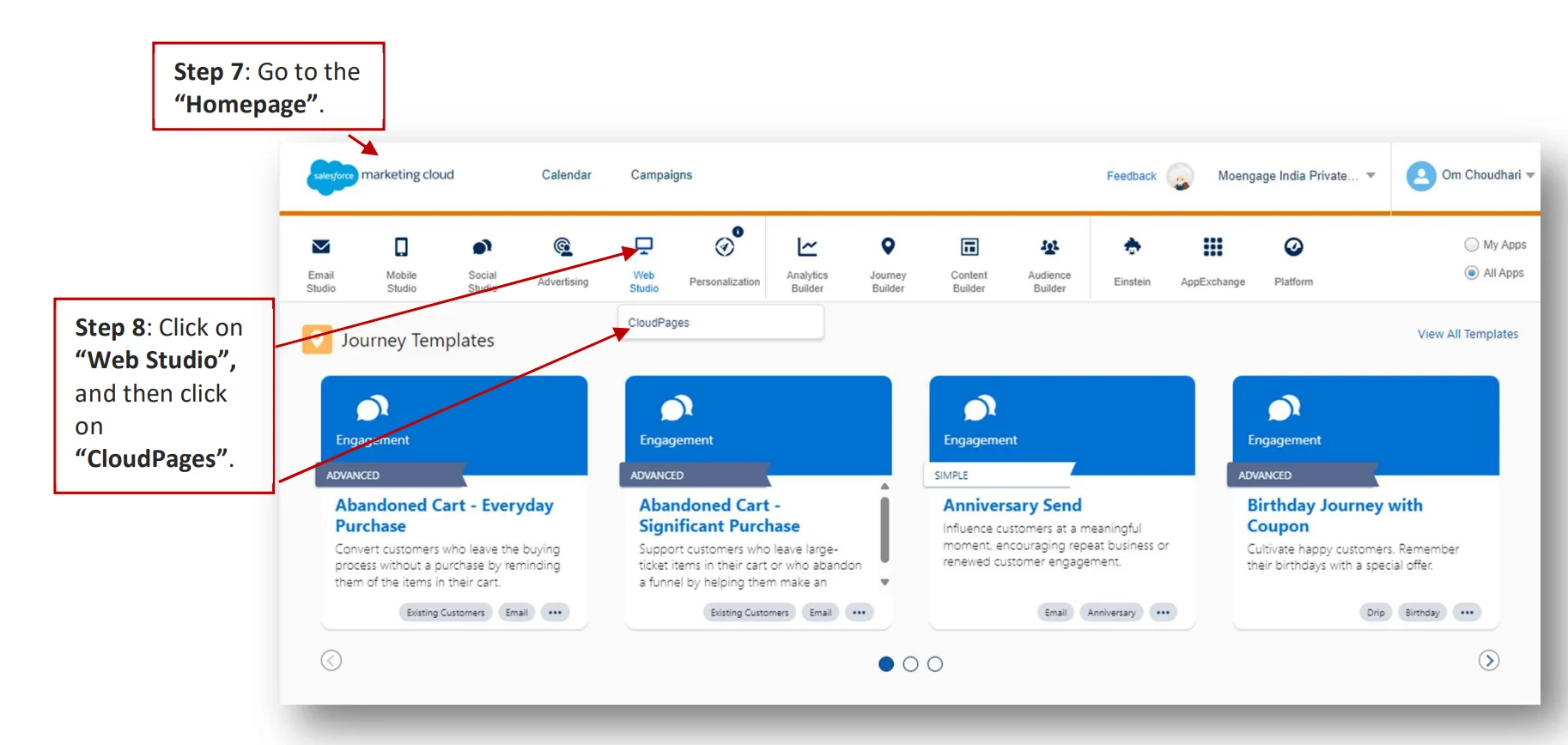
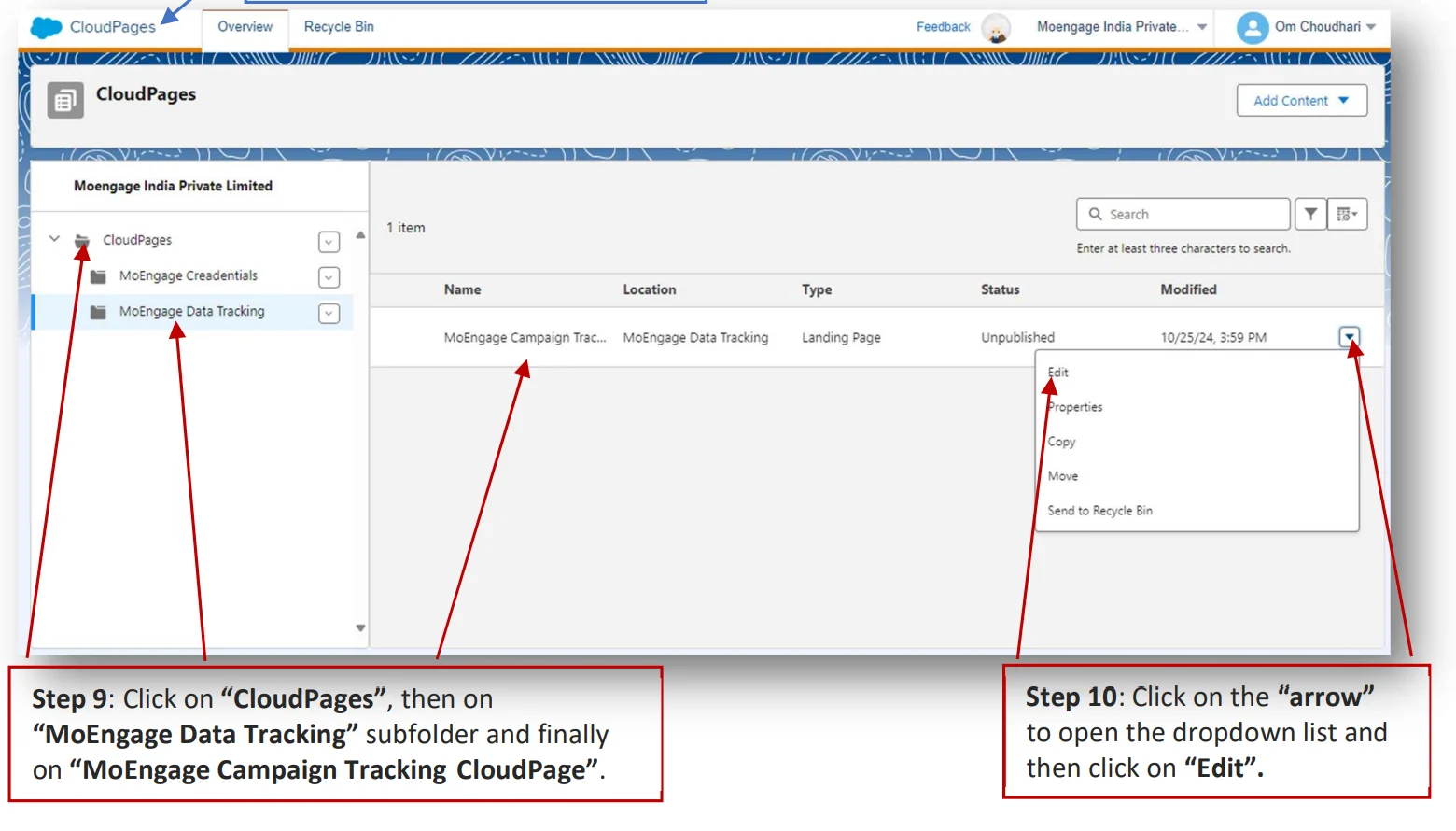
- Once you click “CloudPages”, it will be directed to this page. Click on “CloudPages”, then on “MoEngage Data Tracking” subfolder, and finally on “MoEngage Campaign Tracking CloudPage”.
-
Click on the “arrow” to open the dropdown list and then click on “Edit”.
-
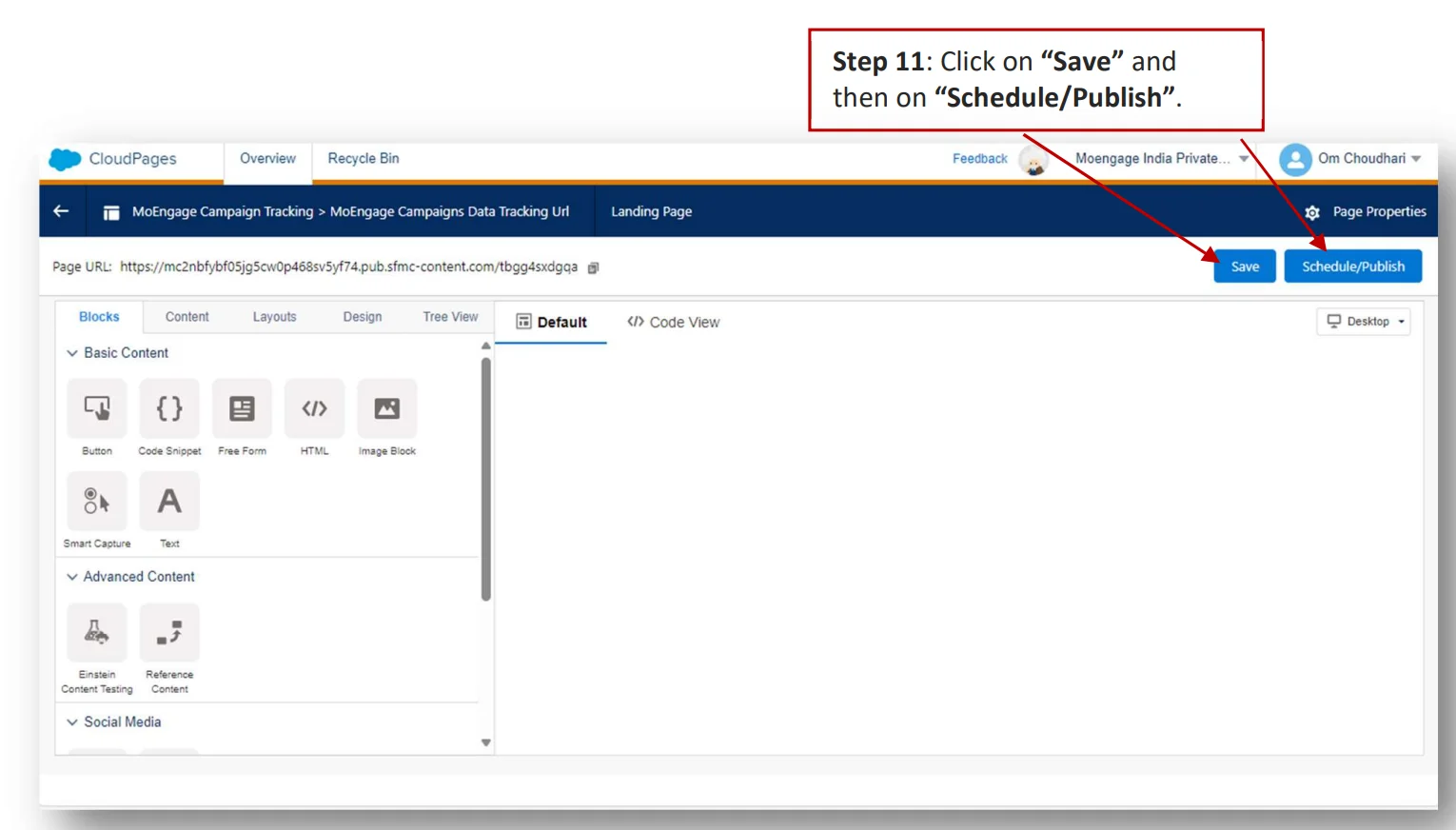
Click on “Save” and then on “Schedule/Publish”.
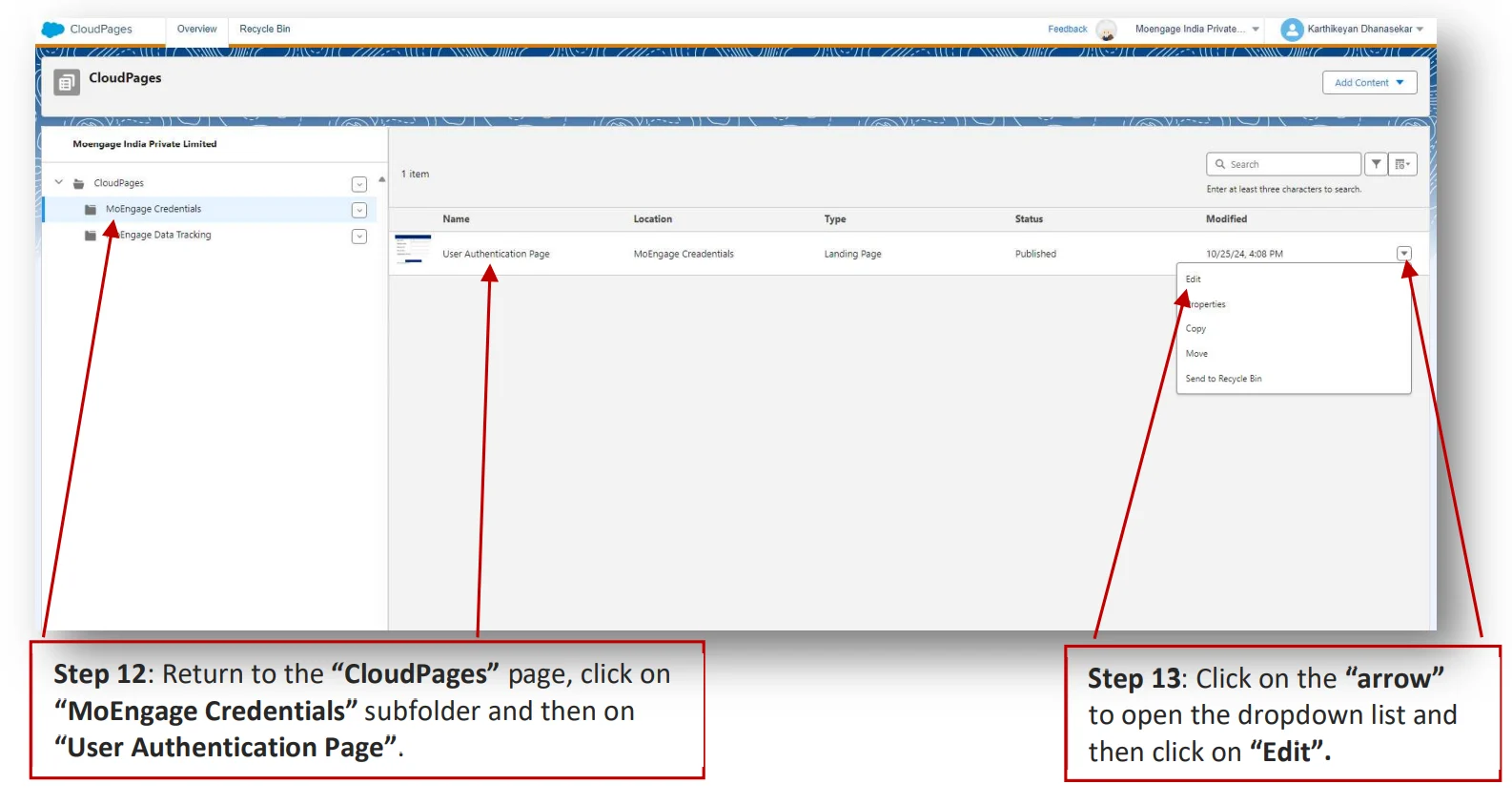
- Return to the “CloudPages” page, click on “MoEngage Credentials” subfolder and then on “User Authentication Page”.
-
Click on the “arrow” to open the dropdown list and then click on “Edit”.
-
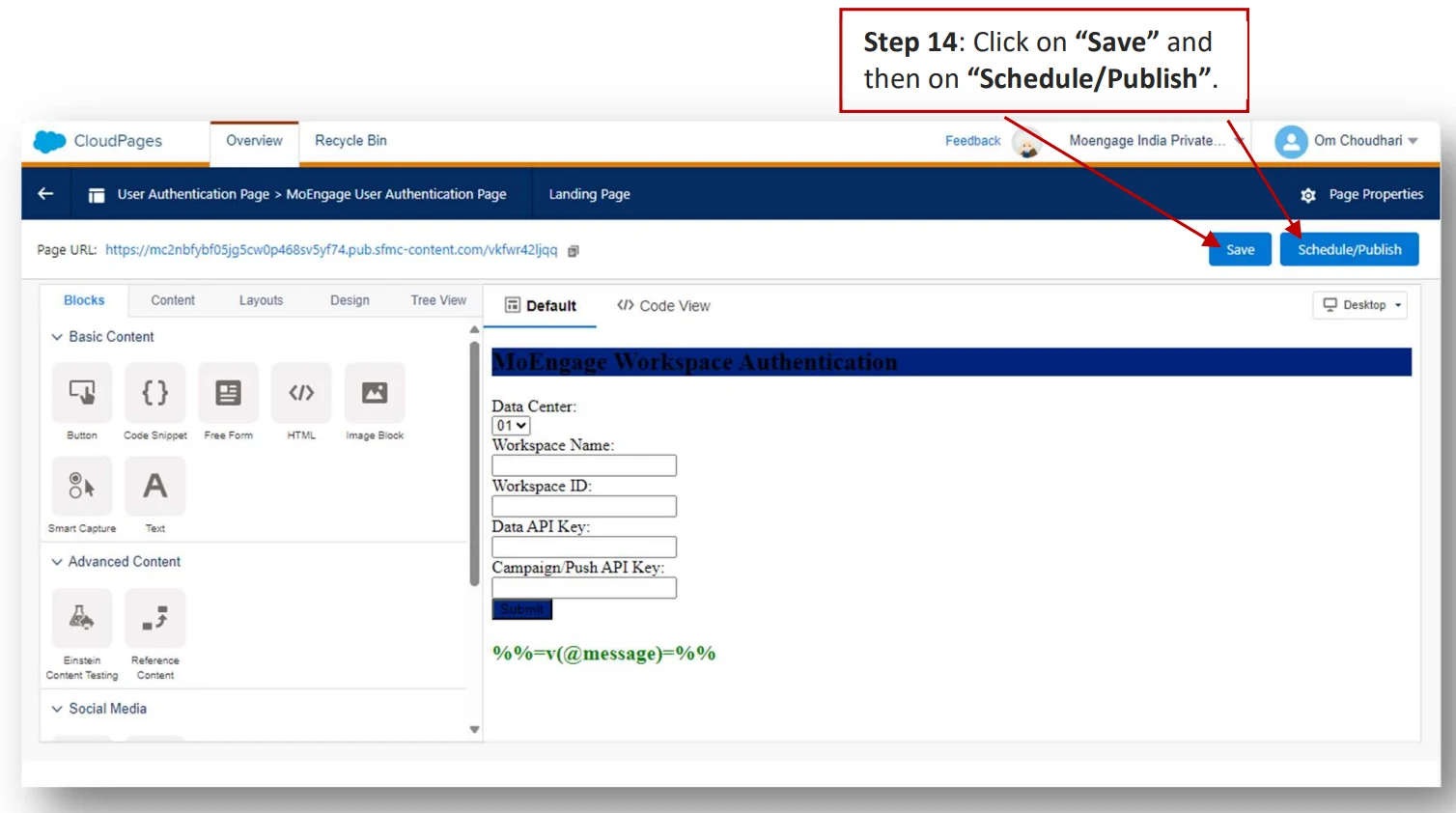
Click on “Save” and then on “Schedule/Publish”.
Verify Data Extension and external keys
Ensure the following Data Extensions (DEs) are properly named and configured:A. MoEngage Tracking Data
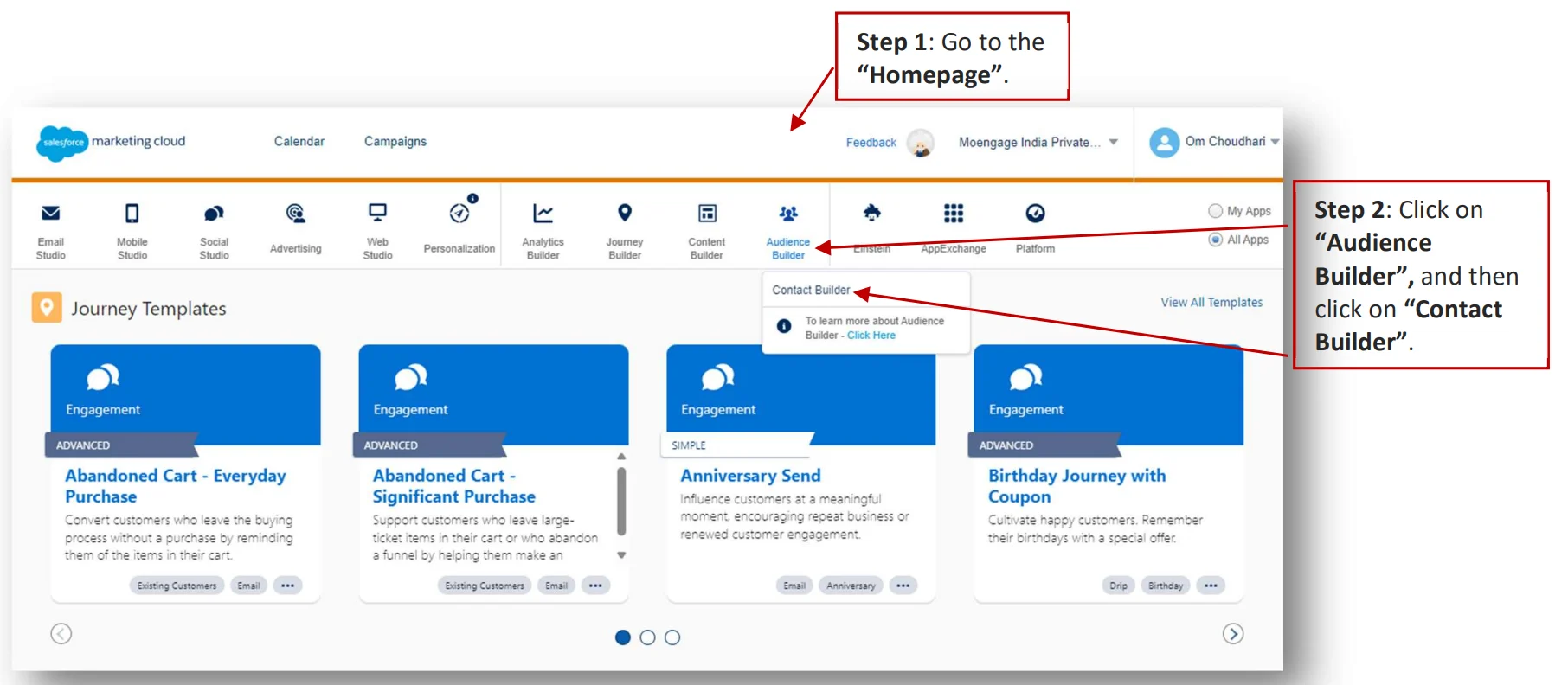
It stores campaign tracking information.- Go to the “Homepage”.
-
Click on “Audience Builder”, and then click on “Contact Builder”.
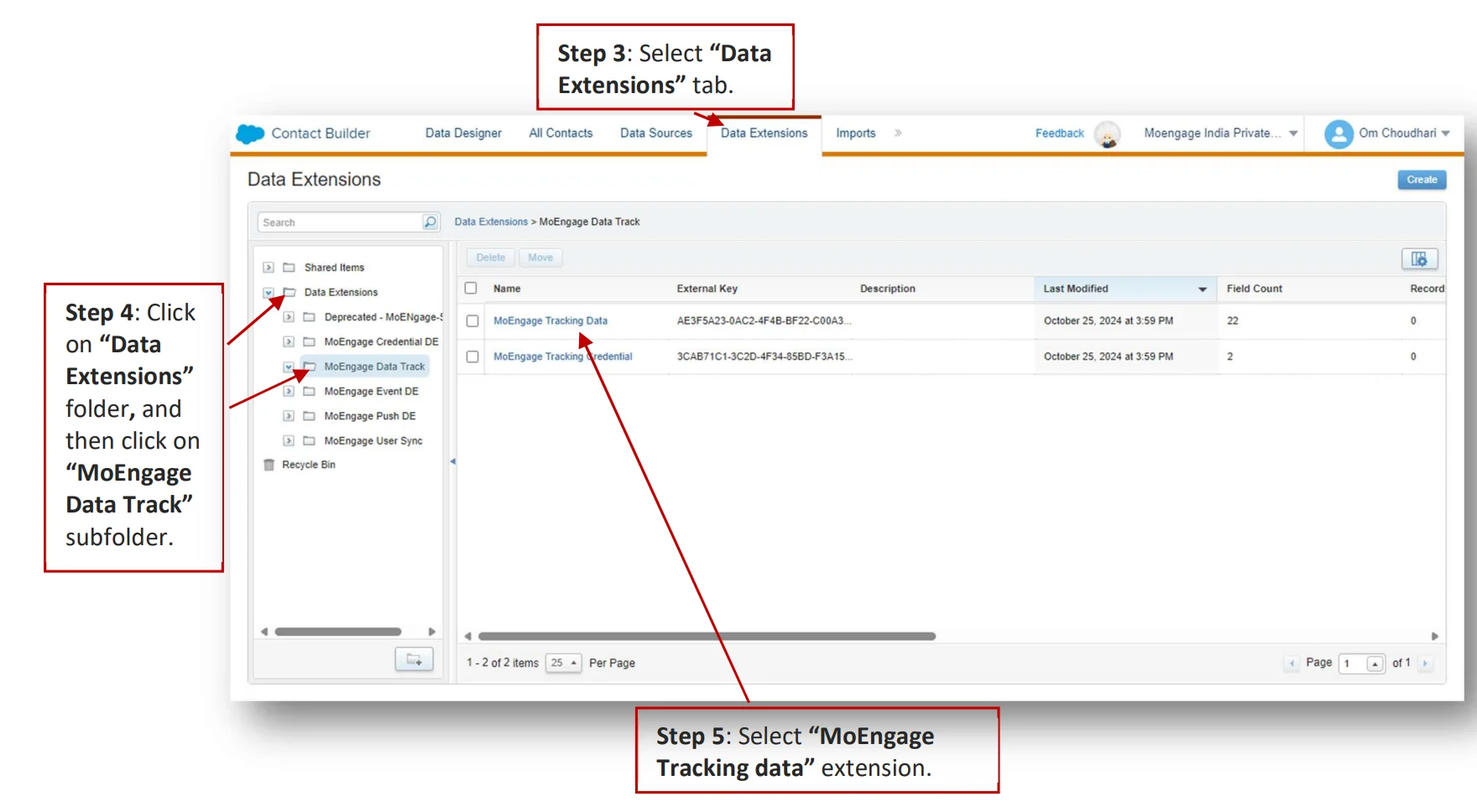
- Select “Data Extensions” tab.
- Click on “Data Extensions” folder, and then click on “MoEngage Data Track” subfolder.
-
Select “MoEngage Tracking data” extension.
B. MoEngage Credentials
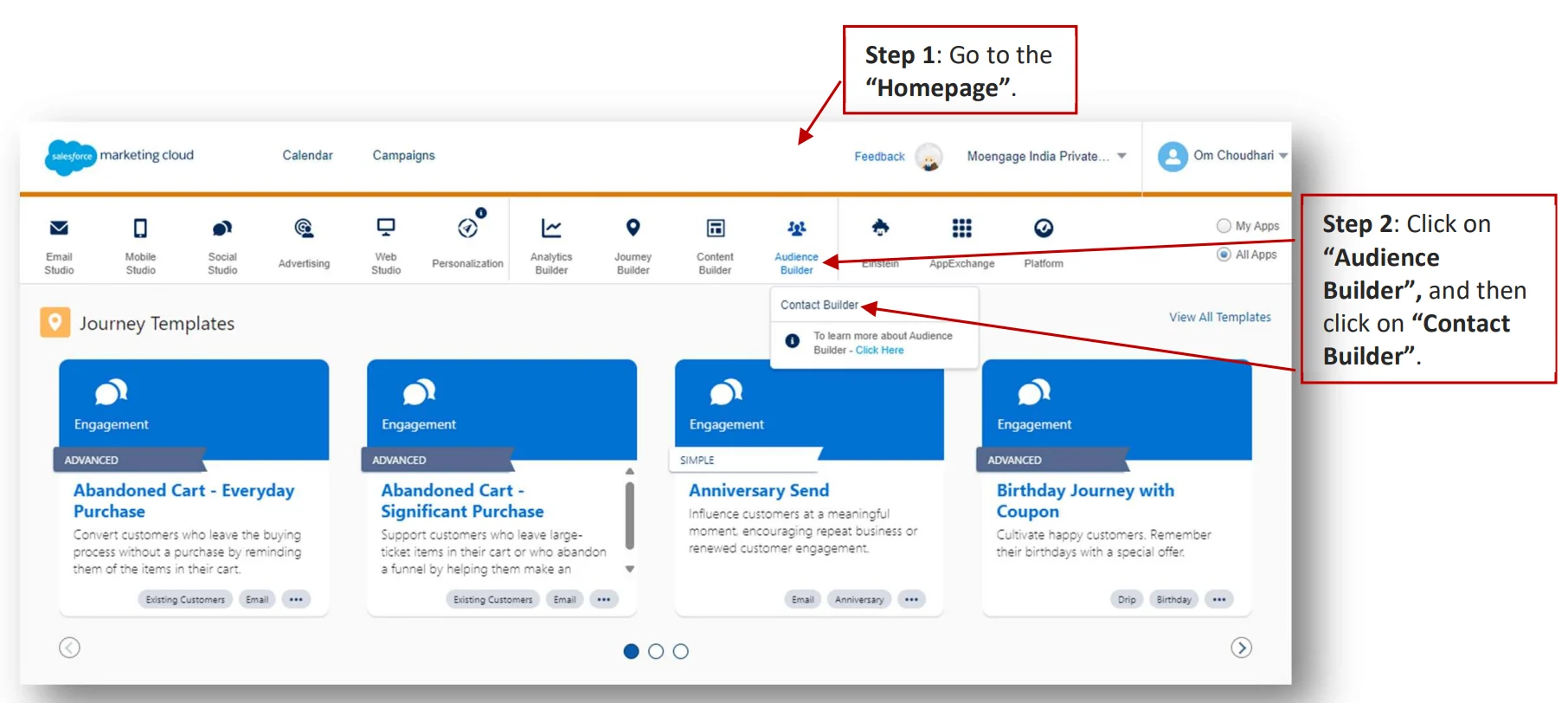
It stores the credentials for the Data Tracking CloudPage:- Go to the “Homepage”.
-
Click on “Audience Builder”, and then click on “Contact Builder”.
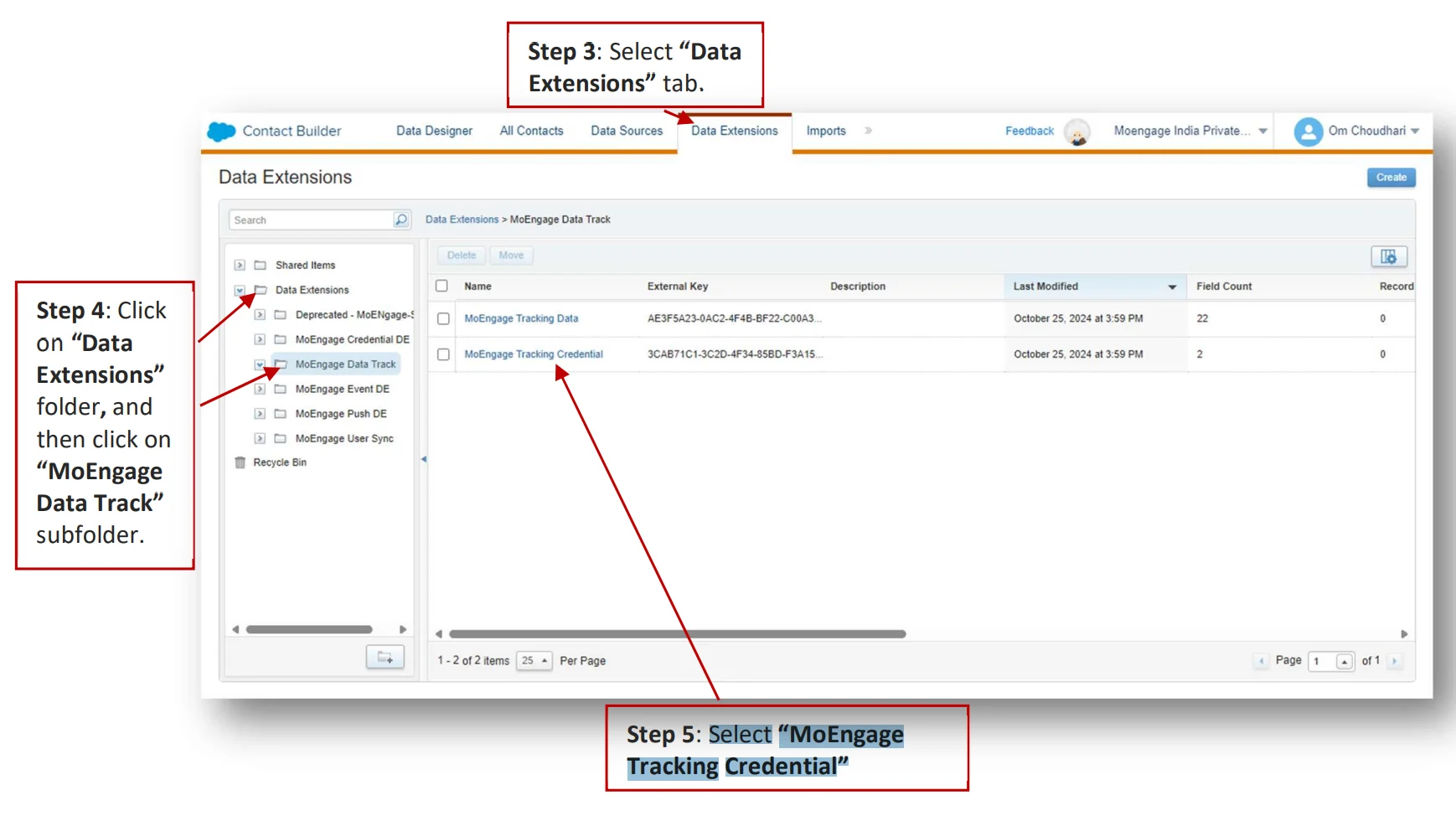
- Select “Data Extensions” tab.
- Click on “Data Extensions” folder, and then click on “MoEngage Data Track” subfolder.
-
Select “MoEngage Tracking Credential”.
C. MoEngage Event Activity Log
It logs Event Custom Activity information.- Go to the “Homepage”.
-
Click on “Audience Builder”, and then click on “Contact Builder”.
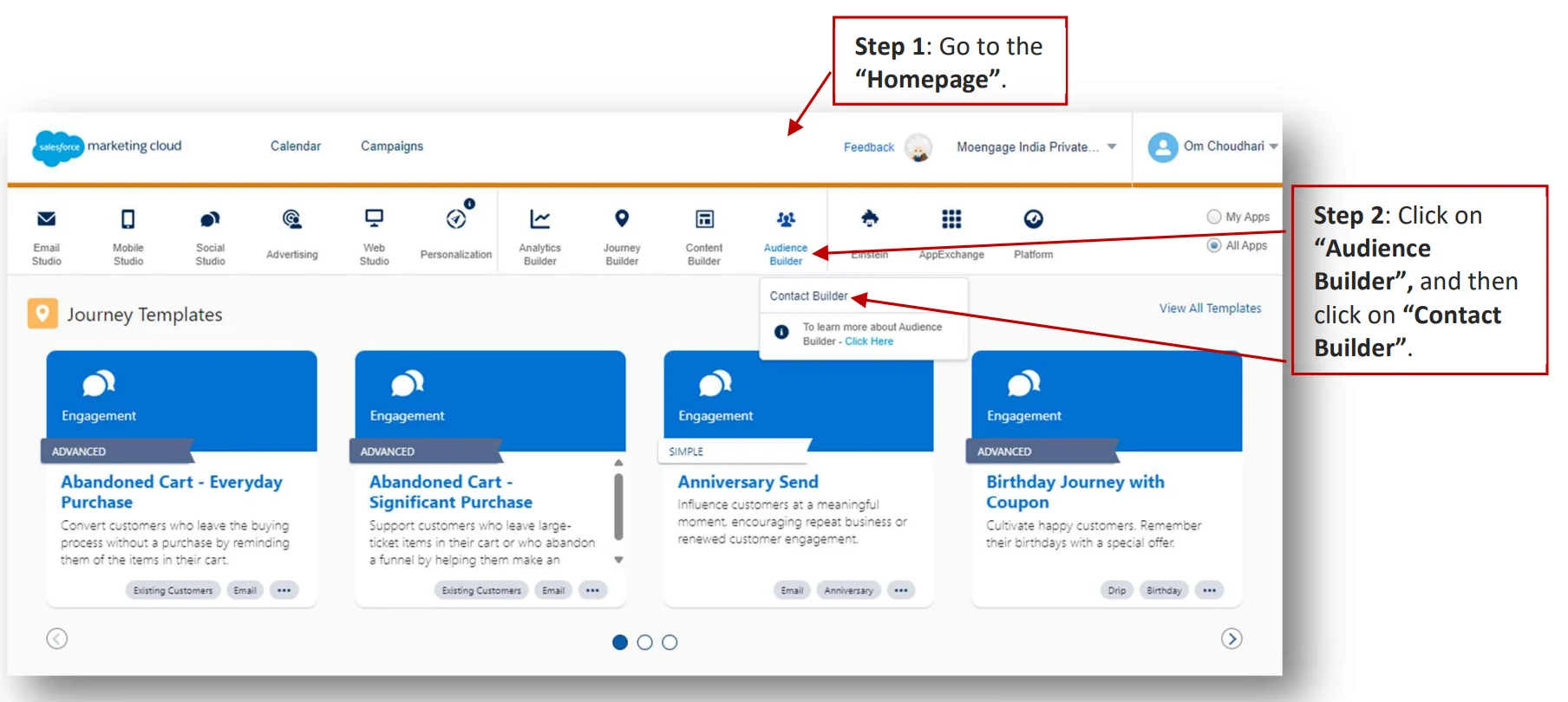
- Select “Data Extensions” tab.
- Click on “Data Extensions” folder, and then click on “MoEngage Event DE” subfolder.
-
Select “MoEngage Tracking Credential”.
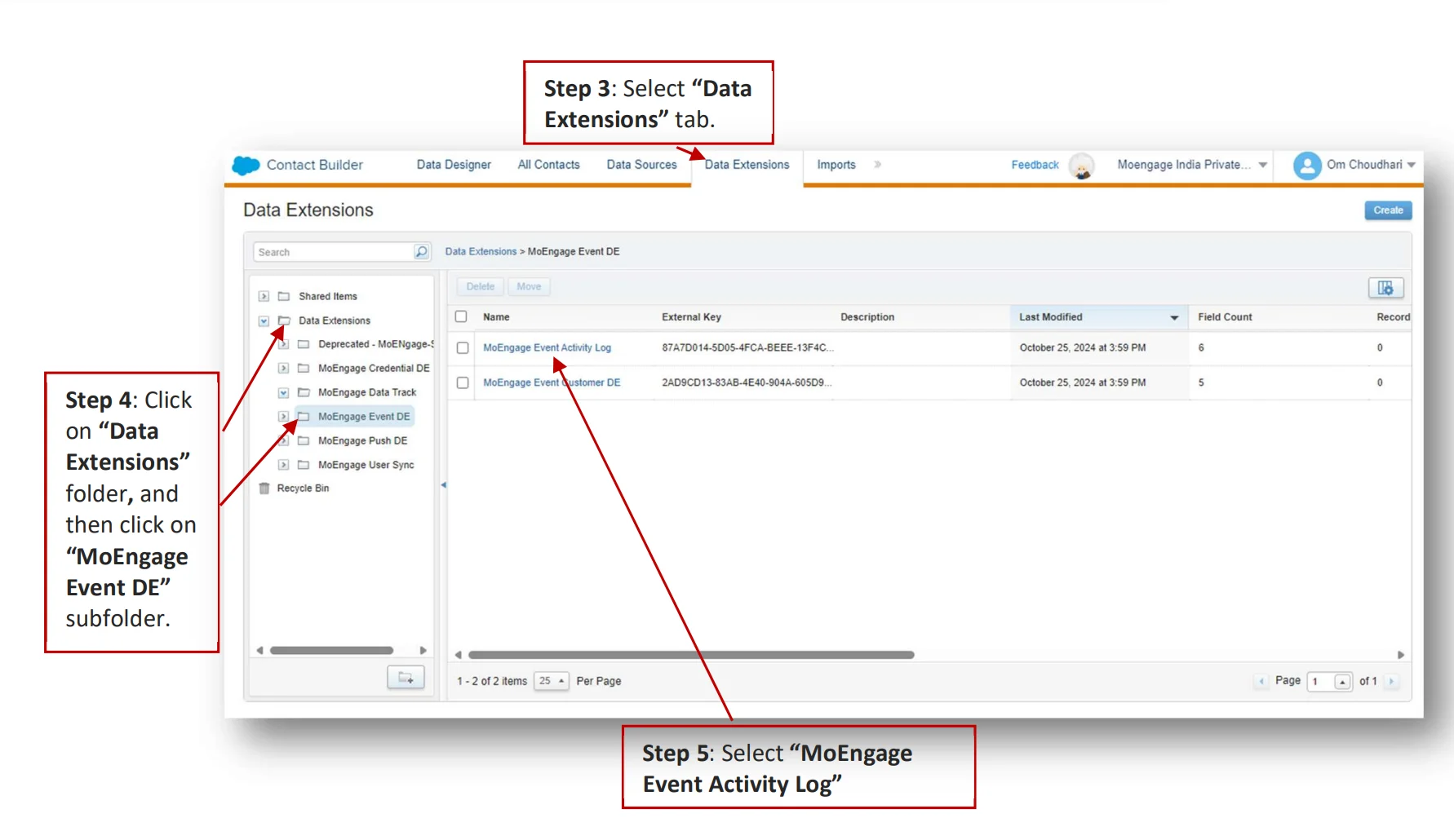
-
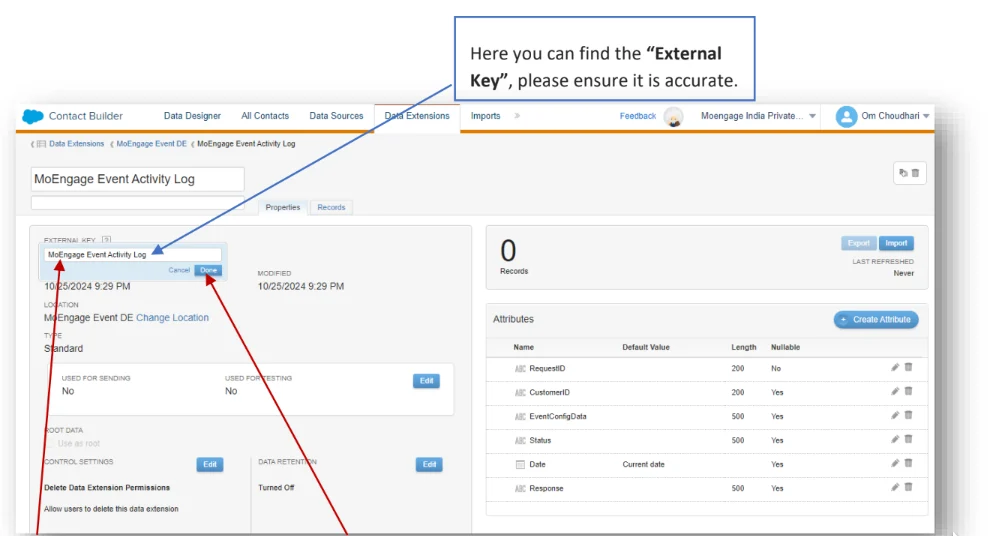
Select “MoEngage Event Activity Log”.
Here you can find the “External Key”. Please ensure it is accurate. [Optional] If external key needs to be entered or changed, click on “External Key” input field, paste or enter the external key and click on “Done”.
D. MoEngage Push Activity Log
It logs Push Custom Activity information.- Go to the “Homepage”.
-
Click on “Audience Builder”, and then click on “Contact Builder”.
- Select “Data Extensions” tab.
- Click on “Data Extensions” folder, and then click on “MoEngage Push DE” subfolder.
-
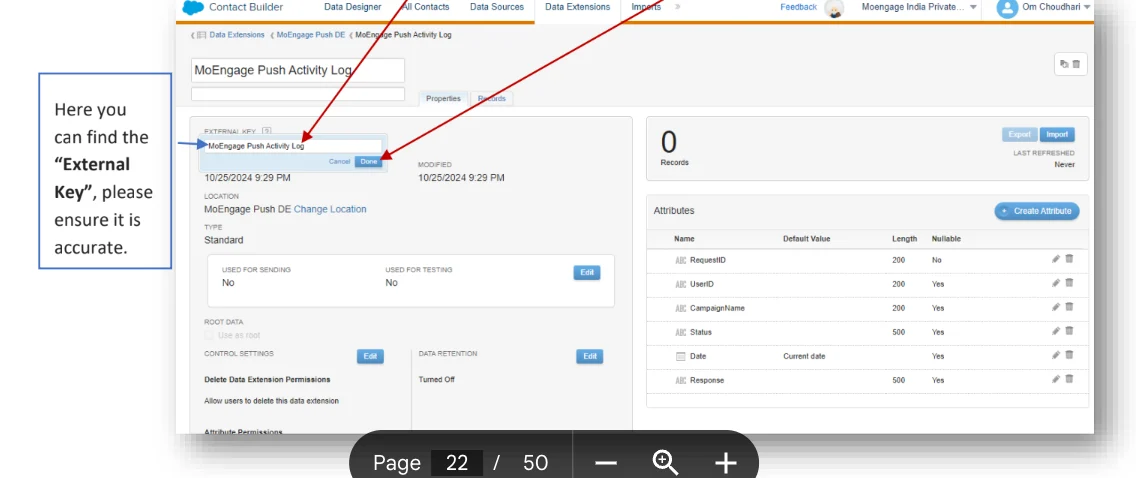
Select “MoEngage Push Activity Log”.
Configure Data Extension
A. Configure Data Extensions
-
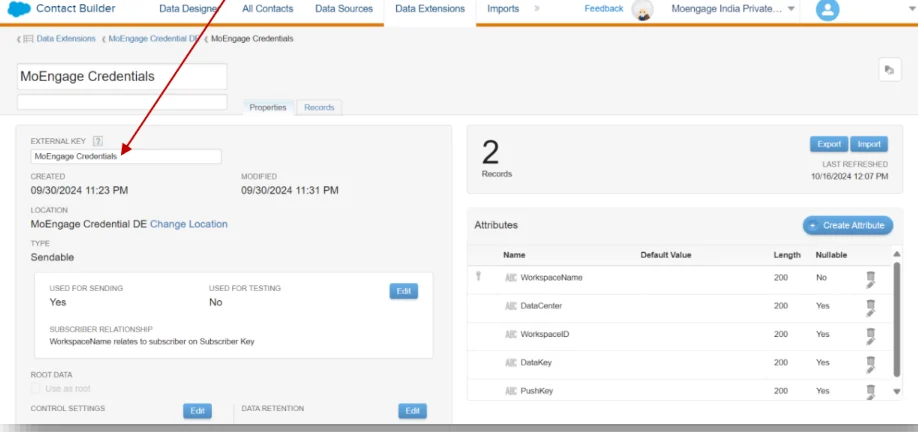
Change the external key of the credentials data extension from the solution package to “MoEngage Credentials”.
-
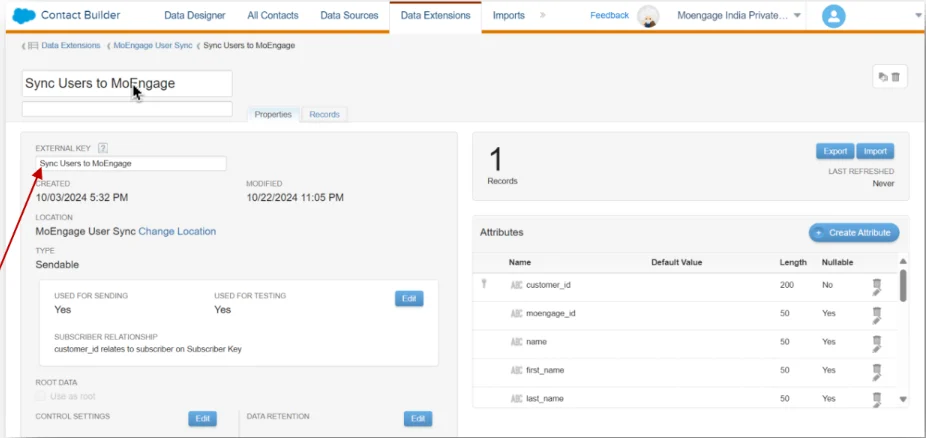
Change the external key of the “Sync Users to MoEngage” data extension from the solution package to “Sync Users to MoEngage”.
-
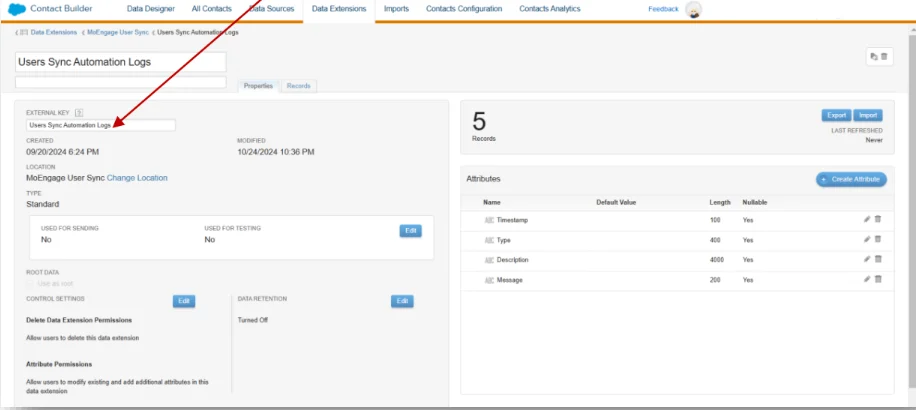
Change the external key of the “User Sync Automation Logs” data extension from the solution package to “User Sync Automation Logs”.
Connect your MoEngage workspace
A. Access the credentials cloud page
On your SFMC dashboard, perform the following steps:- Navigate to “Web Studio” > “CloudPages” > “MoEngage Credentials” subfolder. Finally click on “MoEngage Authentication Page”. Click Edit.
-
Click on the “Page URL” to open the Authentication Page.
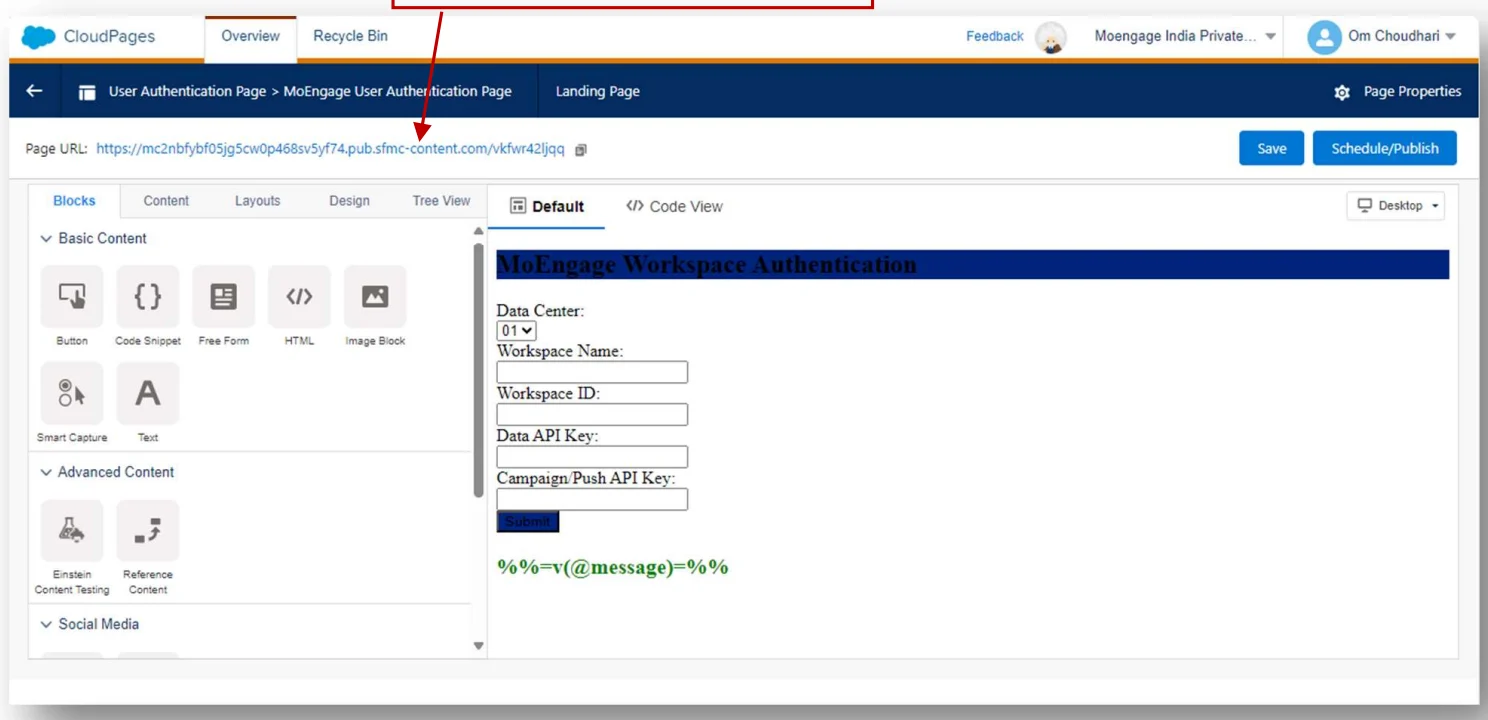
- Enter details of your MoEngage workspace and click Submit.