

Introduction
Instapage is a landing page platform for creating, personalizing, and optimizing landing pages for marketing campaigns.MoEngage and Instapage
The MoEngage and Instapage integration lets marketers seamlessly capture user data from landing pages and use it for personalized engagement campaigns. With this integration, you can enable targeted messaging, dynamic content personalization, and improved conversion rates.Integration
Prerequisites
- Ensure you have an active Instapage account.
- You need a Zapier account to use this integration. Follow the instructions in the Zapier overview to connect your Zapier and MoEngage accounts.
Import Instapage leads to MoEngage
This workflow uses the Create or Update User action.
Step 1: Select Instapage as the trigger app
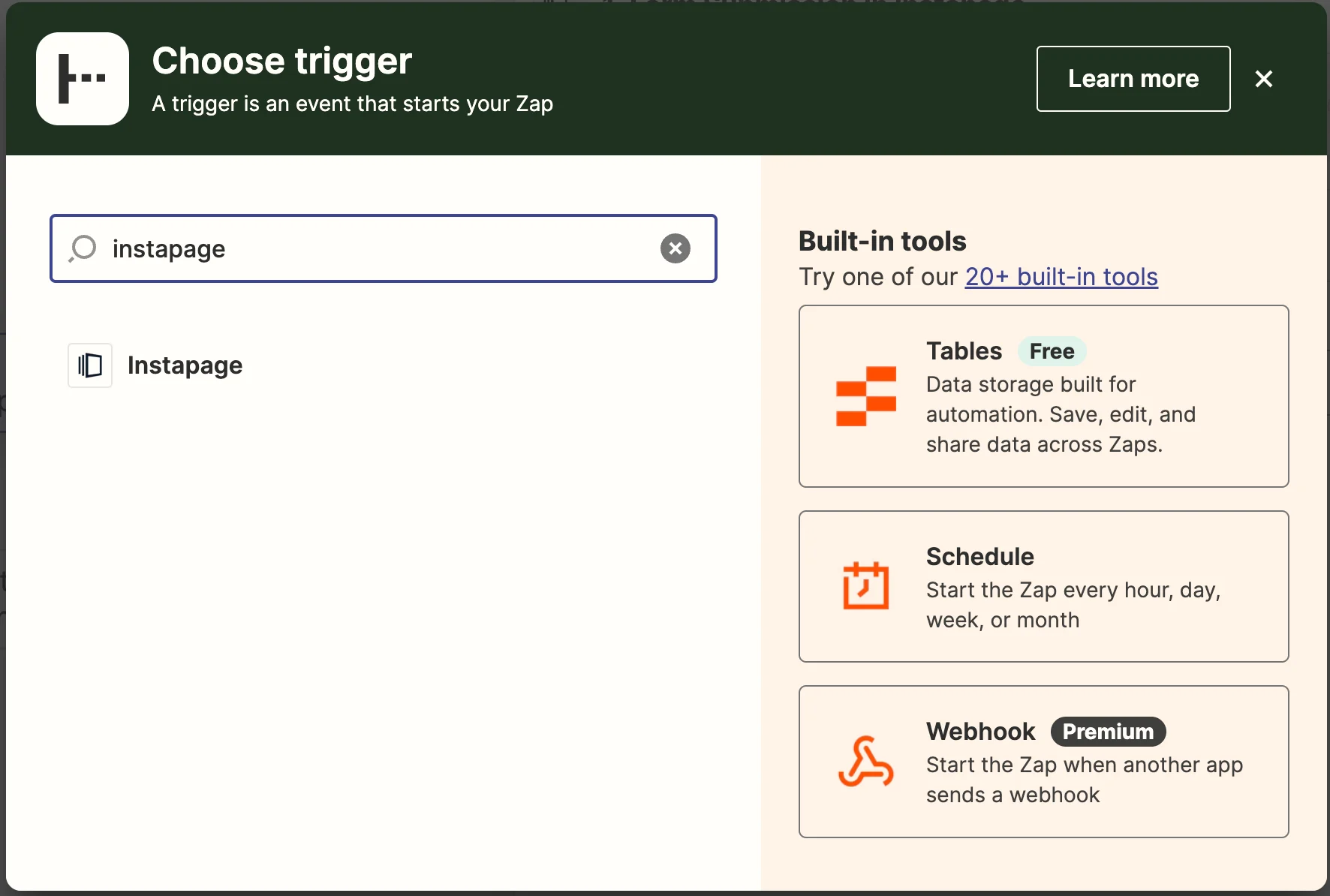
- Select Instapage from the list of apps.
- Choose Form Submission as the event, then click Continue.
- Connect your Instapage account. Select your Instapage account from the dropdown and click Continue.
-
Select the page you want to connect to and click Continue.
-
Click Test trigger. Zapier attempts to fetch a recent lead. Click Continue to move to the next step.
Step 2: Select MoEngage as the action app
Search for MoEngage from the apps list and select it.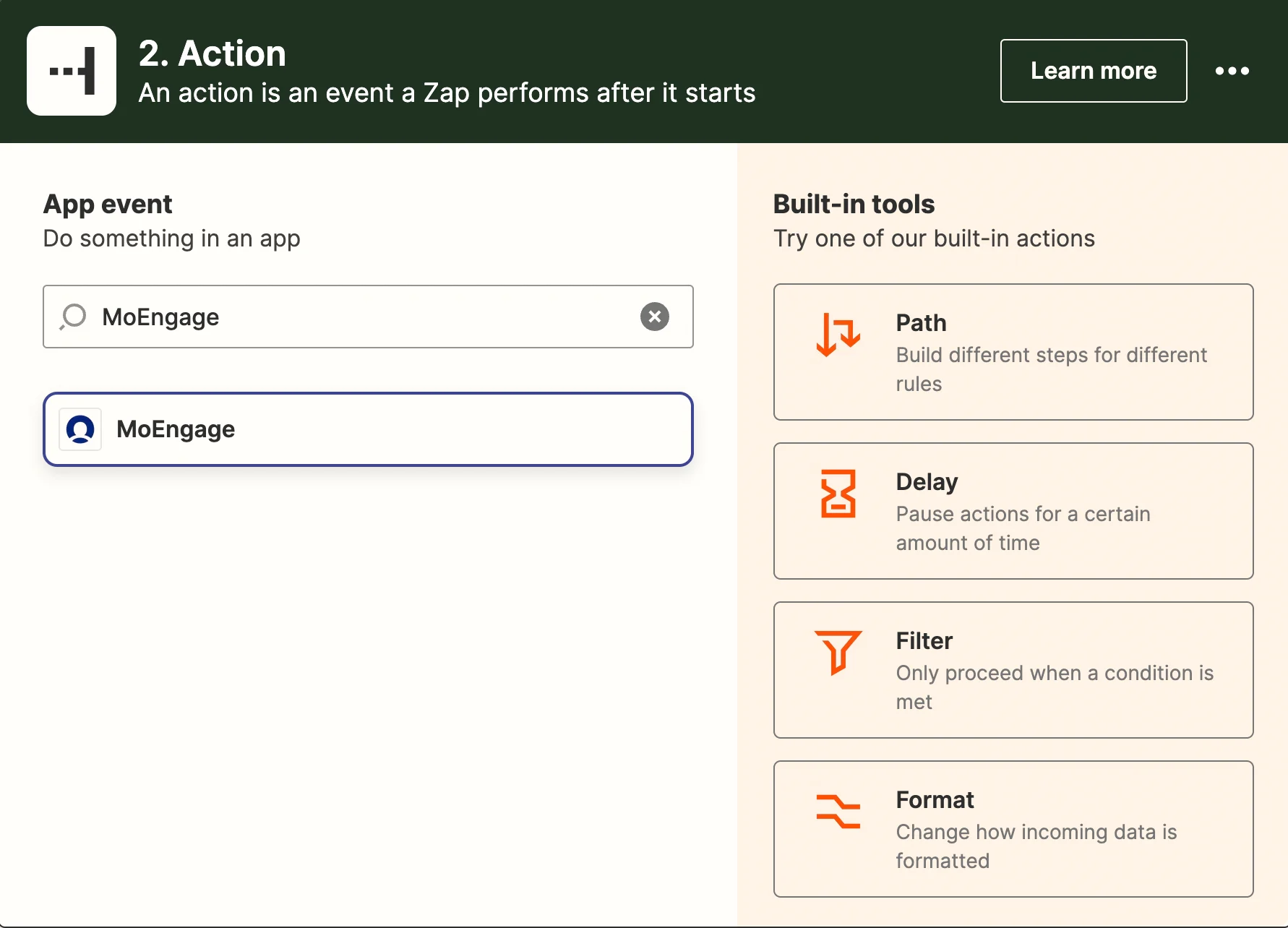
- From the event dropdown, select Create or Update User, then click Continue.
- If you have followed the prerequisites, your MoEngage account already appears in the list. Choose it or connect a new one, then click Continue.
- In the Set up action step, you see a list of attributes and user properties to either fill in manually or map from the previous step. Refer to the Create or Update User API reference for details. Add the relevant custom user attributes as required.
- Once you are satisfied with your mappings, click Continue.
- In the final step, click Test & continue.
- If the test was successful, you should see a
successresponse.
Verify the lead in MoEngage
You can verify the lead in your MoEngage dashboard. Go to your Instapage lead’s user profile and look under custom attributes (if you set them up).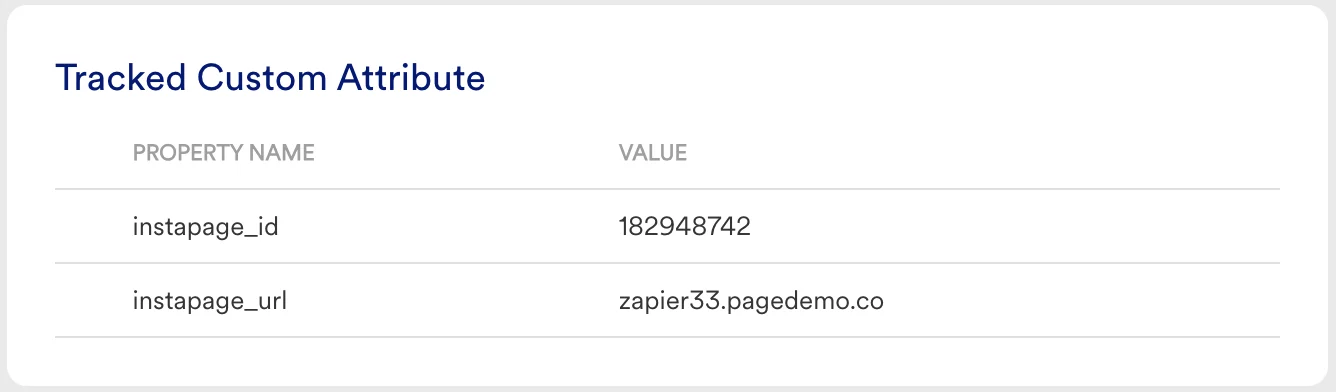
The Instapage lead appears as a user in MoEngage with all mapped attributes populated.