

Introduction
The MoEngage Events Stream integration allows you to send a continuous, real-time stream of your MoEngage engagement events directly into the Zeotap platform. After the data is in Zeotap, it is mapped to a standard catalog and can be used within Zeotap’s activation modules, such as for building audiences or triggering journeys.PrerequisitesThis is a part of the Streams add-on. Please reach out to your dedicated MoEngage CSM (Customer Success Manager) to enable it for your account.
Step 1: Add MoEngage as a Source on Zeotap
To send MoEngage campaign or event data to Zeotap, you must generate credentials in your Zeotap account and share them with the MoEngage team.Step 1.1: Get Your Zeotap Webhook and Write Key
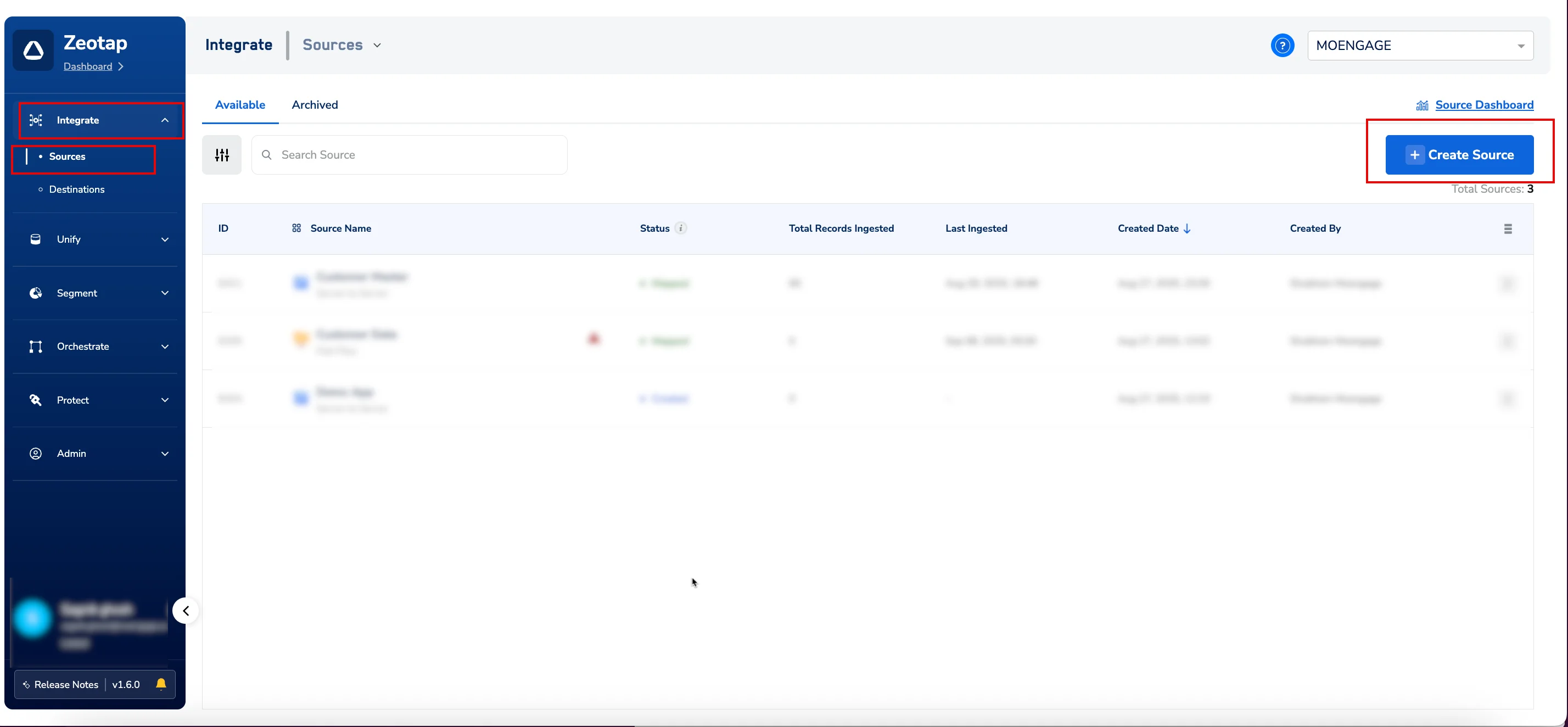
To get the ZeoTap webhook and write key, perform the following steps:- In your Zeotap dashboard, navigate to Integrate > Sources.
- Click + Create Source in the upper-right corner.
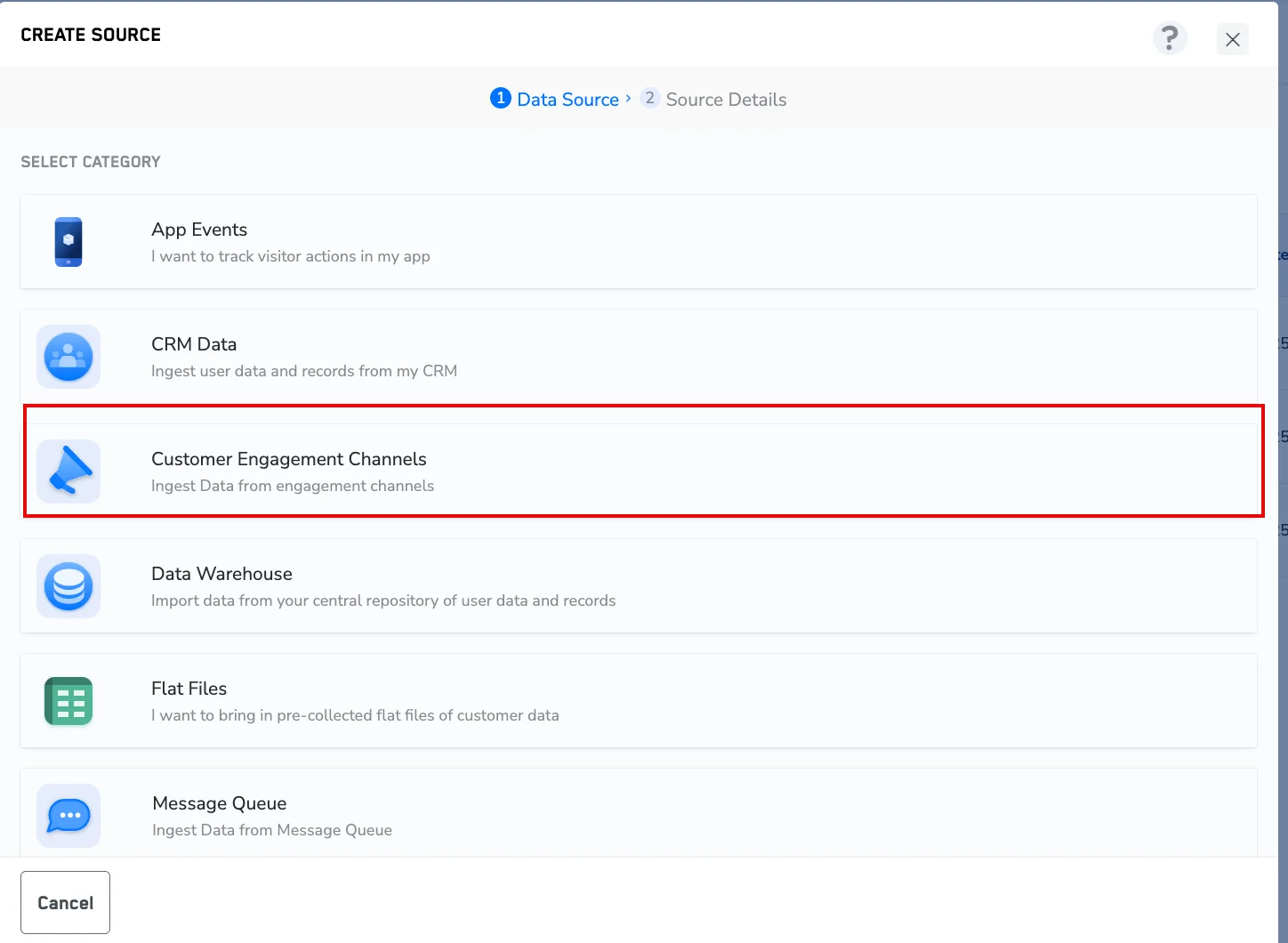
The CREATE SOURCE dialog box appears. - In the Select Category list, click Customer Engagement Channels.
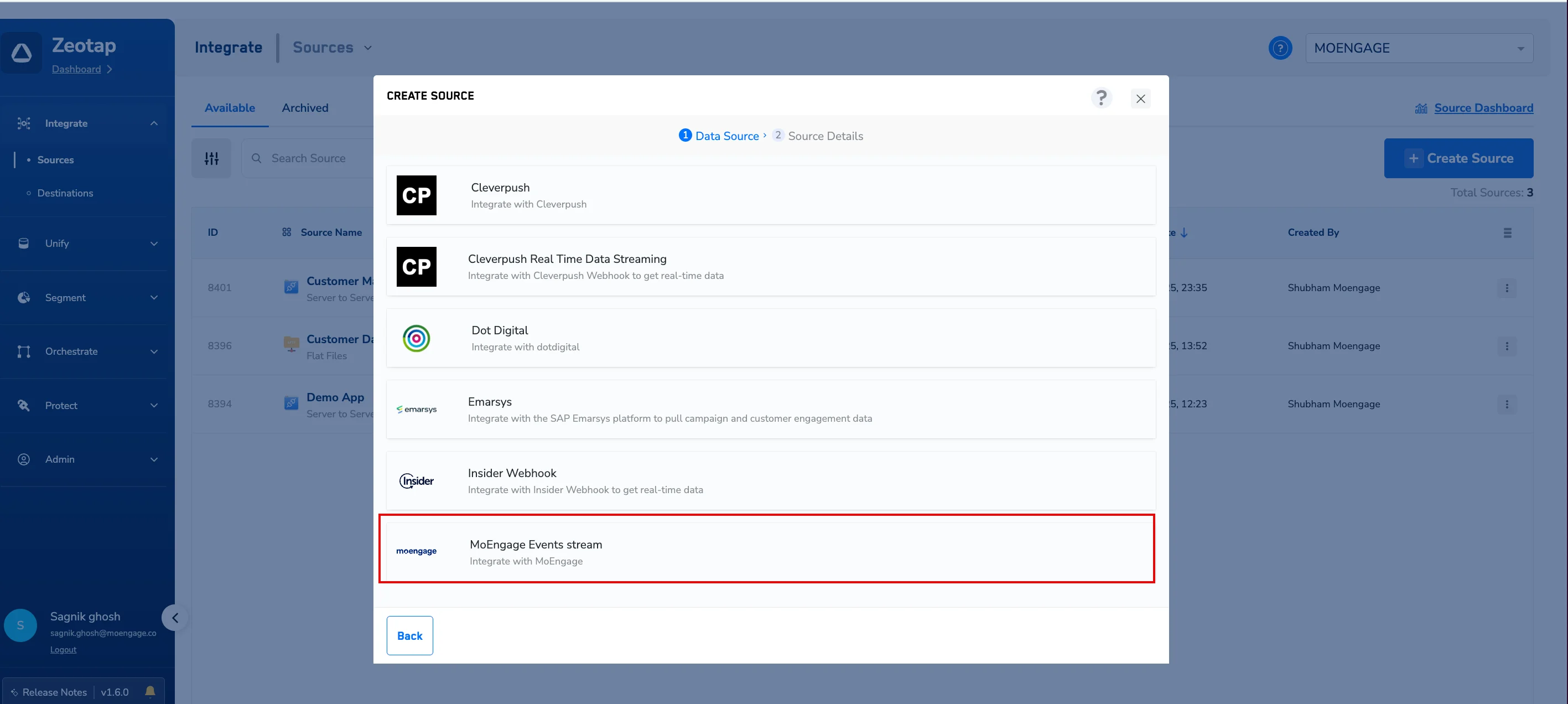
- In the SELECT DATA SOURCE list, find and click MoEngage Events stream.
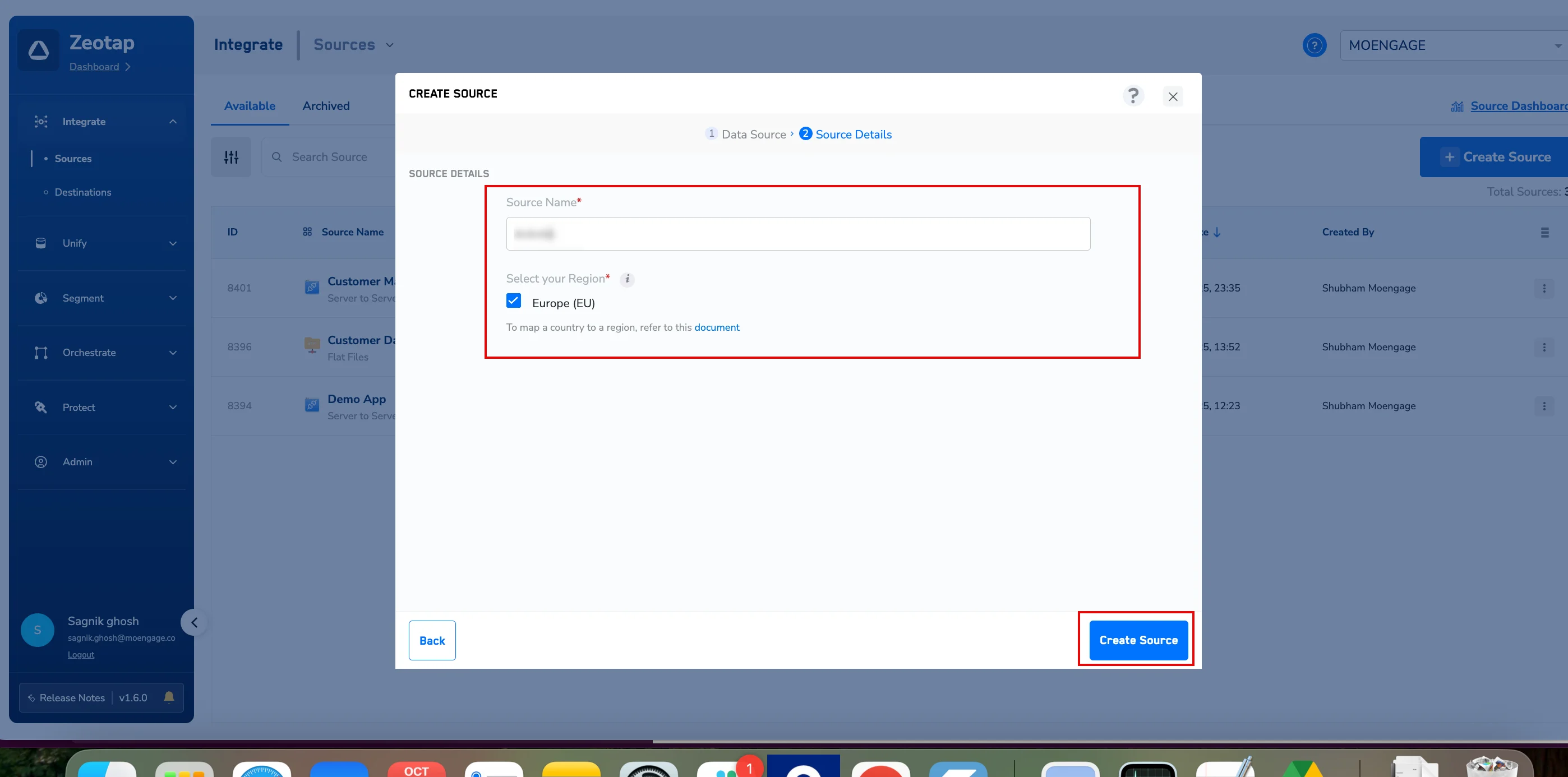
The CREATE SOURCE dialog box appears.- In the Source Name box, enter a descriptive name.
- Under Select your Region , select and check the appropriate region for your account.
- Click Create Source.
You will navigate back to theSources page.
- Find and click the source name you created.
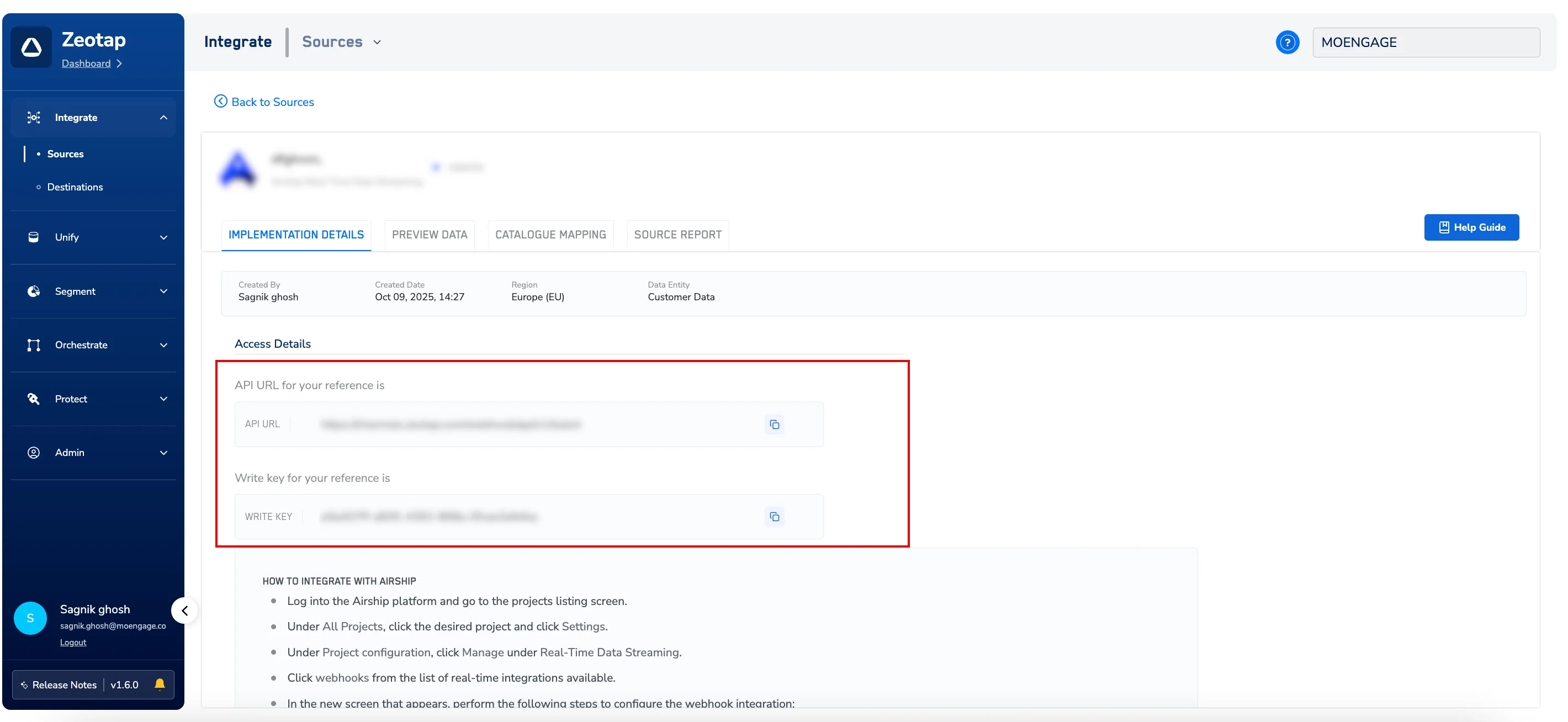
- Click the IMPLEMENTATION DETAILS tab.
- Under Access Details , copy the API URL (Webhook URL) and the WRITE KEY to provide to the MoEngage support team.
Step 1.2: Activate MoEngage Streams
After you have your ZeoTap API URL (Webhook URL) and the WRITE KEY , contact your MoEngage Customer Success Manager (CSM) to activate MoEngage Streams.Step 2: View Your Data in Zeotap
To preview the incoming data in real time, perform the following steps:- Log in to your Zeotap dashboard, navigate toIntegrate > Sources.
- On the Sources page, click the PREVIEW DATA tab.
- Click the data source that you want to preview.
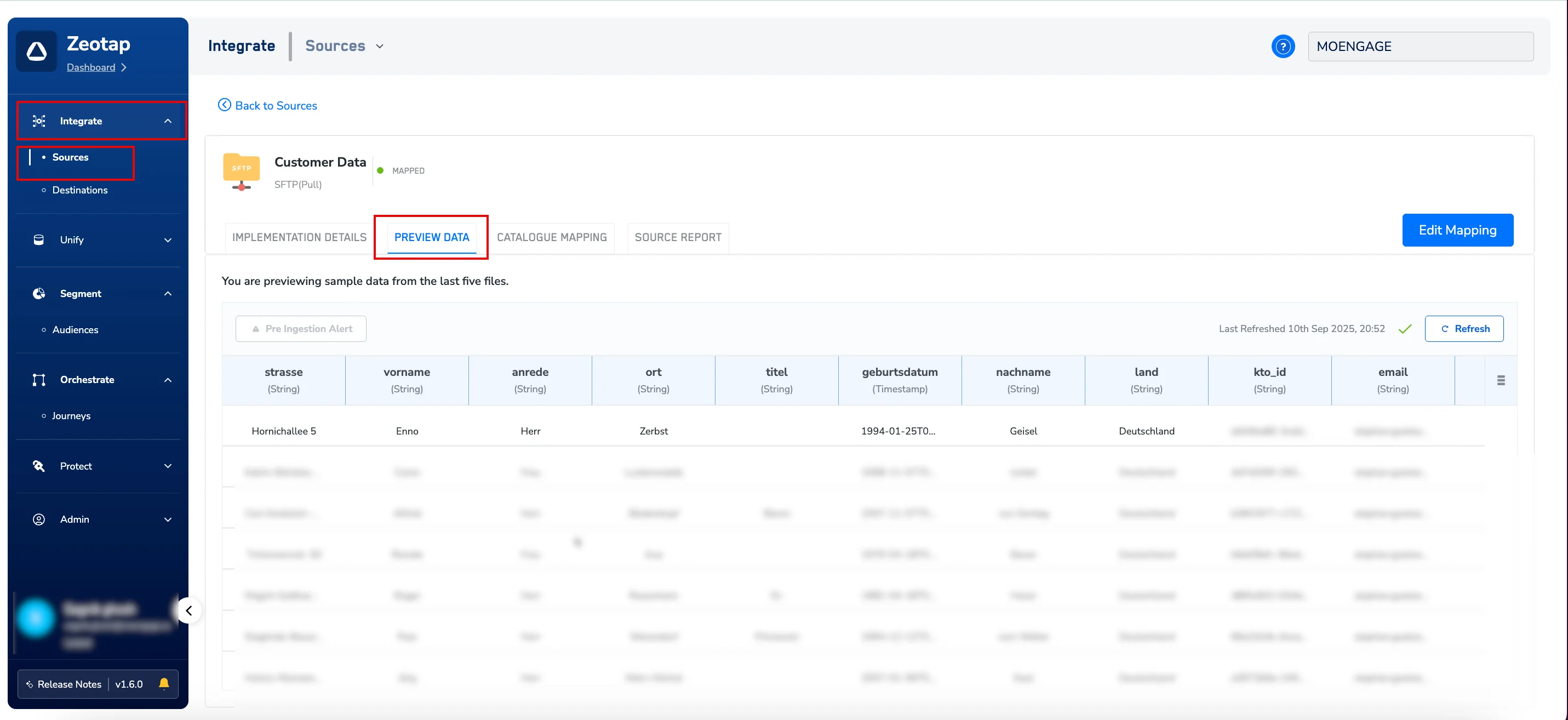
You can now view the latest events and attributes received from MoEngage. The view includes columns such as event_name, uid, event_type, and various flattened user and event attributes.