Introduction
Google Tag Manager is a free tool that enables marketers to install, store, and manage marketing tags without modifying website code, and instantly deploy tags on your website or mobile app from an easy-to-use web-based interface.MoEngage × Google Tag Manager
With the MoEngage and Google Tag Manager integration, you can forward the events captured on your GTM server to MoEngage without writing any code on your website.Integration via GTM Server Side
PrerequisitesEnsure you have a Google Tag Manager account with permission to import templates and add new tags.
Step 1: Download and import the MoEngage Tag
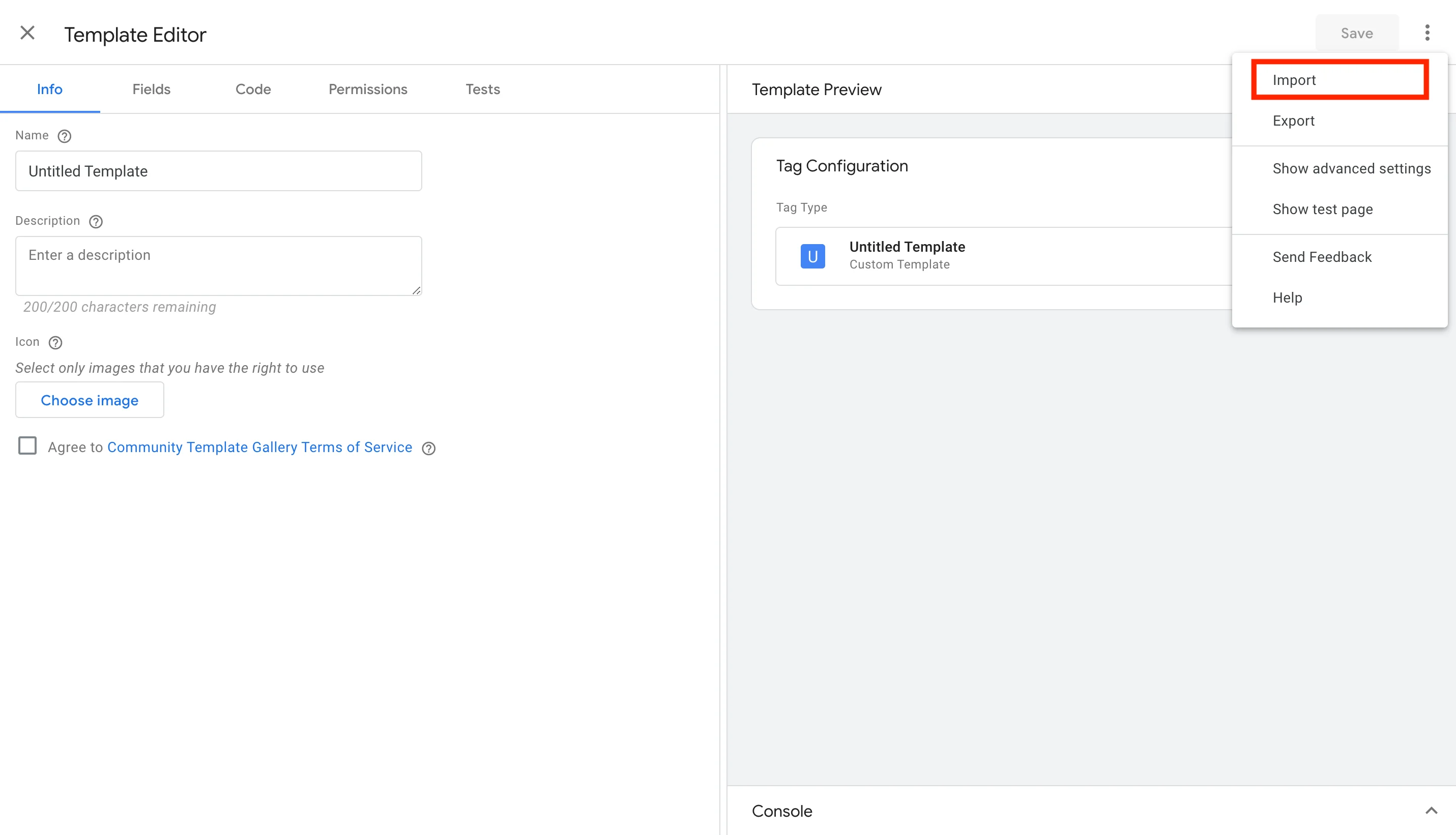
- Download the MoEngage tag (right-click and Save).
- To import the tag into your GTM workspace, go to the Templates screen from the left side menu.
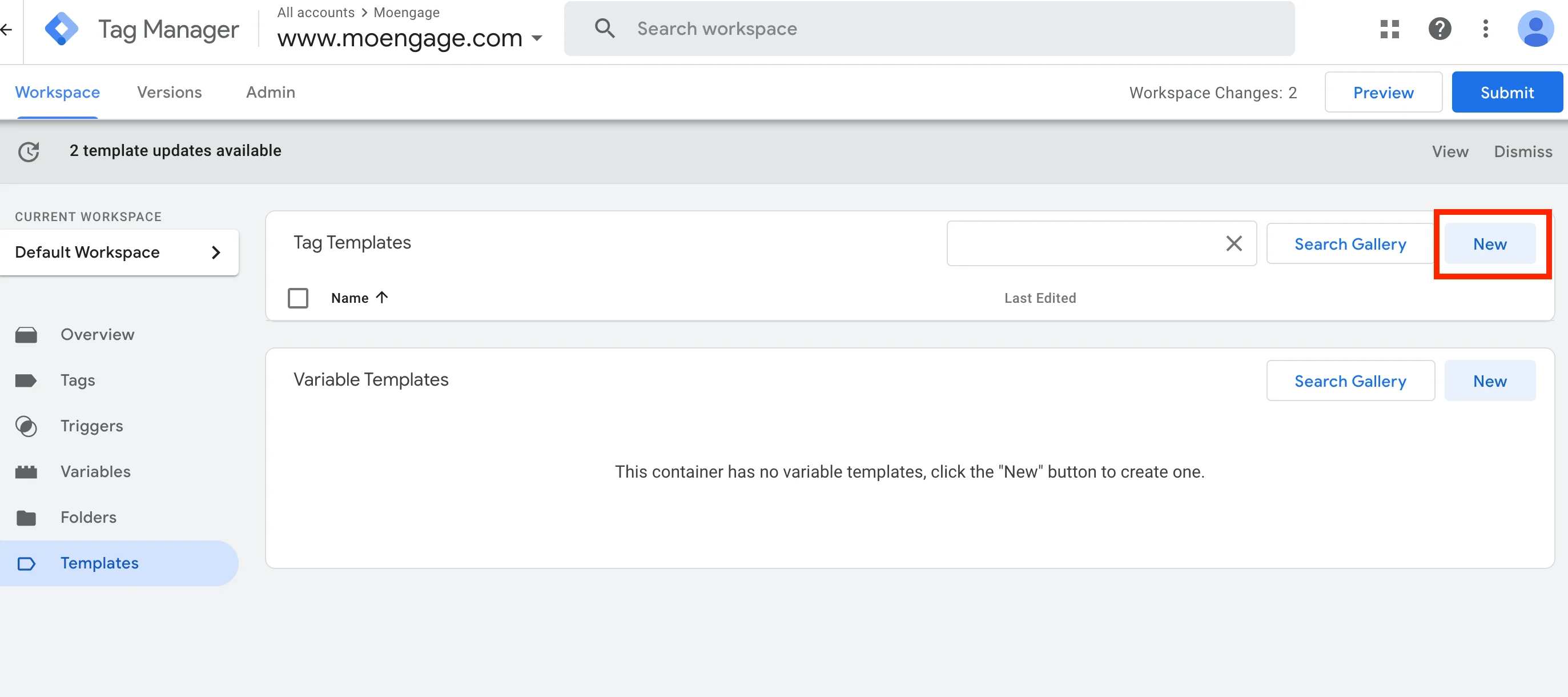
- Under Tag Templates, click the New button > Actions menu (top-right) > Import. Select the MoEngage tag file you just downloaded.
- Click Save when you see the MoEngage logo on the left.
Step 2: Select and configure the MoEngage Tag
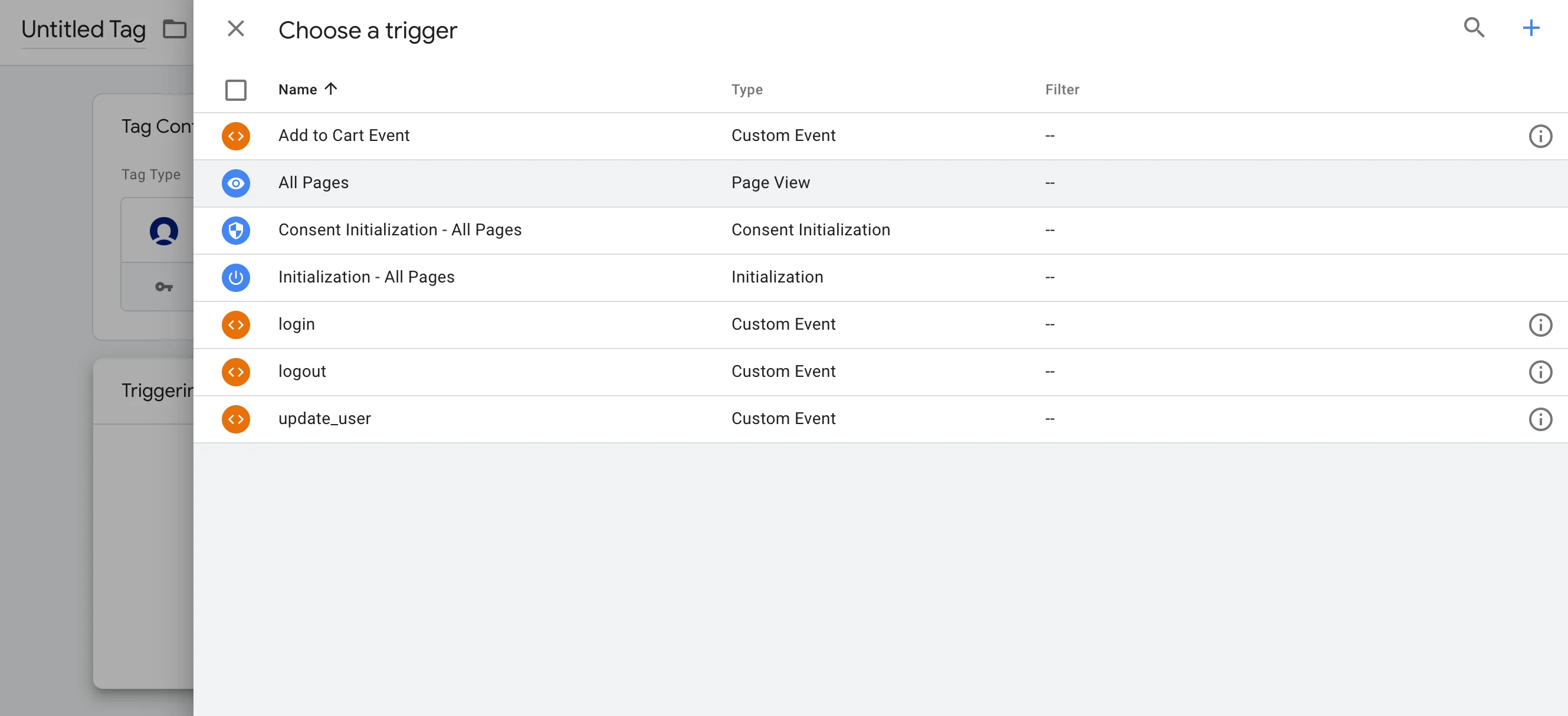
The MoEngage Tag template lets you forward GTM events, update custom as well as standard user attributes inside MoEngage.- On your GTM dashboard, click Tags > New.
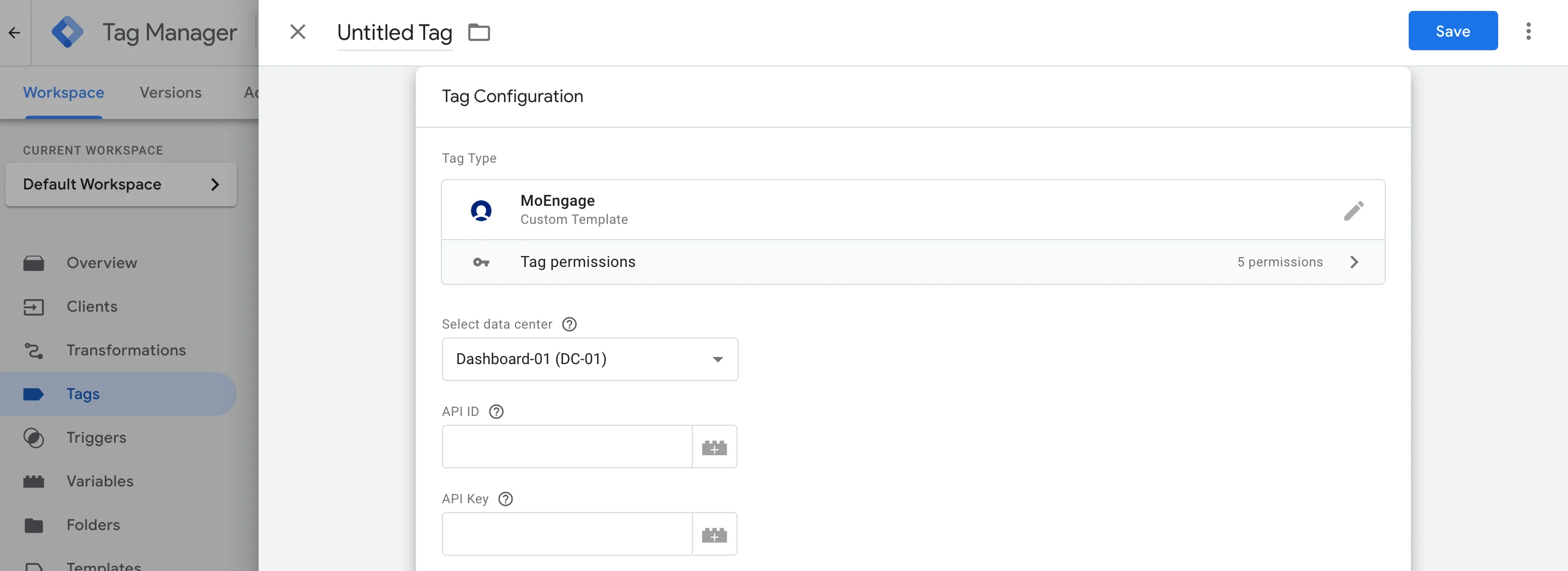
- Click Tag Configuration, and under Custom look for the MoEngage Tag.
- Setup the tag according to your needs.
| Property | Value |
|---|---|
| Select data center | Your MoEngage Data Center region (DC_X):
|
| API ID | API ID is the Workspace ID. The Workspace ID of your MoEngage account is available at Settings > Account > APIs > Workspace ID. The Data API ID and the Workspace ID of your MoEngage account are the same. |
| API Key | API Key is the Data API Key. The Data API key of your MoEngage account is available at Settings > Account > APIs > API keys > Data API settings. |
User Identifier
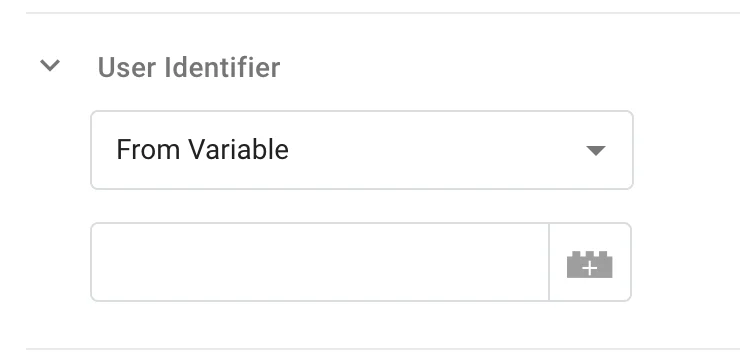
- From Variable: Select this option if you want to use a GTM Variable as the user identifier value.
- From Event Property: Select this option if you want to extract the user identifier from an event property. Enter the attribute key here, for example,
user_id. Note that we can only pick values only from the root level keys. If you want to extract values of nested keys, please use GTM Variables and then select “From Variable” option.
Snowplow Event Mapping Options
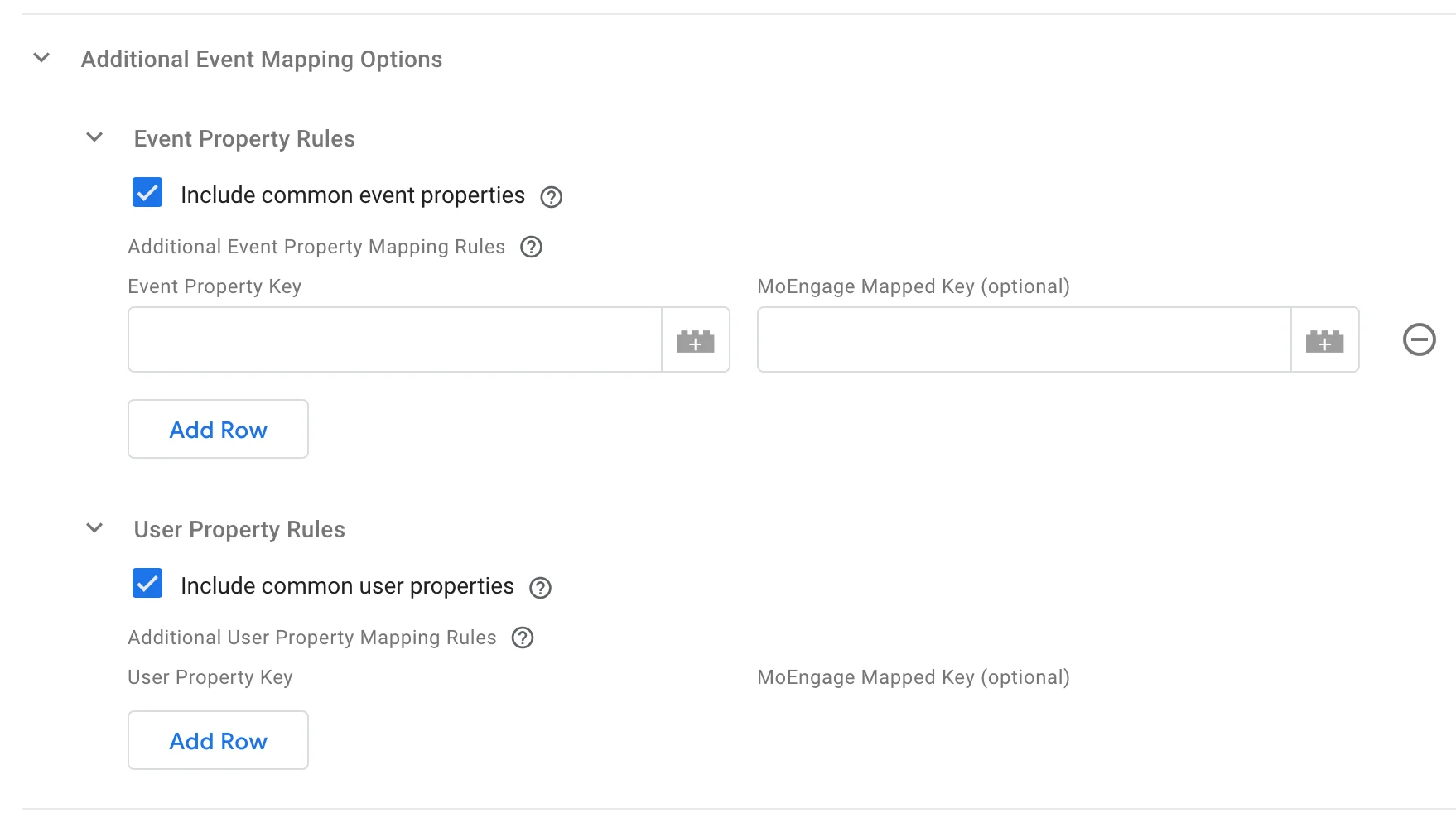
You can leave this section as it is. If you’re using a Snowplow client, we have additional options that you can use to ingest Snowplow events into MoEngage. Read more about this in our Snowplow integration guide.Additional Event Mapping Options
| Property | Value |
|---|---|
| Include common event properties | Select this option if you want to automatically include the event properties from the common event data in GTM as event properties to MoEngage. |
| Additional Event Property Mapping Rules | You can select the keys you want to map as event properties inside MoEngage. Click Add Row to add a new key mapping. Specify the property key from your event data object in Event Property Key and provide the name you would like to map it to under MoEngage Mapped Key. If you leave the MoEngage Mapped Key field blank, we will not rename the key. These properties will be stored as event properties in MoEngage. |
| Include common user properties | Select this option if you want to automatically include the “user_data” properties from the common event data in GTM as user attributes to MoEngage. |
| Additional User Property Mapping Rules | You can select the keys you want to map as user attributes inside MoEngage. Click Add Row to add a new key mapping. Specify the property key from your event data object in User Property Key and provide the name you would like to map it to under MoEngage Mapped Key. If you leave the MoEngage Mapped Key field blank, we will not rename the key. These attributes will update the user’s attributes in MoEngage. |
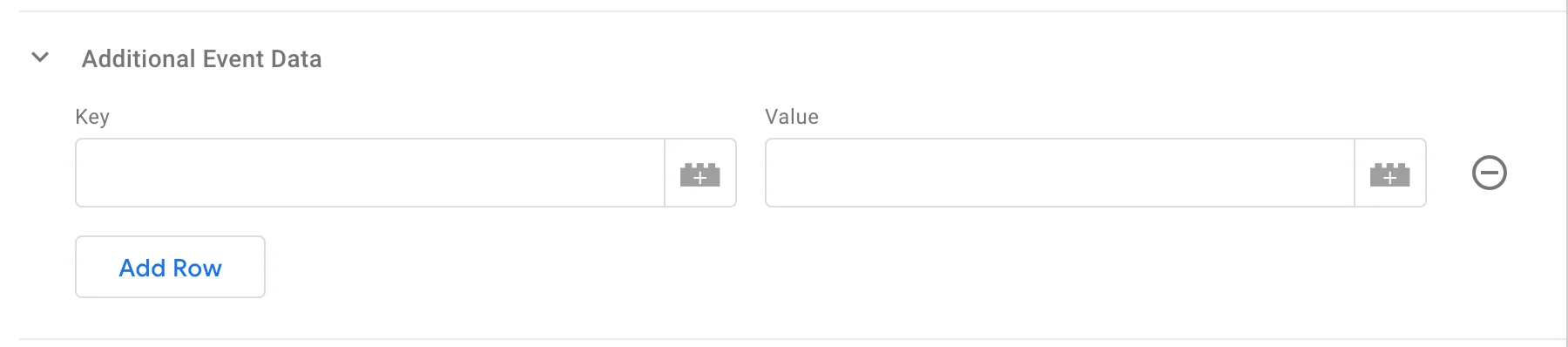
Additional Event Data
| Property | Value |
|---|---|
| Key | Specify the key you want to add to your event attributes. |
| Value | Here you can either enter a direct value of this event attribute or use a GTM Variable. |
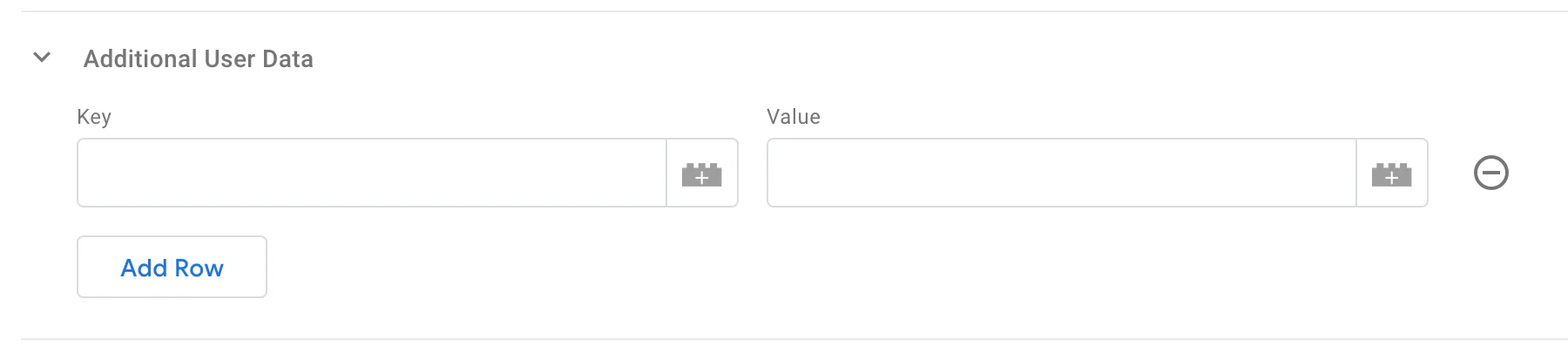
Additional User Data
| Property | Value |
|---|---|
| Key | Specify the key you want to add to your user attributes. |
| Value | Here you can either enter a direct value of this user attribute or use a GTM Variable. |
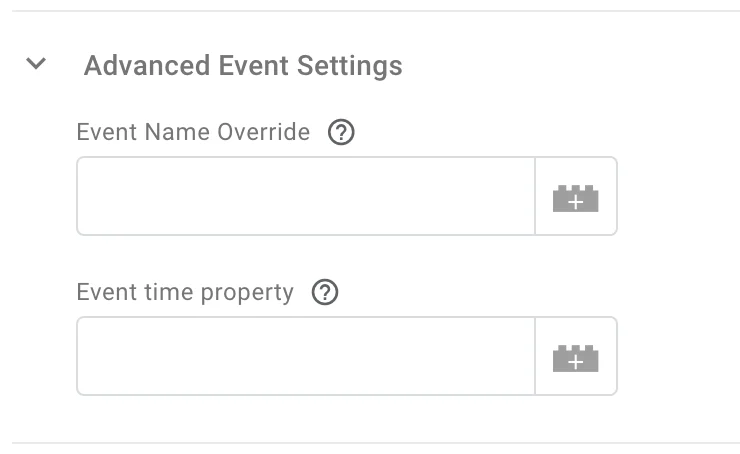
Advanced Event Settings
| Property | Value |
|---|---|
| Event Name Override | If you want to rename the event that is ingested in MoEngage, type the new event name here. If you leave this blank, we will take the event name from the common event properties. |
| Event time property | Specify the client event property to populate the event time (in ISO-8601 format) or leave it empty to use the current time. |
Step 3: Select the trigger condition