

Introduction
Apache Kafka is an open-source, distributed event streaming platform used for high-performance data pipelines, streaming analytics, and mission-critical applications.MoEngage and Kafka
This integration enables you to stream events from Kafka topics directly to MoEngage via Connected Sources. This allows raw event data to flow from Kafka to MoEngage in near real time. With this integration, you can:- Stream real-time events: Send events from Kafka topics to MoEngage with sub-second latency for immediate campaign triggering and user profile updates.
- Scale across environments: Deploy across multiple environments, including Systemd, Docker, Docker Compose, and Kubernetes, for production-grade reliability.
Use cases
Integrating Kafka with MoEngage supports the following use cases:- Real-time purchase triggers: When a customer completes a purchase captured in Kafka, instantly stream the order event to MoEngage to trigger personalized thank-you emails, product review requests, and cross-sell campaigns based on items purchased and order value.
- Abandoned cart recovery: Stream cart abandonment events from your e-commerce platform through Kafka to MoEngage to automatically trigger reminder emails with personalized recommendations and time-sensitive discount codes.
- User activity tracking: Capture high-volume user interactions like page views, feature usage, and content engagement in Kafka topics. Stream them to MoEngage to build behavior profiles and trigger contextual in-app messages or push notifications.
Integration
The integration follows an architecture in which your Kafka events are sent directly to MoEngage in JSON format.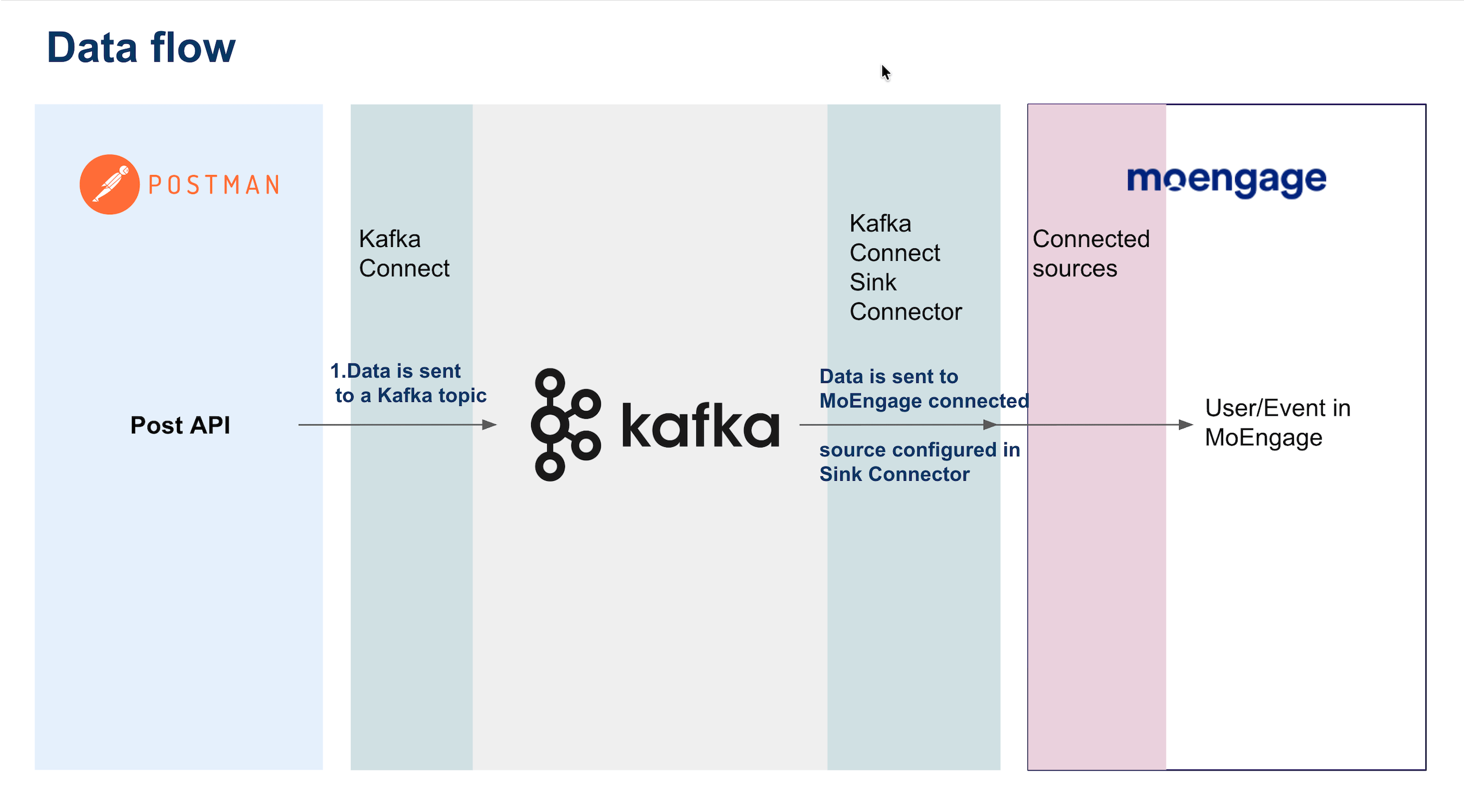
Prerequisites
- An active Kafka cluster with bootstrap servers accessible from your deployment environment.
- Python 3.7 or higher is installed in your deployment environment.
- Kafka events are formatted according to the standard JSON schema.
- An understanding of your Kafka message structure and authentication requirements.
Step 1: Get the MoEngage endpoint
Contact the MoEngage Support team to obtain a dedicated Kafka integration endpoint. Note the values for the following fields for the next steps:Step 2: Set up the Kafka connector
The following sections provide a sample script to push data from your Kafka topic to your dedicated MoEngage endpoint. You can modify the script based on your data structure and attribute mapping.Step 2.1: Standard event format
MoEngage provides a standard JSON format for Kafka events. Ensure your Kafka messages follow this structure:Sample Event
Flexible schemaYou can add custom fields to the
user_attributes and event_attributes objects. MoEngage automatically captures and stores these fields. Only customer_id, updated_at, and event_attributes.event_name are mandatory.Step 2.2: Basic setup
Python dependencies Install the required Python packages for Kafka consumption and HTTPS communication:Shell
Configure environment
Create a
.env file to securely store your configuration.
Do not commit this file to version control.
Environment Configuration
Step 2.3: Create the consumer script
Create a file namedkafka_consumer.py. This script consumes messages from Kafka and posts them to the MoEngage API.
kafka_consumer.py
Step 3: Test script
Before you deploy to production, verify that the integration works correctly.Testing prerequisitesEnsure your Kafka topics contain test events in the standard JSON format before you run the consumer script.
3.1. Run the consumer script locally
Shell
Sample Logs
3.2. Verify data in the MoEngage UI
- In the MoEngage UI, navigate to Settings > Data Management > Events.
- Search for your event names (from
event_attributes.event_name). - Check the Users section to confirm profiles are created/updated.
- Navigate to Segment > Search Users.
- Search for the customer using Customer ID, Email address, or Phone number.
- Verify that events appear with correct attributes and timestamps in the User Profile.
Data processing delayEvents may take 1 to 2 minutes to appear in the MoEngage dashboard due to processing queues. If events don’t appear after 10 minutes, check the console logs for API errors and verify your credentials.
Step 4: Deploy to production
Choose a deployment method based on your infrastructure. MoEngage supports the following deployment options.- Systemd Service
- Docker
- Docker Compose
- Kubernetes
Systemd Service (Linux)
To run the consumer as a persistent background process on a Linux server, follow the steps below to configure:1. Create service fileCreate the service file using nano:Rate Limits
To maintain platform stability, MoEngage limits ingestion of Kafka data to a maximum of 500 requests per second (RPS) per workspace. If your workspace exceeds this limit, MoEngage returns an HTTP429 (Too Many Requests) status code.
Handle 429 responses in your consumer script by backing off and retrying, so events are not dropped when the limit is reached. The sample script already retries on server errors; extend the same logic to cover rate-limit responses.