

Introduction
Freshsales is a popular CRM tool for support, sales, and marketing teams worldwide. Freshsales services allow businesses to use cloud technology to better connect with partners, customers, and potential customers.MoEngage × Freshsales
The integration of MoEngage and Freshsales can streamline your marketing and sales initiatives by enabling the seamless transfer of leads and customer data from Freshsales to MoEngage. With this integration, you can:- Create or update Freshales contacts, deals, and more in MoEngage.
- Import sales activities on Freshsales as events in MoEngage.
- Import any custom modules from Freshsales to MoEngage.
Use Cases
- Improve sales outreach with MoEngage’s personalized campaigns.
- Win back deals by updating lost opportunities about new features using campaigns in MoEngage.
- Convert leads to opportunities by sending them targeted campaigns using MoEngage.
- Move a prospect down the funnel by engaging them promptly using event-triggered campaigns in MoEngage.
Integration
PrerequisitesEnsure you have a Freshsales account to integrate MoEngage with Freshsales CRM.
Sync from Freshsales to MoEngage
To start syncing your Contacts, Accounts, Deals, and more with MoEngage, you need to set up a Webhook in your Freshsales CRM:
- On your Freshsales CRM Dashboard, go to Admin Settings >> Workflows >> Create workflow.

- According to your use case, select which module you want to sync. If you want to Sync multiple modules, you must create individual workflows for each, as Freshsales only supports one module per Workflow. Please note that the MoEngage Endpoint for each Module is unique.

- In the “When to trigger this workflow?” section, select the trigger as “When <module> is created or updated” and run this workflow “repeatedly for the same <module>”.
- You can also add filter conditions in the “What conditions should be met?” section according to your use case. Leave it empty if you want it to trigger for all creates/updates.
- Under the “What actions should be executed?” section, select the “Trigger webhook” action for the module. Fill in the following:
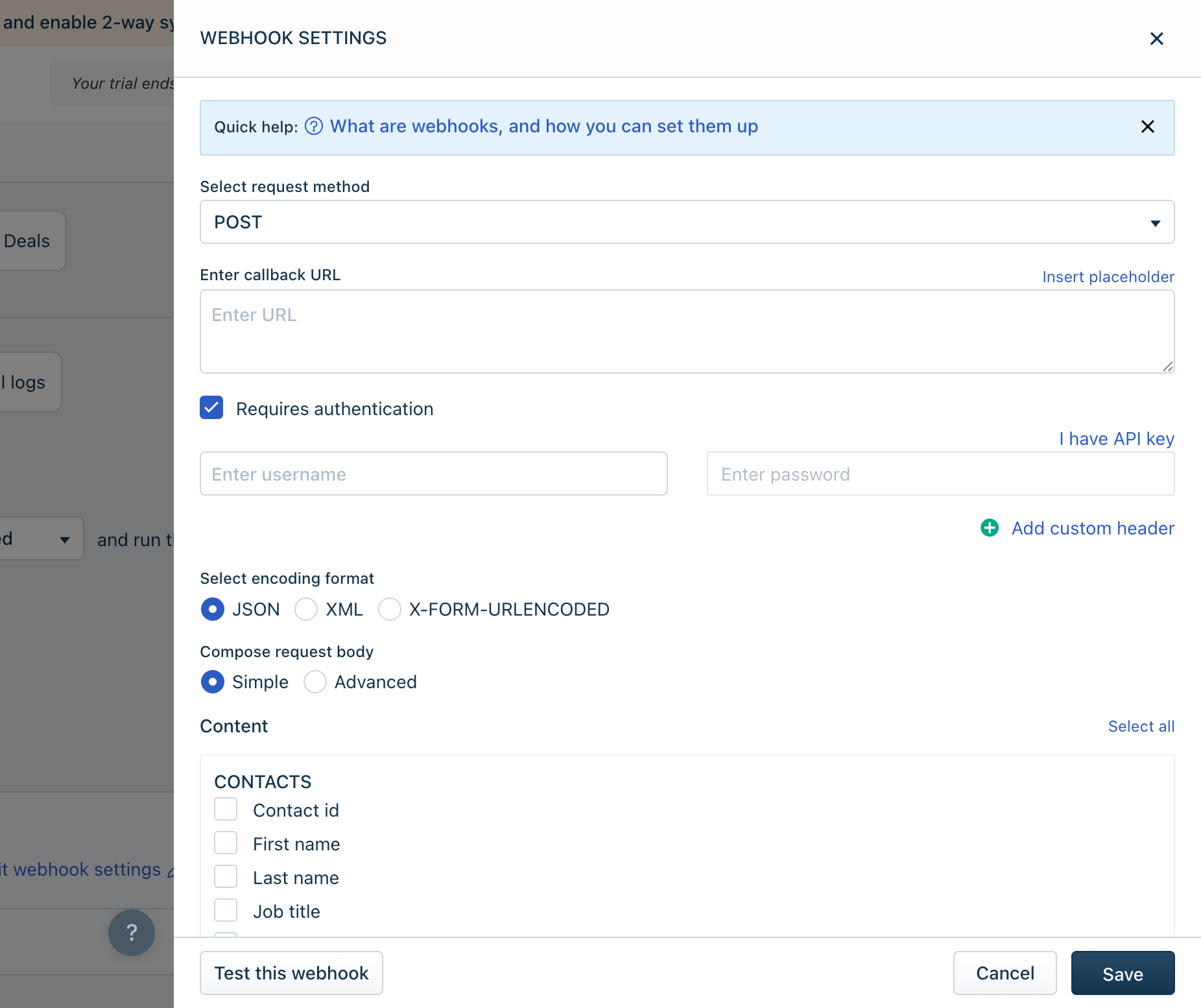
If you pick Simple Content, then MoEngage’s default mappings will apply:
Contacts as Users in MoEngage
Note: You can also send related Sales Account details to the Contact Workflow.
Accounts as Users in MoEngage
Note: It is recommended to Update all related Contacts when an Account is Updated/Created and to use the Contact Workflow to Sync Account details to MoEngage.
Tasks, Meetings, Call Logs as Events in MoEngage
Syncing Tasks, Meetings and Call Logs to MoEngage is only available via the Advanced Content mode. In the Compose request body, select “Advanced”. Here is a sample payload format for Tasks:Tasks
Meetings
Call Logs
Advanced content body
If you wish to use Advanced content body for any of the above modules, you can use a payload structure similar to this:Introduction
Freshsales is a popular CRM tool for support, sales, and marketing teams worldwide. Freshsales services allow businesses to use cloud technology to better connect with partners, customers, and potential customers.MoEngage × Freshsales
The integration of MoEngage and Freshsales can streamline your marketing and sales initiatives by enabling the seamless transfer of leads and customer data from Freshsales to MoEngage. With this integration, you can:- Create or update Freshales contacts, deals, and more in MoEngage.
- Import sales activities on Freshsales as events in MoEngage.
- Import any custom modules from Freshsales to MoEngage.
Use Cases
- Improve sales outreach with MoEngage’s personalized campaigns.
- Win back deals by updating lost opportunities about new features using campaigns in MoEngage.
- Convert leads to opportunities by sending them targeted campaigns using MoEngage.
- Move a prospect down the funnel by engaging them promptly using event-triggered campaigns in MoEngage.
Integration
PrerequisitesEnsure you have a Freshsales account to integrate MoEngage with Freshsales CRM.
Sync from Freshsales to MoEngage
To start syncing your Contacts, Accounts, Deals, and more with MoEngage, you need to set up a Webhook in your Freshsales CRM:
- On your Freshsales CRM Dashboard, go to Admin Settings >> Workflows >> Create workflow.
- According to your use case, select which module you want to sync. If you want to Sync multiple modules, you must create individual workflows for each, as Freshsales only supports one module per Workflow. Please note that the MoEngage Endpoint for each Module is unique.
- In the “When to trigger this workflow?” section, select the trigger as “When <module> is created or updated” and run this workflow “repeatedly for the same <module>”.
- You can also add filter conditions in the “What conditions should be met?” section according to your use case. Leave it empty if you want it to trigger for all creates/updates.
- Under the “What actions should be executed?” section, select the “Trigger webhook” action for the module. Fill in the following:
If you pick Simple Content, then MoEngage’s default mappings will apply:
Contacts as Users in MoEngage
Note: You can also send related Sales Account details to the Contact Workflow.
Accounts as Users in MoEngage
Note: It is recommended to Update all related Contacts when an Account is Updated/Created and to use the Contact Workflow to Sync Account details to MoEngage.