

Introduction
Mixpanel makes analytics self-serve for your product teams and enables everyone to answer questions around user conversion, retention, and activation.Scope
The MoEngage and Mixpanel integration allow you to import Mixpanel Cohorts into MoEngage to create segments that can be used to target users in future campaigns. You can also leverage MoEngage streams to export your campaign events to Mixpanel to drive deeper analytics into conversions, retention, and product usage.Benefits and Use Cases
Analyze your users in Mixpanel and engage with them using MoEngage. The following use-cases provide integration value addition to your analytics + user engagement activities:E-commerce
Understand the seasonal changes in purchase trends that are happening and send rich push notifications to such users via MoEngage. For example, target the cohort of users who purchase high-value items during summers and send rich push notifications with similar recommended items.Travel
You can create a cohort in Mixpanel of millennial users who are also premium users of your app and send them popular and unique holiday destination recommendations via MoEngage emails.E-learning
Understand where your users are dropping off while watching a video series on your platform and bring them back with engaging campaigns! Through insights into user behavior, you are armed with a holistic picture of exactly what actions can trigger a user to return to the app.Integration
PrerequisitesEnsure you have login credentials for MoEngage and Mixpanel.
Cohort Sync from Mixpanel to MoEngage
Mixpanel to MoEngage integration allows you to export cohorts in Mixpanel to MoEngage and send personalized campaigns to all the users under this cohort from MoEngage.Streaming MoEngage Events to Mixpanel
MoEngage to Mixpanel integration allows you to export the campaign interaction events generated after your users engage with the MoEngage campaigns to Mixpanel.Setting up MoEngage integration on Mixpanel
To setup MoEngage Integration on Mixpanel, follow the below steps:-
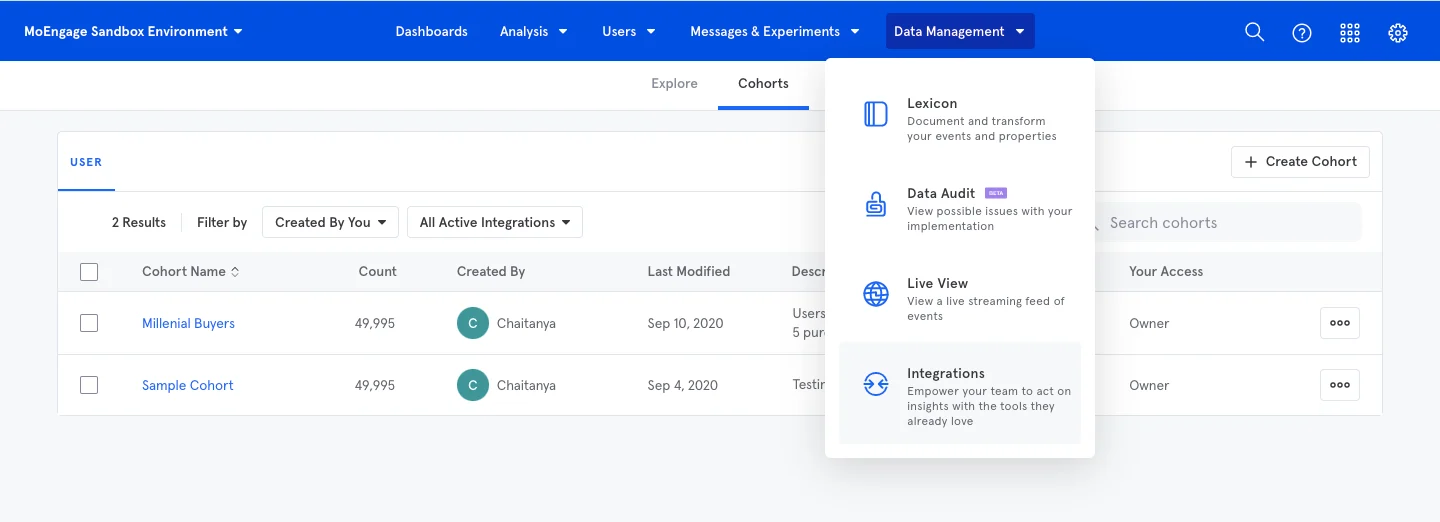
Log in to Mixpanel and navigate to Data Management > Integrations.
-
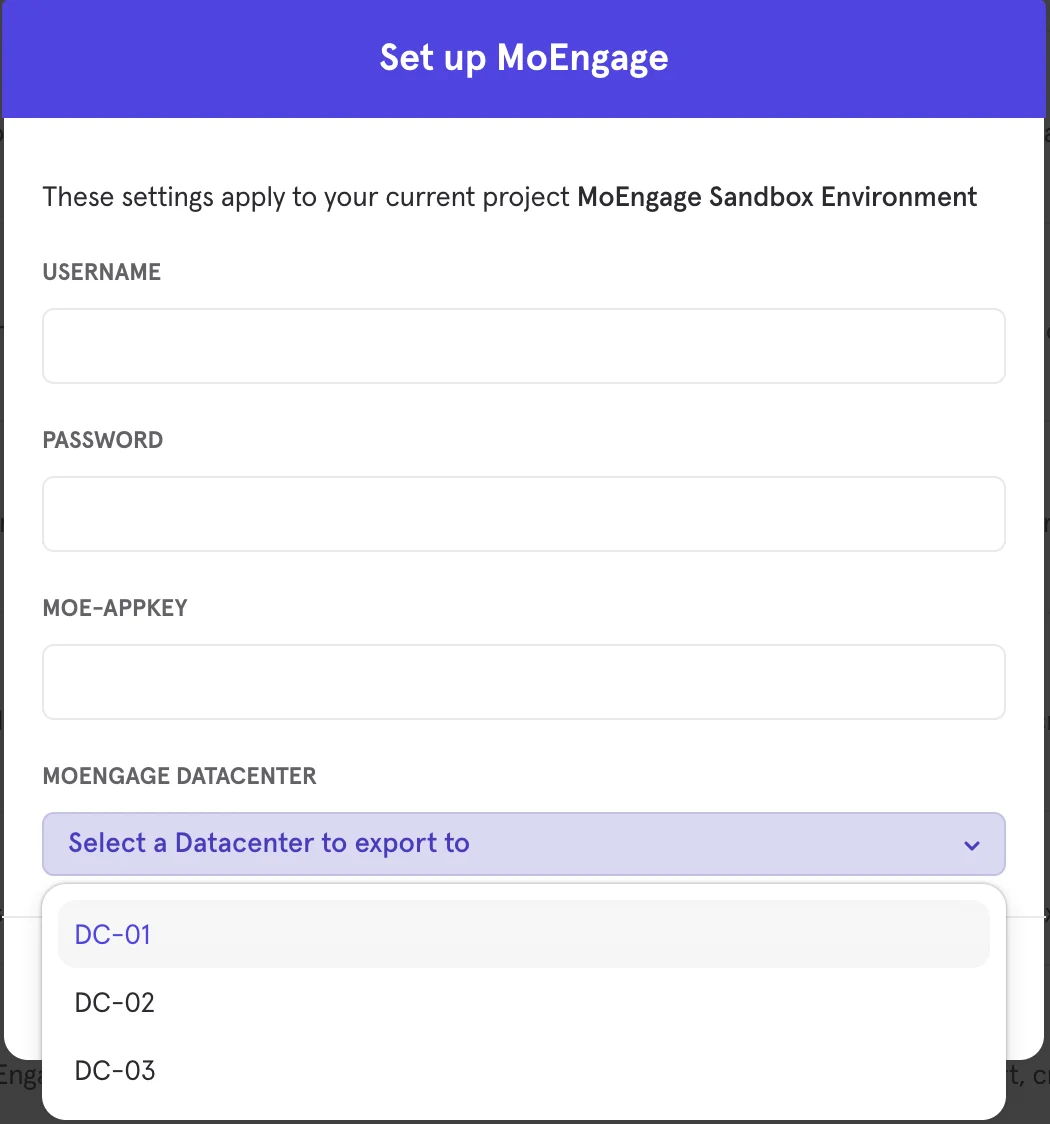
On the Integrations page, search MoEngage and click on the CONNECT button. You will see a pop-up to enter the MoEngage credentials as described:
-
Fill the following fields from the MoEngage dashboard by navigating to Settings > Account > API Settings:
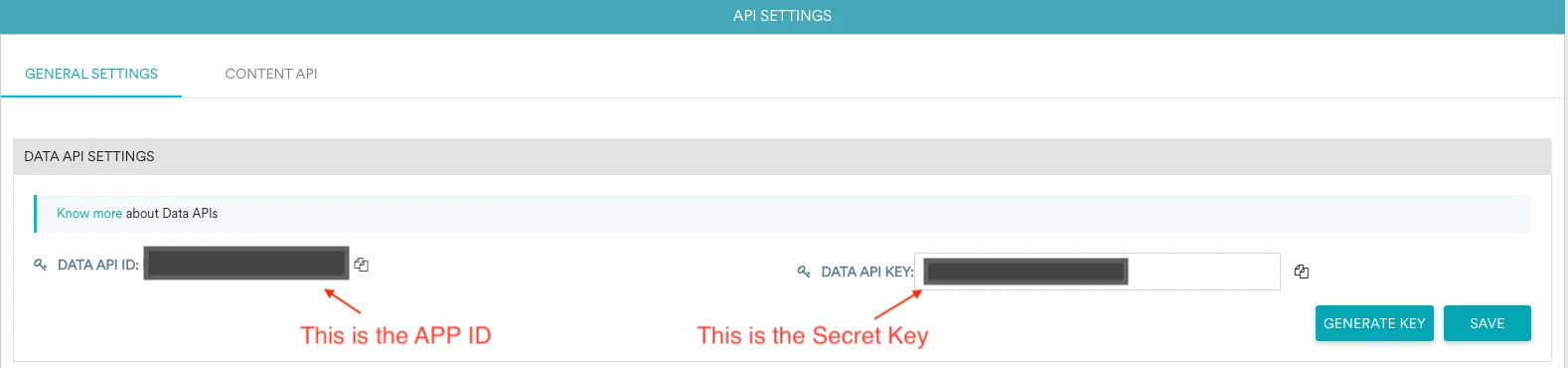
- Click save on continue to connect MoEngage as an integration.
Exporting Cohorts from Mixpanel to MoEngage
Ensure your cohort name does not start with a period (.) and does not contain the following restricted characters:
|, *, ?, \, :, <, >, =, $, ".-
Navigate to the cohorts page on Mixpanel dashboard.

-
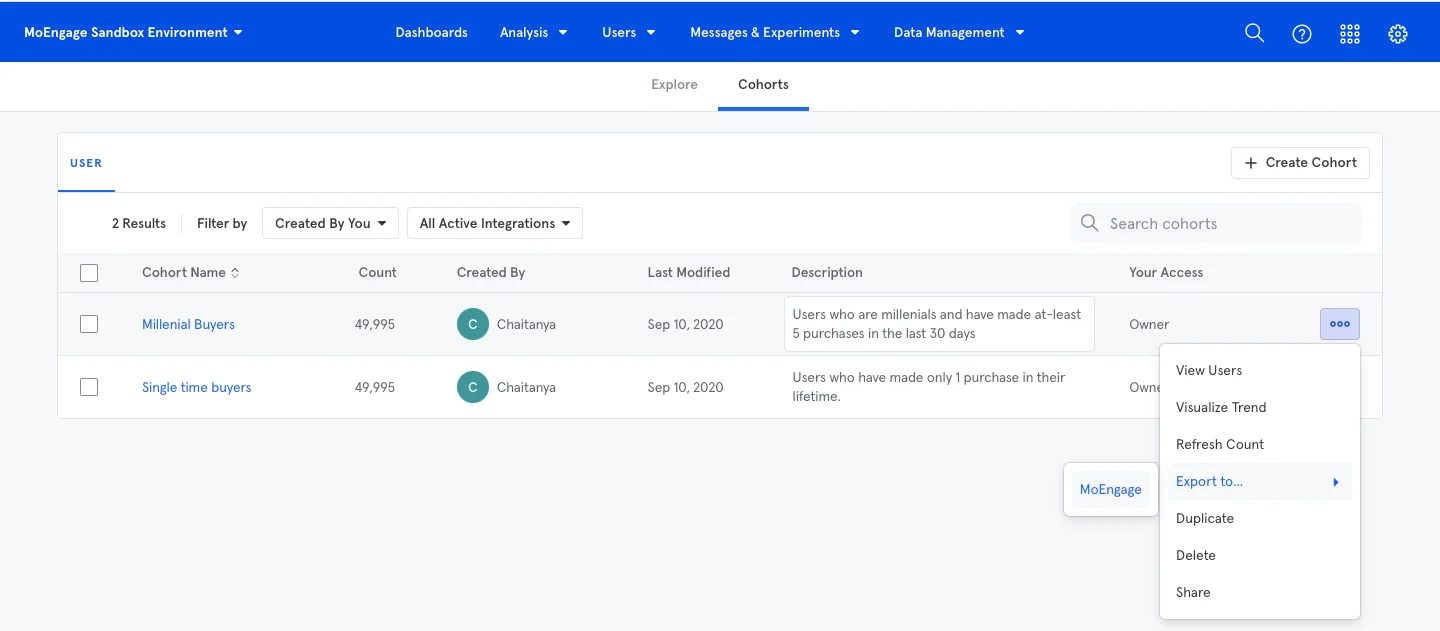
Click on the three dots menu on the right-hand side of any cohort and use the Export to option to export the particular cohort to MoEngage.
-
In the Export to MoEngage pop-up, select one of the following:
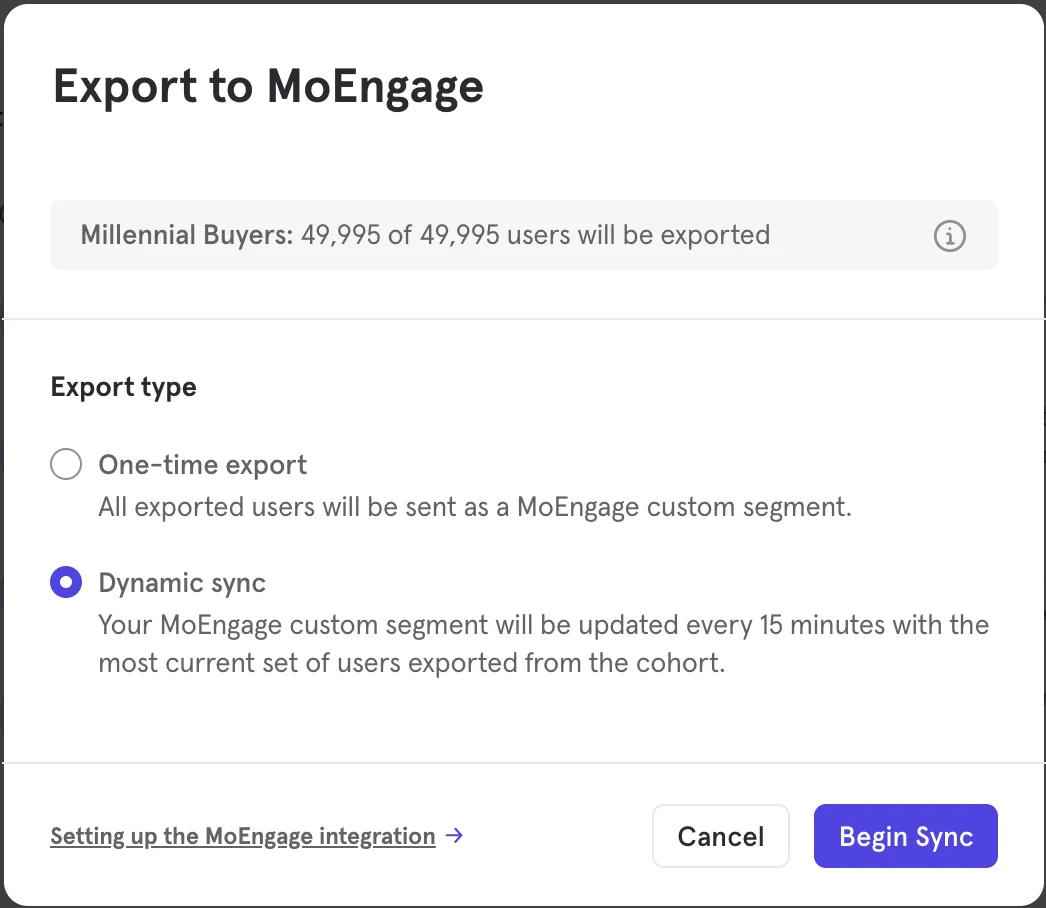
- Click Begin Sync to export.
-
Check the export status after you export the cohort as described.
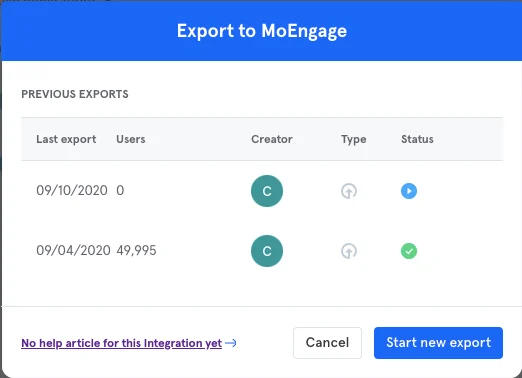
Using Cohorts in MoEngage Campaigns
Once an export is complete, you will be able to see the cohort as a custom segment in MoEngage as in the following image: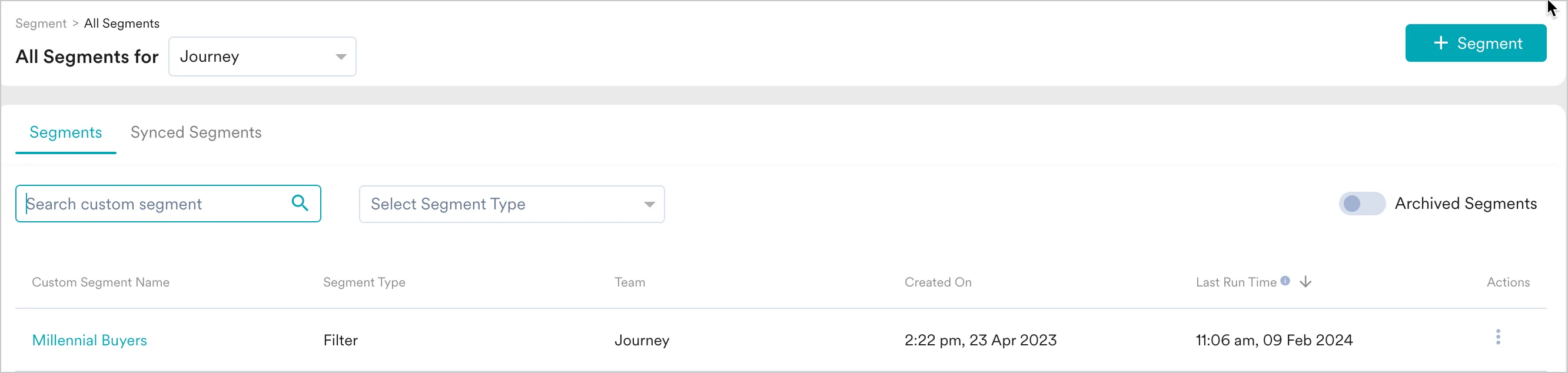
User Mapping between Mixpanel and MoEngage
When you are exporting cohorts from Mixpanel to MoEngage, all users in your Mixpanel cohort will be attempted to be mapped with unique user profiles in MoEngage. We will be relying on a unique user identifier that will be present across Mixpanel and MoEngage users for mapping. This identifier will also be used when sending campaign events from MoEngage to Mixpanel. You need to ensure that you are adding an alias for your Mixpaneldistinct_id and that the same identifier is used as ID (unique user id) in MoEngage.
For more information on tracking unique user id in MoEngage, refer to:
Exporting Campaign Data from MoEngage to Mixpanel
This feature is part of the Streams paid add-on. To check what’s available for your plan, refer to Plans and Pricing. To enable it for your account, contact your MoEngage Customer Success Manager (CSM) or the Support team.
- Click on + Add Integration to add a new integration.
-
Fill out the form.
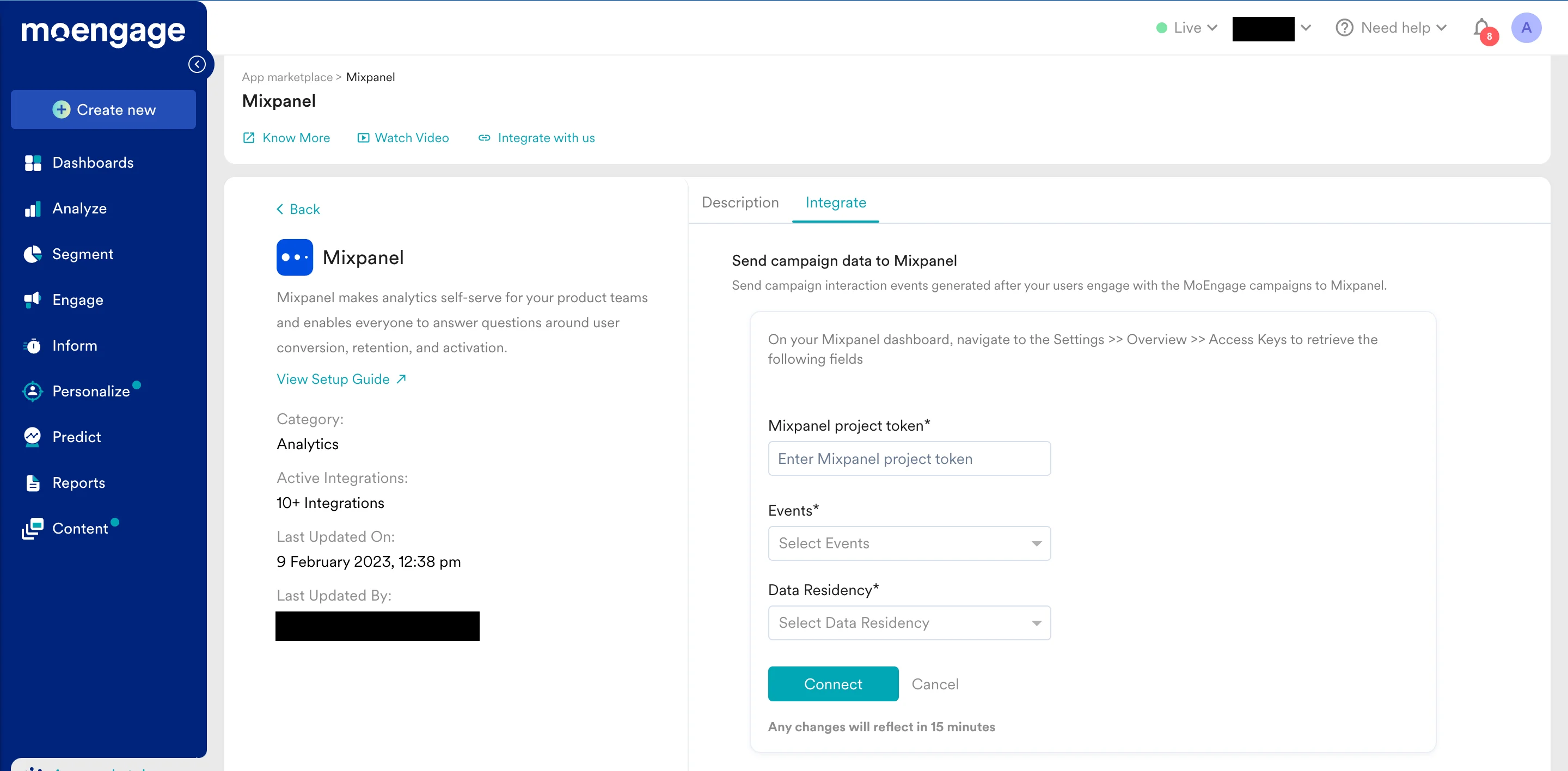
-
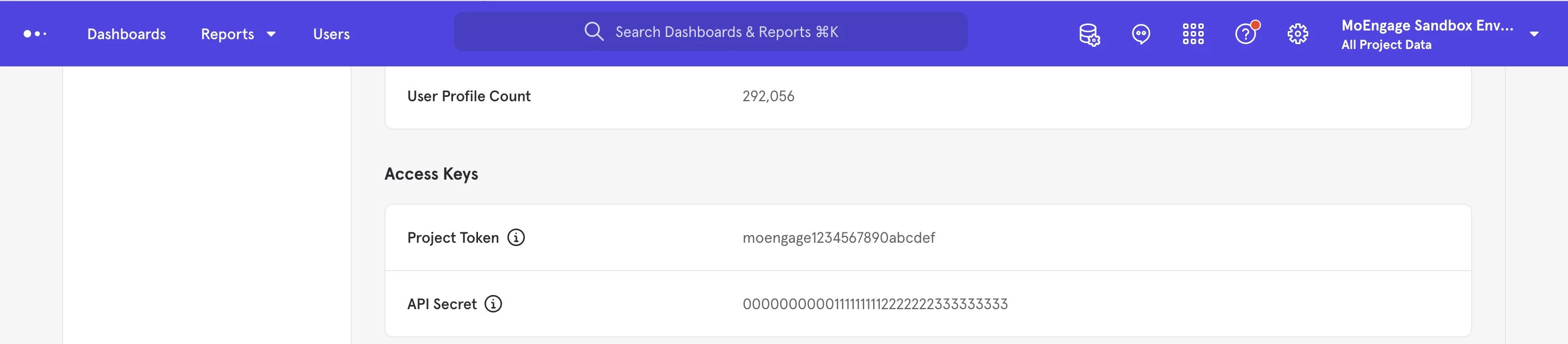
Mixpanel project token - This is available on your Mixpanel Dashboard > Settings > Overview > Access Keys > Project Token as shown below:
- Select the events you want to forward. By default, MoEngage will be sending the data points mentioned in the next section to Mixpanel.
- Click on Connect to save the integration.
$source = MOENGAGE. These events are sent to Mixpanel in near real-time and use the Mixpanel distinct_id for mapping user profiles between MoEngage and Mixpanel.
Ensure that you are setting the
mixpanel_distinct_id as the unique user id in MoEngage.Export Data
The following data points are by default sent to Mixpanel:Troubleshooting
The user count for the segment is 0?
Please check if the custom segment name is “All users”. All users is reserved for MoEngage and cannot be used as the custom segment name.The segment is not showing up on MoEngage dashboard?
Please check archived segments on MoEngage. You can check your archived segments here. Please unarchive your segment and then retry.Frequently Asked Questions
How soon will I start getting the data?
How soon will I start getting the data?
It typically takes up to 30 minutes for the automated data exports to be set up for your account and for you to start seeing data there.
Can I export additional events at a later time?
Can I export additional events at a later time?
Yes, if you need to export new events at a later time, you can always edit your configuration on the App Marketplace and get the new events added to your exports.
Can I export historical data using Automated Data Exports?
Can I export historical data using Automated Data Exports?
As of now, you cannot export historical data using Automated Data Exports. Once configured, you will start seeing data for each event from the time you enabled your exports.
Is there any pricing involved for Automated Data Exports?
Is there any pricing involved for Automated Data Exports?
If your billing plan does not cover this already and you need to get this enabled at a later time, you would need to work with your Customer Success Manager to get this included in your billing plan. Based on the amount of data that MoEngage will place in your Data warehouse/Partner/API on a monthly basis, this could lead to additional charges.
Rate Limits
MoEngage applies an ingestion rate limit and a payload cap to the data that Mixpanel sends into your workspace. When your workspace exceeds the limit, MoEngage returns an HTTP429 (Too Many Requests) status code. Refer to Mixpanel’s default retry policy to understand how rate limiting affects your data flow.
Mixpanel cohort imports and user or event imports have different limits, so check the figure for the import type you use. For the current limits, refer to Partner Data Ingestion Rate Limits.