

Introduction
Amplitude enables you to drive growth through robust product and behavioral analytics. Gain a thorough understanding of exactly what behaviors and traits are common among user segments to inform powerful targeting.The Amplitude audience integration does not currently support Unified Identity or Portfolio.
Scope
- Enable deeper behavioral and product analysis with MoEngage and Amplitude.
- Gauge the efficacy of segmentation and experimentation on the customer experience through Amplitude and send personalized messages through MoEngage.
- Export behavioral cohorts directly from Amplitude to MoEngage or utilize Streams to export data from MoEngage to Amplitude.
Benefits and Use Cases
The following use-cases provide integration value addition to your analytics + user engagement activities:E-commerce
Understand the seasonal changes in purchase trends that are happening and send rich push notifications to such users using MoEngage. For example, target the cohort of users who purchase high-value items during summers and send rich push notifications with similar recommended items.Travel
You can create a cohort in Amplitude of millennial users who are also premium users of your app and send them popular and unique holiday destination recommendations using MoEngage emails.Steps
Prerequisites
- Ensure you have Amplitude account credentials. To enable the cohort sync integration, contact Amplitude.
- Ensure you have the MoEngage account credentials.
Enabling Amplitude and MoEngage Integration for your account
- For enabling the cohort sync integration, please reach out to Amplitude and get this enabled for your account.
- Once you have the integration enabled for your Amplitude account, you will be able to configure MoEngage as a destination in Amplitude. See the below steps for setting this up.
- To enable the data export integration from MoEngage to Amplitude, please contact your MoEngage customer success manager (CSM) or the MoEngage Support team with a few details mentioned in Exporting Campaign Data from MoEngage to Amplitude.
Setting up MoEngage as a destination on Amplitude
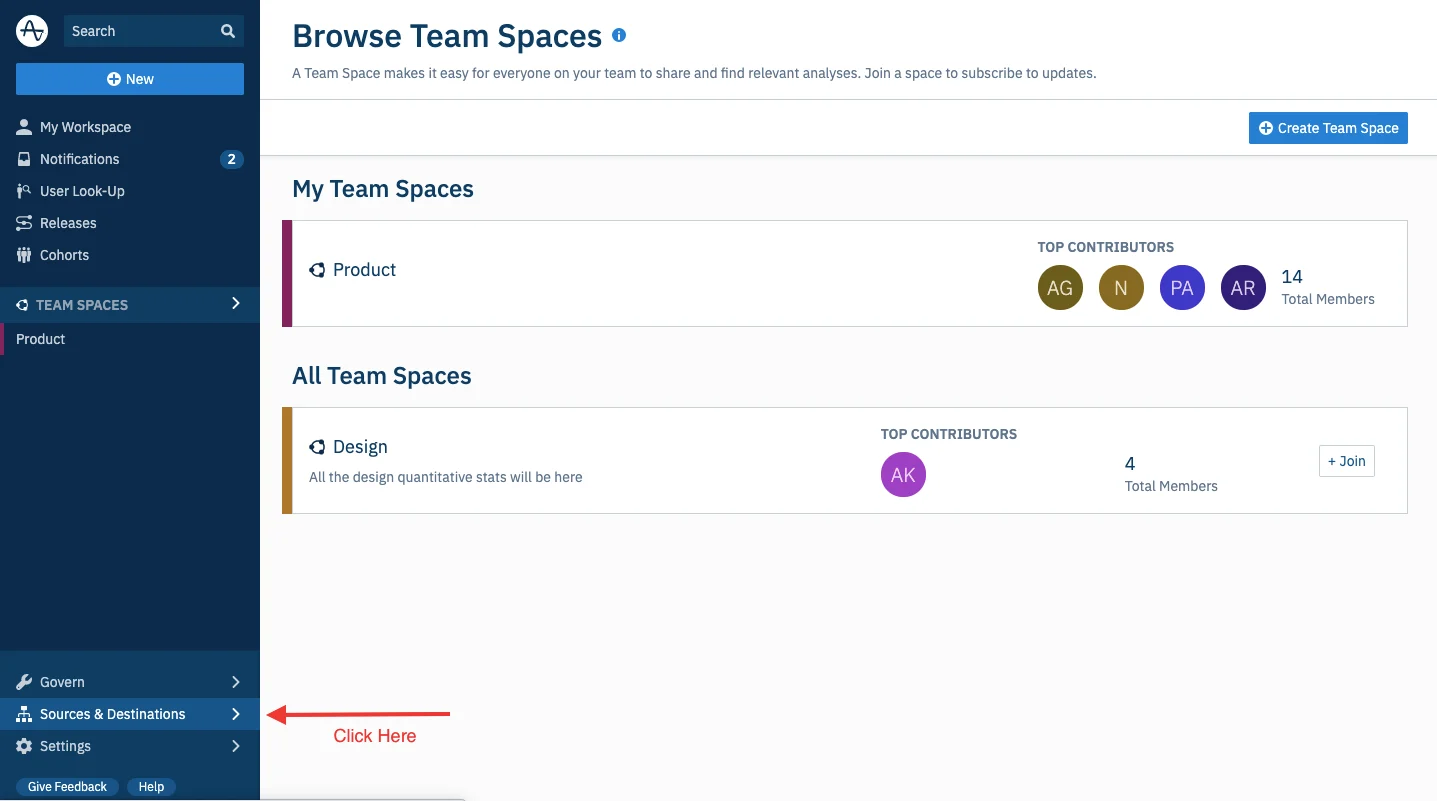
To setup MoEngage as a destination on Amplitude, follow the below steps:- Log in to Amplitude and Navigate to Sources and Destinations.
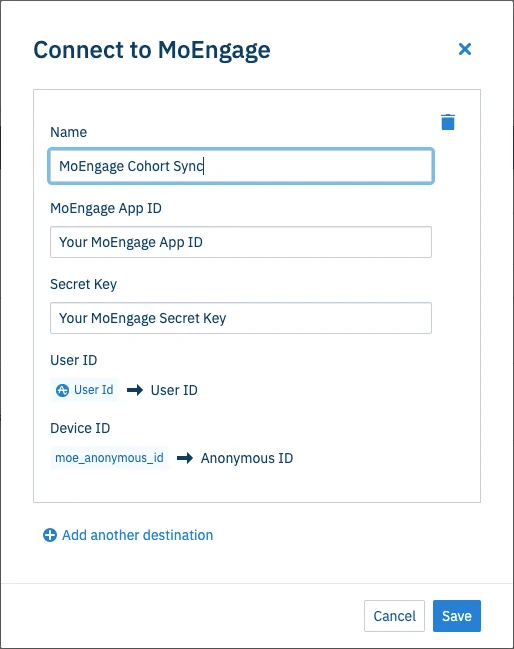
- On the Sources & Destinations page, go to Destinations and click on Add Destination > MoEngage. On doing this, you will see a pop-up with the following details:
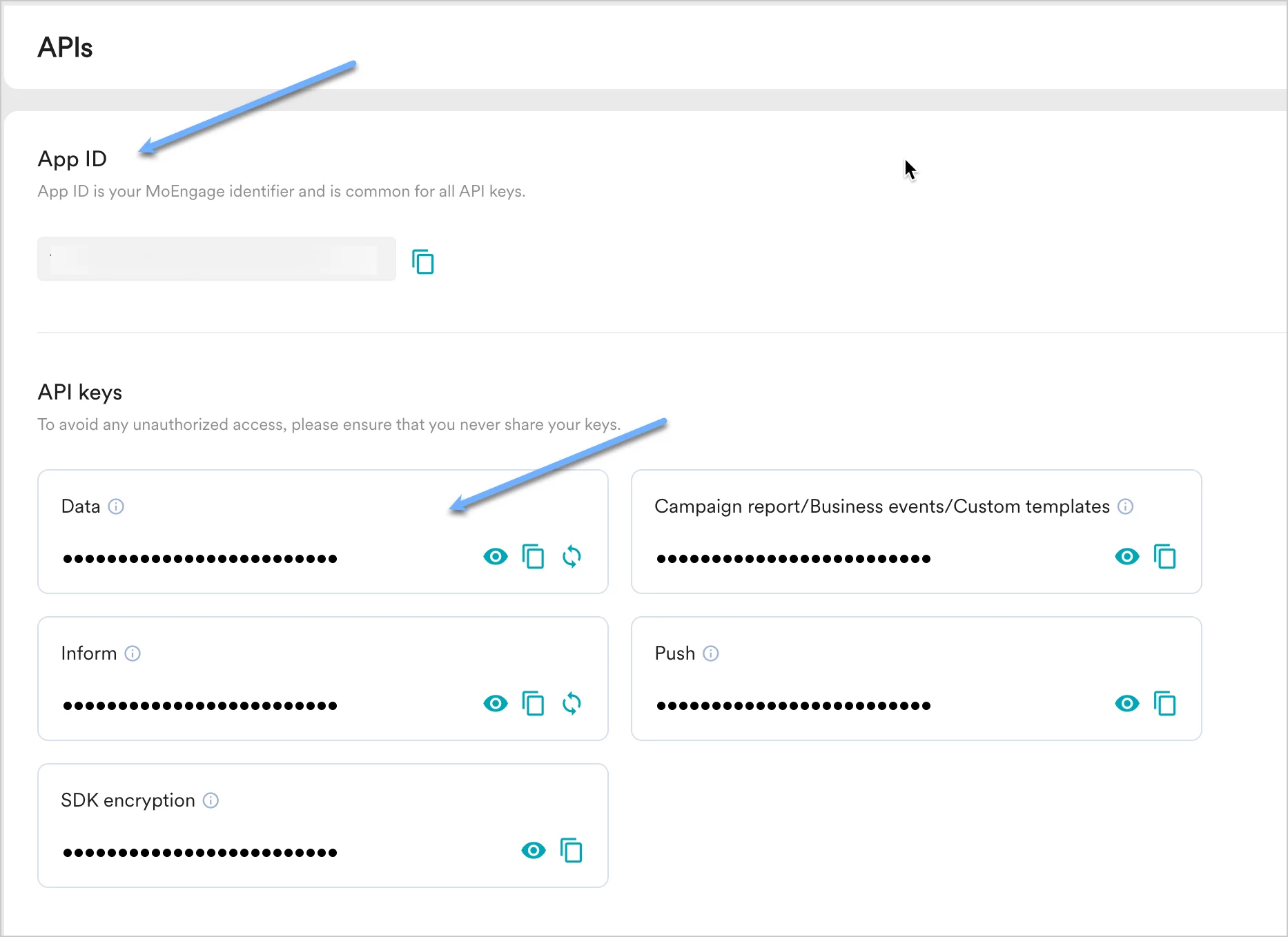
- Log in to your MoEngage Dashboard and navigate to Settings to get the Workspace ID and Secret Key.
Acquisition Settings are available in Settings > Analytics > Acquisition tracking.
- Navigate to Settings > Account > APIs.
- Click on the copy icon to copy the Workspace ID.
- Click on the copy icon in the Data tile in the API Keys section to copy the Secret Key.
- The Attribute Mapping is as follows:
- User Id - This will be the primary key to map a user between Amplitude and MoEngage. Please ensure that you are identifying users with the same unique user id in both Amplitude and MoEngage.
- moe_anonymous_id: This will be the secondary identifier that will be used to map users between Amplitude and MoEngage and will be essential to map the anonymous users between Amplitude and MoEngage. Please ensure that you are setting
moe_anonymous_idas a user attribute in MoEngage and the attribute selection made on the Amplitude dashboard andmoe_anonymous_idin MoEngage have the same value so that the mapping is possible.
- Complete the Destination Setup.
Exporting Cohorts from Amplitude to MoEngage
Ensure your cohort name does not start with a period (.) and must not contain the following restricted characters:
|, *, ?, \, :, <, >, =, $, ".- Open a cohort in Amplitude that you want to sync with MoEngage and click Sync To > Select MoEngage.
 The Sync your cohort to MoEngage pop-up is displayed.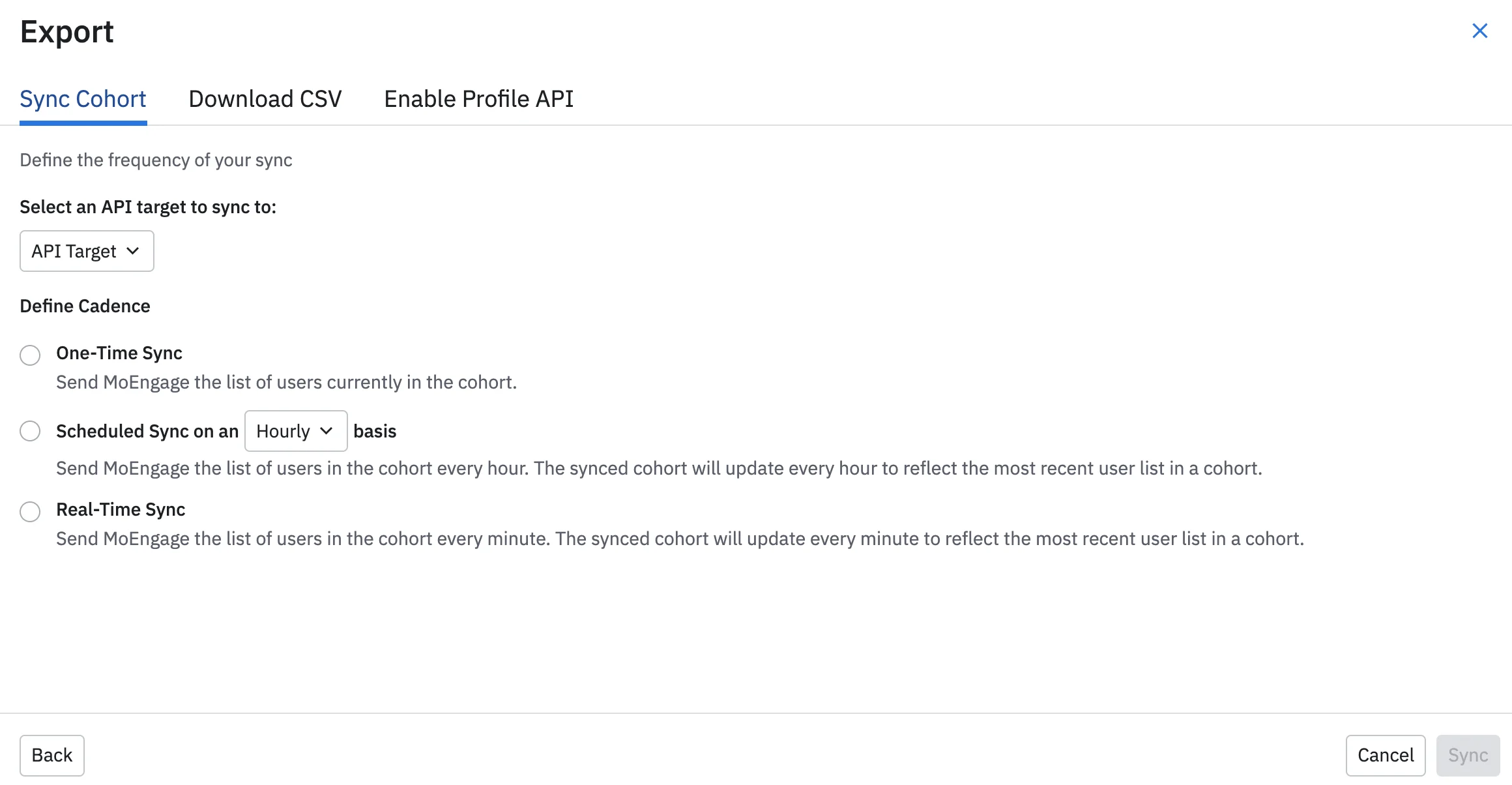
- Select one of the following:
- One-Time Sync: This will only send the users under the cohort to MoEngage once and the cohort will not sync thereafter.
- Scheduled Sync: This option will ensure that the updated information of the cohorts like the new users who qualify for this cohort and the existing users who are removed from the cohort are sent to MoEngage every hour or day.
- Near Real Time Sync: This option will ensure that the updated information of the cohorts like the new users who qualify for this cohort and the existing users who are removed from the cohort are sent to MoEngage every minute.
Using Cohorts in MoEngage Campaigns
After the sync, the cohort is available as a custom segment in MoEngage as described: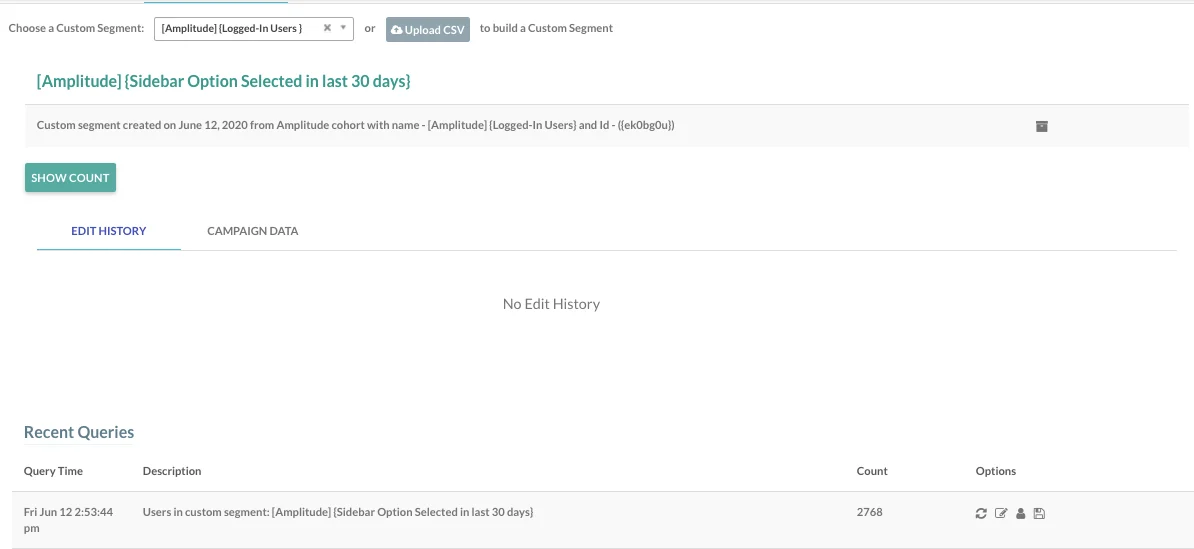
Exporting Campaign Data from MoEngage to Amplitude
This feature is part of the Streams paid add-on. To check what’s available for your plan, refer to Plans and Pricing. To enable it for your account, contact your MoEngage Customer Success Manager (CSM) or the Support team.
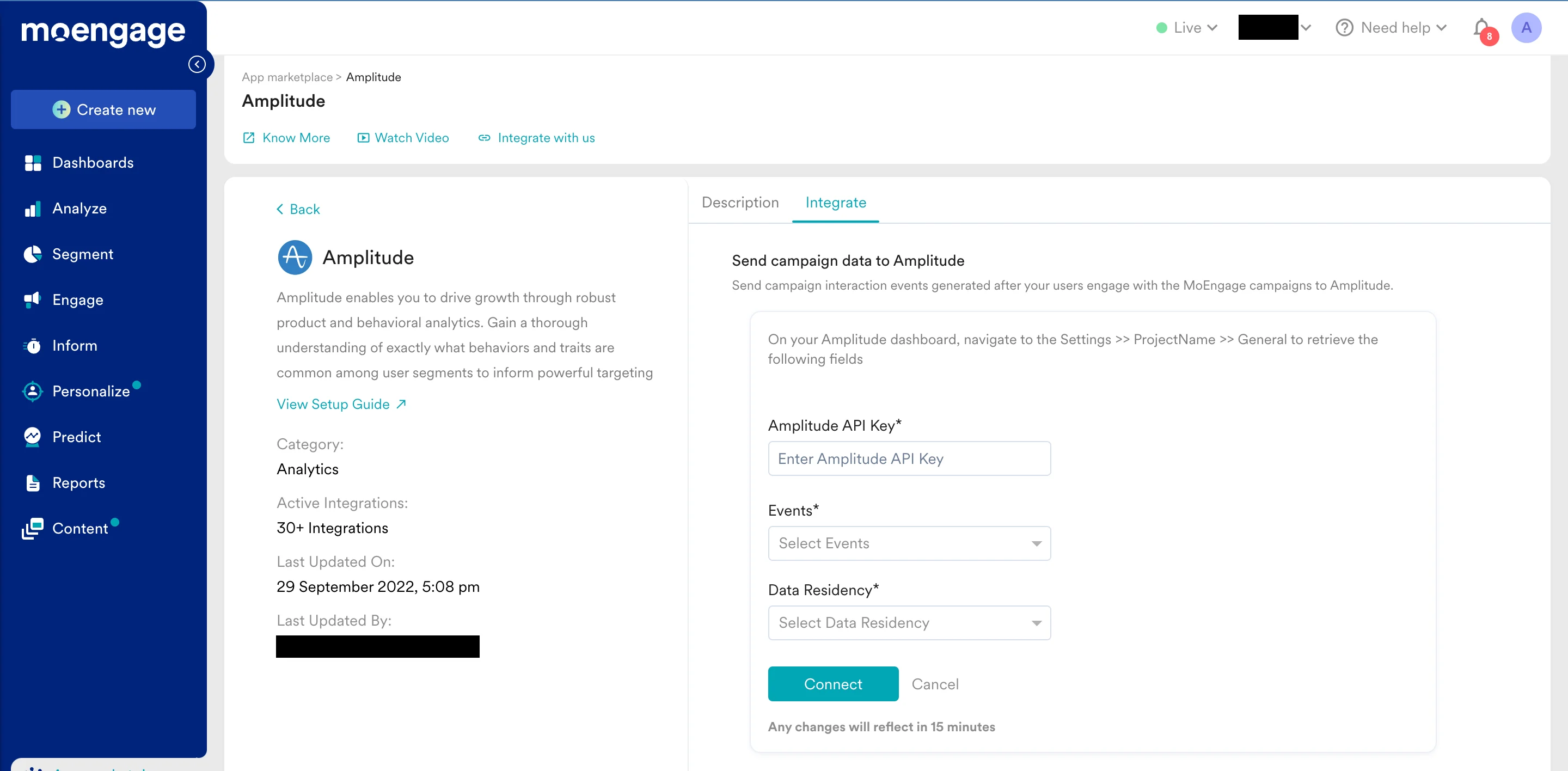
- Click on + Add Integration.
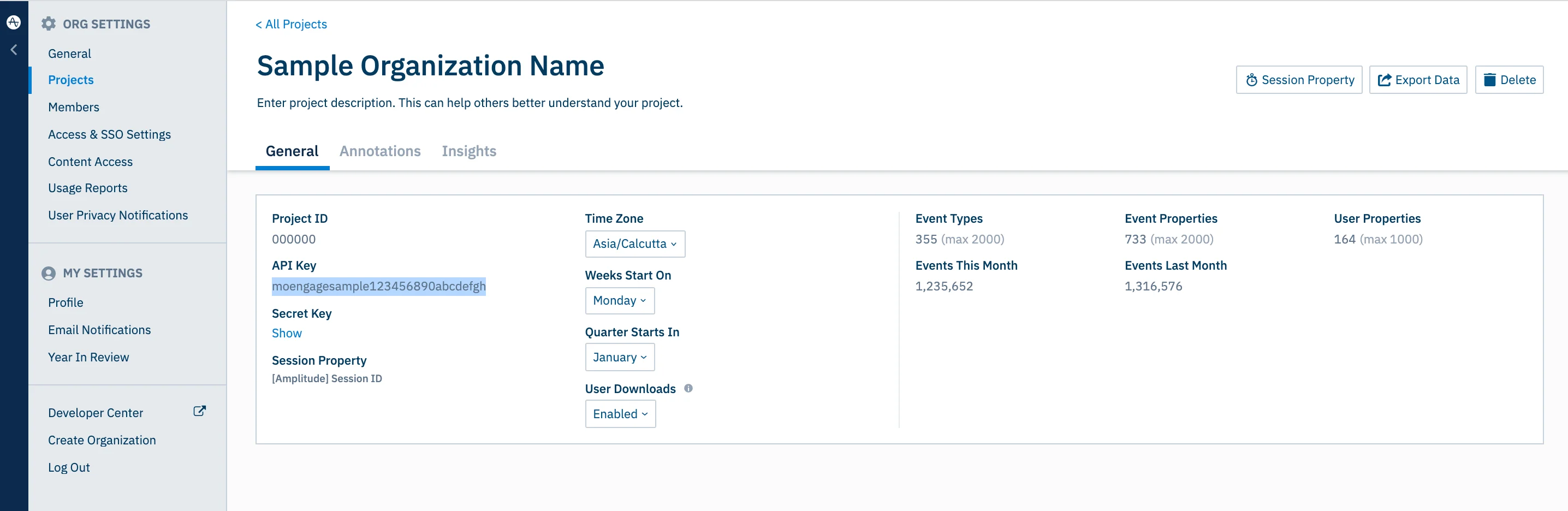
- Fill up the form: Amplitude API Key - This is available on your Amplitude Account > Settings > ProjectName > General > API Key as shown below:
- Select the events you want to forward and select a Data Residency.
- Click on Connect.
$source = MOENGAGE. These events are sent to Amplitude in near real-time and will rely on the common user identifier between Amplitude and MoEngage for user identification.
The following MoEngage source-specific documents for setting unique user id in MoEngage:
Ensure that you are setting the same value for User Id in Amplitude and Unique User Id in MoEngage.
Rate Limits
To maintain platform stability, MoEngage limits ingestion of Amplitude audience data to a maximum of 300 requests per minute (RPM) per workspace. If your workspace exceeds this limit, MoEngage returns an HTTP429 (Too Many Requests) status code.
Refer to Amplitude’s default retry policy to understand how rate limiting affects your data flow.
Retry Exhaustion: If Amplitude exhausts all retry attempts for a batch of data, you must contact the Amplitude Support Team to replay the failed requests.
Export Data
The following data points are sent by default to Amplitude:
For further assistance, please contact your MoEngage Customer Success Manager (CSM) or the Support team.
Frequently Asked Questions
Does Data Exports guarantee the latest user attributes?
Does Data Exports guarantee the latest user attributes?
No, Data Exports is primarily built to export your Events in near real-time and user attributes in MoEngage are updated asynchronously so it is currently not possible to guarantee the latest values of user attributes in the exports.
How soon will I start getting the data?
How soon will I start getting the data?
It typically takes up to 30 minutes for the automated data exports to be set up for your account and for you to start seeing data there.
Can I export additional events at a later time?
Can I export additional events at a later time?
Yes, if you need to export new events at a later time, you can always edit your configuration on the App Marketplace and get the new events added to your exports.
Can I export historical data using Automated Data Exports?
Can I export historical data using Automated Data Exports?
As of now, you cannot export historical data using Automated Data Exports. Once configured, you will start seeing data for each event from the time you enabled your exports.
Is there any pricing involved for Automated Data Exports?
Is there any pricing involved for Automated Data Exports?
If your billing plan does not cover this already and you need to get this enabled at a later time, you would need to work with your Customer Success Manager to get this included in your billing plan. Based on the amount of data that MoEngage will place in your Data warehouse/Partner/API on a monthly basis, this could lead to additional charges.