MoEngage X NitroX
This integration enables a real-time outbound data flow from NitroX to MoEngage. When you connect NitroX to MoEngage, you can use behavioral data triggers to orchestrate targeted retention, recovery, and engagement campaigns.The NitroX integration is built and maintained by Nitro. For customization requests or issues specific to the NitroX connector’s behavior, reach out directly to Nitro Support.
Use cases
When you connect NitroX to MoEngage, you can synchronize audience data to support the following use cases:- Abandoned cart recovery: You can use tracked
nitro_addtocartandnitro_checkoutevents to automatically trigger MoEngage email or push sequences for users who do not complete their purchases. - Post-purchase engagement: You can use event payloads such as
nitro_orders/paidornitro_orders/fulfilledto automate order confirmation messages and trigger cross-sell campaigns. - Targeted product recommendations: You can use the
nitro_product_viewandnitro_category_viewdata to segment users based on their browsing behavior and send relevant product offers. - Automated audience segmentation: You can use the
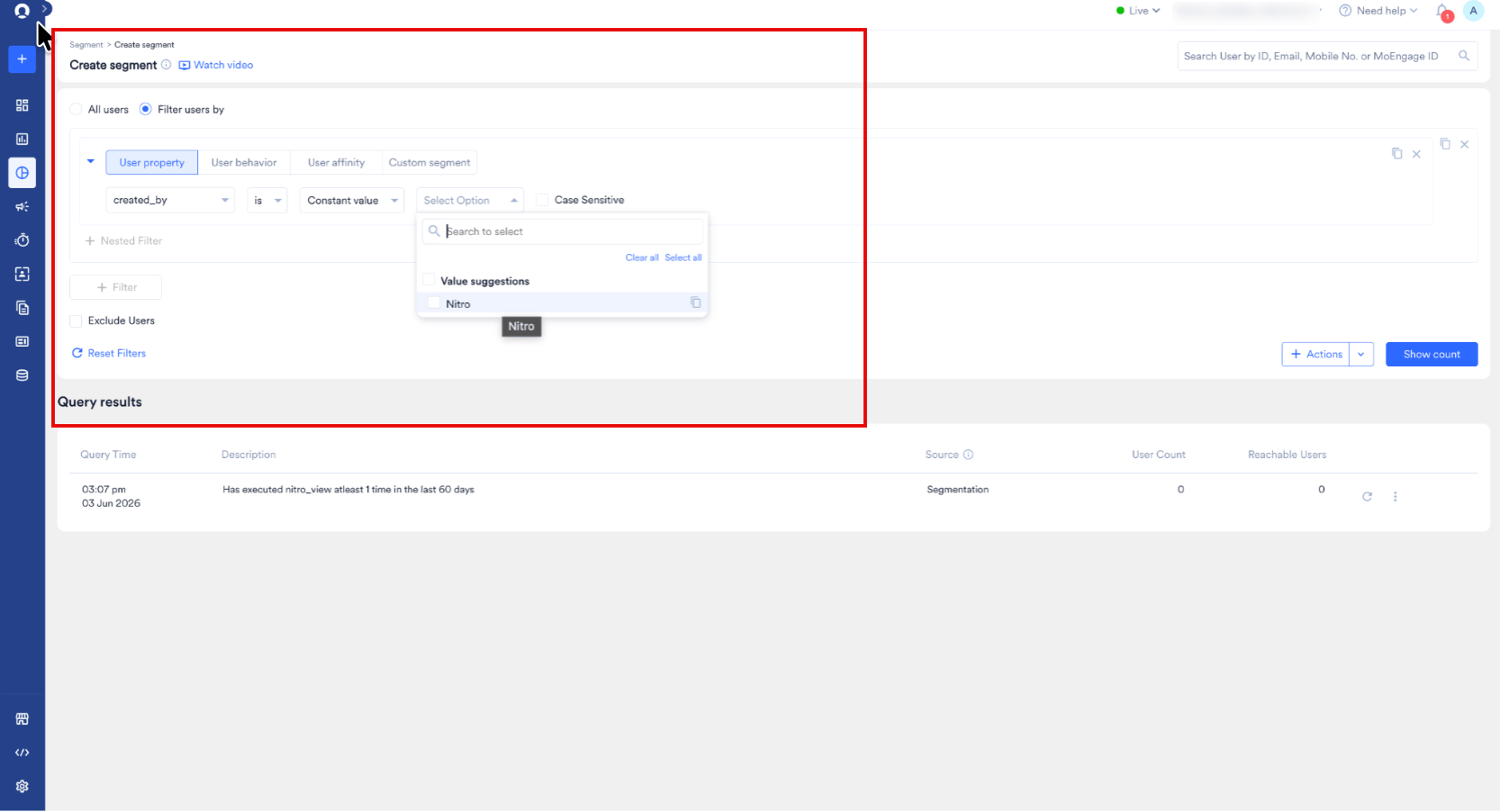
created_byuser attribute with a value ofNitroto identify users generated by NitroX in MoEngage for exclusive promotional targeting.
Key Features and Functionality
The NitroX integration delivers the following core capabilities within MoEngage:- Real-time event synchronization: You can synchronize website events, including product views, cart additions, and checkout progressions, in real time.
- User profile exports: You can export identified user profiles and track Nitro-specific user properties to create precise audience segments.
- Order lifecycle tracking: You can automate the synchronization of order lifecycles to capture orders when they are created, updated, paid, and fulfilled.
Supported Events
The tables below outline the real-time behavioral events synchronized from NitroX: All behavioral events exported from NitroX to MoEngage use the following prefix:nitro_ (for example, nitro_view or nitro_addtocart).
Integration
PrerequisitesBefore you set up this integration, make sure you have the following credentials from your MoEngage account:
- Workspace ID (earlier App ID): The unique identifier for your MoEngage workspace.
- API Key: The key used to authenticate API requests.
Step 1: Find Your Credentials in MoEngage
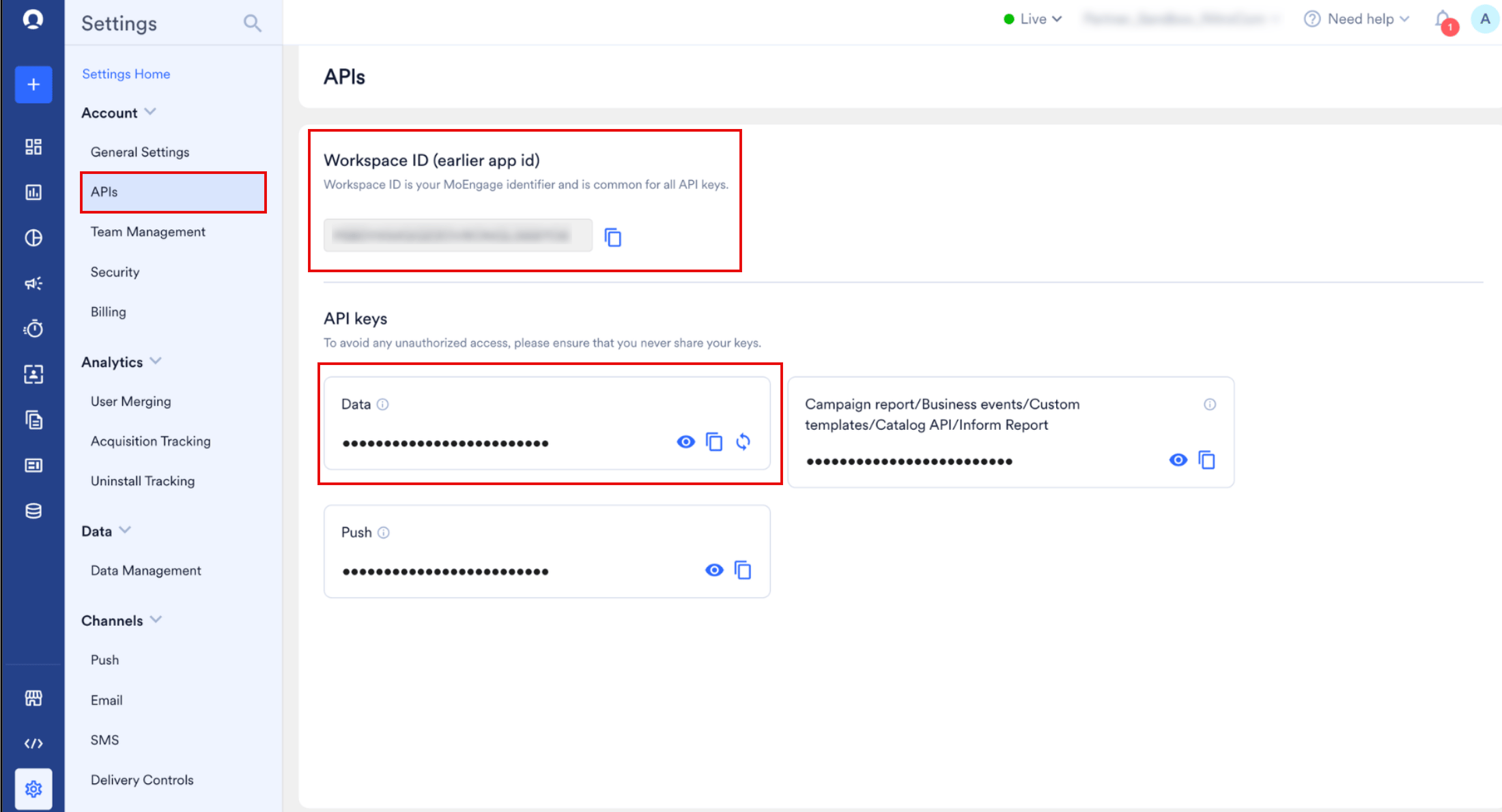
To find your credentials, perform the following steps:- On the MoEngage UI, navigate to Settings > Account > APIs.
- Copy the ID under Workspace ID (earlier app id).
-
In the API keys section, copy the API key on the Data tile.
Step 2: Configure the Connection in NitroX
To configure the connection in NitroX, perform the following steps:- Sign in to your NitroX account.
-
On the sidebar menu in NitroX, click the Integrations menu item.
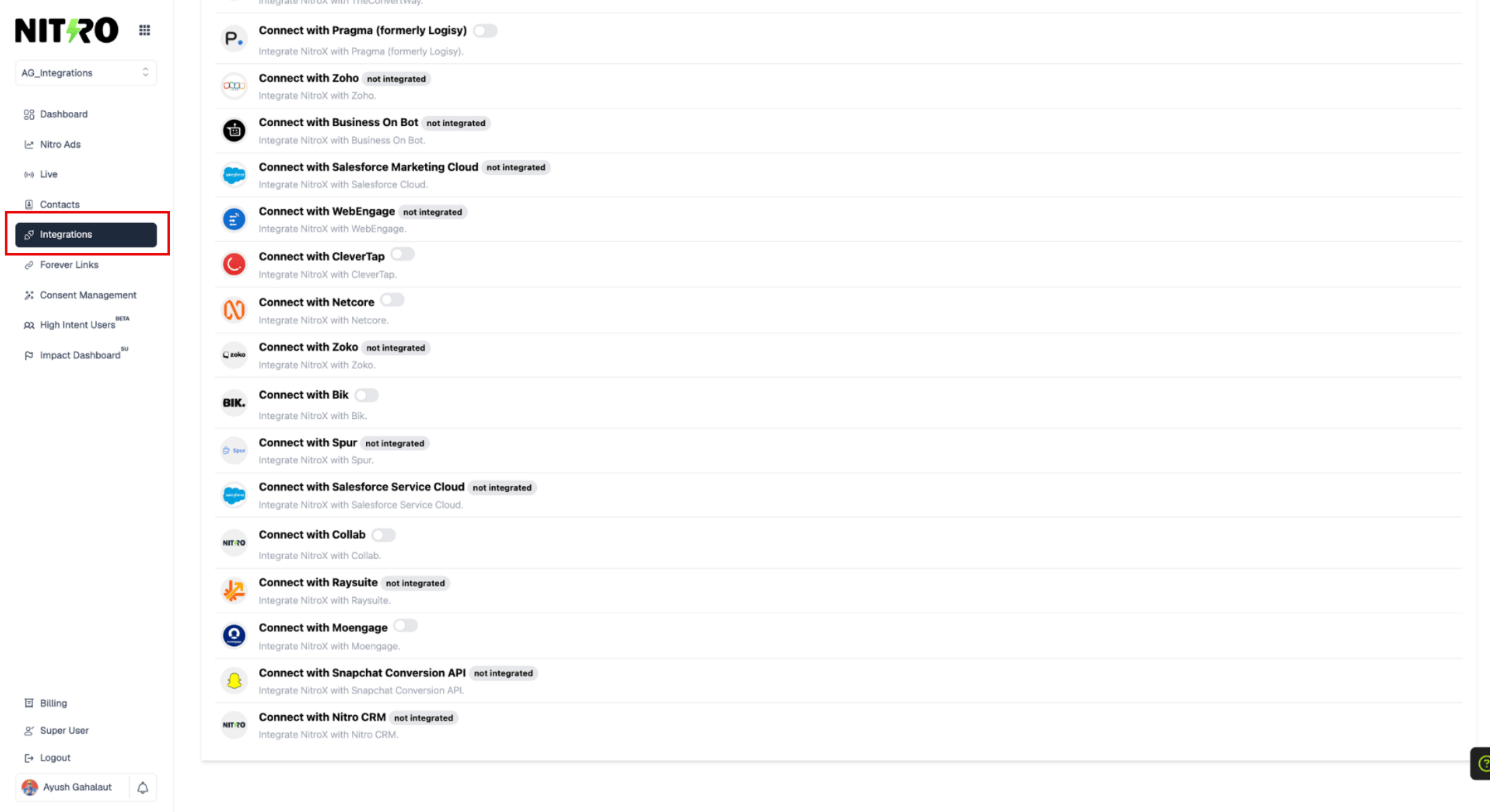
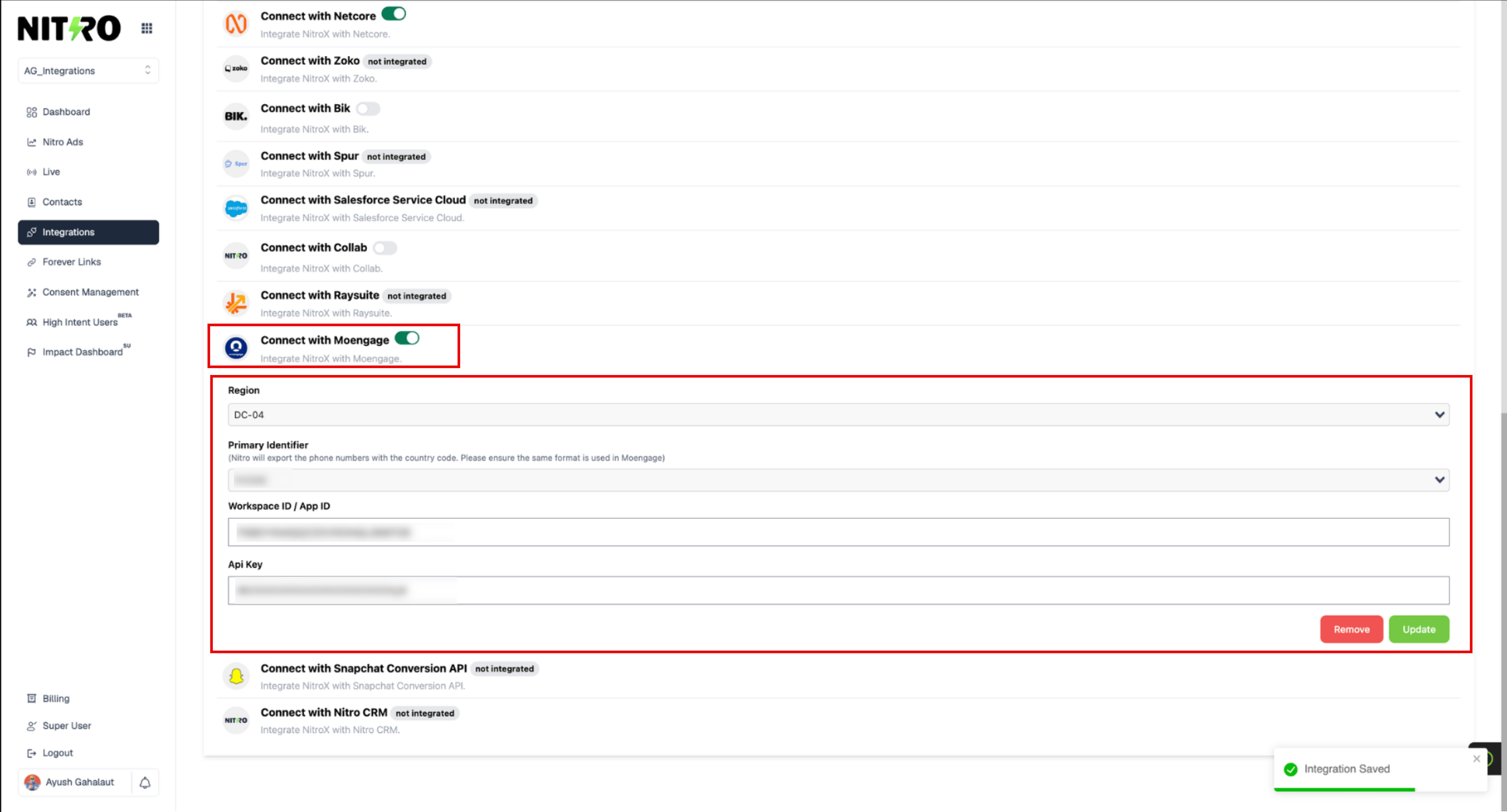
- In the Integration list, scroll down to the Connect with Moengage section, and then turn the toggle on to expand the integration fields.
- In the Region list, select the data center region that matches your MoEngage account (for example, DC-04).
- In the Primary Identifier list, select the primary identifier (either Phone number or Email) based on your MoEngage user configuration.
- In the Workspace ID / App ID and Api Key boxes, type or paste the credentials you obtained in Step 1.
-
Click Save.
Step 3: Verify Data Tracking in MoEngage
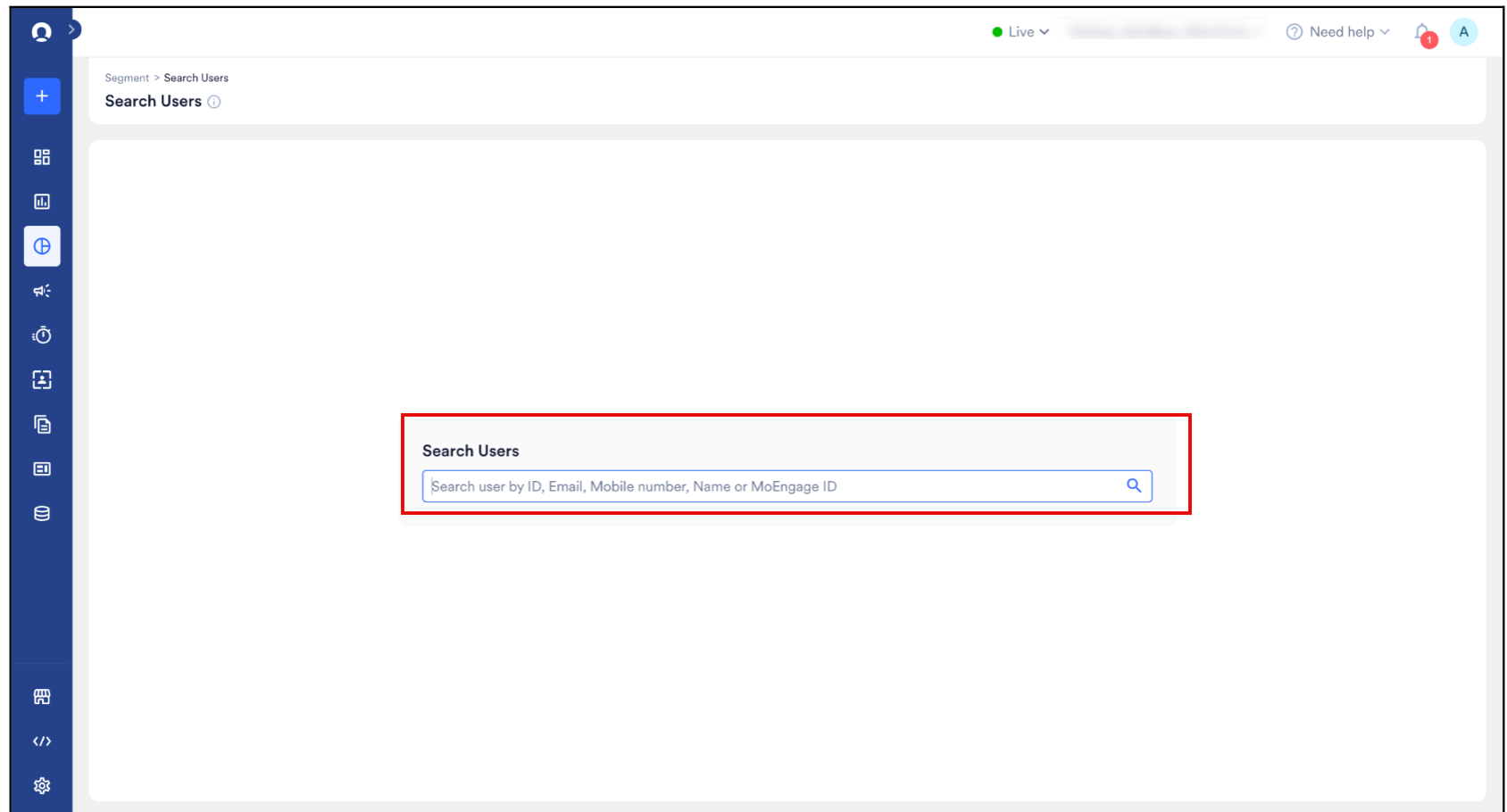
To verify that your user profiles and behavioral data are syncing correctly, perform the following steps: To verify a specific user:- In the left navigation bar of your MoEngage account, click the target-like icon to open the Segment menu, and then click Search Users.
-
In the Search Users box, type the user ID, email address, mobile number, name, or MoEngage ID.
- On the Segment menu, click Create segment.
- Select Filter users by.
- Under the query builder tabs, click User property.
- In the first drop-down list, select the created_by attribute. In the evaluation operator list, select is. In the type list, select Constant value.
- In the final select option list, search for or select Nitro (case-sensitive).
-
Click Show count.