

Introduction
Sendbird Notifications offers marketers and product managers a powerful new channel to communicate with their customers in-app with persistent, interactive one-way messages. These messages can be used for any communication and are most commonly used for promotional and transactional purposes.MoEngage × Sendbird
The MoEngage and Sendbird integration allows customers to:- Utilize MoEngage’s segmentation and trigger capabilities to initiate a personalized in-app notification.
- Create tailored in-app notifications on the Sendbird Notifications platform, which are then delivered within the app environment, thereby enhancing user engagement.
Use cases
 The MoEngage and Sendbird Notifications integration offers a range of use cases to boost customer engagement and deliver an exceptional user experience:
- Marketing : Enhance targeted campaigns with personalized promotions and recommendations tailored to users’ preferences, such as exclusive discounts based on browsing history or past purchases.
- Transactional : Elevate customer communication through real-time updates on orders, deliveries, billing, and payments, including notifications regarding order status, shipping details, and estimated delivery times.
Integration
Step 1: Create a notification template
Sendbird templates allow you to send personalized in-app notifications by building and using multiple templates for each channel. Templates can be created and customized on Sendbird Dashboard without writing code.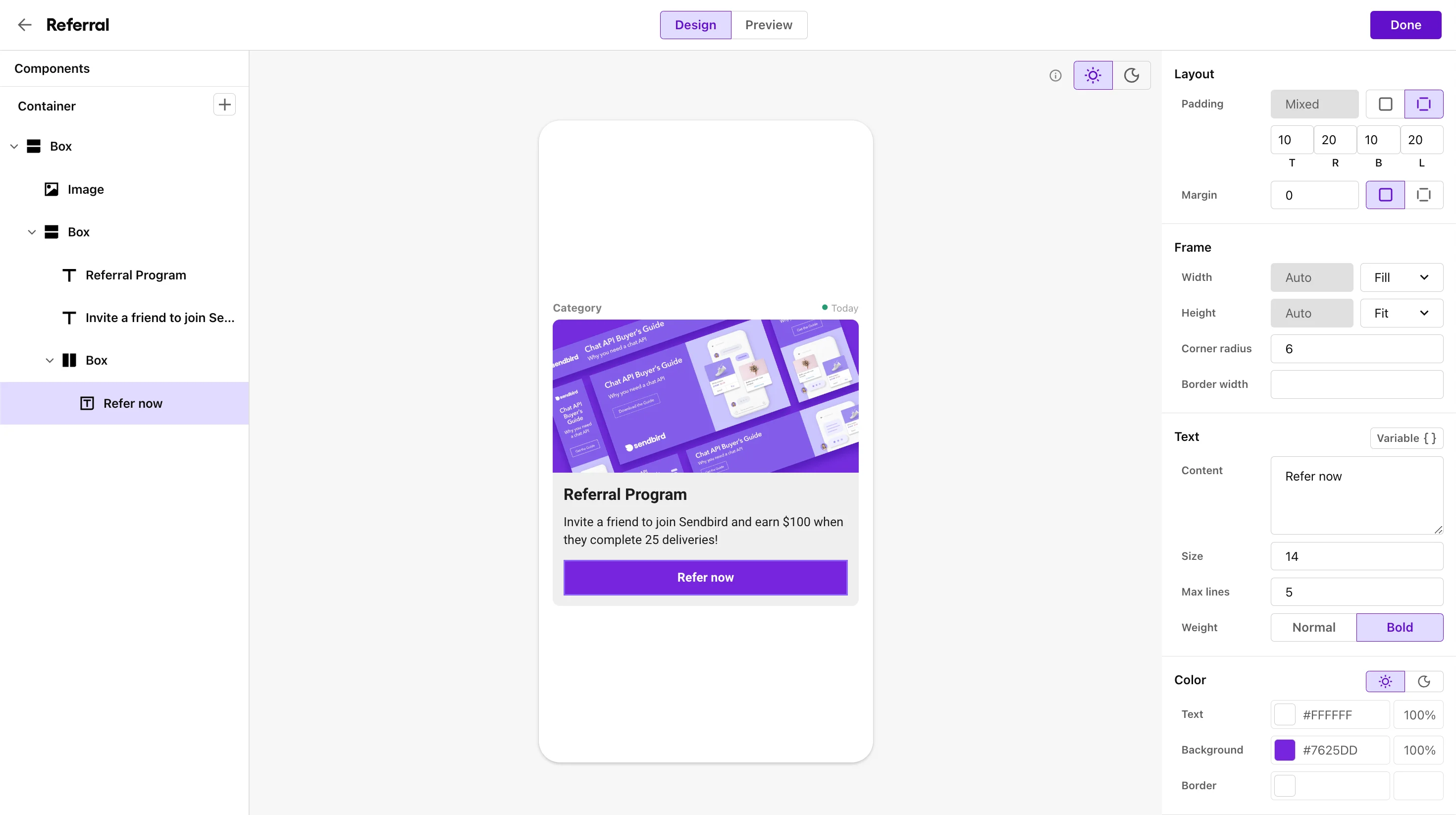
Step 2: Install Sendbird Notification Builder
Next, you must install Sendbird Notification Builder . This Google Chrome extension lets you send customized notifications through Sendbird on the MoEngage Dashboard.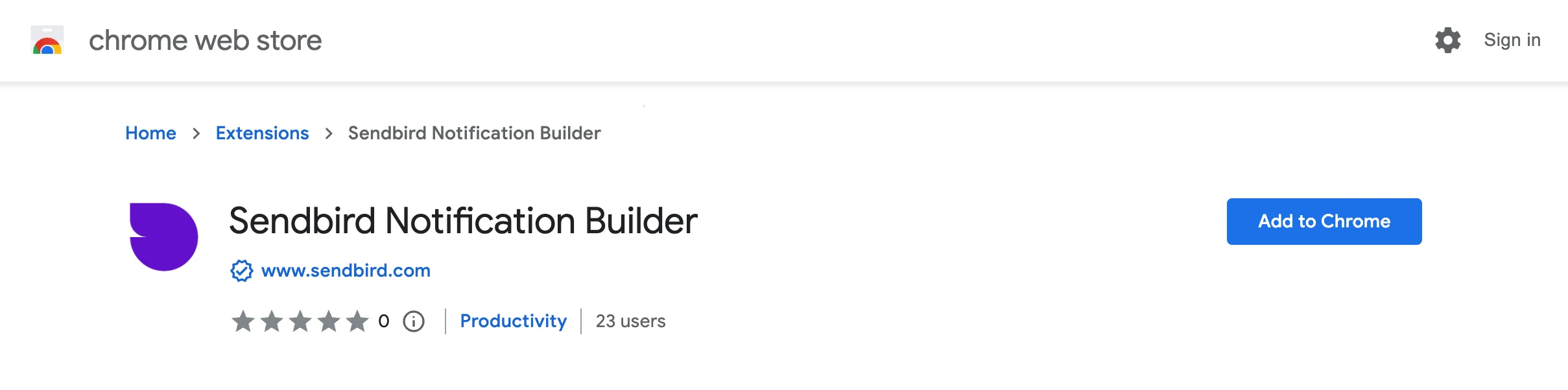
Add Sendbird credentials to the extension
Once the extension is installed, click the Sendbird icon in your browser’s toolbar and select Settings. Here, provide your app ID (or Workspace ID) and API token found in the Sendbird Notification Builder.Step 3: Map Sendbird user ID to MoEngage user ID
A Sendbird user ID must be added to a MoEngage user profile as a custom attribute for the integration to be used. You can do so using- User Data API or
- Upload them using User Imports inside MoEngage.
Step 4: Create Connector Campaign on MoEngage
To create a connector campaign on MoEngage,- Navigate to Create Campaign >> Connectors >> Custom and choose delivery type most suitable to your needs
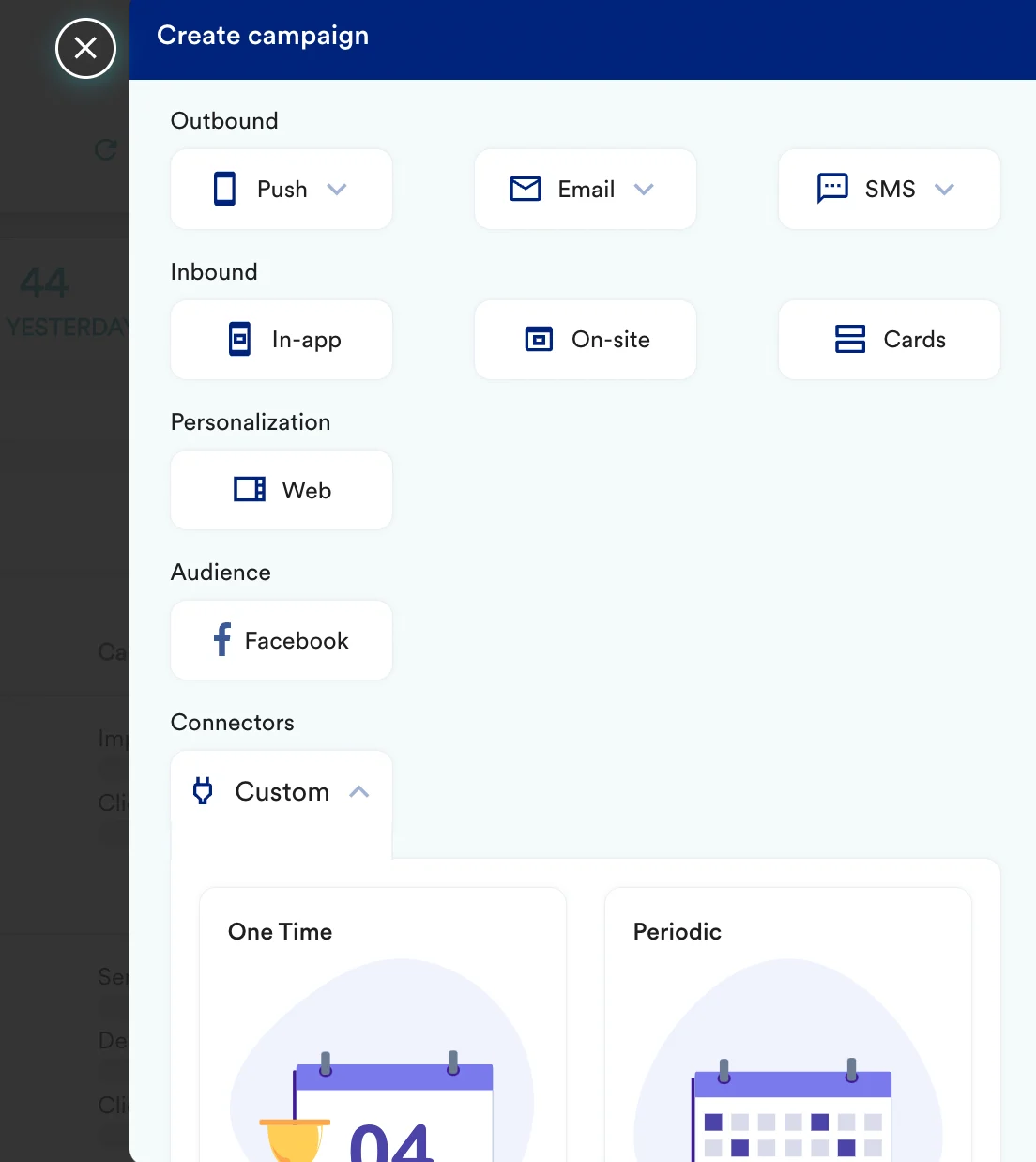
- Choose Segment of users for whom sendbird id exists or you can use any other Segment criteria
- On step 2 of the campaign,
- Select method as POST
- Add Webhook URL as :
https://api-{application_id}.notifications.sendbird.com/v1/notifications - In Body, choose Raw and use the content depending on what kind of message type you want to send out. You can look at different types here.
- At this point, your campaign should be ready to test and send. You can also test your connector configuration using the Test functionality available on Step 2 of Create Connector Campaign
