

Overview
NoteThe changes mentioned in this article are also applied to the CI/CD environment.
x86_64 and x86 architectures are discontinued. The SDK only supports the arm64 architecture.
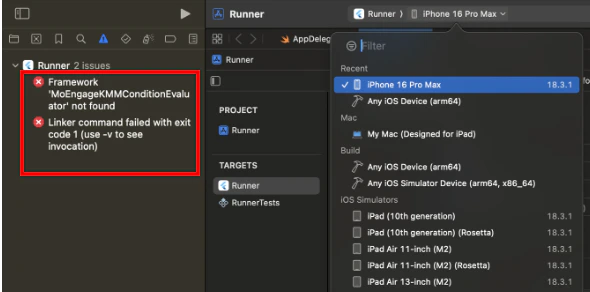
Attempting to build a project for a simulator that runs on x86_64 architecture used by the Rosetta simulator, or a simulator running on an Intel-based Mac (x86_64), may result in linker errors. This article outlines the procedures for configuring an Xcode project to resolve these errors.
Identify Host Machine Architecture
To determine the correct configuration procedure, identify the development machine’s architecture by executing the following command in the terminal:arm64: An Apple silicon Mac.x86_64: An Intel-based Mac.
Configuration Procedures
For Apple silicon Macs (arm64)
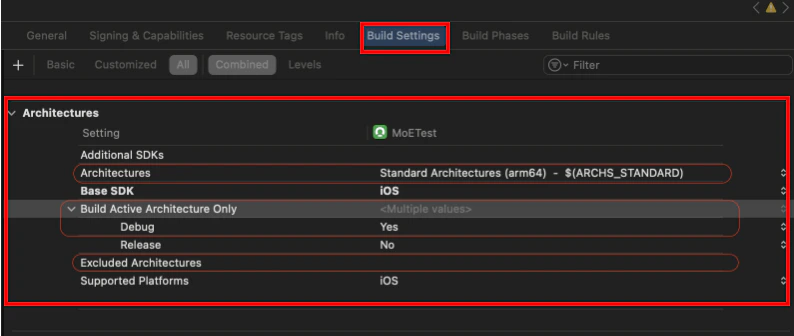
On Apple silicon Macs, linker errors occur if the build targets a Rosetta simulator, which runs on the x86_64 architecture. To prevent this, configure the build to run only on the native simulator (arm64 architecture) as shown below:
- In Xcode, select your project in the Project Navigator, and perform the steps below for all your targets (including Pods targets).
- Navigate to the Build Settings tab.
- Apply the following configurations for the
Debugbuild:Excluded Architectures (EXCLUDED_ARCHS)- Ensure this setting does not contain
arm64for simulator builds.
- Ensure this setting does not contain
Build Active Architecture Only (ONLY_ACTIVE_ARCH)- Set this value to Yes. This setting directs Xcode to build only for the architecture of the currently selected simulator.
- Architectures set to ARCHS_STANDARD or include arm64.
For Intel-based Macs (x86_64)
On Intel-based Macs, the iOS Simulator runs on the x86_64 architecture. As MoEngage SDK v10.x.x and later do not support this architecture, projects cannot run on the simulator. To build and test the application, use a physical iOS device.