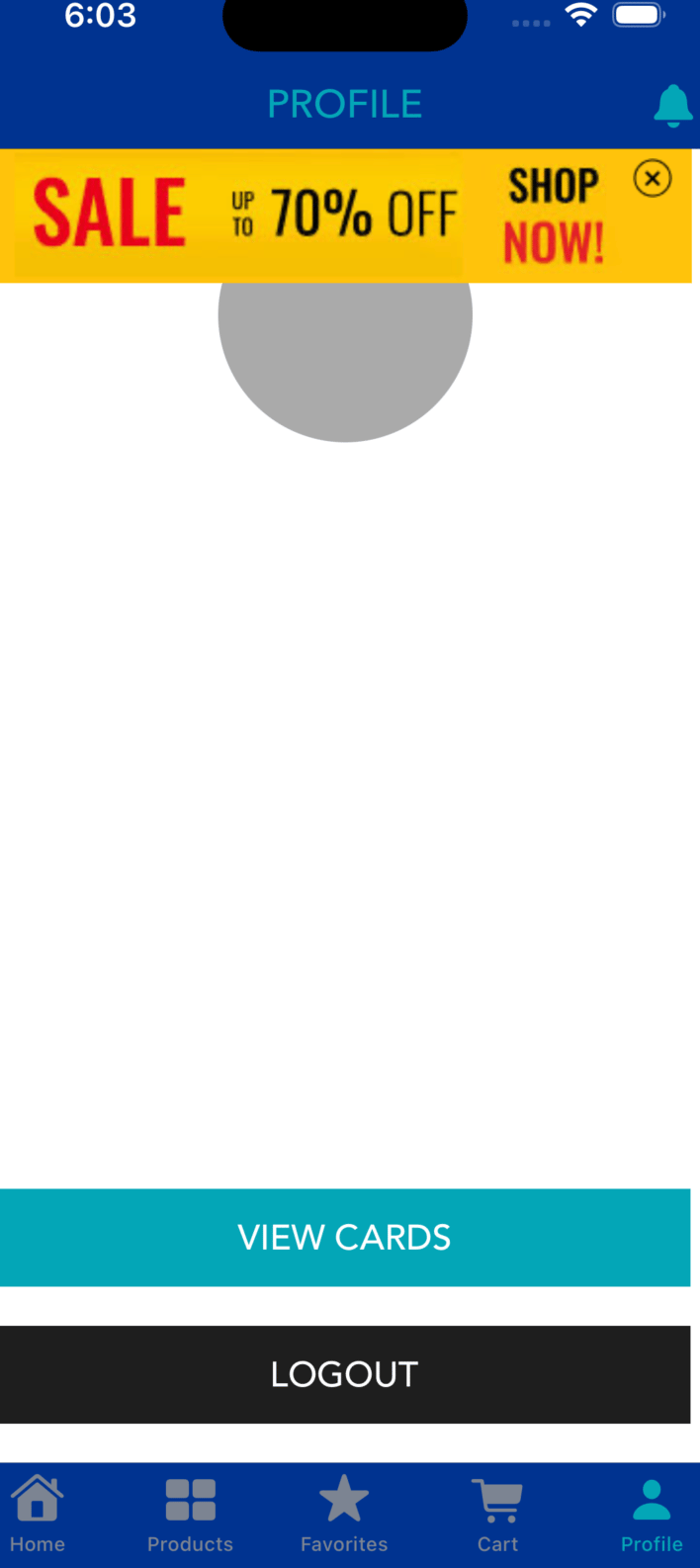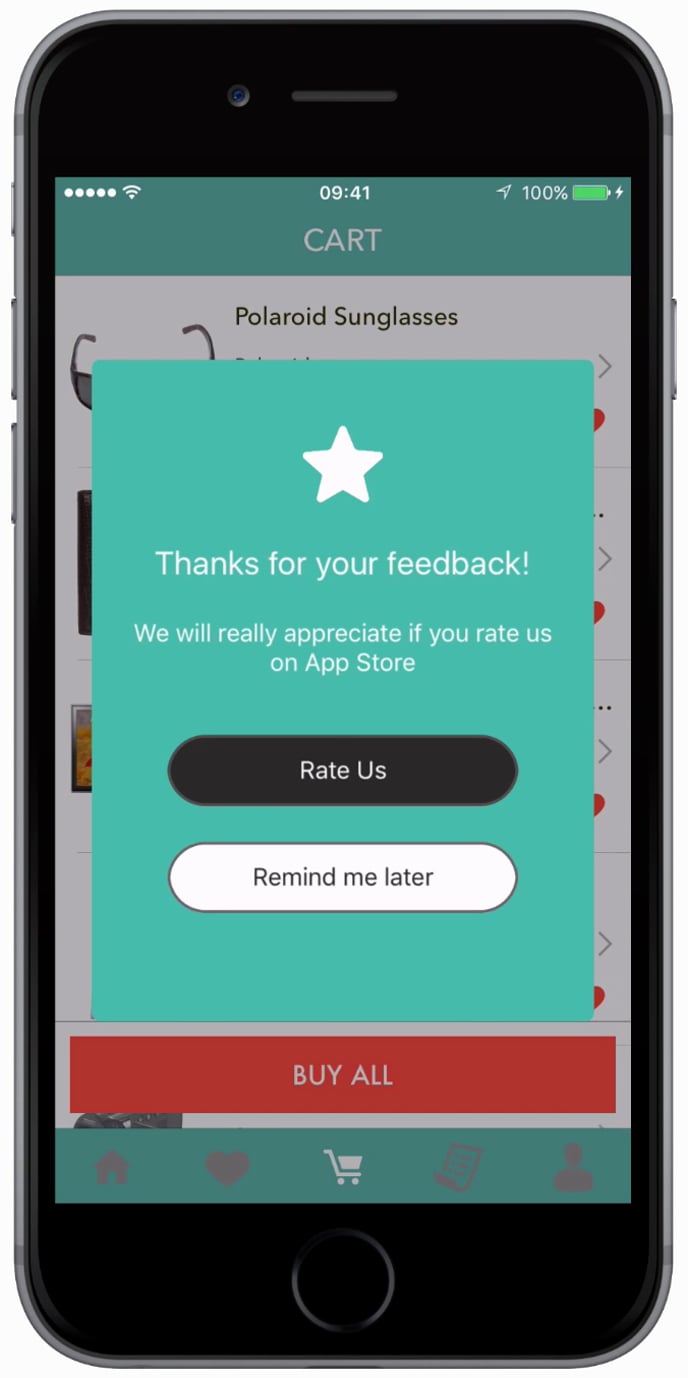
In-App Campaigns are custom views that you can send to a segment of users to show custom messages or give new offers or take to some specific pages. They can be created from your MoEngage account.
SDK VersionFollow this doc only if you are using MoEngage-iOS-SDK version 8.2.0 and later. If you are using version 5.2.7 or less then follow the doc in this link.
Inapp Native1

SDK Installation

Install using Swift Package Manager

MoEngageInApp is supported through SPM from SDK version 3.2.0. To integrate, use the GitHub url https://github.com/moengage/apple-sdk.git for SDK versions equal and above 9.23.0, or https://github.com/moengage/MoEngage-iOS-SDK.git for other SDK versions link and set the branch as master or the required version.

Install using CocoaPod

InformationCocoaPods is being deprecated. MoEngage recommends using Swift Package Manager for all new integrations. For more info on CocoaPods, refer to CocoaPods Integration Guide.
Integrate the MoEngageInApp framework by adding the dependency in the pod file as described.
pod 'MoEngage-iOS-SDK/InApps',
Now run pod install to install the framework.

Manual Integration

Manual Integration:To integrate the MoEngageInApp SDK manually to your project follow this doc.

How to show In-App Message?

To use In-app Messaging, import MoEngageInApps and then add the code below to the view controller(s) in which you want to show the In-app.
import MoEngageInApps
// Add the below line to show inapp
MoEngageSDKInApp.sharedInstance.showInApp()

Non Intrusive Nudges

Inappnativ2 Starting with version 5.0.0, MoEngage InApp SDK supports displaying Non-Intrusive nudges. SDK can show Nudges in four positions (i.e. at the top, bottom, bottom left, and bottom right of the screen). Call the showNudge(atPosition:) in the view controller(s) where you want SDK to show the nudges :
  //For showing nudges at Top of the screen
  MoEngageSDKInApp.sharedInstance.showNudge(atPosition: NudgePositionTop)
  
  //For showing nudges at Bottom of the screen
  MoEngageSDKInApp.sharedInstance.showNudge(atPosition: NudgePositionBottom)
    
  //For showing nudges at BottomLeft of the screen
  MoEngageSDKInApp.sharedInstance.showNudge(atPosition: NudgePositionBottomLeft)
    
  //For showing nudges at BottomRight of the screen
  MoEngageSDKInApp.sharedInstance.showNudge(atPosition: NudgePositionBottomRight)
    
  //For showing nudges at any above mentioned position
  MoEngageSDKInApp.sharedInstance.showNudge()
  

InApp Callbacks

NoteMake sure the class is configured with MoEngageInAppNativeDelegate to receive all the callbacks.
To observe callbacks whenever an inApp is shown, dismissed, or clicked implement MoEngageInAppNativeDelegate. Set the delegate using the below methods.
  MoEngageSDKInApp.sharedInstance.setInAppDelegate(self)
Once the delegate is set you will receive the following callbacks:
   // Called when an inApp is shown on the screen
   func inAppShown(withCampaignInfo inappCampaign: MoEngageInAppCampaign, forAccountMeta accountMeta: MoEngageAccountMeta) {
      print("InApp shown callback for Campaign ID(\(inappCampaign.campaign_id)) and CampaignName(\(inappCampaign.campaign_name))")
      print("Account Meta AppID: \(accountMeta.appID)")
   }
   
   // Called when an inApp is dismissed by the user
   func inAppDismissed(withCampaignInfo inappCampaign: MoEngageInAppCampaign, forAccountMeta accountMeta: MoEngageAccountMeta) {
       print("InApp dismissed callback for Campaign ID(\(inappCampaign.campaign_id)) and CampaignName(\(inappCampaign.campaign_name))")
       print("Account Meta AppID: \(accountMeta.appID)")
   }
   
   // Called when an inApp is clicked by the user, and it has been configured with a custom action
   func inAppClicked(withCampaignInfo inappCampaign: MoEngageInAppCampaign, andCustomActionInfo customAction: MoEngageInAppAction, forAccountMeta accountMeta: MoEngageAccountMeta) {
        print("InApp Clicked with Campaign ID \(inappCampaign.campaign_id)")
        print("Custom Actions Key Value Pairs: \(customAction.keyValuePairs)")
   }
   
   // Called when an inApp is clicked by the user, and it has been configured with a navigation action
   // Below InApp version 6.00.0
   func inAppClicked(withCampaignInfo inappCampaign: MoEngageInAppCampaign, andNavigationActionInfo navigationAction: MoEngageInAppAction, forAccountMeta accountMeta: MoEngageAccountMeta) {
        print("InApp Clicked with Campaign ID \(inappCampaign.campaign_id)")
        print("Navigation Action Screen Name \(navigationAction.screenName) Key Value Pairs: \((navigationAction.keyValuePairs))")
   }
   
   // Called when an inApp is clicked by the user, and it has been configured with a navigation action (Deeplink , Navigate To Screen)
   // From and above InApp version 6.00.0
   func inAppClicked(withCampaignInfo inappCampaign: MoEngageInAppCampaign, andNavigationActionInfo navigationAction: MoEngageInAppNavigationAction, forAccountMeta accountMeta: MoEngageAccountMeta) {
       print("InApp Clicked with Campaign ID \(inappCampaign.campaign_id)")
       print("Navigation Url \(navigationAction.navigationUrl) Key Value Pairs: \((navigationAction.keyValuePairs))")
       print("Navigation Action Type : \(navigationAction.navigationType)")
   }  

Context-Based InApps

We have introduced context-based InApps with SDK version 6.0.0. While creating InApp campaigns you can set the contexts OR tags to the campaign. SDK will check with the current context set in the App and show the inApp only when a current set context matches the campaign context.

Set Current Context:

To set the current context for the InApp module use setCurrentInAppContexts(_): as shown below:
MoEngageSDKInApp.sharedInstance.setCurrentInAppContexts(["Home","CategoriesScreen"])

Reset Context:

To reset the current context for the InApp module call invalidateInAppContexts() method:
  MoEngageSDKInApp.sharedInstance.invalidateInAppContexts()

Disable In-Apps in ViewController

If you don’t want to show InApp messages in a particular ViewController, use blockInApp(forViewController:) method as shown below:
  //For not showing in apps in viewController
  MoEngageSDKInApp.sharedInstance.blockInApp(forViewController: viewController);

Disabling In-Apps for App

If you do not wish to use InApp messaging, set the property disableInApps. The property has to be set before the initial call.
  MoEngageSDKInApp.sharedInstance.disableInApps()

Self handled In-Apps

Self handled In-Apps are not shown by the SDK. While creating the campaign, a String payload has to be provided. The same payload will be provided to the application on campaign delivery. InApp Campaigns that have trigger condition as Screen launch can be fetched using getSelfHandledInApp(completionBlock:).
  MoEngageSDKInApp.sharedInstance.getSelfHandledInApp { campaignInfo, accountMeta
        if let campaignInfo = campaignInfo{ print("Self-Hanled InApp Content \(campaignInfo.campaignContent)")
            // Update UI with Self Handled InApp Content
                  
        } else{
            print("No Self Handled campaign available")
                  
        }
  }
For getting the Self-Handled InApp payload in the case of Event-Triggered campaigns, set the selfHandledInAppTriggered(withInfo:forAccountMeta:) delegate. SDK will automatically deliver the payload in this delegate if the user is eligible for the campaign.
  // This method is called when an event triggers an in-app from the server, which is of type self handled.
  func selfHandledInAppTriggered(withInfo inappCampaign: MoEngageInAppSelfHandledCampaign, forAccountMeta accountMeta: MoEngageAccountMeta) {
      print("Self Handled InApp Triggered with info:\nCampaign ID:\(inappCampaign.campaign_id) \nContent: \(inappCampaign.campaignContent)")
  }
NoteThe above method will also be called when trying to test the self-handled campaign through a test campaign.

Self handled multiple In-Apps

Starting with MoEngage-iOS-SDK 9.19.0 version, MoEngage InApp SDK supports displaying Multiple Self Handled InApps. To get multiple self handled inApps for multiple contexts set by the user, use sdk’s getSelfHandledInApps(completionBlock:).
  MoEngageSDKInApp.sharedInstance.getSelfHandledInApps(for: instance) { [weak self] campaignData in
         print(campaignData)
  }

Campaign Selection Logic

  • Default Limit: By default, only 5 campaigns will be fetched.
  • Priority-Based Selection: Campaigns are delivered based on their priority and last updated time. It checks for priority first and then checks the last updated time on conflicting priorities
  • Exclusion criteria: Campaigns are only excluded based on specific rules like frequency capping, eligibility criteria, campaign status, or priority limits.
Example Scenario: If you have 6 campaigns with different priorities, published time and contexts:
  • Context 1: Campaign 1 (P0, T2), Campaign 2 (P1, T3), Campaign 3 (P2, T6)
  • Context 2: Campaign 4 (P0, T1), Campaign 5 (P1, T5)
  • Context 3: Campaign 6 (P0, T4)
Following campaigns will be delivered in this order: [Campaign 4, Campaign 1, Campaign 6, Campaign 2, Campaign 5] Selection Algorithm:
  1. Filter campaigns by user eligibility and targeting criteria
  2. Sort by campaign priority (P0, P1, P2, etc.)
  3. For campaigns with same priority, sort by most recent update timestamp
  4. Return top 5 campaigns

Best Practices for Campaign Organization for multiple self handled campaigns

For optimal performance across multiple contexts on a single page, organize your campaigns like this:
  • Context 1 (Homepage): Campaign A (P0), Campaign B (P1)
  • Context 2 (Product): Campaign C (P0), Campaign D (P1)
  • Context 3 (Checkout): Campaign E (P0)
This ensures each context has relevant campaigns without hitting the 5-campaign limit. Also, make sure that you set the priority of the campaigns you want to fetch accordingly, because the method will fetch all self-handled campaigns regardless of whether they are context-based or not.

Tracking Self Handled Multiple InApps

The getSelfHandledInApps(completionBlock:) method returns MoEngageInAppSelfHandledData, which contains a list of MoEngageInAppSelfHandledCampaign objects. The statistics for each MoEngageInAppSelfHandledCampaign object must be tracked individually below APIs.

Fetching Contextual Multiple Self-Handled InApps

To fetch contextual multiple self-handled inapps, set the inapp contexts using setCurrentInAppContexts() before calling getSelfHandledInApps(completionBlock:). This will return a list of contextual and non-contextual inapps(in the order of campaign priority set at the time of campaign creation).

Tracking InApp Shown And Clicked:

For tracking In-App shown for self-handled in-apps use the selfHandledShown(campaignInfo:) and provide campaign instance as a parameter:
  // Call this method when you show the self handled in-app so we can update impressions.
  MoEngageSDKInApp.sharedInstance.selfHandledShown(campaignInfo: campaignInfo)
For tracking InApp Clicked information for stats, call the following methods :
  // Call this method to track if self handled in app widget(other than Primary Widget) is clicked.
  MoEngageSDKInApp.sharedInstance.selfHandledClicked(campaignInfo: campaignInfo)
  
  // Call this method to track dismiss actions on the inApp.
  MoEngageSDKInApp.sharedInstance.selfHandledDismissed(campaignInfo: campaignInfo)

In-App Messaging Rules

We use the following rules while showing the In-App: Preconditions for inApp to work:
  • If InApp Backend Sync was successful in the current session or not.
  • Check if InApp is disabled on the current screen.
The following are checked for each campaign in the list of active campaigns(sorted according to priority and Last Updated Time)
  • Check Global Delay has lapsed, skip this if Ignore Global Delay set for the campaign.
  • Check if the campaign has expired
  • Display Rules
  • Check Show Only on Screen
  • Check with current contexts
  • Delivery Controls
  • Persistence Check(If primary action of InApp is done but still want to show the inApp)
  • Check if the campaign has been shown the maximum number of times.
  • Check if the campaign level delay has crossed.
  • Check Device Orientation is Portrait for Native InApp and required Orientation for HTML InApp(as selected during campaign creation).
The first campaign satisfying all the rules is shown to the user.