

Endpoints
The Email Template API (V2) is a collection of the following endpoints:- Create Email Template API: Creates an email template.
- Update Email Template API: Updates an email template specified by its Template ID.
- Search Email Template API: Fetches an email template using its Template ID or other filters like template name, template version, and so on. It can also list all the email templates created in MoEngage using the Create Email Template API.
IP Whitelisting
FAQs
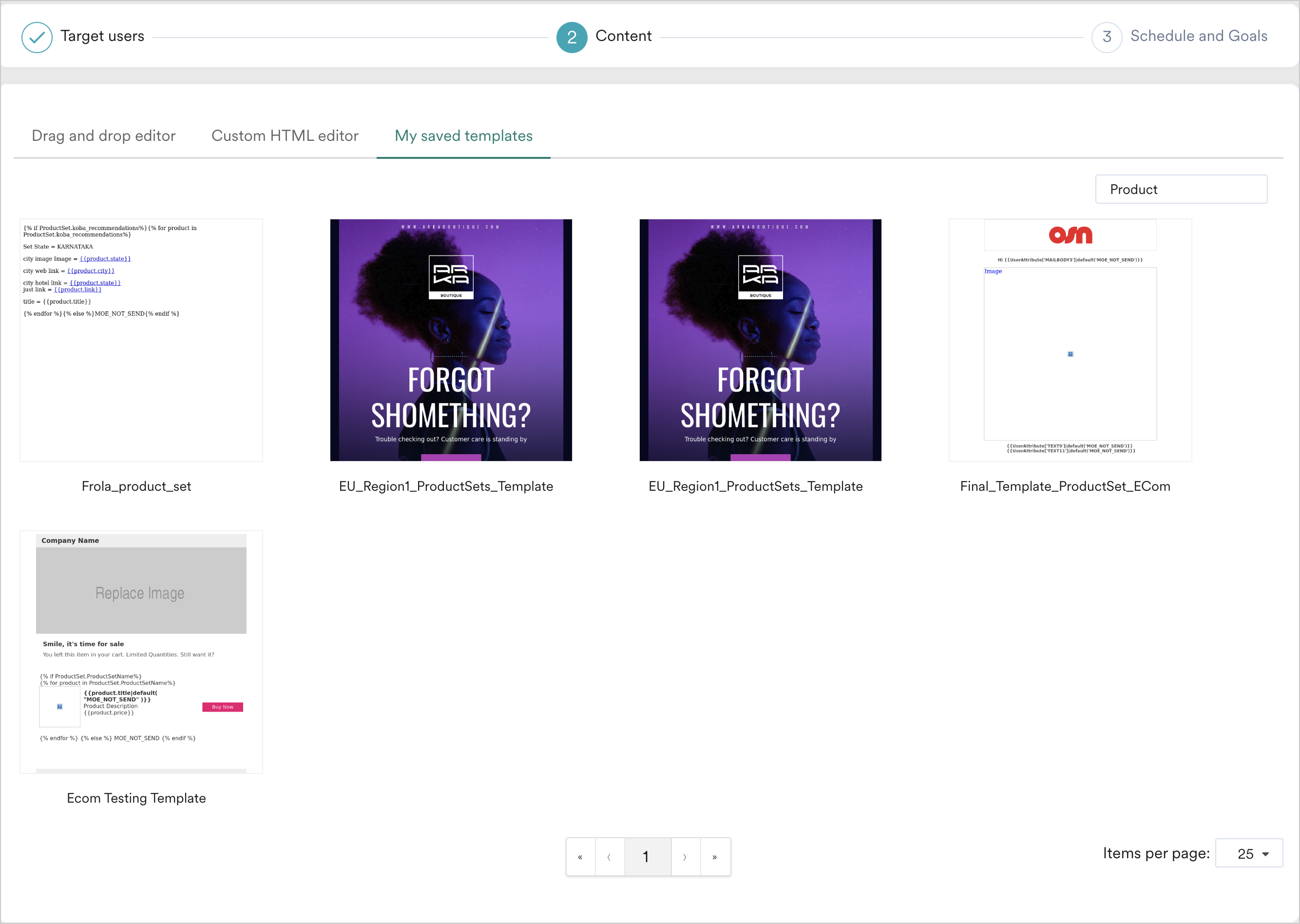
How do I access templates created using the Create Email Template API on the MoEngage Dashboard?
How do I access templates created using the Create Email Template API on the MoEngage Dashboard?
Can I create multiple templates with the same name using Create Email Template API?
Can I create multiple templates with the same name using Create Email Template API?
What connector details can I save with an email template using the API?
What connector details can I save with an email template using the API?
connector.connector_type, for example, SENDGRID or AMAZON_SES), the connector name (connector.connector_name), the from email address (from_address), and the reply-to email address (reply_to_address). You pass them in basic_details, along with the other template fields such as subject, email_content, sender_name, preview_text, and attachments. These fields are supported in both the Create Email Template and Update Email Template APIs.Are the connector fields mandatory?
Are the connector fields mandatory?
basic_details fields, such as subject, email_content, and sender_name, stay the same. However, the connector fields work as a set: if you pass any one of them, you must pass all four. A request that includes only some of the connector fields fails.What validations does MoEngage perform on connector details?
What validations does MoEngage perform on connector details?
- The connector type and connector name match a connector that exists in your workspace.
- The from email address is mapped to that connector.
- The from email address is verified.
Is the from email address validated if I personalize it?
Is the from email address validated if I personalize it?
Can I remove connector details from a template after saving them?
Can I remove connector details from a template after saving them?
Can I add connector details to a template that was created before this feature?
Can I add connector details to a template that was created before this feature?
What happens if I update a template's connector details and also ask to update the associated campaigns?
What happens if I update a template's connector details and also ask to update the associated campaigns?
update_campaigns as true and the connector details differ across the template’s versions, the template is saved as a new version, but the associated campaigns are not updated. They stay on their current version and keep their current connector details. The response returns campaigns_updated as false, with a message that explains why.Do other template updates still apply to the associated campaigns?
Do other template updates still apply to the associated campaigns?
email_content, subject, or sender_name, and pass update_campaigns as true, the changes are applied to those campaigns.Can I search templates by connector?
Can I search templates by connector?
connector_type), connector name (connector_name), and from email address (from_address). For example, you can find all templates that use SendGrid, or only the templates that use a specific SendGrid connector. To also return templates without connector details, set include_templates_without_connector to true. You can combine these filters with the existing ones, such as template_name and team_names.Is saving connector details with templates available for all workspaces?
Is saving connector details with templates available for all workspaces?