> ## Documentation Index
> Fetch the complete documentation index at: https://moengage.com/docs/llms.txt
> Use this file to discover all available pages before exploring further.
# Campaign Audience Limit
> Cap the number of users who receive a campaign in MoEngage based on engagement metrics like sent, delivered, impressions, or conversions.
# Overview
In marketing, controlling campaign reach and expenditure is crucial for effective resource allocation and achieving specific business goals. The **Campaign audience limit** feature in MoEngage empowers you with this control by allowing you to cap the number of users who receive a campaign based on key engagement metrics such as Sent, Impressions, Open, Delivered, and Conversions. This functionality directly addresses the need to manage promotional offers, limit redemptions, and gate access to exclusive content for a defined audience size, ensuring optimal budget utilization.
Furthermore, for recurring campaigns targeting large user segments, the Campaign audience limit enables you to manage the maximum number of users engaged per instance (particularly with the daily and instance-level options), contributing to broader reach over time, even though the system randomly selects users for each instance and some overlap may occur.
# Use Case
Are you looking to stay within your campaign budget cap? The Campaign audience limit feature is just what you need. By setting a specific threshold for the number of users who will receive your campaign, you can ensure that your budget remains intact and avoid exceeding your spending limits. Once the designated number of users has been reached, the campaign will automatically pause, preventing budget breaches.
# Configure Campaign Audience Limit
The **Campaign audience limit** option is available in the **Target Users** step while creating a campaign. You can turn on the toggle to trigger the user limit based on the configuration.  This feature allows you to set the following campaign audience limits based on the delivery types:
## Total
The campaign will be paused when the events (Sent, Impressions, Open, Delivered, Conversions) have reached the desired limit.
## Daily
The campaign will be paused when the day's events (Sent, Impressions, Open, Delivered, Conversions) reach the desired limit for that day.
## Instance
The campaign will be paused when the events (Sent, Impressions, Open, Delivered, Conversions) from the specific instance have reached the desired limit.
The following table displays the campaign audience limits supported for channels based on campaign delivery types:
| Channel | Delivery Type | Total | Daily | Instance Level |
| -------------------------------------------------------------------------------------------------------------- | ------------------------------------------ | ----- | ----- | -------------- |
|
This feature allows you to set the following campaign audience limits based on the delivery types:
## Total
The campaign will be paused when the events (Sent, Impressions, Open, Delivered, Conversions) have reached the desired limit.
## Daily
The campaign will be paused when the day's events (Sent, Impressions, Open, Delivered, Conversions) reach the desired limit for that day.
## Instance
The campaign will be paused when the events (Sent, Impressions, Open, Delivered, Conversions) from the specific instance have reached the desired limit.
The following table displays the campaign audience limits supported for channels based on campaign delivery types:
| Channel | Delivery Type | Total | Daily | Instance Level |
| -------------------------------------------------------------------------------------------------------------- | ------------------------------------------ | ----- | ----- | -------------- |
| - Push
- Email
- SMS
- WhatsApp
- Cards
- Connectors
- RCS
| One time | Yes | No | No |
| - Push
- Email
- SMS
- WhatsApp
- Cards
- Connectors
- RCS
| Periodic | Yes | No | Yes |
| - Push
- Email
- SMS
- WhatsApp
- Cards
- Connectors
- RCS
| Event Triggered | Yes | Yes | No |
| | Business Event Triggered | Yes | Yes | Yes |
| | One Time (Continuously Active in duration) | Yes | Yes | No |
| | Periodic (Periodically Active) | Yes | Yes | No |
| | Location-triggered | Yes | Yes | No |
| - Push
- SMS
- WhatsApp
- RCS
- Connected Apps
| Event Triggered Flows | Yes | Yes | No |
| - Push
- SMS
- WhatsApp
- RCS
- Connected Apps
| Business Event Triggered Flows | Yes | Yes | No |
| - Push
- SMS
- WhatsApp
- RCS
- Connected Apps
| On Flow Exit Flows | Yes | Yes | No |
| - Push
- SMS
- WhatsApp
- RCS
- Connected Apps
| One-time / Periodic Flows | Yes | No | No |
# How Does the Campaign Audience Limit Work?
You can configure the campaign audience limit to total, daily, or instance level. The metrics used to calculate and enforce these limits are:
* Sent
* Impressions
* Open
* Delivered
* Conversions
When setting a campaign audience limit based on Impressions or Conversions, note that the campaign might not pause precisely at the specified limit. You may observe a few additional impressions or conversions beyond the set value.
### Total
You can set the total campaign audience limit to pause the campaign when the impressions, sent, conversions have reached a desired limit. The following scenarios will help you better understand the total campaign audience limit.
**Scenario 1**
An event-triggered Push campaign must be paused when the total sent count reaches 2000 users.
**User action**
1. In the **Target users** step during campaign creation, turn on the **Campaign audience limit** toggle.
2. Select **sent** and **total** from the lists.
3. Enter the limit, which is 2000, in the space provided. 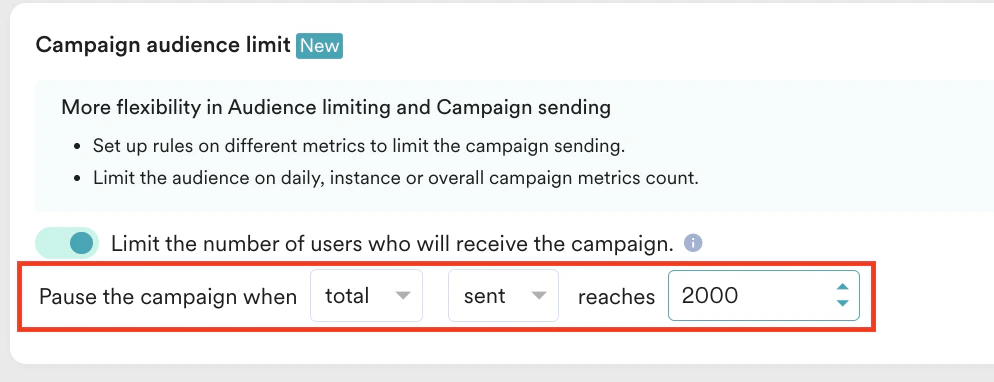 **Observed campaign behavior**
| Total Sent | Behavior |
| -------------------- | ------------------ |
| 1500 | Campaign proceeds |
| 2000 (limit reached) | Campaign is paused |
**Scenario 2**
A one-time Email campaign limit is 4500 users. When it exceeds, the status will be changed to **SENT.**
**User action**
1. In the **Target users** step during campaign creation, turn on the **Campaign audience limit** toggle.
2. Enter the limit, which is 4500, in the space provided.
**Observed campaign behavior**
| Total Sent | Behavior |
| -------------------- | ------------------ |
| 1500 | Campaign proceeds |
| 2000 (limit reached) | Campaign is paused |
**Scenario 2**
A one-time Email campaign limit is 4500 users. When it exceeds, the status will be changed to **SENT.**
**User action**
1. In the **Target users** step during campaign creation, turn on the **Campaign audience limit** toggle.
2. Enter the limit, which is 4500, in the space provided. 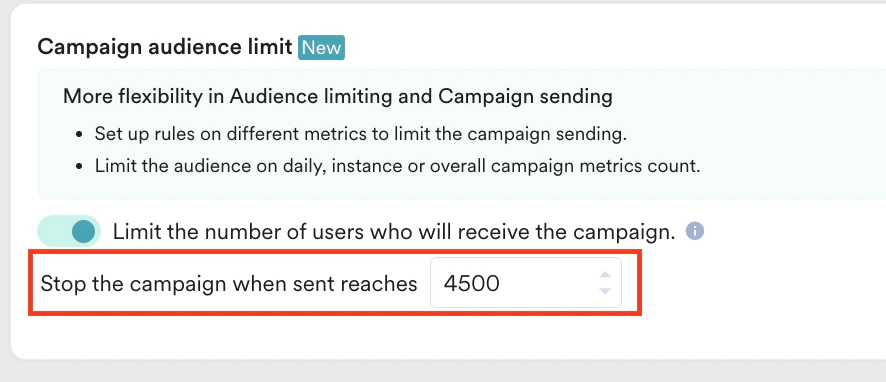 **Observed campaign behavior**
| Total Sent | Behavior |
| -------------------- | ---------------------- |
| 1500 | Campaign proceeds |
| 4500 (limit reached) | Status changes to SENT |
### Daily
You can set the daily campaign audience limit to pause the campaign when the impressions, sent, conversions for the day have reached the desired limit. The following scenarios will help you better understand the daily campaign audience limit.
The campaign will automatically pause when the limit is reached and will resume precisely at midnight (12:00 AM) in your campaign timezone.
**Scenario 1**
An event-triggered SMS campaign must be paused when the daily conversion count reaches 3000 users.
**User action**
1. In the **Target users** step during campaign creation, turn on the **Campaign audience limit** toggle.
2. Select **conversions** and **daily** from the lists.
3. Enter the limit, which is 3000, in the space provided.
**Observed campaign behavior**
| Total Sent | Behavior |
| -------------------- | ---------------------- |
| 1500 | Campaign proceeds |
| 4500 (limit reached) | Status changes to SENT |
### Daily
You can set the daily campaign audience limit to pause the campaign when the impressions, sent, conversions for the day have reached the desired limit. The following scenarios will help you better understand the daily campaign audience limit.
The campaign will automatically pause when the limit is reached and will resume precisely at midnight (12:00 AM) in your campaign timezone.
**Scenario 1**
An event-triggered SMS campaign must be paused when the daily conversion count reaches 3000 users.
**User action**
1. In the **Target users** step during campaign creation, turn on the **Campaign audience limit** toggle.
2. Select **conversions** and **daily** from the lists.
3. Enter the limit, which is 3000, in the space provided. 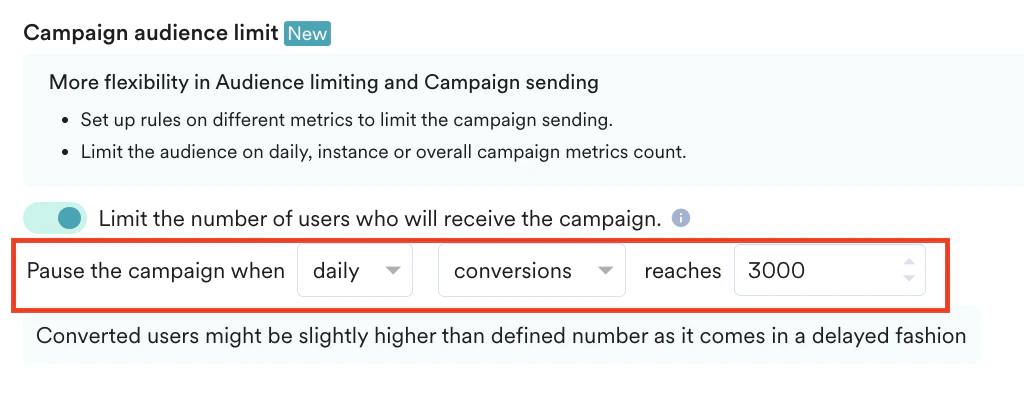 **Observed campaign behavior**
| Total Conversions | Behavior |
| -------------------- | ------------------ |
| 1500 | Campaign proceeds |
| 3000 (limit reached) | Campaign is paused |
**Scenario 2**
A business event-triggered Email campaign must be paused when the daily sent count reaches 2500 users.
**User action**
1. In the **Target users** step during campaign creation, turn on the **Campaign audience limit** toggle.
2. Select **daily** from the list.
3. Enter the limit, which is 2500, in the space provided.
**Observed campaign behavior**
| Total Conversions | Behavior |
| -------------------- | ------------------ |
| 1500 | Campaign proceeds |
| 3000 (limit reached) | Campaign is paused |
**Scenario 2**
A business event-triggered Email campaign must be paused when the daily sent count reaches 2500 users.
**User action**
1. In the **Target users** step during campaign creation, turn on the **Campaign audience limit** toggle.
2. Select **daily** from the list.
3. Enter the limit, which is 2500, in the space provided. 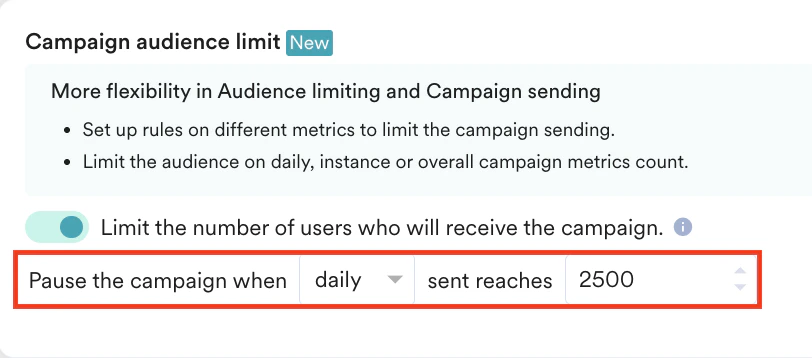 **Observed campaign behavior**
| Total Sent | Behavior |
| -------------------- | ------------------ |
| 1500 | Campaign proceeds |
| 2500 (limit reached) | Campaign is paused |
### Instance Level
You can set the instance-level campaign audience limit to pause the campaign when the impressions, sent, conversions for the specific instance have reached the desired limit. The following scenarios will help you better understand the instance-level campaign audience limit.
At the instance level, the parent campaign will remain active, while the child campaign will be marked as SENT because it has reached its limit.
**Scenario 1**
A business event-triggered Push campaign must be paused when the sent count for an instance reaches 1000 users.
**User action:**
1. In the **Target users** step during campaign creation, turn on the **Campaign audience limit** toggle.
2. Select **instance** from the list.
3. Enter the limit, which is 1000, in the space provided.
**Observed campaign behavior**
| Total Sent | Behavior |
| -------------------- | ------------------ |
| 1500 | Campaign proceeds |
| 2500 (limit reached) | Campaign is paused |
### Instance Level
You can set the instance-level campaign audience limit to pause the campaign when the impressions, sent, conversions for the specific instance have reached the desired limit. The following scenarios will help you better understand the instance-level campaign audience limit.
At the instance level, the parent campaign will remain active, while the child campaign will be marked as SENT because it has reached its limit.
**Scenario 1**
A business event-triggered Push campaign must be paused when the sent count for an instance reaches 1000 users.
**User action:**
1. In the **Target users** step during campaign creation, turn on the **Campaign audience limit** toggle.
2. Select **instance** from the list.
3. Enter the limit, which is 1000, in the space provided. 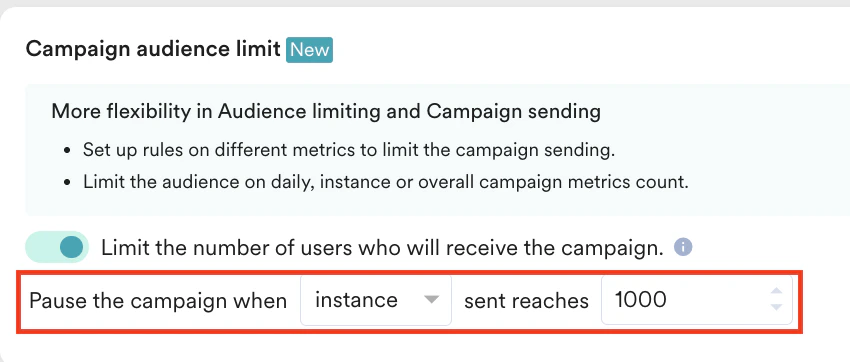 **Observed campaign behavior**
| Total Sent | Behavior |
| -------------------- | ------------------ |
| 500 | Campaign proceeds |
| 1000 (limit reached) | Campaign is paused |
**Scenario 2**
A periodic Push campaign must be paused when the sent count for an instance reaches 4000 users.
**User action:**
1. In the **Target users** step during campaign creation, turn on the **Campaign audience limit** toggle.
2. Select **instance** from the list.
3. Enter the limit, which is 4000, in the space provided.
**Observed campaign behavior**
| Total Sent | Behavior |
| -------------------- | ------------------ |
| 500 | Campaign proceeds |
| 1000 (limit reached) | Campaign is paused |
**Scenario 2**
A periodic Push campaign must be paused when the sent count for an instance reaches 4000 users.
**User action:**
1. In the **Target users** step during campaign creation, turn on the **Campaign audience limit** toggle.
2. Select **instance** from the list.
3. Enter the limit, which is 4000, in the space provided. 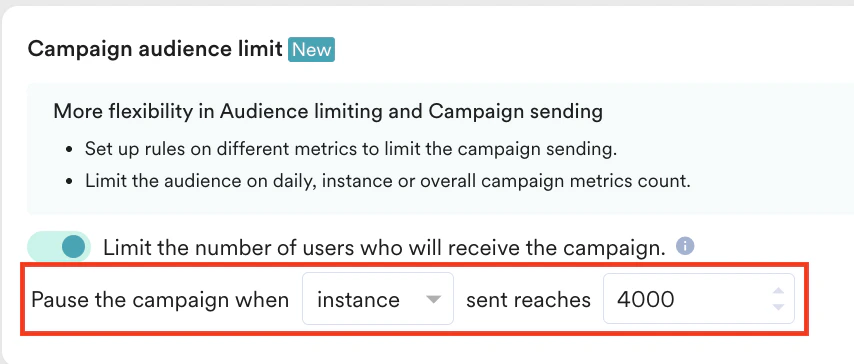 **Observed campaign behavior**
| Total Sent | Behavior |
| -------------------- | ------------------ |
| 1500 | Campaign proceeds |
| 4000 (limit reached) | Campaign is paused |
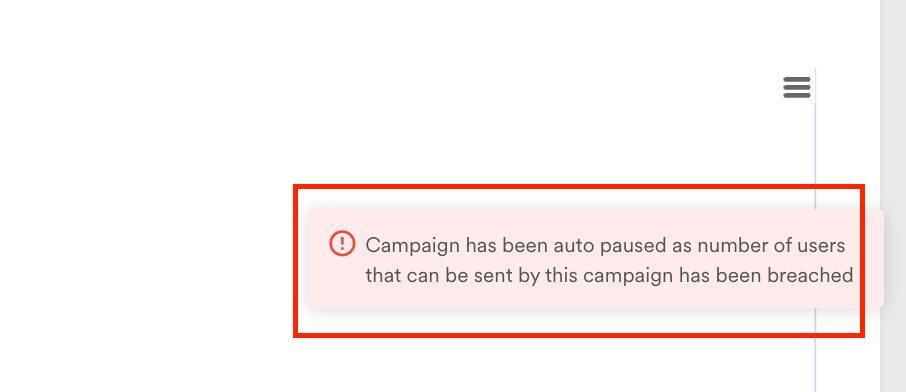
If you attempt to resume a campaign that has been automatically paused after reaching its campaign audience limit, the following error message will appear.
**Observed campaign behavior**
| Total Sent | Behavior |
| -------------------- | ------------------ |
| 1500 | Campaign proceeds |
| 4000 (limit reached) | Campaign is paused |
If you attempt to resume a campaign that has been automatically paused after reaching its campaign audience limit, the following error message will appear.
 # Editing Campaign Audience Limit
You can edit the campaign audience limit of a campaign to a higher or lower number whenever necessary. The campaign resumes based on the updated limit. The following table outlines the campaign behavior in response to increasing or decreasing campaign audience limits at different levels.
| Level | Scenario | Behavior When Increasing Limit | Behavior When Decreasing Limit |
| --------------------- | ------------------------------------------------------ | -------------------------------------------------- | ------------------------------------------------------------- |
| Total Level | Limit is breached | The campaign resumes to reach the new limit. | You cannot decrease the limit if it has already been reached. |
| Limit is not breached | The campaign continues until the new limit is reached. | The campaign pauses when the new limit is reached. | |
| Daily Level | Limit is breached | The campaign resumes to reach the new limit. | The campaign pauses, and the new limit applies the next day. |
| Limit is not breached | The campaign continues until the new limit is reached. | The campaign pauses based on the new limit. | |
| Instance Level | NA | The updated limit applies from the next instance. | The updated limit applies from the next instance. |
### Example Scenarios
**Scenario 1: When the Campaign audience limit is increased**
A campaign with a total limit of 2000 users is performing well. The better performance incurred a higher budget for the campaign, which demands a 3000-user count as the total limit.
**User action**
Edit the total limit of 2000 to 3000.
**Observed behavior**
The campaign resumes to reach an additional 1000 users.
**Scenario 2: When the Campaign audience limit is increased**
Due to a budget shortage, the campaign's total limit needs to be reduced from 4000 users to 2000 users.
**User action**
Edit the total limit from 4000 to 2000.
**Observed campaign behavior**
The campaign pauses when the total limit reaches 2000 users.
You can also disable the campaign audience limit if required. After the campaign audience limit is disabled, the campaign will be sent to the entire segment from the following instance.
# Campaign Analytics and Info
On the Campaign Analytics page, you can:
* View the campaign performance stats. To do so, navigate to **Engage** > **Campaigns**. In the **All Campaigns** page, search for your campaign. Click the campaign name to access the **Campaign analytics and info** page. In the **Campaign analytics and info** page, navigate to **Analytics > Campaign performance stats**.
* Identify if the campaign has the campaign audience limit enabled. If enabled, the info icon on the **Analytics** tab will have the following message: This campaign has campaign audience limit enabled. This will limit the number of users who will receive the campaign.
# Editing Campaign Audience Limit
You can edit the campaign audience limit of a campaign to a higher or lower number whenever necessary. The campaign resumes based on the updated limit. The following table outlines the campaign behavior in response to increasing or decreasing campaign audience limits at different levels.
| Level | Scenario | Behavior When Increasing Limit | Behavior When Decreasing Limit |
| --------------------- | ------------------------------------------------------ | -------------------------------------------------- | ------------------------------------------------------------- |
| Total Level | Limit is breached | The campaign resumes to reach the new limit. | You cannot decrease the limit if it has already been reached. |
| Limit is not breached | The campaign continues until the new limit is reached. | The campaign pauses when the new limit is reached. | |
| Daily Level | Limit is breached | The campaign resumes to reach the new limit. | The campaign pauses, and the new limit applies the next day. |
| Limit is not breached | The campaign continues until the new limit is reached. | The campaign pauses based on the new limit. | |
| Instance Level | NA | The updated limit applies from the next instance. | The updated limit applies from the next instance. |
### Example Scenarios
**Scenario 1: When the Campaign audience limit is increased**
A campaign with a total limit of 2000 users is performing well. The better performance incurred a higher budget for the campaign, which demands a 3000-user count as the total limit.
**User action**
Edit the total limit of 2000 to 3000.
**Observed behavior**
The campaign resumes to reach an additional 1000 users.
**Scenario 2: When the Campaign audience limit is increased**
Due to a budget shortage, the campaign's total limit needs to be reduced from 4000 users to 2000 users.
**User action**
Edit the total limit from 4000 to 2000.
**Observed campaign behavior**
The campaign pauses when the total limit reaches 2000 users.
You can also disable the campaign audience limit if required. After the campaign audience limit is disabled, the campaign will be sent to the entire segment from the following instance.
# Campaign Analytics and Info
On the Campaign Analytics page, you can:
* View the campaign performance stats. To do so, navigate to **Engage** > **Campaigns**. In the **All Campaigns** page, search for your campaign. Click the campaign name to access the **Campaign analytics and info** page. In the **Campaign analytics and info** page, navigate to **Analytics > Campaign performance stats**.
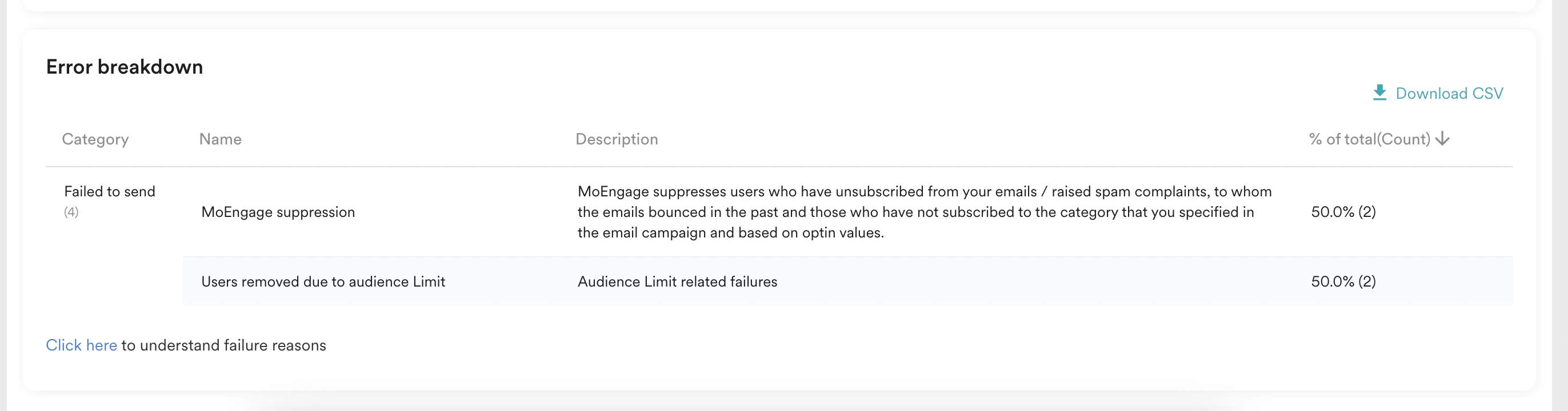
* Identify if the campaign has the campaign audience limit enabled. If enabled, the info icon on the **Analytics** tab will have the following message: This campaign has campaign audience limit enabled. This will limit the number of users who will receive the campaign. 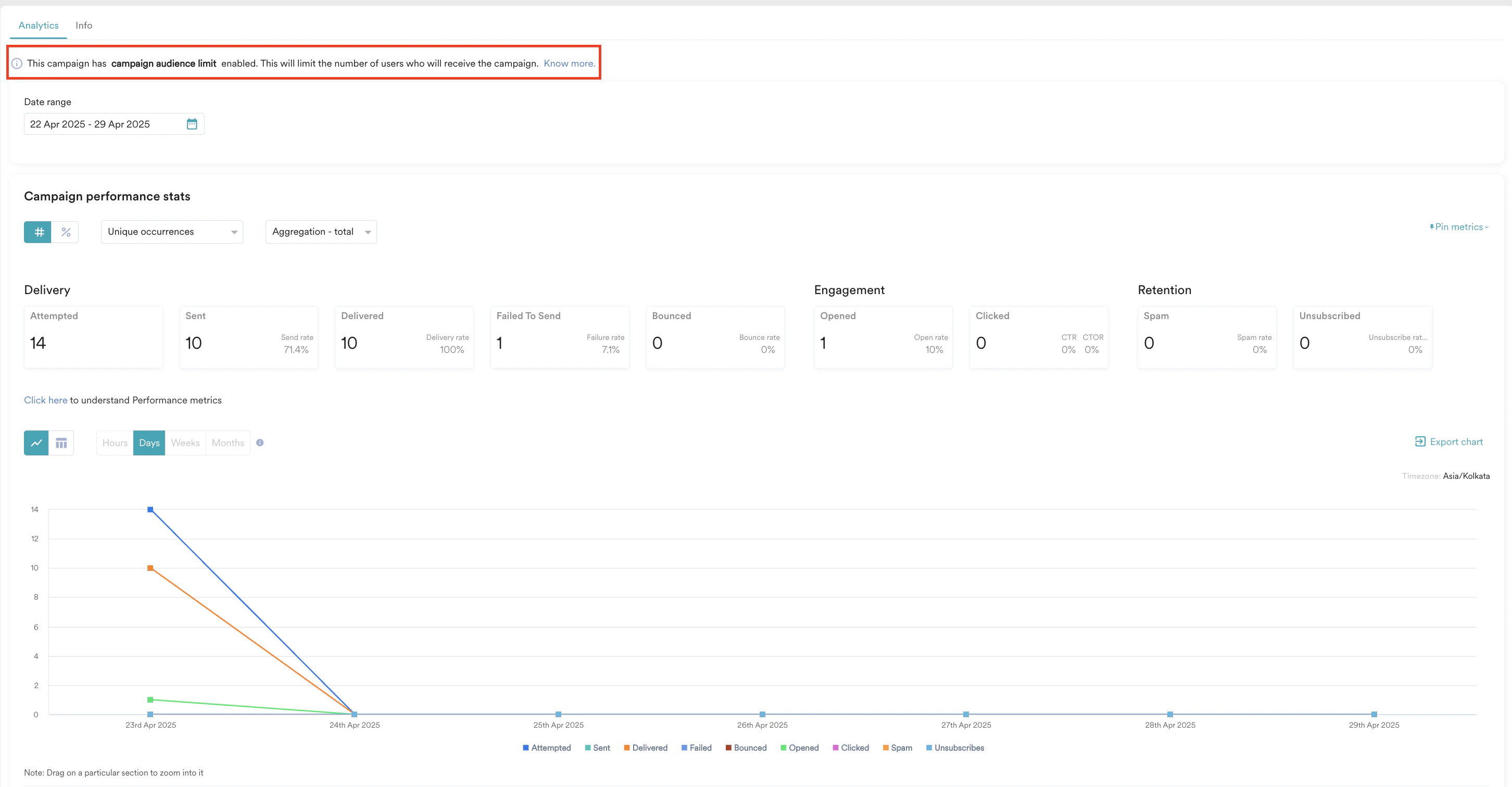 The Failed count does not include users removed due to the campaign audience limit and the drop is expected. You can view the count of removed users in the error breakdown table.
 On the Campaign Info page:
* You can view the campaign audience limit defined during campaign creation. To do so, navigate to **Engage** > **Campaigns**. In the **All Campaigns** page, search for your campaign. Click the campaign name to access the **Campaign analytics and info** page. In the **Campaign analytics and info** page, navigate to **Info** > **Audience** > **Target**.
On the Campaign Info page:
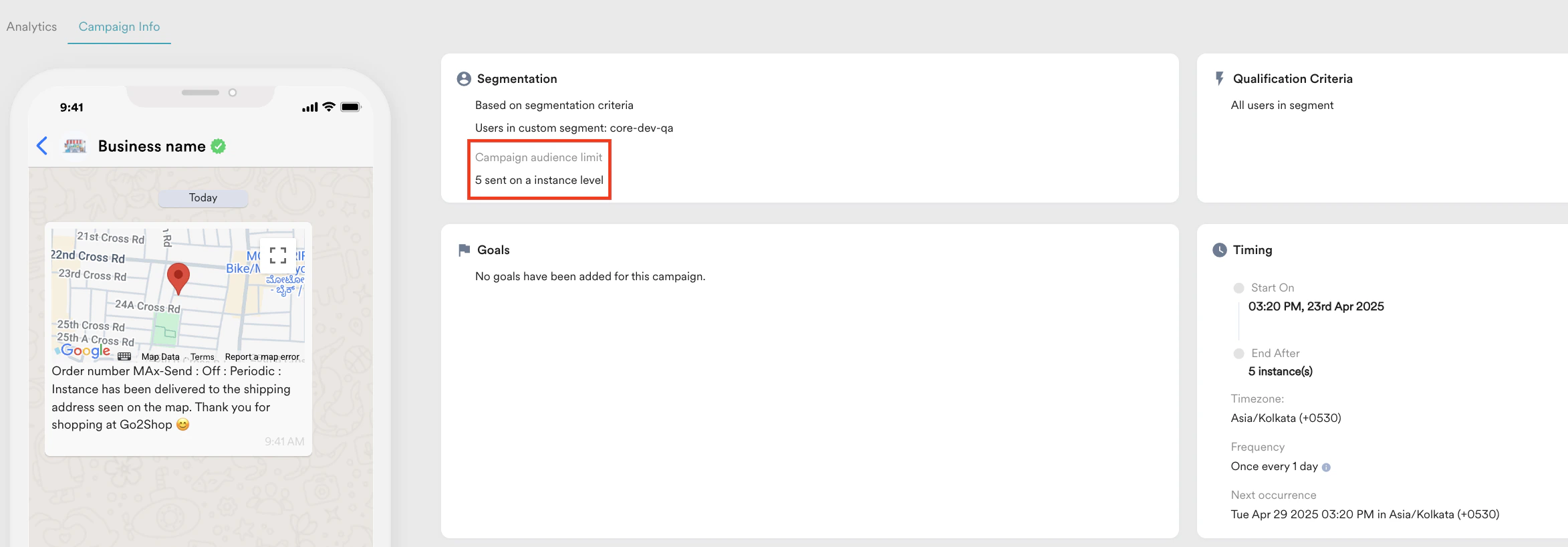
* You can view the campaign audience limit defined during campaign creation. To do so, navigate to **Engage** > **Campaigns**. In the **All Campaigns** page, search for your campaign. Click the campaign name to access the **Campaign analytics and info** page. In the **Campaign analytics and info** page, navigate to **Info** > **Audience** > **Target**.  In the **Campaign Info** page of WhatsApp campaigns, you can view the campaign audience limit defined during campaign creation in the **Segmentation** card.
 * If you edit the campaign audience limit, a new version will be created. The old or new limit will be displayed based on your current version.
The campaign audience limit will be applied at the overall campaign level, not individually to each version.
* If you edit the campaign audience limit, a new version will be created. The old or new limit will be displayed based on your current version.
The campaign audience limit will be applied at the overall campaign level, not individually to each version.