> ## Documentation Index
> Fetch the complete documentation index at: https://moengage.com/docs/llms.txt
> Use this file to discover all available pages before exploring further.
# Bot Detection for Email Opens and Clicks
> Identify and filter bot-generated opens and clicks on your Email campaigns so your engagement metrics accurately reflect genuine user behavior.
## Overview
Not every open or click recorded by your Email campaigns comes from an actual human recipient. Sources such as [Apple Mail Privacy Protection (MPP)](/docs/user-guide/campaigns-and-channels/email/getting-started-with-email/mail-privacy-protection-mpp-and-email-analytics), corporate security scanners, and automated link-checking proxies can trigger opens and clicks automatically. Left unfiltered, this activity inflates your metrics, skews Key Performance Indicators (KPIs) like Open rates, Click rates, and Click-to-Open Rate (CTOR) that can incorrectly trigger engagement-based automations (for example, retargeting based on email opens and clicks).
Bot Detection allows you to define specific rules to identify non-human activity. You can configure rules separately for **Bot opens** and **Bot clicks**, and choose how MoEngage should display these metrics in your campaign analytics and reports.
* Bot detection feature is currently available only for Email channel.
* MoEngage has been continuously monitoring opens and clicks across the platform in the background, identifying new bot IPs and bot user agents and keeping the default rules up to date. Additionally, this setting gives you the ability to add your own custom rules on top of these defaults.
* Bot detection feature of MoEngage is built to catch the vast majority of bot activity and is continuously refined for greater accuracy. As with any detection system, some bot activity may go undetected, and some genuine activity may be flagged as a bot.
## Use Cases
* **Accurate campaign performance reporting**: Marketing and analytics teams can rely on Open Rate, Click Rate, and CTOR that reflect genuine recipient behavior, instead of being inflated by Apple MPP pre-fetching, image proxies, or automated security scanners.
* **Reliable engagement-based segmentation and journeys**: Since bot opens and clicks no longer falsely qualify a contact as "engaged," users aren't incorrectly moved into engaged segments, win-back flows, or automation branches meant only for real recipient actions.
* **Flexibility to handle bot-flagged unsubscribes your way**: Bot detection works on a best-effort basis, so a genuine unsubscribe click can occasionally be misclassified as a bot click. This setting puts that decision in your hands: choose to always honor the unsubscribe request even when it's flagged as a bot, so you never risk retaining someone who wanted out, or choose to ignore bot-flagged unsubscribe clicks so genuine subscribers aren't suppressed by mistake.
* **Cleaner data for downstream reporting**: Because bot-adjusted metrics can be viewed separately from totals, teams exporting engagement data to BI tools, dashboards, or CRMs can work with human-only numbers for more accurate customer engagement scoring.
## Enable Bot Detection
To start filtering bot activity, perform the following steps:
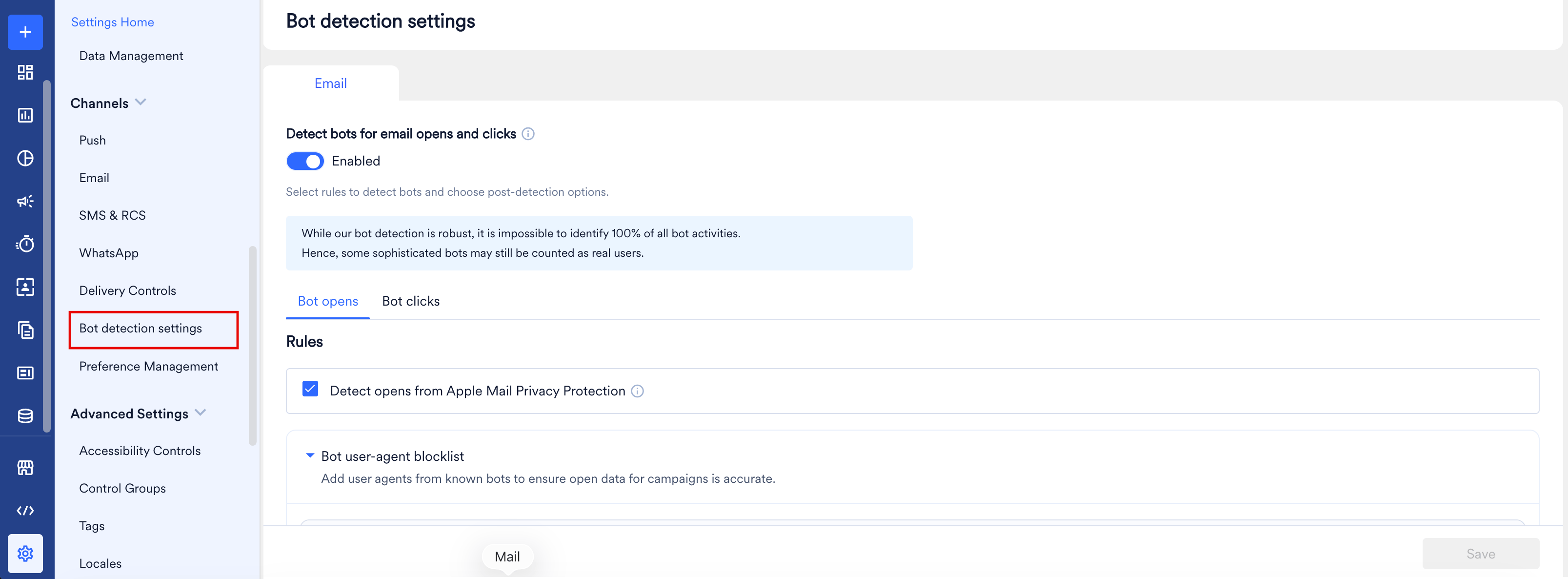 1. Log in to your MoEngage dashboard.
2. Navigate to **Settings** > **Channels** > **Bot Detection Settings**.
3. On the **Bot Detection Settings** page, under the **Email** tab, turn on the **Detect bots for email opens and clicks** toggle so it displays as **Enabled**.
After enabling, there will be two sub-tabs: **Bot opens** and **Bot clicks**. You can configure specific detection rules within each.
## Configure Bot Opens
Navigate to the **Bot opens** tab to define how MoEngage identifies and handles bot-driven email opens.
1. Log in to your MoEngage dashboard.
2. Navigate to **Settings** > **Channels** > **Bot Detection Settings**.
3. On the **Bot Detection Settings** page, under the **Email** tab, turn on the **Detect bots for email opens and clicks** toggle so it displays as **Enabled**.
After enabling, there will be two sub-tabs: **Bot opens** and **Bot clicks**. You can configure specific detection rules within each.
## Configure Bot Opens
Navigate to the **Bot opens** tab to define how MoEngage identifies and handles bot-driven email opens.
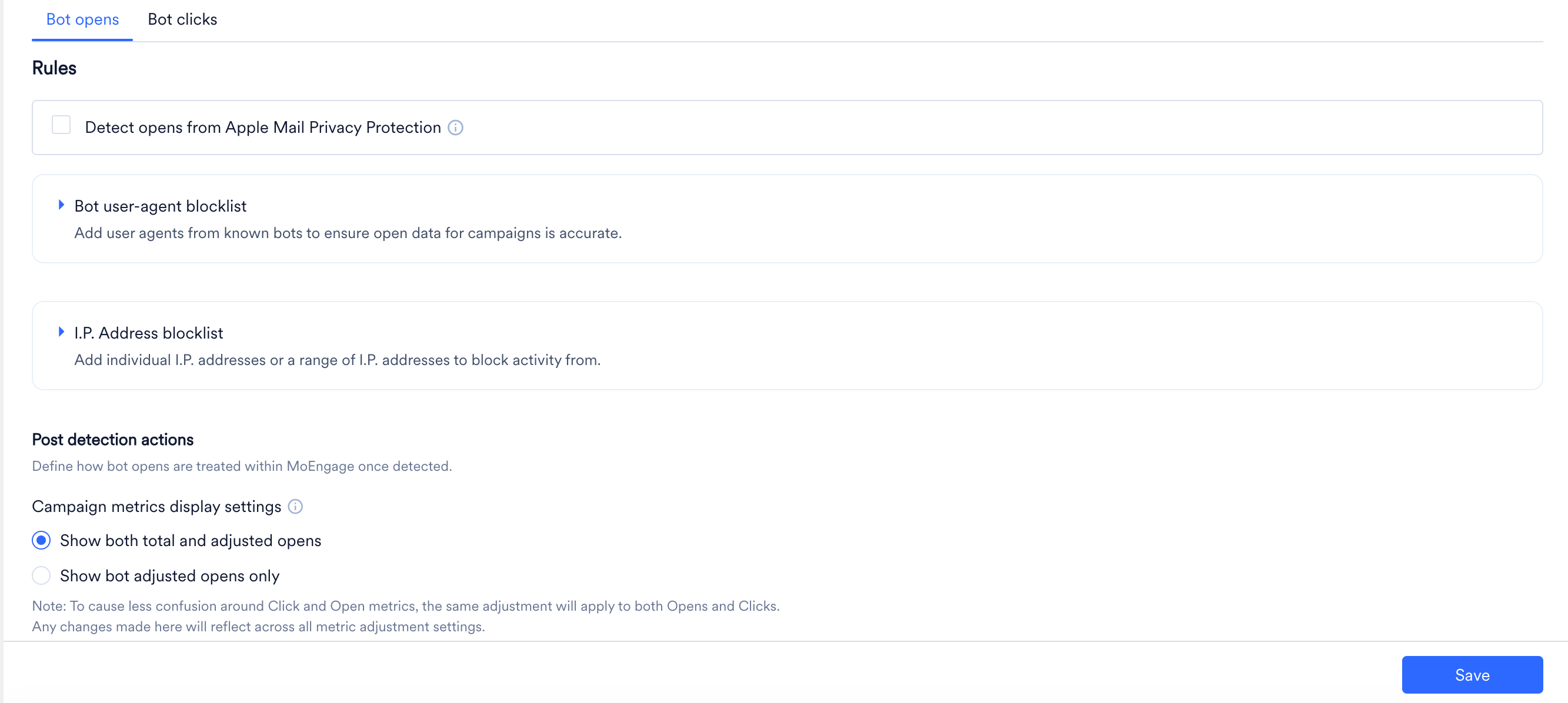 ### Detection Rules
* **Detect opens from Apple Mail Privacy Protection**: For recipients who have enabled [Apple Mail Privacy Protection (MPP)](/docs/user-guide/campaigns-and-channels/email/getting-started-with-email/mail-privacy-protection-mpp-and-email-analytics), Apple preloads remote content, including tracking pixels, through its own relay servers before the recipient actually opens the email. This preload can happen immediately or after a delay, and it registers as an "open" even though no human has read the email, producing a false engagement signal. Check this box to automatically identify these proxy-generated opens.
### Detection Rules
* **Detect opens from Apple Mail Privacy Protection**: For recipients who have enabled [Apple Mail Privacy Protection (MPP)](/docs/user-guide/campaigns-and-channels/email/getting-started-with-email/mail-privacy-protection-mpp-and-email-analytics), Apple preloads remote content, including tracking pixels, through its own relay servers before the recipient actually opens the email. This preload can happen immediately or after a delay, and it registers as an "open" even though no human has read the email, producing a false engagement signal. Check this box to automatically identify these proxy-generated opens.
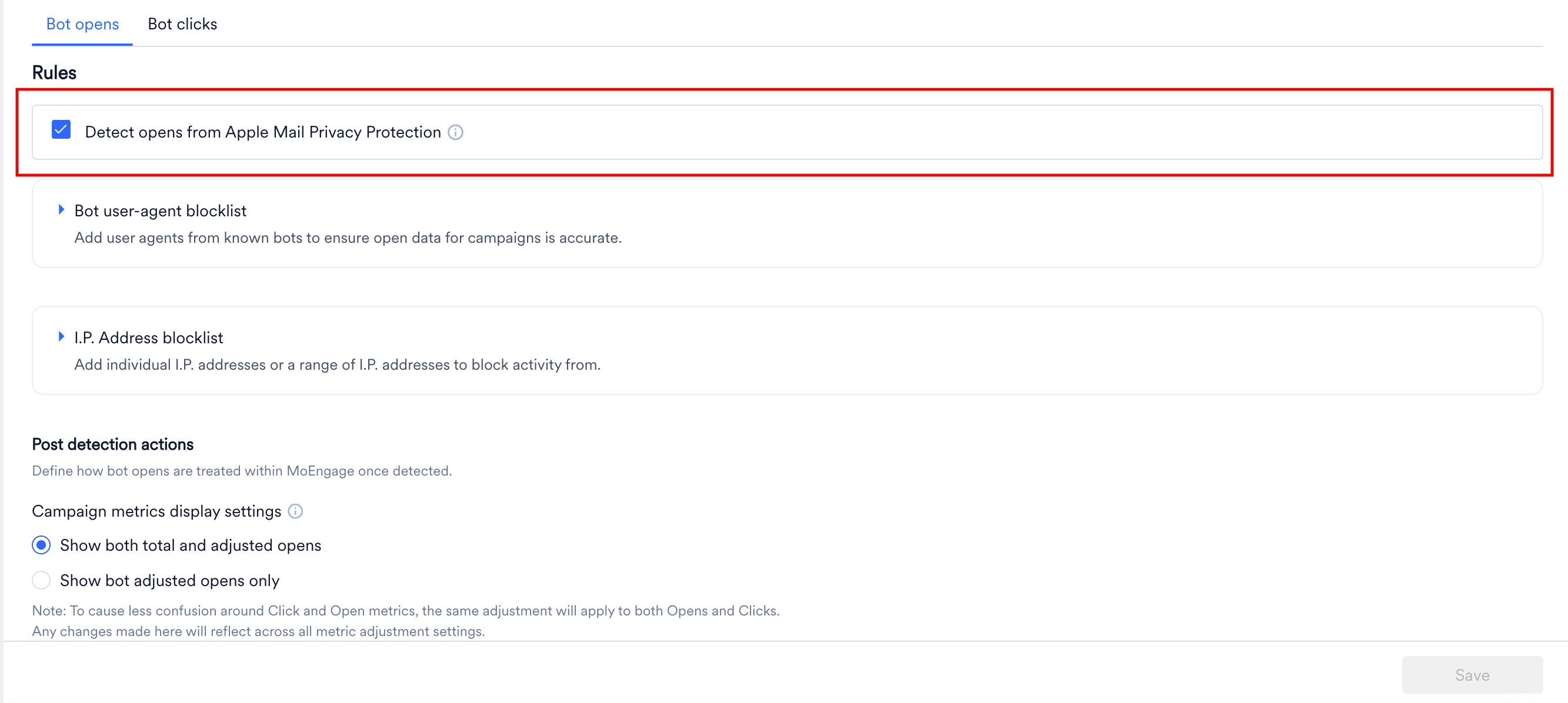 * **Bot user-agent blocklist**: Expand this section to manage the list of user-agent signatures used to detect bots.
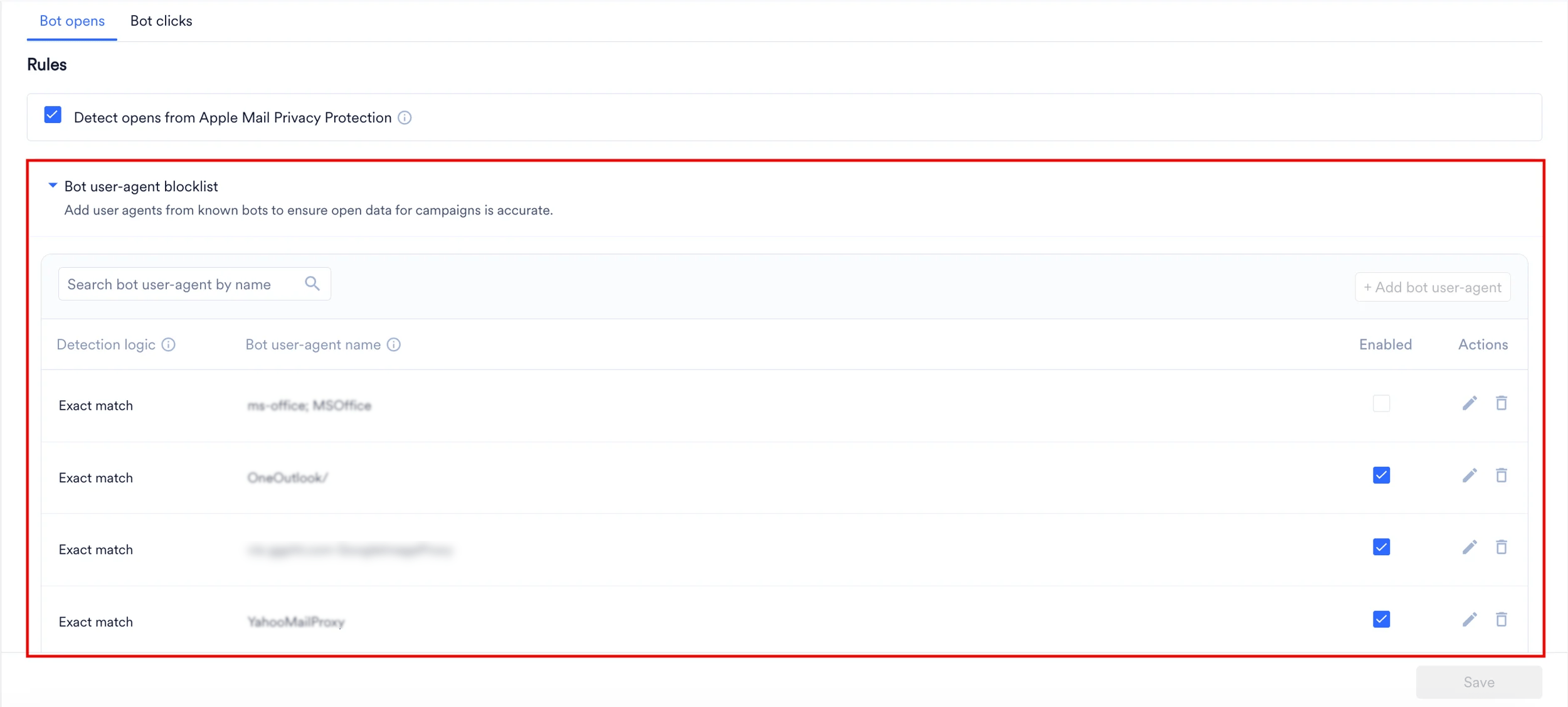 * **MoEngage Default**: Rules tagged with **"MoEngage default"** are maintained automatically by MoEngage to cover known bots.These rules cannot be deleted. However, if you find that traffic from a specific default user agent or IP is actually genuine for your brand, you can disable that individual rule at any time using its **Enabled** checkbox.
* **Search**: Use the **Search bot user-agent by name** field to find specific rules.
* **Add bot user-agent**: Click the **+ Add bot user-agent** button to create custom rules. You can add up to 200 entries. This creates a new input row where you must define the following fields:
* **MoEngage Default**: Rules tagged with **"MoEngage default"** are maintained automatically by MoEngage to cover known bots.These rules cannot be deleted. However, if you find that traffic from a specific default user agent or IP is actually genuine for your brand, you can disable that individual rule at any time using its **Enabled** checkbox.
* **Search**: Use the **Search bot user-agent by name** field to find specific rules.
* **Add bot user-agent**: Click the **+ Add bot user-agent** button to create custom rules. You can add up to 200 entries. This creates a new input row where you must define the following fields:
 * **Detection logic**:
* Select **Exact match** if you want MoEngage to block an open only when the incoming user-agent string matches your entry perfectly, character for character (e.g., 123456).
* Select **Partial match** if you want to block an open when the incoming user-agent string simply contains your entry as a substring (e.g., entering random will block any user-agent string that includes the word "random").
Use **Partial match** carefully, an overly broad value can unintentionally match legitimate traffic and misclassify real users as bots. For example, entering **Mozilla/5.0** as a partial match would match almost every real browser's user-agent string, since most legitimate browsers include this substring causing the majority of your genuine opens to be categorized as bots.
* Both **Exact match** and **Partial match** are case-insensitive, so entries like *Random* and *random* are treated the same.
* **Bot user-agent name**: Type the exact or partial string you want to detect. Note: You must enter a string here before saving, otherwise MoEngage displays a **Please enter a user agent string before saving** error.
* **Enabled**: This checkbox determines the active status of the rule. Leave it checked to activate the rule immediately upon saving. Uncheck it if you want to save the rule to your list but keep it inactive for now.
* **Actions**: While adding a new rule, click the checkmark icon to save and apply the new entry, or click the cross (X) icon to cancel and discard the row. After a rule is saved, these icons change to a pencil for editing and a trash can for deleting.
* **I.P. Address blocklist**: Expand this section to block opens originating from specific IP addresses or ranges (e.g., corporate proxies or data centers).
* **Detection logic**:
* Select **Exact match** if you want MoEngage to block an open only when the incoming user-agent string matches your entry perfectly, character for character (e.g., 123456).
* Select **Partial match** if you want to block an open when the incoming user-agent string simply contains your entry as a substring (e.g., entering random will block any user-agent string that includes the word "random").
Use **Partial match** carefully, an overly broad value can unintentionally match legitimate traffic and misclassify real users as bots. For example, entering **Mozilla/5.0** as a partial match would match almost every real browser's user-agent string, since most legitimate browsers include this substring causing the majority of your genuine opens to be categorized as bots.
* Both **Exact match** and **Partial match** are case-insensitive, so entries like *Random* and *random* are treated the same.
* **Bot user-agent name**: Type the exact or partial string you want to detect. Note: You must enter a string here before saving, otherwise MoEngage displays a **Please enter a user agent string before saving** error.
* **Enabled**: This checkbox determines the active status of the rule. Leave it checked to activate the rule immediately upon saving. Uncheck it if you want to save the rule to your list but keep it inactive for now.
* **Actions**: While adding a new rule, click the checkmark icon to save and apply the new entry, or click the cross (X) icon to cancel and discard the row. After a rule is saved, these icons change to a pencil for editing and a trash can for deleting.
* **I.P. Address blocklist**: Expand this section to block opens originating from specific IP addresses or ranges (e.g., corporate proxies or data centers).
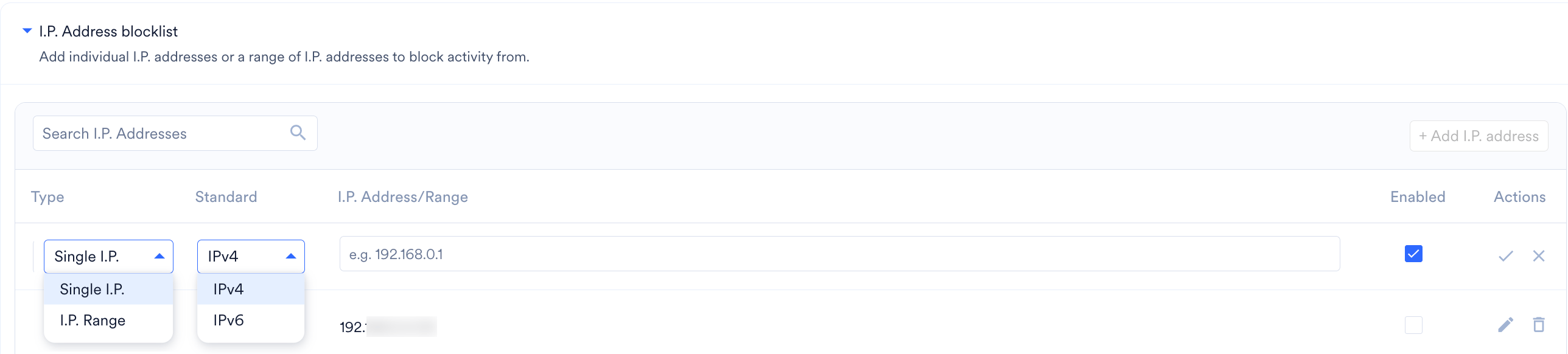
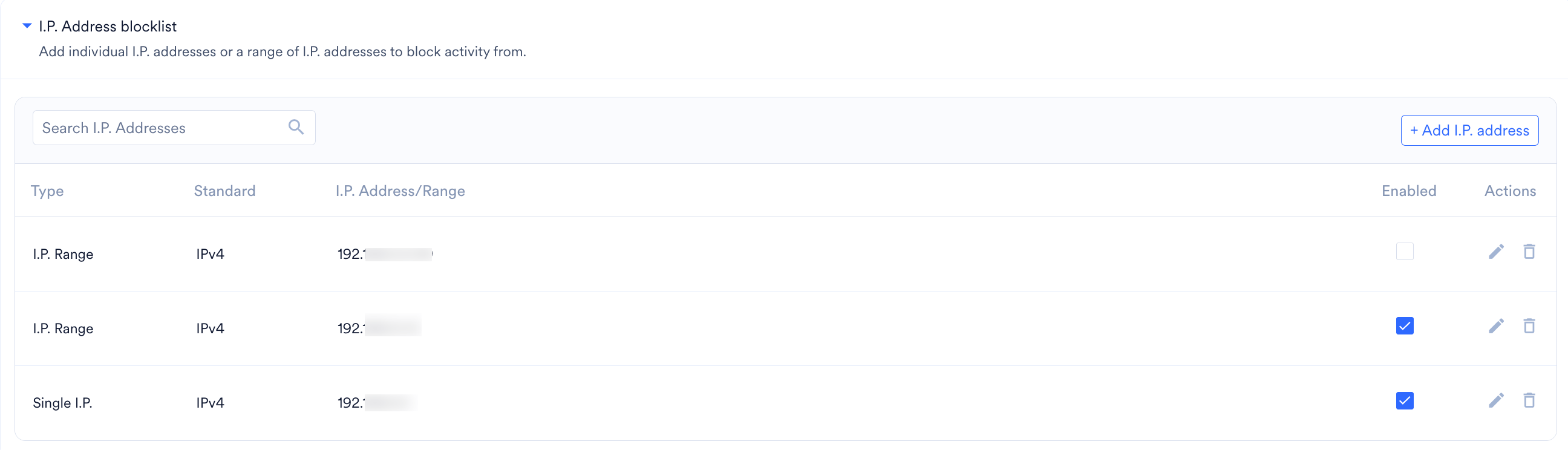 * Click **+ Add I.P. address** to define the **Type** (**Single I.P.** or **I.P. Range**), the **Standard** (**IPv4** or **IPv6**), and the exact address/range.
* While adding a new I.P. address, click the checkmark icon to save and apply the new entry, or click the cross (X) icon to cancel and discard the row. After an I.P. address is saved, these icons change to a pencil for editing and a trash can for deleting.
* Click **+ Add I.P. address** to define the **Type** (**Single I.P.** or **I.P. Range**), the **Standard** (**IPv4** or **IPv6**), and the exact address/range.
* While adding a new I.P. address, click the checkmark icon to save and apply the new entry, or click the cross (X) icon to cancel and discard the row. After an I.P. address is saved, these icons change to a pencil for editing and a trash can for deleting.
 ### Post Detection Actions
Under the **Post detection actions** section on the **Bot opens** tab, choose your preferred **Campaign metrics display settings**:
### Post Detection Actions
Under the **Post detection actions** section on the **Bot opens** tab, choose your preferred **Campaign metrics display settings**:
 * **Show both total and adjusted opens**: Your campaign reports will display the raw, unfiltered open counts alongside the adjusted (human-only) open counts.
* **Show bot adjusted opens only**: Your campaign reports will entirely exclude detected bot opens, showing only the adjusted metrics.
For more information, refer to the Engagement Metrics section in [Campaign Performance Stats](/docs/user-guide/campaigns-and-channels/email/analyze/email-analytics-and-info#campaign-performance-stats).
Important Note: To prevent discrepancies, this display adjustment applies to both Opens and Clicks. Any changes made to this setting will reflect uniformly across all metric adjustment dashboards.
In addition to Apple Mail Privacy Protection opens, all email opens and clicks coming from a list of malicious user agents will be classified as machine opens/clicks. The list of user agents has been compiled by us based on our monitoring and assessment that has happened over the last couple of quarters.
This is one of the solution's supported options. If you believe that you are not impacted by machine opens/clicks, you can indicate this in bot detection settings. As a result, MoEngage will not evaluate email opens/clicks for machine activity and will show all open/click metrics.
For the past couple of quarters, MoEngage have done a lot of research and troubleshooting on the email opens/clicks front and have a good handle on the various moving parts involved. Having said that, machine open/clicks detection and labeling is a shifting landscape that requires continuous identification and resolution of issues. MoEngage continues to do the same in the future.
No, machine activity impacts clicks, unsubscribes, and spam complaints in addition to email opens. Current solution of MoEngage classifies email opens/clicks only.
The split of total vs. adjusted opens will be available for all campaigns created after 16 December 2024. Campaigns created before that will not have this data.
Given its impact on business reporting and marketers' KPIs, the conversion logic will remain as it is and will factor in all email opens/clicks as before. MoEngage monitors the adoption and response from the customers and then decide whether the conversion logic should also be updated. Exclusion of bot-classified events from conversion attribution and DS features (BTS, MPC, NBA) is planned for the future release.
Reports will show options to include both total and adjusted metrics. Key metrics will show all opens or adjusted opens based on the user's selection.
Currently, No. This will be extended to Inform Analytics in the future.
Yes, it is.
Yes, you can consider updating the trigger condition and adding `Machine Open = False`, `Is Machine Event= False` as an additional attribute to the email open\click event.
## Configure Bot Clicks
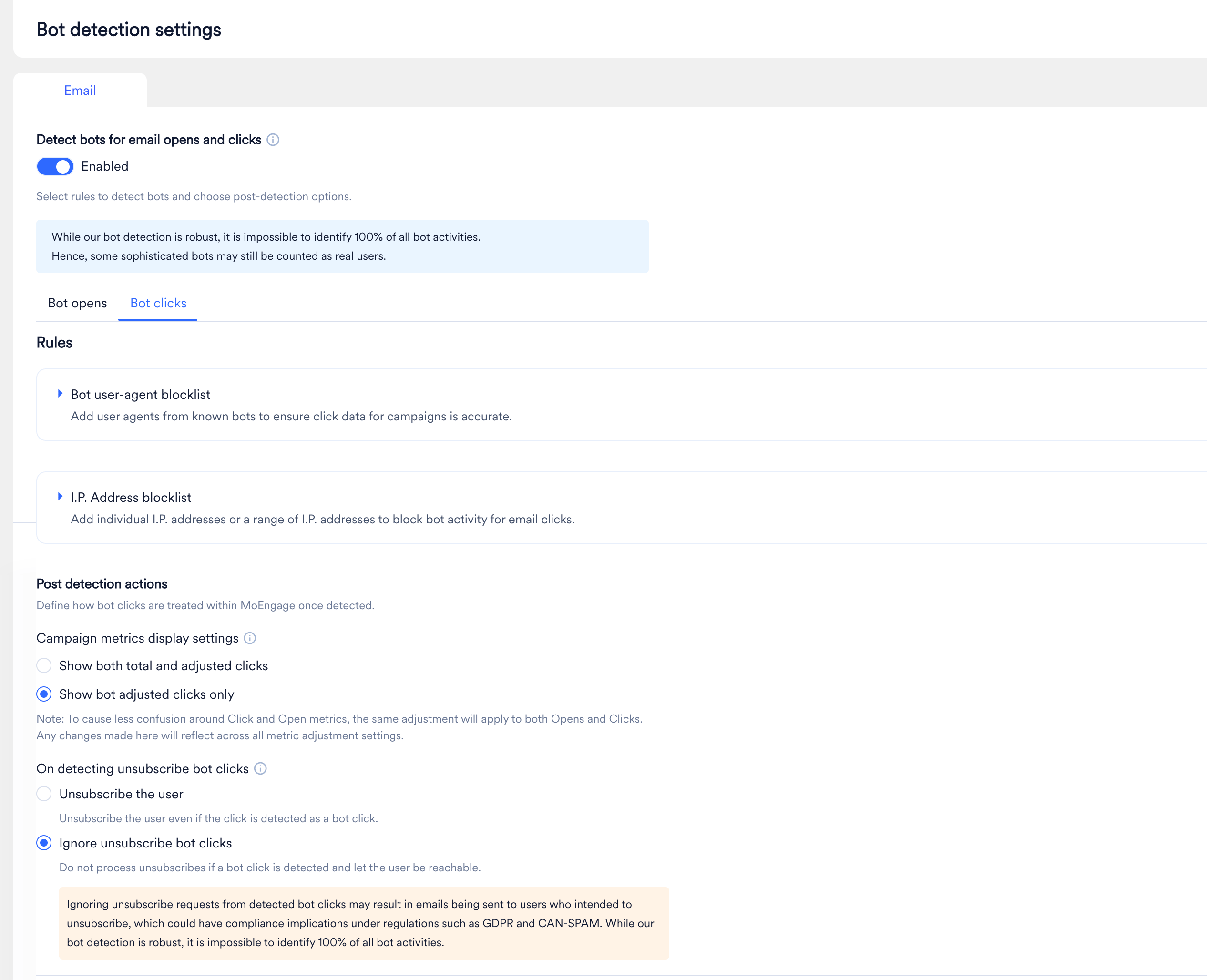
Navigate to the **Bot clicks** tab to define how MoEngage identifies and handles automated link-checking bots. Because bots often crawl every link in an email to check for malicious content, they can falsely inflate your Click-Through Rates (CTR) and accidentally trigger unsubscribe links.
* **Show both total and adjusted opens**: Your campaign reports will display the raw, unfiltered open counts alongside the adjusted (human-only) open counts.
* **Show bot adjusted opens only**: Your campaign reports will entirely exclude detected bot opens, showing only the adjusted metrics.
For more information, refer to the Engagement Metrics section in [Campaign Performance Stats](/docs/user-guide/campaigns-and-channels/email/analyze/email-analytics-and-info#campaign-performance-stats).
Important Note: To prevent discrepancies, this display adjustment applies to both Opens and Clicks. Any changes made to this setting will reflect uniformly across all metric adjustment dashboards.
In addition to Apple Mail Privacy Protection opens, all email opens and clicks coming from a list of malicious user agents will be classified as machine opens/clicks. The list of user agents has been compiled by us based on our monitoring and assessment that has happened over the last couple of quarters.
This is one of the solution's supported options. If you believe that you are not impacted by machine opens/clicks, you can indicate this in bot detection settings. As a result, MoEngage will not evaluate email opens/clicks for machine activity and will show all open/click metrics.
For the past couple of quarters, MoEngage have done a lot of research and troubleshooting on the email opens/clicks front and have a good handle on the various moving parts involved. Having said that, machine open/clicks detection and labeling is a shifting landscape that requires continuous identification and resolution of issues. MoEngage continues to do the same in the future.
No, machine activity impacts clicks, unsubscribes, and spam complaints in addition to email opens. Current solution of MoEngage classifies email opens/clicks only.
The split of total vs. adjusted opens will be available for all campaigns created after 16 December 2024. Campaigns created before that will not have this data.
Given its impact on business reporting and marketers' KPIs, the conversion logic will remain as it is and will factor in all email opens/clicks as before. MoEngage monitors the adoption and response from the customers and then decide whether the conversion logic should also be updated. Exclusion of bot-classified events from conversion attribution and DS features (BTS, MPC, NBA) is planned for the future release.
Reports will show options to include both total and adjusted metrics. Key metrics will show all opens or adjusted opens based on the user's selection.
Currently, No. This will be extended to Inform Analytics in the future.
Yes, it is.
Yes, you can consider updating the trigger condition and adding `Machine Open = False`, `Is Machine Event= False` as an additional attribute to the email open\click event.
## Configure Bot Clicks
Navigate to the **Bot clicks** tab to define how MoEngage identifies and handles automated link-checking bots. Because bots often crawl every link in an email to check for malicious content, they can falsely inflate your Click-Through Rates (CTR) and accidentally trigger unsubscribe links.
 ### Detection Rules
This tab utilizes the same blocklist structures as the **Bot opens** tab, but applies them specifically to link clicks. If you are configuring this for the first time, you will see empty state illustrations prompting you to begin.
### Detection Rules
This tab utilizes the same blocklist structures as the **Bot opens** tab, but applies them specifically to link clicks. If you are configuring this for the first time, you will see empty state illustrations prompting you to begin.
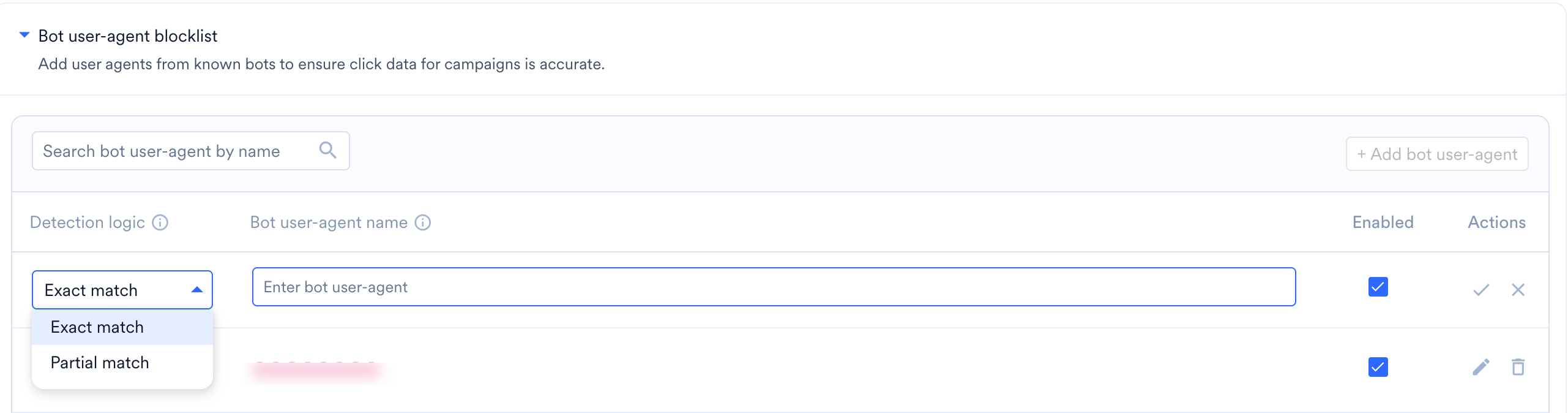
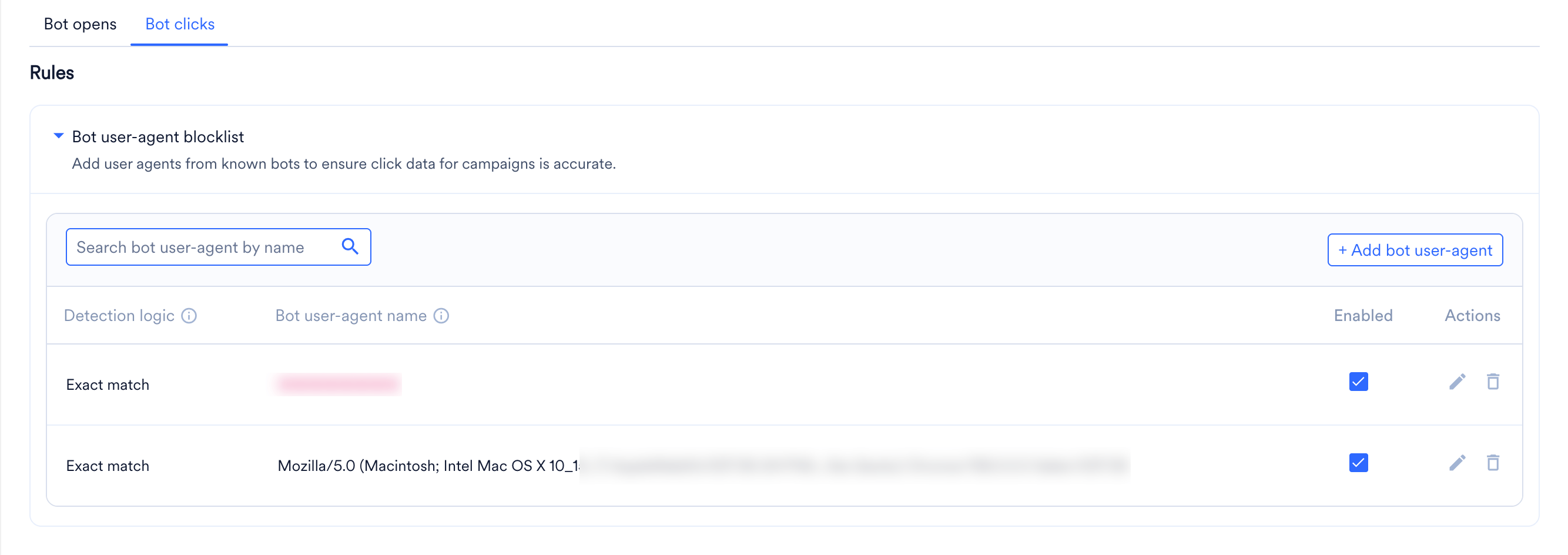 * **Bot user-agent blocklist**: Click **+ Add bot user-agent** to input user-agent signatures for known link-crawling bots. You will use the exact same inline inputs (**Detection logic**, **Bot user-agent name**, **Enabled** checkbox, and checkmark/cross **Actions**) as described in the [Bot Opens](#configure-bot-opens) section.
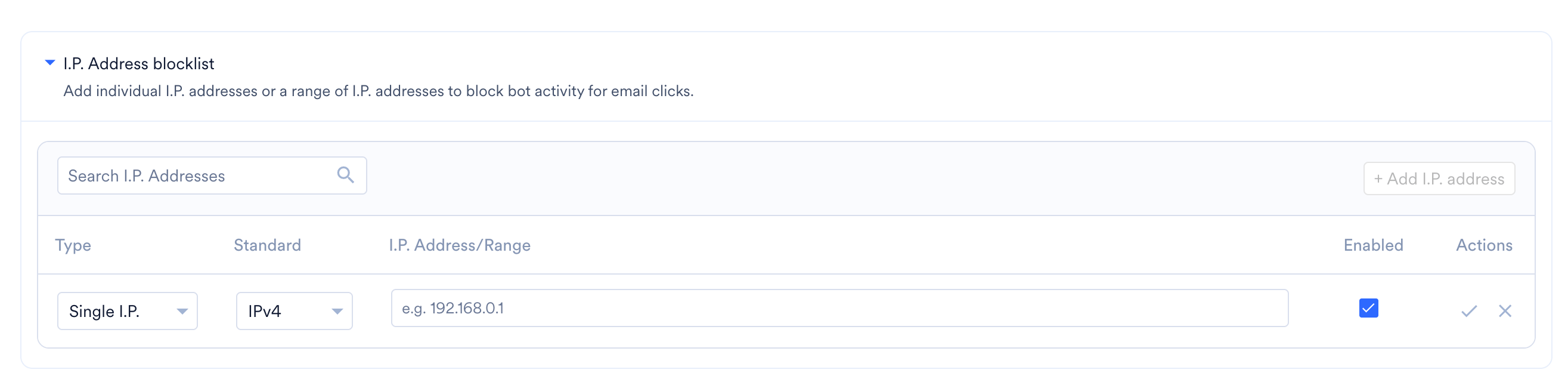
 * **I.P. Address blocklist**: Click **+ Add I.P. address** to block click activity originating from specific servers or data center IP ranges.
 ### Post Detection Actions
 #### Campaign metrics display settings
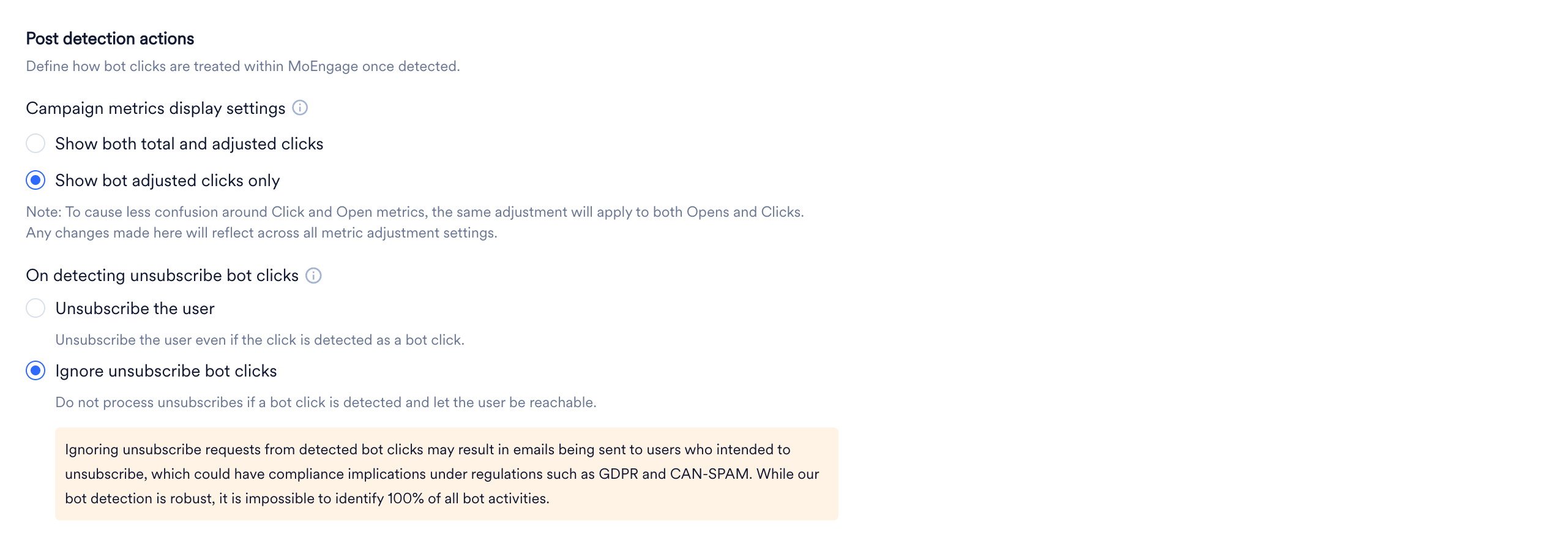
Choose how your campaign dashboards present click data:
* **Show both total and adjusted clicks**: Displays raw counts alongside adjusted (human-only) click counts.
* **Show bot adjusted clicks only**: Completely excludes detected bot clicks from your reports. (Note: Updating this will also update the setting on the **Bot opens** tab).
For more information, refer to the Engagement Metrics section in [Campaign Performance Stats](/docs/user-guide/campaigns-and-channels/email/analyze/email-analytics-and-info#campaign-performance-stats).
#### On detecting unsubscribe bot clicks
Because security bots test every link, they will inevitably click your unsubscribe link. This setting protects genuine users from accidental opt-outs.
* **Unsubscribe the user**: MoEngage will process the opt-out request normally, even if the system suspects it was triggered by a bot.
* **Ignore unsubscribe bot clicks**: MoEngage will block the opt-out request if a bot click is detected, ensuring the genuine user remains subscribed and reachable.
Choosing to ignore unsubscribe bot clicks carries a compliance risk. If a detected "bot click" was actually a genuine user trying to opt out, that user's unsubscribe request won't go through, and they'll continue receiving emails they intended to stop. Depending on your region and audience, this can have compliance implications under regulations such as GDPR and CAN-SPAM, both of which require honoring opt-out requests. While our bot detection is robust, it is impossible to identify 100% of all bot activities, so some genuine unsubscribe clicks may still be misclassified as bot activity. Review your compliance obligations before selecting this option, and consider periodically auditing suppressed unsubscribe attempts to detect any false positives.
## Save or Disable Bot Detection Settings
**Saving**: Click the **Save** button at the bottom right of the screen to apply your configurations. Changes to the **Bot opens** and **Bot clicks** tabs are saved independently. If you attempt to navigate away with unsaved changes, MoEngage will prompt you to confirm before discarding them.
**Disabling**: To turn the feature off entirely, switch off the **Detect bots for email opens and clicks** master toggle. MoEngage will display a confirmation dialog summarizing the impact on your metrics before disabling the rules.
## FAQs
No. Bot detection rules apply only to opens and clicks moving forward from the moment they are saved. Changing a rule or a display setting does not reprocess historical campaign data recorded prior to the change.
Yes. The **Bot opens** and **Bot clicks** tabs feature independent blocklists, allowing you to configure different User-Agent or I.P. Address rules based on the specific type of bot activity you are observing for each interaction type.
No. To maintain reporting consistency, the "Campaign metrics display settings" apply uniformly. If you choose to "Show bot adjusted opens only", your reports will also automatically show bot adjusted clicks only.
No. Bot detection currently applies strictly to the Email channel.
#### Campaign metrics display settings
Choose how your campaign dashboards present click data:
* **Show both total and adjusted clicks**: Displays raw counts alongside adjusted (human-only) click counts.
* **Show bot adjusted clicks only**: Completely excludes detected bot clicks from your reports. (Note: Updating this will also update the setting on the **Bot opens** tab).
For more information, refer to the Engagement Metrics section in [Campaign Performance Stats](/docs/user-guide/campaigns-and-channels/email/analyze/email-analytics-and-info#campaign-performance-stats).
#### On detecting unsubscribe bot clicks
Because security bots test every link, they will inevitably click your unsubscribe link. This setting protects genuine users from accidental opt-outs.
* **Unsubscribe the user**: MoEngage will process the opt-out request normally, even if the system suspects it was triggered by a bot.
* **Ignore unsubscribe bot clicks**: MoEngage will block the opt-out request if a bot click is detected, ensuring the genuine user remains subscribed and reachable.
Choosing to ignore unsubscribe bot clicks carries a compliance risk. If a detected "bot click" was actually a genuine user trying to opt out, that user's unsubscribe request won't go through, and they'll continue receiving emails they intended to stop. Depending on your region and audience, this can have compliance implications under regulations such as GDPR and CAN-SPAM, both of which require honoring opt-out requests. While our bot detection is robust, it is impossible to identify 100% of all bot activities, so some genuine unsubscribe clicks may still be misclassified as bot activity. Review your compliance obligations before selecting this option, and consider periodically auditing suppressed unsubscribe attempts to detect any false positives.
## Save or Disable Bot Detection Settings
**Saving**: Click the **Save** button at the bottom right of the screen to apply your configurations. Changes to the **Bot opens** and **Bot clicks** tabs are saved independently. If you attempt to navigate away with unsaved changes, MoEngage will prompt you to confirm before discarding them.
**Disabling**: To turn the feature off entirely, switch off the **Detect bots for email opens and clicks** master toggle. MoEngage will display a confirmation dialog summarizing the impact on your metrics before disabling the rules.
## FAQs
No. Bot detection rules apply only to opens and clicks moving forward from the moment they are saved. Changing a rule or a display setting does not reprocess historical campaign data recorded prior to the change.
Yes. The **Bot opens** and **Bot clicks** tabs feature independent blocklists, allowing you to configure different User-Agent or I.P. Address rules based on the specific type of bot activity you are observing for each interaction type.
No. To maintain reporting consistency, the "Campaign metrics display settings" apply uniformly. If you choose to "Show bot adjusted opens only", your reports will also automatically show bot adjusted clicks only.
No. Bot detection currently applies strictly to the Email channel.