> ## Documentation Index
> Fetch the complete documentation index at: https://moengage.com/docs/llms.txt
> Use this file to discover all available pages before exploring further.
# Mobile Number Standardization
> Standardize mobile numbers in MoEngage to E.164 format for reliable SMS and WhatsApp delivery. Configure country codes and number formatting.
# Overview
As a marketer, you can set up a standard format for submitting mobile numbers to MoEngage and select the required details, such as adding + and country code so that MoEngage can submit mobile numbers in E.164 format, i.e., +countrycodemobilenumber to WhatsApp and SMS connectors.
We recommend using one of the following formats to store a mobile number in MoEngage. Examples of a mobile number to be sent to a customer in the US / Canada are mentioned below:
* [E.164 Format](/docs/user-guide/settings/advanced-settings/e164-phone-number-format) i.e. +countrycodemobilenumber, for example, +1999999999
* Numbers without a + (plus ) sign, for example, 19999999999
* Mobile numbers without country code and + sign, for example, 999999999
MoEngage currently adds +91 as the default country code for all mobile numbers when submitting them to SMS and WhatsApp connectors.
# Configure the Mobile Number Format
Perform the following steps to configure the country code:
1. Go to **Settings** > **Advanced settings** > **Mobile number management**. The **Mobile number management** page is displayed.
2. Turn the **Add '+' sign to mobile number if missing** toggle on to add a plus (+) sign to the mobile number if your mobile number does not have a plus (+).
Under **Preview as per above set standard**, you can see the format of the mobile number MoEngage expects from you. It has the country code and mobile number without a plus.
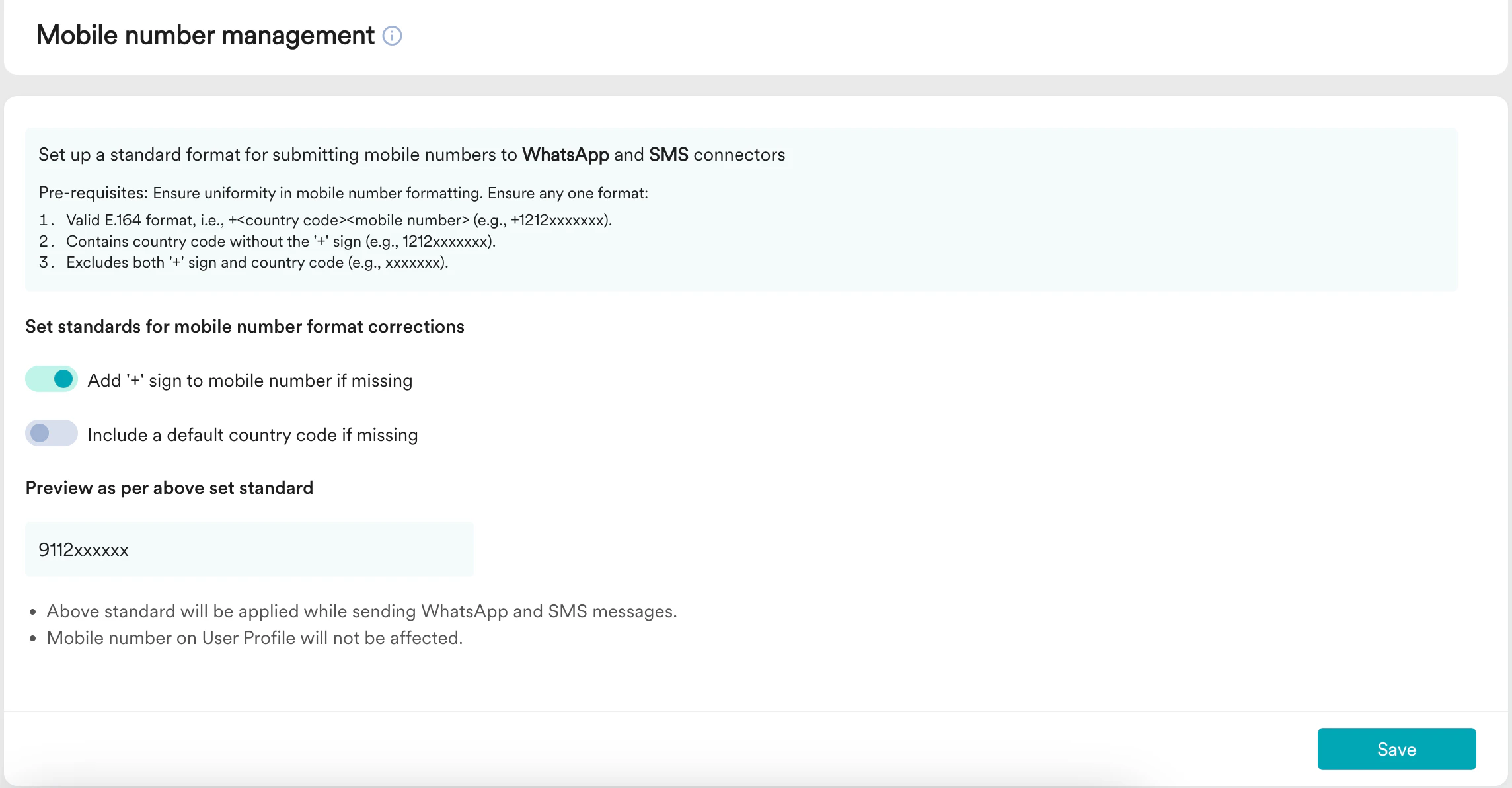 3. Turn the **Include a default country code if missing** toggle on to add a country code to the mobile number if your mobile number does not have a country code.
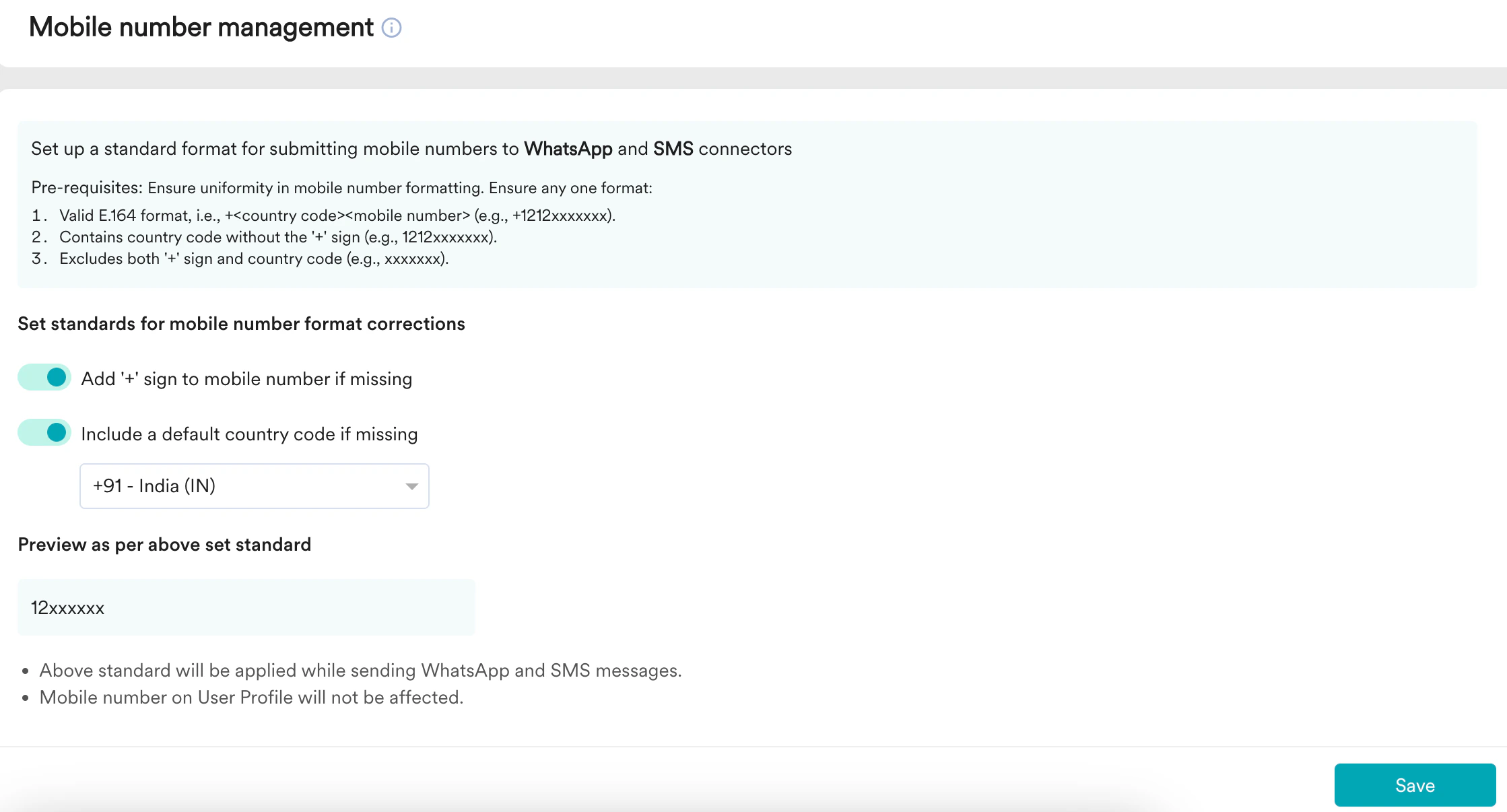
4. When you turn the **Include a default country code if missing** toggle on, The **Select the country code** drop-down is visible. Select your country code from the drop-down list.
Under **Preview as per above set standard**, you can see the format of the mobile number MoEngage expects from you. It has only mobile number without a plus and country code.
3. Turn the **Include a default country code if missing** toggle on to add a country code to the mobile number if your mobile number does not have a country code.
4. When you turn the **Include a default country code if missing** toggle on, The **Select the country code** drop-down is visible. Select your country code from the drop-down list.
Under **Preview as per above set standard**, you can see the format of the mobile number MoEngage expects from you. It has only mobile number without a plus and country code.
 5. Click **Save**. The Confirm Changes pop-up is displayed.
6. Click **Confirm** to save the changes.
This feature is not supported for Twilio connector.
5. Click **Save**. The Confirm Changes pop-up is displayed.
6. Click **Confirm** to save the changes.
This feature is not supported for Twilio connector.