> ## Documentation Index
> Fetch the complete documentation index at: https://moengage.com/docs/llms.txt
> Use this file to discover all available pages before exploring further.
# API Firewall
> Restrict MoEngage Data API access to approved IP addresses by configuring workspace-specific allowlist rules.
The API Firewall gives you control over which IP addresses can send API requests to your MoEngage workspace. Even if an API key is compromised or stolen, the API Firewall rejects requests from any IP address that is not on your approved list. This protects your data from unauthorized writes, synthetic traffic, and the costs associated with bot-generated events.
The API Firewall currently applies to only [Data APIs](https://www.moengage.com/docs/api/data/data-overview).
## How It Works
The API Firewall applies workspace-specific allowlist logic:
* **No rules published (Default):** The API Firewall is inactive. MoEngage accepts Data API requests from any IP address that presents valid credentials.
* **One or more rules published:** The API Firewall is active. MoEngage accepts Data API requests only from IP addresses that match a published rule. All other addresses receive a `4xx` response.
To disable the API Firewall at any time, unpublish or delete all active rules. MoEngage immediately reverts to accepting Data API requests from all IP addresses.
## Use Cases
* **Protect workspaces with large teams:** Organizations with many API users can restrict Data API access to approved server IP addresses. Even if a team member leaves and takes an API key, requests from unauthorized IP addresses are rejected.
* **Protect against exposed credentials:** When an API key is exposed in a public repository, the API Firewall rejects requests from IP addresses not on your allowlist, even when valid credentials are presented.
* **Isolate non-production environments:** Create workspace-specific allowlist rules for internal automation networks or QA testing tools in staging workspaces, keeping test traffic separate from production data.
## Navigate to the API Firewall
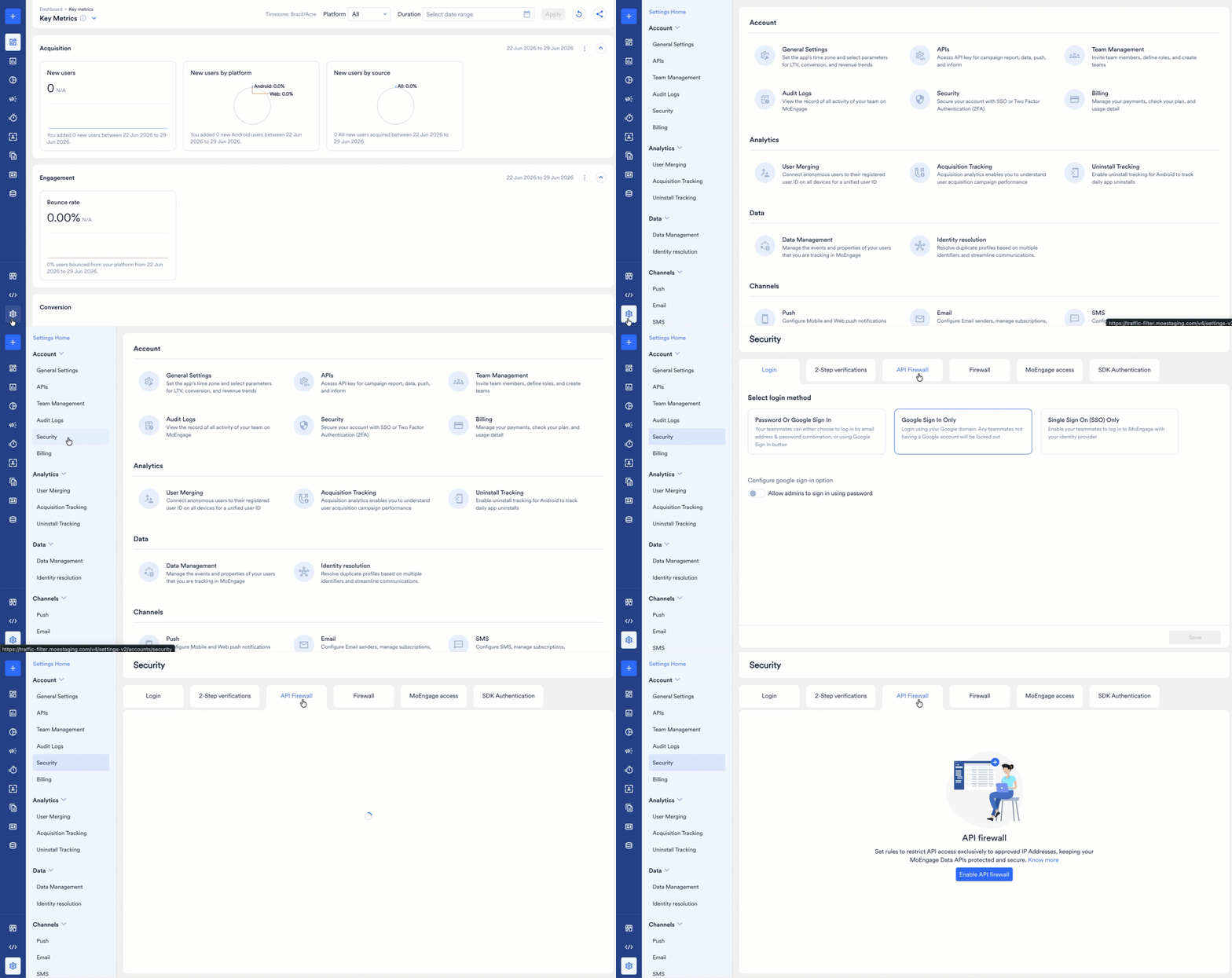
1. On the left navigation menu in the MoEngage dashboard, click **Settings** > **Account** > **Security**.
2. On the **Security** page, select the **API firewall** tab.
3. On the **API firewall** page, select **Enable API Firewall**. The [Add API Firewall Rule](#add-new-api-firewall-rule) dialog box opens.
 You must be an Admin for your MoEngage workspace to add API Firewall rules. For more information, refer to [Access Roles](/docs/user-guide/settings/account/team-management/access-roles).
## Create and Publish API Firewall Rules
Before configuring rules, obtain a complete list of static IP addresses and CIDR blocks used by your servers from your DevOps or Security team.
### Add New API Firewall Rule
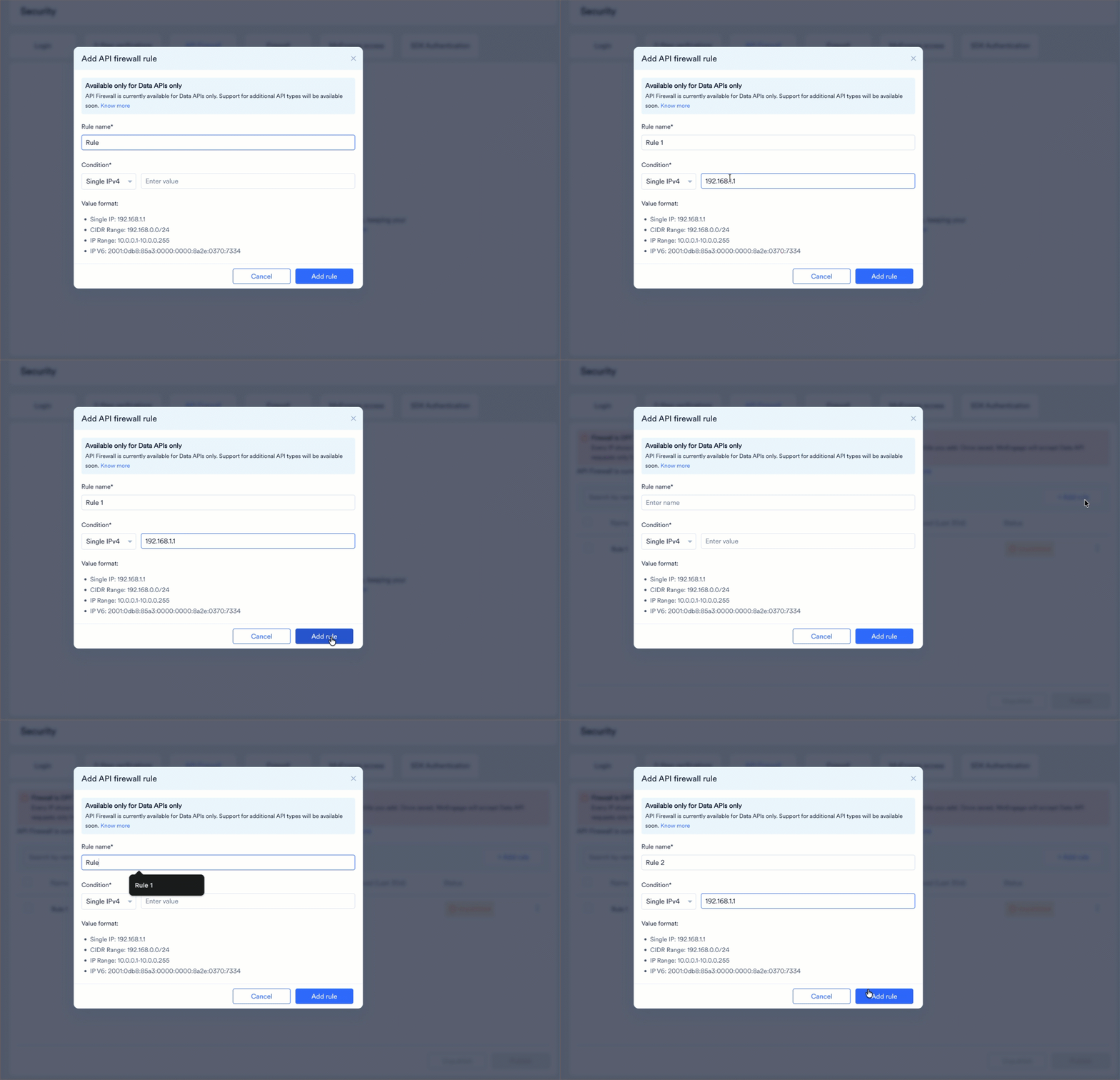
1. In the **Add API firewall rule** dialog box, enter the following details:
* **Rule name:** Enter a descriptive name (for example, "Internal Corporate Network" or "AWS Production Server").
* **Condition:** Select the IP address type from the drop-down menu:
| Condition | Description |
| ------------------- | --------------------------------------------------------------------------------------------------------------------------------------------------------------------------------------------- |
| **Single IPv4** | Allows a specific IPv4 address (for example, `192.168.1.1`). |
| **Single IPv6** | Allows a specific IPv6 address. |
| **CIDR Range IPv4** | Allows a block of IPv4 addresses defined by a network address and subnet mask in CIDR notation (for example, `192.168.0.0/24`). Use this when your IP block aligns to a CIDR boundary. |
| **CIDR Range IPv6** | Allows a block of IPv6 addresses in CIDR notation. |
| **IPv4 Range** | Allows a contiguous range of IPv4 addresses specified by a start and end address (for example, `192.168.1.0 - 192.168.1.255`). Use this when your IP block does not align to a CIDR boundary. |
* **Value:** Enter the IP address, CIDR range, or start and end IP addresses in the format shown in the example.
2. Select **Add rule**. After you save your first rule, MoEngage redirects you to the API firewall list page. To add more rules, select **+ Add New Rule** on the top right of the list page.
You must be an Admin for your MoEngage workspace to add API Firewall rules. For more information, refer to [Access Roles](/docs/user-guide/settings/account/team-management/access-roles).
## Create and Publish API Firewall Rules
Before configuring rules, obtain a complete list of static IP addresses and CIDR blocks used by your servers from your DevOps or Security team.
### Add New API Firewall Rule
1. In the **Add API firewall rule** dialog box, enter the following details:
* **Rule name:** Enter a descriptive name (for example, "Internal Corporate Network" or "AWS Production Server").
* **Condition:** Select the IP address type from the drop-down menu:
| Condition | Description |
| ------------------- | --------------------------------------------------------------------------------------------------------------------------------------------------------------------------------------------- |
| **Single IPv4** | Allows a specific IPv4 address (for example, `192.168.1.1`). |
| **Single IPv6** | Allows a specific IPv6 address. |
| **CIDR Range IPv4** | Allows a block of IPv4 addresses defined by a network address and subnet mask in CIDR notation (for example, `192.168.0.0/24`). Use this when your IP block aligns to a CIDR boundary. |
| **CIDR Range IPv6** | Allows a block of IPv6 addresses in CIDR notation. |
| **IPv4 Range** | Allows a contiguous range of IPv4 addresses specified by a start and end address (for example, `192.168.1.0 - 192.168.1.255`). Use this when your IP block does not align to a CIDR boundary. |
* **Value:** Enter the IP address, CIDR range, or start and end IP addresses in the format shown in the example.
2. Select **Add rule**. After you save your first rule, MoEngage redirects you to the API firewall list page. To add more rules, select **+ Add New Rule** on the top right of the list page.
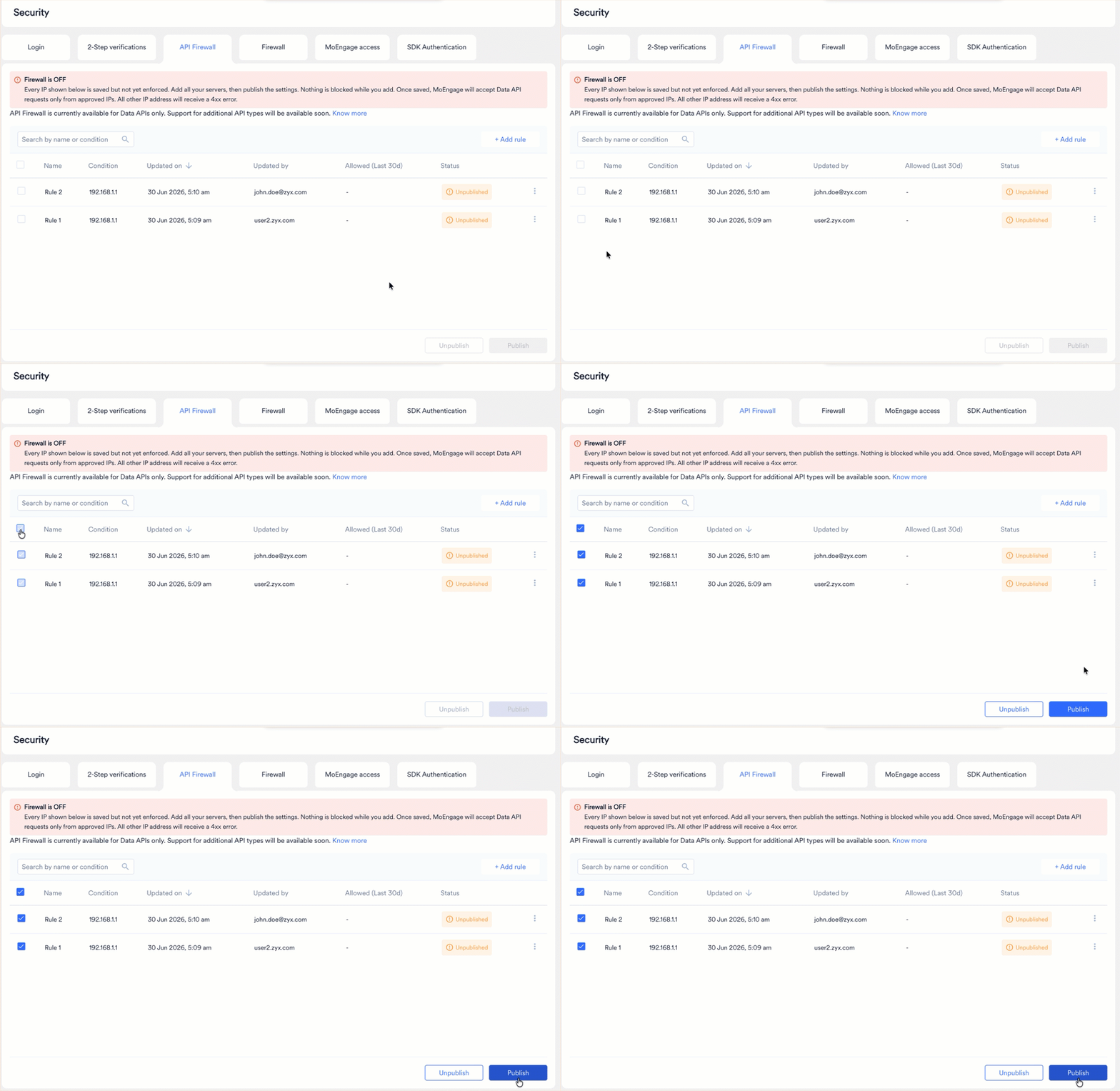
 **API Firewall Status: Inactive**
Your saved IP rules are recorded but not yet enforced. No traffic is currently restricted. Add all required server IPs before publishing to ensure uninterrupted access for your authorized systems. Once published, the MoEngage Data API accepts requests exclusively from approved IP addresses and returns a `4xx` error for all others.
### Publish Rules
Publishing a rule makes it active and enforces the IP restriction for your workspace. You can publish all rules at once or publish a subset of rules selectively.
1. Select the checkbox next to each unpublished rule you want to activate.
2. Select **Publish** at the bottom of the screen.
3. In the confirmation dialog box, review the notice, and then select **Publish** to confirm.
The rule status changes to **Published**. MoEngage now accepts Data API requests only from IP addresses that match a published rule. Requests from all other addresses receive a `4xx` response.
**API Firewall Status: Inactive**
Your saved IP rules are recorded but not yet enforced. No traffic is currently restricted. Add all required server IPs before publishing to ensure uninterrupted access for your authorized systems. Once published, the MoEngage Data API accepts requests exclusively from approved IP addresses and returns a `4xx` error for all others.
### Publish Rules
Publishing a rule makes it active and enforces the IP restriction for your workspace. You can publish all rules at once or publish a subset of rules selectively.
1. Select the checkbox next to each unpublished rule you want to activate.
2. Select **Publish** at the bottom of the screen.
3. In the confirmation dialog box, review the notice, and then select **Publish** to confirm.
The rule status changes to **Published**. MoEngage now accepts Data API requests only from IP addresses that match a published rule. Requests from all other addresses receive a `4xx` response.
 If you publish only some of your rules, the remaining unpublished rules are not enforced. Requests from IP addresses covered only by unpublished rules are rejected until you publish those rules.
### View Rule Details and Activity
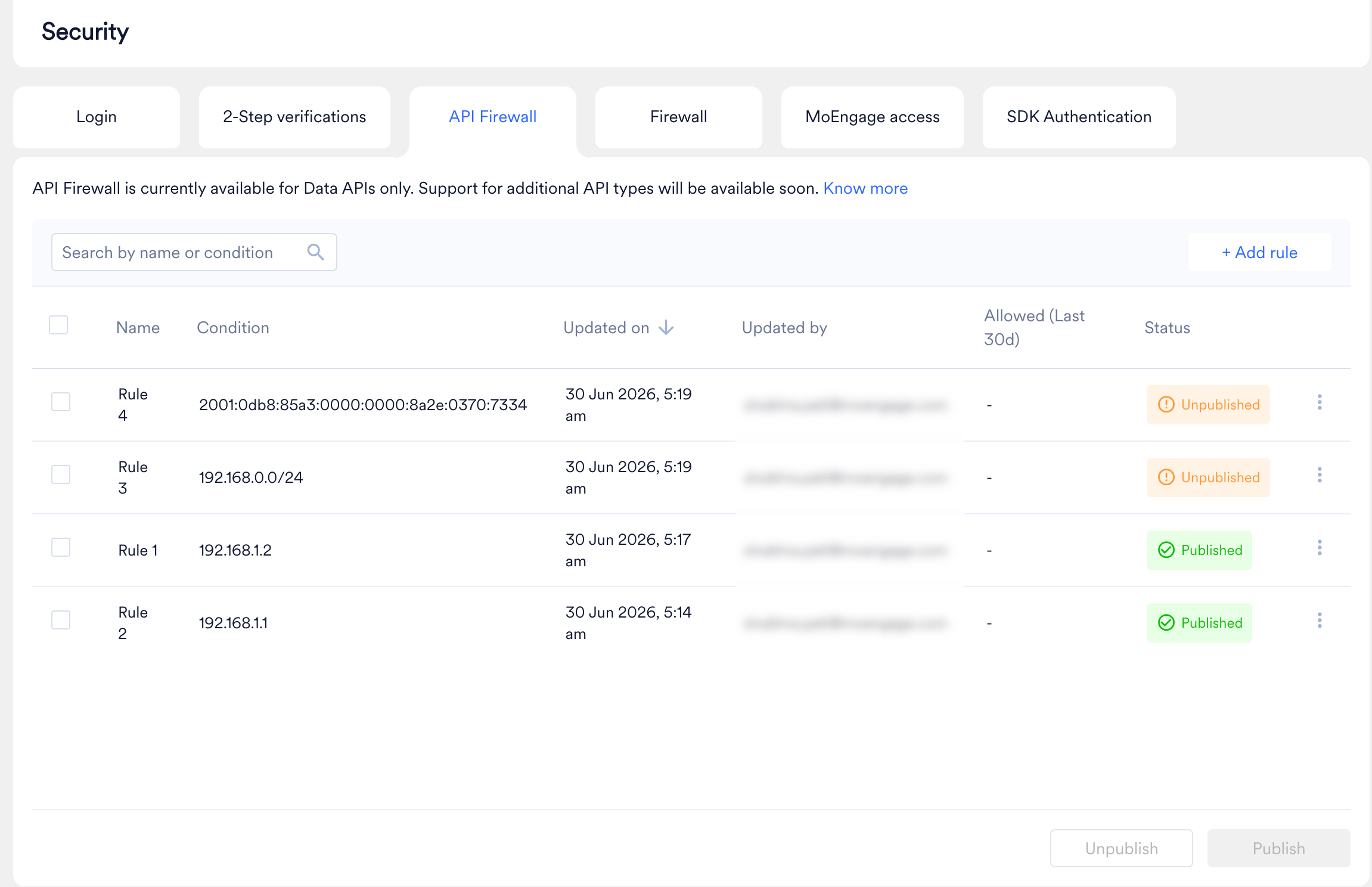
The API firewall page displays the following information for each rule:
| Column | Description |
| --------------------------- | -------------------------------------------------------------------------------------------------------------------------------------- |
| **Name** | The descriptive name assigned to the rule. |
| **Condition** | The IP address type applied to the rule (for example, Single IPv4 or CIDR Range IPv4). |
| **Updated on** | Date and time when the rule was last updated. |
| **Updated by** | Email address of the user who last edited or modified the rule. |
| **Allowed (Last 30d)** | Number of API requests accepted from this IP rule over the past 30 days. This count reflects allowed requests only, not rejected ones. |
| **Status** | Current enforcement state of the rule: **Published** or **Unpublished**. |
| **Actions** (ellipsis icon) | Click the ellipsis icon to access options to edit or delete the rule. |
If you publish only some of your rules, the remaining unpublished rules are not enforced. Requests from IP addresses covered only by unpublished rules are rejected until you publish those rules.
### View Rule Details and Activity
The API firewall page displays the following information for each rule:
| Column | Description |
| --------------------------- | -------------------------------------------------------------------------------------------------------------------------------------- |
| **Name** | The descriptive name assigned to the rule. |
| **Condition** | The IP address type applied to the rule (for example, Single IPv4 or CIDR Range IPv4). |
| **Updated on** | Date and time when the rule was last updated. |
| **Updated by** | Email address of the user who last edited or modified the rule. |
| **Allowed (Last 30d)** | Number of API requests accepted from this IP rule over the past 30 days. This count reflects allowed requests only, not rejected ones. |
| **Status** | Current enforcement state of the rule: **Published** or **Unpublished**. |
| **Actions** (ellipsis icon) | Click the ellipsis icon to access options to edit or delete the rule. |
 ## Manage API Firewall Rules
### Edit an Existing Rule
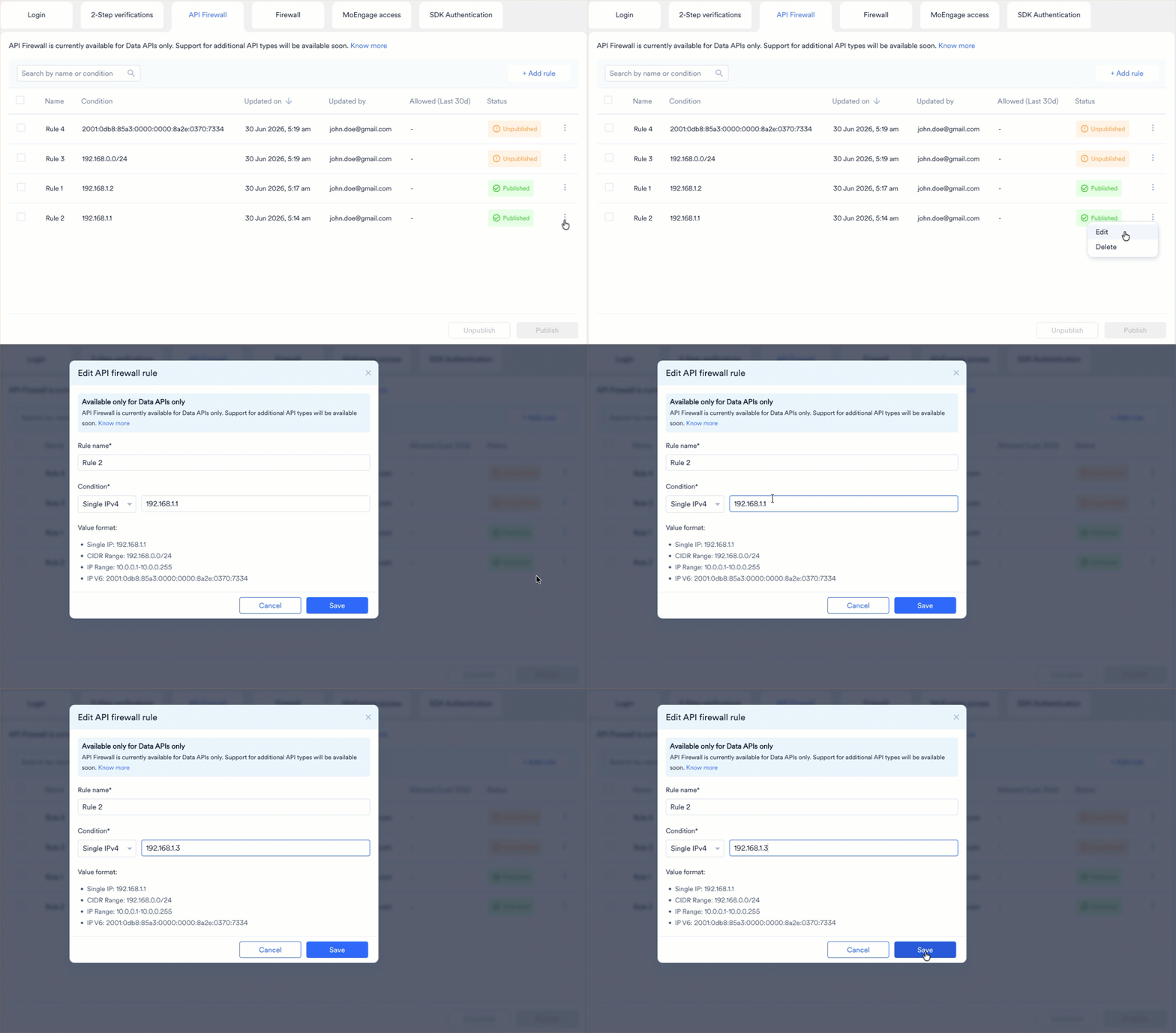
1. On the **API firewall** page, click the ellipsis icon on the rule you want to modify.
2. Click **Edit**. The **Edit API Firewall Rule** dialog box opens.
3. Update the **Rule name**, **Condition**, or **Value** as needed.
4. Select **Save**.
## Manage API Firewall Rules
### Edit an Existing Rule
1. On the **API firewall** page, click the ellipsis icon on the rule you want to modify.
2. Click **Edit**. The **Edit API Firewall Rule** dialog box opens.
3. Update the **Rule name**, **Condition**, or **Value** as needed.
4. Select **Save**.
 ### Unpublish or Delete a Rule
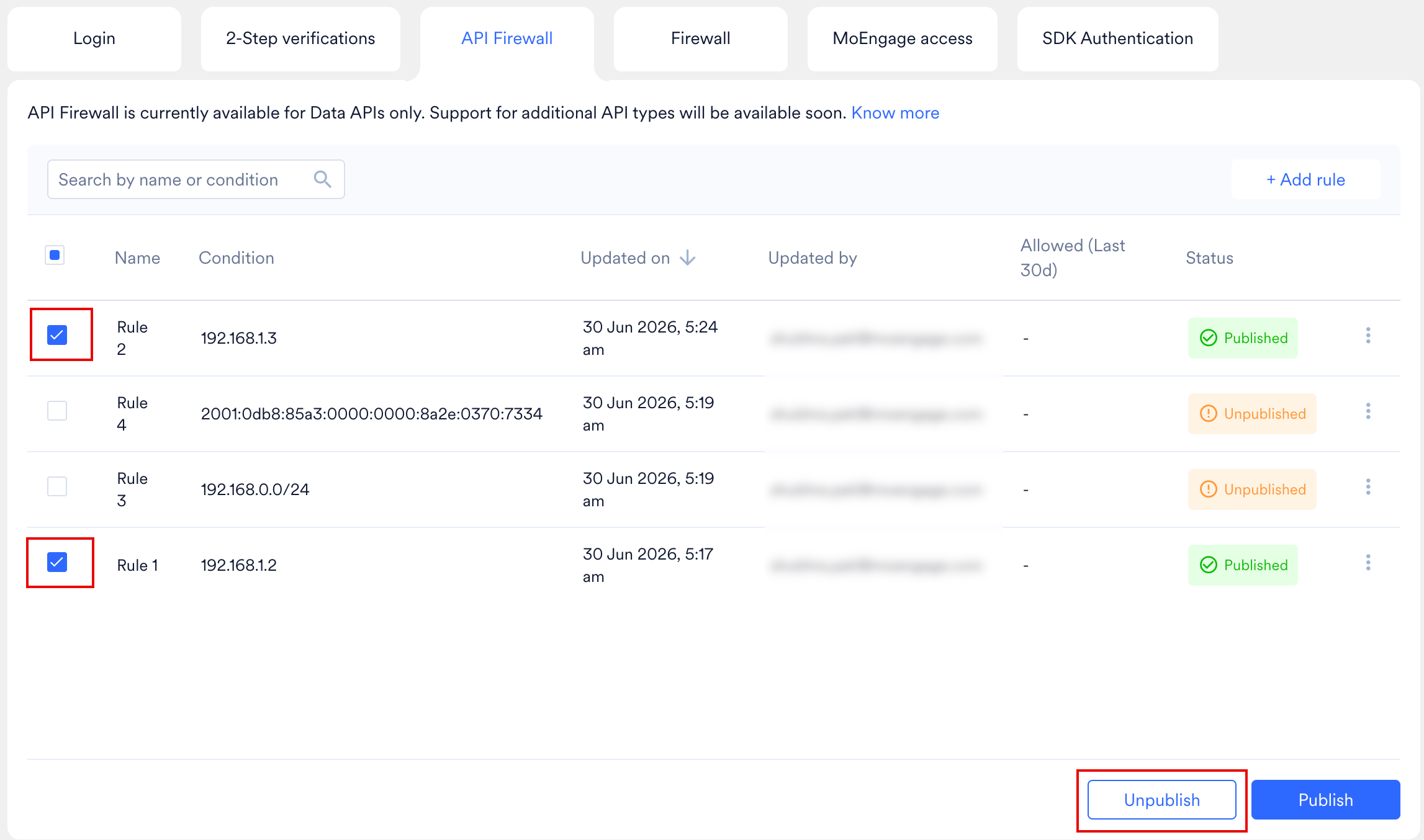
* **To unpublish:** Select the active rules using the checkboxes and select **Unpublish** at the bottom of the screen. The rule remains in your list but is no longer enforced.
### Unpublish or Delete a Rule
* **To unpublish:** Select the active rules using the checkboxes and select **Unpublish** at the bottom of the screen. The rule remains in your list but is no longer enforced.
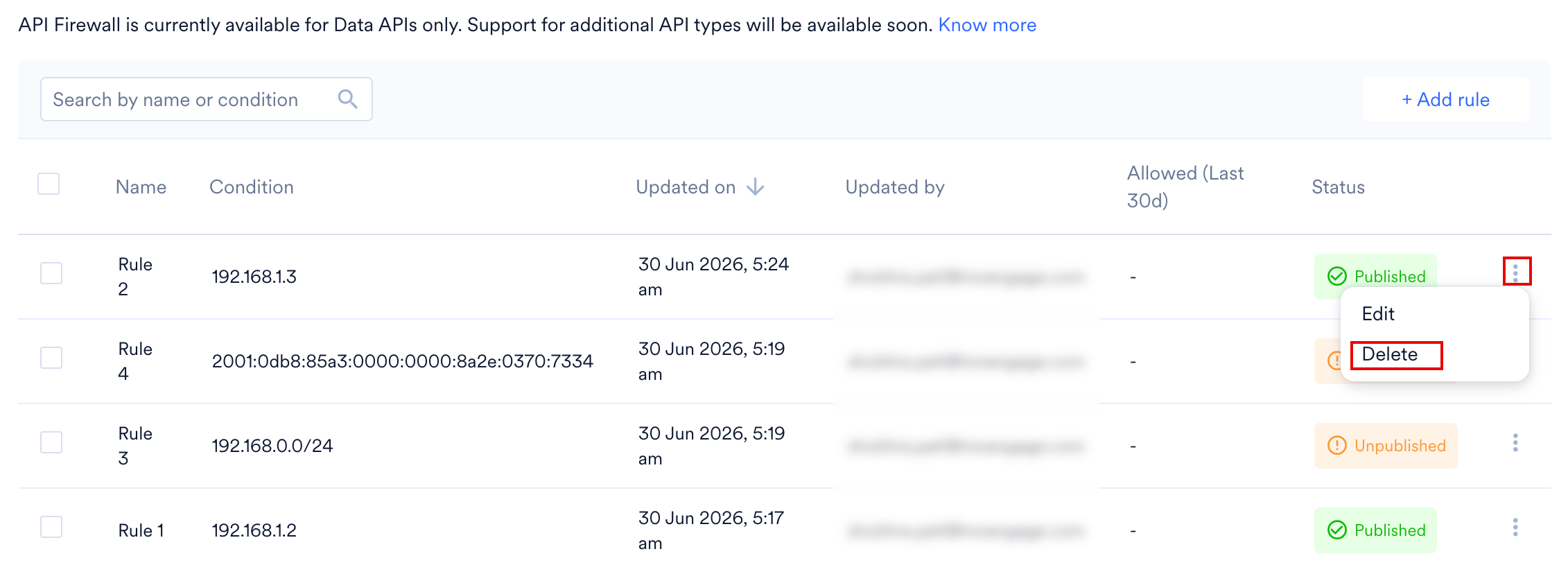
 * **To delete:** Click the ellipsis icon on the rule, select **Delete**, and confirm the deletion in the dialog box. Deleted rules are removed from the list permanently.
 Unpublishing or deleting all active rules deactivates the API Firewall. MoEngage immediately reverts to accepting Data API requests from all IP addresses.
## FAQs
Publishing a rule activates the API Firewall immediately. If you have three server IPs and publish them one at a time, each server without an active rule receives `4xx` errors until its rule is published. Add all rules in **Unpublished** status first, then select all and publish them together to prevent service interruptions for your authorized systems.
No. The API Firewall applies to Data APIs (server-to-server traffic) only. It does not affect end-user mobile or web SDK traffic.
MoEngage does not send a dashboard notification when the firewall blocks a request. The blocked system receives a `4xx` error (specifically `4xx`) directly in the API response. The dashboard status column reflects the current published or unpublished state of each rule.
The API Firewall rejects requests from any IP address not covered by an active rule, including your own servers. To prevent accidental lockouts, verify that all authorized server IPs are present in your rules before selecting **Publish**.
No. The API Firewall evaluates requests using network-layer IP identifiers. Rules must specify single IP addresses or CIDR ranges. Domain names are not supported.
The API Firewall is designed to fail open. If an internal failure occurs, the system allows API traffic through rather than blocking legitimate requests, preserving data collection continuity.
## Next Steps
Now that your API Firewall rules are configured, refer to the following resources to strengthen your workspace security further:
* [Audit Logs](/docs/user-guide/settings/account/audit-logs/audit-logs) — Review a complete record of all API Firewall rule changes, including who made each change, when, and from which IP address.
* [Firewall](/docs/user-guide/settings/account/security/firewall) — Restrict MoEngage dashboard login access to approved IP addresses, complementing the API-level protection provided by the API Firewall.
* [SDK Authentication](/docs/user-guide/settings/account/security/sdk-authentication) — Secure your mobile and web SDK traffic using JWT-based authentication to validate requests from your app users.
* [Security Best Practices](/docs/user-guide/settings/account/security/security-best-practices) — Explore recommended configurations across authentication, access control, and network security to keep your workspace secure.
Unpublishing or deleting all active rules deactivates the API Firewall. MoEngage immediately reverts to accepting Data API requests from all IP addresses.
## FAQs
Publishing a rule activates the API Firewall immediately. If you have three server IPs and publish them one at a time, each server without an active rule receives `4xx` errors until its rule is published. Add all rules in **Unpublished** status first, then select all and publish them together to prevent service interruptions for your authorized systems.
No. The API Firewall applies to Data APIs (server-to-server traffic) only. It does not affect end-user mobile or web SDK traffic.
MoEngage does not send a dashboard notification when the firewall blocks a request. The blocked system receives a `4xx` error (specifically `4xx`) directly in the API response. The dashboard status column reflects the current published or unpublished state of each rule.
The API Firewall rejects requests from any IP address not covered by an active rule, including your own servers. To prevent accidental lockouts, verify that all authorized server IPs are present in your rules before selecting **Publish**.
No. The API Firewall evaluates requests using network-layer IP identifiers. Rules must specify single IP addresses or CIDR ranges. Domain names are not supported.
The API Firewall is designed to fail open. If an internal failure occurs, the system allows API traffic through rather than blocking legitimate requests, preserving data collection continuity.
## Next Steps
Now that your API Firewall rules are configured, refer to the following resources to strengthen your workspace security further:
* [Audit Logs](/docs/user-guide/settings/account/audit-logs/audit-logs) — Review a complete record of all API Firewall rule changes, including who made each change, when, and from which IP address.
* [Firewall](/docs/user-guide/settings/account/security/firewall) — Restrict MoEngage dashboard login access to approved IP addresses, complementing the API-level protection provided by the API Firewall.
* [SDK Authentication](/docs/user-guide/settings/account/security/sdk-authentication) — Secure your mobile and web SDK traffic using JWT-based authentication to validate requests from your app users.
* [Security Best Practices](/docs/user-guide/settings/account/security/security-best-practices) — Explore recommended configurations across authentication, access control, and network security to keep your workspace secure.