> ## Documentation Index
> Fetch the complete documentation index at: https://moengage.com/docs/llms.txt
> Use this file to discover all available pages before exploring further.
# Test Users
> Mark users as test users in MoEngage to validate SDK integration and data tracking in near real time. Organize test groups and review device logs.
The *Test Users* feature allows marketers to build and organize test groups and provide insights into the SDK or API logs available from a test device during SDK integration testing. Once a user is marked as a test user, their data will be processed in near real time to allow you to test your data tracking in Moengage. You can view the data tracked for test users in user profile and recent events.
You can mark up to 1000 users as test users.
# Steps
## Add new test users
1. On the sidebar menu in MoEngage, hover over **Test and Debug**. The Test and Debug menu appears.
2. Click **Test Users**. 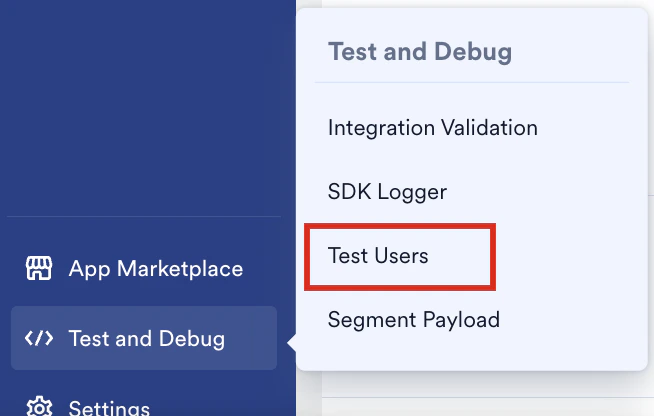 3. Click **+ Test user** on the top right to mark users as test users.
  4. You can either mark all the users in the [custom segment](/docs/user-guide/segment/segment-operations/custom-segments) as Test users or select one or more specific users.
 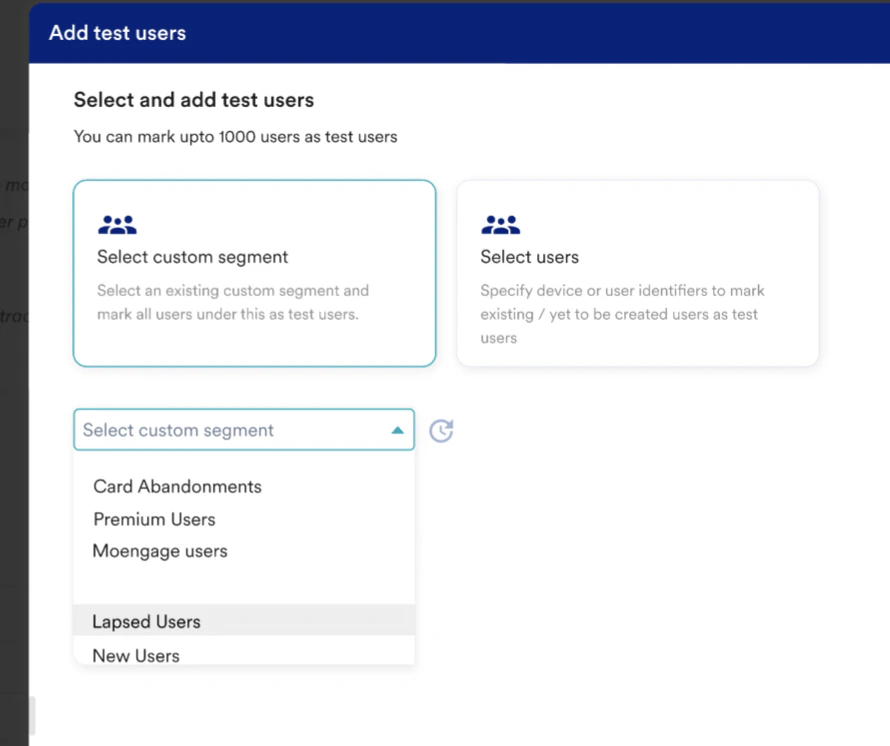 5. Select one of the options:
* **Select custom segment**
1. If you want to mark all users from a custom segment, click the **Select custom segment** card.
2. Select your desired custom segment from the drop-down.
3. You can also run a query to see the count of the users in the selected segment.
4. Click **Mark as test** to mark these users as test users. Note: Anonymous users in the custom segment will not get added as test users since they do not have Client ID / UID. You can add anonymous users as test users via GAID.
5. Select one of the options:
* **Select custom segment**
1. If you want to mark all users from a custom segment, click the **Select custom segment** card.
2. Select your desired custom segment from the drop-down.
3. You can also run a query to see the count of the users in the selected segment.
4. Click **Mark as test** to mark these users as test users. Note: Anonymous users in the custom segment will not get added as test users since they do not have Client ID / UID. You can add anonymous users as test users via GAID. 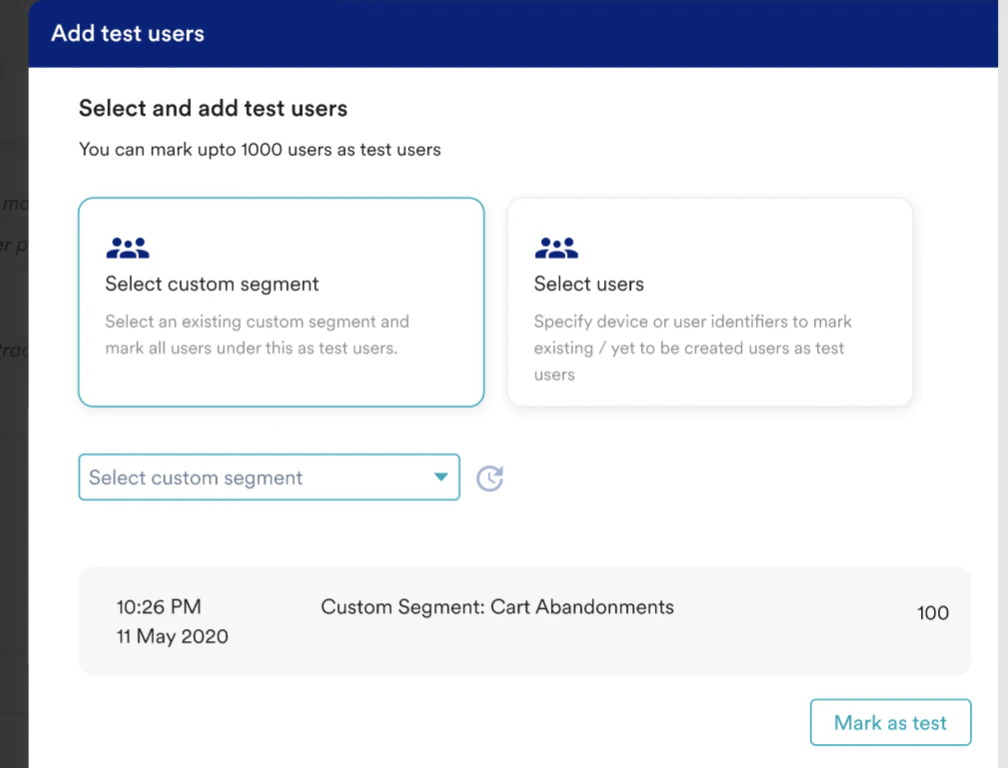 * **Select users**
1. Click the **Select users** card if you want to mark some selected users as test users.
2. You can select one of the user identifiers from the drop-down.
3. Enter user detail or a comma-separated list in case of multiple users.
4. Click **Mark as test** to mark these users as test users. Note:
* When we add via **Client id**, the users are added as "Test User", thus their device ID is not shown in the Test Users dashboard ( where all test users are displayed)
* When we add via **GAID**, the devices are added as "Test Device". On the test users' dashboard, both users and device details are shown.
* **Select users**
1. Click the **Select users** card if you want to mark some selected users as test users.
2. You can select one of the user identifiers from the drop-down.
3. Enter user detail or a comma-separated list in case of multiple users.
4. Click **Mark as test** to mark these users as test users. Note:
* When we add via **Client id**, the users are added as "Test User", thus their device ID is not shown in the Test Users dashboard ( where all test users are displayed)
* When we add via **GAID**, the devices are added as "Test Device". On the test users' dashboard, both users and device details are shown. 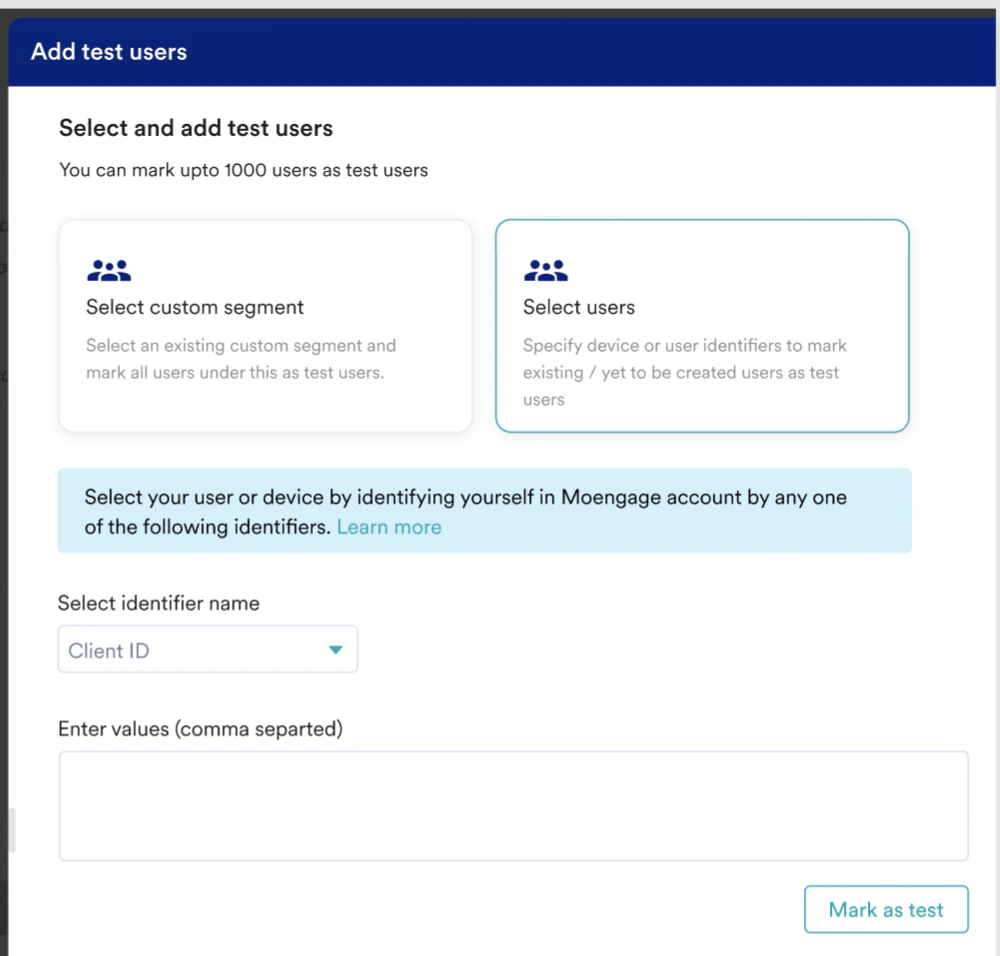 6. Once you click **Mark as test**, users in the selected segments or selected users would be marked as Test users. And you will see the user details in the slide-out.
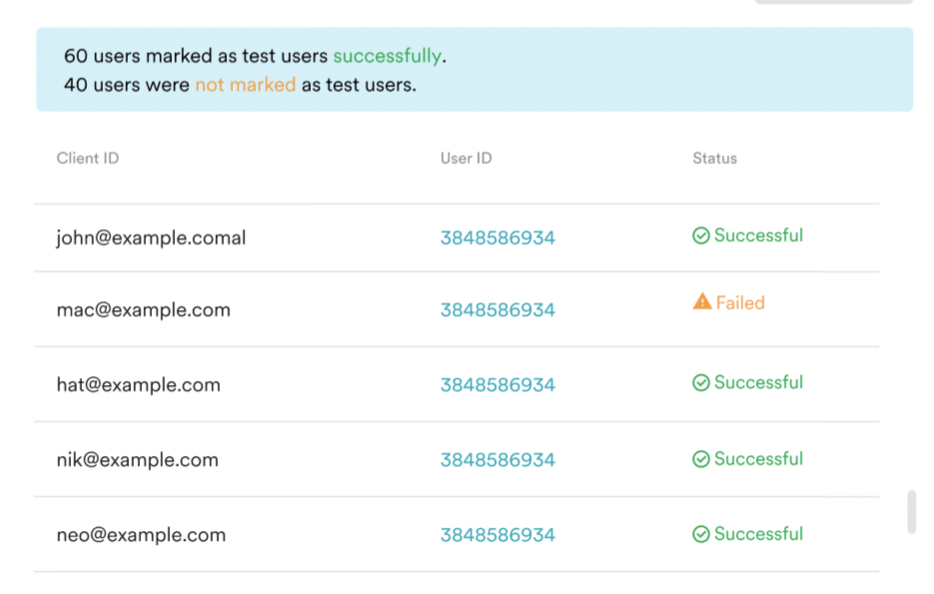
 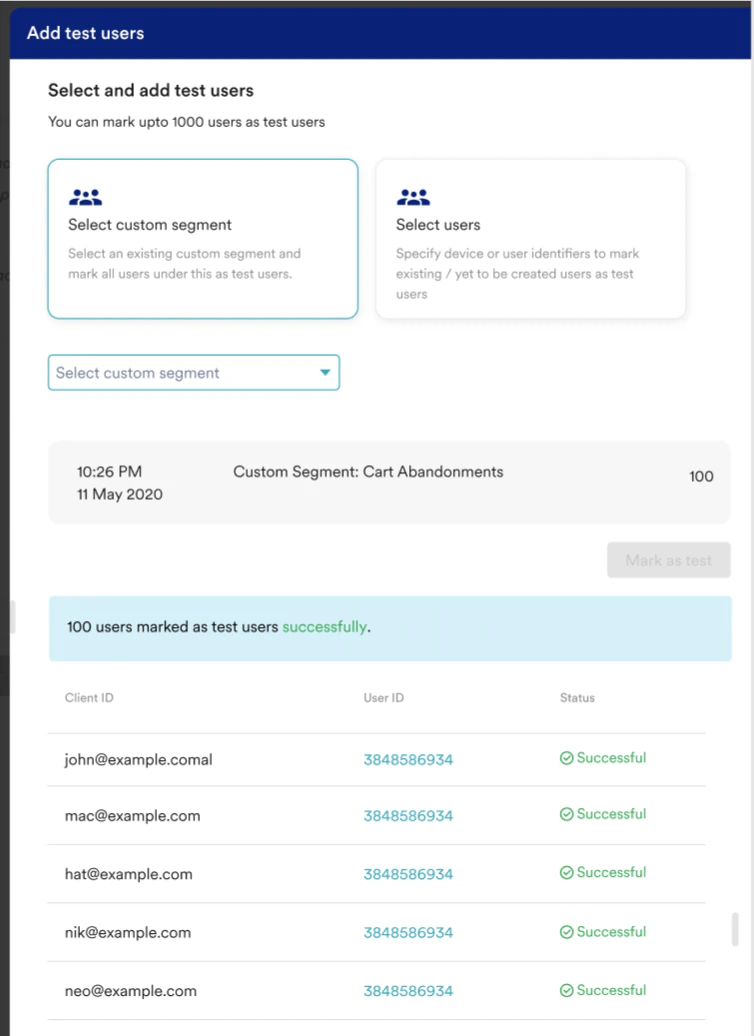 Note: If some of the users failed, you will see the failure details in the same slide-out.
  ## Mark test users from the user profile
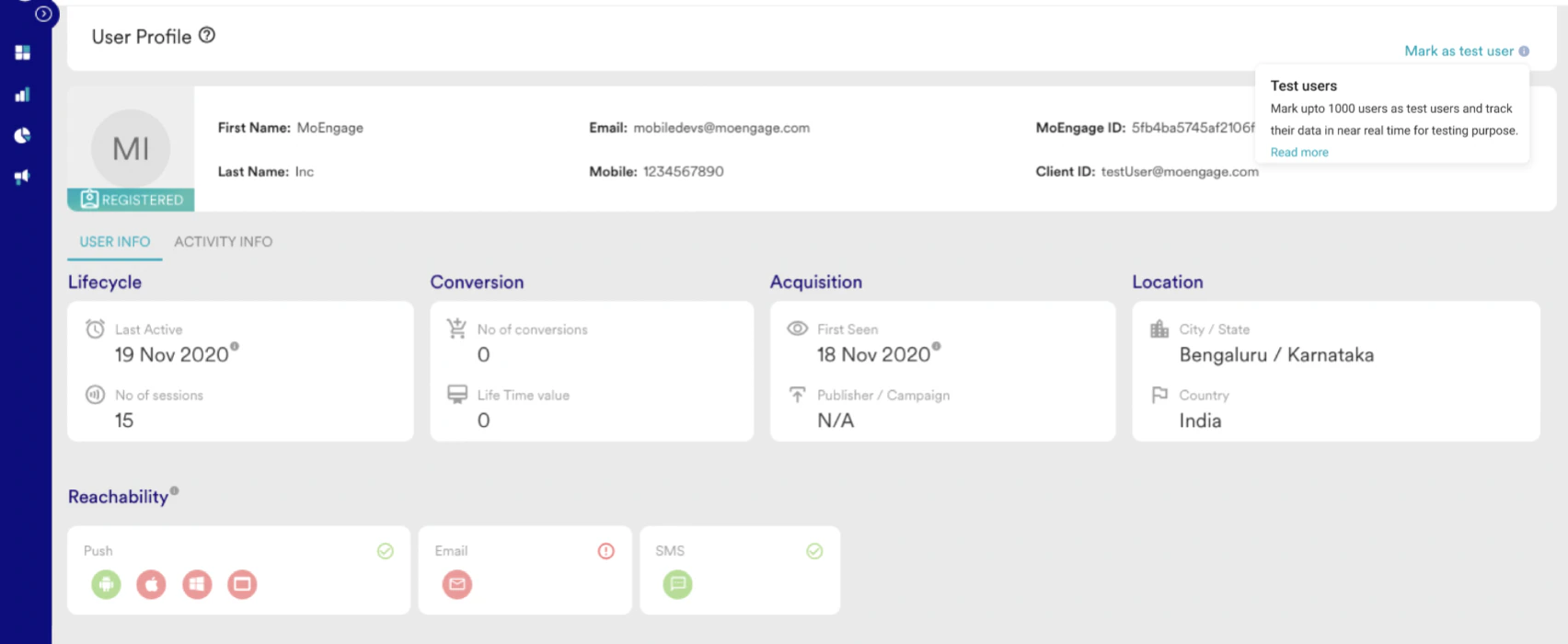
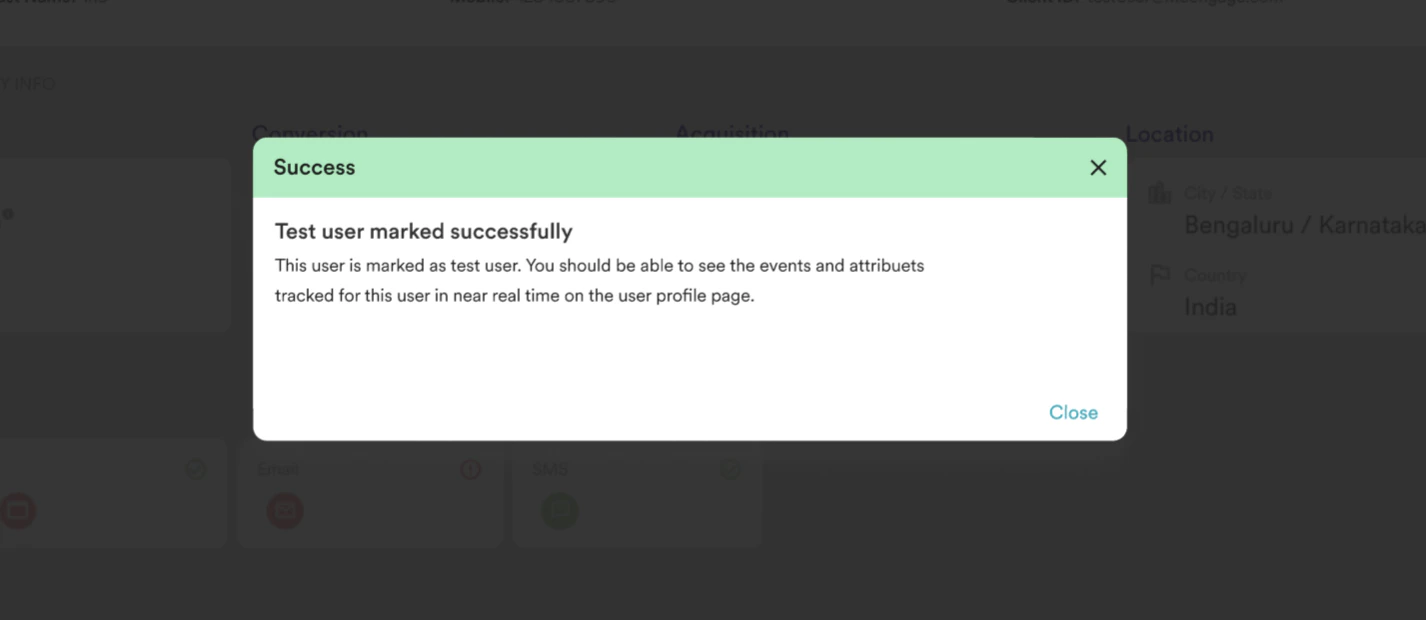
If you are already on a user profile and want to mark that user as a Test user, click **Mark as test user** on the top right.
Note: Only registered users can be added as a "Test User" from the user profile page, not anonymous users.
## Mark test users from the user profile
If you are already on a user profile and want to mark that user as a Test user, click **Mark as test user** on the top right.
Note: Only registered users can be added as a "Test User" from the user profile page, not anonymous users.
 ## Access test users
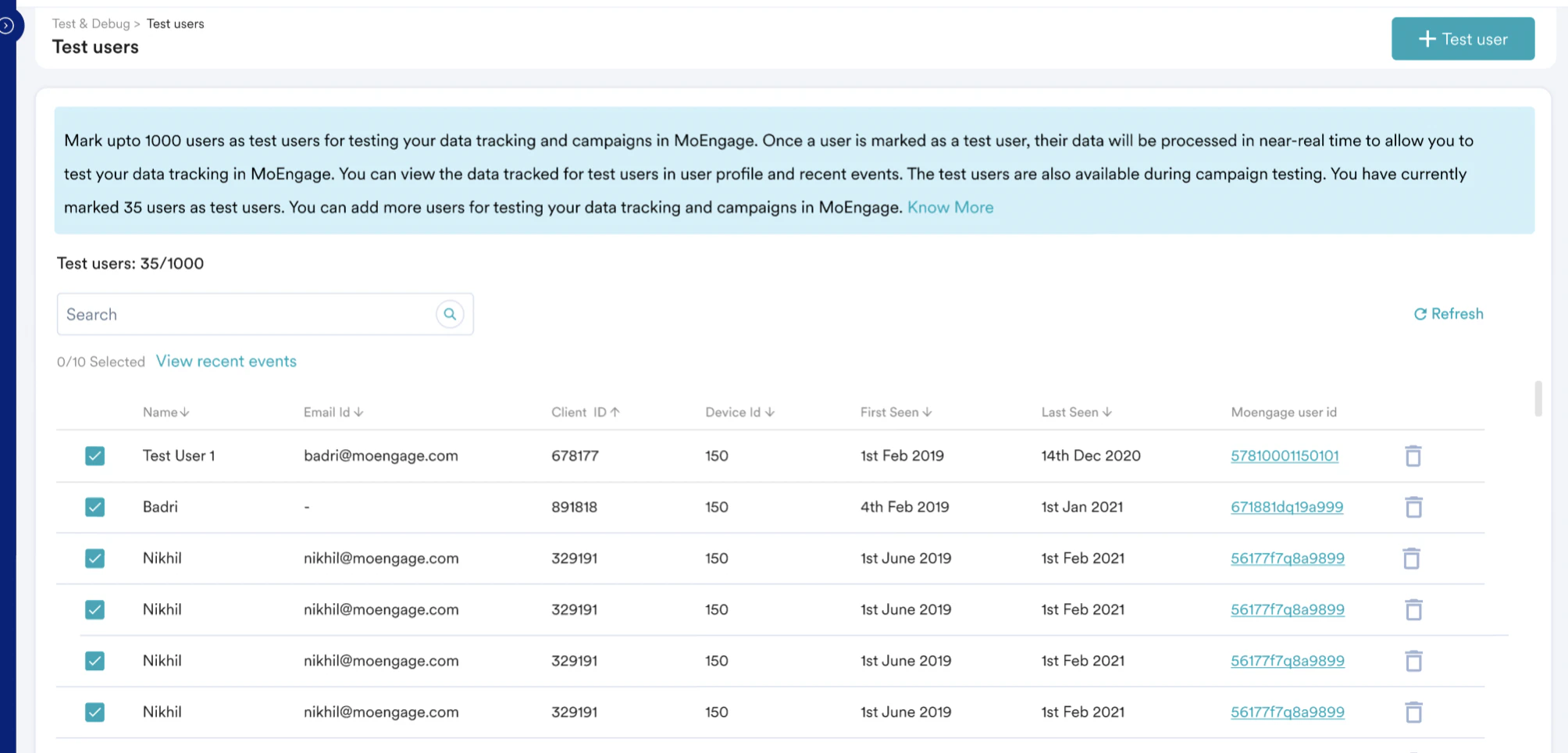
1. Go to **Test and Debug** at the bottom of your sidebar.
2. The page will show the details of all the test users.
## Access test users
1. Go to **Test and Debug** at the bottom of your sidebar.
2. The page will show the details of all the test users.
 ### Access user profile
You can click the MoEngage user ID to go to the user profile page.
### View recent events
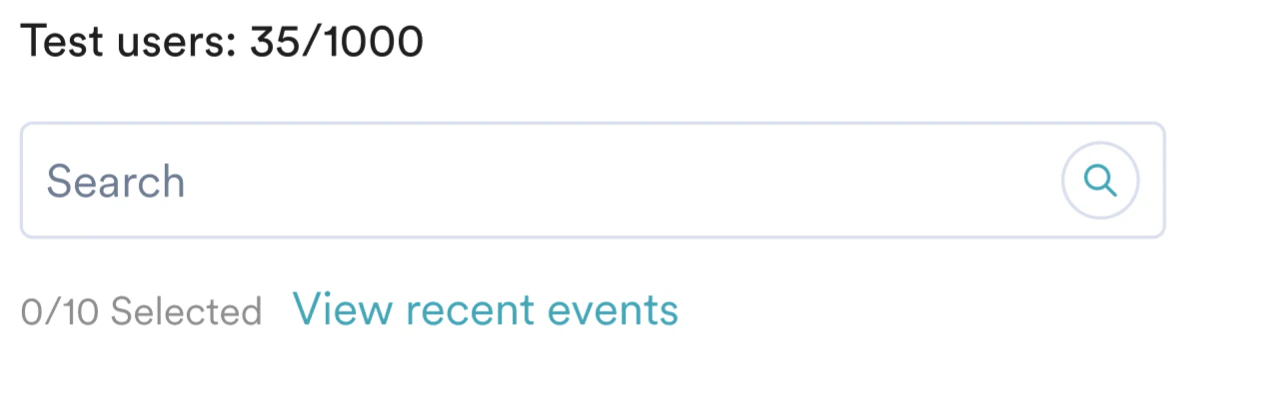
1. Once you select one or more users, you will see an option (just below the search bar) to see the recent events for the selected users. Click *View recent events*.
Note: We can select up to 5 users and view recent events of those users.
### Access user profile
You can click the MoEngage user ID to go to the user profile page.
### View recent events
1. Once you select one or more users, you will see an option (just below the search bar) to see the recent events for the selected users. Click *View recent events*.
Note: We can select up to 5 users and view recent events of those users.
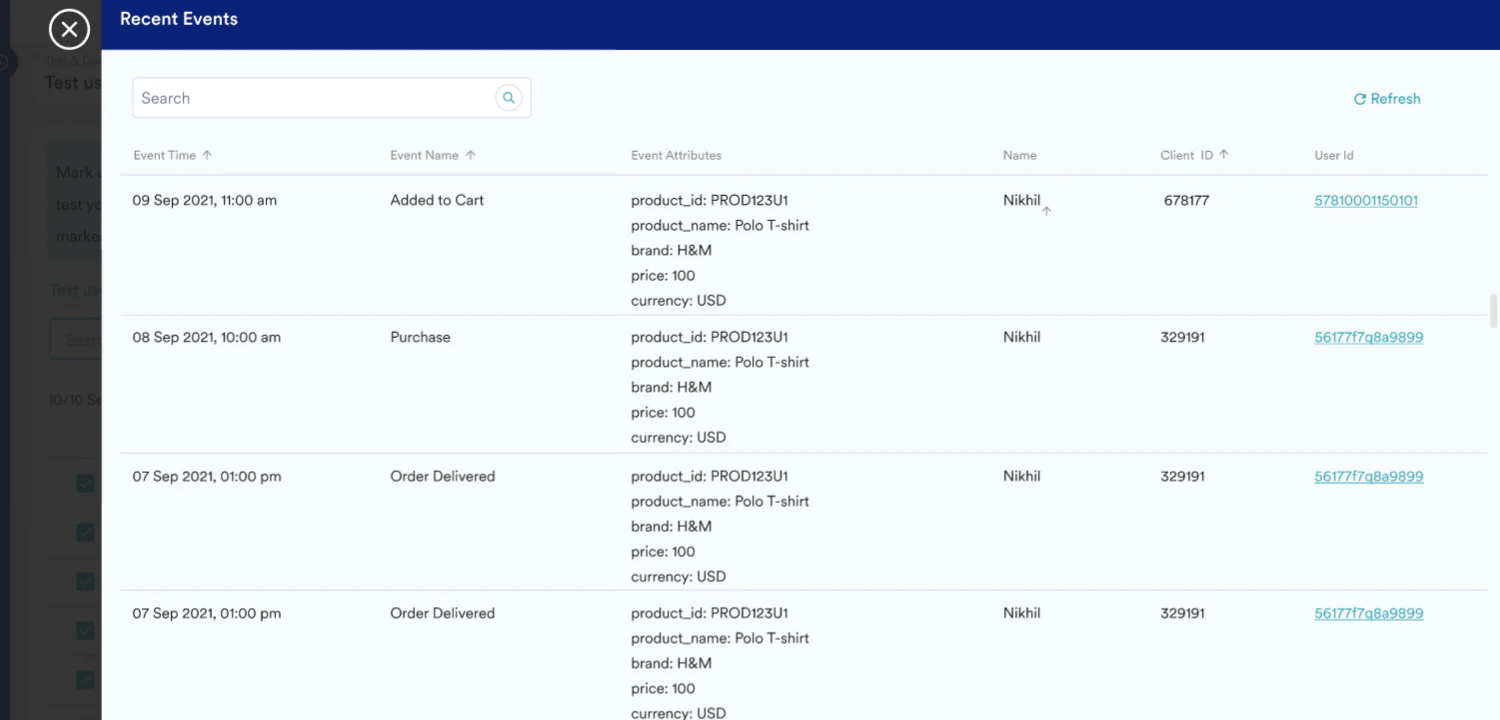
 2. The slide-out will show the recent 10 events for the selected users. Note: In the slide-out, we show a maximum of 10 events( of the last 24 hours) for each user.