> ## Documentation Index
> Fetch the complete documentation index at: https://moengage.com/docs/llms.txt
> Use this file to discover all available pages before exploring further.
# S3 Exports
> Export user events and campaign data from MoEngage to Amazon S3 buckets in JSON format. Analyze exported data for deeper insights into user behavior.
# Overview
You can export all user events and campaign events that MoEngage receives or generates by using S3 Exports. Analyze the exported data to learn about user behavior, campaign interactions, and customer preferences.
* S3 automated exports are part of the Streams add-on. Contact your dedicated MoEngage Customer Success Manager (CSM) to enable this feature for your account.
* If your network configuration requires IP whitelisting, refer [here](/docs/user-guide/settings/account/security/ip-whitelisting-in-moengage) before setting up the S3 integration for data exports.
# S3 Integration for Data Exports
[Amazon S3](https://aws.amazon.com/s3/) is a highly scalable storage system offered by Amazon Web Services. Integrating your S3 buckets allows MoEngage to share periodic exports of your data in JSON format. Perform the following steps to configure your S3 integration:
## Step 1: Create an S3 Bucket
Even if you already have an S3 bucket, we recommend creating a new bucket specifically for MoEngage data transfers to enforce strict least-privilege security boundaries.
1. Open the [AWS S3 console](https://console.aws.amazon.com/s3/) and sign in or create an AWS account.
2. Select **S3** from the **Storage** category.
3. Click **Create Bucket**, type an identifiable name, and select your preferred physical region.
## Step 2: Add an export on the App Marketplace
After you [connect your S3 bucket in the App Marketplace](/docs/partner-guide/data-and-analytics/cloud-storage/amazon-s3#step-3-connect-amazon-s3-on-the-app-marketplace), open the **Amazon S3** page. Under the **Setup exports to S3** section, click **+ Add export** to open the **Export details** panel.
1. Configure the export by using the following parameters:
| Field | Required | Description |
| ------------------- | -------- | ------------------------------------------------------------------------------------------------------------------------------------------------------------------------------------------------------------------------------------------------------------------------------------------------------------------------------------------------------------------------------------------------------------------------------------------------------------------------------------------------------------------------------------------------------------------------------------------------------------------------------------------------------------------------------------------------------------------------------------------------------------------------------------------------------------------------------------------------------------------------------------------------------------------------------------------------------------------------------------------------------------------------------------------------------------------------------ |
| **Export name** | Yes | Type a unique and identifiable name for the export (for example, `File-exports2`). |
| **S3 connection** | Yes | Select a saved connection from the dropdown list. If the connection uses the IAM policy authentication method, configure an IAM policy in your AWS account first. MoEngage uses this permission to deliver files to your S3 bucket during exports. For more information, see [Set Up Authentication](/docs/partner-guide/data-and-analytics/cloud-storage/amazon-s3#step-1-set-up-authentication). |
| **Folder path** | Yes | Type the path to the target folder where MoEngage must export your files. Do not begin or end the string with a slash.
Select the **Export all files in one folder** check box to write every export to a single folder instead of date-partitioned subfolders. The resolved file path is rendered live below the field so that you can confirm the destination before saving. The format depends on whether you selected the check box: - **Single folder (check box selected):** `s3:///[]//event_exports_.json.gz`
- **Date-partitioned (check box cleared):** `s3:///[_]/export_day=YYYY-MM-DD/event_exports_.json.gz`
**How do I find the folder path?**
From the list of objects in your **S3** bucket, open the folder where you want to dump the files. On the **Properties** tab, locate the folder's **S3 URI**. Your folder path is the part after `s3://[your-bucket-name]/`, excluding the trailing slash. |
| **User properties** | No | Select user properties and device properties from the list to include them alongside event records in each export. |
| **Select events** | Yes | Select **All events** to export every existing and future event, or select **Select events manually** to pick events from the list. |
| **Frequency** | Yes | Select how often MoEngage must export these events: - **Every 15 mins**: MoEngage exports files at 15-minute intervals.
- **Daily**: MoEngage exports files at the end of each day, at 02:00 UTC.
- **Weekly**: MoEngage exports files every Monday at 02:00 UTC.
You cannot change the export frequency after saving. To use a different frequency, create a new export. |
| **File encryption** | No | Select the **File encryption** check box to encrypt every exported file by using PGP. MoEngage encrypts the GZIPPED file with your public key and appends the `.gpg` extension (for example, `event-exports_1735198203.json.gz.gpg`).
After you decrypt the file, unzip it to view the exported contents. |
2. Click **Test**. \
MoEngage attempts to write a temporary placeholder file to verify your S3 bucket configuration, folder path, and write permissions.
3. When the test passes, click **Save**. MoEngage displays a confirmation popup that calls out the locked frequency. Review the message and click **Save** again to activate the export.
4. To discard the configuration without saving, click **Cancel**. 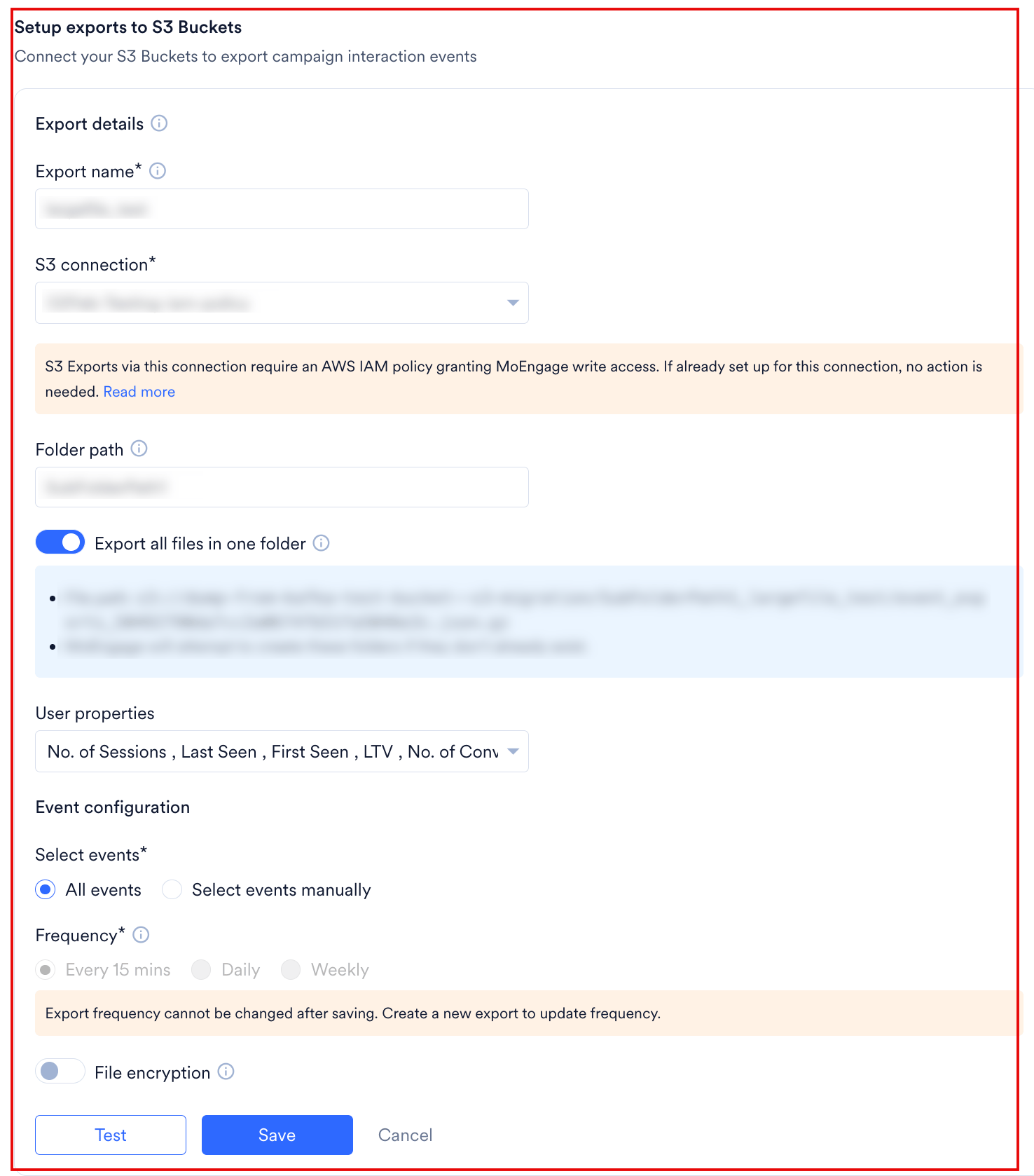 # Events and Attributes
With the MoEngage and S3 integration, you can export all events coming into MoEngage to your S3 buckets. By default, MoEngage tracks standard events and user properties through its SDKs. Read about our [standard events and attributes here](/docs/user-guide/data/event-data/derived-events-and-attributes). You can also export any custom user-defined event you track in MoEngage.
# Data Export Format
* **File format**: JSON
* **Compression type**: GZip
* **Export frequency**: Every 15 mins, daily, or weekly
* **Sample folder path**:
* *Date-partitioned*: `s3:///[_]/export_day=2025-10-28/event_exports_.json.gz`
* *Single folder*: `s3:///[]//event_exports_.json.gz`
MoEngage generates the `` as a unique identifier for each export file.
# Sample Export Data
```json User Action Event theme={null}
{
"app_name": "App Name",
"export_hour": "10",
"db_name": "MoEngage App Name",
"event": {
"uid": "user id",
"event_type": "USER_ACTION_EVENT",
"event_code": "VIEW_RADAR",
"event_name": "VIEW_RADAR",
"user_attributes": {
"moengage_user_id": "userid1",
"user_attr1": "value1",
"user_attr2": "value2"
},
"event_source": "MOENGAGE",
"event_attributes": {
"event_attr1": "value1",
"event_attr2": "value2"
},
"event_uuid": "62045d15-8d5e-4cfd-ac49-5919bffb401d",
"event_time": 1652820710,
"device_attributes": {
"moengage_device_id": "device id"
}
},
"export_day": "2022-05-20"
}
```
```json Campaign Event theme={null}
{
"app_name": "App Name",
"export_hour": "6",
"db_name": "MoEngage App Name",
"event": {
"uid": "user id",
"event_type": "CAMPAIGN_EVENT",
"event_code": "MOE_EMAIL_SENT",
"event_name": "Email Sent",
"user_attributes": {
"moengage_user_id": "userid1",
"user_attr1": "value1",
"user_attr2": "value2"
},
"event_source": "MOENGAGE",
"email_id": "test@xyz.com",
"event_attributes": {
"campaign_name": "Campaign name",
"moe_campaign_tags": [
"Tag1",
"Tag2"
],
"campaign_type": "GENERAL",
"moe_campaign_channel": "Email",
"moe_delivery_type": "One Time",
"campaign_id": "moengage campaign id",
"campaign_channel": "EMAIL"
},
"event_uuid": "3b918064-08dc-47ae-b674-c23797475a8d",
"event_time": 1653022310,
"device_attributes": {
"moengage_device_id": "device id if applicable"
}
},
"export_day": "2022-05-20"
}
```
Download a sample file from [here](https://app-cdn.moengage.com/partners-integration-ui/app-marketplace-public/helpdoc/event_exports_sample_files.json.gz). This is a GZIPPED file; extract it before you view the contents.
# Integrate AWS Key Management Service with Amazon S3
1. Create an AWS Key Management Service (KMS) Customer Master Key (CMK) by using the AWS Management Console, AWS CLI, or AWS SDKs. Skip this step if your AWS KMS key is already generated.
2. Enable the AWS KMS key for use with S3 by adding permissions to the AWS KMS key policy. The following example key policy allows the key to be used for S3 encryption:
```json wrap theme={null}
{
"Version": "2012-10-17",
"Id": "key-policy",
"Statement": [
{
"Sid": "Allow use of the key for S3 encryption",
"Effect": "Allow",
"Principal": {
"AWS": "arn:aws:iam::612427630422:role/service-role/core_s3_export-role-e1qw8ulf"
},
"Action": [
"kms:Encrypt",
"kms:Decrypt",
"kms:ReEncrypt*",
"kms:GenerateDataKey*",
"kms:DescribeKey"
],
"Resource": [
"arn:aws:s3:::your-bucket",
"arn:aws:s3:::your-bucket/*"
]
}
]
}
```
3. Configure the S3 bucket to use the AWS KMS key for encryption. You can do this while creating the bucket or by modifying the bucket properties.
4. In the S3 Management Console, navigate to the bucket where you want to enable server-side encryption.
5. Click the **Properties** tab and scroll down to the **Default encryption** section.
6. Under **Encryption**, select **Server-side encryption with AWS Key Management Service keys (SSE-KMS)**, then select the AWS KMS key you created from the drop-down menu. Use only your KMS key's AWS KMS ARN.
7. Click **Save** to apply the encryption configuration to the bucket. S3 automatically encrypts your objects by using the AWS KMS key you integrated.
8. Provide MoEngage with the AWS KMS Key ARN so that MoEngage can whitelist it.
**Why is whitelisting the KMS key ARN necessary?**
* The AWS KMS Key ARN (Amazon Resource Name) uniquely identifies the KMS key that you want to grant access to, which is why MoEngage requires it for whitelisting.
* Whitelisting a KMS key ARN specifies that only authorized entities or services with access to that specific key can perform encryption or decryption operations.
* Whitelisting the KMS key ARN adds an extra security layer by ensuring that only authorized resources can interact with the key, which reduces the risk of data breaches or unauthorized access.
* By specifying the KMS key ARN in the whitelist, you get granular control over which resources can access and use the key, improving the overall security of your key management and encryption processes.
# Frequently Asked Questions (FAQs)
It typically takes up to 30 minutes for MoEngage to set up the automated data exports for your account and for data to appear in your bucket.
Yes. If you need to export new events later, edit your export configuration on the App Marketplace and add the new events.
No. You cannot modify the frequency of an Amazon S3 export after creation. To change the export frequency (for example, from Daily to Weekly), create a new S3 export with the desired frequency settings. Ensure your storage bucket is prepared to receive data from the new file path generated by the new configuration.
If you move from a more frequent export to a less frequent export, you might experience temporary data duplication when you first make the change. If you move from a less frequent export to a more frequent export, there is a rare possibility of data loss in high-volume cases.
Currently, you cannot export data from before you configured automated data exports. After you configure exports, MoEngage begins exporting data for each event from the time you enabled them.
If automated data exports are not covered in your billing plan and you want to enable them later, contact your Customer Success Manager to include them. Based on the monthly volume of data MoEngage places in your S3 bucket, additional charges may apply.
No. Data exports primarily exports your events in near real-time, and MoEngage updates user attributes asynchronously. Because of this, MoEngage cannot currently guarantee the latest user attribute values in exported files.
# Events and Attributes
With the MoEngage and S3 integration, you can export all events coming into MoEngage to your S3 buckets. By default, MoEngage tracks standard events and user properties through its SDKs. Read about our [standard events and attributes here](/docs/user-guide/data/event-data/derived-events-and-attributes). You can also export any custom user-defined event you track in MoEngage.
# Data Export Format
* **File format**: JSON
* **Compression type**: GZip
* **Export frequency**: Every 15 mins, daily, or weekly
* **Sample folder path**:
* *Date-partitioned*: `s3:///[_]/export_day=2025-10-28/event_exports_.json.gz`
* *Single folder*: `s3:///[]//event_exports_.json.gz`
MoEngage generates the `` as a unique identifier for each export file.
# Sample Export Data
```json User Action Event theme={null}
{
"app_name": "App Name",
"export_hour": "10",
"db_name": "MoEngage App Name",
"event": {
"uid": "user id",
"event_type": "USER_ACTION_EVENT",
"event_code": "VIEW_RADAR",
"event_name": "VIEW_RADAR",
"user_attributes": {
"moengage_user_id": "userid1",
"user_attr1": "value1",
"user_attr2": "value2"
},
"event_source": "MOENGAGE",
"event_attributes": {
"event_attr1": "value1",
"event_attr2": "value2"
},
"event_uuid": "62045d15-8d5e-4cfd-ac49-5919bffb401d",
"event_time": 1652820710,
"device_attributes": {
"moengage_device_id": "device id"
}
},
"export_day": "2022-05-20"
}
```
```json Campaign Event theme={null}
{
"app_name": "App Name",
"export_hour": "6",
"db_name": "MoEngage App Name",
"event": {
"uid": "user id",
"event_type": "CAMPAIGN_EVENT",
"event_code": "MOE_EMAIL_SENT",
"event_name": "Email Sent",
"user_attributes": {
"moengage_user_id": "userid1",
"user_attr1": "value1",
"user_attr2": "value2"
},
"event_source": "MOENGAGE",
"email_id": "test@xyz.com",
"event_attributes": {
"campaign_name": "Campaign name",
"moe_campaign_tags": [
"Tag1",
"Tag2"
],
"campaign_type": "GENERAL",
"moe_campaign_channel": "Email",
"moe_delivery_type": "One Time",
"campaign_id": "moengage campaign id",
"campaign_channel": "EMAIL"
},
"event_uuid": "3b918064-08dc-47ae-b674-c23797475a8d",
"event_time": 1653022310,
"device_attributes": {
"moengage_device_id": "device id if applicable"
}
},
"export_day": "2022-05-20"
}
```
Download a sample file from [here](https://app-cdn.moengage.com/partners-integration-ui/app-marketplace-public/helpdoc/event_exports_sample_files.json.gz). This is a GZIPPED file; extract it before you view the contents.
# Integrate AWS Key Management Service with Amazon S3
1. Create an AWS Key Management Service (KMS) Customer Master Key (CMK) by using the AWS Management Console, AWS CLI, or AWS SDKs. Skip this step if your AWS KMS key is already generated.
2. Enable the AWS KMS key for use with S3 by adding permissions to the AWS KMS key policy. The following example key policy allows the key to be used for S3 encryption:
```json wrap theme={null}
{
"Version": "2012-10-17",
"Id": "key-policy",
"Statement": [
{
"Sid": "Allow use of the key for S3 encryption",
"Effect": "Allow",
"Principal": {
"AWS": "arn:aws:iam::612427630422:role/service-role/core_s3_export-role-e1qw8ulf"
},
"Action": [
"kms:Encrypt",
"kms:Decrypt",
"kms:ReEncrypt*",
"kms:GenerateDataKey*",
"kms:DescribeKey"
],
"Resource": [
"arn:aws:s3:::your-bucket",
"arn:aws:s3:::your-bucket/*"
]
}
]
}
```
3. Configure the S3 bucket to use the AWS KMS key for encryption. You can do this while creating the bucket or by modifying the bucket properties.
4. In the S3 Management Console, navigate to the bucket where you want to enable server-side encryption.
5. Click the **Properties** tab and scroll down to the **Default encryption** section.
6. Under **Encryption**, select **Server-side encryption with AWS Key Management Service keys (SSE-KMS)**, then select the AWS KMS key you created from the drop-down menu. Use only your KMS key's AWS KMS ARN.
7. Click **Save** to apply the encryption configuration to the bucket. S3 automatically encrypts your objects by using the AWS KMS key you integrated.
8. Provide MoEngage with the AWS KMS Key ARN so that MoEngage can whitelist it.
**Why is whitelisting the KMS key ARN necessary?**
* The AWS KMS Key ARN (Amazon Resource Name) uniquely identifies the KMS key that you want to grant access to, which is why MoEngage requires it for whitelisting.
* Whitelisting a KMS key ARN specifies that only authorized entities or services with access to that specific key can perform encryption or decryption operations.
* Whitelisting the KMS key ARN adds an extra security layer by ensuring that only authorized resources can interact with the key, which reduces the risk of data breaches or unauthorized access.
* By specifying the KMS key ARN in the whitelist, you get granular control over which resources can access and use the key, improving the overall security of your key management and encryption processes.
# Frequently Asked Questions (FAQs)
It typically takes up to 30 minutes for MoEngage to set up the automated data exports for your account and for data to appear in your bucket.
Yes. If you need to export new events later, edit your export configuration on the App Marketplace and add the new events.
No. You cannot modify the frequency of an Amazon S3 export after creation. To change the export frequency (for example, from Daily to Weekly), create a new S3 export with the desired frequency settings. Ensure your storage bucket is prepared to receive data from the new file path generated by the new configuration.
If you move from a more frequent export to a less frequent export, you might experience temporary data duplication when you first make the change. If you move from a less frequent export to a more frequent export, there is a rare possibility of data loss in high-volume cases.
Currently, you cannot export data from before you configured automated data exports. After you configure exports, MoEngage begins exporting data for each event from the time you enabled them.
If automated data exports are not covered in your billing plan and you want to enable them later, contact your Customer Success Manager to include them. Based on the monthly volume of data MoEngage places in your S3 bucket, additional charges may apply.
No. Data exports primarily exports your events in near real-time, and MoEngage updates user attributes asynchronously. Because of this, MoEngage cannot currently guarantee the latest user attribute values in exported files.