> ## Documentation Index
> Fetch the complete documentation index at: https://moengage.com/docs/llms.txt
> Use this file to discover all available pages before exploring further.
# Identify Reasons for Users Uninstalling the App
# Introduction
Users might uninstall an app for various reasons, including poor user experience (UX), lack of value, excessive ads, privacy concerns, performance issues, confusing onboarding process, battery drain, storage issues, lack of updates, irrelevant campaigns, and not meeting their expectations. When a user uninstalls an app, it becomes critical for the business/brand to understand the reason for uninstallation.
#### Advantages of identifying reasons for users uninstalling the app
* **Understanding user behavior**: Understanding these reasons and the touchpoints where the user uninstalls the app helps the brand gain insights into its users' behavior.
* **Creating relevant communication**: Understanding these reasons also allows you to create more relevant communication to the mentioned reason. For more information, refer to [Uninstalls](/docs/user-guide/analyze/analytics/uninstall).
* **Improving user experience**: Identifying the reasons for uninstalls allows you to address specific problems, leading to a better overall user experience.
* **Preventing future uninstalls**: By understanding the reasons for uninstalls, you can proactively address potential issues and prevent users from uninstalling the app in the first place.
* **Improving retention**: By addressing the reasons for uninstalls, you can improve user retention and reduce churn, ultimately leading to a more engaged and loyal user base.
We will achieve this use case in three steps:
1. [Understand the number of uninstalls](/docs/use-cases/analytics/identify-reasons-for-users-uninstalling-the-app#step-1-understand-the-number-of-uninstalls)
2. [Understand the user paths](/docs/use-cases/analytics/identify-reasons-for-users-uninstalling-the-app#step-2-understand-the-user-paths)
3. [Perform the funnel analysis of uninstalls](/docs/use-cases/analytics/identify-reasons-for-users-uninstalling-the-app#step-3-perform-the-funnel-analysis-of-uninstalls)
# Expected Result
You will gain an overall understanding of the touchpoints and events the user performs before the *uninstall* event is registered. You will have a report of the uninstall events and a visualization backtracking the events from uninstall. You will have an outcome as a funnel chart for uninstalls after a campaign is received.
* Uninstall Tracking must be enabled in the settings. For more information, refer to [Uninstall Tracking](/docs/user-guide/settings/analytics/uninstall-tracking).
* Events must be available in MoEngage to track the user action of receiving notifications. In this example, we will use the events *Notification Received Android* or *Notification Received iOS*. To understand how to track events, refer to the [Developer Guide](/docs/developer-guide/introduction).
* An event must be available in MoEngage to track the user's action of installing the app. In this example, we will use the event *Uninstalled from device*.
# Step 1: Understand the Number of Uninstalls
In this section, we will understand the number of uninstalls from the **Analyze** section.
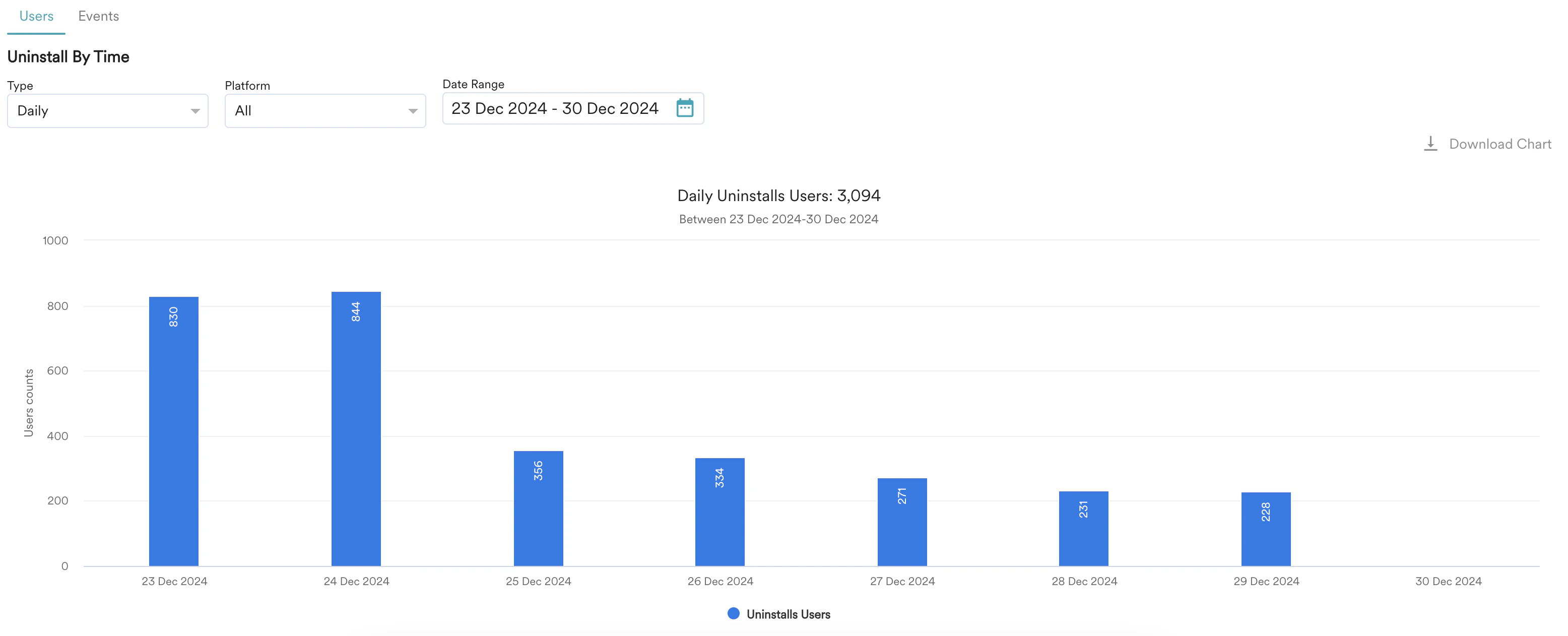
1. On the left navigation menu in the MoEngage dashboard, click **Analyze**, and then click **Uninstalls**. You can check the trend of the number of uninstalls that have occurred for a particular time frame. The analysis here is at the user and event levels. The **Users** tab provides a unique count of uninstalls. On the other hand, the **Events** tab provides the count of uninstalled events regardless of whether the uninstall is unique or duplicated. For more information, refer to [Uninstall](/docs/user-guide/analyze/analytics/uninstall).
2. The **Uninstalls By Time** section provides granularity options for viewing the metrics. You can view daily, weekly, or monthly uninstalls for a time range and platform.\
The chart obtained shows the total uninstall count for a set time.
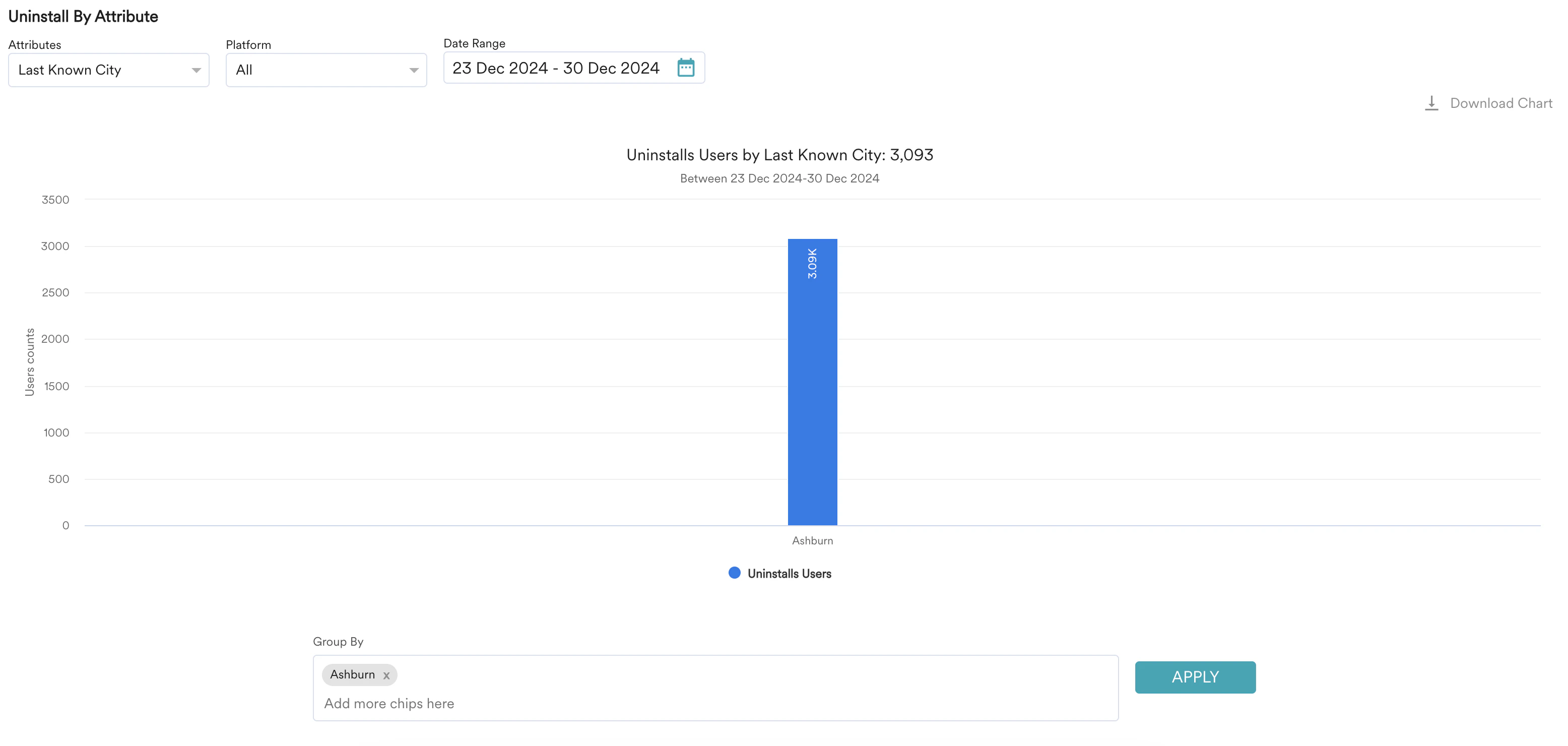
3. The **Uninstall By Attribute** section helps you filter the uninstalls by a specific attribute. For example, set uninstalls occurring with the users' **Last Known City** attribute. The chart obtained shows the count of uninstalls linked to that specific attribute.
 # Step 2: Understand the User Paths
In this section, we will understand the user paths for uninstallation. This will help us map the events that occur before uninstallation.
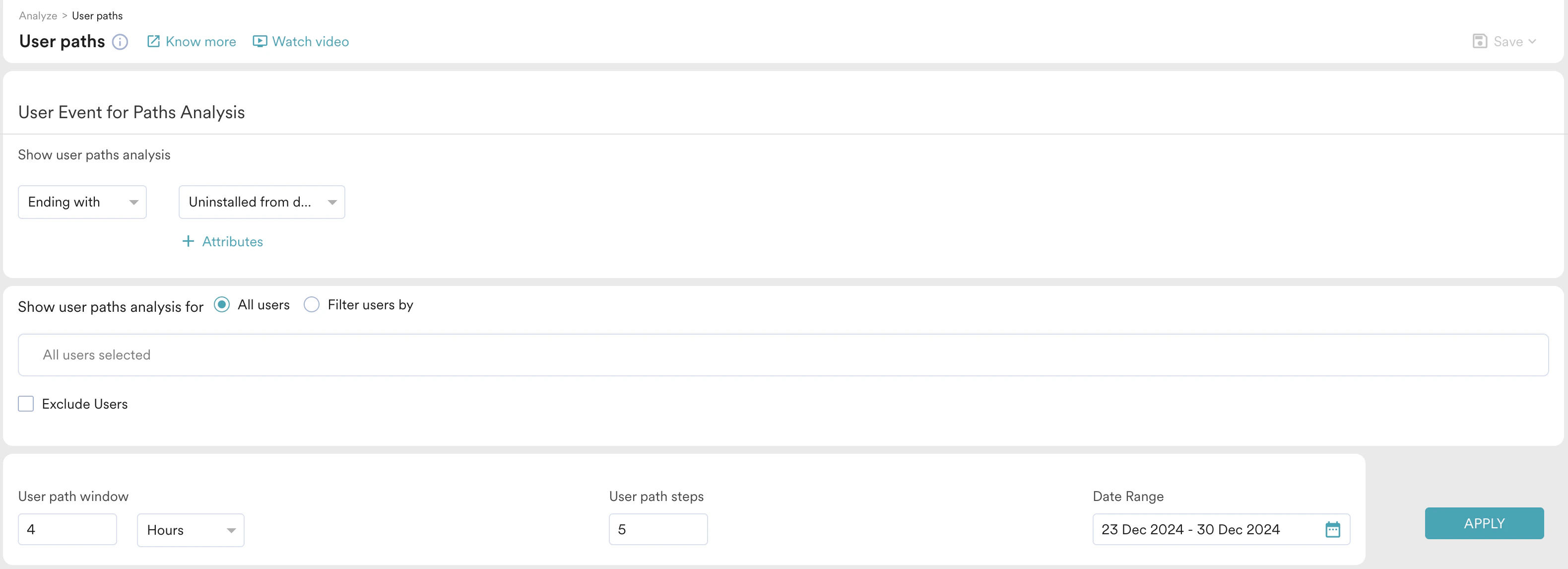
1. On the left navigation menu in the MoEngage dashboard, click **Analyze**, and then click **User Paths**. Because we are visualizing the path to uninstall, select the user path *Ending With* and the attribute **Uninstalled from device** under **Show user paths analysis**.
2. Use the default segment option and perform the analysis for **All users**.
3. Select the **User path window** as 4 hours. This is the number of hours you want to track for the events occurring before the uninstall.
4. Select the **User path steps** as 5. These are the number of levels you want to track before a user performs an uninstallation. For more information, refer to [User Paths](/docs/user-guide/analyze/analytics/user-paths/user-paths-overview).
# Step 2: Understand the User Paths
In this section, we will understand the user paths for uninstallation. This will help us map the events that occur before uninstallation.
1. On the left navigation menu in the MoEngage dashboard, click **Analyze**, and then click **User Paths**. Because we are visualizing the path to uninstall, select the user path *Ending With* and the attribute **Uninstalled from device** under **Show user paths analysis**.
2. Use the default segment option and perform the analysis for **All users**.
3. Select the **User path window** as 4 hours. This is the number of hours you want to track for the events occurring before the uninstall.
4. Select the **User path steps** as 5. These are the number of levels you want to track before a user performs an uninstallation. For more information, refer to [User Paths](/docs/user-guide/analyze/analytics/user-paths/user-paths-overview).
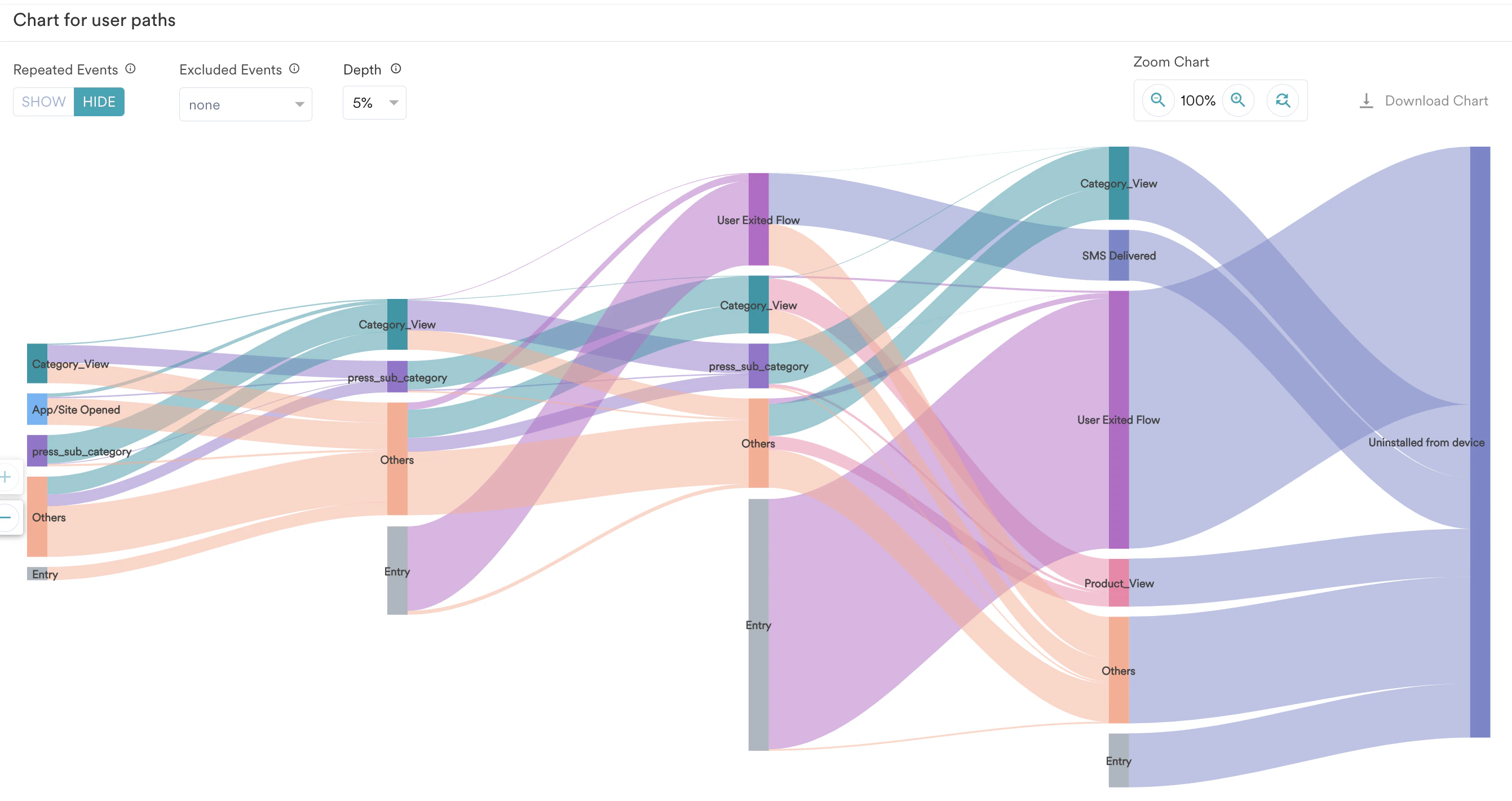
 5. The **Chart for user paths** section helps you understand the significant events and touchpoints that led to the app's uninstallation on the particular date range you selected. For more information on reading the user paths chart, refer to [Understanding Chart](/docs/user-guide/analyze/analytics/user-paths/user-paths-overview).
#
5. The **Chart for user paths** section helps you understand the significant events and touchpoints that led to the app's uninstallation on the particular date range you selected. For more information on reading the user paths chart, refer to [Understanding Chart](/docs/user-guide/analyze/analytics/user-paths/user-paths-overview).
#  # Step 3: Perform the Funnel Analysis of Uninstalls
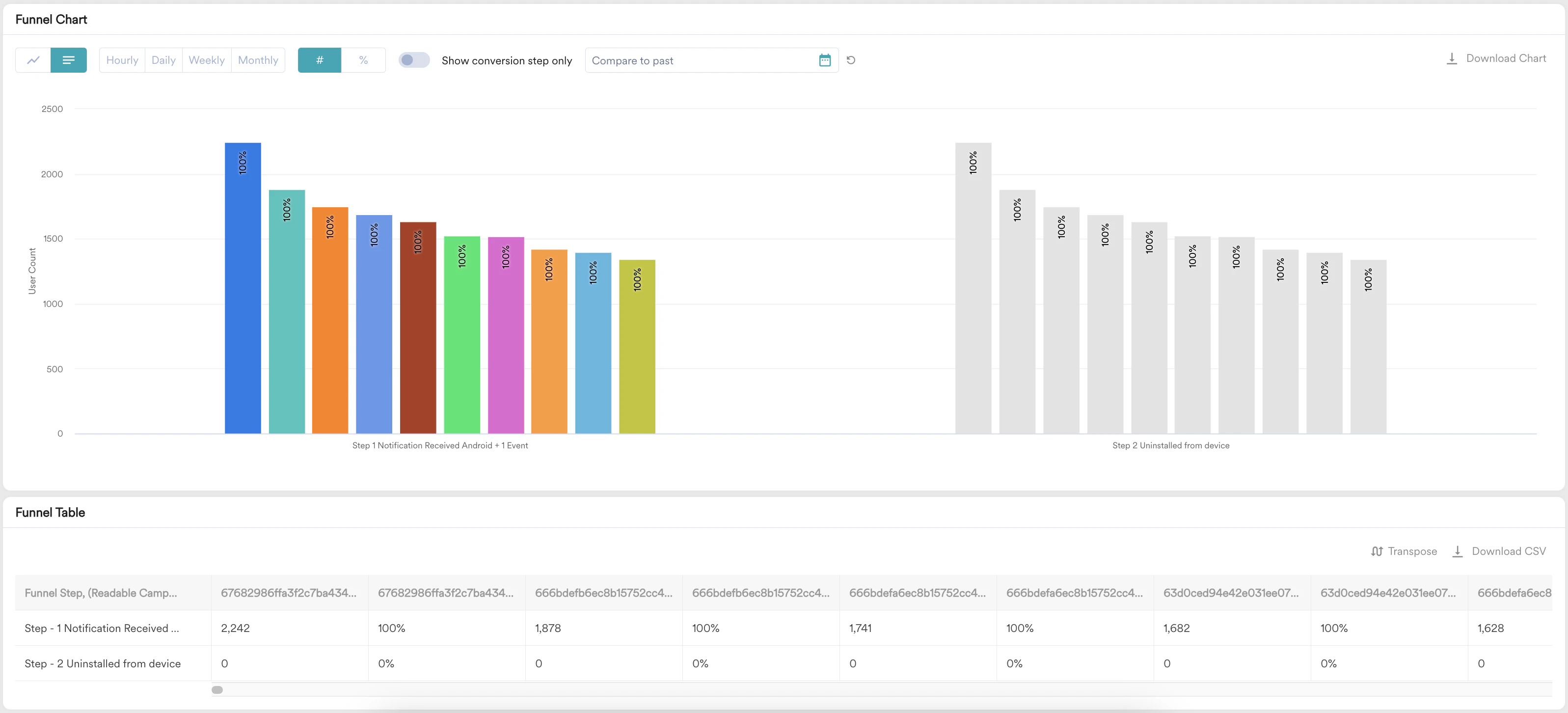
In this section, we will perform a funnel analysis of uninstalls that occurred after the user received a Push campaign.
1. On the left navigation menu in the MoEngage dashboard, click **Analyze**, and then click **Funnels**.
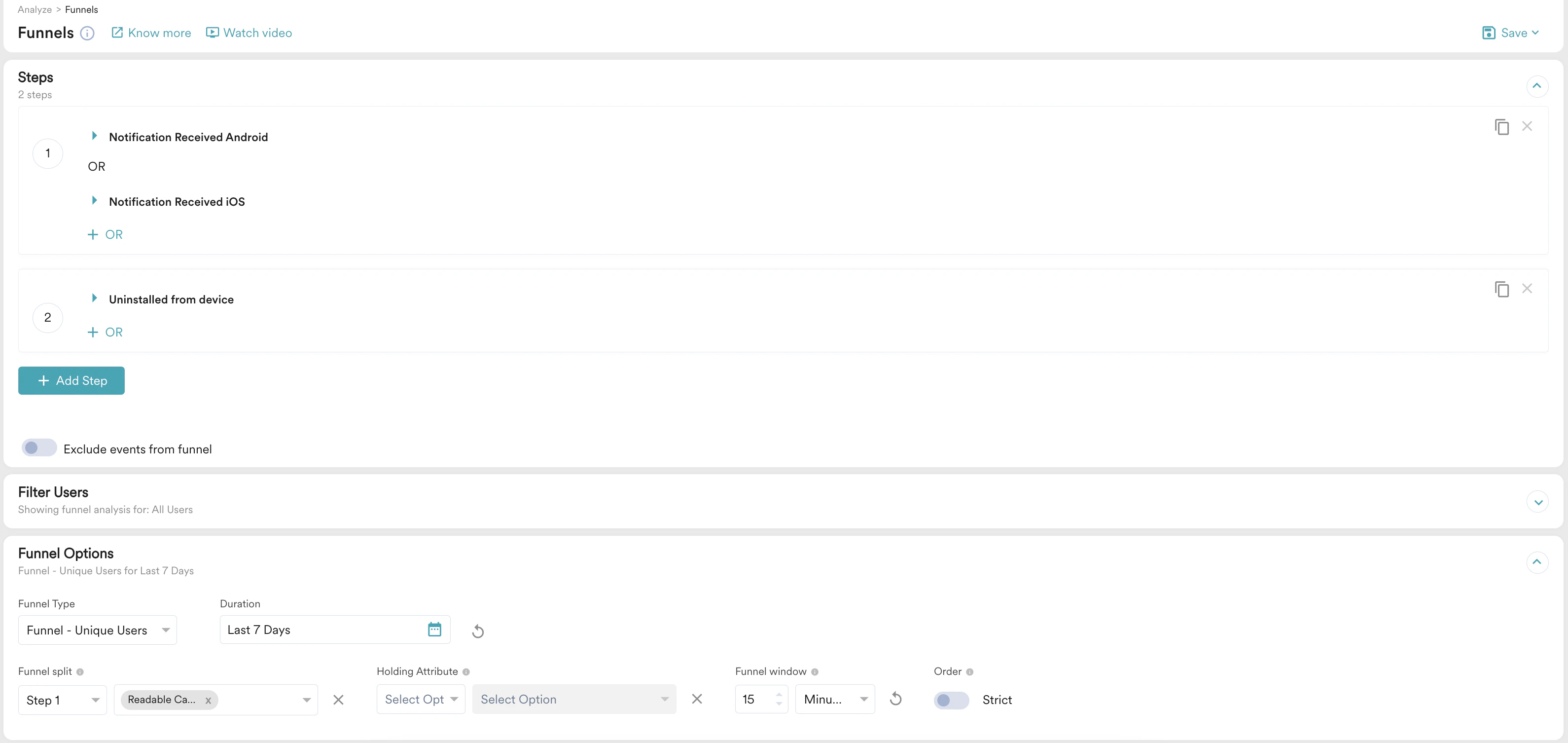
2. Under **Steps**, define the first event as *Notification Received Android* **OR** *Notification Received iOS* because we want to analyze the uninstalls after a Push campaign is received. Select the second event as *Uninstalled from device*.
3. For the segmentation filter, select **All users.**
4. In the **Funnel Options** section:
1. In the **Funnel Type** list, select *Funnel - Unique Users*. To learn more about the funnel types, refer to [Funnels](/docs/user-guide/analyze/analytics/funnels/funnels-overview).
2. In the **Duration** field, set the duration as the *Last 7 Days*.
3. In the **Funnel split** list, select *Step 1* and then select *Campaign Name* or *Readable Campaign* to understand the top contributors to uninstallation.
4. Set the **Funnel window** as 15 minutes. This should be short enough to attribute the uninstall to that particular campaign.
# Step 3: Perform the Funnel Analysis of Uninstalls
In this section, we will perform a funnel analysis of uninstalls that occurred after the user received a Push campaign.
1. On the left navigation menu in the MoEngage dashboard, click **Analyze**, and then click **Funnels**.
2. Under **Steps**, define the first event as *Notification Received Android* **OR** *Notification Received iOS* because we want to analyze the uninstalls after a Push campaign is received. Select the second event as *Uninstalled from device*.
3. For the segmentation filter, select **All users.**
4. In the **Funnel Options** section:
1. In the **Funnel Type** list, select *Funnel - Unique Users*. To learn more about the funnel types, refer to [Funnels](/docs/user-guide/analyze/analytics/funnels/funnels-overview).
2. In the **Duration** field, set the duration as the *Last 7 Days*.
3. In the **Funnel split** list, select *Step 1* and then select *Campaign Name* or *Readable Campaign* to understand the top contributors to uninstallation.
4. Set the **Funnel window** as 15 minutes. This should be short enough to attribute the uninstall to that particular campaign.
 # Conclusion
In this use case, we understood the number of uninstalls from Analytics, understood the user path to uninstallation, and then performed the funnel analysis of uninstallation.
An in-depth analysis of the uninstalled events and users requires a significant effort. However, after obtaining this report, we will have enough insights to plan the overall strategy and base the messaging on different cohorts.
# Conclusion
In this use case, we understood the number of uninstalls from Analytics, understood the user path to uninstallation, and then performed the funnel analysis of uninstallation.
An in-depth analysis of the uninstalled events and users requires a significant effort. However, after obtaining this report, we will have enough insights to plan the overall strategy and base the messaging on different cohorts.