> ## Documentation Index
> Fetch the complete documentation index at: https://moengage.com/docs/llms.txt
> Use this file to discover all available pages before exploring further.
# VWO
# Introduction
[VWO](https://vwo.com/) is a connected platform that improves key business metrics by empowering clients to easily discover insights, and test product ideas. It allows marketers to test their product and feature experiences.
# MoEngage × VWO
MoEngage × VWO integration allows you to channel your website visitor data from your VWO account to your MoEngage account for further analysis. This empowers you to analyse the parameters and gauge the performance of your variations in VWO experiments and then better target them using MoEngage campaigns.
# Integration
**Prerequisites**
* Ensure you have access to your VWO account.
* Ensure that you have access to your MoEngage Workspace ID. Navigate to Settings >> General Settings to get your Workspace ID.
## Step 1: Add data tracking on your webpage
To analyze the results of your experiments in MoEngage, you need to setup the data tracking for MoEngage as mentioned in the [document here.](https://www.moengage.com/docs/developer-guide/web-sdk/web-sdk-integration/basic-integration/web-sdk-integration) Once you have added the data tracking, you can verify it using network calls to identify the data pushed from VWO to MoEngage. To do so, perform the following steps:
1. Right-click on the page, where your VWO campaign is running and select *Inspect element.*
2. Under the *Network* tab, search for *MoEngage* to filter the network calls.
3. You may need to reload the page to view the network calls.
4. Select a network call to view further details.
5. Go to *Payload* >> *Request payload* section. Expand to view the details of the data being pushed. 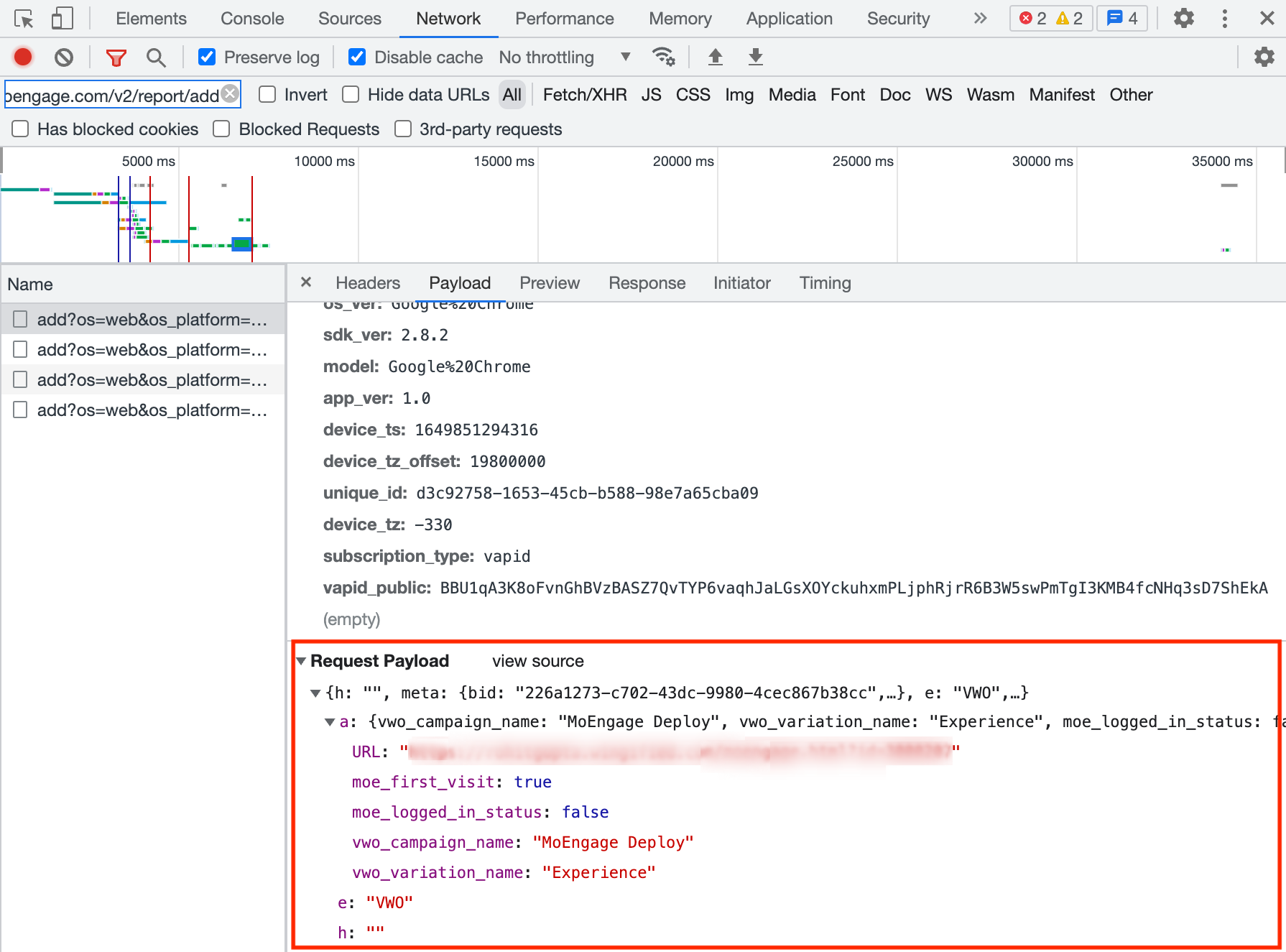 ### Specifications of the data being sent
The data from VWO is sent to MoEngage with the following specifics:
```json theme={null}
"vwo":[["exp_name,var_name"]]
```
Here, `exp_name` is the campaign name and `var_name` is the variation name in VWO.
## Step 2: Enable integration for your VWO account
You can enable the integration at both account level and campaign level.
**A. Account level -** It means that the integration will be applied to all campaigns (even in future), by default.
If you wish to enable the MoEngage integration at account level:
1. Log in to your VWO account.
2. Navigate to *Integrations.* Search for MoEngage.
3. Select MoEngage tile and click *Enable Now* to enable it.
### Specifications of the data being sent
The data from VWO is sent to MoEngage with the following specifics:
```json theme={null}
"vwo":[["exp_name,var_name"]]
```
Here, `exp_name` is the campaign name and `var_name` is the variation name in VWO.
## Step 2: Enable integration for your VWO account
You can enable the integration at both account level and campaign level.
**A. Account level -** It means that the integration will be applied to all campaigns (even in future), by default.
If you wish to enable the MoEngage integration at account level:
1. Log in to your VWO account.
2. Navigate to *Integrations.* Search for MoEngage.
3. Select MoEngage tile and click *Enable Now* to enable it. 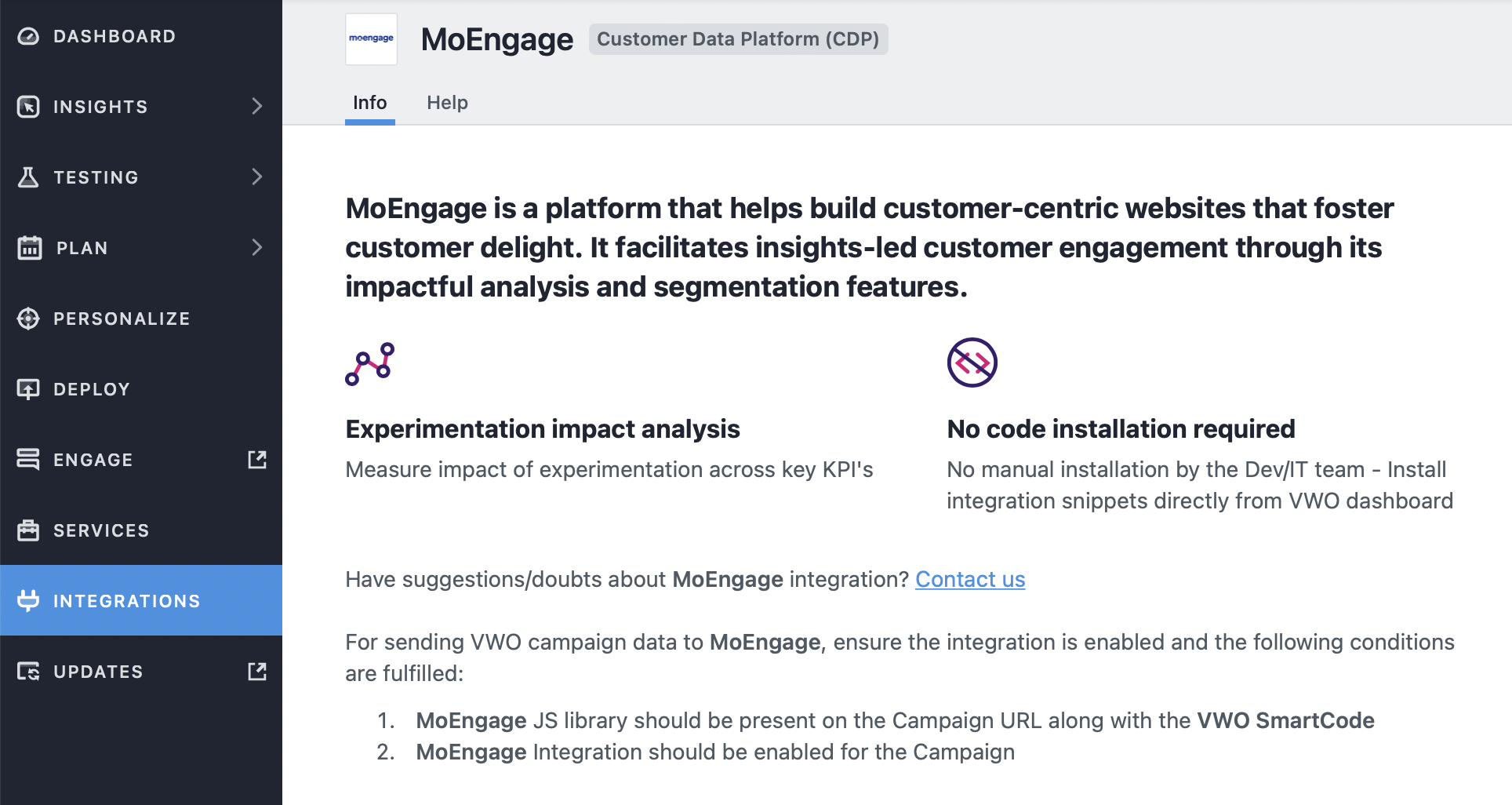 **B. Campaign level -** It means that the integration will be applied to specific campaigns.
If you wish to enable the MoEngage integration for your existing campaigns, you need to edit your campaign settings:
1. Go to *Settings >> Others*
2. Expand the *Integrate* with third-party products section, and select the *MoEngage*.
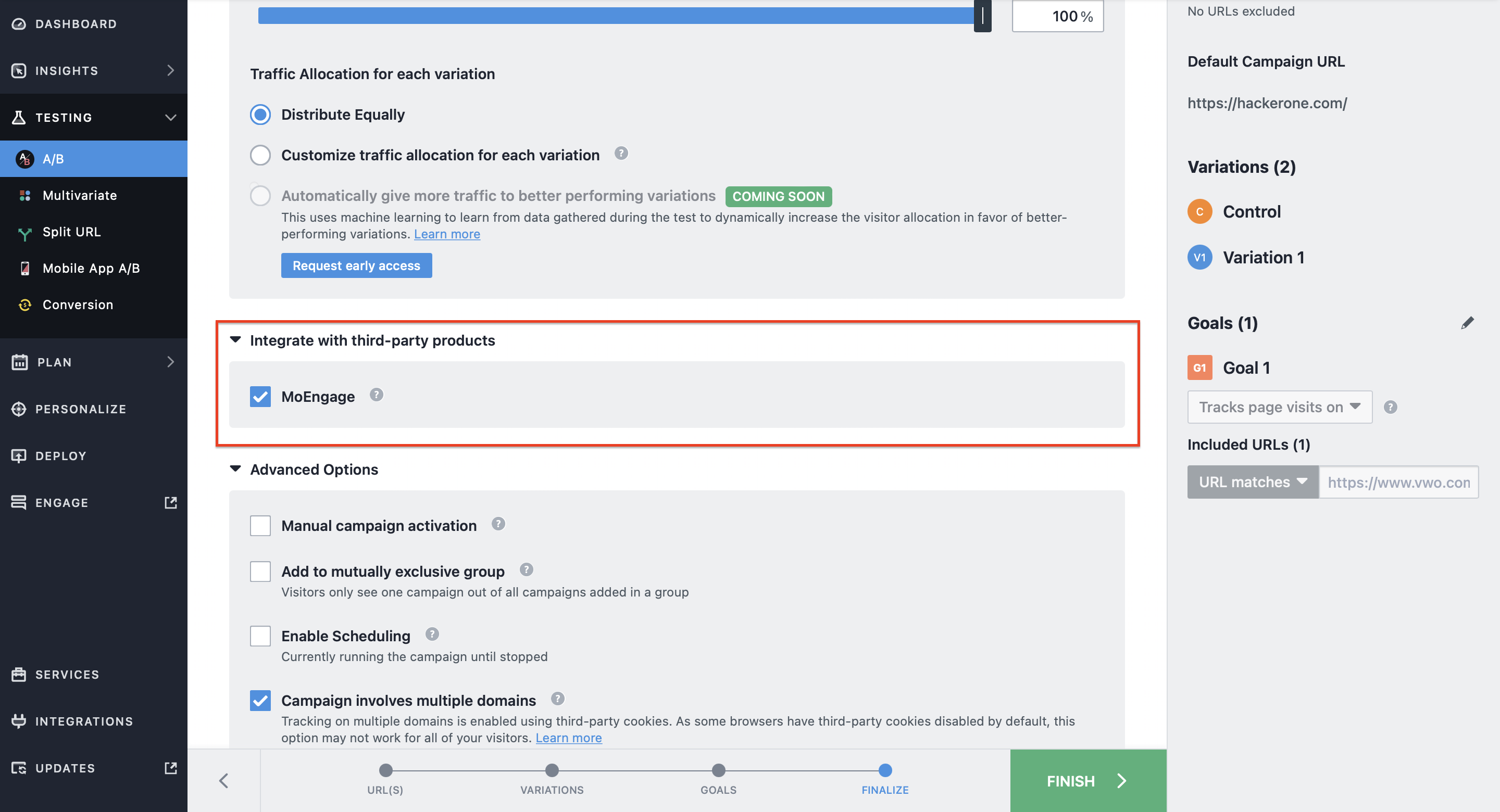
You can now start sending your VWO experiment data to MoEngage at the campaign level.
## Step 3: Analyze VWO data on MoEngage
To analyse or segment your data on MoEngage:
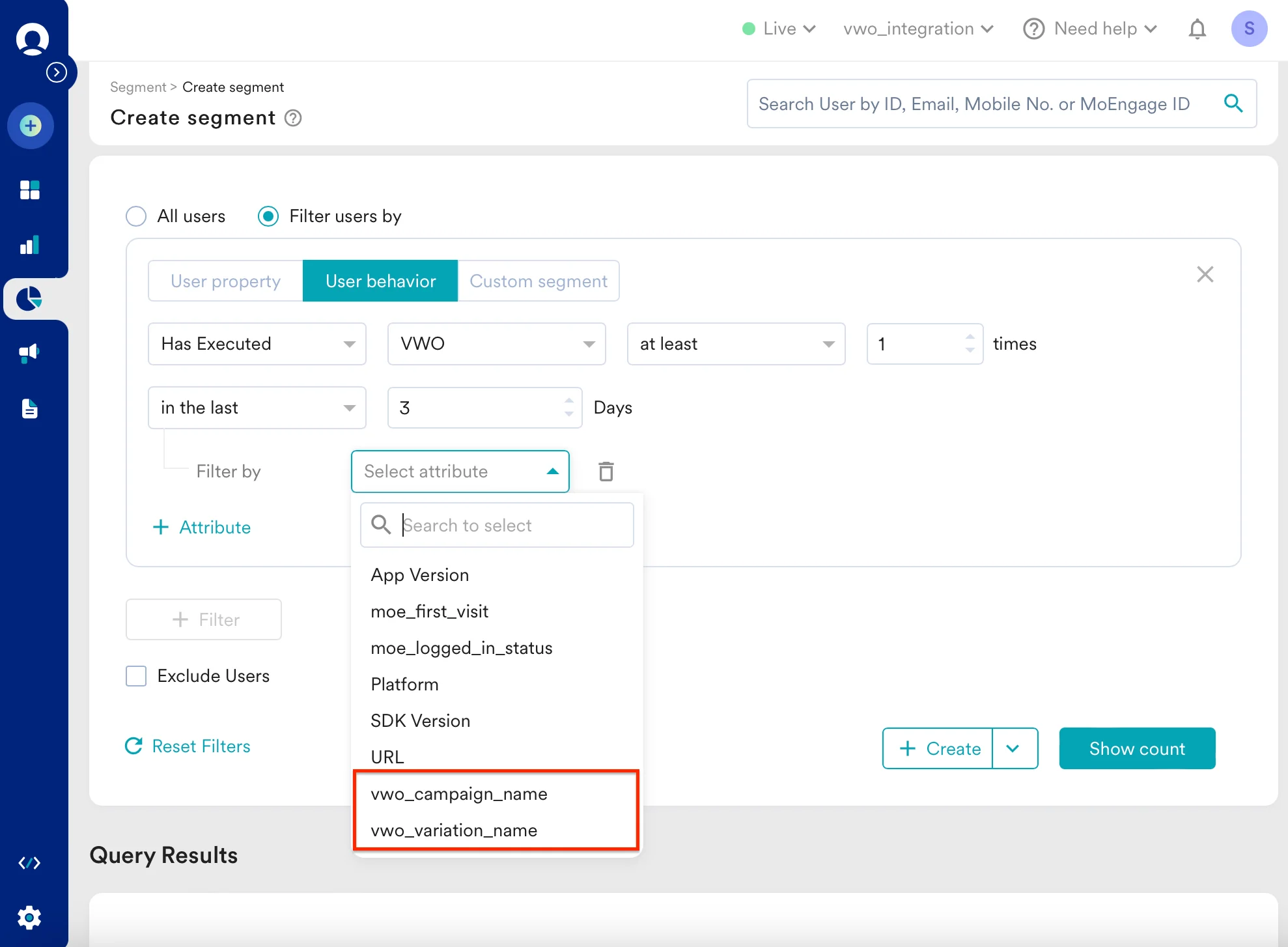
1. Navigate to Segment >> Create segment
2. In the User Behaviour, select **VWO** from the events dropdown.
**B. Campaign level -** It means that the integration will be applied to specific campaigns.
If you wish to enable the MoEngage integration for your existing campaigns, you need to edit your campaign settings:
1. Go to *Settings >> Others*
2. Expand the *Integrate* with third-party products section, and select the *MoEngage*.

You can now start sending your VWO experiment data to MoEngage at the campaign level.
## Step 3: Analyze VWO data on MoEngage
To analyse or segment your data on MoEngage:
1. Navigate to Segment >> Create segment
2. In the User Behaviour, select **VWO** from the events dropdown. 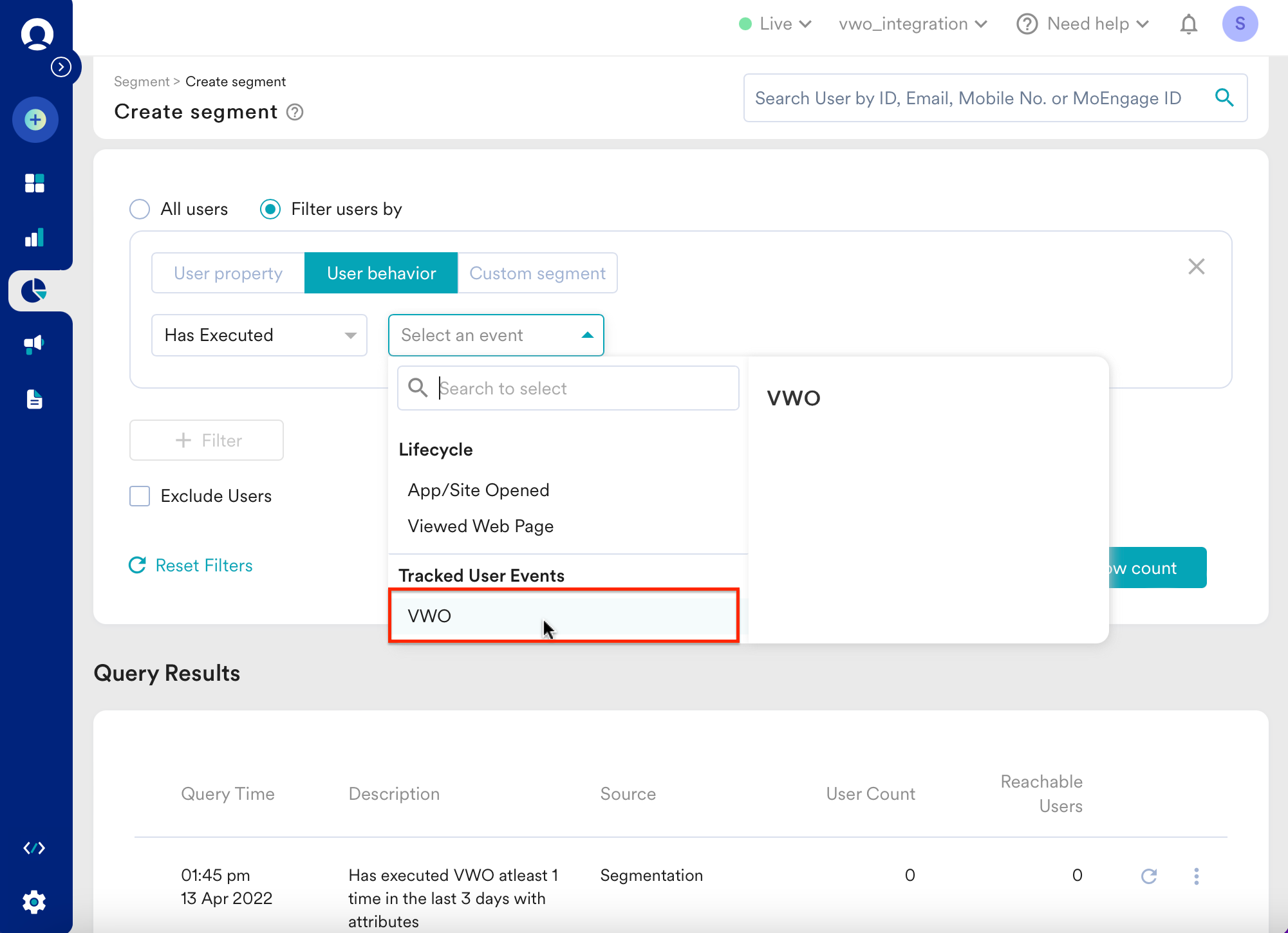 3. Specify the number of visits that you want to track for the visitors that landed on your website and the period during which the visit(s) took place.
**Note-** The number of visits here strictly corresponds to the visits made on a page that is included in a VWO campaign.
4. Select `vwo_campaign_name` or `vwo_variation_name` in the attributes filter to further segment users based on a specific VWO campaign or a variation name, respectively.
3. Specify the number of visits that you want to track for the visitors that landed on your website and the period during which the visit(s) took place.
**Note-** The number of visits here strictly corresponds to the visits made on a page that is included in a VWO campaign.
4. Select `vwo_campaign_name` or `vwo_variation_name` in the attributes filter to further segment users based on a specific VWO campaign or a variation name, respectively.
 5. Once done, you can either save this as a custom segment on MoEngage or create a campaign to target these users.