> ## Documentation Index
> Fetch the complete documentation index at: https://moengage.com/docs/llms.txt
> Use this file to discover all available pages before exploring further.
# Zembula
> Integrate MoEngage with Zembula to include universal code snippets in your email templates for dynamic and personalized content.
## Introduction
[Zembula](https://www.zembula.com/) allows marketers to create dynamic and personalized email content that updates at the moment of each and every open.
## MoEngage × Zembula
With the MoEngage and Zembula integration, you can include a Zembula universal code snippet in your MoEngage email templates. One of the great benefits of the Zembula Universal Code is that it enables your recipient to go directly to your website to interact with the experience from the email, rather than be taken to an interstitial page first.
## Integration
**Prerequisites**
Access to your Zembula dashboard.
### Step 1: Create your universal code on Zembula
In Zembula, once you have installed and enabled your Universal Code,
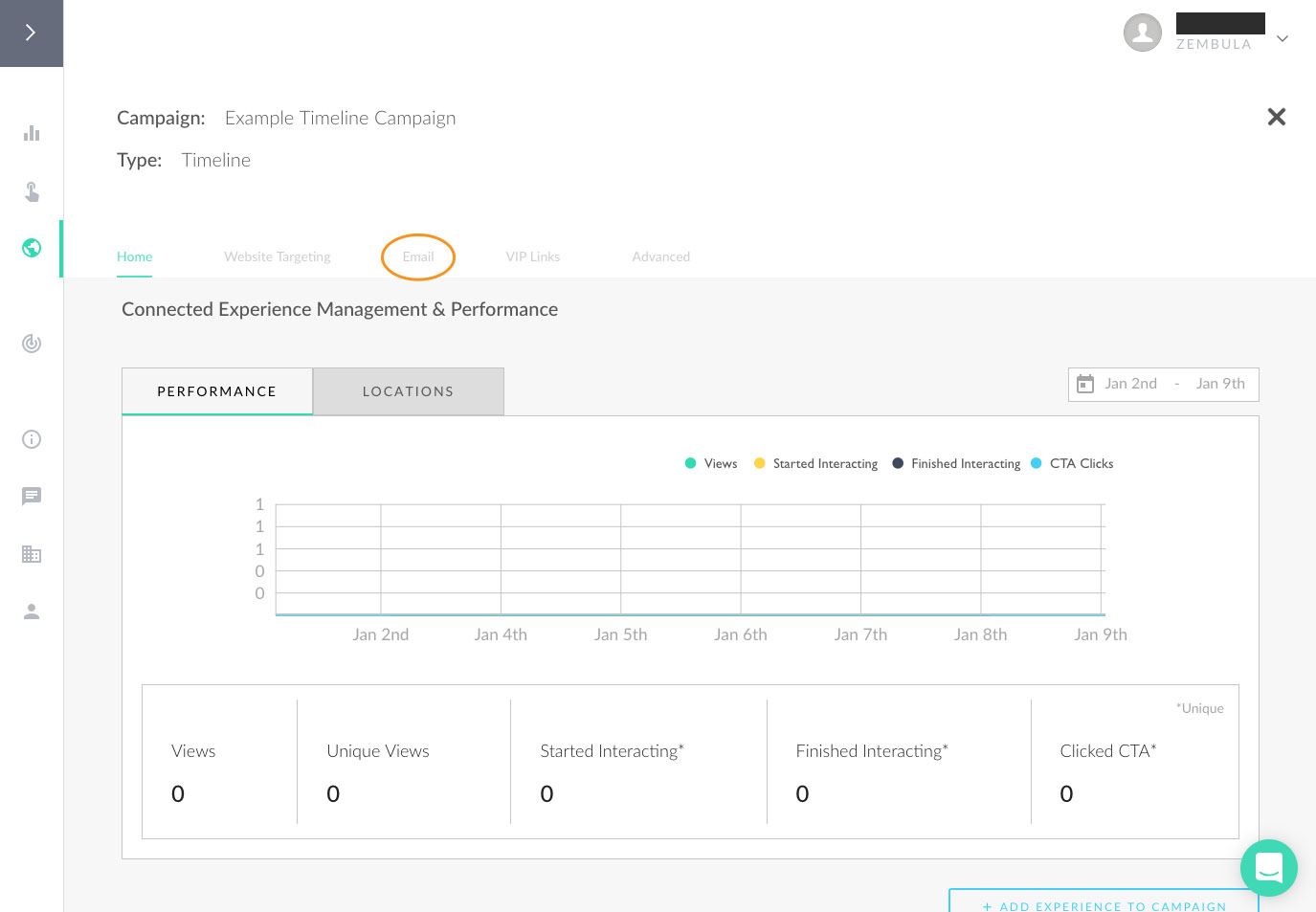
1. Head over to the Campaigns section and select the campaign you want to share. Click on the Email link at the top.
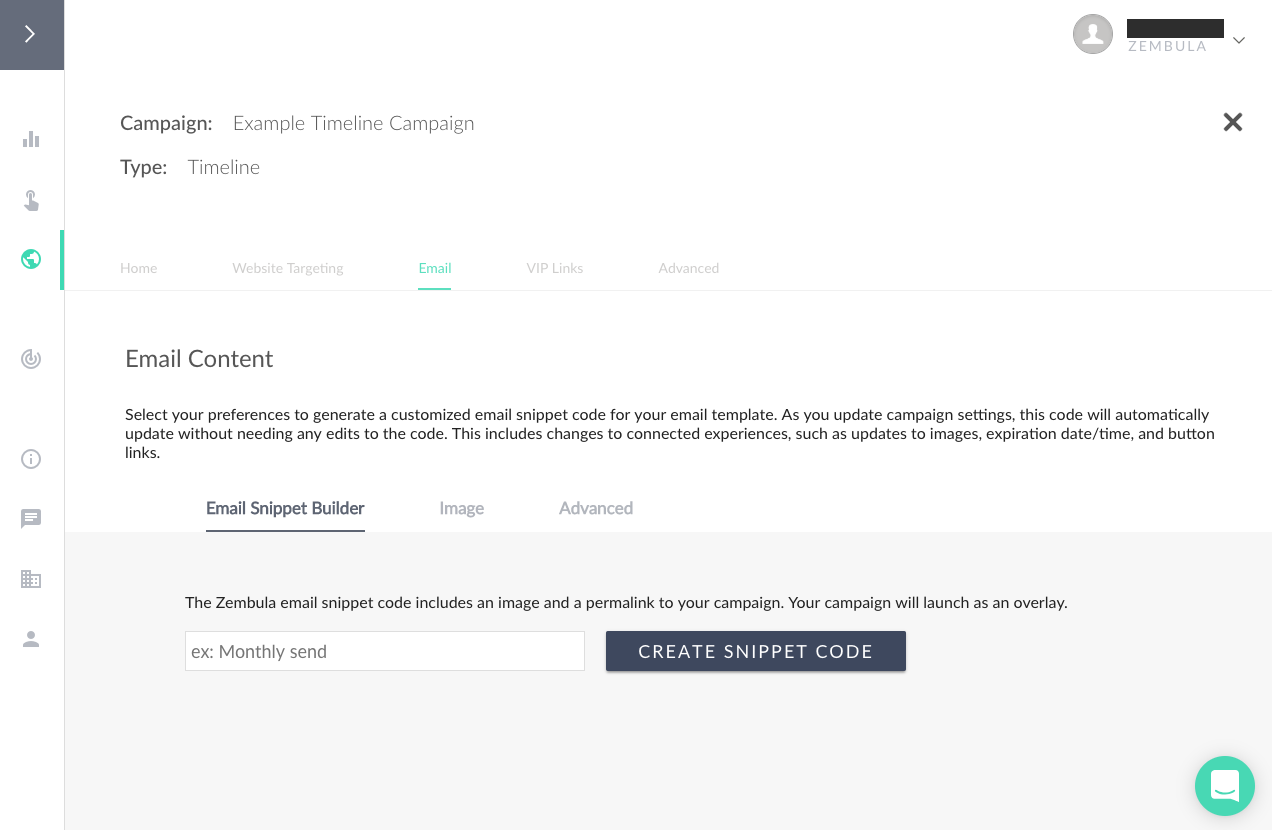
 2. Name your campaign and create a snippet code In Zembula, name your campaign and click Create Snippet Code.
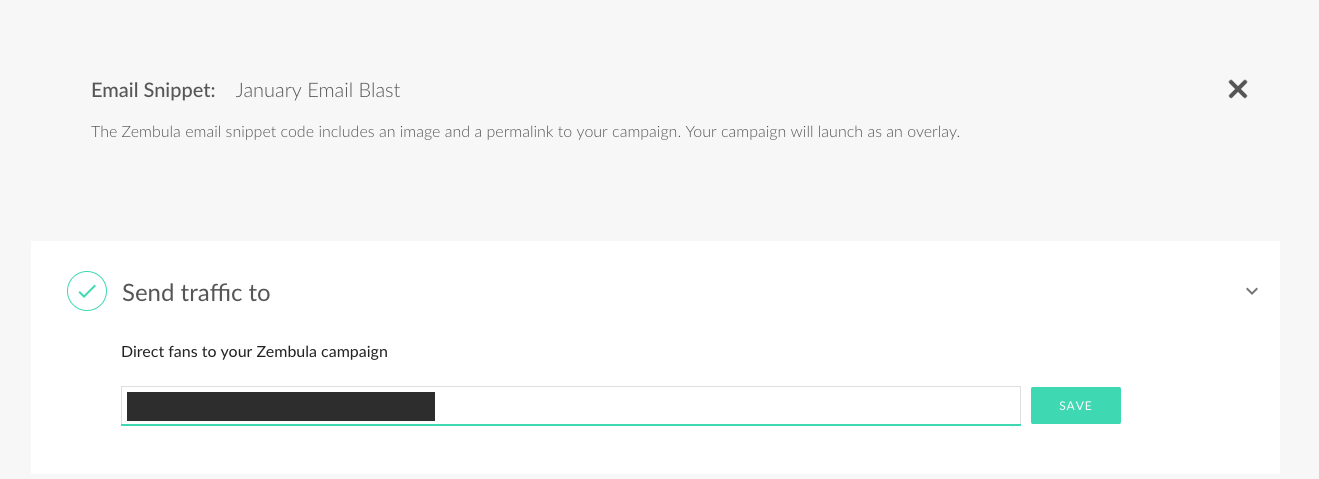
 3. Set a URL In Zembula, input the URL of the page on which you want your experience to appear (for example, your homepage).
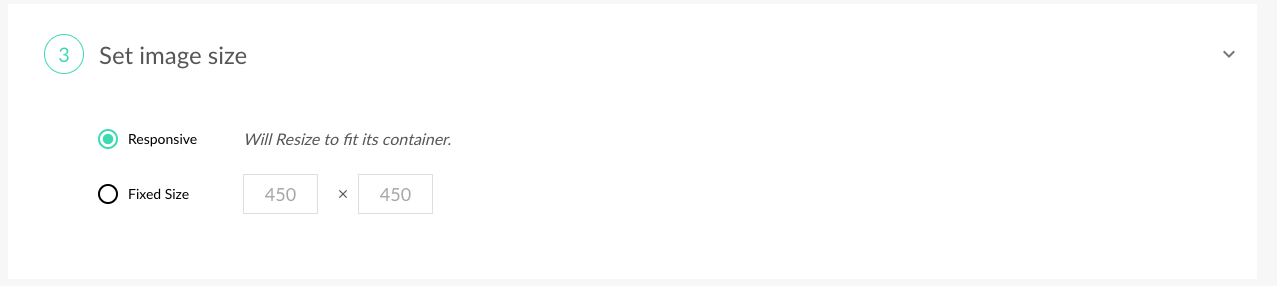
 4. Set the image size. In Zembula, set the image size. You can either input a specific image size, or you can choose to keep the image responsive, which will resize automatically depending on the device the recipient is viewing on.
 5. Copy the Zembula snippet:
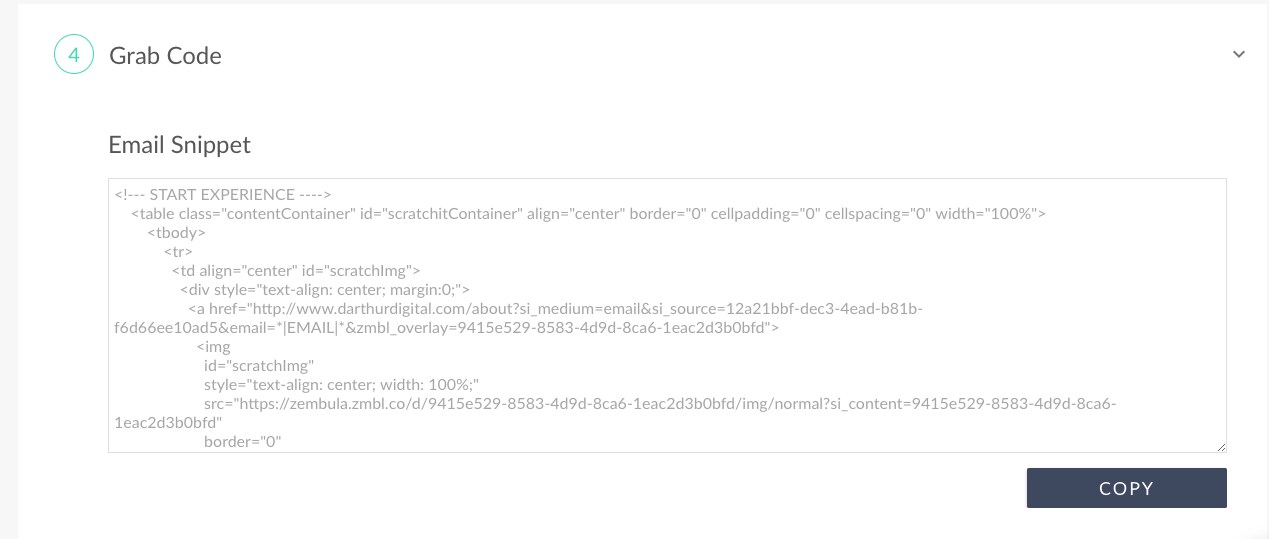 You will need to paste it inside your MoEngage Campaign's Template.
### Step 2: Use this code inside MoEngage Campaigns
To include the code in your MoEngage campaign, on step 2 of the campaign creation-
You will need to paste it inside your MoEngage Campaign's Template.
### Step 2: Use this code inside MoEngage Campaigns
To include the code in your MoEngage campaign, on step 2 of the campaign creation-
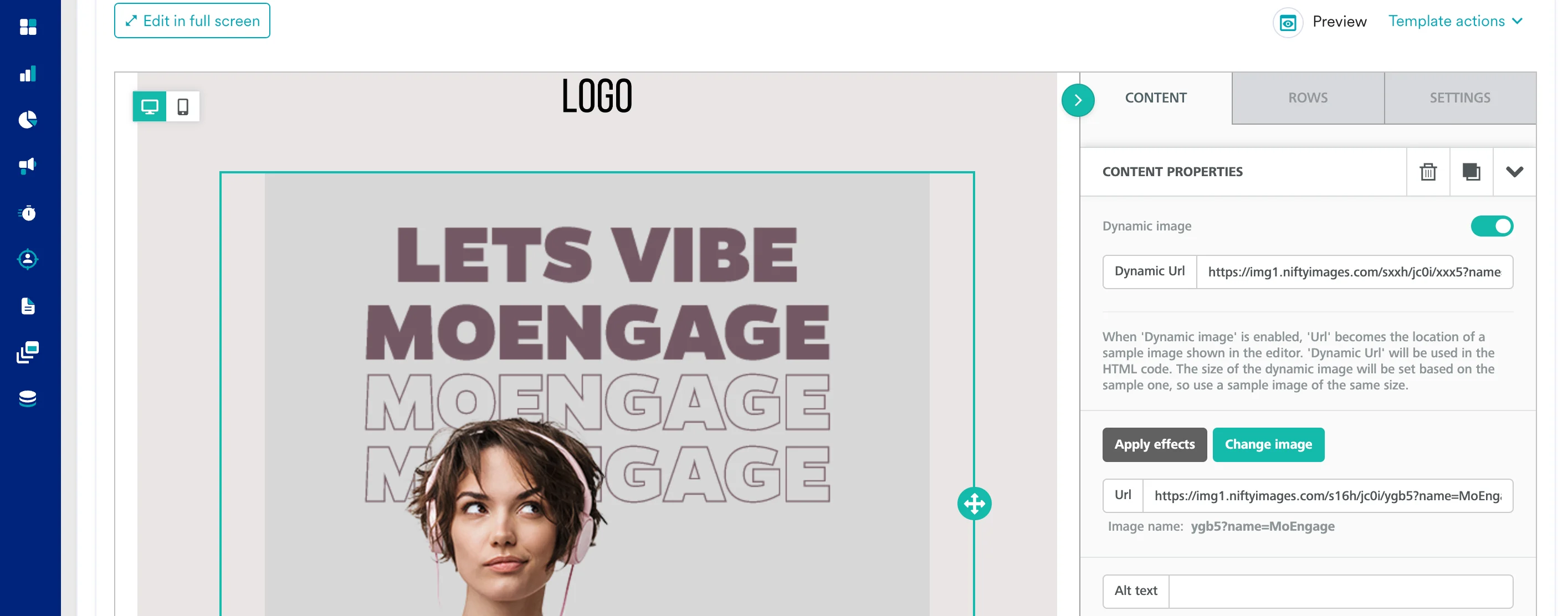 1. Create a new HTML block
2. Paste the copied code from Step 2 inside HTML Block. You can also insert the HTML code directly while creating your template from the scratch.
You can choose to view the Preview by clicking on the Preview icon or test your campaign.
[Follow](https://support.iterable.com/hc/en-us/articles/360020641632-Wove-Iterable-Integration/subscription.html "Opens a sign-in dialog")
1. Create a new HTML block
2. Paste the copied code from Step 2 inside HTML Block. You can also insert the HTML code directly while creating your template from the scratch.
You can choose to view the Preview by clicking on the Preview icon or test your campaign.
[Follow](https://support.iterable.com/hc/en-us/articles/360020641632-Wove-Iterable-Integration/subscription.html "Opens a sign-in dialog")