> ## Documentation Index
> Fetch the complete documentation index at: https://moengage.com/docs/llms.txt
> Use this file to discover all available pages before exploring further.
# Configure ICS
# Introduction
ICS provides SMS Gateways. It helps integrate smart SMS, including the latest Google-verified SMS campaign, into your omni channel marketing strategy.
**Prerequisites** Ensure that you have the login credentials such as ***UserId*** and ***bearer auth token*** for the SMS ICS Account.
If you have any issues with the credentials or if you do not have the credentials, contact ICS support.
# Configure SMS Connector (Service Provider)
Log in to the MoEngage Dashboard by performing the following steps:
1. Navigate to **Settings** > **Channel** > **SMS** > **Sender configuration**.
2. Select **ICS** in the **Add Sender** screen.
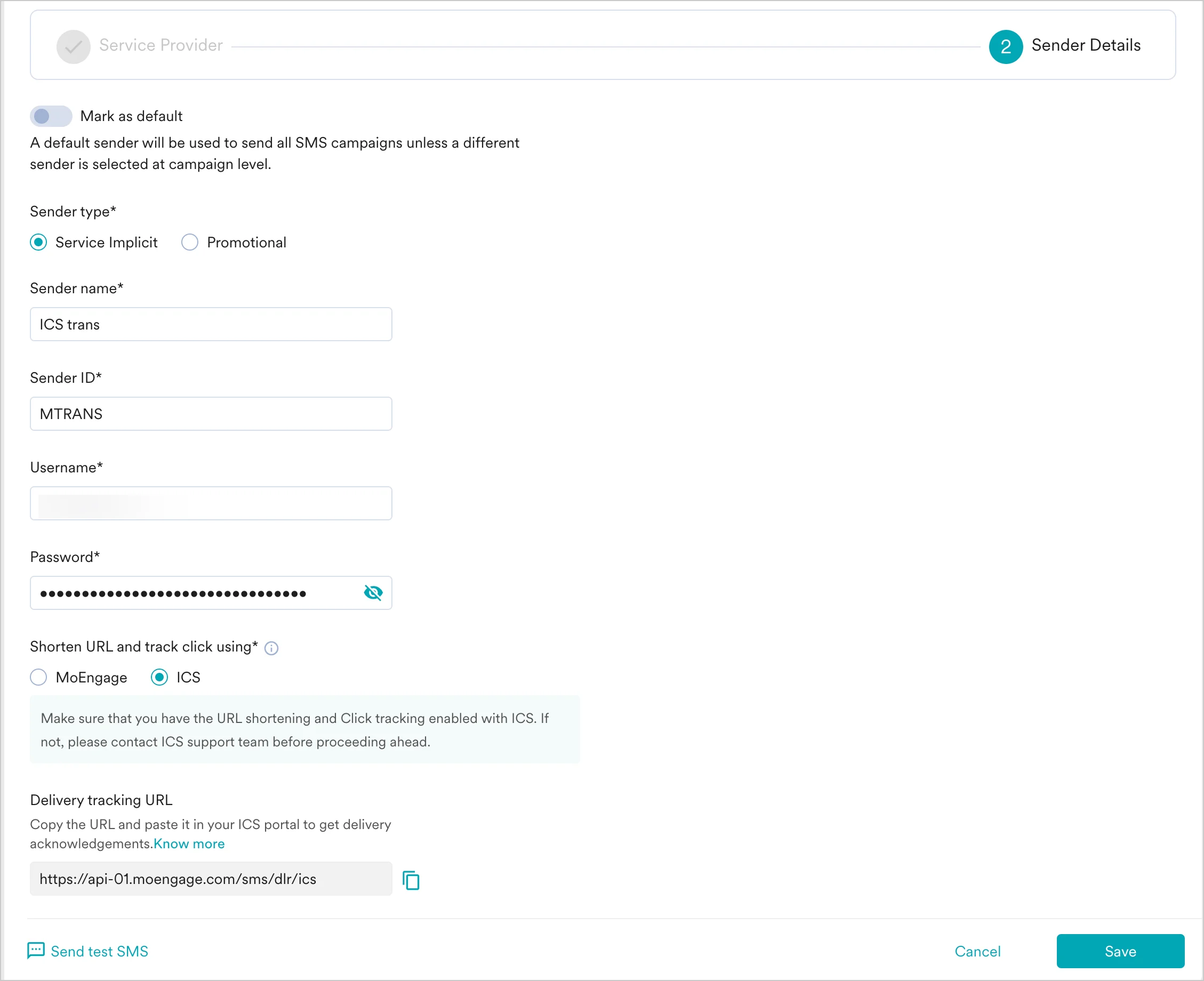
3. Add the following details in the **Sender Details** screen.
| Field | Description |
| - | - |
| **Mark as default** | This toggle will be disabled during sender creation. The first sender to be created in your MoEngage account will be marked as the default sender for your SMS campaigns. You can change the default sender by following the steps mentioned in [Marking a sender as default](/docs/user-guide/campaigns-and-channels/sms-mms-and-rcs/sms/getting-started-with-sms/configure-an-sms-sender). |
| **Sender name** | This field identifies the readable sender name that can be used while creating a campaign or alert. |
| **Sender type** | The Sender type can either be one of the following:
1. **Service Implicit**
2. **Promotional**
Select the appropriate sender type. |
| **Sender ID** | This is the number from which SMS will be sent to your users. |
| **Username** | This is the username of your ICS account. |
| **Password** | This is the password of your ICS account. |
| **Shorten URL and track click using** | Select MoEngage if you want MoEngage to track your clicks. Select ICS if you want ICS to track your clicks. For ICS click tracking, contact ICS support to enable it and set the clicks callback URL on your ICS account first. For details, see [URL Shortening and Click Tracking](#url-shortening-and-click-tracking). |
| **Delivery tracking URL** | Copy the Delivery tracking URL and ask ICS support to set it as your delivery callback. For details, see [Delivery Callback](#delivery-callback). |
4. **Send a test SMS** to verify your configuration.
5. Click **Save** to save the Sender Configuration.
 ## Delivery Callback
To track SMS delivery receipts, you must set the MoEngage delivery callback URL on your ICS account. Use the callback URL for your data center:
`https://api-0X.moengage.com/sms/dlr/ics`
Replace `0X` with your workspace's data center number (for example, `api-03` for DC-03). To find your data center, see [Data Centers in MoEngage](/docs/user-guide/data/key-concepts/data-centers-in-moengage#list-of-data-centers). This URL also appears on the SMS Settings page.
To configure this callback, share the URL with ICS support and ask them to set it as the delivery callback on your ICS account.
Delivery receipts are not tracked until this callback URL is configured on your ICS account.
## URL Shortening and Click Tracking
For ICS, you can also use the URL shortening and click tracking feature provided by ICS. To enable it, select **ICS** in the **Shorten URL and track click using** field when configuring the sender.
To use ICS click tracking, contact ICS support to enable it for your account, and set the clicks callback URL on your ICS account:
`https://api-0X.moengage.com/sms/clicks/ics`
Replace `0X` with your workspace's data center number. With ICS click tracking, MoEngage tracks click receipts.
To use MoEngage URL shortening and click tracking instead, you do not need to set the clicks callback URL on ICS.
# Next Steps
* Create an SMS campaign using the [Getting Started for creating SMS campaign](/docs/user-guide/campaigns-and-channels/sms-mms-and-rcs/sms/create-an-sms-campaign).
* Set the [Frequency Capping for SMS](/docs/user-guide/settings/channels/delivery-controls/frequency-capping).
* Set the [Current Service Provider](/docs/user-guide/campaigns-and-channels/sms-mms-and-rcs/sms/getting-started-with-sms/configure-an-sms-sender).
This documentation is built and hosted on [Mintlify](https://mintlify.com), a developer documentation platform.
## Delivery Callback
To track SMS delivery receipts, you must set the MoEngage delivery callback URL on your ICS account. Use the callback URL for your data center:
`https://api-0X.moengage.com/sms/dlr/ics`
Replace `0X` with your workspace's data center number (for example, `api-03` for DC-03). To find your data center, see [Data Centers in MoEngage](/docs/user-guide/data/key-concepts/data-centers-in-moengage#list-of-data-centers). This URL also appears on the SMS Settings page.
To configure this callback, share the URL with ICS support and ask them to set it as the delivery callback on your ICS account.
Delivery receipts are not tracked until this callback URL is configured on your ICS account.
## URL Shortening and Click Tracking
For ICS, you can also use the URL shortening and click tracking feature provided by ICS. To enable it, select **ICS** in the **Shorten URL and track click using** field when configuring the sender.
To use ICS click tracking, contact ICS support to enable it for your account, and set the clicks callback URL on your ICS account:
`https://api-0X.moengage.com/sms/clicks/ics`
Replace `0X` with your workspace's data center number. With ICS click tracking, MoEngage tracks click receipts.
To use MoEngage URL shortening and click tracking instead, you do not need to set the clicks callback URL on ICS.
# Next Steps
* Create an SMS campaign using the [Getting Started for creating SMS campaign](/docs/user-guide/campaigns-and-channels/sms-mms-and-rcs/sms/create-an-sms-campaign).
* Set the [Frequency Capping for SMS](/docs/user-guide/settings/channels/delivery-controls/frequency-capping).
* Set the [Current Service Provider](/docs/user-guide/campaigns-and-channels/sms-mms-and-rcs/sms/getting-started-with-sms/configure-an-sms-sender).
This documentation is built and hosted on [Mintlify](https://mintlify.com), a developer documentation platform.